## What people say
> What's next get AI to answer your flashcards for you?
> — grei_earl (Reddit)
> I love this. The README is extremely detailed and clear, and using
> AnkiConnect to edit decks in-place avoids the usual apkg headaches.
> — rahimnathwani (Hacker News)
> This is cool!
> — Hsaeedx (Reddit)
## Example workflows
- **Bulk-verify translations** – End-to-end pipeline for cleaning large decks.
[Read more](#example-use-case-fixing-1000-japanese-translations)
- **Add a Key Vocabulary field** – Create a per-note field highlighting 1–3 key
words with readings, meanings, and HTML context.
[Read more](#example-use-case-adding-a-key-vocabulary-field)
- **Generate new cards** – Interactively create multiple contextual flashcards
for a vocabulary word or concept from a single command.
[Read more](#example-use-case-generating-new-vocabulary-cards)
- **Add TTS audio** – Bulk-fill audio fields for existing notes or synthesize
audio for newly generated cards. [Read more](#anki-llm-tts)
- **AI-assisted card template editing** – Pull note type HTML + CSS to local
files so coding agents (Claude Code, Cursor, etc.) can redesign card
layouts, then push changes back to Anki.
[Read more](#anki-llm-note-type)
- **Scriptable collection access** – Query AnkiConnect directly from the CLI or
AI agents. [Command reference](#anki-llm-query-action-params)
## Why?
Hand-editing a large Anki collection is slow and error-prone. Verifying
translations, adding grammar notes, generating contextual examples: doing it
card by card is impractical at any real size.
`anki-llm` provides a bridge between your Anki collection and modern AI models.
**Batch processing**
- **File-based**: _Export_ deck to file, _process_ with LLM, _import_ results
back to Anki.
- **Direct**: Process and update notes in-place.
**Card generation**
Generate multiple contextual flashcard examples for a term, review
interactively, and add selected cards to your deck.
## Features
- **Batch processing workflows**: File-based (with resume) or direct-to-Anki
(one command).
- **Export** Anki decks to clean CSV or YAML files.
- **Batch process** note fields using any OpenAI-compatible LLM (OpenAI, Gemini,
OpenRouter, Ollama, and more).
- **Custom prompts**: Use flexible template files to define exactly how the LLM
should process your cards.
- **Concurrent processing**: Make multiple parallel API requests to speed up
large jobs.
- **Resilient**: Automatically retries failed requests and saves progress
incrementally (file mode).
- **Automatic resume**: Pick up where you left off if processing is interrupted
(file mode).
- **Copy mode**: Alternatively, generate cards without API keys by pasting LLM
responses from browser interfaces (ChatGPT, Claude, etc.).
- **TTS audio**: Generate text-to-speech audio for notes with `anki-llm tts`
(bulk-fill existing decks) or `anki-llm generate` (auto-finalize audio for
newly generated cards at import time, with an in-TUI preview hotkey).
## Installation
### Quick install
```sh
curl -fsSL https://raw.githubusercontent.com/raine/anki-llm/main/scripts/install.sh | bash
```
### Homebrew (macOS/Linux)
```sh
brew install raine/anki-llm/anki-llm
```
### Cargo
```sh
cargo install anki-llm
```
## Requirements
- Anki Desktop with the
[AnkiConnect](https://ankiweb.net/shared/info/2055492159) add-on installed
([Why?](#why-ankiconnect)). Must be running for any command that talks to your
collection; `process-file` works while Anki is closed.
## LLM Configuration
`anki-llm` works with any LLM that exposes an OpenAI-compatible chat completions
API. This includes OpenAI, Google Gemini, xAI, OpenRouter, Ollama, and many other
providers.
### Quick start: OpenAI, Gemini, DeepSeek, or Grok
Set the appropriate environment variable and you're ready to go:
```bash
# OpenAI
export OPENAI_API_KEY="your-api-key-here"
# Google Gemini
export GEMINI_API_KEY="your-api-key-here"
# DeepSeek
export DEEPSEEK_API_KEY="your-api-key-here"
# xAI / Grok
export XAI_API_KEY="your-api-key-here"
```
Get your API key from [OpenAI](https://platform.openai.com/api-keys),
[Google AI Studio](https://aistudio.google.com/api-keys),
[DeepSeek](https://platform.deepseek.com/api_keys), or
[xAI](https://console.x.ai/team/default/api-keys).
OpenAI, Gemini, DeepSeek, and Grok models are auto-detected from the model name
prefix and work with zero additional configuration.
### Using OpenRouter
[OpenRouter](https://openrouter.ai) provides access to hundreds of models
through a single API key:
```bash
export ANKI_LLM_API_KEY="your-openrouter-key"
anki-llm generate "今日" \
--api-base-url https://openrouter.ai/api/v1 \
--model anthropic/claude-sonnet-4
```
Or configure it persistently:
```bash
anki-llm config set api_base_url https://openrouter.ai/api/v1
anki-llm config set model anthropic/claude-sonnet-4
export ANKI_LLM_API_KEY="your-openrouter-key"
```
### Using Ollama or local servers
For local inference servers (Ollama, llama.cpp, vLLM, etc.), point to your
server's URL. No API key is needed:
```bash
anki-llm generate "今日" \
--api-base-url http://localhost:11434/v1 \
--model llama3
```
### Any OpenAI-compatible API
Any service that exposes the OpenAI `/v1/chat/completions` endpoint works
(Together, Fireworks, Groq, etc.):
```bash
anki-llm process-file input.yaml -o output.yaml -p prompt.md \
--api-base-url https://api.together.xyz/v1 \
--api-key your-key \
--model meta-llama/Llama-3-70b-chat-hf
```
### Provider configuration options
| Setting | CLI flag | Environment variable | Config key |
| ----------------------- | ---------------- | ----------------------- | ------------------------- |
| API base URL | `--api-base-url` | `ANKI_LLM_API_BASE_URL` | `api_base_url` |
| API key | `--api-key` | `ANKI_LLM_API_KEY` | - |
| Model | `--model` / `-m` | - | `model` |
| Gemini thinking | - | - | `gemini_thinking_enabled` |
**Precedence:** CLI flag > environment variable > config file > auto-detect.
For built-in providers (OpenAI, Gemini, DeepSeek, xAI), the provider-specific
environment variables (`OPENAI_API_KEY`, `GEMINI_API_KEY`, `DEEPSEEK_API_KEY`,
`XAI_API_KEY`) are used as a fallback when `ANKI_LLM_API_KEY` is not set.
### Known models with pricing
Cost estimates are displayed for known models. Any model name is accepted; cost
display is simply skipped for models without pricing data.
Pricing table
| Model | Input | Output | |
| ------------------------------- | ------- | -------- | -------------------------------------------------------------------------------- |
| **OpenAI models** |
| `gpt-4.1` | $2.00/M | $8.00/M | [🔗](https://platform.openai.com/docs/models/gpt-4.1) |
| `gpt-4.1-mini` | $0.40/M | $1.60/M | [🔗](https://platform.openai.com/docs/models/gpt-4.1-mini) |
| `gpt-4.1-nano` | $0.10/M | $0.40/M | [🔗](https://platform.openai.com/docs/models/gpt-4.1-nano) |
| `gpt-4o` | $2.50/M | $10.00/M | [🔗](https://platform.openai.com/docs/models/gpt-4o) |
| `gpt-4o-mini` | $0.15/M | $0.60/M | [🔗](https://platform.openai.com/docs/models/gpt-4o-mini) |
| `gpt-5` | $1.25/M | $10.00/M | [🔗](https://platform.openai.com/docs/models/gpt-5) |
| `gpt-5-mini` | $0.25/M | $2.00/M | [🔗](https://platform.openai.com/docs/models/gpt-5-mini) |
| `gpt-5-nano` | $0.05/M | $0.40/M | [🔗](https://platform.openai.com/docs/models/gpt-5-nano) |
| `gpt-5.1` | $1.25/M | $10.00/M | [🔗](https://platform.openai.com/docs/models/gpt-5.1) |
| `gpt-5.2` | $1.75/M | $14.00/M | [🔗](https://platform.openai.com/docs/models/gpt-5.2) |
| `gpt-5.3` | $1.75/M | $14.00/M | [🔗](https://platform.openai.com/docs/models/gpt-5.3) |
| `gpt-5.4` | $2.50/M | $15.00/M | [🔗](https://platform.openai.com/docs/models/gpt-5.4) |
| `gpt-5.4-mini` | $0.75/M | $4.50/M | [🔗](https://platform.openai.com/docs/models/gpt-5.4-mini) |
| `gpt-5.4-nano` | $0.20/M | $1.25/M | [🔗](https://platform.openai.com/docs/models/gpt-5.4-nano) |
| **Google Gemini models** |
| `gemini-2.0-flash` | $0.10/M | $0.40/M | [🔗](https://ai.google.dev/gemini-api/docs/models#gemini-2.0-flash) |
| `gemini-2.5-flash` | $0.30/M | $2.50/M | [🔗](https://ai.google.dev/gemini-api/docs/models#gemini-2.5-flash) |
| `gemini-2.5-flash-lite` | $0.10/M | $0.40/M | [🔗](https://ai.google.dev/gemini-api/docs/models#gemini-2.5-flash-lite) |
| `gemini-2.5-pro` | $1.25/M | $10.00/M | [🔗](https://ai.google.dev/gemini-api/docs/models#gemini-2.5-pro) |
| `gemini-3-flash-preview` | $0.50/M | $3.00/M | [🔗](https://ai.google.dev/gemini-api/docs/models#gemini-3-flash-preview) |
| `gemini-3.1-flash-lite-preview` | $0.25/M | $1.50/M | [🔗](https://ai.google.dev/gemini-api/docs/models#gemini-3.1-flash-lite-preview) |
| `gemini-3.1-pro-preview` | $2.00/M | $12.00/M | [🔗](https://ai.google.dev/gemini-api/docs/models#gemini-3.1-pro-preview) |
| **DeepSeek models** |
| `deepseek-v4-flash` | $0.14/M | $0.28/M | [🔗](https://api-docs.deepseek.com/quick_start/pricing) |
| `deepseek-v4-pro` | $1.74/M | $3.48/M | [🔗](https://api-docs.deepseek.com/quick_start/pricing) |
| **xAI models** |
| `grok-4.3` | $1.25/M | $2.50/M | [🔗](https://docs.x.ai/docs/models) |
Pricing is per million tokens (M). Check the latest prices on the provider's
website to be sure.
## Configuration
Use `anki-llm config` to store defaults (for example, the model and API base
URL) so you don't have to repeat flags on every command.
```bash
# Set or override defaults
anki-llm config set model gpt-4o-mini
anki-llm config set api_base_url https://openrouter.ai/api/v1
# WSL or remote Anki: point at a non-default AnkiConnect host
anki-llm config set anki_connect_url http://192.168.1.100:8765
# Disable Gemini thinking in the generate TUI
anki-llm config set gemini_thinking_enabled false
```
Config file lives at `~/.config/anki-llm/config.json`.
### Prompts directory
Prompt files live in a **workspace**: any directory with a `prompts/` folder.
When you run `anki-llm` from a workspace, its prompts are used automatically,
so commands like `anki-llm generate` work without the `-p` flag.
```bash
# Create a workspace and a starter prompt
anki-llm workspace init
anki-llm generate-init # saves to ./prompts/
# Generate cards (no -p needed)
anki-llm generate "今日"
```
If you have **one prompt**, it's used automatically. If you have **multiple
prompts**, an interactive picker is shown where you can select which one to use.
The last-used prompt is remembered and pre-selected next time.
To use a workspace from outside it (so `anki-llm generate`, `note-type`, etc.
work from any directory), set it as the default workspace:
```bash
anki-llm config set default_workspace ~/anki
```
This single setting provides the workspace's `prompts/`, `note-types/`, and
`anki-llm.yaml` (default model) as fallbacks whenever you run anki-llm outside
a workspace.
### Workspaces (recommended for version control)
A workspace is just a directory that contains a `prompts/` folder (and
optionally an `anki-llm.yaml` settings file). When you run anki-llm from a
workspace, its `prompts/` directory is used automatically.
```bash
# Create a workspace in the current directory
anki-llm workspace init
# Or just create the folder yourself
mkdir prompts
# Check if the current directory is a workspace
anki-llm workspace info
```
`anki-llm.yaml` is optional; use it for per-directory settings like a default
model:
```yaml
default_model: gemini-2.5-flash
```
This takes precedence over the config file model but yields to `--model` on the
CLI.
Workspaces are especially useful if you want to keep prompts in git alongside
your deck data.
Prompt files can include optional `title` and `description` fields in their
frontmatter for a better picker experience:
```yaml
---
title: Japanese Vocabulary
description: Contextual sentence cards with readings
deck: Japanese::Vocabulary
note_type: Japanese (recognition)
field_map:
en: English
jp: Japanese
---
```
---
## Commands reference
- [`export`](#anki-llm-export) - Export deck to file
- [`import`](#anki-llm-import-input) - Import data to deck
- [`process-file`](#anki-llm-process-file-input) - Process notes from file with
AI
- [`process-deck`](#anki-llm-process-deck) - Process notes from deck with AI
- [`history`](#anki-llm-history) - List past process-deck runs
- [`rollback`](#anki-llm-rollback-run-id) - Undo a process-deck run
- [`generate-init`](#anki-llm-generate-init-output) - Create prompt template for
generate
- [`generate`](#anki-llm-generate-term) - Generate new cards for a term
- [`tts`](#anki-llm-tts) - Generate TTS audio for notes and upload to Anki
- [`tts-voices`](#anki-llm-tts-voices) - Browse and audition TTS voices
- [`query`](#anki-llm-query-action-params) - Query AnkiConnect API
### `anki-llm export`
Exports notes from Anki. Select notes by deck name or by an Anki search query.
- ``: The name of the Anki deck to export.
- `-q, --query`: Anki search query to select notes (alternative to deck name).
One of `` or `--query` is required (mutually exclusive).
**Options:**
- `-o, --output`: Output file path. When using a deck name, this is optional; a
filename is auto-generated from the deck name (e.g., `"My Deck"` →
`my-deck.yaml`). When using `--query`, an output path is required.
- `-n, --note-type`: Filter by note type (required if results contain multiple
note types).
**Examples:**
```bash
# Export a deck (auto-generate filename)
anki-llm export "Japanese Core 1k"
# → japanese-core-1k.yaml
# Export a deck to CSV
anki-llm export "Japanese Core 1k" -o japanese.csv
# Export only cards missing an audio field
anki-llm export --query "deck:Japanese -field:Audio" -o missing-audio.yaml
# Export leeches across all decks
anki-llm export --query "tag:leech" -o leeches.yaml
# Export cards failed in the last 7 days
anki-llm export --query "rated:7:1" -o recent-failures.yaml
```
### `anki-llm import `
Imports data from a file into an Anki deck. Existing notes (matched by key
field) are updated, while new entries create new notes.
- ``: Path to the data file to import (CSV or YAML).
**Required options:**
- `-d, --deck`: The name of the target Anki deck.
**Common options:**
- `-n, --note-type`: The Anki note type to use when creating new notes. If not
specified, it will be inferred from existing notes in the deck.
- `-k, --key-field`: Field to use for identifying existing notes. If not
specified, auto-detects using this priority: (1) `noteId` column if present,
(2) first field of the note type, (3) error if neither found.
---
### `anki-llm process-file `
Batch-process notes from a CSV/YAML file using an LLM and user-defined prompts.
This command saves the transformed results to an output file and features
automatic resume, allowing it to safely skip completed notes if interrupted or
re-run. Runs as an interactive TUI in a terminal, or prints a progress bar when
output is piped.
- ``: Input file path (CSV or YAML).
**Required options:**
- `-o, --output`: Output file path (CSV or YAML).
- `-p, --prompt`: Path to the prompt file. The prompt file **must** begin with a
YAML frontmatter block that declares the output field; see
[Prompt file format](#prompt-file-format).
**Common options:**
- `-m, --model`: AI model to use (required unless set via `config set model`).
- `-b, --batch-size`: Number of concurrent API requests (default: `5`).
- `-r, --retries`: Number of retries for failed requests (default: `3`).
- `-d, --dry-run`: Preview the operation without making API calls (recommended
for testing).
- `-P, --preview`: Process a small sample of cards with the LLM and show a
diff-like summary of what would change. Prompts for confirmation before
proceeding with the full run.
- `--preview-count`: Number of cards to process in preview mode (default: `3`).
- `-f, --force`: Re-process all rows, ignoring existing output.
- `--limit`: Limit the number of new rows to process (useful for testing prompts
on a small sample before processing large datasets).
- `--log `: Append raw LLM prompts and responses to a log file at ``
for debugging.
- `--very-verbose`: Also print raw LLM prompts and responses to stderr. Useful
for debugging prompts and understanding model outputs.
**Prompt file format:**
`process-file` and `process-deck` share a single prompt file format. Each prompt
is a text file that begins with a YAML frontmatter block:
```
---
output:
field: Translation # required: Anki field to write
require_result_tag: true # optional, default false
---
You are an expert Japanese-to-English translator.
Translate this sentence: {Japanese}
Existing translation for reference: {English}
Wrap your final answer in tags.
```
- `output.field`: the Anki field name that receives the LLM's response.
- `output.require_result_tag`: when `true`, only the content inside the last
`...` pair in the response is written; without tags, the row
fails. Lets the model "think out loud" before committing to an answer.
The body uses `{field_name}` placeholders referring to raw Anki field names
(case-insensitive). Unknown placeholders cause a per-row error.
See [`examples/`](examples/) for complete prompts and the
[translation walkthrough](#example-use-case-fixing-1000-japanese-translations)
for an end-to-end tutorial.
**Workflow:**
1. Export deck to file: `anki-llm export "My Deck" -o notes.yaml`
2. Process file:
`anki-llm process-file notes.yaml -o output.yaml -p prompt.md -m gpt-4o-mini`
3. Import results: `anki-llm import output.yaml -d "My Deck"`
**Examples:**
```bash
# Process a file
anki-llm process-file notes.yaml -o output.yaml -p prompt.md -m gpt-4o-mini
# Preview the first 10 notes without calling the API
anki-llm process-file notes.yaml -o output.yaml -p prompt.md --limit 10 --dry-run -m gpt-4o-mini
# Preview 3 cards with the LLM, then proceed if satisfied
anki-llm process-file notes.yaml -o output.yaml -p prompt.md --preview -m gpt-4o-mini
# Resume processing after interruption (automatic - just re-run the same command)
anki-llm process-file notes.yaml -o output.yaml -p prompt.md -m gpt-4o-mini
# Force re-process all notes (ignore existing output)
anki-llm process-file notes.yaml -o output.yaml -p prompt.md --force -m gpt-4o-mini
```
Use `process-file` when you want a reviewable staging file, resume support for
large runs, or when Anki isn't running. Use `process-deck` when you want to
update notes directly in-place.
---
### `anki-llm process-deck`
Batch-process notes directly in Anki using an LLM and user-defined prompts,
updating them in-place. No intermediate files needed. Select notes by deck name
or by an Anki search query. Runs as an interactive TUI in a terminal, or prints
a progress bar when output is piped.
- ``: Name of the Anki deck to process.
- `-q, --query`: Anki search query to select notes (alternative to deck name).
One of `` or `--query` is required (mutually exclusive).
**Required options:**
- `-p, --prompt`: Path to the prompt file. Must begin with a YAML frontmatter
block declaring the output field; see
[Prompt file format](#prompt-file-format).
**Common options:**
- `-m, --model`: AI model to use (required unless set via `config set model`).
- `-b, --batch-size`: Number of concurrent API requests (default: `5`).
- `-r, --retries`: Number of retries for failed requests (default: `3`).
- `-d, --dry-run`: Preview the operation without making API calls (recommended
for testing).
- `-P, --preview`: Process a small sample of cards with the LLM and show a
diff-like summary of what would change. Prompts for confirmation before
proceeding with the full run.
- `--preview-count`: Number of cards to process in preview mode (default: `3`).
- `--limit`: Limit the number of notes to process (useful for testing prompts on
a small sample before processing entire deck).
- `-f, --force`: Re-process notes even if the target field already has content.
By default, `process-deck` skips notes where the output field is populated to
avoid overwriting existing data.
- `--log `: Append raw LLM prompts and responses to a log file at ``
for debugging.
- `--very-verbose`: Also print raw LLM prompts and responses to stderr. Useful
for debugging prompts and understanding model outputs.
**Prerequisites:**
- Anki Desktop must be running
- AnkiConnect add-on must be installed
**Examples:**
```bash
# Process a deck directly
anki-llm process-deck "Japanese Core 1k" -p prompt.md
# Preview the first 10 notes without calling the API
anki-llm process-deck "My Deck" -p prompt.md --limit 10 --dry-run
# Preview 3 cards with the LLM, then proceed if satisfied
anki-llm process-deck "My Deck" -p prompt.md --preview
# Rewrite explanations only for cards you keep failing
anki-llm process-deck --query "deck:Japanese prop:lapses>5" -p prompt.md
# Add mnemonics to leeches
anki-llm process-deck --query "tag:leech" -p prompt.md
# Fix cards you got wrong in the last 7 days
anki-llm process-deck --query "rated:7:1" -p prompt.md
# Re-process everything, overwriting existing data
anki-llm process-deck "My Deck" -p prompt.md --force
```
**Undoing a run:**
Every `process-deck` run is automatically snapshotted. The run ID is printed at
the end; pass it to `anki-llm rollback ` to revert all changes. Use
[`anki-llm history`](#anki-llm-history) to list past runs.
`process-deck` does not support resume; use `process-file` for large runs where
interruptions are likely. Failed notes are logged to `-errors.jsonl`
in the working directory.
---
### `anki-llm history`
Lists past `process-deck` runs that have snapshot data available.
```
$ anki-llm history
Run ID Source Model Notes Status
──────────────────────────────────────────────────────────────────────────────────────
20260411T153000_123Z Japanese Core gpt-5-mini 142 ok
20260410T091500_456Z query: tag:leech gpt-5-mini 50 rolled back
```
Snapshots are stored in `~/.local/state/anki-llm/snapshots/`.
---
### `anki-llm rollback `
Restores notes to their state before a `process-deck` run. The run ID is shown
after each `process-deck` completes and can be found via `anki-llm history`.
```bash
anki-llm rollback 20260411T153000_123Z
```
Before restoring, the command checks each note for conflicts: if a field was
manually edited in Anki after the run, that note is skipped. Use `--force` to
override conflict detection.
**Options:**
- `--force`: Rollback even if notes were modified after the run.
- `-d, --dry-run`: Preview what would be restored without making changes.
**Examples:**
```bash
# Preview what would be rolled back
anki-llm rollback 20260411T153000_123Z --dry-run
# Force rollback despite conflicts
anki-llm rollback 20260411T153000_123Z --force
```
---
### `anki-llm generate-init [output]`
Interactively creates a prompt template file for the `generate` command. The
wizard guides you through selecting a deck and note type, then uses an LLM to
analyze your existing cards and generate a tailored prompt that matches your
deck's style and formatting. This is the recommended way to get started with
card generation.
- `[output]`: Optional output file path. If omitted, saves to your workspace's
`prompts/-prompt.md` (or the default workspace's `prompts/`).
**Common options:**
- `-m, --model`: The LLM model to use for the smart prompt generation step.
- `-t, --temperature`: Temperature for LLM generation (0.0-2.0, default varies
by model). Lower values produce more consistent output.
- `--copy`: Copy the LLM prompt to clipboard and wait for manual response
pasting. Useful when you don't have API access and want to use a browser LLM
interface like ChatGPT.
> [!TIP]
> Using a more capable reasoning model like `gemini-3.1-pro-preview` for the
> `generate-init` step can produce higher-quality prompt templates that better
> capture the nuances and style of your existing cards.
**Workflow:**
1. Run the wizard: `anki-llm generate-init`
2. Follow the interactive steps to select a deck and note type.
3. A prompt file is saved to your workspace's prompts directory (e.g.,
`./prompts/vocabulary-prompt.md`).
4. Review and customize the generated prompt file.
5. Use it with the `generate` command: `anki-llm generate "term"` (the prompt is
found automatically).
---
### `anki-llm generate `
Generates multiple new Anki card examples for a given term, lets you review and
select which ones to keep, and adds them directly to your deck.
The command launches an interactive terminal UI. You can also omit `` to
enter it in the TUI directly, which lets you generate cards for multiple terms
in a single session.
- ``: The word or phrase to generate cards for (must be in quotes if it
contains spaces). Optional; can be entered in the TUI.
**Common options:**
- `-p, --prompt`: Path to the prompt template file. If omitted, auto-resolved
from your [prompts directory](#prompts-directory) (single prompt is used
directly; multiple prompts show a picker).
- `-c, --count`: Number of card examples to generate (default: `3`).
- `-m, --model`: AI model to use (defaults to `gpt-5-mini` or `gemini-2.5-flash`
depending on your API key; can also be set via `config set model`).
- `-d, --dry-run`: Display generated cards without starting the interactive
selection or import process.
- `-r, --retries`: Number of retries for failed requests (default: `3`).
- `-t, --temperature`: LLM temperature, a value between 0 and 2 that controls
creativity (default: `1.0`).
- `--max-tokens`: Set a maximum number of tokens for the LLM response.
- `-o, --output`: Export cards to a file instead of importing to Anki (e.g.,
`cards.yaml`, `cards.csv`).
- `--log `: Append raw LLM prompts and responses to a log file at ``
for debugging.
- `--copy`: Copy the LLM prompt to clipboard and wait for manual response
pasting. Useful when you don't have API access and want to use a browser LLM
interface like ChatGPT.
#### Interactive TUI
The generate command runs in a full-screen terminal UI. Enter a term, review the
generated cards, and confirm which ones to import. Duplicates are flagged
against your existing deck with a field-by-field diff. You can regenerate a card
with feedback, edit any card in your `$EDITOR`, switch models mid-session, or
queue multiple terms for batch processing.
If the prompt declares a `tts:` block and a system audio player is available,
press `p` to preview the focused card's audio in selection and replay imported
audio from the summary; audio for selected cards is finalized automatically at
import time.
When a supported thinking model from Gemini, DeepSeek, or Grok emits raw
reasoning during the primary generation request, the running view shows it live in
a temporary Thinking block above the log. This stream is for display only: it is
cleared when generation finishes and is not written to prompt/response logs.
Gemini thinking can be disabled with
`anki-llm config set gemini_thinking_enabled false`, which uses the normal
non-thinking Gemini request path instead.
Press `?` at any time to see keyboard shortcuts for the current mode. Token
usage and estimated cost are tracked in the sidebar across the session.
#### **Understanding the Prompt File**
The `--prompt` file is a text or markdown file that contains two parts: YAML
frontmatter for configuration and a prompt body with instructions for the LLM.
**Frontmatter (Required)**
The frontmatter is a YAML block at the top of the file enclosed by `---`.
- `deck`: The target Anki deck name.
- `note_type`: The name of the Anki note type (model) to use.
- `field_map`: Maps the keys from the LLM's JSON output to your actual Anki
field names. The LLM will be instructed to generate JSON with the keys on the
left, and `anki-llm` will use them to populate the Anki fields on the right.
- `processing` (optional): Runs LLM processing steps before and/or after card
selection. Supports two step types: `transform` (rewrite fields) and `check`
(quality verification with pass/flag/reject verdicts).
##### Optional: Processing Steps
Asking a single LLM call to generate content, format fields correctly, add
furigana, and verify quality all at once tends to degrade each individual
aspect. Processing steps let you split this work into a pipeline where each step
handles one concern with a focused prompt. The generation prompt can concentrate
on producing natural, diverse content, while separate steps handle mechanical
tasks like furigana annotation or quality checks, optionally using cheaper,
faster models for those steps.
The `processing` config lets you run LLM steps in two phases:
- **`pre_select`**: Runs after generation, before you choose cards. Useful for
fixing field formatting or filtering out bad cards early.
- **`post_select`**: Runs after selection. Useful for quality checks or final
polishing before import.
Each step is either a **transform** (rewrites card fields) or a **check**
(evaluates card quality).
**Transform: single field:**
Use `target` to rewrite one field:
```yaml
processing:
pre_select:
- type: transform
target: read
model: gpt-4o-mini # Optional: use a different model
prompt: |
Segment this sentence with correct bunsetsu spacing and Kanji[reading] annotations.
Sentence: {kanji}
English meaning: {front}
```
**Transform: multiple fields:**
Use `writes` to update several fields in one LLM call:
```yaml
processing:
pre_select:
- type: transform
writes: [read, context]
prompt: |
Given this Japanese sentence: {kanji}
Provide the reading with furigana and a brief context note.
```
**Check: quality verification:**
Check steps evaluate cards and return `pass`, `flag`, or `reject`:
- **pass**: card continues normally
- **flag**: card is kept but shown with a warning (pre-select flags are
informational in the selection UI; post-select flags trigger a review screen)
- **reject**: card is discarded
```yaml
processing:
post_select:
- type: check
prompt: |
Evaluate if the following text sounds natural in Japanese.
Text: {kanji}
```
You don't need to specify the response format; the system automatically
instructs the LLM to return structured JSON with `result` and `reason` fields.
**Key details:**
- All card fields are available as `{placeholders}` in the prompt.
- Steps within a phase run in order. Later steps see results from earlier ones.
- Cards within each step are processed concurrently.
- Transform steps must declare which fields they write (`target` or `writes`).
Check steps must not have `target`/`writes`.
- Each step can specify its own `model`.
- Not supported in `--copy` mode.
**Prompt Body**
The body contains your instructions for the LLM. It must:
1. Include the `{term}` placeholder, which will be replaced by the `` you
provide on the command line.
2. Include the `{count}` placeholder, which will be replaced by the number of
cards requested.
3. Instruct the LLM to return a JSON array of objects, where each object
represents one card and uses the keys defined in `field_map`.
4. Include a "one-shot" example showing the exact JSON array structure and
desired formatting (e.g., HTML for bolding or lists).
5. Encourage the LLM to generate diverse cards that highlight different nuances,
contexts, or usage examples of the term.
**Example Prompt File (`japanese-vocab-prompt.md`)**
````markdown
---
deck: Japanese::Vocabulary
note_type: Japanese (recognition)
field_map:
en: English
jp: Japanese
context: Context
---
You are an expert assistant who creates {count} distinct Anki flashcards for a
Japanese vocabulary word. The term to create cards for is: **{term}**
IMPORTANT: Your output must be a single, valid JSON array of objects and nothing
else. Each object in the array should represent a unique flashcard. Field values
can be strings or JSON arrays, and arrays are automatically converted into
`
` HTML lists before cards are imported.
Follow the structure shown in this example precisely:
```json
[
{
"en": "How was your day?",
"jp": "今日はどうでしたか?",
"context": "A natural and common way to ask about someone's day politely. You can say 「今日どうだった?」 in casual speech."
}
]
```
Return only a valid JSON array matching this structure. Ensure you generate
{count} varied and high-quality cards that highlight different nuances,
contexts, or usage examples of the term.
````
#### Using `--copy` Mode (Manual LLM Workflow)
The `--copy` flag allows you to generate cards without API keys by manually
copying prompts to a browser-based LLM interface (like ChatGPT, Claude, Gemini,
etc.) and pasting responses back.
**Workflow:**
1. Run the command with `--copy`:
```bash
anki-llm generate "今日" -p prompt.md --copy
```
2. The program automatically copies the LLM prompt to your clipboard.
3. Paste the prompt into your preferred LLM interface (ChatGPT, Claude, etc.).
4. Copy the complete JSON response from the LLM.
5. Paste it into the terminal.
6. Type `END` on a new line and press Enter to submit.
7. The program validates and processes your cards normally.
**Benefits:**
- No API key required
- Use any LLM interface you prefer
- Works with free-tier LLM services
- Full control over the LLM interaction
**Examples:**
```bash
# Generate 3 cards for a term using a prompt file
anki-llm generate "新しい" -p japanese-vocab-prompt.md
# Generate 5 cards and preview them without importing
anki-llm generate "ambiguous" -p english-vocab-prompt.md --count 5 --dry-run
# Use a different model for a specific run
anki-llm generate "maison" -p french-prompt.md -m gemini-2.5-pro
# Generate cards and export to YAML for later review/import
anki-llm generate "今日" -p japanese-vocab-prompt.md -o cards.yaml
# Import the exported cards when ready
anki-llm import cards.yaml --deck "Japanese::Vocabulary"
# Enable logging for debugging
anki-llm generate "新しい" -p prompt.md --log run.log
# Use manual copy-paste mode (no API key required)
anki-llm generate "今日" -p japanese-vocab-prompt.md --copy
# Launch TUI mode (interactive full-screen terminal UI)
anki-llm generate
```
---
### `anki-llm tts`
Generate text-to-speech audio for notes in an Anki deck and upload it to Anki's
media store as `[sound:...]` tags in a target field. Streams notes directly from
AnkiConnect, so there's no intermediate file to manage.
Audio is generated by a pluggable TTS provider (OpenAI, Azure Neural TTS, Google
Cloud Text-to-Speech, Amazon Polly, and Microsoft Edge TTS are supported), cached
on disk, and written to the target field as a `[sound:...]` tag.
For Japanese decks, neural TTS voices routinely mis-read kanji that have
multiple readings (e.g. `日本語` vs `ひのもとのことば`). The fix is to put the
intended reading in the source field next to each kanji cluster using the
convention `漢字[かんじ]`, and `anki-llm tts` routes that reading into the
provider's native pronunciation mechanism:
Each provider gets the furigana routed into its native pronunciation mechanism:
SSML `` tags for Azure, plain-kana substitution for OpenAI, Google, Polly,
and Edge. If you'd rather have the provider read the raw kanji directly, leave
the `[reading]` annotations out; plain text without annotations passes through
unchanged.
Each `[...]` annotation is bound to the immediately preceding run of CJK
characters, so mid-word splits like `転がり込[こ]んだ` and `お父[とう]さん`
parse correctly. How the annotations get into the source field is up to you:
write them by hand, generate them with `anki-llm generate` from an LLM prompt
that emits the format, or paste them from any other tool.
**Quick start:**
```bash
# For every note in the "Japanese" deck with an empty "Audio" field, synthesize
# audio from "Front" and write the [sound:...] reference into "Audio".
# (Notes that already have audio are skipped unless you pass --force.)
anki-llm tts Japanese \
--field Audio \
--text-field Front \
--voice alloy
```
**Using a template instead of a raw field:**
```bash
cat > speak.txt <<'EOF'
{Word}. {ExampleSentence}
EOF
anki-llm tts Japanese \
--field Audio \
--template speak.txt \
--voice nova
```
Templates use the same `{field}` placeholder syntax as `process-deck`.
**Two ways to use it**
`anki-llm tts` has two first-class modes:
1. **Flag mode** (shown in the quick start above): pass voice / target field /
source text / provider on the CLI. Best for one-shot fills, trying TTS for
the first time, or processing decks you don't maintain.
2. **Prompt mode** (`--prompt `): read the deck's TTS settings from a
YAML frontmatter alongside its LLM prompt. Best for decks you maintain in
version control, where the voice and source-text strategy are inherent to the
deck's design.
**Using a prompt YAML**
The TTS settings for a deck (voice, model, target field, source text) are
usually fixed and belong with the rest of the deck's design. They can be
declared in the same YAML frontmatter `anki-llm generate` uses, under a
top-level `tts:` block. **Both** `anki-llm tts --prompt` (for bulk-filling
existing notes) and `anki-llm generate` (for new cards) read the same block;
generate synthesizes + uploads audio for the cards you confirm at import time,
and offers an in-TUI `p` preview hotkey while you're reviewing them. TTS
credentials are read from environment variables and
`~/.config/anki-llm/config.json` (see Provider configuration below);
`anki-llm generate`'s `--api-key` / `--api-base-url` flags are LLM-only and are
never forwarded to the TTS provider, so you can point generate at OpenRouter /
Ollama / a local proxy while still synthesizing audio against OpenAI or Azure.
Example:
```yaml
---
deck: Japanese::Vocab
note_type: VocabCard
field_map:
expression: Expression
reading: Reading
meaning: Meaning
tts:
target: Audio
source:
template: '{expression}'
# or:
# field: expression
voice: alloy
# provider: openai # default
# model: gpt-4o-mini-tts
# format: mp3 # default
# speed: 1.0
---
prompt body for `generate` goes here...
```
**Azure Neural TTS example (Japanese):**
```yaml
---
deck: Japanese::Vocab
note_type: VocabCard
field_map:
expression: Expression
reading: Reading
meaning: Meaning
tts:
target: Audio
source:
field: reading # contains inline furigana like `日本語[にほんご]`
voice: ja-JP-MasaruMultilingualNeural
provider: azure
region: eastus
---
prompt body...
```
When `provider: azure`, `region` is required; `model` and `speed` aren't used.
Credentials never live in the YAML; set `AZURE_TTS_KEY` in the environment
instead (see Provider configuration below).
**Google Cloud TTS example (Japanese):**
```yaml
---
deck: Japanese::Vocab
note_type: VocabCard
field_map:
expression: Expression
reading: Reading
meaning: Meaning
tts:
target: Audio
source:
field: reading
voice: ja-JP-Neural2-B
provider: google
# speed: 1.0 # sent as audioConfig.speakingRate
---
prompt body...
```
Google voice names always follow `--

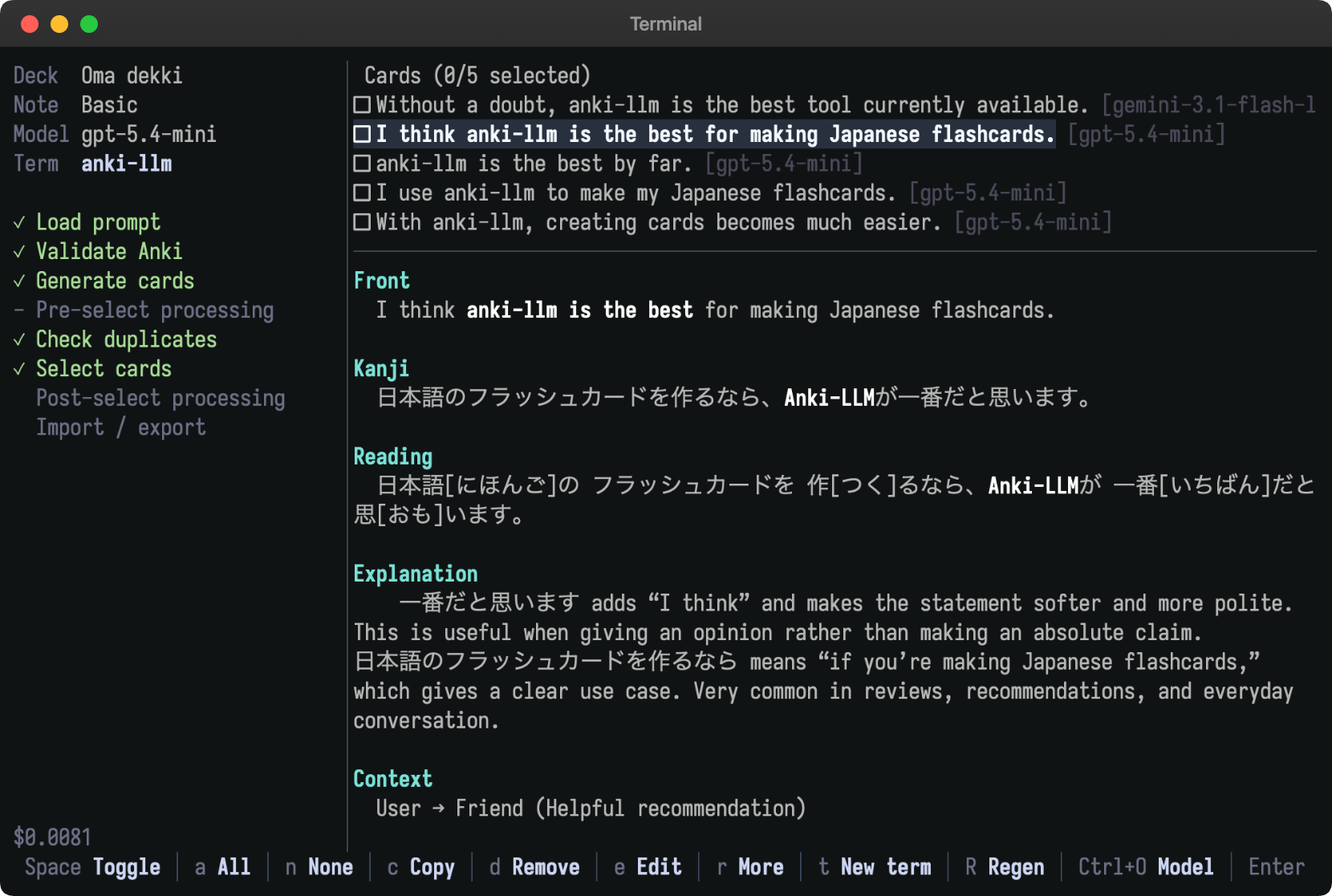
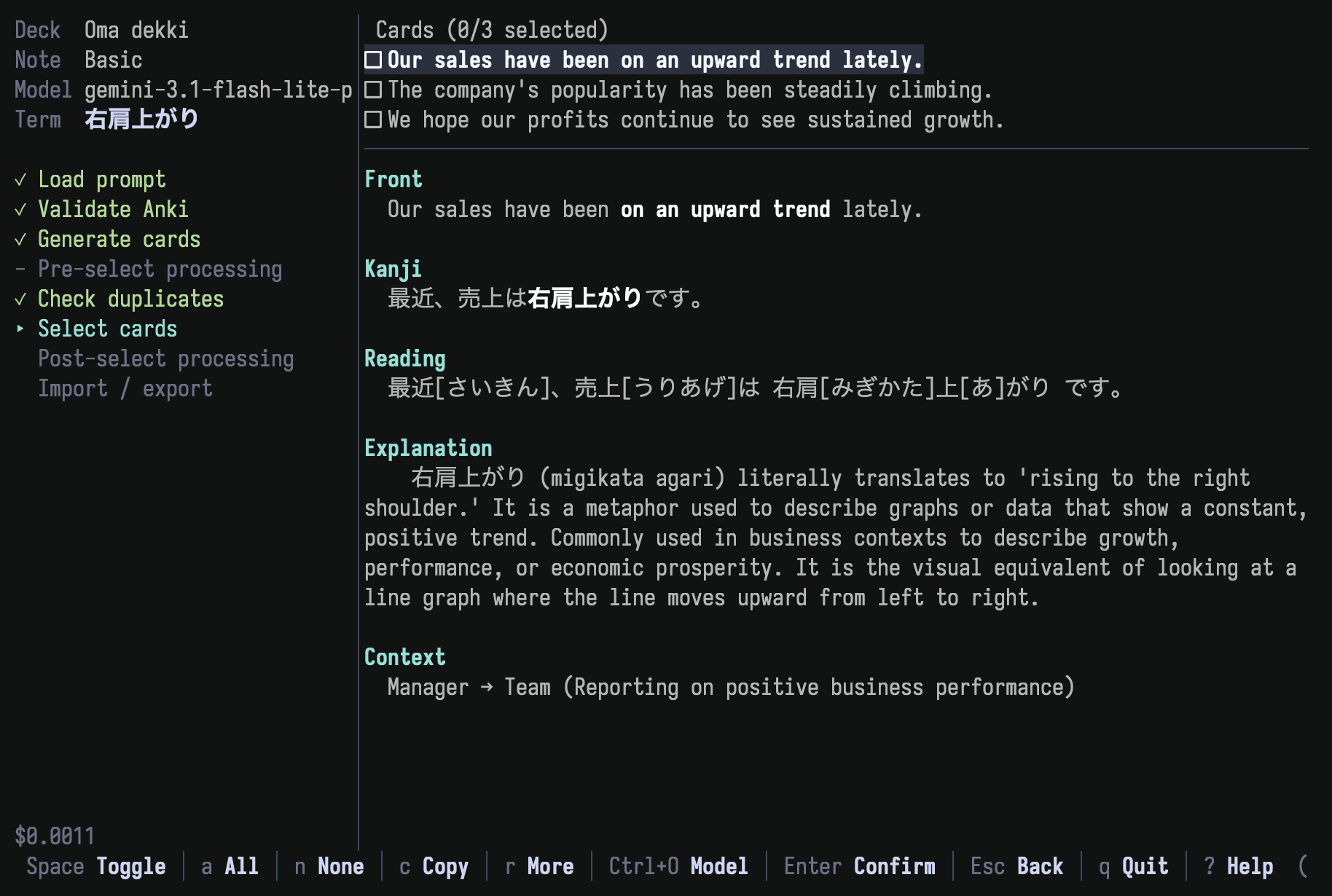 The generate command runs in a full-screen terminal UI. Enter a term, review the
generated cards, and confirm which ones to import. Duplicates are flagged
against your existing deck with a field-by-field diff. You can regenerate a card
with feedback, edit any card in your `$EDITOR`, switch models mid-session, or
queue multiple terms for batch processing.
If the prompt declares a `tts:` block and a system audio player is available,
press `p` to preview the focused card's audio in selection and replay imported
audio from the summary; audio for selected cards is finalized automatically at
import time.
When a supported thinking model from Gemini, DeepSeek, or Grok emits raw
reasoning during the primary generation request, the running view shows it live in
a temporary Thinking block above the log. This stream is for display only: it is
cleared when generation finishes and is not written to prompt/response logs.
Gemini thinking can be disabled with
`anki-llm config set gemini_thinking_enabled false`, which uses the normal
non-thinking Gemini request path instead.
Press `?` at any time to see keyboard shortcuts for the current mode. Token
usage and estimated cost are tracked in the sidebar across the session.
#### **Understanding the Prompt File**
The `--prompt` file is a text or markdown file that contains two parts: YAML
frontmatter for configuration and a prompt body with instructions for the LLM.
**Frontmatter (Required)**
The frontmatter is a YAML block at the top of the file enclosed by `---`.
- `deck`: The target Anki deck name.
- `note_type`: The name of the Anki note type (model) to use.
- `field_map`: Maps the keys from the LLM's JSON output to your actual Anki
field names. The LLM will be instructed to generate JSON with the keys on the
left, and `anki-llm` will use them to populate the Anki fields on the right.
- `processing` (optional): Runs LLM processing steps before and/or after card
selection. Supports two step types: `transform` (rewrite fields) and `check`
(quality verification with pass/flag/reject verdicts).
##### Optional: Processing Steps
Asking a single LLM call to generate content, format fields correctly, add
furigana, and verify quality all at once tends to degrade each individual
aspect. Processing steps let you split this work into a pipeline where each step
handles one concern with a focused prompt. The generation prompt can concentrate
on producing natural, diverse content, while separate steps handle mechanical
tasks like furigana annotation or quality checks, optionally using cheaper,
faster models for those steps.
The `processing` config lets you run LLM steps in two phases:
- **`pre_select`**: Runs after generation, before you choose cards. Useful for
fixing field formatting or filtering out bad cards early.
- **`post_select`**: Runs after selection. Useful for quality checks or final
polishing before import.
Each step is either a **transform** (rewrites card fields) or a **check**
(evaluates card quality).
**Transform: single field:**
Use `target` to rewrite one field:
```yaml
processing:
pre_select:
- type: transform
target: read
model: gpt-4o-mini # Optional: use a different model
prompt: |
Segment this sentence with correct bunsetsu spacing and Kanji[reading] annotations.
Sentence: {kanji}
English meaning: {front}
```
**Transform: multiple fields:**
Use `writes` to update several fields in one LLM call:
```yaml
processing:
pre_select:
- type: transform
writes: [read, context]
prompt: |
Given this Japanese sentence: {kanji}
Provide the reading with furigana and a brief context note.
```
**Check: quality verification:**
Check steps evaluate cards and return `pass`, `flag`, or `reject`:
- **pass**: card continues normally
- **flag**: card is kept but shown with a warning (pre-select flags are
informational in the selection UI; post-select flags trigger a review screen)
- **reject**: card is discarded
```yaml
processing:
post_select:
- type: check
prompt: |
Evaluate if the following text sounds natural in Japanese.
Text: {kanji}
```
You don't need to specify the response format; the system automatically
instructs the LLM to return structured JSON with `result` and `reason` fields.
**Key details:**
- All card fields are available as `{placeholders}` in the prompt.
- Steps within a phase run in order. Later steps see results from earlier ones.
- Cards within each step are processed concurrently.
- Transform steps must declare which fields they write (`target` or `writes`).
Check steps must not have `target`/`writes`.
- Each step can specify its own `model`.
- Not supported in `--copy` mode.
**Prompt Body**
The body contains your instructions for the LLM. It must:
1. Include the `{term}` placeholder, which will be replaced by the `
The generate command runs in a full-screen terminal UI. Enter a term, review the
generated cards, and confirm which ones to import. Duplicates are flagged
against your existing deck with a field-by-field diff. You can regenerate a card
with feedback, edit any card in your `$EDITOR`, switch models mid-session, or
queue multiple terms for batch processing.
If the prompt declares a `tts:` block and a system audio player is available,
press `p` to preview the focused card's audio in selection and replay imported
audio from the summary; audio for selected cards is finalized automatically at
import time.
When a supported thinking model from Gemini, DeepSeek, or Grok emits raw
reasoning during the primary generation request, the running view shows it live in
a temporary Thinking block above the log. This stream is for display only: it is
cleared when generation finishes and is not written to prompt/response logs.
Gemini thinking can be disabled with
`anki-llm config set gemini_thinking_enabled false`, which uses the normal
non-thinking Gemini request path instead.
Press `?` at any time to see keyboard shortcuts for the current mode. Token
usage and estimated cost are tracked in the sidebar across the session.
#### **Understanding the Prompt File**
The `--prompt` file is a text or markdown file that contains two parts: YAML
frontmatter for configuration and a prompt body with instructions for the LLM.
**Frontmatter (Required)**
The frontmatter is a YAML block at the top of the file enclosed by `---`.
- `deck`: The target Anki deck name.
- `note_type`: The name of the Anki note type (model) to use.
- `field_map`: Maps the keys from the LLM's JSON output to your actual Anki
field names. The LLM will be instructed to generate JSON with the keys on the
left, and `anki-llm` will use them to populate the Anki fields on the right.
- `processing` (optional): Runs LLM processing steps before and/or after card
selection. Supports two step types: `transform` (rewrite fields) and `check`
(quality verification with pass/flag/reject verdicts).
##### Optional: Processing Steps
Asking a single LLM call to generate content, format fields correctly, add
furigana, and verify quality all at once tends to degrade each individual
aspect. Processing steps let you split this work into a pipeline where each step
handles one concern with a focused prompt. The generation prompt can concentrate
on producing natural, diverse content, while separate steps handle mechanical
tasks like furigana annotation or quality checks, optionally using cheaper,
faster models for those steps.
The `processing` config lets you run LLM steps in two phases:
- **`pre_select`**: Runs after generation, before you choose cards. Useful for
fixing field formatting or filtering out bad cards early.
- **`post_select`**: Runs after selection. Useful for quality checks or final
polishing before import.
Each step is either a **transform** (rewrites card fields) or a **check**
(evaluates card quality).
**Transform: single field:**
Use `target` to rewrite one field:
```yaml
processing:
pre_select:
- type: transform
target: read
model: gpt-4o-mini # Optional: use a different model
prompt: |
Segment this sentence with correct bunsetsu spacing and Kanji[reading] annotations.
Sentence: {kanji}
English meaning: {front}
```
**Transform: multiple fields:**
Use `writes` to update several fields in one LLM call:
```yaml
processing:
pre_select:
- type: transform
writes: [read, context]
prompt: |
Given this Japanese sentence: {kanji}
Provide the reading with furigana and a brief context note.
```
**Check: quality verification:**
Check steps evaluate cards and return `pass`, `flag`, or `reject`:
- **pass**: card continues normally
- **flag**: card is kept but shown with a warning (pre-select flags are
informational in the selection UI; post-select flags trigger a review screen)
- **reject**: card is discarded
```yaml
processing:
post_select:
- type: check
prompt: |
Evaluate if the following text sounds natural in Japanese.
Text: {kanji}
```
You don't need to specify the response format; the system automatically
instructs the LLM to return structured JSON with `result` and `reason` fields.
**Key details:**
- All card fields are available as `{placeholders}` in the prompt.
- Steps within a phase run in order. Later steps see results from earlier ones.
- Cards within each step are processed concurrently.
- Transform steps must declare which fields they write (`target` or `writes`).
Check steps must not have `target`/`writes`.
- Each step can specify its own `model`.
- Not supported in `--copy` mode.
**Prompt Body**
The body contains your instructions for the LLM. It must:
1. Include the `{term}` placeholder, which will be replaced by the `