Agent Client Plugin for Obsidian





日本語はこちら


Bring AI agents (Claude Code, Codex, Gemini CLI) directly into Obsidian. Chat with your AI assistant right from your vault.
Built on [Agent Client Protocol (ACP)](https://github.com/agentclientprotocol/agent-client-protocol) by Zed.
https://github.com/user-attachments/assets/1c538349-b3fb-44dd-a163-7331cbca7824
## Features
- **Note Mentions**: Reference your notes with `@notename` syntax
- **Image Attachments**: Paste or drag-and-drop images into the chat
- **Slash Commands**: Use `/` commands provided by your agent
- **Multi-Agent Support**: Switch between Claude Code, Codex, Gemini CLI, and custom agents
- **Multi-Session**: Run multiple agents simultaneously in separate views
- **Floating Chat**: A persistent, collapsible chat window for quick access
- **Mode & Model Switching**: Change AI models and agent modes from the chat
- **Session History**: Resume or fork previous conversations
- **Chat Export**: Save conversations as Markdown notes
- **Terminal Integration**: Let agents execute commands and return results
- **MCP Support**: Agents use their configured MCP servers — no extra setup needed in the plugin
## Installation
### From Community Plugins (Recommended)
1. Open **Settings → Community Plugins → Browse**
2. Search for **"Agent Client"**
3. Click **Install**, then **Enable**
### Via BRAT (Pre-release Versions)
To try pre-release versions before they are published to Community Plugins:
1. Install the [BRAT](https://github.com/TfTHacker/obsidian42-brat) plugin
2. Go to **Settings → BRAT → Add Beta Plugin**
3. Paste: `https://github.com/RAIT-09/obsidian-agent-client`
4. Enable **Agent Client** from the plugin list
### Manual Installation
1. Download `main.js`, `manifest.json`, `styles.css` from [Releases](https://github.com/RAIT-09/obsidian-agent-client/releases)
2. Place them in `VaultFolder/.obsidian/plugins/agent-client/`
3. Enable the plugin in **Settings → Community Plugins**
## Quick Start
Open a terminal (Terminal on macOS/Linux, PowerShell on Windows) and run the following commands.
1. **Install an agent and its ACP adapter** (e.g., Claude Code):
```bash
curl -fsSL https://claude.ai/install.sh | bash # Install Claude Code
npm install -g @agentclientprotocol/claude-agent-acp # Install ACP adapter
```
2. **Login** (skip if using API key):
```bash
claude
```
Follow the prompts to authenticate with your Anthropic account.
3. **Find the paths**:
```bash
which node # macOS/Linux
which claude-agent-acp
where.exe node # Windows
where.exe claude-agent-acp
```
4. **Configure** in **Settings → Agent Client**:
- **Node.js path**: e.g., `/usr/local/bin/node`
- **Built-in agents → Claude Code → Path**: e.g., `/usr/local/bin/claude-agent-acp` (not `claude`)
- **API key**: Add your key, or leave empty if logged in via CLI
5. **Start chatting**: Click the robot icon in the ribbon
### Setup Guides
- [Claude Code](https://rait-09.github.io/obsidian-agent-client/agent-setup/claude-code.html)
- [Codex](https://rait-09.github.io/obsidian-agent-client/agent-setup/codex.html)
- [Gemini CLI](https://rait-09.github.io/obsidian-agent-client/agent-setup/gemini-cli.html)
- [Custom Agents](https://rait-09.github.io/obsidian-agent-client/agent-setup/custom-agents.html) (OpenCode, Qwen Code, Kiro, Mistral Vibe, etc.)
**[Full Documentation](https://rait-09.github.io/obsidian-agent-client/)**
## Development
```bash
npm install
npm run dev
```
For production builds:
```bash
npm run build
```
## License
Apache License 2.0 - see [LICENSE](LICENSE) for details.
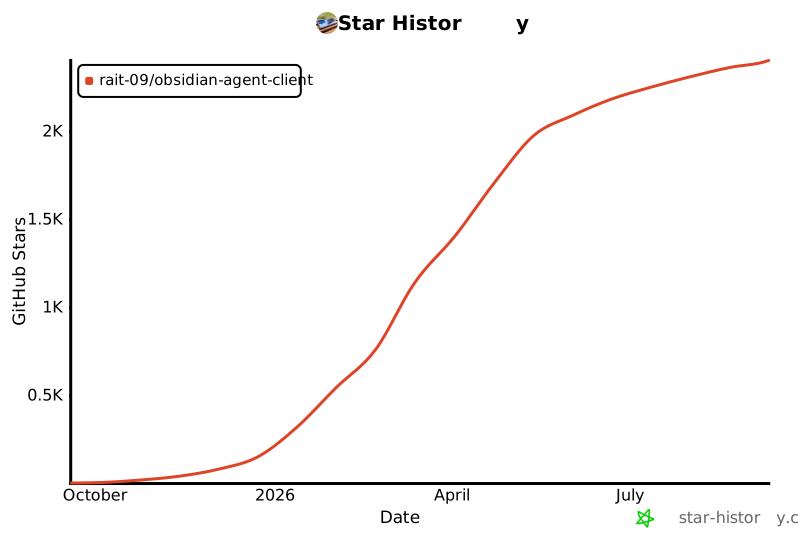
## Star History
[](https://www.star-history.com/#RAIT-09/obsidian-agent-client&Date)