# NetFluss
[](https://github.com/rana-gmbh/NetFluss/releases/latest)
[](https://github.com/rana-gmbh/NetFluss/releases)
[](LICENSE)
A native macOS menubar app showing real-time upload and download rates, router-wide bandwidth, historical traffic statistics, and built-in speed testing.
Latest release: **NetFluss 2.4**
## New in 2.4
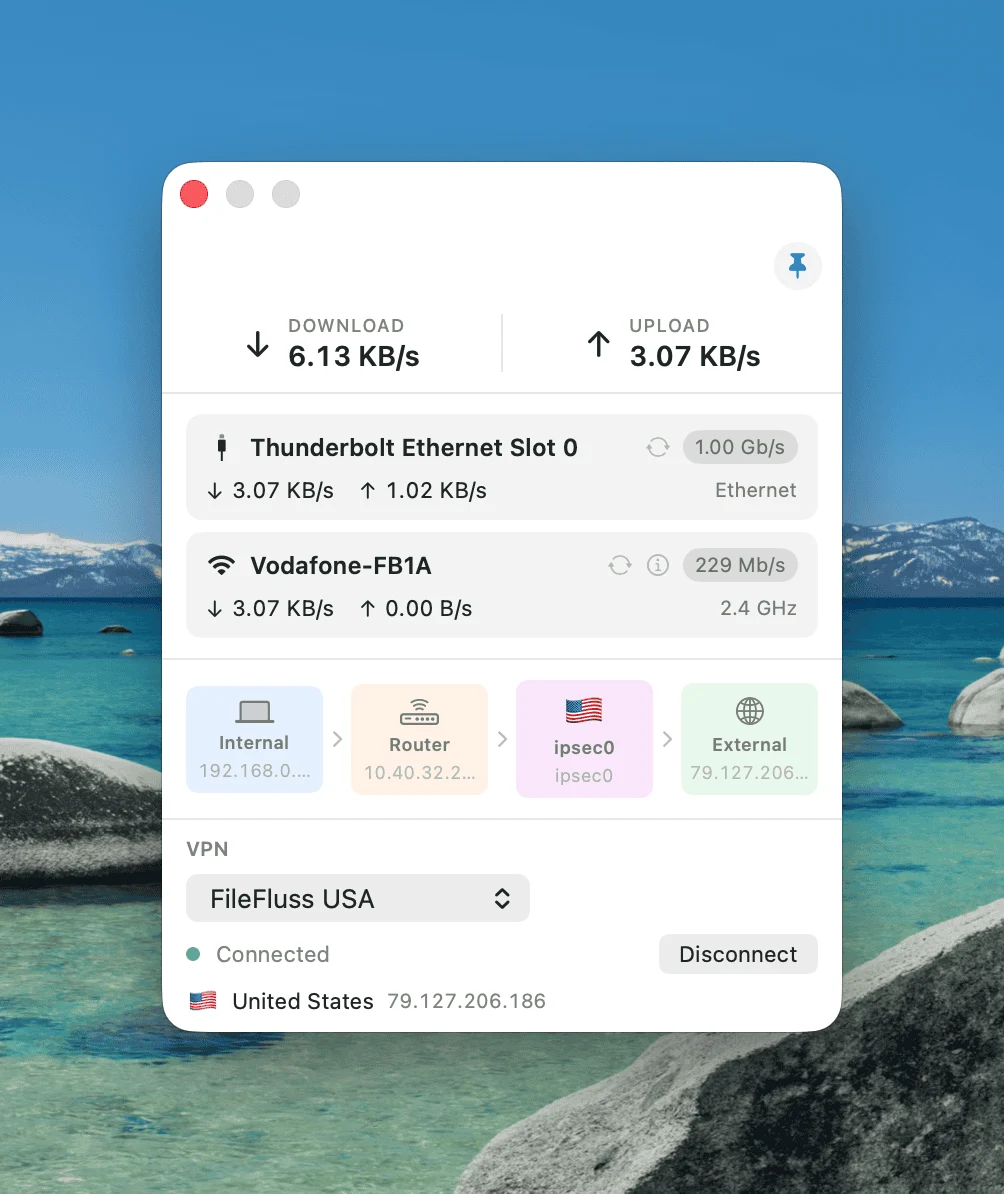
- **Built-in VPN client** — NetFluss now ships with a lean VPN client. Many VPN providers offer profiles for routers; you can now import them straight into NetFluss and connect from the menu bar, so you are no longer dependent on the provider's own client software. NetFluss supports the **OpenVPN** protocol, **WireGuard**, and native **IKEv2 / IPsec / L2TP**.
- Pick a profile and server, connect/disconnect, and see the connection status, exit country & flag, and public IP — right from the popover.
- **Per-profile DNS** — apply one of your NetFluss DNS presets while a VPN is connected; the previous resolver is restored automatically on disconnect.
- **Auto-reconnect** — automatically re-establish a tunnel that drops, with exponential backoff.
- **Connect on launch** — bring a chosen profile up when NetFluss starts.
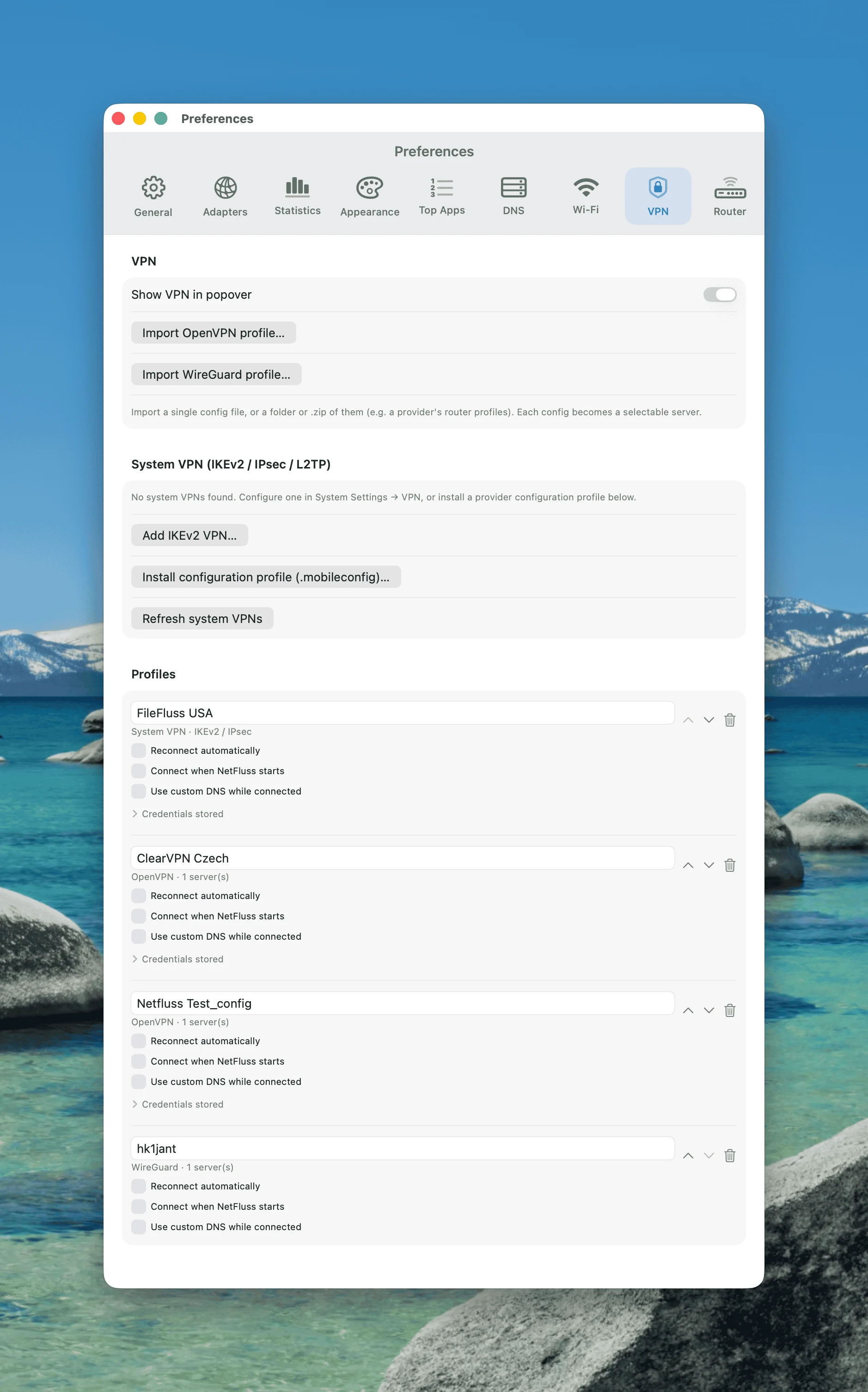
- Import, rename, reorder, and delete profiles in Preferences → VPN; credentials are stored in the macOS Keychain.
- **Much lower energy use** — background sampling was reworked so NetFluss's Activity Monitor energy impact drops back to normal menu-bar-app levels (no more heavyweight per-process sampling running every few seconds).
- **Accurate download rate in every scenario** — the macOS 26.5 fix for the frozen `ifi_ibytes` inbound counter now reads a lightweight kernel-statistics source, so the download number and Bandwidth Statistics history stay correct without the earlier CPU cost.
- **"System default" menu bar color** — a new colour choice that follows the menu bar appearance automatically, staying legible when the wallpaper switches between light and dark. (Thanks to [@mvanhorn](https://github.com/mvanhorn).)
- **Data Usage summary in the popover** — an optional section showing today's and this month's upload, download, and total data, read from the statistics NetFluss already collects. Enable it under Preferences → Statistics. (Thanks to [@truekasun](https://github.com/truekasun).)
## New in 2.3
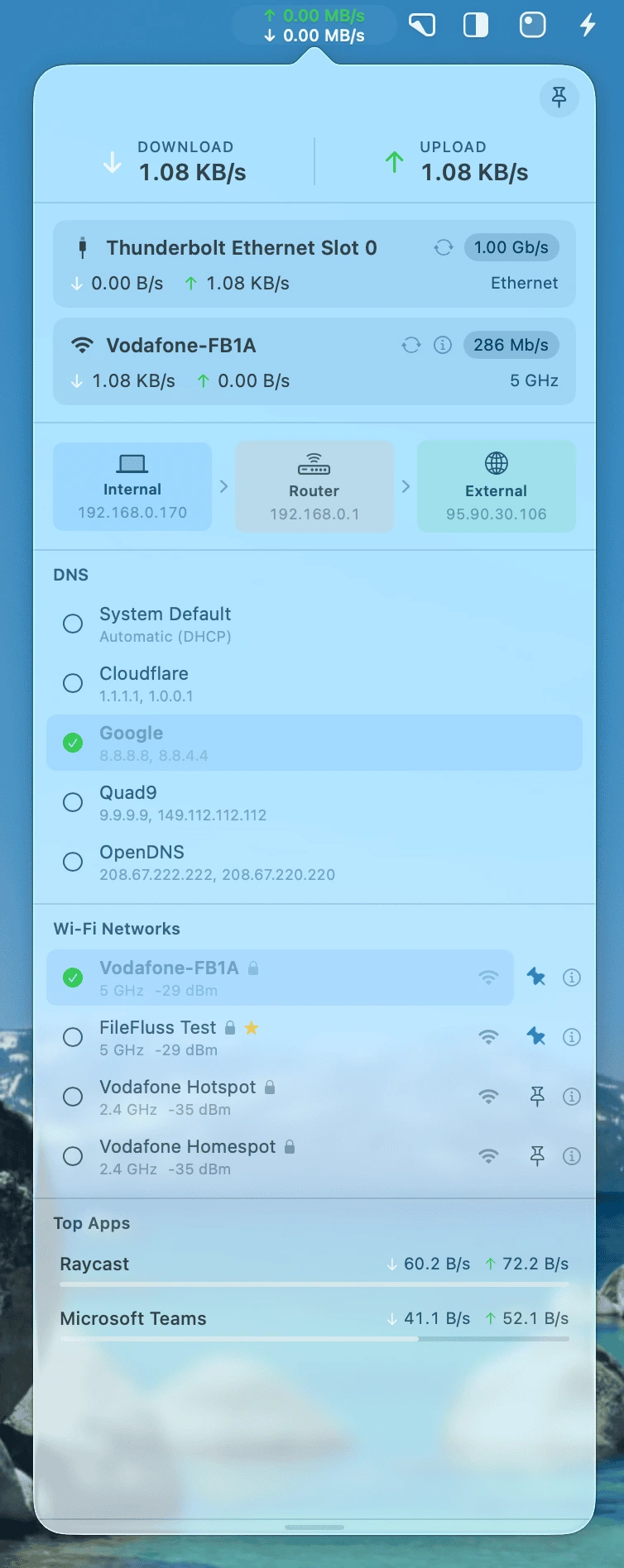
- **Wi-Fi manager in the popover** — see every nearby Wi-Fi network, switch with a click, pin SSIDs to the top of the list, and have temporarily out-of-range pinned networks stay visible until you unpin them. Passwords entered through NetFluss are written into macOS's Known Networks via the privileged helper, so the standard macOS Wi-Fi menu will reuse them later — even if NetFluss isn't running. Especially handy on travel or in environments with many SSIDs.
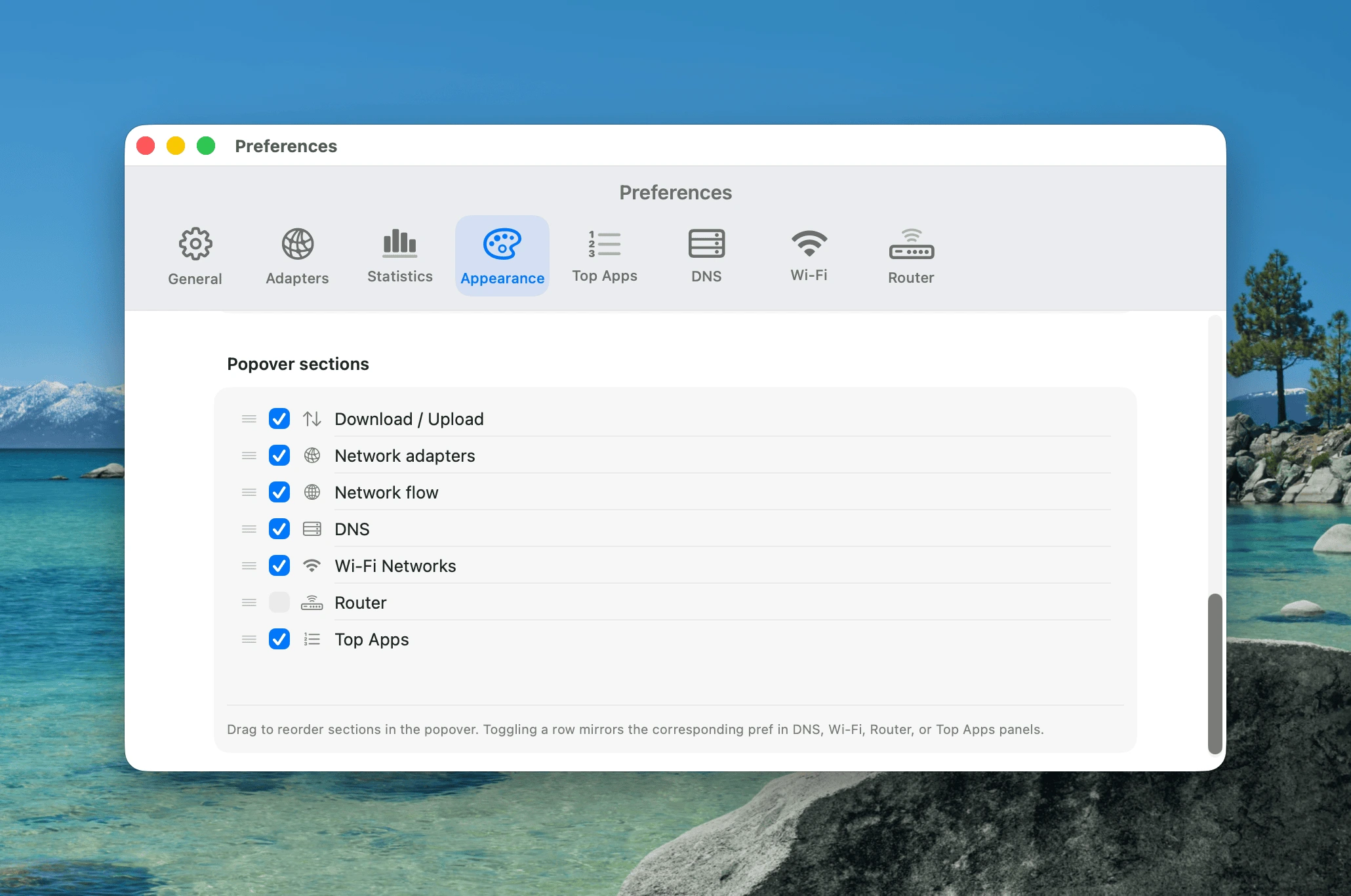
- **Customisable popover sections** — Preferences → Appearance now lets you drag the popover segments (Download / Upload, Network adapters, Network flow, DNS, Router, Wi-Fi Networks, Top Apps) into any order you like, and tick or untick each section right from the reorder list. The visibility toggles stay in sync with the existing per-section toggles elsewhere in Preferences.
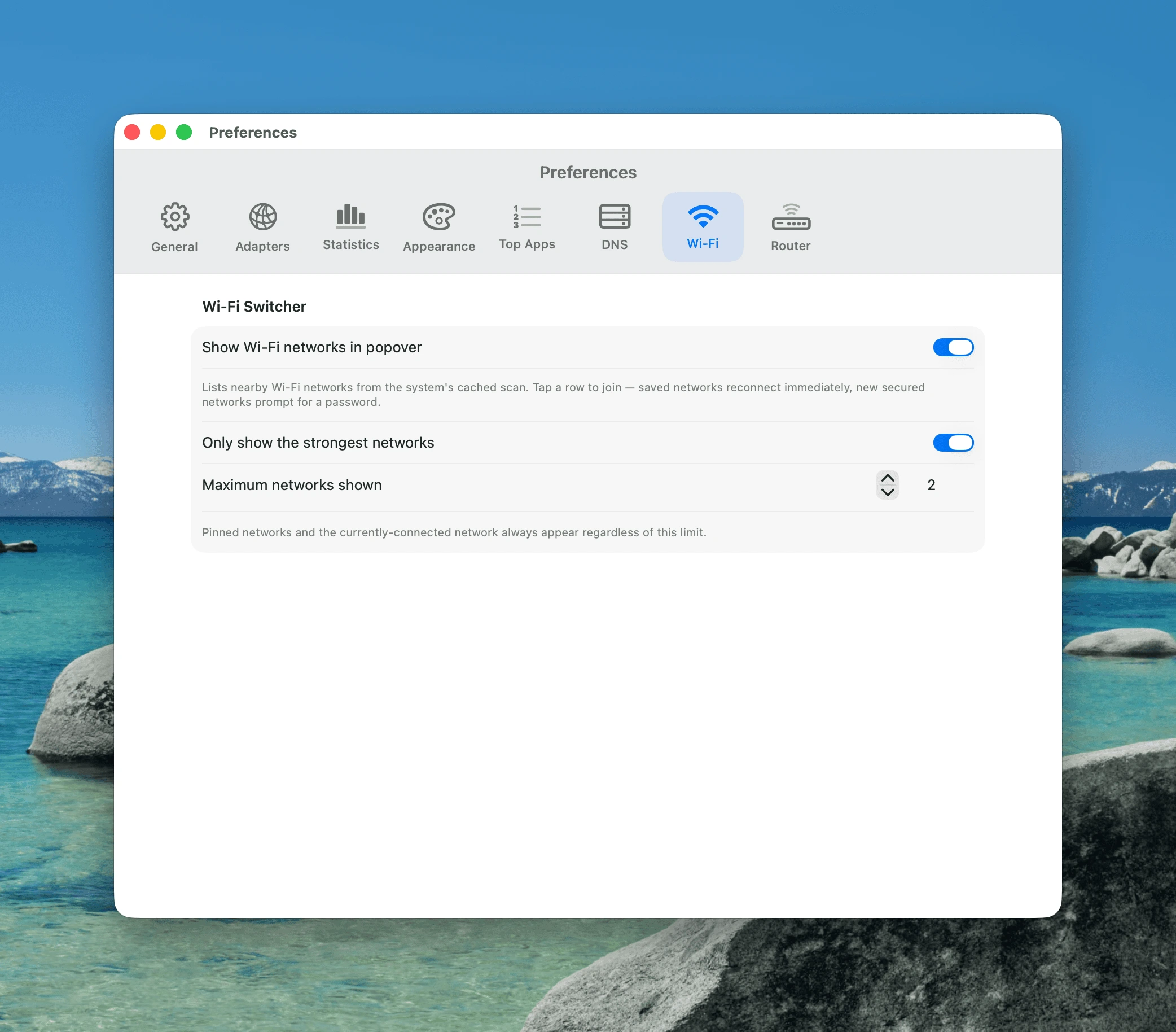
- **Wi-Fi settings pane** — new Preferences → Wi-Fi pane with a toggle to enable the section and an option to cap the list to the strongest N networks (pinned and currently-connected networks always show). Preferences → General now also exposes one-click buttons to grant Location access and install the privileged helper, so the user never has to hunt for the right pane in System Settings.
- **Fix for Macs whose download counter stayed at 0.00** — on macOS 26.5 the kernel's `ifi_ibytes` counter is frozen on the active physical Wi-Fi / Ethernet adapter for some configurations (often Macs with a managed profile or specific NetworkExtension-based security software). NetFluss now detects that and substitutes a per-process inbound rate from `nettop` so both the menu-bar number and the Bandwidth Statistics history record correctly. Auto-pauses the helper subprocess when no real traffic is happening, so unaffected Macs see no extra CPU usage.
## Features
### Menubar
- Live upload ↑ and download ↓ rates displayed in the menu bar
- Four menu bar styles: Standard, Unified pill, Dashboard, and Icon
- Separate color choices for upload arrow, download arrow, upload number, and download number
- Monospaced digits for stable layout
- Configurable font size (8–16 pt), font style (Monospaced / System / Rounded), pinned unit, and decimal precision
- **Icon mode** — switch to a single symbol in the menu bar and choose between multiple icon options, including the NetFluss app-style icon
- **Launch at login** — toggle in Preferences → Launch
### Popover
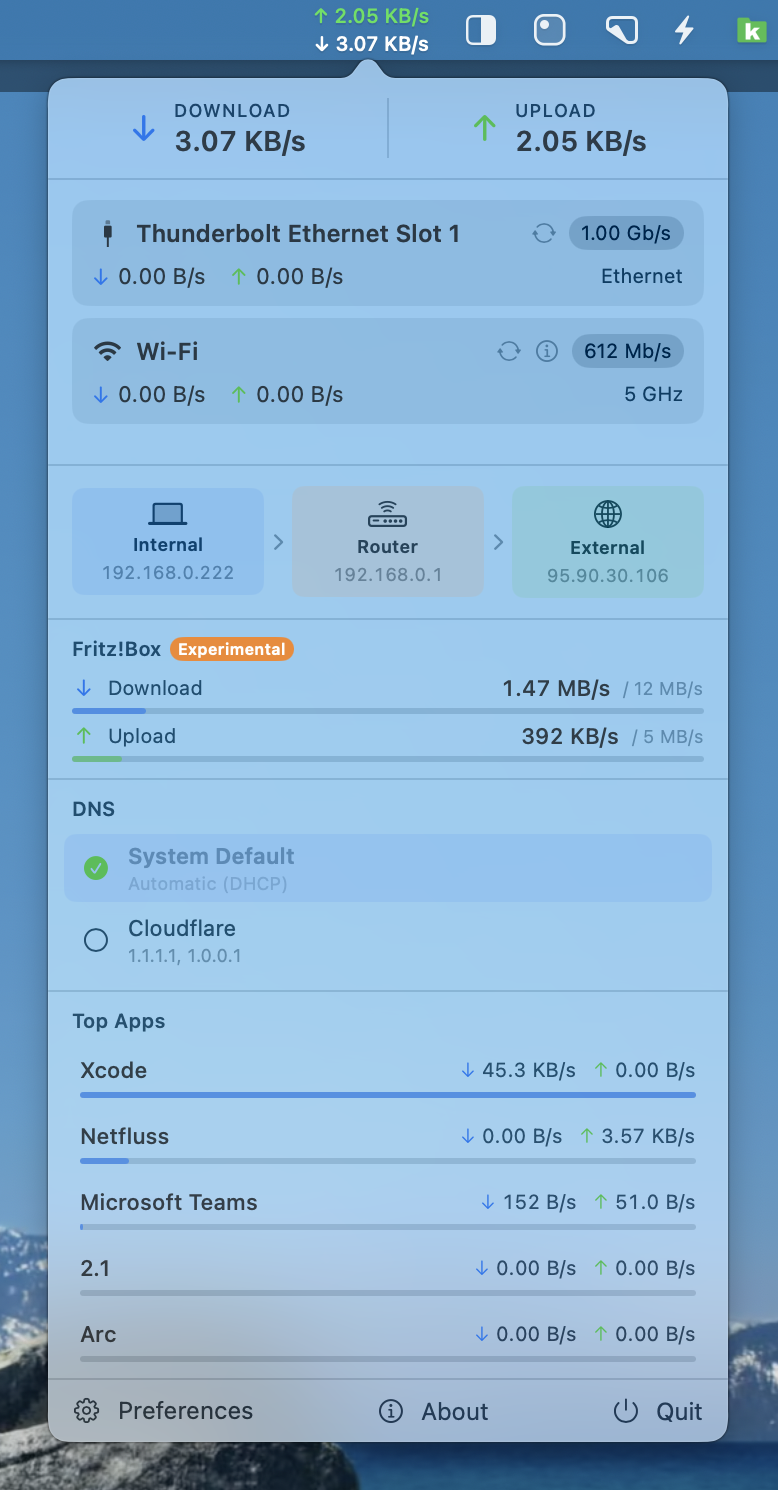
- **Header** — total Download and Upload rates shown prominently at the top
- **Adapter cards** — each active network interface as a card with:
- SF Symbol icon for Wi-Fi, Ethernet, or other adapters
- Link speed badge (Wi-Fi TX rate or Ethernet speed)
- Per-card DL/UL rates with coloured arrows
- Wi-Fi frequency band (2.4 GHz / 5 GHz / 6 GHz) or "Ethernet"
- ↺ reconnect button — cycles the adapter off and back on (Wi-Fi: no password needed; Ethernet: approved via the NetFluss helper)
- ℹ️ **Wi-Fi detail popover** — click the (i) button on any Wi-Fi card to see: Standard (e.g. Wi-Fi 6 / 802.11ax), Security (WPA3 Personal, etc.), Channel & Width, RSSI, Noise, SNR, ESSID, BSSID (with copy), and Tx Rate
- **IP addresses** — two display modes:
- **List view** — External, Internal, and Router IP, each with a one-click copy button
- **Connection flow view** — visual network path from your Mac through the router (and VPN, if active) to the internet, with country flag for VPN exit nodes
- **DNS Switcher** — switch between DNS providers directly from the popover (enable in Preferences):
- Built-in presets: System Default, Cloudflare, Google, Quad9, OpenDNS
- Add your own custom DNS presets with up to four DNS servers
- Shows the currently active DNS with a green checkmark
- Built on a bundled privileged helper for reliable DNS changes and Ethernet resets
- **Wi-Fi Switcher** — list nearby Wi-Fi networks and join them from the popover (enable in Preferences):
- Tap a known network to join silently; new secured networks prompt for a password
- Successful joins are written into macOS's Known Networks via the privileged helper, so the system Wi-Fi menu reuses the password later — even if NetFluss isn't running
- **Pin SSIDs** to the top of the list; pinned networks stay visible (marked "Not available") even when out of range, and a tap re-triggers a targeted scan to try reconnecting
- **(i) details** popover per row showing band, channel, RSSI, security, BSSID
- Optional "only show the N strongest" cap so the list stays short in crowded environments
- **Router Bandwidth** — shows total WAN download/upload rates from supported routers:
- **Fritz!Box** via TR-064 API
- **UniFi** via the UniFi OS / controller REST API
- **OpenWRT** via the ubus JSON-RPC API
- **OPNsense** via the OPNsense REST API
- **Top Apps** — optional section listing the top 5 processes by current network traffic, with a relative usage bar per app (enable in Preferences)
- **Live updates while visible** — app traffic refreshes live while the popup or pinned window is open
- **App filtering** — hide noisy background processes (e.g. mDNSResponder) from the list via Preferences or hover to hide directly
- **Pin button** — turn the popup into a movable floating window so NetFluss can stay open like a live widget
- **Scrollable popover** — the popover is scrollable and resizable for smaller screens, preventing overflow when many adapters or sections are active
- **Edge-aware popover positioning** — keeps the popover fully visible when the menu bar icon sits near the left or right screen border
- **Footer** — quick access to Preferences, About, and Quit
### VPN
- **Lean built-in VPN client** — connect to your VPN without installing the provider's own client app
- **Import provider profiles** — single config files, a folder of them, or a `.zip` bundle (e.g. a provider's router profiles); each config becomes a selectable server
- **OpenVPN** (`.ovpn`) and **WireGuard** (`.conf`) run via bundled, signed binaries through the NetFluss privileged helper
- **IKEv2 / IPsec / L2TP** via the native macOS VPN stack (username/password / EAP)
- **Popover controls** — choose a profile and server, connect/disconnect, and see the live status, exit-node country & flag, and public IP
- **Per-profile DNS** — apply a DNS preset while connected; the previous resolver is restored on disconnect
- **Auto-reconnect** — automatically re-establish a dropped tunnel, with exponential backoff
- **Connect on launch** — start a chosen profile automatically when NetFluss launches
- **Profile management** — import, rename, reorder, and delete profiles in Preferences → VPN; credentials stored securely in the macOS Keychain
### Statistics
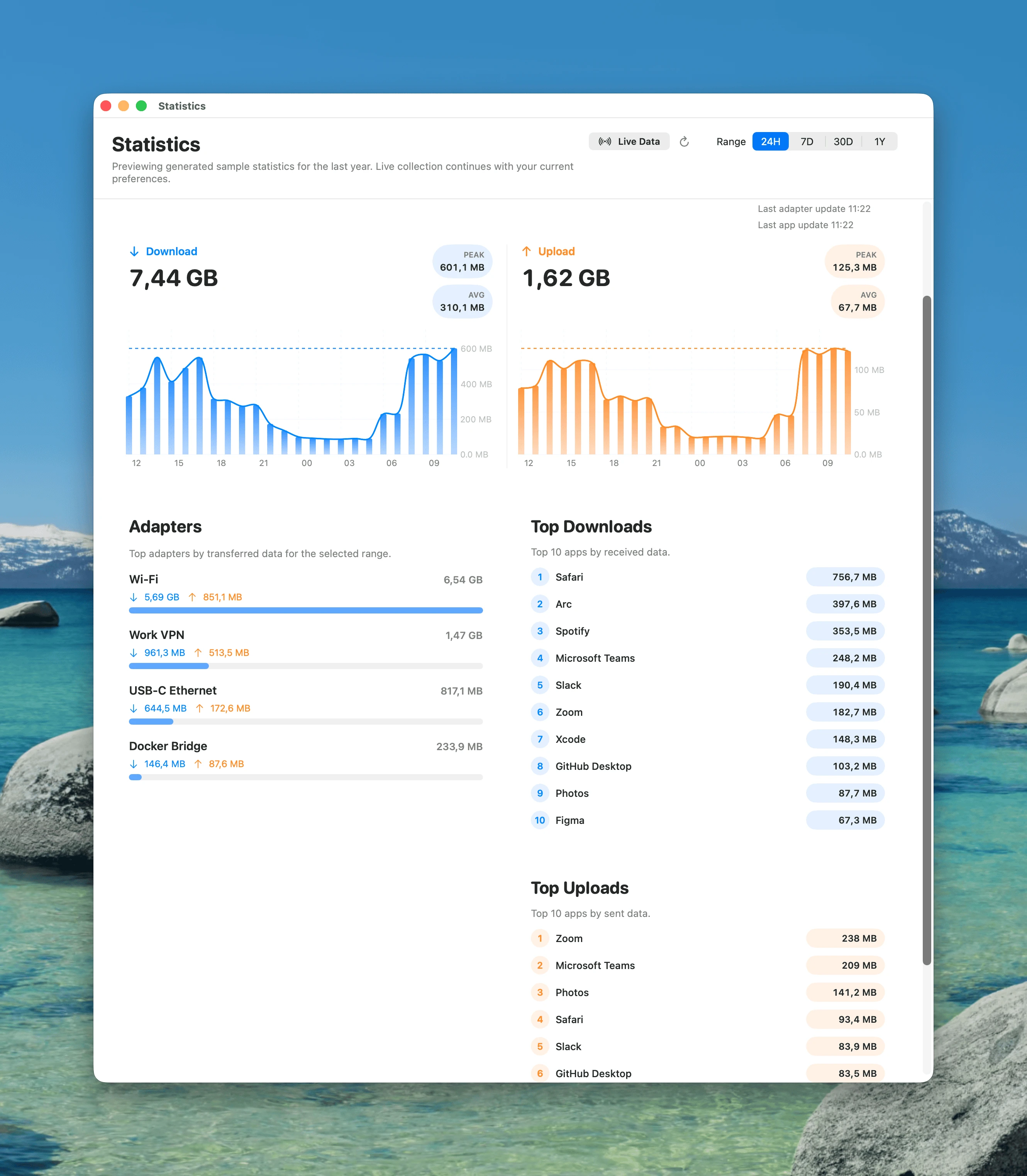
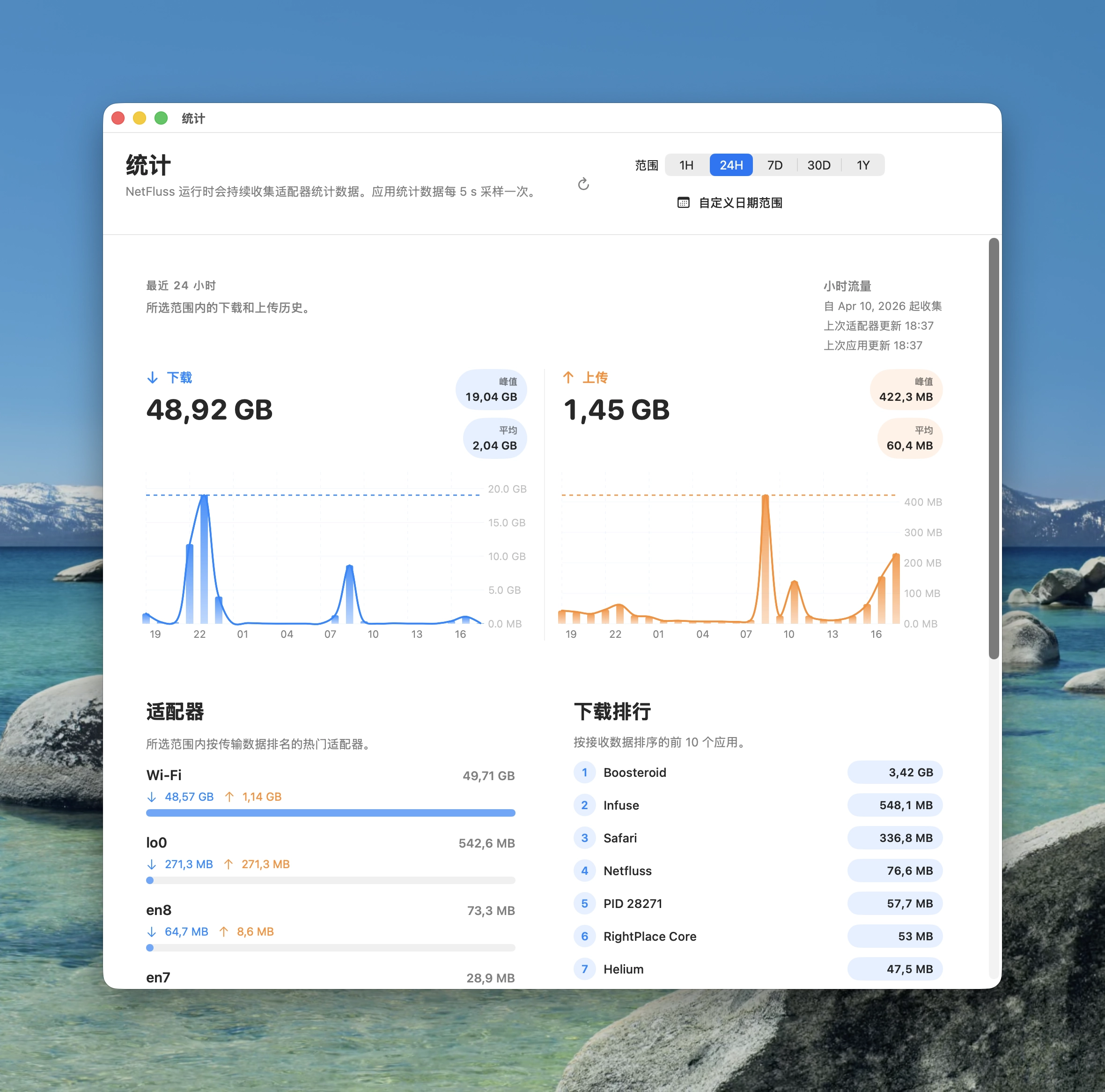
- Dedicated statistics window with `1H`, `24H`, `7D`, `30D`, and `1Y` ranges
- Download and upload timelines, top adapters, and top apps
- Historical bandwidth analysis by adapter and by app
- Top adapter ranking with automatic `Other` grouping when many interfaces are active
- Top 10 apps for download and upload over each selected range
- Minute-level detail for the `1H` view
- Optional app statistics collection with energy-conscious background sampling
- Demo/sample data mode for previewing the interface before real history accumulates
- Improved app attribution for Safari/WebKit traffic and more reliable adapter accounting for LAN/NAS transfers
### Speed Test
- Dedicated speed test window launched from the menu bar icon context menu
- Integrated M-Lab and Cloudflare speed tests
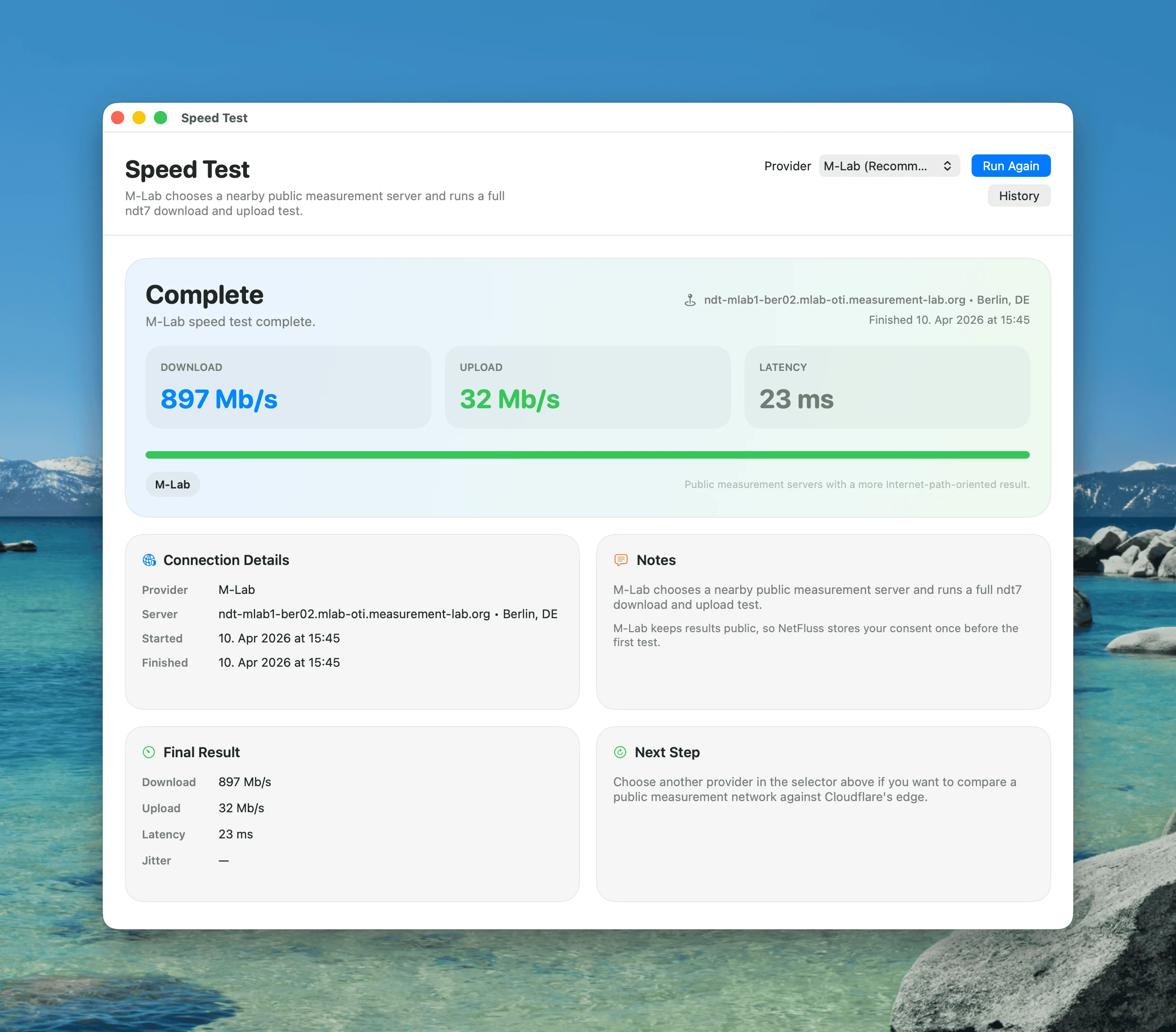
- Download, upload, latency, jitter, and server details in a dedicated window
- Provider selector remembered between runs
- Right-click the menu bar icon to start a test instantly
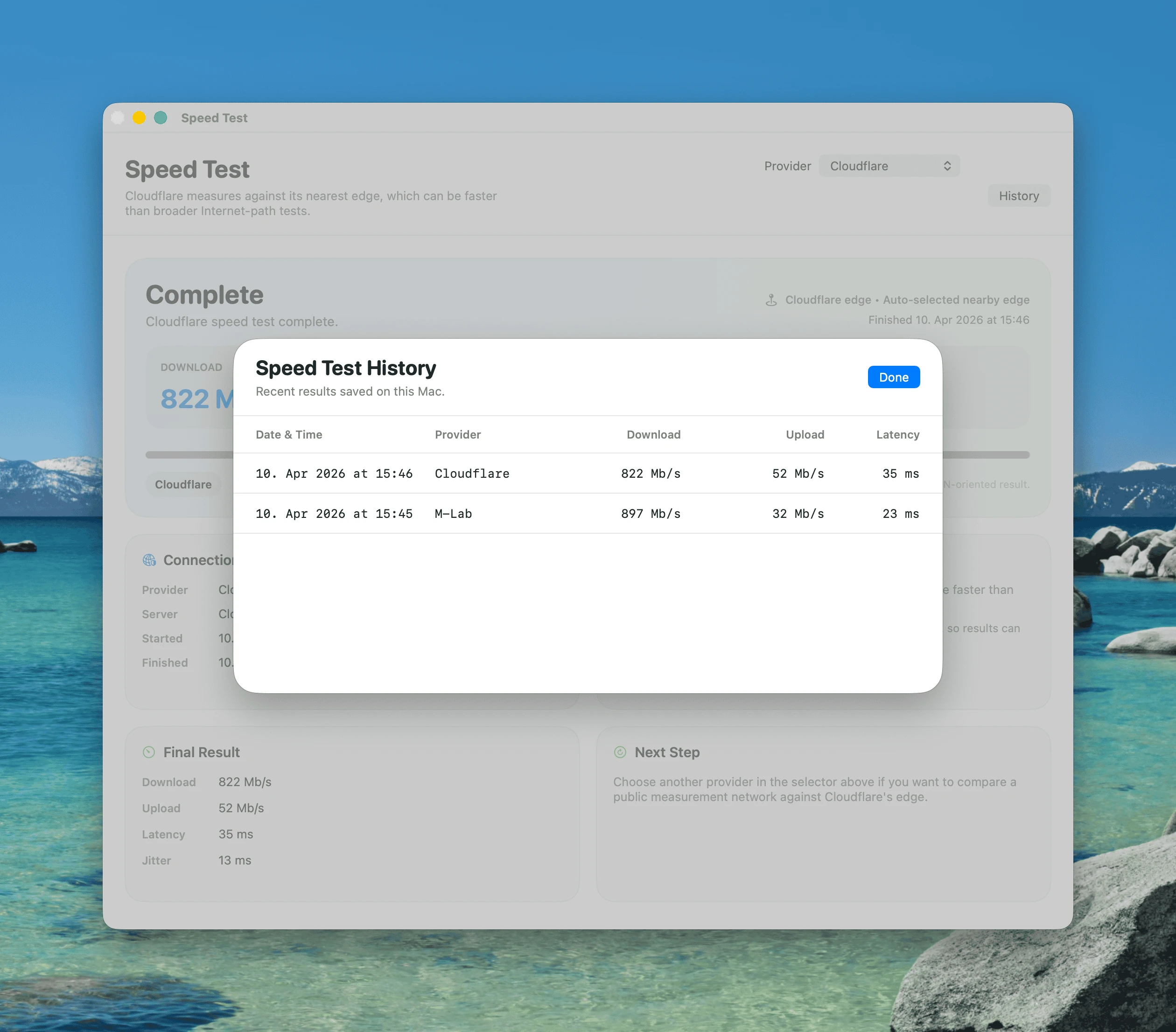
- Speed test history can be opened without automatically starting a new test
- Persistent speed test history stored locally on the Mac
- Notes field for each saved result, useful for remembering where or why the test was taken
- Compact locale-aware timestamps in speed test history
#### Speed Test History
### Preferences
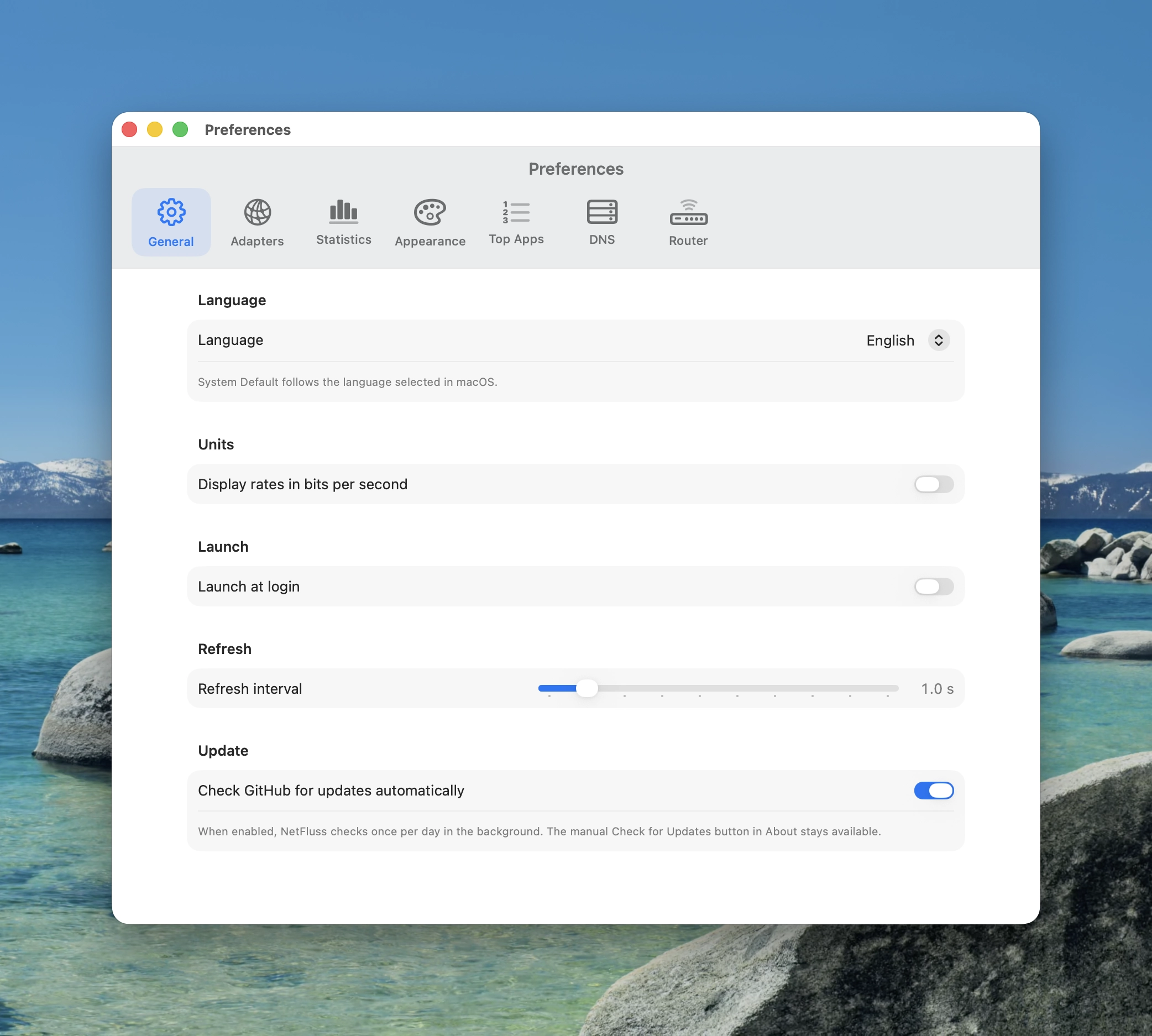
- Clear pane-based Preferences window with sections for General, Adapters, Statistics, Appearance, Top Apps, DNS, Wi-Fi, and Router settings
- **Language selector** — choose English, German, Simplified Chinese, Traditional Chinese, or follow the macOS system language
- **General** — launch at login, refresh interval (0.5 – 5 seconds), display rates in bits or bytes, and optional automatic GitHub update checks once per day
- **Adapters** — show/hide inactive adapters, show/hide other adapters (VPN, virtual interfaces), adapter grace period, per-adapter visibility toggles, custom names, and drag-to-reorder
- **Statistics** — toggle historical adapter statistics and app statistics separately
- **Appearance** — upload/download arrow colours, upload/download number colours, menu bar style, menu bar size, font style, pinned unit, decimal places, IP address display options, and **drag-to-reorder popover sections** with per-section visibility toggles
- **General → System access** — one-click buttons to grant Location access (required to list Wi-Fi networks) and to install the privileged helper used for DNS changes and Wi-Fi credential persistence
- **IP addresses** — choose List, Flow, or None for the popover IP section, plus IPv4/IPv6 external IP preference
- **Top Apps** — show/hide the section, configure the grace period, and filter noisy background apps from the live Top Apps list
- **DNS Switcher** — toggle the DNS picker in the popover; includes built-in presets plus editable custom presets with up to four server fields, visibility toggles, drag-to-reorder, and delete for each preset
- **Wi-Fi Switcher** — toggle the Wi-Fi networks picker in the popover and optionally cap the list to the strongest N networks; pinned and currently-connected networks are always shown regardless of the cap
- **Router** — configure Fritz!Box, UniFi, OpenWRT, and OPNsense bandwidth monitoring in one place, with credentials stored securely in macOS Keychain where needed
- Options to calculate total bandwidth from only visible adapters and to exclude VPN/tunnel adapters from totals while still showing them in the adapter list
### About
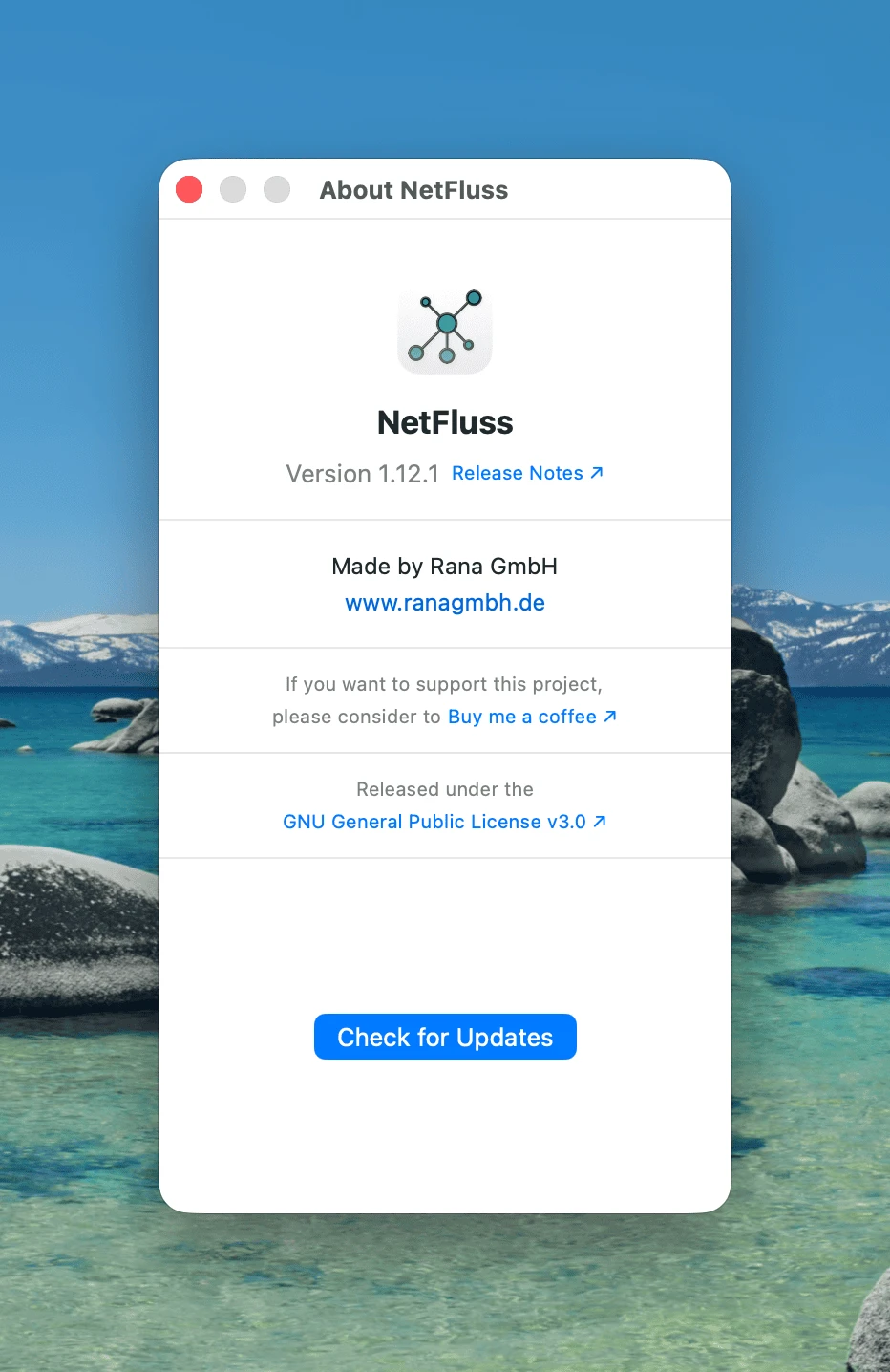
- Version number with link to release notes on GitHub
- Made by Rana GmbH — www.ranagmbh.de
- Refreshed app icon introduced with NetFluss 2.x
- Check for Updates — queries GitHub Releases, shows release notes and a Download button when a newer version is found
- Optional daily background update checks with a direct link to the newest release page
## Requirements
- macOS 13 Ventura or later
- Xcode 15+ or Swift 5.10+ toolchain (to build from source)
## Install
Download `NetFluss-2.4.zip` from the [latest release](https://github.com/rana-gmbh/NetFluss/releases/latest), unzip it, and move `NetFluss.app` to `/Applications`.
NetFluss is notarized and signed with a Developer ID certificate, so Gatekeeper should clear it automatically on first launch.
You can also use Homebrew to install NetFluss:
```bash
brew install --cask rana-gmbh/netfluss/netfluss
```
## Build from source
```bash
swift build -c release
```
Or open `Package.swift` in Xcode and run the executable scheme.
## Notes
- Wi-Fi SSID and band use CoreWLAN. macOS may prompt for Location Services permission to expose SSID details.
- Ethernet link speed is read from `ifi_baudrate` and may show `—` when unavailable.
- External IP is fetched from `ipwho.is` (with `api.ipify.org` as fallback).
- Popup Top Apps uses live per-process sampling while visible; historical app statistics can be enabled separately in Preferences.
- DNS changes and Ethernet resets in the packaged app use the bundled NetFluss helper and may require one-time system approval.
- OpenWRT monitoring expects ubus access to be available on the router; a manual host can help when auto-detection resolves to a different gateway.
- OPNsense monitoring requires API credentials created in OPNsense and can use a manually configured host when auto-detection points to another router.
- Speed test adapter pinning is not implemented yet; tests currently follow the default active route.
## Buy me a coffee
If you enjoy using NetFluss please consider supporting the project via this link: https://buymeacoffee.com/robertrudolph
## License
NetFluss is released under the [GNU General Public License v3.0](LICENSE).
Copyright © 2026 Rana GmbH