









中文 | English
Replaces the stats line under the message input in the DSH desktop app with a configurable status bar: fields, ordering, per-model prices and currency are all configurable, with live cost estimates using DeepSeek's official peak/off-peak rates.  ## Features - **9 optional fields plus the context ring**: context occupancy (the ring at the head of the bar), peak / off-peak check, turns & steps, cache hit rate, output speed, TTFT, run time, this turn cost, session cost, balance - **Click a field for details**: | Field | Content | | --- | --- | | Context ring (bar head) | System prompt / tool definitions / messages | | Peak / off-peak check | Usage heat map: day / week / month / year | | Turns & steps | Context compactions / skills injected / tool calls | | Combined hit | This turn / highest / lowest cache hit rate | | TPS | This turn / fastest / slowest speed | | TTFT | This turn / fastest / slowest first-token delay | | Run time | Wait time / model time / tool calls | | This turn cost | Token breakdown for this turn | | Session cost | Cumulative token breakdown for this session | | Balance | Top-up balance / granted balance / quota left | - **Session data drill-down**: context compactions mark the node they happened at, skills injected counts the skills injected in this session, and tool calls list every tool the session used with its call count; click the title to go back up - **Version check and update**: DSH checks for the latest version on startup, shows a hint next to the "Status bar" nav item when one is available, and offers a one-click update button in settings - **GitHub support**: your support is the biggest motivation for the developer to keep going! Click the button to open the GitHub project page and help with a star — thanks, everyone! - **Cost estimation**: priced with the official peak/off-peak rules; each call is computed from the moment it happened and the model it used - **Price book**: your own prices, an optional peak/off-peak split, and a CNY / USD currency switch - **Also**: one-click holiday calendar update, balance refreshed every minute, bilingual UI ## Install In the DSH desktop app, open **Plugins → Add plugin** and install by package name: ``` dsh-desktop-statusbar ``` Where the npm registry is not reachable, the same dialog offers the China mainland mirror as the install source. A GitHub repository URL is also accepted: ``` https://github.com/raphael-y7/dsh-desktop-statusbar ``` Command line: ```powershell dsh plugin --profile desktop add dsh-desktop-statusbar ``` ### Install from npm Both ways above install from the npm registry; the package name is `dsh-desktop-statusbar`. To check the current version on npm: ```powershell npm view dsh-desktop-statusbar version ``` ### When the built-in updater fails The one-click update button inside the plugin can fail on some desktop builds — it either does nothing or reports a failure. Do not keep clicking it. Use the official install entry instead and **append `@version` to the package name** to pin the exact version: ```powershell dsh plugin --profile desktop add dsh-desktop-statusbar@3.0.0 ``` The same string works in the plugin panel — type `dsh-desktop-statusbar@3.0.0` into the **Add plugin** field. Use whatever version you see (the version on the release page, or the output of the `npm view` command above). Pinning the version has a second benefit: **you get exactly the build you asked for**, with no chance of a stale cached package. Also listed on [dshmarket](https://awesome-dsh-plugin.com/p/raphael-y7/dsh-desktop-statusbar/), [dshfind](https://dshfind.com/zh/plugins/raphael-y7/dsh-desktop-statusbar) and [1024Store](https://deepseek1024.com/plugins/Rapheal-Y7/dsh-desktop-statusbar). ## Usage Open **Settings → Status bar**: 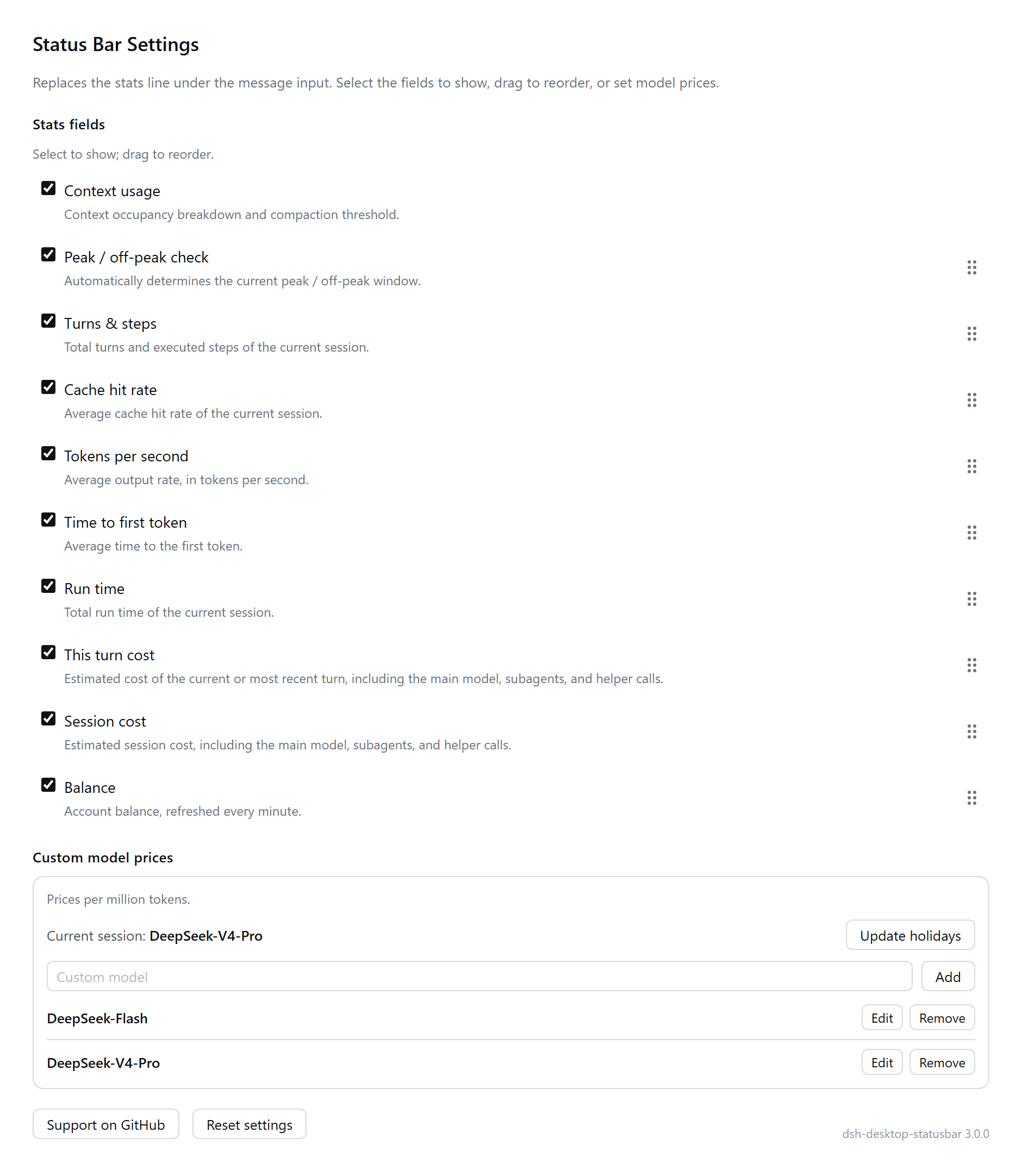 - **Context occupancy**: the ring at the head of the bar — progress shows the share of context used, the gap marks the compaction threshold, and the colour shows the run state (grey idle / green running / red error / amber pending approval) - **Stats fields**: ticking controls visibility only, so unticking hides a field without moving it; drag the handle on the right to reorder; "Reset settings" restores the factory order - **Custom model prices**: enter a model name and "Add" to create an entry; "Edit" opens the editor and changes are written on save; tick "peak / off-peak pricing" to split by time of day, otherwise a flat all-day price applies - **Currency**: CNY or USD in the top-right corner of the editor. Switching replaces the two built-in models with that currency's official reference prices (edited entries are kept) and changes the symbol in the cost fields; the balance follows the currency reported by the API - **Holidays**: click "Update holidays" to fetch and write the next year's public-holiday calendar - **Balance**: refreshed once a minute ### Billing rules Peak hours are **09:00–12:00 and 14:00–18:00 Beijing time, Monday to Friday**, and off-peak rates are half the peak rates; Chinese public holidays and weekends are billed off-peak all day (matching the [official docs](https://api-docs.deepseek.com/quick_start/pricing), checked 2026-09). 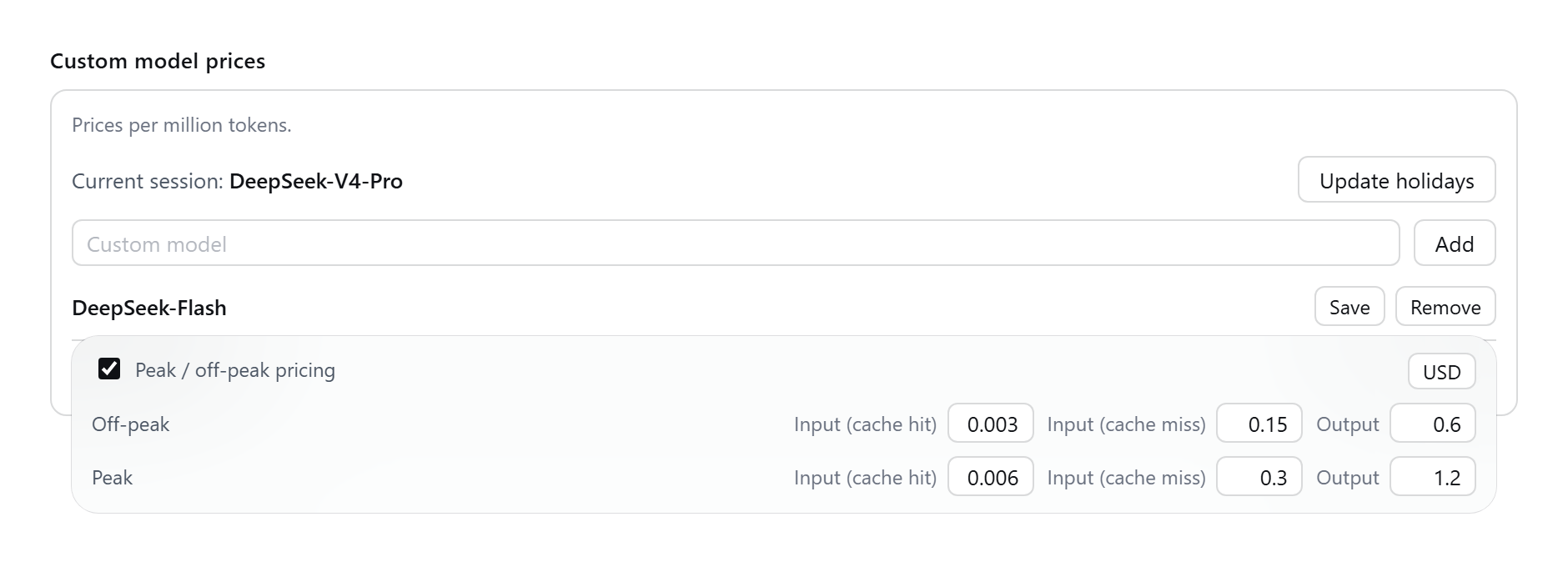 ## Known limitations - Fastest / slowest TTFT and speed come from a new host-side projection: **you must fully quit and restart DSH** before it starts collecting - A model with no price is not billed; adding the price back-fills its earlier calls - One-click update relies on `pnpm`: the desktop app uses the copy bundled with the host, while CLI / web usage needs `pnpm` on the system. If neither is found, the update says so explicitly **and logs every location it tried**; you can also point it at a specific command with the `DSH_DESKTOP_STATUSBAR_PNPM` environment variable ## Development Every test is a standalone script meant to be run with plain node — no test framework. ```powershell npm test # runs every verify*.js under tests/, then checks project vs installed plugin dir npm run sync # copies lib/ into the installed plugin dir ``` Development scripts under `tools/` ship with the package (the `files` field includes them), so both a git clone and an npm install get them: | Script | Purpose | |---|---| | `tools/test.cjs` | full test run + consistency guard | | `tools/sync-to-plugin.cjs` | project `lib/` → installed plugin dir | | `tools/sync-from-plugin.cjs` | installed plugin dir → project `lib/` | | `tools/plugin-dir.cjs` | locates the plugin dir | | `tools/shot.cjs` | regenerates the README screenshots | They are only used while developing; the plugin never loads them at runtime. `npm test` needs the repository's `tests/` directory, so an npm-installed copy can only run `sync-*` and `shot`. The plugin directory is located automatically: environment variable `DSH_STATUS_BAR_PLUGIN_DIR` → known layouts under `~/.dsh` (`local-plugins/`, each `profiles/*/node_modules/`) → derived from the `tools/` location. No code changes needed when switching machine or user name. ## Licence [MIT](LICENSE): free to use, modify and redistribute; keep the copyright and licence notice.