ZIG build for a terminal-based chat client for an assistant-style large language model with ~800k GPT-3.5-Turbo Generations based on LLaMa
 # Run a GPT4All GPT-J model locally Yes! ChatGPT-like powers on your PC, no internet and no expensive GPU required! Here it's running inside of NeoVim: 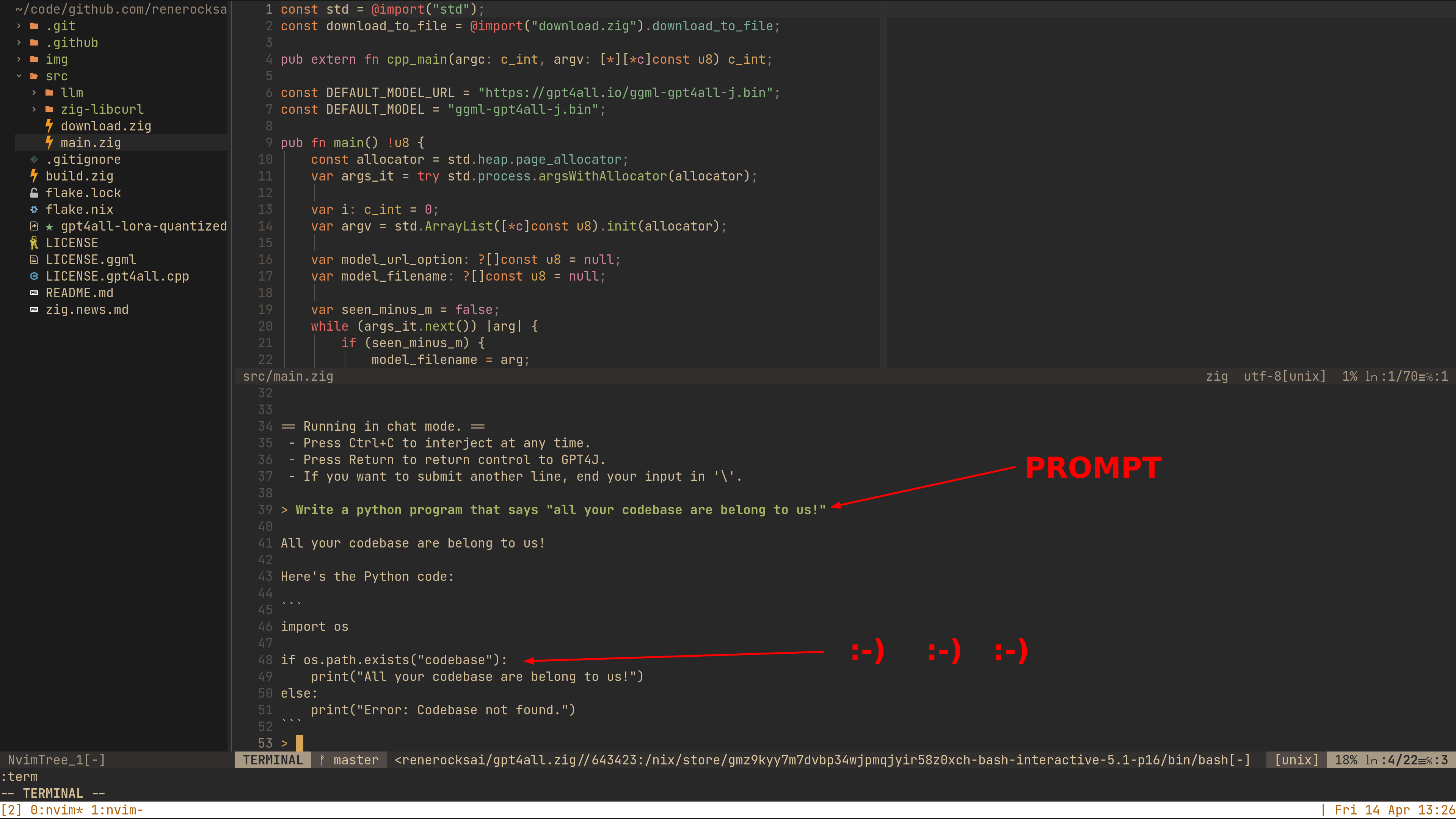 And here is how it runs on my machine (low quality GIF): 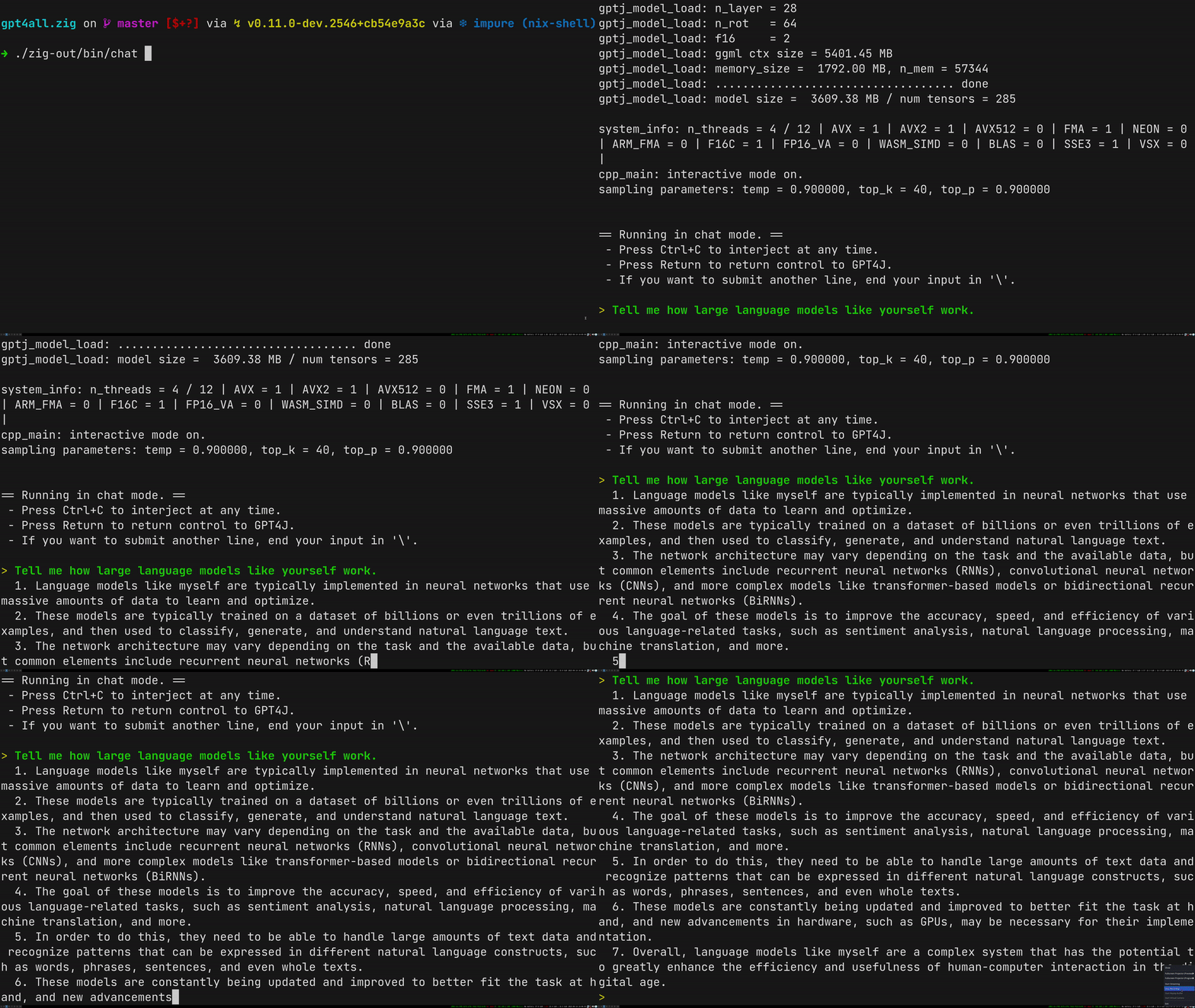 **Note:** This is a text-mode / console version only. If you need a good graphical user interface, please see [GPT4All-Chat](https://github.com/nomic-ai/gpt4all-chat)! # Try it yourself Here's how to get started with the CPU quantized GPT4All model checkpoint: ## For Windows Users - **Download the released chat.exe from the [GitHub releases](https://github.com/renerocksai/gpt4all.zig/releases) and start using it without building:** - _Note that with such a generic build, CPU-specific optimizations your machine would be capable of are not enabled._ - Make sure, the model file [ggml-gpt4all-j.bin](https://gpt4all.io/ggml-gpt4all-j.bin) and the [chat.exe](https://github.com/renerocksai/gpt4all.zig/releases) are in the same folder. If you didn't download the model, chat.exe will attempt to download it for you when it starts. - Then double-click `chat.exe` ## macOS, Linux, brave Windows users - optimized builds Building on your machine ensures that **everything is optimized for your very CPU**. 0. Make sure you have Zig 0.11.0 installed. Download from [here](https://ziglang.org/download/). 1. **Optional:** Download the LLM model `ggml-gpt4all-j.bin` file from [here](https://gpt4all.io/ggml-gpt4all-j.bin). 2. Clone or download this repository 3. Compile with `zig build -Doptimize=ReleaseFast` 4. Run with `./zig-out/bin/chat` - or on Windows: start with: `zig-out\bin\chat` or by double-click the resulting `chat.exe` in the `zig-out\bin` folder. If you didn't download the model yourself, the download of the model is performed automatically: ```shell $ ./zig-out/bin/chat Model File does not exist, downloading model from: https://gpt4all.io/ggml-gpt4all-j.bin Downloaded: 19 MB / 4017 MB [ 0%] ``` If you downloaded the model yourself and saved in a different location, start with: ```shell $ ./zig-out/bin/chat -m /path/to/model.bin ``` **Please note**: This work adds a `build.zig`, the automatic model download, and a text-mode chat interface like the one known from gpt4all.cpp to the excellent work done by Nomic.ai: - [GPT4All](https://github.com/nomic-ai/gpt4all): Everything GPT4All - [gpt4all-chat](https://github.com/nomic-ai/gpt4all-chat): Source code of the GUI chat client --- ## How to use other models Check out [GPT4All](https://github.com/nomic-ai/gpt4all) for other compatible GPT-J models. Use the following command-line parameters: - `-m model_filename` : the model file to load. - `-u model_file_url` : the url for downloading above model if auto-download is desired. ## Where to take it from here This code can serve as a starting point for zig applications with built-in LLM capabilities. I added the `build.zig` to the existing C and C++ chat code provided by [the GUI app](https://github.com/nomic-ai/gpt4all-chat), added the auto model download feature, and re-introduced the text-mode chat interface. From here, - write leightweight zig bindings to load a model, based on the C++ code in `cpp_main()`. - write leightweight zig bindings to provide a prompt and context, etc. to the model and run inference, probably with callbacks. ## Closing remarks Since I was unable to use the binary chat clients provided by GPT4All on my NixOS box: ``` gpt4all-lora-quantized-linux-x86: error while loading shared libraries: libstdc++.so.6: cannot open shared ob ject file: No such file or directory ``` That was expected on NixOS, with dynamically linked executables. So I had to run `make` to create the executable for my system, which worked flawlessy. Congrats to Nomic.ai! But with the idea of writing my own chat client in zig at some time in the future in mind, I began writing a `build.zig`. I really think that the simplicity of it speaks for itself. The only difficulty I encountered was needing to specify `D_POSIX_C_SOURCE=199309L` for `clock_gettime()` to work with zig's built-in clang on my machine. Thanks to @charlieroth, I bumped the value up to `200809L`, to make it work on his 2020 MacBook Pro. Apparently, the same value is used in mbedtls, so it's now consistent across the entire repository. The gif was created using the following command which I found on [StackExchange](https://superuser.com/questions/556029/how-do-i-convert-a-video-to-gif-using-ffmpeg-with-reasonable-quality): ```console ffmpeg -i ~/2023-04-14\ 14-05-50.mp4 \ -vf "fps=10,scale=1080:-1:flags=lanczos,split[s0][s1];[s0]palettegen[p];[s1][p]paletteuse" \ -loop 0 output.gif ```