      ██████╗██████╗██████╗██████╗  ██████╗
      ██╔═══╝██╔═══╝██╔═══╝██╔══██╗██╔═══██╗
      █████╗ █████╗ █████╗ ██║  ██║██║   ██║
      ██╔══╝ ██╔══╝ ██╔══╝ ██║  ██║██║   ██║
      ██║    ██████╗██████╗██████╔╝╚██████╔╝
      ╚═╝    ╚═════╝╚═════╝╚═════╝  ╚═════╝
(◕ᴥ◕) Your terminal RSS companion
🌐 Website •
Installation •
Features •
Usage •
Configuration •
Keybindings
---
A **beautiful**, **fast**, and **modern** terminal RSS reader built with Rust.
Think [Reeder](https://reederapp.com/) meets the command line.
## 📸 Screenshots
### Main View
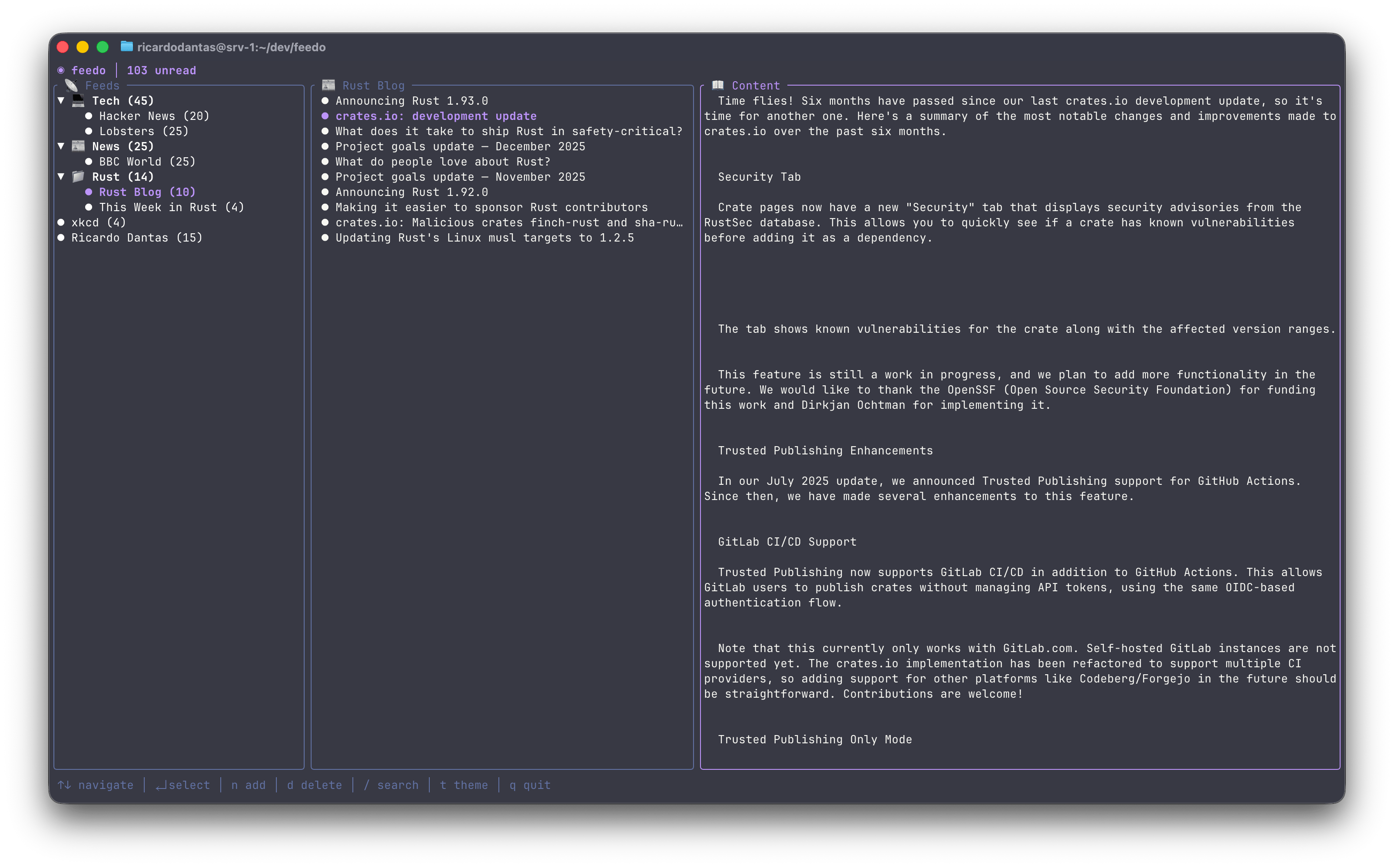
*Three-panel layout: feeds, articles, and content preview with Dracula theme*
### Search
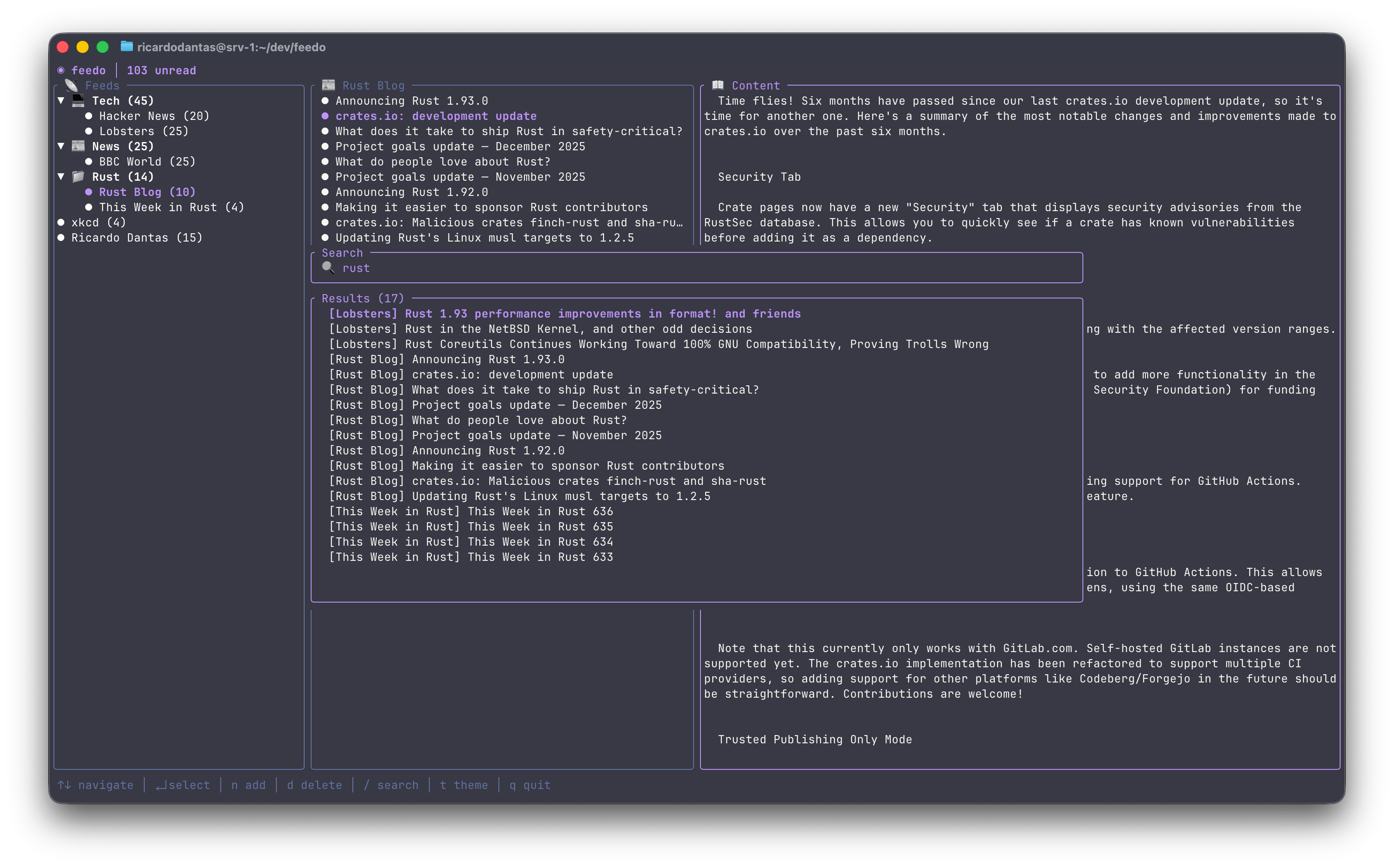
*Real-time search across all your feeds*
### Add Feed
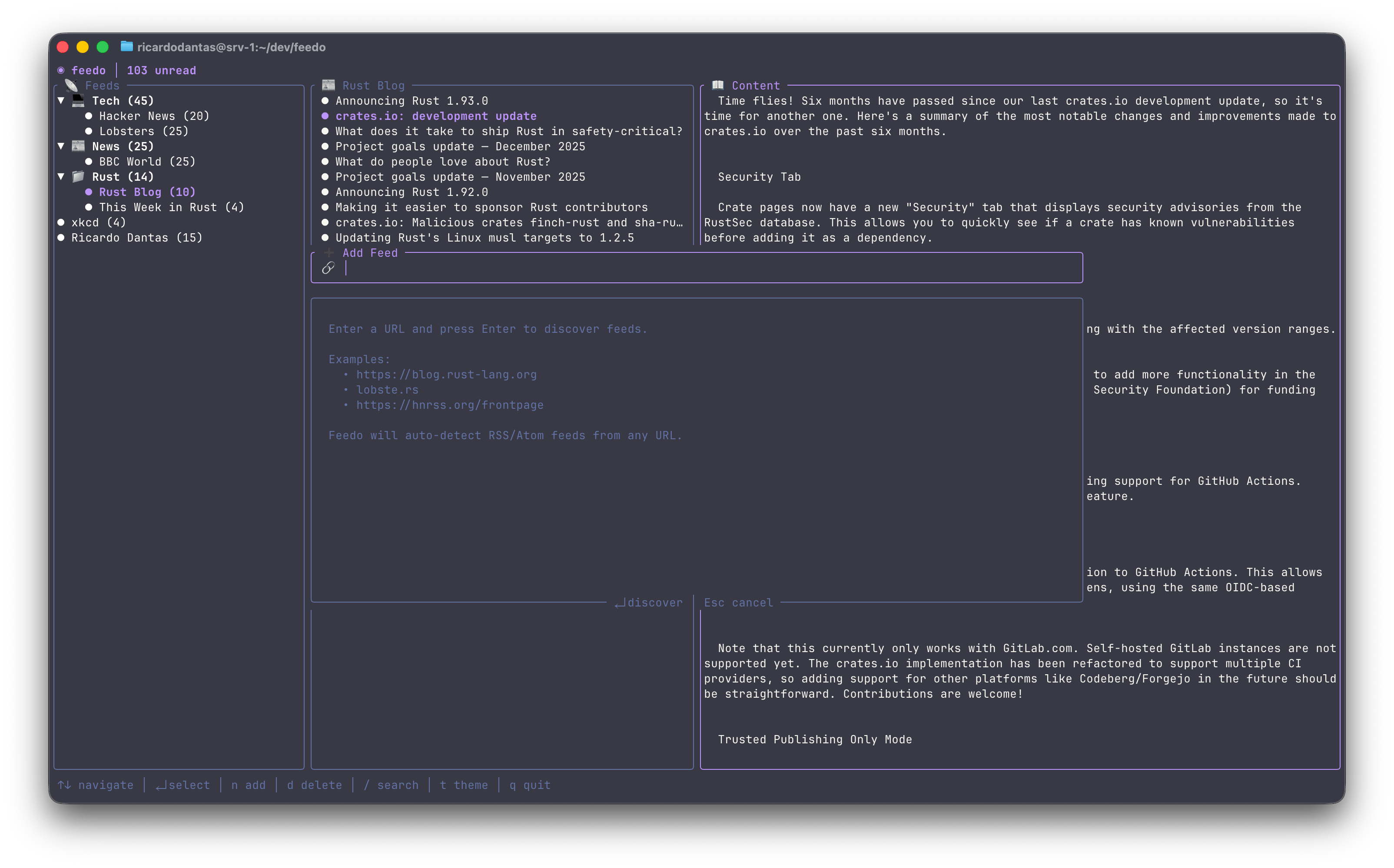
*Auto-discover RSS/Atom feeds from any URL*
## ✨ Features
| Feature | Description |
|---------|-------------|
| 🎨 **Beautiful TUI** | Clean three-panel interface with rounded borders and smooth navigation |
| 🔍 **Feed Discovery** | Auto-detect RSS/Atom feeds from any URL — just paste a website |
| 📴 **Offline Mode** | Articles cached locally — read without internet, read states persist |
| ☁️ **Cloud Sync** | Sync with FreshRSS, Miniflux, Inoreader via Google Reader API |
| 📁 **Smart Folders** | Organize feeds into collapsible folders with custom emoji icons |
| 🔎 **Instant Search** | Find articles across all feeds with real-time filtering |
| 🎭 **15 Themes** | Dracula, Nord, Catppuccin, Gruvbox, Tokyo Night, Solarized, and more |
| 📥 **OPML Support** | Import/export subscriptions for easy migration |
| 📤 **Social Sharing** | Share articles to X, Mastodon, and Bluesky with one keypress |
| ⚡ **Blazingly Fast** | Async feed fetching with Tokio — no UI blocking |
| 🦀 **Memory Safe** | Written in 100% safe Rust with zero unsafe code |
| 🌍 **Cross-Platform** | Linux, macOS, Windows — same config path everywhere |
## 🚀 Installation
### Homebrew (macOS/Linux)
```bash
brew install ricardodantas/tap/feedo
```
### Cargo (All Platforms)
```bash
cargo install feedo
```
### From Source
```bash
# Clone the repository
git clone https://github.com/ricardodantas/feedo.git
cd feedo
# Build with optimizations
cargo build --release
# Run it!
./target/release/feedo
```
### Pre-built Binaries
Download from [GitHub Releases](https://github.com/ricardodantas/feedo/releases) — available for Linux (x64, ARM64, musl), macOS (Intel, Apple Silicon), and Windows.
### Requirements
- A terminal with Unicode support
- That's it!
## 📖 Usage
### Basic Commands
```bash
# Launch the TUI
feedo
# Import feeds from another reader
feedo --import subscriptions.opml
# Backup your feeds
feedo --export backup.opml
# Show help
feedo --help
```
### Sync Commands
```bash
# Configure sync with your server
feedo sync login
# Check sync status
feedo sync status
# Run full sync (import feeds + sync read states)
feedo sync
```
**Tip:** Once configured, press `S` in the TUI to sync without leaving the app!
### Adding Feeds
Press `n` in the app to add a new feed. Just paste any URL — Feedo will auto-discover the RSS/Atom feed:
```
┌─ ➕ Add Feed ──────────────────────────────────────────┐
│ 🔗 https://blog.rust-lang.org│ │
└───────────────────────────────────────────────────────┘
```
Feedo tries:
1. The URL directly (if it's already a feed)
2. `` tags in HTML
3. Common paths like `/feed`, `/rss`, `/atom.xml`
### First Run
On first launch, Feedo creates a default configuration with some starter feeds:
- **Tech**: Hacker News, Lobsters
- **News**: BBC World
Feel free to modify `~/.config/feedo/config.json` to add your own!
## ⌨️ Keybindings
### Navigation
| Key | Action |
|-----|--------|
| `j` / `↓` | Move down |
| `k` / `↑` | Move up |
| `l` / `→` / `Enter` | Select / Enter |
| `h` / `←` | Go back |
| `g` | Jump to top |
| `G` | Jump to bottom |
| `Tab` | Switch between panels |
| `v` | Toggle content preview |
### Actions
| Key | Action |
|-----|--------|
| `n` | Add new feed (with auto-discovery) |
| `d` / `Delete` | Delete selected feed/folder |
| `r` | Refresh all feeds |
| `S` | Sync with server (if configured) |
| `o` | Open article in browser |
| `s` | Share article |
| `Space` | Toggle read/unread |
| `a` | Mark all as read (selected feed) |
| `/` | Open search |
| `t` | Open theme picker |
| `?` / `F1` | Show keyboard shortcuts |
| `A` | About Feedo |
| `q` | Quit |
### Share Mode
| Key | Action |
|-----|--------|
| `↑` / `↓` | Navigate platforms |
| `Enter` | Share to selected platform |
| `x` | Quick share to X (Twitter) |
| `m` | Quick share to Mastodon |
| `b` | Quick share to Bluesky |
| `Esc` | Cancel |
### Add Feed Mode
| Key | Action |
|-----|--------|
| `Enter` | Discover feeds / Confirm |
| `↑` / `↓` | Select feed (if multiple found) |
| `Esc` | Cancel / Go back |
### Search Mode
| Key | Action |
|-----|--------|
| `Enter` | Go to selected result |
| `↑` / `↓` | Navigate results |
| `Esc` | Cancel search |
### Theme Picker
| Key | Action |
|-----|--------|
| `↑` / `↓` | Browse themes (live preview) |
| `Enter` | Apply and save theme |
| `Esc` | Cancel |
## ⚙️ Configuration
### Config Location
Feedo uses `~/.config/feedo/` on **all platforms** for consistency:
| Platform | Path |
|----------|------|
| Linux | `~/.config/feedo/config.json` |
| macOS | `~/.config/feedo/config.json` |
| Windows | `%USERPROFILE%\.config\feedo\config.json` |
### Example Configuration
```json
{
"folders": [
{
"name": "Tech",
"icon": "💻",
"expanded": true,
"feeds": [
{
"name": "Hacker News",
"url": "https://hnrss.org/frontpage"
},
{
"name": "Lobsters",
"url": "https://lobste.rs/rss"
},
{
"name": "This Week in Rust",
"url": "https://this-week-in-rust.org/rss.xml"
}
]
},
{
"name": "News",
"icon": "📰",
"expanded": false,
"feeds": [
{
"name": "BBC World",
"url": "https://feeds.bbci.co.uk/news/world/rss.xml"
}
]
}
],
"feeds": [
{
"name": "xkcd",
"url": "https://xkcd.com/rss.xml"
}
],
"theme": {
"name": "dracula"
},
"refresh_interval": 30
}
```
### Offline Mode & Cache
Feedo automatically caches all articles for offline reading:
| File | Purpose |
|------|---------|
| `~/.config/feedo/data/cache.json` | Cached articles and read states |
**How it works:**
- Articles are cached after each successful fetch
- Read/unread states persist between sessions
- When offline, you can still browse all previously fetched articles
- Cache is updated on every refresh and saved on exit
**No configuration needed** — offline mode works automatically!
### ☁️ Cloud Sync
Feedo supports syncing with RSS servers that implement the **Google Reader API**.
#### ✅ Tested & Working
| Service | Server URL | Notes |
|---------|------------|-------|
| **FreshRSS** | `https://your-server/api/greader.php` | Self-hosted, recommended |
| **Miniflux** | `https://your-server/v1/` | Self-hosted, lightweight |
| **The Old Reader** | `https://theoldreader.com` | Hosted, free tier |
| **BazQux** | `https://bazqux.com` | Hosted, free trial |
#### ⚠️ Not Currently Supported
| Service | Reason |
|---------|--------|
| **Inoreader** | Requires OAuth 2.0 / App registration (not plain password login) |
| **Feedly** | Uses proprietary API, not Google Reader compatible |
#### Quick Start: FreshRSS (Docker)
```bash
# 1. Spin up FreshRSS
podman run -d --name freshrss -p 8080:80 freshrss/freshrss
# Or: docker run -d --name freshrss -p 8080:80 freshrss/freshrss
# 2. Visit http://localhost:8080 and complete the setup wizard
# - Create your admin account
# - Choose SQLite for simplicity
# 3. Enable API access:
# Settings → Authentication → ☑ Allow API access
# 4. Set API password:
# Settings → Profile → API password (can be different from login password)
# 5. Connect Feedo
feedo sync login http://localhost:8080/api/greader.php your_user your_api_password
feedo sync status # Verify connection
feedo sync # Run first sync
```
#### Quick Start: Miniflux (Docker)
```bash
# 1. Spin up Miniflux with PostgreSQL
podman run -d --name miniflux-db -e POSTGRES_USER=miniflux \
-e POSTGRES_PASSWORD=secret -e POSTGRES_DB=miniflux postgres:15
podman run -d --name miniflux -p 8080:8080 \
-e DATABASE_URL="postgres://miniflux:secret@miniflux-db/miniflux?sslmode=disable" \
-e RUN_MIGRATIONS=1 \
-e CREATE_ADMIN=1 \
-e ADMIN_USERNAME=admin \
-e ADMIN_PASSWORD=admin123 \
miniflux/miniflux:latest
# Or with docker-compose (recommended for production)
# 2. Visit http://localhost:8080 and login with admin/admin123
# 3. Enable Fever API (used for Google Reader compatibility):
# Settings → Integrations → Fever → Enable & set password
# 4. Connect Feedo (note: Miniflux uses /v1/ endpoint)
feedo sync login http://localhost:8080/v1/ admin your_fever_password
feedo sync status
feedo sync
```
**Tip:** For production, see [FreshRSS Docker docs](https://github.com/FreshRSS/FreshRSS/tree/edge/Docker) or [Miniflux installation guide](https://miniflux.app/docs/installation.html).
#### Setup
```bash
# Configure your sync server
feedo sync login https://freshrss.example.com/api/greader.php myuser mypassword
# Verify connection
feedo sync status
```
#### What syncs?
| Direction | What |
|-----------|------|
| **Server → Local** | Subscriptions (feeds + folders) |
| **Server → Local** | Read states |
| **Local → Server** | Read states |
#### Running Sync
**From CLI:**
```bash
feedo sync
```
**From TUI:**
Press `S` (shift+s) — the status bar shows a ☁️ indicator when sync is configured.
#### Config Example
After running `feedo sync login`, your config will include:
```json
{
"sync": {
"provider": "freshrss",
"server": "https://freshrss.example.com/api/greader.php",
"username": "myuser",
"password": "mypassword"
}
}
```
**Note:** For security, consider using an API password or app-specific password if your service supports it.
### Theme Colors
Feedo comes with **15 popular themes** from the terminal/editor world:
| Theme | Description |
|-------|-------------|
| `dracula` | 🦇 Dark purple aesthetic (default) |
| `one-dark-pro` | ⚛️ Atom's iconic dark theme |
| `nord` | ❄️ Arctic, bluish color palette |
| `catppuccin-mocha` | 🐱 Warm pastel dark theme |
| `catppuccin-latte` | ☕ Warm pastel light theme |
| `gruvbox-dark` | 🎸 Retro groove colors |
| `gruvbox-light` | 🌻 Retro groove, light variant |
| `tokyo-night` | 🌃 Futuristic dark blue |
| `solarized-dark` | ☀️ Precision colors, dark |
| `solarized-light` | 🌞 Precision colors, light |
| `monokai-pro` | 🎨 Classic syntax highlighting |
| `rose-pine` | 🌹 Soho vibes with natural pine |
| `kanagawa` | 🌊 Inspired by Hokusai's art |
| `everforest` | 🌲 Comfortable green forest |
| `cyberpunk` | 💜 Neon-soaked futuristic |
**Example config:**
```json
{
"theme": {
"name": "catppuccin-mocha"
}
}
```
| `orange` | 🟠 Energetic |
| `pink` | 🩷 Soft and playful |
## 🏗️ Architecture
```
src/
├── main.rs # Entry point, CLI handling
├── lib.rs # Library root, public API
│
├── app/ # Application core
│ └── mod.rs # App state, event loop, orchestration
│
├── config/ # Configuration management
│ ├── mod.rs # Module exports
│ └── data.rs # Config structs, load/save logic
│
├── feed/ # Feed management
│ ├── mod.rs # Module exports
│ ├── item.rs # FeedItem struct
│ ├── manager.rs # FeedManager, Folder, async fetching
│ └── parser.rs # RSS/Atom parsing with feed-rs
│
├── opml/ # OPML import/export
│ └── mod.rs # Full OPML 2.0 support
│
├── theme/ # Theming system
│ └── mod.rs # AccentColor, Theme configuration
│
└── ui/ # Terminal UI
├── mod.rs # Module exports
├── state.rs # UI state machine
├── input.rs # Keyboard input handling
├── render.rs # Rendering logic, layouts
└── widgets/ # Custom ratatui widgets
```
### Design Principles
- **Separation of Concerns** — Each module has a single responsibility
- **Async by Default** — Network operations never block the UI
- **Immutable State** — UI state is explicit and predictable
- **Error Propagation** — Errors bubble up with context via `color-eyre`
- **Zero Unsafe** — Memory safety guaranteed by the compiler
## 🗺️ Roadmap
- [x] **Feed Discovery** — Auto-detect RSS from any URL ✅
- [x] **Offline Mode** — Cache articles for reading without internet ✅
- [x] **Cloud Sync** — Sync with FreshRSS, Miniflux via Google Reader API ✅
- [ ] **Custom Keybindings** — Full key remapping
- [ ] **Notifications** — Desktop alerts for new articles
## 🤝 Contributing
Contributions are welcome! Please feel free to submit a Pull Request.
1. Fork the repository
2. Create your feature branch (`git checkout -b feature/amazing`)
3. Commit your changes (`git commit -m 'Add amazing feature'`)
4. Push to the branch (`git push origin feature/amazing`)
5. Open a Pull Request
## 📄 License
MIT © Ricardo Dantas
---
Made with ❤️ and 🦀
(◕ᴥ◕) Happy reading!