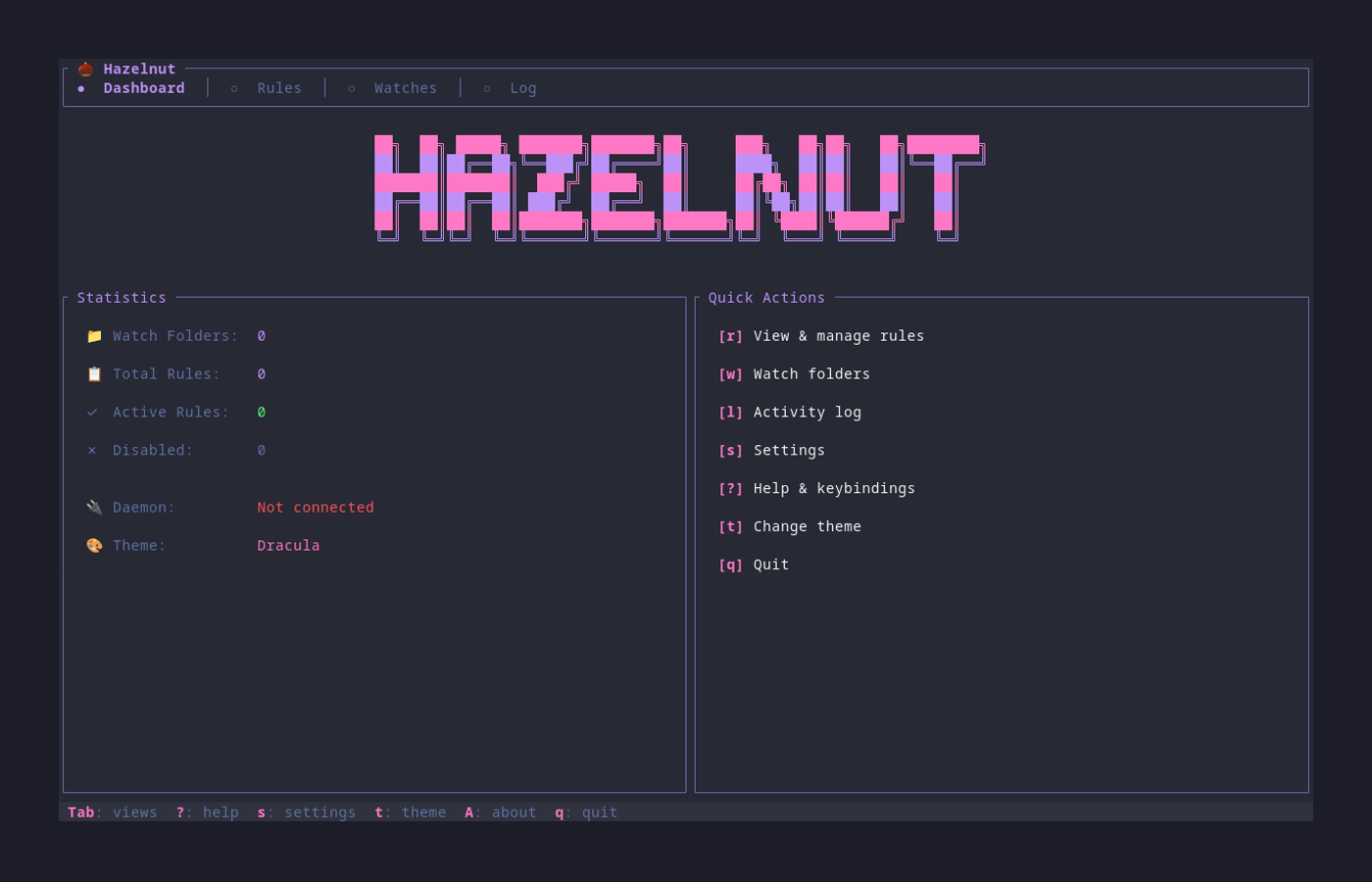
Hazelnut Dashboard

🌰 Hazelnut

A terminal-based automated file organizer inspired by Hazel

Watch your folders and automatically organize files based on rules you define β€” all from your terminal.

Release Crates.io CI License Rust Version


## πŸ“– Table of Contents - [✨ Features](#-features) - [πŸš€ Quick Start](#-quick-start) - [βš™οΈ Configuration](#️-configuration) - [πŸ“‹ Rules](#-rules) - [⌨️ Keybindings](#️-keybindings) - [🎨 Themes](#-themes) - [πŸ—οΈ Architecture](#️-architecture) - [πŸ”§ Building from Source](#-building-from-source) - [🀝 Contributing](#-contributing) - [πŸ“„ License](#-license)
## ✨ Features
### πŸ“ Smart File Watching Watch any folder for new and changed files with configurable debouncing and recursive monitoring. Paths support `~`, `$VAR`, and `${VAR}` expansion. ### 🎯 Flexible Rules Engine Define powerful rules with conditions based on name, extension, size, age, and more. Multiple rules can match the same file β€” all matching rules execute in order. ### ⚑ Powerful Actions Move, copy, rename, delete, archive files or directories, send to trash, or run custom scripts β€” all automated. Cross-filesystem moves are handled transparently. ### πŸ–₯️ Beautiful TUI A gorgeous terminal interface for managing rules and monitoring activity in real-time. ### πŸ”§ Background Daemon Set it and forget it β€” the daemon runs quietly and applies rules 24/7. ### πŸ“ Simple Configuration Human-readable TOML config that's easy to write and maintain.

### Feature Highlights | Feature | Description | |---------|-------------| | πŸ” **Pattern Matching** | Glob patterns and regex for precise file matching | | πŸ“Š **Size Conditions** | Filter files by size (greater than, less than) | | πŸ“… **Age Conditions** | Match files by modification date | | 🏷️ **Multiple Extensions** | Match any of multiple file types | | πŸ“‚ **Recursive Watching** | Monitor subdirectories automatically | | 🎨 **15 Built-in Themes** | From Dracula to Cyberpunk | | πŸ”” **Desktop Notifications** | Get alerted on errors (cross-platform) | | πŸ“‹ **Activity Log** | Full history of all file operations |
## πŸš€ Quick Start ### Installation #### macOS ```bash # Homebrew (recommended - fast, pre-built binary) brew install ricardodantas/tap/hazelnut ``` #### Linux ```bash # Homebrew brew install ricardodantas/tap/hazelnut # Or via Cargo cargo install hazelnut ``` ##### Arch Linux (pacman) ```bash pacman -S hazelnut ``` #### Windows ```bash # Via Cargo (requires Rust toolchain) cargo install hazelnut # Or download pre-built binary from GitHub Releases: # https://github.com/ricardodantas/hazelnut/releases ``` #### From Source ```bash git clone https://github.com/ricardodantas/hazelnut cd hazelnut cargo install --path . ``` > **Note**: The daemon (`hazelnutd`) is only available on macOS and Linux. On Windows, only the TUI (`hazelnut`) is available. ### First Run Hazelnut needs **two things** to work: 1. **Watch folders** β€” which directories to monitor 2. **Rules** β€” what to do with files in those folders > ⚠️ **Important**: Rules alone won't do anything! You must also configure at least one watch folder. 1. **Create a config file** at `~/.config/hazelnut/config.toml`: ```toml # ━━━━━━━━━━━━━━━━━━━━━━━━━━━━━━━━━━━━━━━━━━━━━━━━━━━━━━━━━━━━ # STEP 1: Define which folders to watch # ━━━━━━━━━━━━━━━━━━━━━━━━━━━━━━━━━━━━━━━━━━━━━━━━━━━━━━━━━━━━ [[watch]] path = "/home/youruser/Downloads" # Full path, ~, $HOME all work recursive = false # Set true to include subfolders # ━━━━━━━━━━━━━━━━━━━━━━━━━━━━━━━━━━━━━━━━━━━━━━━━━━━━━━━━━━━━ # STEP 2: Define rules for what to do with files # ━━━━━━━━━━━━━━━━━━━━━━━━━━━━━━━━━━━━━━━━━━━━━━━━━━━━━━━━━━━━ [[rule]] name = "Organize PDFs" [rule.condition] extension = "pdf" [rule.action] type = "move" destination = "/home/youruser/Documents/PDFs" ``` 2. **Launch the TUI** to manage and monitor: ```bash hazelnut ``` 3. **Or start the daemon** to run in the background: ```bash hazelnutd start ```

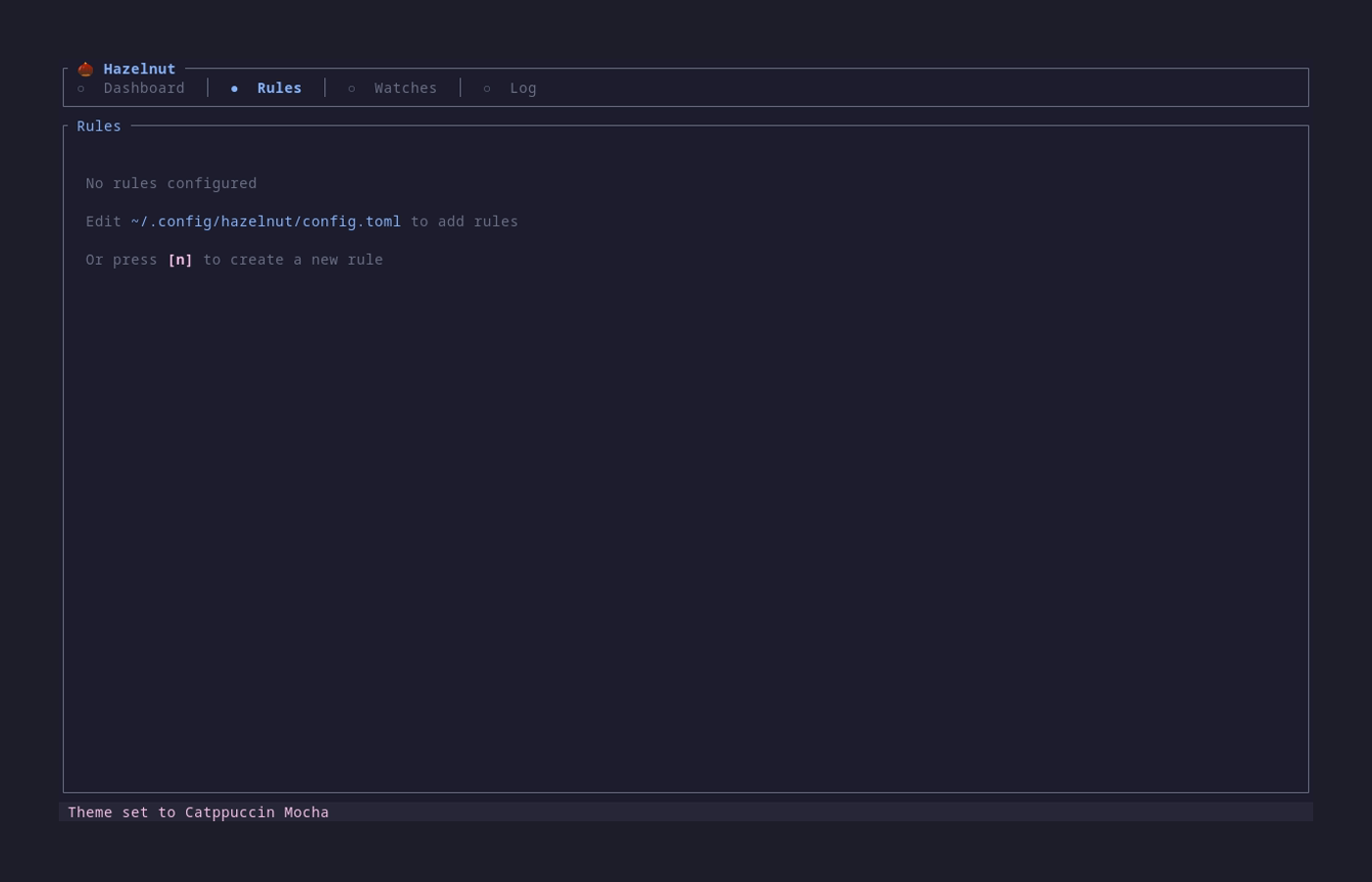
Rules View


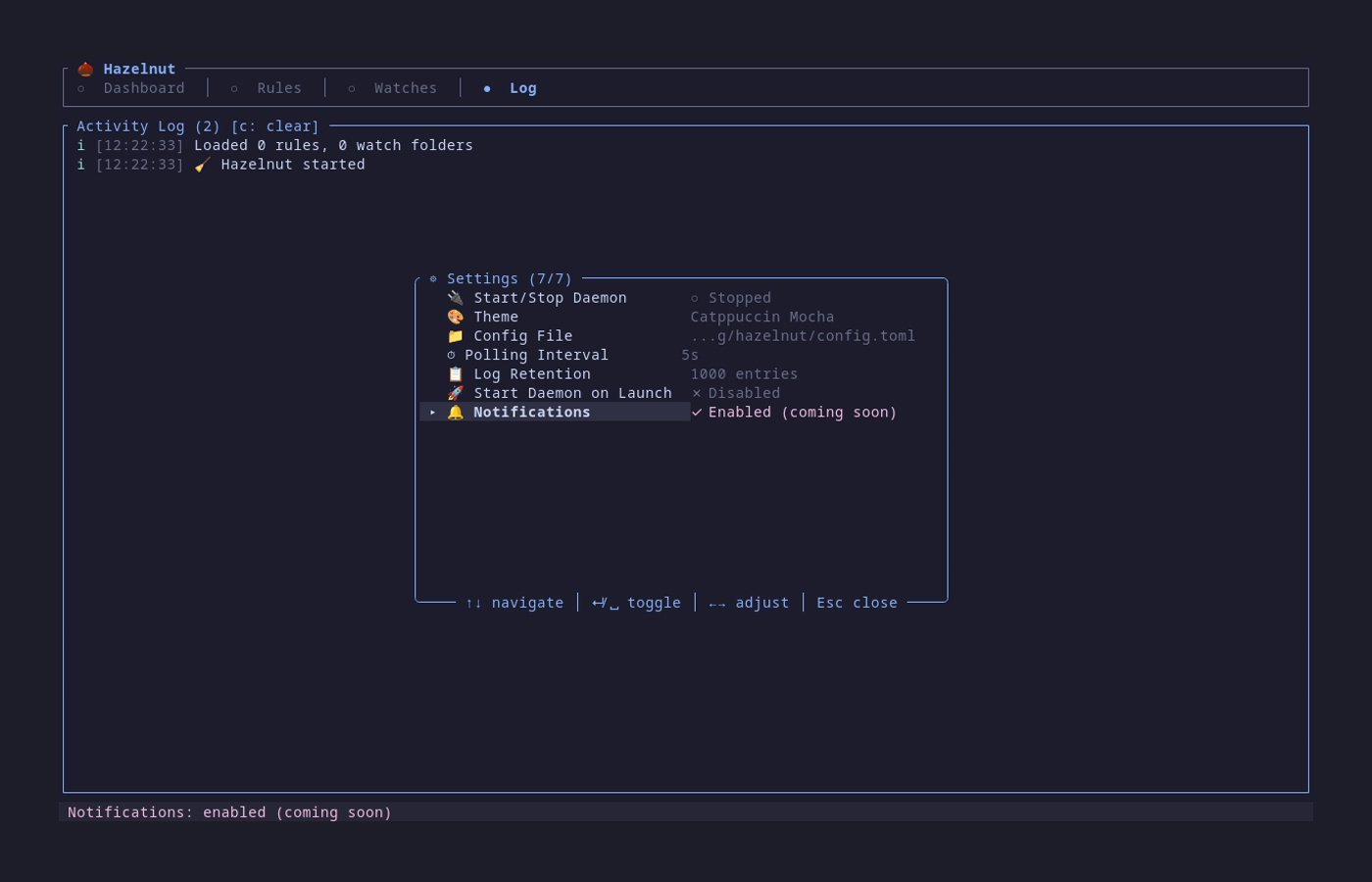
## βš™οΈ Configuration Hazelnut uses [TOML](https://toml.io) for configuration. The config file is always located at: ``` ~/.config/hazelnut/config.toml ``` ### Full Configuration Example ```toml # ───────────────────────────────────────────────────────────── # General Settings # ───────────────────────────────────────────────────────────── [general] # Logging level: trace, debug, info, warn, error log_level = "info" # Optional log file path log_file = "~/.local/share/hazelnut/hazelnut.log" # Wait time (seconds) before processing a file after change detected debounce_seconds = 2 # How often to check for file changes (seconds) polling_interval_secs = 5 # Desktop notifications on errors (cross-platform) notifications_enabled = true # Theme for the TUI theme = "catppuccin-mocha" # ───────────────────────────────────────────────────────────── # Watch Folders # ───────────────────────────────────────────────────────────── [[watch]] path = "~/Downloads" recursive = false [[watch]] path = "~/Desktop" recursive = false # Only apply specific rules to this folder rules = ["screenshots", "temp-files"] [[watch]] path = "~/Documents/Inbox" recursive = true # Watch subdirectories too # ───────────────────────────────────────────────────────────── # Rules # ───────────────────────────────────────────────────────────── [[rule]] name = "Organize PDFs" enabled = true stop_processing = false # Continue checking other rules [rule.condition] extension = "pdf" [rule.action] type = "move" destination = "~/Documents/PDFs" create_destination = true overwrite = false [[rule]] name = "Screenshots" enabled = true [rule.condition] name_matches = "Screenshot*.png" [rule.action] type = "move" destination = "~/Pictures/Screenshots" [[rule]] name = "Clean Old Downloads" enabled = true [rule.condition] age_days_greater_than = 30 extensions = ["tmp", "log", "bak"] [rule.action] type = "trash" ``` See [docs/configuration.md](docs/configuration.md) for the complete reference. ### Watch Editor (TUI) You can manage watch folders directly in the TUI: 1. **Add a new watch**: Press `a` or `n` in the Watches view 2. **Edit an existing watch**: Select a watch and press `e` 3. **Delete a watch**: Select a watch and press `d` The watch editor dialog allows you to configure: - **Path** - Path to the folder to watch (supports `~`, `$VAR`, `${VAR}`, or absolute paths) - **Recursive** - Whether to include subdirectories Use `Tab` to move between fields, `Enter` to save, and `Esc` to cancel.
## πŸ“‹ Rules Rules are the heart of Hazelnut. Each rule has a **condition** (what files to match) and an **action** (what to do with them). ### Conditions All conditions in a rule must match for the rule to apply. #### File Name ```toml [rule.condition] # Glob pattern matching name_matches = "Screenshot*.png" # Regex pattern matching name_regex = "^invoice_\\d{4}\\.pdf$" ``` #### File Extension ```toml [rule.condition] # Single extension extension = "pdf" # Multiple extensions (match any) extensions = ["jpg", "jpeg", "png", "gif", "webp"] ``` #### File Size ```toml [rule.condition] # Size in bytes size_greater_than = 10485760 # > 10 MB size_less_than = 1048576 # < 1 MB ``` #### File Age ```toml [rule.condition] # Age in days (based on modification time) age_days_greater_than = 30 # Older than 30 days age_days_less_than = 7 # Newer than 7 days ``` #### File Type ```toml [rule.condition] is_directory = false # Match only files is_hidden = true # Match hidden files (starting with .) ``` ### Actions #### Move ```toml [rule.action] type = "move" destination = "~/Documents/Archive" create_destination = true # Create folder if missing overwrite = false # Don't overwrite existing files ``` #### Copy ```toml [rule.action] type = "copy" destination = "~/Backup" create_destination = true overwrite = false ``` #### Rename ```toml [rule.action] type = "rename" pattern = "{date}_{name}.{ext}" ``` **Available variables:** | Variable | Description | Example | |----------|-------------|---------| | `{name}` | Filename without extension | `document` | | `{filename}` | Full filename | `document.pdf` | | `{ext}` | Extension | `pdf` (empty if none) | | `{path}` | Full path | `/home/user/document.pdf` | | `{dir}` | Parent directory | `/home/user` | | `{date}` | Current date | `2024-01-15` | | `{datetime}` | Current datetime | `2024-01-15_14-30-00` | | `{date:FORMAT}` | Custom format | `{date:%Y%m%d}` β†’ `20240115` | #### Trash ```toml [rule.action] type = "trash" ``` Moves files to the system trash (recoverable). #### Delete ```toml [rule.action] type = "delete" ``` > ⚠️ **Warning**: This permanently deletes files! #### Run Command ```toml [rule.action] type = "run" command = "convert" args = ["{path}", "-resize", "50%", "{dir}/{name}_small.{ext}"] ``` #### Archive ```toml [rule.action] type = "archive" destination = "~/Archives" delete_original = false ``` ### Rule Editor (TUI) You can create and edit rules directly in the TUI without editing the config file: 1. **Create a new rule**: Press `n` in the Rules view 2. **Edit an existing rule**: Select a rule and press `e` 3. **Delete a rule**: Select a rule and press `d` The rule editor dialog allows you to configure: - **Name** - A descriptive name for your rule - **Enabled** - Toggle the rule on/off - **Conditions** - Extension, name patterns (glob/regex), size limits, age limits, is_directory, is_hidden - **Action** - Move, Copy, Rename, Trash, Delete, Run Command, or Archive Use `Tab` to move between fields, `Enter` to save, and `Esc` to cancel. > πŸ’‘ **Remember**: Rules only apply to files in **watched folders**. Make sure you've configured at least one `[[watch]]` entry in your config, or add one via the Watches view. ### Example Rules
πŸ“Έ Organize Screenshots ```toml [[rule]] name = "Screenshots to folder" [rule.condition] name_matches = "Screenshot*.png" [rule.action] type = "move" destination = "~/Pictures/Screenshots" ```
πŸ“„ Sort Documents by Type ```toml [[rule]] name = "PDFs to Documents" [rule.condition] extension = "pdf" [rule.action] type = "move" destination = "~/Documents/PDFs" [[rule]] name = "Spreadsheets to Documents" [rule.condition] extensions = ["xlsx", "xls", "csv"] [rule.action] type = "move" destination = "~/Documents/Spreadsheets" ```
πŸ—‘οΈ Clean Old Files ```toml [[rule]] name = "Delete old temp files" [rule.condition] age_days_greater_than = 30 extensions = ["tmp", "log", "bak"] [rule.action] type = "trash" ```
πŸ“… Date-Prefix Invoices ```toml [[rule]] name = "Prefix invoices with date" [rule.condition] name_regex = "^invoice.*\\.pdf$" [rule.action] type = "rename" pattern = "{date:YYYY-MM-DD}_{filename}" ```
πŸ–ΌοΈ Compress Large Images ```toml [[rule]] name = "Compress large images" [rule.condition] extensions = ["jpg", "png"] size_greater_than = 5242880 # > 5 MB [rule.action] type = "run" command = "convert" args = ["{path}", "-quality", "80", "{path}"] ```

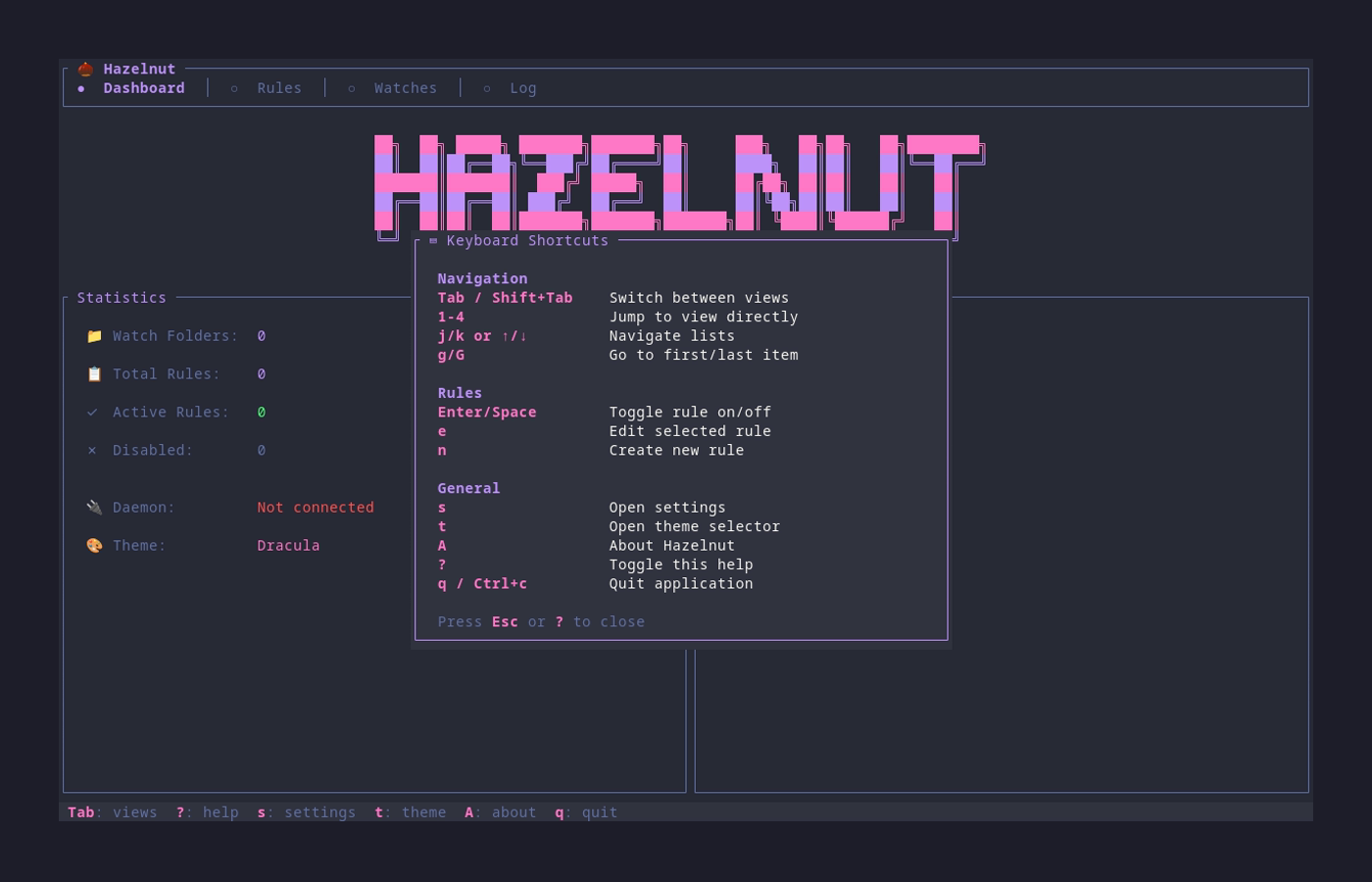
## ⌨️ Keybindings ### Global | Key | Action | |-----|--------| | `Tab` | Next view | | `Shift+Tab` | Previous view | | `1` `2` `3` `4` | Jump to view (Dashboard, Rules, Watches, Log) | | `s` | Open settings | | `t` | Open theme picker | | `A` | About Hazelnut | | `?` / `F1` | Show help | | `q` | Quit (from Dashboard) | | `Ctrl+c` / `Ctrl+q` | Force quit | ### Navigation | Key | Action | |-----|--------| | `↑` / `k` | Move up | | `↓` / `j` | Move down | | `g` / `Home` | Go to first item | | `G` / `End` | Go to last item | | `PageUp` | Page up | | `PageDown` | Page down | ### Rules View | Key | Action | |-----|--------| | `Enter` / `Space` | Toggle rule enabled/disabled | | `e` | Edit selected rule | | `n` | Create new rule | | `d` / `Delete` | Delete selected rule | ### Watches View | Key | Action | |-----|--------| | `a` / `n` | Add new watch folder | | `e` | Edit selected watch | | `d` / `Delete` | Delete selected watch | | `o` / `Enter` | Open folder | ### Log View | Key | Action | |-----|--------| | `c` | Clear log | ### Theme Picker | Key | Action | |-----|--------| | `↑` / `k` | Previous theme (with live preview) | | `↓` / `j` | Next theme (with live preview) | | `Enter` | Apply selected theme | | `Esc` | Cancel |

Help Screen


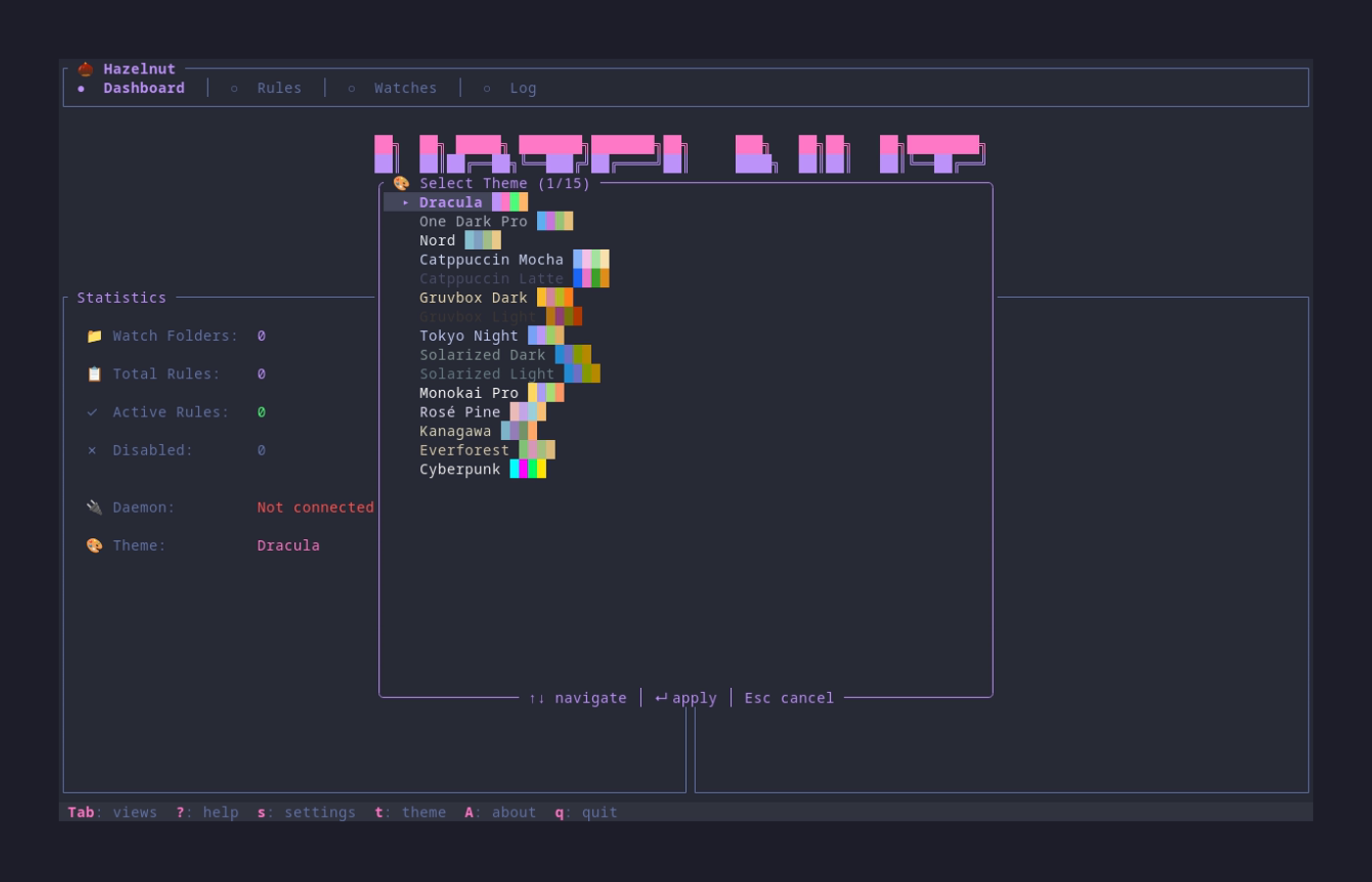
## 🎨 Themes Hazelnut includes **15 beautiful themes** based on popular terminal and editor color schemes. Press `t` in the TUI to open the theme picker with live preview.

Theme Picker

### Available Themes | Theme | Description | |-------|-------------| | πŸ¦‡ **Dracula** | Dark purple aesthetic (default) | | πŸŒ™ **One Dark Pro** | Atom's iconic dark theme | | ❄️ **Nord** | Arctic, bluish color palette | | 🐱 **Catppuccin Mocha** | Warm pastel dark theme | | β˜• **Catppuccin Latte** | Warm pastel light theme | | 🎸 **Gruvbox Dark** | Retro groove colors | | πŸ“œ **Gruvbox Light** | Retro groove, light variant | | πŸŒƒ **Tokyo Night** | Futuristic dark blue | | πŸŒ… **Solarized Dark** | Precision colors, dark | | 🌞 **Solarized Light** | Precision colors, light | | 🎨 **Monokai Pro** | Classic syntax highlighting | | 🌹 **RosΓ© Pine** | All natural pine with soho vibes | | 🌊 **Kanagawa** | Inspired by Katsushika Hokusai | | 🌲 **Everforest** | Comfortable green forest theme | | πŸŒ† **Cyberpunk** | Neon-soaked futuristic theme |

Cyberpunk Theme


## πŸ—οΈ Architecture Hazelnut consists of two binaries that work together: ``` β”Œβ”€β”€β”€β”€β”€β”€β”€β”€β”€β”€β”€β”€β”€β”€β”€β”€β”€β”€β”€β”€β”€β”€β”€β”€β”€β”€β”€β”€β”€β”€β”€β”€β”€β”€β”€β”€β”€β”€β”€β”€β”€β”€β”€β”€β”€β”€β”€β”€β”€β”€β”€β”€β”€β”€β”€β”€β”€β”€β”€β”€β”€β” β”‚ User β”‚ β””β”€β”€β”€β”€β”€β”€β”€β”€β”€β”€β”€β”€β”€β”€β”€β”€β”€β”€β”€β”€β”€β”€β”€β”€β”€β”€β”€β”€β”€β”€β”€β”€β”€β”€β”€β”€β”€β”€β”€β”€β”€β”€β”€β”€β”€β”€β”€β”€β”€β”€β”€β”€β”€β”€β”€β”€β”€β”€β”€β”€β”€β”˜ β”‚ β–Ό β”Œβ”€β”€β”€β”€β”€β”€β”€β”€β”€β”€β”€β”€β”€β”€β”€β”€β”€β”€β”€β”€β”€β”€β”€β”€β”€β”€β”€β”€β”€β”€β”€β”€β”€β”€β”€β”€β”€β”€β”€β”€β”€β”€β”€β”€β”€β”€β”€β”€β”€β”€β”€β”€β”€β”€β”€β”€β”€β”€β”€β”€β”€β” β”‚ hazelnut (TUI) β”‚ β”‚ β€’ Manage rules β”‚ β”‚ β€’ Monitor activity β”‚ β”‚ β€’ Change themes β”‚ β”‚ β€’ View logs β”‚ β””β”€β”€β”€β”€β”€β”€β”€β”€β”€β”€β”€β”€β”€β”€β”€β”€β”€β”€β”€β”€β”€β”€β”€β”€β”€β”€β”€β”€β”€β”€β”€β”€β”€β”€β”€β”€β”€β”€β”€β”€β”€β”€β”€β”€β”€β”€β”€β”€β”€β”€β”€β”€β”€β”€β”€β”€β”€β”€β”€β”€β”€β”˜ β”‚ Unix Socket β”‚ β–Ό β”Œβ”€β”€β”€β”€β”€β”€β”€β”€β”€β”€β”€β”€β”€β”€β”€β”€β”€β”€β”€β”€β”€β”€β”€β”€β”€β”€β”€β”€β”€β”€β”€β”€β”€β”€β”€β”€β”€β”€β”€β”€β”€β”€β”€β”€β”€β”€β”€β”€β”€β”€β”€β”€β”€β”€β”€β”€β”€β”€β”€β”€β”€β” β”‚ hazelnutd (Daemon) β”‚ β”‚ β€’ Watch folders β”‚ β”‚ β€’ Evaluate rules β”‚ β”‚ β€’ Execute actions β”‚ β”‚ β€’ Run 24/7 in background β”‚ β””β”€β”€β”€β”€β”€β”€β”€β”€β”€β”€β”€β”€β”€β”€β”€β”€β”€β”€β”€β”€β”€β”€β”€β”€β”€β”€β”€β”€β”€β”€β”€β”€β”€β”€β”€β”€β”€β”€β”€β”€β”€β”€β”€β”€β”€β”€β”€β”€β”€β”€β”€β”€β”€β”€β”€β”€β”€β”€β”€β”€β”€β”˜ β”‚ β–Ό β”Œβ”€β”€β”€β”€β”€β”€β”€β”€β”€β”€β”€β”€β”€β”€β”€β”€β”€β”€β”€β”€β”€β”€β”€β”€β”€β”€β”€β”€β”€β”€β”€β”€β”€β”€β”€β”€β”€β”€β”€β”€β”€β”€β”€β”€β”€β”€β”€β”€β”€β”€β”€β”€β”€β”€β”€β”€β”€β”€β”€β”€β”€β” β”‚ File System β”‚ β””β”€β”€β”€β”€β”€β”€β”€β”€β”€β”€β”€β”€β”€β”€β”€β”€β”€β”€β”€β”€β”€β”€β”€β”€β”€β”€β”€β”€β”€β”€β”€β”€β”€β”€β”€β”€β”€β”€β”€β”€β”€β”€β”€β”€β”€β”€β”€β”€β”€β”€β”€β”€β”€β”€β”€β”€β”€β”€β”€β”€β”€β”˜ ``` ### `hazelnut` β€” The TUI Interactive terminal interface for: - Viewing and managing rules - Monitoring watch folders - Viewing activity logs - Changing themes - Sending commands to the daemon ```bash hazelnut # Launch TUI hazelnut list # List all rules hazelnut check # Validate config hazelnut run # Run rules once (dry-run) hazelnut run --apply # Run rules once (for real) hazelnut status # Check daemon status ``` ### `hazelnutd` β€” The Daemon Background service that does the actual work: ```bash hazelnutd start # Start daemon (background) hazelnutd stop # Stop daemon hazelnutd restart # Restart daemon hazelnutd status # Show daemon status hazelnutd reload # Reload configuration (hot-reload, no restart) hazelnutd run # Run in foreground (for debugging) ``` #### Daemon Commands | Command | Description | |---------|-------------| | `start` | Start daemon in background, detached from terminal | | `stop` | Gracefully stop the daemon (SIGTERM) | | `restart` | Stop and start the daemon | | `status` | Show running state, PID, uptime, and log location | | `reload` | Hot-reload config via SIGHUP (no restart needed) | | `run` | Run in foreground with live logging (for debugging) | #### Status Output ```bash $ hazelnutd status 🌰 Hazelnut daemon is running PID: 12345 PID file: ~/.local/state/hazelnut/hazelnutd.pid Log file: ~/.local/state/hazelnut/hazelnutd.log Uptime: 2h 15m 30s ``` #### File Locations All files use consistent paths across Linux and macOS: | File | Path | Purpose | |------|------|---------| | Config | `~/.config/hazelnut/config.toml` | Rules and settings | | PID file | `~/.local/state/hazelnut/hazelnutd.pid` | Tracks running daemon | | Log file | `~/.local/state/hazelnut/hazelnutd.log` | Daemon activity log | #### Typical Workflow ```bash # 1. Edit your rules in the TUI or config file hazelnut # 2. Start the daemon hazelnutd start # 3. Check it's running hazelnutd status # 4. After editing rules, reload without restart hazelnutd reload # 5. View logs if needed tail -f ~/.local/state/hazelnut/hazelnutd.log ```
## πŸ”§ Building from Source ### Requirements - **Rust 1.93+** (uses Edition 2024 features) - **Linux** or **macOS** ### Build ```bash # Clone the repository git clone https://github.com/ricardodantas/hazelnut cd hazelnut # Build release binary cargo build --release # The binaries will be at: # - target/release/hazelnut # - target/release/hazelnutd # Or install directly cargo install --path . ``` ### Development ```bash # Run TUI in development cargo run # Run daemon in foreground cargo run --bin hazelnutd run # Run tests cargo test # Run linter cargo clippy # Format code cargo fmt ```
## 🀝 Contributing Contributions are welcome! Please see [CONTRIBUTING.md](CONTRIBUTING.md) for guidelines. ### Quick Start for Contributors 1. Fork the repository 2. Create a feature branch: `git checkout -b feature/amazing-feature` 3. Make your changes 4. Run tests: `cargo test` 5. Run clippy: `cargo clippy` 6. Format: `cargo fmt` 7. Commit: `git commit -m "Add amazing feature"` 8. Push: `git push origin feature/amazing-feature` 9. Open a Pull Request ### Project Structure ``` hazelnut/ β”œβ”€β”€ src/ β”‚ β”œβ”€β”€ main.rs # TUI entry point β”‚ β”œβ”€β”€ daemon.rs # Daemon entry point β”‚ β”œβ”€β”€ lib.rs # Library root β”‚ β”œβ”€β”€ theme.rs # Color themes β”‚ β”œβ”€β”€ app/ # TUI application β”‚ β”‚ β”œβ”€β”€ events.rs # Key event handling β”‚ β”‚ β”œβ”€β”€ state.rs # Application state β”‚ β”‚ └── ui.rs # UI rendering β”‚ β”œβ”€β”€ config/ # Configuration loading β”‚ β”œβ”€β”€ rules/ # Rule engine β”‚ β”‚ β”œβ”€β”€ action.rs # Rule actions β”‚ β”‚ β”œβ”€β”€ condition.rs # Rule conditions β”‚ β”‚ └── engine.rs # Rule evaluation β”‚ β”œβ”€β”€ watcher/ # File system watcher β”‚ └── ipc/ # TUI-daemon communication β”œβ”€β”€ docs/ β”‚ └── configuration.md # Full config reference β”œβ”€β”€ screenshots/ # Screenshots for docs └── tests/ # Integration tests ```
## πŸ“„ License This project is licensed under the **GPL-3.0-or-later** license β€” see the [LICENSE](LICENSE) file for details. ---

Built with πŸ¦€ Rust and ❀️ by Ricardo Dantas