
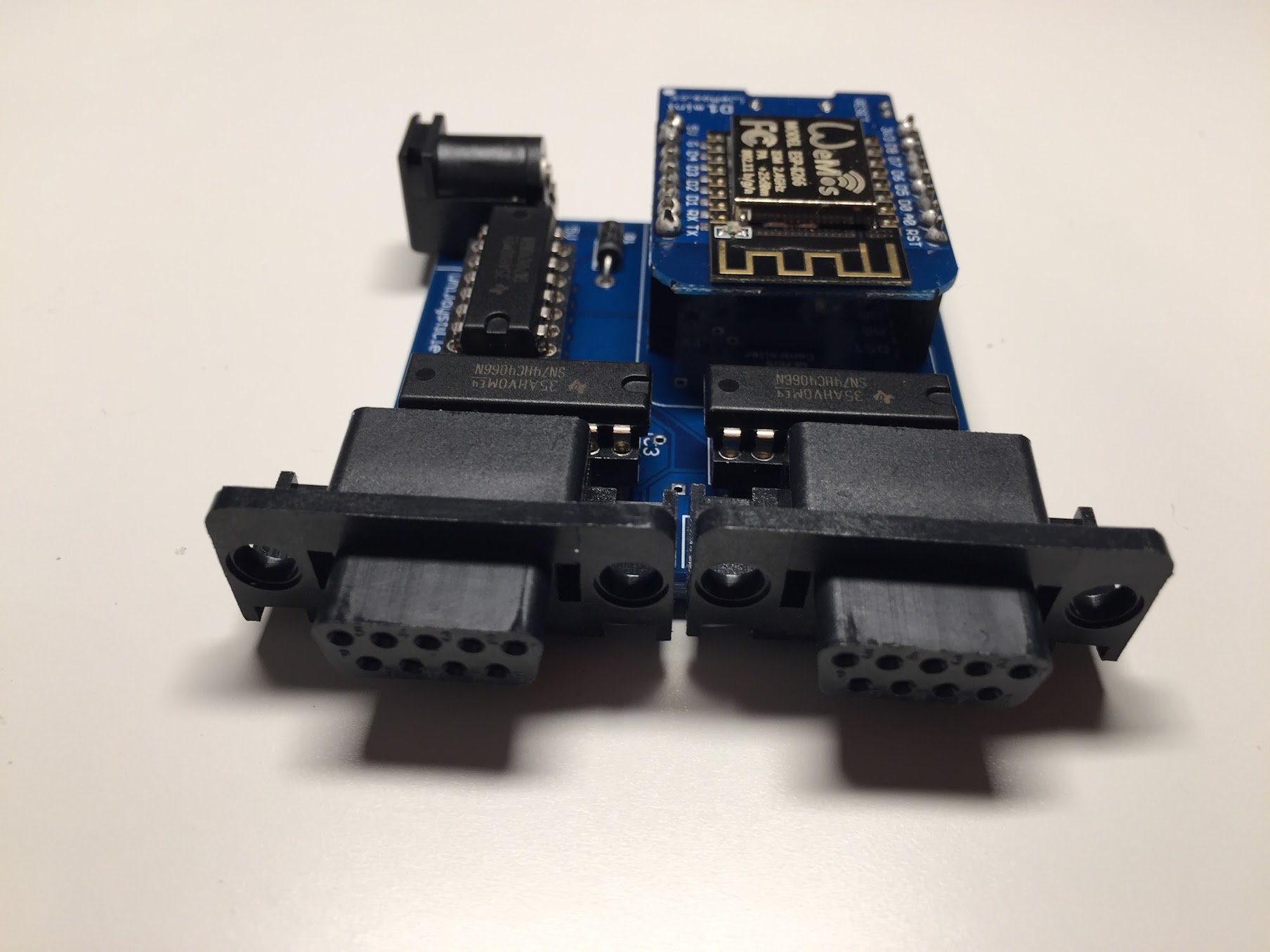
 The WiFi device goes attached to the Commodore 64, and is the one that generates the real joystick movements. It does so by opening/closing the joystick lines.
In order to work it needs power. Unfortunately the C64 joystick ports DON'T have enough current to power it. The options to power it are:
* Using the barrel jack:
* a +5v DC with at least 320mA
* Examples:
* Getting power from the Datasette port [with a custom cable](http://store.go4retro.com/c2n-power/) (recommended, but might need a [PSU with enough amps](http://personalpages.tds.net/~rcarlsen/custom%20ps.html))
* Using the micro USB socket:
* It can be connected to a computer
* or using a wall charger
The WiFi device goes attached to the Commodore 64, and is the one that generates the real joystick movements. It does so by opening/closing the joystick lines.
In order to work it needs power. Unfortunately the C64 joystick ports DON'T have enough current to power it. The options to power it are:
* Using the barrel jack:
* a +5v DC with at least 320mA
* Examples:
* Getting power from the Datasette port [with a custom cable](http://store.go4retro.com/c2n-power/) (recommended, but might need a [PSU with enough amps](http://personalpages.tds.net/~rcarlsen/custom%20ps.html))
* Using the micro USB socket:
* It can be connected to a computer
* or using a wall charger
 ### Booting the WiFi device
* DO NOT plug the UniJoystiCle WiFi device to the Commodore 64 yet (if you plug it, you won't break anything, it is that it just might not boot)
* Power the UniJoystiCle WiFi device (see above)
* Wait a few seconds and you should see one LED. That means that the device booted, and you can connect to it.
* If you don't see the one LED, please go to [Troubleshooting](#troubleshooting)
* Now, you can plug it to the Commodore 64
By default, the WiFi device will start in Access Point mode, and will create a WiFi network named "unijoysticle-xxyyzz". From your smartphone Settings, connect to it...:
### Booting the WiFi device
* DO NOT plug the UniJoystiCle WiFi device to the Commodore 64 yet (if you plug it, you won't break anything, it is that it just might not boot)
* Power the UniJoystiCle WiFi device (see above)
* Wait a few seconds and you should see one LED. That means that the device booted, and you can connect to it.
* If you don't see the one LED, please go to [Troubleshooting](#troubleshooting)
* Now, you can plug it to the Commodore 64
By default, the WiFi device will start in Access Point mode, and will create a WiFi network named "unijoysticle-xxyyzz". From your smartphone Settings, connect to it...:
 ...and then launch the UniJoystiCle smartphone app.
## Smartphone Client Application
The client application can be download for free from the App Store / Google Play:
...and then launch the UniJoystiCle smartphone app.
## Smartphone Client Application
The client application can be download for free from the App Store / Google Play:
 It sends "joystick commands" to the WiFi device. These commands are regular joystick movements: _Up_, _Down_, _Left_, _Right_ and _Fire_. It can send one or multiple commands at the time.
There are five modes: _UniJoystiCle mode_, _D-pad mode_, _Commando mode_, _Gyruss mode_ and _Commodore Home mode_.
It sends "joystick commands" to the WiFi device. These commands are regular joystick movements: _Up_, _Down_, _Left_, _Right_ and _Fire_. It can send one or multiple commands at the time.
There are five modes: _UniJoystiCle mode_, _D-pad mode_, _Commando mode_, _Gyruss mode_ and _Commodore Home mode_.
 ### UniJoystiCle mode

 In this mode, the joystick commands are generated from the smartphone's accelerometer. The accelerometer detects acceleration in the three coordinates: X, Y and Z. If we attach an accelerometer (in this case the smartphone) to a unicycle (or bike) pedal, and we measure the accelerometer's data while we pedal, we will notice that the X and Z axis generates data similar to a sine and cosine.
 And if we put those values in cartesian coordinates (eg: Accelerometer(Z) = Y axis, and Accelerometer(X) = X axis), we will have something similar to a circle.
 And if we calculate the arctangent (`atan2()`) value of sin/cosine we get the angle. And with the angle we can simulate the joystick movements. We divide the circle in 8 segments, and assign a joystick movement to each segment. Eg:
 There are no such things as "joystick diagonal commands". So in order to simulate the top-right diagonal, we just send the "top" and "right" joystick movements at the same time.
From the graphic we can deduce that:
There are no such things as "joystick diagonal commands". So in order to simulate the top-right diagonal, we just send the "top" and "right" joystick movements at the same time.
From the graphic we can deduce that:
One pedal revolution == one joystick "revolution"
But it is possible to change that ratio. For example, we can change it to "One pedal revolution == two joystick revolutions". Just go to settings and do: A ratio of 2.0 will divide the circle in 16 segments (8 segments * 2.0 ratio == 16 segments), and what will happen is that:
One pedal revolution == Two joystick revolutions
 This is useful to:
* Increase your speed when you have an slow unicycle (eg: long cranks or big wheel size), or you don't pedal fast enough
* You want to play face-to-face with another rider, but one has an slower unicycle
__Firing:__ In order to _fire_, you have to hop. Settings has a "Jump Threshold" settings that is used to control how hard you have to hop.
__Compatibility:__ This mode is compatible with multiple sports games like:
* [The Uni Games](https://github.com/ricardoquesada/c64-the-uni-games) (in fact this mode was created to play this game)
* Sports games like [Hypersports](http://gamebase64.com/game.php?id=3666&d=18&h=0), [Decathon](http://gamebase64.com/game.php?id=2057&d=18&h=0), etc.
* [C64anabalt](http://www.rgcd.co.uk/2011/12/c64anabalt-c64-2011.html), and other jump-only-games
* and more
__Video:__ [Using a unicycle to play The Uni Games ](https://www.youtube.com/watch?v=w2cdoTU-GJU)
__Video:__ [Using one foot to play C64anabalt](https://www.youtube.com/watch?v=n7p1p53uisk)
### D-pad mode
This is useful to:
* Increase your speed when you have an slow unicycle (eg: long cranks or big wheel size), or you don't pedal fast enough
* You want to play face-to-face with another rider, but one has an slower unicycle
__Firing:__ In order to _fire_, you have to hop. Settings has a "Jump Threshold" settings that is used to control how hard you have to hop.
__Compatibility:__ This mode is compatible with multiple sports games like:
* [The Uni Games](https://github.com/ricardoquesada/c64-the-uni-games) (in fact this mode was created to play this game)
* Sports games like [Hypersports](http://gamebase64.com/game.php?id=3666&d=18&h=0), [Decathon](http://gamebase64.com/game.php?id=2057&d=18&h=0), etc.
* [C64anabalt](http://www.rgcd.co.uk/2011/12/c64anabalt-c64-2011.html), and other jump-only-games
* and more
__Video:__ [Using a unicycle to play The Uni Games ](https://www.youtube.com/watch?v=w2cdoTU-GJU)
__Video:__ [Using one foot to play C64anabalt](https://www.youtube.com/watch?v=n7p1p53uisk)
### D-pad mode
 This mode converts the smartphone in a virtual D-pad. Just press the arrows for joysticks movements, and the circle to fire.
__Compatibility:__
* Any game can be played in this mode.
__Using this mode:__ [YouTube video](https://youtu.be/RhEGogreM0E)
### D-pad + Game Controllers
This mode converts the smartphone in a virtual D-pad. Just press the arrows for joysticks movements, and the circle to fire.
__Compatibility:__
* Any game can be played in this mode.
__Using this mode:__ [YouTube video](https://youtu.be/RhEGogreM0E)
### D-pad + Game Controllers

 This is the same D-pad mode as before. But if you connect any Game Controller to your smartphone (for iOS it supports both MFi and iCade controllers; for Android it supports official controllers as well as OUYA ones), it will automatically detect it. And with it you can control the virtual D-pad giving you a great gaming experience.
You can configure it to:
* Use Button "B" to jump. When enabled, it will disable to "Up" D-pad arrow
* Swap Buttons "A" and "B" (swaps Jump and Shoot buttons)
This is the same D-pad mode as before. But if you connect any Game Controller to your smartphone (for iOS it supports both MFi and iCade controllers; for Android it supports official controllers as well as OUYA ones), it will automatically detect it. And with it you can control the virtual D-pad giving you a great gaming experience.
You can configure it to:
* Use Button "B" to jump. When enabled, it will disable to "Up" D-pad arrow
* Swap Buttons "A" and "B" (swaps Jump and Shoot buttons)
 __Compatibility:__
* Any game can be played in this mode.
* Optimized for platformer games like [Giana Sisters](http://gamebase64.com/game.php?id=3275&d=18&h=0), [Super Bread Box](http://gamebase64.com/game.php?id=24140&d=18&h=0), [Bubble Bobble](http://gamebase64.com/game.php?id=1138&d=18&h=0), etc.
__Using this mode:__ [YouTube video](https://www.youtube.com/watch?v=0cdgaYVYaao)
__Which controller should you use:__
For iOS:
* For MFi controllers, try here: [AfterPad](https://afterpad.com/mficontrollers/">https://afterpad.com/mficontrollers/). The [Nimbus SteelSeries](https://afterpad.com/steelseries-nimbus-the-afterpad-review/) is good. DO NOT get the Status SteelSeries.
* For iCade controlles, try here: [iCade Controllers](http://retrorgb.com/icadecontrollers.html). The ["original" iCade](http://retrorgb.com/icade.html) is good.
For Android:
* Any Game Controller that supports __the Android protocol__. See [reviews here](http://www.androidauthority.com/best-bluetooth-gaming-controllers-403184/) [and here](https://www.slant.co/topics/2074/~third-party-game-controllers-for-android)
* OUYA Game Controllers (they are not that great though). [Get it here](http://www.ebay.com/sch/i.html?_from=R40&_trksid=p2050601.m570.l1313.TR0.TRC0.H0.Xouya+game+controller.TRS0&_nkw=ouya+game+controller&_sacat=0)
* Notes:
* Amazon Fire Game Controllers support the Android protocol
* Moga Game Controllers support the Android protocol [when in "B" mode](https://gavinsgadgets.com/2016/03/21/how-to-connect-a-moga-pro-power-bluetooth-game-controller-with-the-samsung-galaxy-s7/)
* WiFi-Direct game controllers are supported as well, like the NVIDIA SHIELD, or the Amazon Fire 2nd gen. But since most smartphones don't support WiFi-Direct, you should install the Android UniJoystiCle app into WiFi-Direct-enabled devices, like the Amazon Fire TV, or the NVIDIA SHIELD Android TV.
### Commando mode + Game Controllers
__Compatibility:__
* Any game can be played in this mode.
* Optimized for platformer games like [Giana Sisters](http://gamebase64.com/game.php?id=3275&d=18&h=0), [Super Bread Box](http://gamebase64.com/game.php?id=24140&d=18&h=0), [Bubble Bobble](http://gamebase64.com/game.php?id=1138&d=18&h=0), etc.
__Using this mode:__ [YouTube video](https://www.youtube.com/watch?v=0cdgaYVYaao)
__Which controller should you use:__
For iOS:
* For MFi controllers, try here: [AfterPad](https://afterpad.com/mficontrollers/">https://afterpad.com/mficontrollers/). The [Nimbus SteelSeries](https://afterpad.com/steelseries-nimbus-the-afterpad-review/) is good. DO NOT get the Status SteelSeries.
* For iCade controlles, try here: [iCade Controllers](http://retrorgb.com/icadecontrollers.html). The ["original" iCade](http://retrorgb.com/icade.html) is good.
For Android:
* Any Game Controller that supports __the Android protocol__. See [reviews here](http://www.androidauthority.com/best-bluetooth-gaming-controllers-403184/) [and here](https://www.slant.co/topics/2074/~third-party-game-controllers-for-android)
* OUYA Game Controllers (they are not that great though). [Get it here](http://www.ebay.com/sch/i.html?_from=R40&_trksid=p2050601.m570.l1313.TR0.TRC0.H0.Xouya+game+controller.TRS0&_nkw=ouya+game+controller&_sacat=0)
* Notes:
* Amazon Fire Game Controllers support the Android protocol
* Moga Game Controllers support the Android protocol [when in "B" mode](https://gavinsgadgets.com/2016/03/21/how-to-connect-a-moga-pro-power-bluetooth-game-controller-with-the-samsung-galaxy-s7/)
* WiFi-Direct game controllers are supported as well, like the NVIDIA SHIELD, or the Amazon Fire 2nd gen. But since most smartphones don't support WiFi-Direct, you should install the Android UniJoystiCle app into WiFi-Direct-enabled devices, like the Amazon Fire TV, or the NVIDIA SHIELD Android TV.
### Commando mode + Game Controllers
 In this mode you control both joysticks at the same time. A game controller is needed for this. Can't be played with the "virtual" dpad.
It is called "Commando" mode, since it allows you to play games like Commando, Turrican II or Dropzone since:
* The dpad and the left stick are mapped to Joystick #2 direction movements
* The right stick is mapped to Joysticke #1 directional movements
* Button A is mapped to Joystick #2 Fire
* Button B is mapped to Joystick #1 Fire
* Button X is mapped to Joystick #1 Down
* Button Y is mapped to Joystick #1 Rigth
For example:
* in Commando you can throw grenades by pressing button B.
* in Turrican II you can trigger the power lines by pressing button B, and trigger the super weapon by pressing button A and B simultaneously
* in Dropzone you can use button B to throw bombs and button X to active cloak
__Compatibility:__
* Any game that uses Joystick #2 + spacebar can be used in this mode. eg: [Commando](http://gamebase64.com/game.php?id=1602&d=18&h=0), [Turrican II](http://gamebase64.com/game.php?id=8234&d=18&h=0), [Dropzone](http://gamebase64.com/game.php?id=2362&d=18&h=0)
* Any dual player game can be played in this mode.
__Using this mode:__ [YouTube video](https://www.youtube.com/watch?v=VK-gzT5wkiw)
__Which controller should you use:__
Refer to _D-pad + Game Controllers_ section.
### Gyruss mode
In this mode you control both joysticks at the same time. A game controller is needed for this. Can't be played with the "virtual" dpad.
It is called "Commando" mode, since it allows you to play games like Commando, Turrican II or Dropzone since:
* The dpad and the left stick are mapped to Joystick #2 direction movements
* The right stick is mapped to Joysticke #1 directional movements
* Button A is mapped to Joystick #2 Fire
* Button B is mapped to Joystick #1 Fire
* Button X is mapped to Joystick #1 Down
* Button Y is mapped to Joystick #1 Rigth
For example:
* in Commando you can throw grenades by pressing button B.
* in Turrican II you can trigger the power lines by pressing button B, and trigger the super weapon by pressing button A and B simultaneously
* in Dropzone you can use button B to throw bombs and button X to active cloak
__Compatibility:__
* Any game that uses Joystick #2 + spacebar can be used in this mode. eg: [Commando](http://gamebase64.com/game.php?id=1602&d=18&h=0), [Turrican II](http://gamebase64.com/game.php?id=8234&d=18&h=0), [Dropzone](http://gamebase64.com/game.php?id=2362&d=18&h=0)
* Any dual player game can be played in this mode.
__Using this mode:__ [YouTube video](https://www.youtube.com/watch?v=VK-gzT5wkiw)
__Which controller should you use:__
Refer to _D-pad + Game Controllers_ section.
### Gyruss mode
 In this mode you control the black circle that is inside the blue circle strip. You move the black ball by tilting your smartphone, and gravity will do the rest. Press the gray circle at the right for _fire_.
 __Compatibility:__
* [Gyruss](http://gamebase64.com/game.php?id=3370&d=18&h=0)
* all the UniJoystiCle mode games
* and games with similar techniques to Gyruss
__Using this mode:__ [YouTube video](https://youtu.be/n2YHoj1pXB8)
__Note__: This mode is only avaible on iOS. Android support coming soon.
### Commodore Home mode
__Compatibility:__
* [Gyruss](http://gamebase64.com/game.php?id=3370&d=18&h=0)
* all the UniJoystiCle mode games
* and games with similar techniques to Gyruss
__Using this mode:__ [YouTube video](https://youtu.be/n2YHoj1pXB8)
__Note__: This mode is only avaible on iOS. Android support coming soon.
### Commodore Home mode
 __Compatibility:__
* [Commodore Home](https://retro.moe/2016/10/31/retro-challenge-commodore-home/), home automation for the masses, not the classes
__Using this mode:__ [YouTube video](https://www.youtube.com/watch?v=wH3g09zsTdY)
## Desktop Client Application
The desktop application can be downloaded from here:
* Mac: [UniJoystiCle Controller.dmg](http://ricardoquesada.github.io/unijoysticle/bin/UniJoystiCle%20Controller-v0.4.2.dmg)
* Win32: [unijoysticle_controller.win32.zip](http://ricardoquesada.github.io/unijoysticle/bin/unijoysticle_controller-v0.4.2.win32.zip)
It supports three modes:
* Dpad mode
* Commando mode
* Commodore Home mode
### Dpad mode
__Compatibility:__
* [Commodore Home](https://retro.moe/2016/10/31/retro-challenge-commodore-home/), home automation for the masses, not the classes
__Using this mode:__ [YouTube video](https://www.youtube.com/watch?v=wH3g09zsTdY)
## Desktop Client Application
The desktop application can be downloaded from here:
* Mac: [UniJoystiCle Controller.dmg](http://ricardoquesada.github.io/unijoysticle/bin/UniJoystiCle%20Controller-v0.4.2.dmg)
* Win32: [unijoysticle_controller.win32.zip](http://ricardoquesada.github.io/unijoysticle/bin/unijoysticle_controller-v0.4.2.win32.zip)
It supports three modes:
* Dpad mode
* Commando mode
* Commodore Home mode
### Dpad mode
 It can be used with a game controller, or with the keyboard.
For win32, it supports any Xinput controller (like the xbox 360 controllers), and for Mac, it supports any MFi controller.
The keyboard mapping is:
* cursor arrows: directional movement
* `z`: button A
* `x`: button B
### Commando mode
It can be used with a game controller, or with the keyboard.
For win32, it supports any Xinput controller (like the xbox 360 controllers), and for Mac, it supports any MFi controller.
The keyboard mapping is:
* cursor arrows: directional movement
* `z`: button A
* `x`: button B
### Commando mode
 It can be used with a game controller, or with the keyboard.
For win32, it supports any Xinput controller (like the xbox 360 controllers), and for Mac, it supports any MFi controller.
The keyboard mapping is:
* `a`, `s`, `d`, `w`: Joy #1 directional movement
* `x`: Joy #1 fire
* `j`, `k`, `l`, `i` and cursor arrows: Joy #2 direction movement
* `z`: Joy #2 fire
### Commodore Home mode
It can be used with a game controller, or with the keyboard.
For win32, it supports any Xinput controller (like the xbox 360 controllers), and for Mac, it supports any MFi controller.
The keyboard mapping is:
* `a`, `s`, `d`, `w`: Joy #1 directional movement
* `x`: Joy #1 fire
* `j`, `k`, `l`, `i` and cursor arrows: Joy #2 direction movement
* `z`: Joy #2 fire
### Commodore Home mode
 __Compatibility:__
* [Commodore Home](https://retro.moe/2016/10/31/retro-challenge-commodore-home/), home automation for the masses, not the classes
## The Protocol
You can create your own UniJoystiCle controller. Your controller just needs to "speak" the UniJoystiCle protocol, which is very simple.
The WiFi receiver listens to UDP port 6464 and it expects a packet of 4 bytes:
```
+----+----+----+----+
|ver |mode|joy1|joy2|
+----+----+----+----+
byte 0, version: must be 2
byte 1, mode: contains state for which joysticks?. 1=joy1, 2=joy2, 3=joy1 and joy2
byte 2, joy1 state
byte 3: joy2 state
```
Joystick state values:
* bit 0: Joystick up enable/disable
* bit 1: Joystick down enable/disable
* bit 2: Joystick left enable/disable
* bit 3: Joysticke right enable/disable
* bit 4: Joysticke fire enable/disable
* bits 5,6,7: unused
Example, a packet with these bytes means:
```
0x02, 0x03, 0x11, 0x1f
```
* byte 0 = 0x02
* byte 1 = 0x03: It means the both joy1 and joy2 states are being sent
* byte 2 = 0x11 = %00010001 = It means that both fire and up are enabled. the rest are disabled
* byte 3 = 0x1f = %00011111 = It means that all lines are enabled: up, down, left, right and fire
## Building the WiFi device
### Assembling the PCB
The hardware as well as the software are open source. So you can build one yourself. The schematic and board files are in [Eagle](https://cadsoft.io/) format:
* board: unijoysticle.brd (v0.4.1)
* schematic: unijoysticle.sch (v0.4.1)
You will need the following components (BOM):
* 1 x Wemos D1 Mini device. Any of these devices:
* [Wemos D1 Mini v2](https://www.aliexpress.com/store/product/D1-mini-Mini-NodeMcu-4M-bytes-Lua-WIFI-Internet-of-Things-development-board-based-ESP8266/1331105_32529101036.html)
* or [Wemos D1 Mini Pro](https://www.aliexpress.com/store/product/WEMOS-D1-mini-Pro-16M-bytes-external-antenna-connector-ESP8266-WIFI-Internet-of-Things-development-board/1331105_32724692514.html)
* 2 x [DB9 female](https://www.digikey.com/product-detail/en/assmann-wsw-components/A-DF-09-A-KG-T2S/AE10921-ND/1241800)
* 3 x [4066 IC](https://www.digikey.com/product-detail/en/texas-instruments/SN74HC4066N/296-8329-5-ND/376726)
* 3 x [sockets for the ICs](https://www.digikey.com/product-detail/en/on-shore-technology-inc/SA143000/ED3014-ND/3313545)
* 1 x [barrel jack](https://www.digikey.com/product-detail/en/cui-inc/PJ-002A/CP-002A-ND/96962)
* 1 x [1N4001 diode](https://www.digikey.com/product-detail/en/micro-commercial-co/1N4001-TP/1N4001-TPMSCT-ND/773688)
And solder them. It should be straightforward where to place the components. If not, [ping me](https://twitter.com/ricardoquesada)
The barrel jack and the diode are optional. They are needed if you want to power the device from an external power source. eg: from the C64 datasette port. Any +5v DC power with at least 320mA should be enough.
If you want to avoid the soldering, you can __[order an already assembled PCB from here](https://retro.moe/unijoysticle/)__.
After assembling the PCB, it should look like this:
__Compatibility:__
* [Commodore Home](https://retro.moe/2016/10/31/retro-challenge-commodore-home/), home automation for the masses, not the classes
## The Protocol
You can create your own UniJoystiCle controller. Your controller just needs to "speak" the UniJoystiCle protocol, which is very simple.
The WiFi receiver listens to UDP port 6464 and it expects a packet of 4 bytes:
```
+----+----+----+----+
|ver |mode|joy1|joy2|
+----+----+----+----+
byte 0, version: must be 2
byte 1, mode: contains state for which joysticks?. 1=joy1, 2=joy2, 3=joy1 and joy2
byte 2, joy1 state
byte 3: joy2 state
```
Joystick state values:
* bit 0: Joystick up enable/disable
* bit 1: Joystick down enable/disable
* bit 2: Joystick left enable/disable
* bit 3: Joysticke right enable/disable
* bit 4: Joysticke fire enable/disable
* bits 5,6,7: unused
Example, a packet with these bytes means:
```
0x02, 0x03, 0x11, 0x1f
```
* byte 0 = 0x02
* byte 1 = 0x03: It means the both joy1 and joy2 states are being sent
* byte 2 = 0x11 = %00010001 = It means that both fire and up are enabled. the rest are disabled
* byte 3 = 0x1f = %00011111 = It means that all lines are enabled: up, down, left, right and fire
## Building the WiFi device
### Assembling the PCB
The hardware as well as the software are open source. So you can build one yourself. The schematic and board files are in [Eagle](https://cadsoft.io/) format:
* board: unijoysticle.brd (v0.4.1)
* schematic: unijoysticle.sch (v0.4.1)
You will need the following components (BOM):
* 1 x Wemos D1 Mini device. Any of these devices:
* [Wemos D1 Mini v2](https://www.aliexpress.com/store/product/D1-mini-Mini-NodeMcu-4M-bytes-Lua-WIFI-Internet-of-Things-development-board-based-ESP8266/1331105_32529101036.html)
* or [Wemos D1 Mini Pro](https://www.aliexpress.com/store/product/WEMOS-D1-mini-Pro-16M-bytes-external-antenna-connector-ESP8266-WIFI-Internet-of-Things-development-board/1331105_32724692514.html)
* 2 x [DB9 female](https://www.digikey.com/product-detail/en/assmann-wsw-components/A-DF-09-A-KG-T2S/AE10921-ND/1241800)
* 3 x [4066 IC](https://www.digikey.com/product-detail/en/texas-instruments/SN74HC4066N/296-8329-5-ND/376726)
* 3 x [sockets for the ICs](https://www.digikey.com/product-detail/en/on-shore-technology-inc/SA143000/ED3014-ND/3313545)
* 1 x [barrel jack](https://www.digikey.com/product-detail/en/cui-inc/PJ-002A/CP-002A-ND/96962)
* 1 x [1N4001 diode](https://www.digikey.com/product-detail/en/micro-commercial-co/1N4001-TP/1N4001-TPMSCT-ND/773688)
And solder them. It should be straightforward where to place the components. If not, [ping me](https://twitter.com/ricardoquesada)
The barrel jack and the diode are optional. They are needed if you want to power the device from an external power source. eg: from the C64 datasette port. Any +5v DC power with at least 320mA should be enough.
If you want to avoid the soldering, you can __[order an already assembled PCB from here](https://retro.moe/unijoysticle/)__.
After assembling the PCB, it should look like this:

 ### Instaling the firmware
* Make sure that the UniJoystiCle Wifi device is NOT plugged into the C64
* Connect the UniJoystiCle Wifi device to the computer using the micro USB cable
* If you are using the Wemos D1 Mini v2:
* Install the [CH340 USB-to-UART driver](https://www.wemos.cc/downloads)
* For macOS Sierra, [follow these instructions](https://tzapu.com/ch340-ch341-serial-adapters-macos-sierra/)
* If you are using the Wemos D1 Mini Pro:
* Install the [CP2104 USB-to-UART driver](http://www.silabs.com/products/mcu/pages/usbtouartbridgevcpdrivers.aspx)
And from here you have two options: the "easy" one for users, and the "hard" one for developers:
#### Option A: For users only
Either you can use:
* [esptool.py](https://github.com/themadinventor/esptool) (a CLI tool for Windows, Linux and Mac)
* or [NodeMCU flasher](https://github.com/nodemcu/nodemcu-flasher) a GUI tool (Windows only)
For `esptool.py` you should do:
* Download the latest UniJoystiCle firmware from here: [unijoysticle_firmware.bin](http://ricardoquesada.github.io/unijoysticle/bin/unijoysticle_firmware.bin)
* Install [esptool](https://github.com/themadinventor/esptool)
* `$ pip install esptool`
* Execute: `$ sudo python esptool.py --port /dev/cu.SLAB_USBtoUART write_flash -fm dio -fs 32m 0x00000 /path/to/unijoysticle_firmware.bin`
In case it is needed, it uses a:
* ESP8266-12e module
* It has a 4Mbyte (32Mbit) flash
* use 0x00000000 as offset
For detailed info, read: [Flashing the NodeMCU firmware](https://nodemcu.readthedocs.io/en/dev/en/flash/)
Since firmware v0.4.2, manual upgrading no longer needed to. It has an option to upgrade itself.
#### Option B: For developers only
* Install [PlatformIO](http://platformio.org)
* Clone the [UniJoystiCle github repo]("https://github.com/ricardoquesada/unijoysticle)
* And do `make && make upload`
Example:
```
$ git clone https://github.com/ricardoquesada/unijoysticle.git
$ cd unijoysticle/esp8266_firmware/firmware
$ make
$ make upload
```
## Firmware options
### Instaling the firmware
* Make sure that the UniJoystiCle Wifi device is NOT plugged into the C64
* Connect the UniJoystiCle Wifi device to the computer using the micro USB cable
* If you are using the Wemos D1 Mini v2:
* Install the [CH340 USB-to-UART driver](https://www.wemos.cc/downloads)
* For macOS Sierra, [follow these instructions](https://tzapu.com/ch340-ch341-serial-adapters-macos-sierra/)
* If you are using the Wemos D1 Mini Pro:
* Install the [CP2104 USB-to-UART driver](http://www.silabs.com/products/mcu/pages/usbtouartbridgevcpdrivers.aspx)
And from here you have two options: the "easy" one for users, and the "hard" one for developers:
#### Option A: For users only
Either you can use:
* [esptool.py](https://github.com/themadinventor/esptool) (a CLI tool for Windows, Linux and Mac)
* or [NodeMCU flasher](https://github.com/nodemcu/nodemcu-flasher) a GUI tool (Windows only)
For `esptool.py` you should do:
* Download the latest UniJoystiCle firmware from here: [unijoysticle_firmware.bin](http://ricardoquesada.github.io/unijoysticle/bin/unijoysticle_firmware.bin)
* Install [esptool](https://github.com/themadinventor/esptool)
* `$ pip install esptool`
* Execute: `$ sudo python esptool.py --port /dev/cu.SLAB_USBtoUART write_flash -fm dio -fs 32m 0x00000 /path/to/unijoysticle_firmware.bin`
In case it is needed, it uses a:
* ESP8266-12e module
* It has a 4Mbyte (32Mbit) flash
* use 0x00000000 as offset
For detailed info, read: [Flashing the NodeMCU firmware](https://nodemcu.readthedocs.io/en/dev/en/flash/)
Since firmware v0.4.2, manual upgrading no longer needed to. It has an option to upgrade itself.
#### Option B: For developers only
* Install [PlatformIO](http://platformio.org)
* Clone the [UniJoystiCle github repo]("https://github.com/ricardoquesada/unijoysticle)
* And do `make && make upload`
Example:
```
$ git clone https://github.com/ricardoquesada/unijoysticle.git
$ cd unijoysticle/esp8266_firmware/firmware
$ make
$ make upload
```
## Firmware options
 _Click here to enlarge_
* __A__: Use [http://unijoysticle.local/](http://unijoysticle.local/) to access the firmware options
* __B__: Stats, includes: IP Address, firmware version, and other status
* __C__: WiFi modes:
* Access Point mode: default mode. Creates its own WiFi network
* Station mode: uses SSID/password to join the WiFi network
* Station mode + WPS: Uses WPS to join a network
* __D__: Set the SSID/password here in order to use Station mode
* __E__: Inactivity timeout. Default: 10 secodns. After N seconds of inactivity, the joystick state will be reset
* __F__: Multicast DNS name. Default: "unijoysticle.local". Useful if you want to have more than one UniJoystiCle device in the same network
* __G__: To reboot the device
* __H__: Press here in order to upgrade the firmware
## Troubleshooting
The first thing to do: download and run this C64 program. Then follow its intructions:
* [UniJoystiCle test program](https://github.com/ricardoquesada/unijoysticle/raw/master/tests/bin/unijoysticle_test_exo.prg)
_Click here to enlarge_
* __A__: Use [http://unijoysticle.local/](http://unijoysticle.local/) to access the firmware options
* __B__: Stats, includes: IP Address, firmware version, and other status
* __C__: WiFi modes:
* Access Point mode: default mode. Creates its own WiFi network
* Station mode: uses SSID/password to join the WiFi network
* Station mode + WPS: Uses WPS to join a network
* __D__: Set the SSID/password here in order to use Station mode
* __E__: Inactivity timeout. Default: 10 secodns. After N seconds of inactivity, the joystick state will be reset
* __F__: Multicast DNS name. Default: "unijoysticle.local". Useful if you want to have more than one UniJoystiCle device in the same network
* __G__: To reboot the device
* __H__: Press here in order to upgrade the firmware
## Troubleshooting
The first thing to do: download and run this C64 program. Then follow its intructions:
* [UniJoystiCle test program](https://github.com/ricardoquesada/unijoysticle/raw/master/tests/bin/unijoysticle_test_exo.prg)
 ### The device (Wemos D1 Mini) doesn't boot
If you don't see one LED on the device then:
* Make sure it is NOT plugged into the Commmodore 64
* Power it either:
* via the micro USB cable
* or by using the barrel jack: a +5V with __at least 320mA__ should be Ok.
* Press the RESET button on the Wemos D1 Mini device
If that doesn't work (you don't see the one LED), probably:
* try booting it again. Just press the `RESET` button that is in the device
* or perhaps your device doesn't have the UniJoystiCle firmware. Go to the "Installing the firmware" section
* you are using power from c64 (datasette, user port or expansion port), and the C64 doesn't have enough current. See [When using power from the C64](#when-using-power-from-the-c64))
#### When using power from the C64
You should know that all the connected devices compete for the current. Example: If you have an 1541 Ultimate II, a WiModem and the UniJoystiCle, then the three of them will compete for current. If that is the case, most probably one of them won't work.
Tested configurations with __current taken from the datasette port__:
* UniJoystiCle + regular c64 PSU + C64: Works Ok.
* UniJoystiCle + 1541 Ultimate II + regular c64 PSU + c64: Works Ok.
* UniJoystiCle + Turbo Chameleon 64 + regular c64 PSU + c64: Sometimes it works, sometimes it doesn't
* UniJoystiCle + Turbo Chameleon 64 + [Ray Carlen's PSU](http://personalpages.tds.net/~rcarlsen/custom%20ps.html) + c64: Works Ok
* UniJoystiCle + Turbo Chameleon 64 + WiModem + [Ray Carlen's PSU](http://personalpages.tds.net/~rcarlsen/custom%20ps.html) + c64: Works Ok
* UniJoystiCle + C128D: Works Ok
#### So, How much power does The UniJoystiCle use ?
The WiFi module alone uses up to 200mA when it is in Access Point and the clients try to connect to it. But on average it uses ~56mA. More info here: [ESP8266 Power Consumption](http://bbs.espressif.com/viewtopic.php?t=133).
It also uses 12mA for each joystick line that is High. For example, if 3 lines are High (Joy #1 Up, Joy #1 Fire, joy #Left) then it will use 36mA for that alone.
So, a max of 320mA might be needed:
* Up to 200mA for the WiFi module (but the average ~56mA)
* plus 120mA when all ten joystick lines are High
### Joysticks don't work
* From your smartphone, make sure that you are connected to the Unijoysticle WiFi network
* If it fails to connect, try again. Sometimes it take a few tries to connect
* No more than 2 connections will be accepted (at least in firmware 0.3.1)
* From the smartphone UniJoystiCle application, make sure that the WiFi device address is:
* `192.168.4.1` (when in Access Point mode)
* or `unijoysticle.local` (which will work both for Access Point and Station modes)
### The C64 keyboard doesn't work
This is because the UniJoystiCle smartphone application is sending joystick commands to the C64.
Just make sure that the UniJoystiCle smartphone application is not running.
This is not a bug/limitation of the UniJoystiCle. It is a c64 limitation.
The c64 keyboard won't work correctly if you keep moving a regular joystick while using the keyboard.
Since firmware v0.4.3, a default inactivity timeout of 10 seconds was added.
If no data is received within that period of time, the joysticks are going to be reset.
### The game controllers don't work
* For iOS, both MFi and iCade (the "old" unofficial) game controllers should work.
* For Android, any official (including Amazon, Nvidia, Moga game controllers) and the OUYA game controllers should work.
* For Windows, any Xinput-based (the new joystick API) controller should work, like the Xbox 360. If you have a DirectInput-based game controller, try using [x360ce](http://www.x360ce.com/)
* For Mac, any MFi game controllers are supported.
* Make sure that the Game Controller is paired via Bluetooth to the smartphone / PC / Mac.
* If unsure, [read this guide](http://www.howtogeek.com/242223/how-to-use-a-physical-game-controller-with-an-iphone-ipad-or-android-device/)
* When the game controller is paired to the smartphone/PC/Mac, you can use it in the D-pad and Commando modes:
* on iOS you should see a legend that says "Game controller detected" (MFi controllers). Or nothing if using iCade controllers.
* on Android you should see the name of the game controller in the title
* on Mac/Windows, you should see "Game controller: Connected" on the status bar (bottom-left)
### Some joystick movements work but others don't
* Probably one (or more) of the 4066 ICs are malfunctioning. Try swapping them until you find the broken one. And then replace it with a new one
* or perhaps one of the traces in the PCB is open. With a multimeter and the schematic you should be able to find it.
## Bugs
Did you find a bug? Please report it here:
* [UniJoystiCle Bugs](https://github.com/ricardoquesada/unijoysticle/issues)
### The device (Wemos D1 Mini) doesn't boot
If you don't see one LED on the device then:
* Make sure it is NOT plugged into the Commmodore 64
* Power it either:
* via the micro USB cable
* or by using the barrel jack: a +5V with __at least 320mA__ should be Ok.
* Press the RESET button on the Wemos D1 Mini device
If that doesn't work (you don't see the one LED), probably:
* try booting it again. Just press the `RESET` button that is in the device
* or perhaps your device doesn't have the UniJoystiCle firmware. Go to the "Installing the firmware" section
* you are using power from c64 (datasette, user port or expansion port), and the C64 doesn't have enough current. See [When using power from the C64](#when-using-power-from-the-c64))
#### When using power from the C64
You should know that all the connected devices compete for the current. Example: If you have an 1541 Ultimate II, a WiModem and the UniJoystiCle, then the three of them will compete for current. If that is the case, most probably one of them won't work.
Tested configurations with __current taken from the datasette port__:
* UniJoystiCle + regular c64 PSU + C64: Works Ok.
* UniJoystiCle + 1541 Ultimate II + regular c64 PSU + c64: Works Ok.
* UniJoystiCle + Turbo Chameleon 64 + regular c64 PSU + c64: Sometimes it works, sometimes it doesn't
* UniJoystiCle + Turbo Chameleon 64 + [Ray Carlen's PSU](http://personalpages.tds.net/~rcarlsen/custom%20ps.html) + c64: Works Ok
* UniJoystiCle + Turbo Chameleon 64 + WiModem + [Ray Carlen's PSU](http://personalpages.tds.net/~rcarlsen/custom%20ps.html) + c64: Works Ok
* UniJoystiCle + C128D: Works Ok
#### So, How much power does The UniJoystiCle use ?
The WiFi module alone uses up to 200mA when it is in Access Point and the clients try to connect to it. But on average it uses ~56mA. More info here: [ESP8266 Power Consumption](http://bbs.espressif.com/viewtopic.php?t=133).
It also uses 12mA for each joystick line that is High. For example, if 3 lines are High (Joy #1 Up, Joy #1 Fire, joy #Left) then it will use 36mA for that alone.
So, a max of 320mA might be needed:
* Up to 200mA for the WiFi module (but the average ~56mA)
* plus 120mA when all ten joystick lines are High
### Joysticks don't work
* From your smartphone, make sure that you are connected to the Unijoysticle WiFi network
* If it fails to connect, try again. Sometimes it take a few tries to connect
* No more than 2 connections will be accepted (at least in firmware 0.3.1)
* From the smartphone UniJoystiCle application, make sure that the WiFi device address is:
* `192.168.4.1` (when in Access Point mode)
* or `unijoysticle.local` (which will work both for Access Point and Station modes)
### The C64 keyboard doesn't work
This is because the UniJoystiCle smartphone application is sending joystick commands to the C64.
Just make sure that the UniJoystiCle smartphone application is not running.
This is not a bug/limitation of the UniJoystiCle. It is a c64 limitation.
The c64 keyboard won't work correctly if you keep moving a regular joystick while using the keyboard.
Since firmware v0.4.3, a default inactivity timeout of 10 seconds was added.
If no data is received within that period of time, the joysticks are going to be reset.
### The game controllers don't work
* For iOS, both MFi and iCade (the "old" unofficial) game controllers should work.
* For Android, any official (including Amazon, Nvidia, Moga game controllers) and the OUYA game controllers should work.
* For Windows, any Xinput-based (the new joystick API) controller should work, like the Xbox 360. If you have a DirectInput-based game controller, try using [x360ce](http://www.x360ce.com/)
* For Mac, any MFi game controllers are supported.
* Make sure that the Game Controller is paired via Bluetooth to the smartphone / PC / Mac.
* If unsure, [read this guide](http://www.howtogeek.com/242223/how-to-use-a-physical-game-controller-with-an-iphone-ipad-or-android-device/)
* When the game controller is paired to the smartphone/PC/Mac, you can use it in the D-pad and Commando modes:
* on iOS you should see a legend that says "Game controller detected" (MFi controllers). Or nothing if using iCade controllers.
* on Android you should see the name of the game controller in the title
* on Mac/Windows, you should see "Game controller: Connected" on the status bar (bottom-left)
### Some joystick movements work but others don't
* Probably one (or more) of the 4066 ICs are malfunctioning. Try swapping them until you find the broken one. And then replace it with a new one
* or perhaps one of the traces in the PCB is open. With a multimeter and the schematic you should be able to find it.
## Bugs
Did you find a bug? Please report it here:
* [UniJoystiCle Bugs](https://github.com/ricardoquesada/unijoysticle/issues)