\_0000:04:00.0 BAR 1 [mem 0x00000000-0x3ffffffff 64bit pref]
...
pnp 00:05: disabling [mem 0xdfa00000-0xdfa00fff disabled] because it overlaps
\_0000:04:00.0 BAR 1 [mem 0x00000000-0x3ffffffff 64bit pref]
pnp 00:06: disabling [mem 0x20000000-0x201fffff] because it overlaps
\_0000:03:00.0 BAR 1 [mem 0x00000000-0x3ffffffff 64bit pref]
...
pnp 00:06: disabling [mem 0x20000000-0x201fffff disabled] because it overlaps
\_0000:04:00.0 BAR 1 [mem 0x00000000-0x3ffffffff 64bit pref]
...
[/CODE]
In fact, these strings do not promise anything good or easy to cope with. However, similar strings are present also on my Thinkpad x390 and everything is working fine. Unfortunately, `lspci -vt` confirms that `03:00.0` and `04:00.0` are related to the Tesla K80. Fortunately, the `dmesg -l err,crit` output is void which means that they are warnings.
----
#### Disabling nouveau
The next step to take is adding `nouveau.modeset=0` to the kernel command line because nouveau is the generic open-source driver for Nvidia graphic cards, we do not want it because we need to rely on the Nvidia driver to leverage the CUDA software stack plus the Tesla K80 is headless, it has no video monitor support, which means `modeset=0` anyway. For the same reason we do not need also nvidia_drm and nvidia_modeset modules because they are related to graphic functioning while in our case is compute-only installation.
1. open for editing `/etc/default/grub` which requires `sudo` root permission
2. add the `nouveau.modeset=0` parameter into `GRUB_CMDLINE_LINUX_DEFAULT`
3. save the file, `update-grub` to write the change in boot sector
4. reboot the system and check the change with `grep modeset /proc/cmdline`
With this change in place, we are ready to engage the Nvidia driver and CUDA software stack installation.
#### CUDA support
The command `nvcc --version` will display the version of CUDA installed. The Tesla K80 has CUDA compute capability 3.7 which is deprecated but still supported, while Kepler architecture was supported until CUDA version 11.8.
> While some elements might function, relying on CUDA 11.8 for full Kepler support is incorrect. It's safer to say CUDA 11.4 is the practical and fully supported limit. Based on Nvidia documentation, for that driver series, the 11.4 is the most stable and reliable version to use. -- Gemini 2
Ubuntu 22.04 and 24.04 LTS are offering CUDA 11.5 with the 470 driver series which reasonably suggests that the system can work but is not certifiable under Nvidia's recommendations. Therefore, the K80 is the most powerful among old deprecated but still supported GPU cards by upstream sources.
---
### Ubuntu Nvidia SW installation
First of all, some basic information about installing Nvidia SW stack and drivers which releases comes in two packages types:
- UDA (Unified Driver Architecture) drivers which are recommended for the generic desktop use, and it is available here: [nvidia.com about unix drivers](https://www.nvidia.com/en-us/drivers/unix/)
- ERD (Enterprise Ready Drivers) which are recommended on servers, and for computing tasks. Their packages can be recognised by the `-server` suffix. More information about
these drivers are available here: [docs.nvidia.com about tesla](https://docs.nvidia.com/datacenter/tesla/index.html)
The recommended way to install on Ubuntu is to leverage its tools:
- The ubuntu-drivers tool relies on the same logic as the "Additional Drivers" graphical tool, and allows more flexibility on desktops and on servers.
- The ubuntu-drivers tool is recommended if Secure Boot is in use, since it always tries to install signed drivers which are known to work with it.
Check the available drivers for the hardware with `sudo ubuntu-drivers list` and use the `--gpgpu` for the server version. To install the drivers: `sudo ubuntu-drivers install` which allows us to specify the version `nvidia:470` and the `--gpgpu` server edition. To check the version of the currently running driver: `cat /proc/driver/nvidia/version`.
Following the most straightforward installation procedure, plus adding some useful tools:
[!CODE]
root@p910:~# update-pciids
root@p910:~# ubuntu-drivers list
nvidia-driver-470-server, (linux-modules-nvidia-470-server-generic-hwe-24.04)
nvidia-driver-470, (linux-modules-nvidia-470-generic-hwe-24.04)
root@p910:~# ubuntu-drivers install
...
done
root@p910:~# add-apt-repository ppa:danielrichter2007/grub-customizer -y
root@p910:~# apt-get install grub-customizer modprobe-nvidia nvtop -y
[/CODE]
and before rebooting the system, adding a kernel command line parameters `modprobe.blacklist=nouveau` in `/etc/default/grub` file to prevent nvidia generic driver mess up things, then update the initramfs and the grub boot record, as shown here below:
[!CODE]
echo "blacklist nouveau" >> /etc/modprobe.d/blacklist.conf
root@p910:~# update-initramfs -u
update-initramfs: Generating /boot/initrd.img-6.11.0-17-generic
root@p910:~# update-grub
...
done
[/CODE]
After the reboot:
[!CODE]
root@p910:~# cat /proc/driver/nvidia/version
NVRM version: NVIDIA UNIX x86_64 Kernel Module 470.256.02 Thu May 2 14:37:44 UTC 2024
root@p910:~# nvidia-smi
No devices were found
root@p910:~# dmesg -l err,crit
root@p910:~# dmesg -l err,warn,crit | grep NV | cut -d] -f2-
nvidia: module license 'NVIDIA' taints kernel.
NVRM: loading NVIDIA UNIX x86_64 Kernel Module 470.256.02 Thu May 2 14:37:44 UTC 2024
NVRM: GPU 0000:03:00.0: RmInitAdapter failed! (0x22:0xffff:667)
NVRM: GPU 0000:03:00.0: rm_init_adapter failed, device minor number 0
...
NVRM: GPU 0000:04:00.0: RmInitAdapter failed! (0x22:0xffff:667)
NVRM: GPU 0000:04:00.0: rm_init_adapter failed, device minor number 1
[/CODE]
Trying with a manual installation does not help:
[!CODE]
root@p910:~# apt list --installed | grep nvidia | cut -d, -f1
libnvidia-cfg1-470/noble-updates
libnvidia-common-470/noble-updates
libnvidia-compute-470/noble-updates
libnvidia-extra-470/noble-updates
linux-modules-nvidia-470-6.11.0-17-generic/noble-updates
linux-modules-nvidia-470-generic-hwe-24.04/noble-updates
linux-objects-nvidia-470-6.11.0-17-generic/noble-updates
linux-signatures-nvidia-6.11.0-17-generic/noble-updates
nvidia-compute-utils-470/noble-updates
nvidia-kernel-common-470/noble-updates
nvidia-utils-470/noble-updates
[/CODE]
++++
Which is not good at all, but the following is even worse:
[!CODE]
root@p910:~# cat /proc/driver/nvidia/gpus/*/information
Model: Tesla K80
IRQ: 39
GPU UUID: GPU-????????-????-????-????-????????????
Video BIOS: ??.??.??.??.??
Bus Type: PCIe
DMA Size: 36 bits
DMA Mask: 0xfffffffff
Bus Location: 0000:03:00.0
Device Minor: 0
GPU Excluded: No
Model: Tesla K80
IRQ: 39
GPU UUID: GPU-????????-????-????-????-????????????
Video BIOS: ??.??.??.??.??
Bus Type: PCIe
DMA Size: 36 bits
DMA Mask: 0xfffffffff
Bus Location: 0000:04:00.0
Device Minor: 1
GPU Excluded: No
[/CODE]
---
### P910 E85+ PCIe support 4GB only
This is **VERY BAD** because indicates a hardware incompatibility with the motherboard or its BIOS. Considering that the Esprimo P910 has its own Fujitsu ATX power unit with a custom 16-pin connector, changing the motherboard is furtherly complicated by the challenge to find one within the P910 family by Fujitsu. Otherwise, it is easier to change the whole P910 for something else, completely.
[!CODE]
root@p910:~# mokutil --sb-state
SecureBoot disabled
root@p910:~# lsmod | grep -e video -e nvidia
nvidia_uvm 1437696 0
nvidia_drm 77824 2
nvidia_modeset 1212416 1 nvidia_drm
nvidia 35643392 2 nvidia_uvm,nvidia_modeset
video 73728 2 i915,nvidia_modeset
wmi 28672 1 video
root@p910:~# systemctl status nvidia-persistenced | grep active
Active: active (running) since Thu 2025-02-20 05:10:08 CET; 10min ago
root@p910:~# lspci -vvv |grep -iA 20 nvidia|grep -ie region -ie lnkcap:
Region 0: Memory at f0000000 (32-bit, non-prefetchable) [size=16M]
LnkCap: Port #8, Speed 8GT/s, Width x16, ASPM not supported
Region 0: Memory at f1000000 (32-bit, non-prefetchable) [size=16M]
LnkCap: Port #16, Speed 8GT/s, Width x16, ASPM not supported
[/CODE]
Which is **WAY** different than the expected output, which should be something like this:
[!CODE]
Region 0: Memory at f8000000 (32-bit, non-prefetchable)
Region 1: Memory at d8000000 (64-bit, prefetchable)
Region 3: Memory at d4000000 (64-bit, prefetchable)
[/CODE]
In fact, the problem is that BAR1 and BAR2, both 64-bit prefetchable, are missing for both devices which means that the PCIe is 4GB addressable but not beyond that limit.
++++
#### Ubuntu 20.04.6 LTS
I gave a try with Ubuntu 20.04.6 LTS which is running, after the update, with a Linux 5.15.0-131-generic and installed by default the Nvidia driver 470 serie.
[!CODE]
root@P910:~# lspci -vvv |grep -iA 20 nvidia|grep -ie region -ie lnkcap:
Region 0: Memory at f0000000 (32-bit, non-prefetchable) [size=16M]
Region 1: Memory at (64-bit, prefetchable)
Region 3: Memory at (64-bit, prefetchable)
LnkCap: Port #8, Speed 8GT/s, Width x16, ASPM not supported
Region 0: Memory at f1000000 (32-bit, non-prefetchable) [size=16M]
Region 1: Memory at (64-bit, prefetchable)
Region 3: Memory at (64-bit, prefetchable)
LnkCap: Port #16, Speed 8GT/s, Width x16, ASPM not supported
root@P910:~# lspci -vvv | grep -i -e nvidia -e PLX
01:00.0 PCI bridge: PLX Technology, Inc. PEX 8747 48-Lane, 5-Port PCI Express Gen 3 (8.0 GT/s)
\_Switch (rev ca) (prog-if 00 [Normal decode])
...
02:08.0 PCI bridge: PLX Technology, Inc. PEX 8747 48-Lane, 5-Port PCI Express Gen 3 (8.0 GT/s)
\_Switch (rev ca) (prog-if 00 [Normal decode])
...
02:10.0 PCI bridge: PLX Technology, Inc. PEX 8747 48-Lane, 5-Port PCI Express Gen 3 (8.0 GT/s)
\_Switch (rev ca) (prog-if 00 [Normal decode])
...
03:00.0 3D controller: NVIDIA Corporation GK210GL [Tesla K80] (rev a1)
...
04:00.0 3D controller: NVIDIA Corporation GK210GL [Tesla K80] (rev a1)
...
[/CODE]
The output is much more comforting because all the memory BARs are present but still not assigned. While the warnings in the kernel log remained alike the same.
[!CODE]
root@P910:~# apt list --installed 2>/dev/null | grep -i nvidia | cut -d/ -f1
linux-modules-nvidia-470-5.15.0-131-generic
linux-modules-nvidia-470-5.15.0-67-generic
linux-modules-nvidia-470-generic-hwe-20.04
linux-objects-nvidia-470-5.15.0-131-generic
linux-objects-nvidia-470-5.15.0-67-generic
linux-signatures-nvidia-5.15.0-131-generic
linux-signatures-nvidia-5.15.0-67-generic
nvidia-kernel-common-470
nvidia-modprobe
[/CODE]
I purged some stuff from the Nvidia SW stack to avoid clogging the Xorg and because the Tesla K80 is not supposed to function as a graphic accelerator at this stage, at least.
+
===
|x|>
## WORK IN PROGRESS
<|x|
===
++++++
## Speed-up system boot
While Ubuntu 24.04 LTS serie are tailored for more recent hardware, Esprimo P910 is performing enough well in running it, in combination with a **very fast** SATA3 or USB SSD drive, only. For example Netac US9 512GB can provide 450Mb/s when attached with one of the two the rear USB 3.x ports while a fast SATA3 SSD can provide up to 6Gbits/s c.a. 600MB/s.
Instead, using a 10 years old 2.5" 7200RPM old HDD from an upgraded Thinkpad, the reading performance will be around 100MB/s, like a Sandisk Ultra USB 3.1 stick. In this scenario it is way better to start the system in `init=3` mode, which offers the network services like SSH but no any graphic interface.
[!CODE]
sudo systemctl set-default multi-user.target
[/CODE]
However, the SSH connectivity, in combination with the X-forwarding enabled, allows us to use graphical applications running on the host but displayed on the client. In this scenario, a snap-free system will be faster in reaching the multi.users target.
> [!WARN]
>
> This procedure will also delete all the user data created by the application which were installed with snap!
In order to get your system rid off snap completely, for all the packages in `snap list` do `snap remove $package` leaving at the ending `core` and `snapd` for the last.
[!CODE]
sudo init 3
sudo apt purge snap snapd gnome-software-plugin-snap
sudo rm -rf /snap /var/snap /var/lib/snapd
sudo rm -rf /root/snap /home/*/snap
sudo apt install gnome-session gdm3
sudo init 5
[/CODE]
After having removed snap completely, it is possible to choose the graphical environment based on .deb package installation. Which can be Gnome3 but whatever else, also.
[!CODE]
root@P910:~# hdparm -t /dev/sda | tail -n1
Timing buffered disk reads: 310 MB in 3.02 seconds = 102.78 MB/sec
**# Before boot optimisation**
root@P910:~# systemd-analyze
Startup finished in 5.198s (firmware) + 4.839s (loader) + 4.473s (kernel)
\_ + 37.858s (userspace) = 52.369s
graphical.target reached after 37.744s in userspace
**# After boot optimisation**
root@P910:~# sed -ne '/ed OpenBSD\|0\] Linux/I s,\(.\{60\,76\}\).*,\1,p' /var/log/syslog|tail -n2
Feb 22 15:16:20 P910 kernel: [ 0.000000] Linux version 5.15.0-131-generic
Feb 22 15:16:24 P910 systemd[1]: Started OpenBSD Secure Shell server.
root@P910:~# systemd-analyze
Startup finished in 5.147s (firmware) + 4.865s (loader) + 3.209s (kernel)
\_ + 21.452s (userspace) = 34.674s
multi-user.target reached after 21.441s in userspace
[/CODE]
This means that the whole booting process has been cut by 33% while a SSH connection can speed-up reaching a root prompt by 4x times, allowing us to be operative in about 14s.
In fact, since firmware and loader taking 10s to hand control to the kernel, and SSH service is ready 4s after the kernel's initial log entry, a waiting client can connect immediately leveraging key-based root login. In contrast, Gnome autologin can automatically open a graphic terminal console but users must move the mouse, activate the window, and digit `sudo -s` and their password.
All of this using hardware and software from 10 years ago! {;-)}
---
### Are these timings real?
Unfortunately the timings picture is darker than above presented because BIOS start-up took its own time:
[!CODE]
**# Function definitions**
rb() { rl reboot; read -p "press ENTER when the fan ramps down-up"; date +%s.%N; }
wt() { time ping -i 0.1 10.10.10.2 -w 60 | sed -ne "/time=/ s,.*,&,p;q"; }
ex() { wt 2>&1 | grep real; date +%s.%N; rl exit; date +%s.%N; }
sp() { sleep 20; date +%s.%N; }
**# Boot timing measure**
roberto@x280[2]:~$ rb; sp; ex; echo "2nd SSH test"; ex;
Connection to 10.10.10.2 closed by remote host.
press ENTER when the fan ramps down-up
1740244339.068141004
1740244359.081832047
real 0m14.262s
1740244373.346845741
1740244375.059336898
2nd SSH test
real 0m0.123s
1740244375.192925718
1740244375.532527654
[/CODE]
The `ping` wait introduces an irrelevant delay, the SSH connection is ready after 34s the hardware ignition and ready for the user after 36s due to environment preparation delay. In practice 20s are lost anyway before any optimisation can take place. Hence, the SSH passwordless root login speed-up by 2x factor the access rather than 4x times. However, adopting a fast SATA3 SSD for about €20 can radically shorten the timings.
---
### Advanced optimisation
Those systems that are still using a HDD can leverage [e4rat](https://e4rat.sourceforge.net) for [boot optimisation](https://www.howtogeek.com/69753/how-to-cut-your-linux-pcs-boot-time-in-half-with-e4rat/). While checking with `systemd-analyze critical-chain` it is possible to resolve bottle-necks in the boot process. Instead, `preload` is a long-term optimiser.
[!CODE]
root@P910:~# systemd-analyze
Startup finished in 4.811s (firmware) + 4.579s (loader) + 5.157s (kernel)
\_ + 14.309s (userspace) = 28.858s
multi-user.target reached after 14.300s in userspace
[/CODE]
In this way, I managed to cut off about 7s from the previous optimization which means another 33% reduction in userspace. However, this had a minor impact in having a SSH root session ready to use 32.5s instead of 36s, about 10% less.
++++++
## Why do PCs still have a BIOS?
The BIOS (Basic Input Output System) is a firmware stored in a separate chip, but why does a modern Personal Computer still have a troubles-maker firmware for booting?
Even an ARM system requires some kind of hardware initialisation at boot time, but why put such a thing into a separate chip instead of into UEFI (Unified Extensible Firmware Interface)?
> The 80286 was released in early 1982. The IBM PC AT, which used it, was released in late 1984.
This is the reason why we still have a BIOS on PC architecture in 2024, to be "back-compatible" with a design from 1981 as powerful as a modern $5-priced college "scientific" calculator made in China. Which is NOT the funniest part of the story, obviously. {;-)}
Fujitsu developed a 0-Watt ATX solution which is included into Esprimo P910 E85+ but has not provided a BIOS update for that model since 2014 and it lacks "Above 4GB decoding" to leverage PCIe 64-bit addressing. Saving energy is green but what about EoSL?
> The system model in question has reached EoSL (End of Support Life) status since 2021. Hence all available support and information regarding this model beyond what is provided in the FTS Support site for this model, is no longer available. -- Specialisti Fujitsu di 2nd Level.
Please notice that the last BIOS release for the P910 E85+ model is dated back in 2014, seven years before the EoSL. It is bold from their side to provide such a kind of answer!
Especially because the Nvidia Tesla K80 was designed for the workstation and data-center markets, which fits perfectly in the definition of Fujitsu P910 platform: a workstation.
> The Tesla K80 was a professional graphics card by NVIDIA, launched on November 17th, 2014.
Despite this, and despite not being the only 4GB+ PCIe 3.0 device on the market at that time, seven years - let me underline this number saying 2500+ days - have passed away without someone addressing this limitation which is not even publicised into the product specifications. We have to discover it by ourselves!
Are we sharing the same feeling about putting an end to the BIOS-as-FW paradigm?
++++++
## PCIe 3.0 GPU cards
All the GPU cards listed below are
- double-slot width form factor, unless otherwise specified;
- PCIe 3.0 16x, apart the Tesla K20c/m/s for which 2.0 is fine, also;
- primarily designed for data center use, apart from those marked for PC use;
- within a 250W maximum power consumption, apart dual-GPU models at 300W;
- those cards consuming over 75W require an auxiliary power cable.
All the GPU cards listed below have
- more than 4GB of on board RAM , require "Above 4GB Decoding" support by mobo/BIOS;
- GDDR5 bandwidth range is 190-350 GB/s, dual-GPU aggregate range is 320-480 GB/s;
- GDDR6 bandwidth range is 320-450 GB/s. HBM2 bandwidth range is 450-900 GB/s.
As per rules of thumb:
- power cables have a standard 11A limit per line, each 12V line takes 2 pins for 132W max;
- each power cable line is usually limited to 50% of its nominal current due to adapters use;
- dual-GPU cards' 8-pin CPU cable powered by 4-pin CPU adapter is exceeding nominal values;
- nominal values of power wires are intended for constant and sustained power load (TDP);
- the GPU card TDP is 85% c.a. of the max power consumption, 75% for the dual-GPU cards.
For local AI workloads, among the listed GPU cards:
- top models: Quadro RTX 8000, Tesla V100 32GB or Titan V 32GB, 2x Tesla T4/G;
- resourceful: Quadro RTX 6000, Titan RTX, Tesla K80;
- reference level: 2048 CUDA cores with 12GB of RAM;
- entry level: 1280 CUDA cores with 8GB of RAM;
- essentials: CUDA 3.7 on PCIe 3.0 x16.
This list may contain inaccuracies. Always rely on official manufacturer documentation before making any purchasing or configuration decisions.
| model | arch. | GPU | CUDA | cores | RAM | use | W-max| alim.|size|
|-------------------|----------|----------|------|---------|---------------|-----|------|------|----|
| RTX 2060 | Turing | TU106 | 7.5 | 1920 | 6 GB GDDR6 | PC | 160W | 8p | |
| RTX 2060 12GB | Turing | TU106 | 7.5 | 2176 | 12GB GDDR6 | PC | 184W | 8p | |
| Quadro RTX 2070 | Turing | TU106 | 7.5 | 2304 | 8 GB GDDR6 | PC | 175W | 8p | |
| Quadro RTX 2070S | Turing | TU104 | 7.5 | 2560 | 8 GB GDDR6 | PC | 215W | 6+8p | |
| Quadro RTX 2080 | Turing | TU104 | 7.5 | 2944 | 8 GB GDDR6 | PC | 215W | 6+8p | |
| Quadro RTX 4000 | Turing | TU104 | 7.5 | 2304 | 8 GB GDDR6 | PC | 160W | 8p | 1x |
| Quadro RTX 5000 | Turing | TU104 | 7.5 | 3072 | 16GB GDDR6 | PC | 230W | 6+8p | |
| Tesla T4/G | Turing | TU104 | 7.5 | 2560 | 16GB GDDR6 | | 75 W | | 1x |
| CMP 50HX | Turing | TU102 | 7.5 | 3584 | 10GB GDDR6 | | 250W | 2x8p | |
| RTX 2080 Ti | Turing | TU102 | 7.5 | 4352 | 11GB GDDR6 | PC | 250W | 6+8p | |
|-------------------|----------|----------|------|---------|---------------|-----|------|------|----|
| **model** |**arch.**|**GPU**|**CUDA**|**cores**|**RAM**|**use**|**W-max**|**alim.**|**size**|
|-------------------|----------|----------|------|---------|---------------|-----|------|------|----|
| RTX 2080 Ti 12 GB | Turing | TU102 | 7.5 | 4608 | 12GB GDDR6 | PC | 260W | 6+8p | |
| Tesla T10 16 GB | Turing | TU102 | 7.5 | 3072 | 16GB GDDR6 | | 150W | 1x8p | |
| Tesla T40 24 GB | Turing | TU102 | 7.5 | 4608 | 24GB GDDR6 | | 260W | 6+8p | |
| Titan RTX | Turing | TU102 | 7.5 | 4608 | 24GB GDDR6 | PC | 280W | 2x8p | |
| Quadro RTX 6000 | Turing | TU102 | 7.5 | 4608 | 24GB GDDR6 | PC | 260W | 6+8p | |
| Quadro RTX 8000 | Turing | TU102 | 7.5 | 4608 | 48GB GDDR6 | PC | 260W | 6+8p | |
| Titan V | Volta | GV100 | 7.0 | 5120 | 12GB HBM2 | PC | 250W | 6+8p | |
| Titan V 32GB | Volta | GV100 | 7.0 | 5120 | 32GB HBM2 | PC | 250W | 6+8p | |
| Tesla V100 | Volta | GV100 | 7.0 | 5120 | 16GB HBM2 | | 250W | 2x8p | |
| Tesla V100 32GB | Volta | GV100 | 7.0 | 5120 | 32GB HBM2 | | 250W | 2x8p | |
| Quadro GP100 | Pascal | GP100 | 6.0 | 3584 | 16GB HBM2 | PC | 235W | 8p | |
| Tesla P100 | Pascal | GP100 | 6.0 | 3584 | 12GB HBM2 | | 250W | 8p | |
| Tesla P100 16GB | Pascal | GP100 | 6.0 | 3584 | 16GB HBM2 | | 250W | 8p | |
| Tesla P40 | Pascal | GP102 | 6.1 | 3840 | 24GB GDDR5 | | 250W | 8p | |
| GTX 1060 | Pascal | GP106 | 6.1 | 1280 | 8 GB GDDR5 | PC | 120W | 6p | |
| GTX 1070 | Pascal | GP104 | 6.1 | 1920 | 8 GB GDDR5 | PC | 150W | 8p | |
| GTX 1080 | Pascal | GP104 | 6.1 | 2560 | 8 GB GDDR5X | PC | 180W | 8p | |
| Quadro P4000 | Pascal | GP104 | 6.1 | 1792 | 8 GB GDDR5 | PC | 105W | 6p | 1x |
| Quadro P5000 | Pascal | GP104 | 6.1 | 2560 | 16GB GDDR5 | PC | 180W | 8p | |
| Tesla P4 | Pascal | GP104 | 6.1 | 2560 | 8 GB GDDR5 | | 75 W | | 1x |
| Quadro M4000 | Maxwell2 | GM204 | 5.2 | 1664 | 8 GB GDDR5 | PC | 120W | 6p | 1x |
| Quadro M5000 | Maxwell2 | GM204 | 5.2 | 2048 | 8 GB GDDR5 | PC | 150W | 6p | |
| Tesla M60 | Maxwell2 | 2x GM204 | 5.2 | 2x 2048 | 2x 8GB GDDR5 | | 300W | 8p | |
| GTX 980 Ti | Maxwell2 | GM200 | 5.2 | 2816 | 6 GB GDDR5 | PC | 250W | 6+8p | |
| GTX Titan X | Maxwell2 | GM200 | 5.2 | 3072 | 12GB GDDR5 | PC | 250W | 6+8p | |
| Quadro M6000 24GB | Maxwell2 | GM200 | 5.2 | 3072 | 24GB GDDR5 | PC | 250W | 8p | |
| Quadro M6000 | Maxwell2 | GM200 | 5.2 | 3072 | 12GB GDDR5 | PC | 250W | 8p | |
| Tesla M40 24GB | Maxwell2 | GM200 | 5.2 | 3072 | 24GB GDDR5 | | 250W | 8p | |
| Tesla M40 | Maxwell2 | GM200 | 5.2 | 3072 | 12GB GDDR5 | | 250W | 8p | |
| | | | | | | | | | |
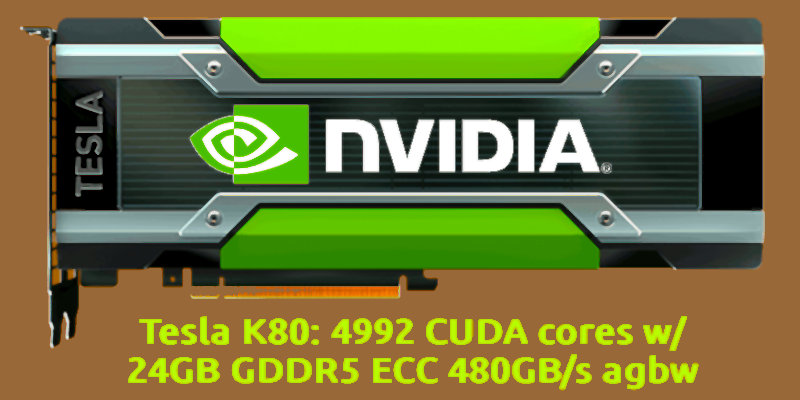
| Tesla K80 | Kepler | 2x GK210 | 3.7 | 2x 2496 | 2x 12GB GDDR5 | | 300W | 8p | |
| | | | | | | | | | |
| Tesla K40c | Kepler | GK180 | 3.5 | 2880 | 12GB GDDR5 | | 245W | 6+8p | |
|-------------------|----------|----------|------|---------|---------------|-----|------|------|----|
| **model** |**arch.**|**GPU**|**CUDA**|**cores**|**RAM**|**use**|**W-max**|**alim.**|**size**|
|-------------------|----------|----------|------|---------|---------------|-----|------|------|----|
| Quadro K6000 SDI | Kepler | GK110 | 3.5 | 2880 | 12GB GDDR5 | PC | 225W | 2x6p | |
| GTX Titan | Kepler | GK110 | 3.5 | 2688 | 6 GB GDDR5 | PC | 250W | 6+8p | |
| Tesla K20X/Xm | Kepler | GK110 | 3.5 | 2668 | 6 GB GDDR5 | | 235W | 6+8p | |
| Tesla K20c/m/s | Kepler | GK110 | 3.5 | 2496 | 5 GB GDDR5 | | 225W | 6+8p | |
The CUDA support for compute capability 3.5 can be obtained via third party support for PyTorch, also.
#### Data sources
- [www.techpowerup.com](https://www.techpowerup.com/gpu-specs)
- [developer.nvidia.com](https://developer.nvidia.com/cuda-gpus)
+
## External resources
- [Newer PyTorch Binaries for Older GPUs](https://blog.nelsonliu.me/2020/10/13/newer-pytorch-binaries-for-older-gpus) (October 13, 2020)
- [Nvidia K40 GPUs PyTorch v1.13.1](https://github.com/nelson-liu/pytorch-manylinux-binaries/releases)
- [techpowerup vgabios](https://www.techpowerup.com/vgabios)
## Share alike
© 2025, **Roberto A. Foglietta** <roberto.foglietta@gmail.com>, [CC BY-NC-ND 4.0](https://creativecommons.org/licenses/by-nc-nd/4.0/)