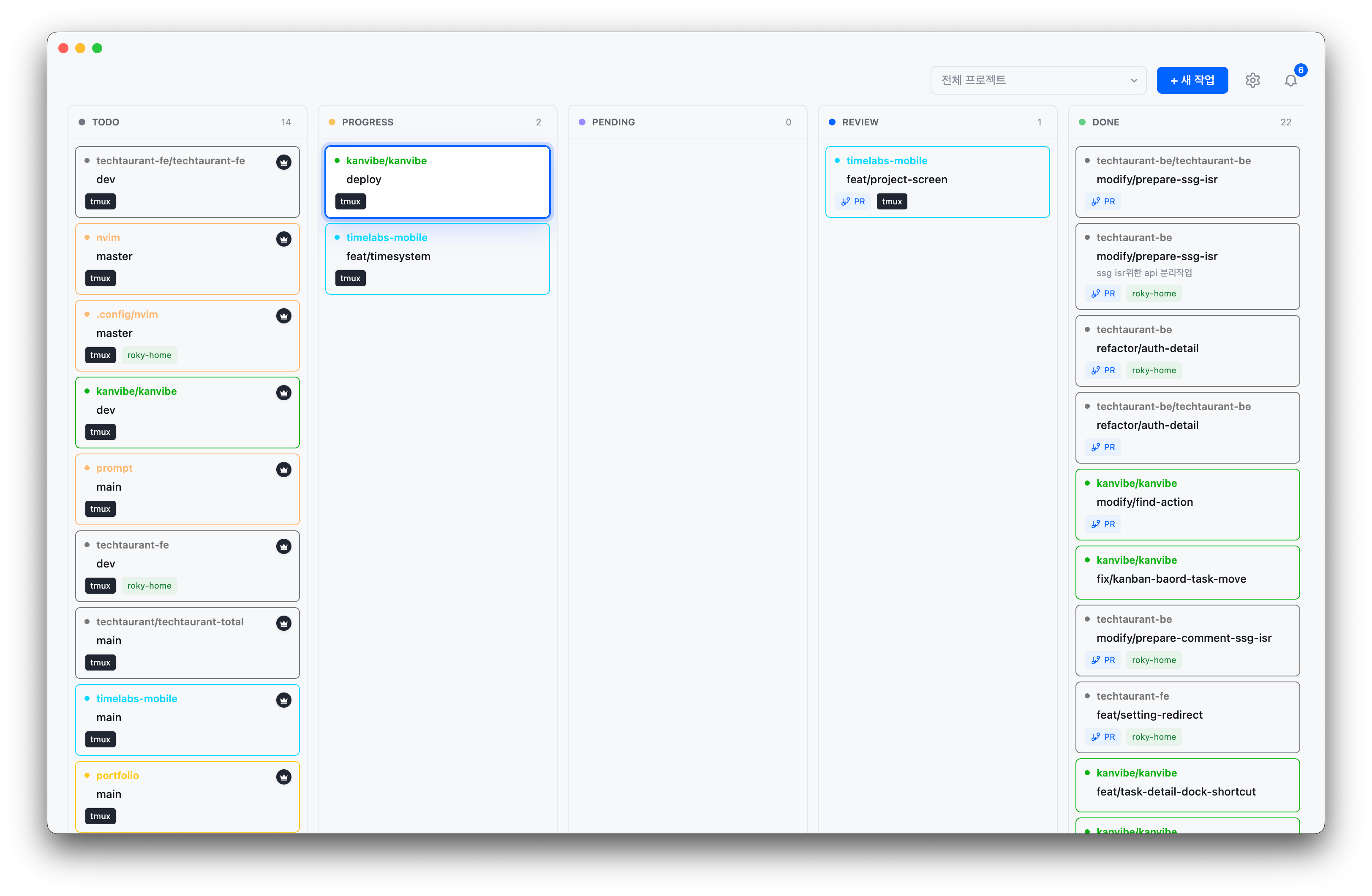
Desktop: see every task and its status |
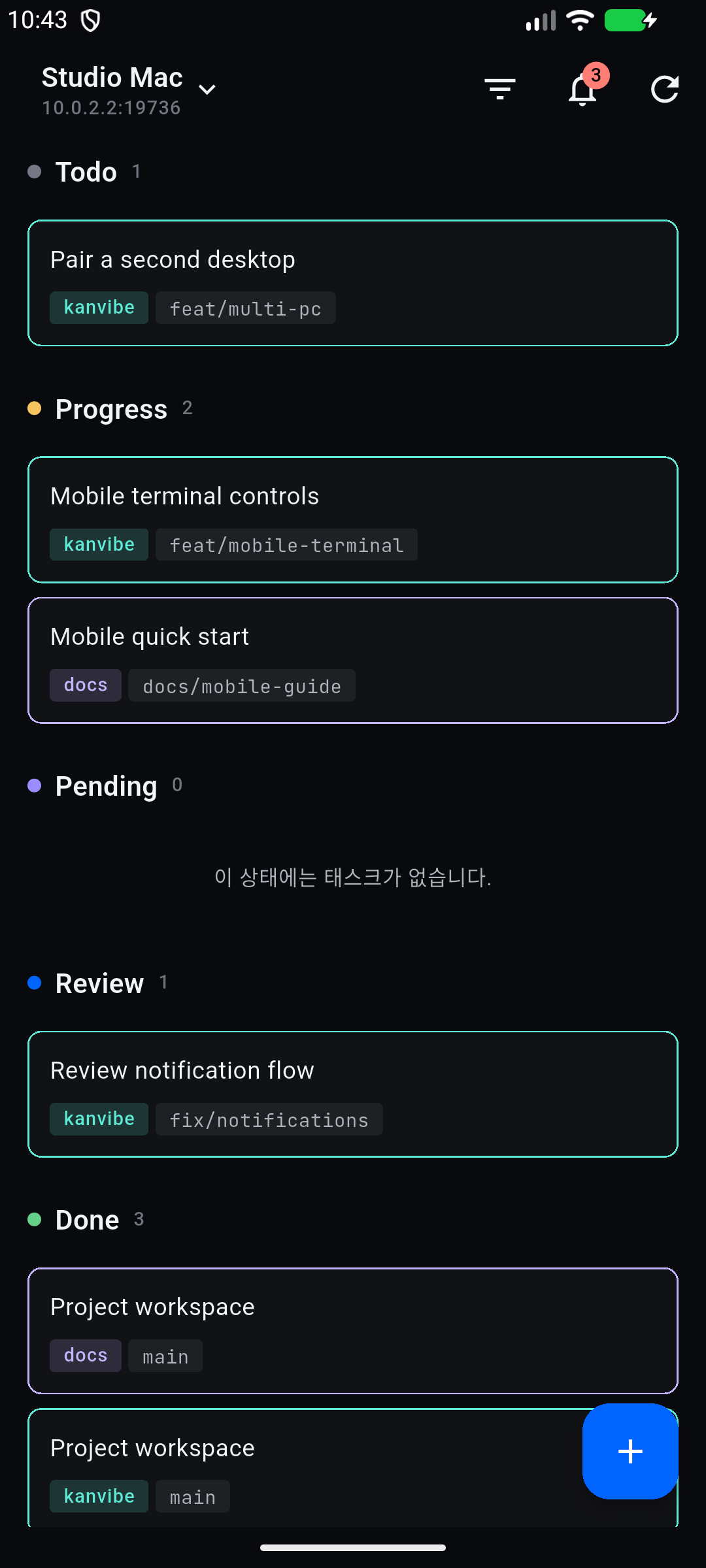
Mobile: keep the board with you |
Watch the Desktop demo on YouTube
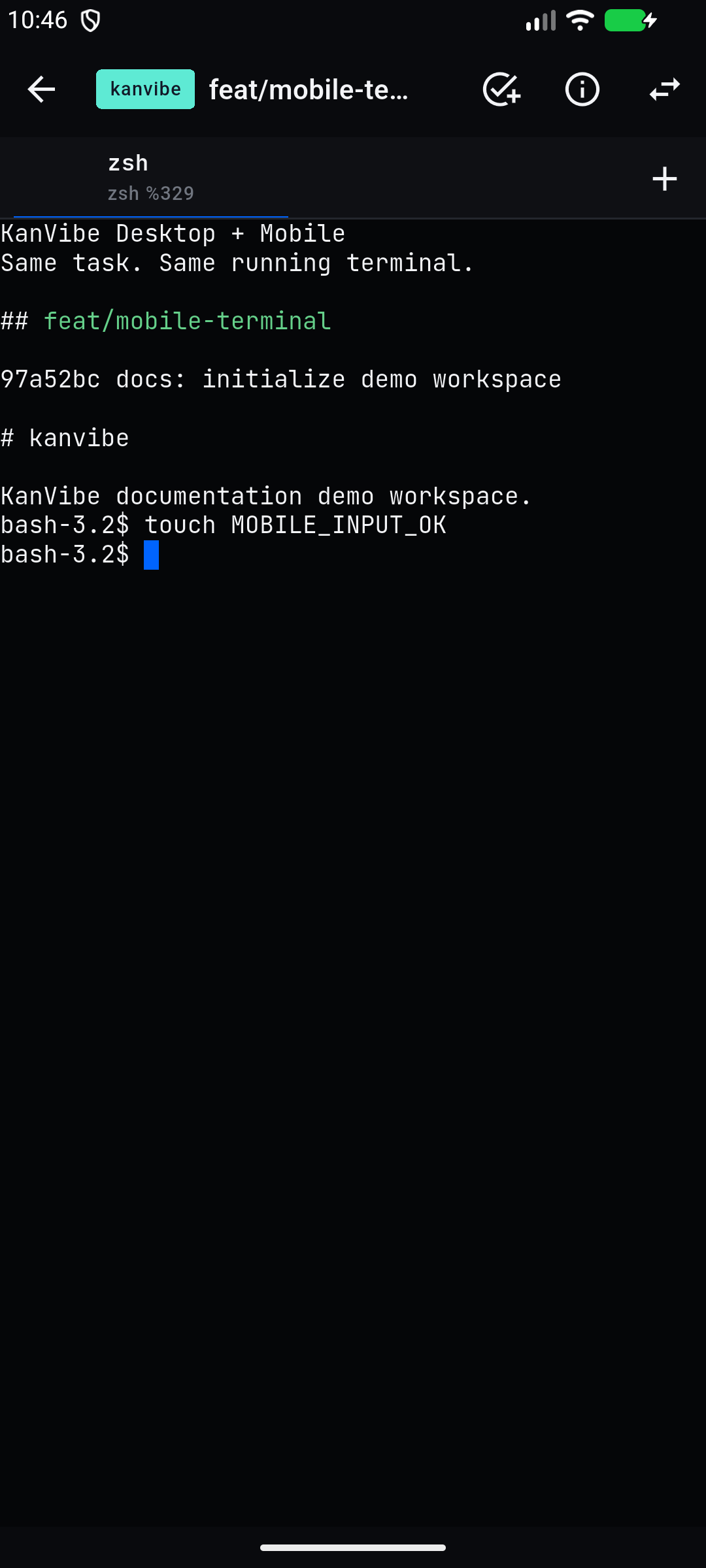
Read output and type into the same task terminal
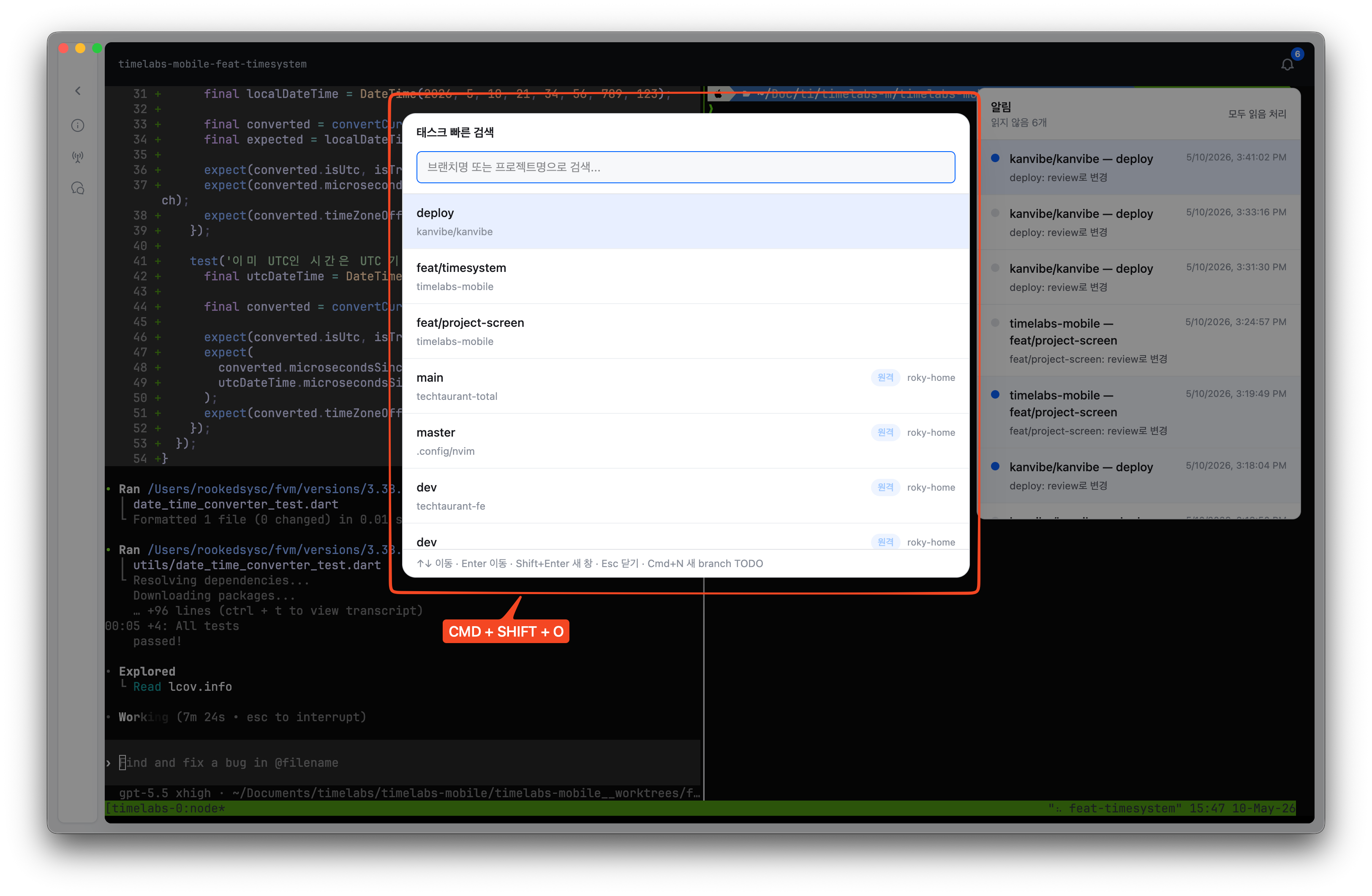 ### 2. Task Detail Shortcuts
Use numbered dock shortcuts on a task detail page to open task metadata, hook status, AI chat, and PR actions before the keystroke reaches the embedded terminal.
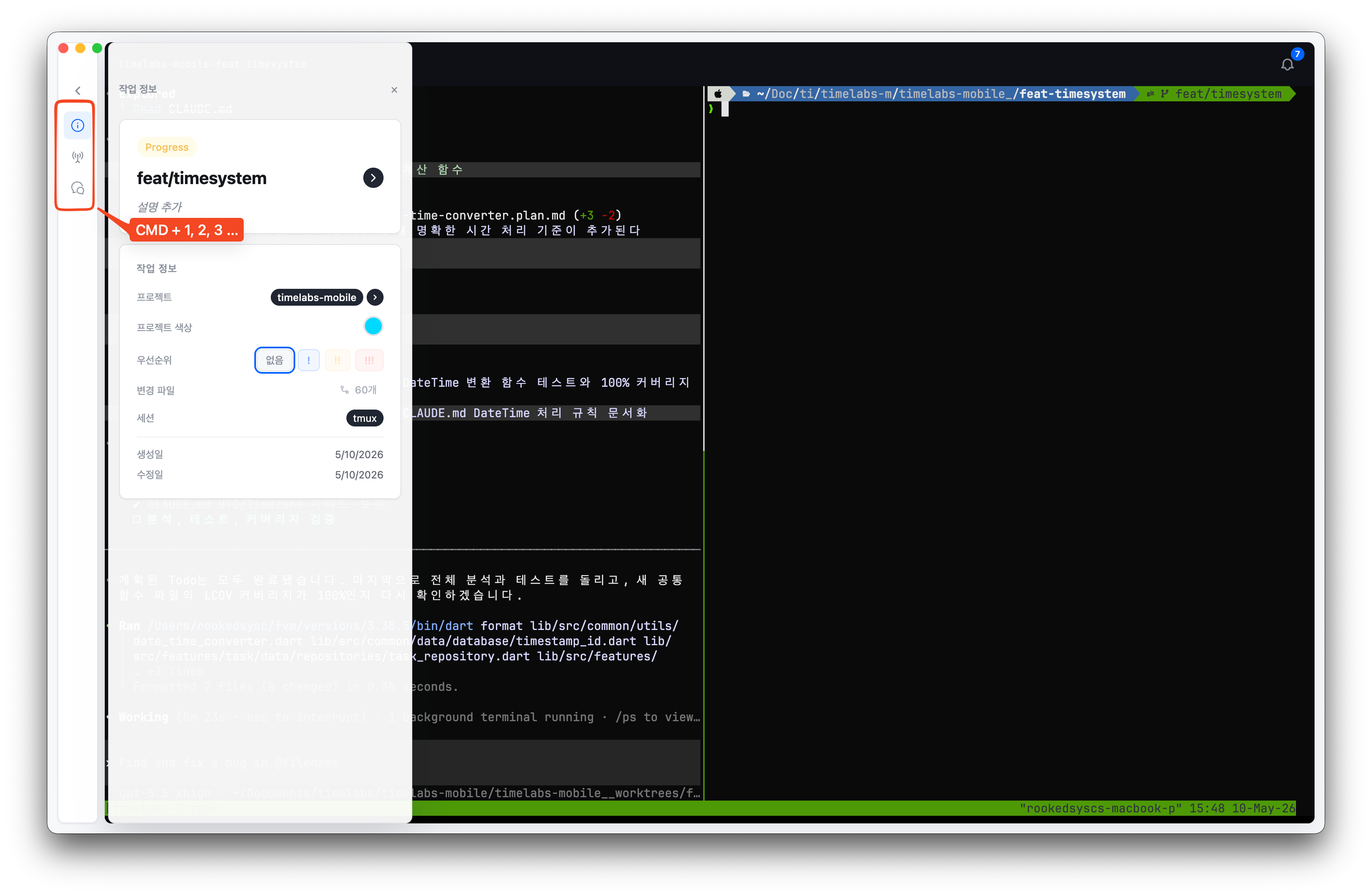 ### 3. Project Filter
Narrow the board to the active projects you care about, with keyboard navigation for switching between repositories quickly.
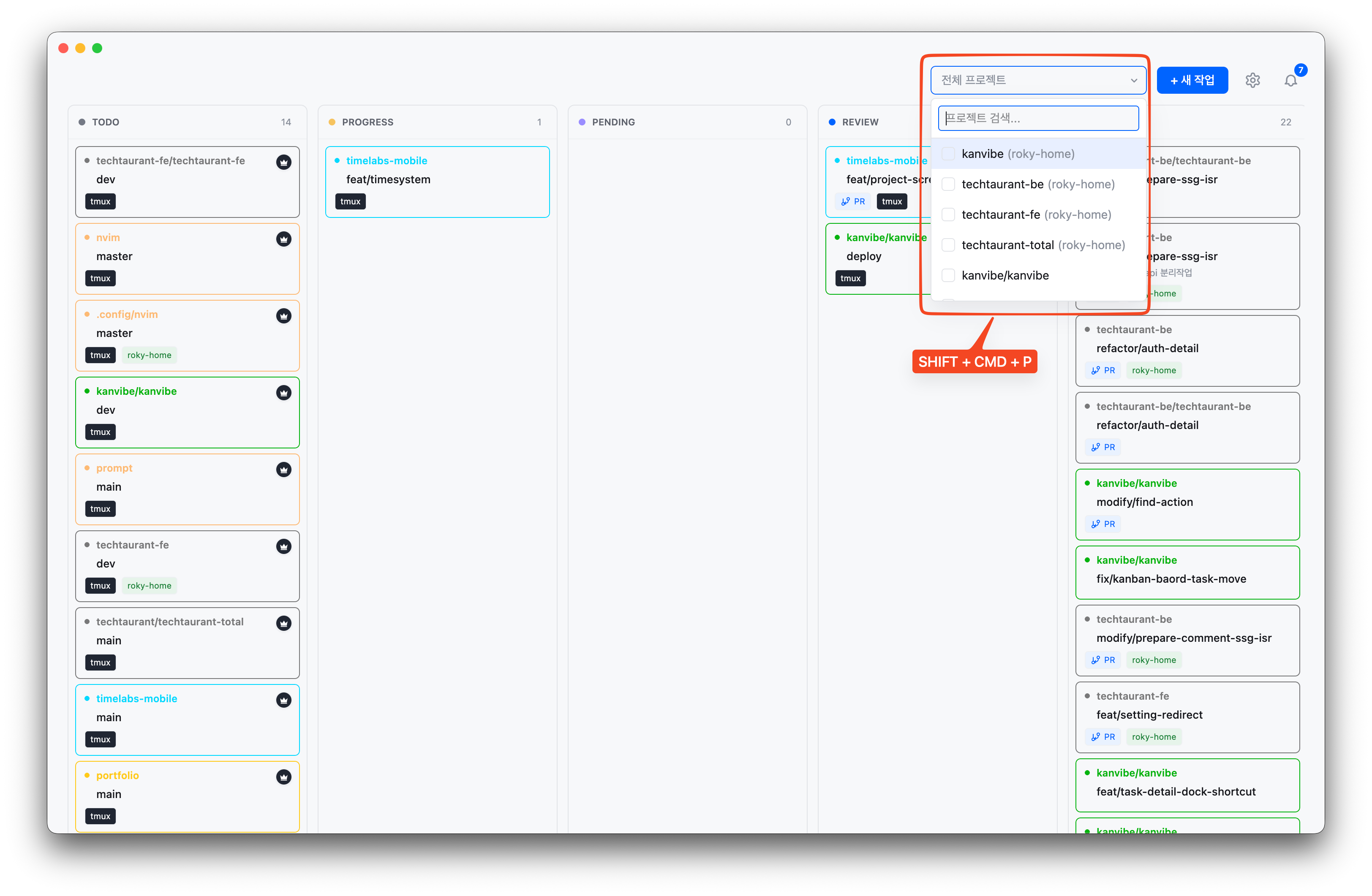 ### 4. Notifications
Open the notification panel to review AI agent status changes, background sync results, and task events, then jump to the related task.
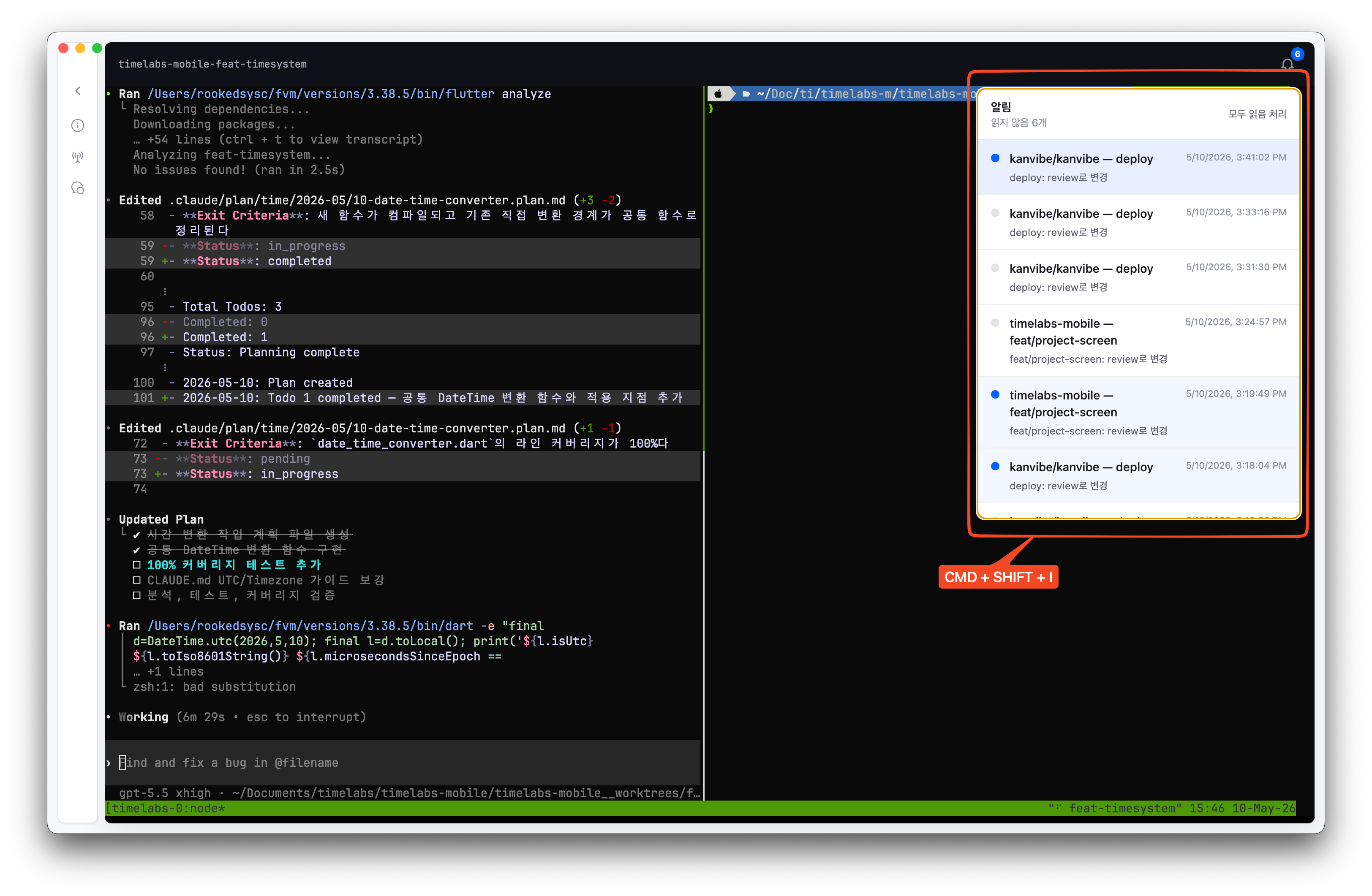 ### 5. Quick Task Actions
Create follow-up branch TODOs directly from the highlighted search result, preserving project and branch context for the next piece of work.
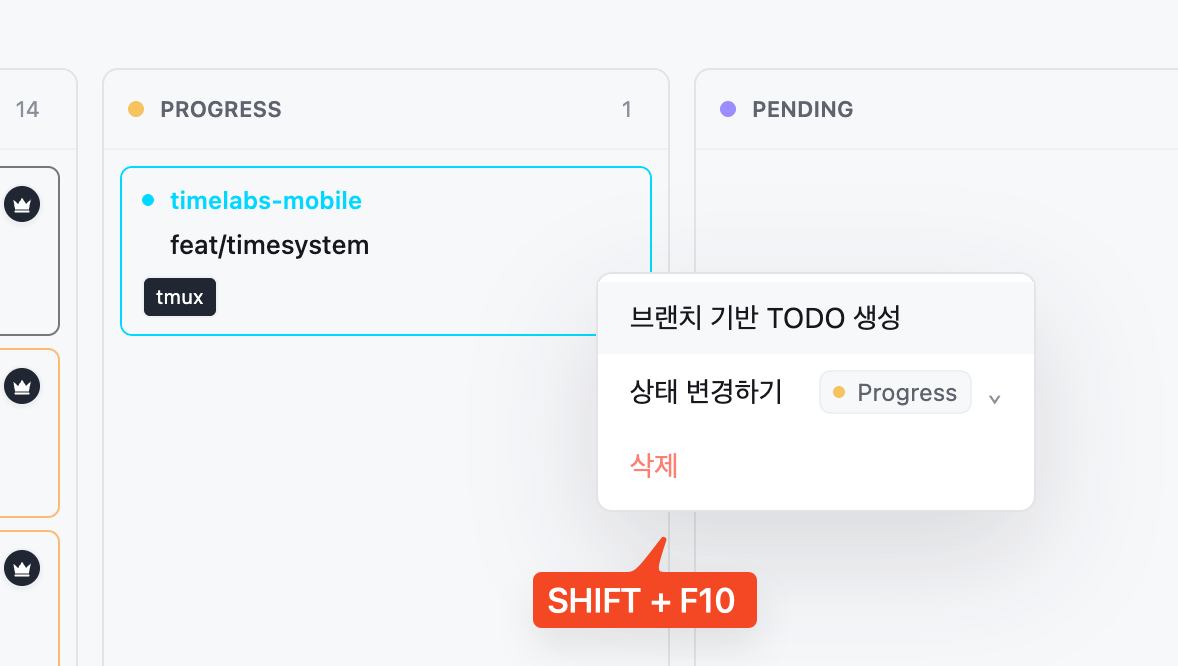 ### 6. Vim-Style Board Controls
Turn on Vim-style board controls in **Settings → Keyboard**, then move across task cards with `h/j/k/l`, find visible task text with `/`, open the new-task modal with `n`, move statuses with `:move progress`, and delete a focused task with `dd`.
[Open the Vim controls demo video](./docs/images/readme/kanvibe-vim-controls.mp4)
### 7. Live AI Session Tracking
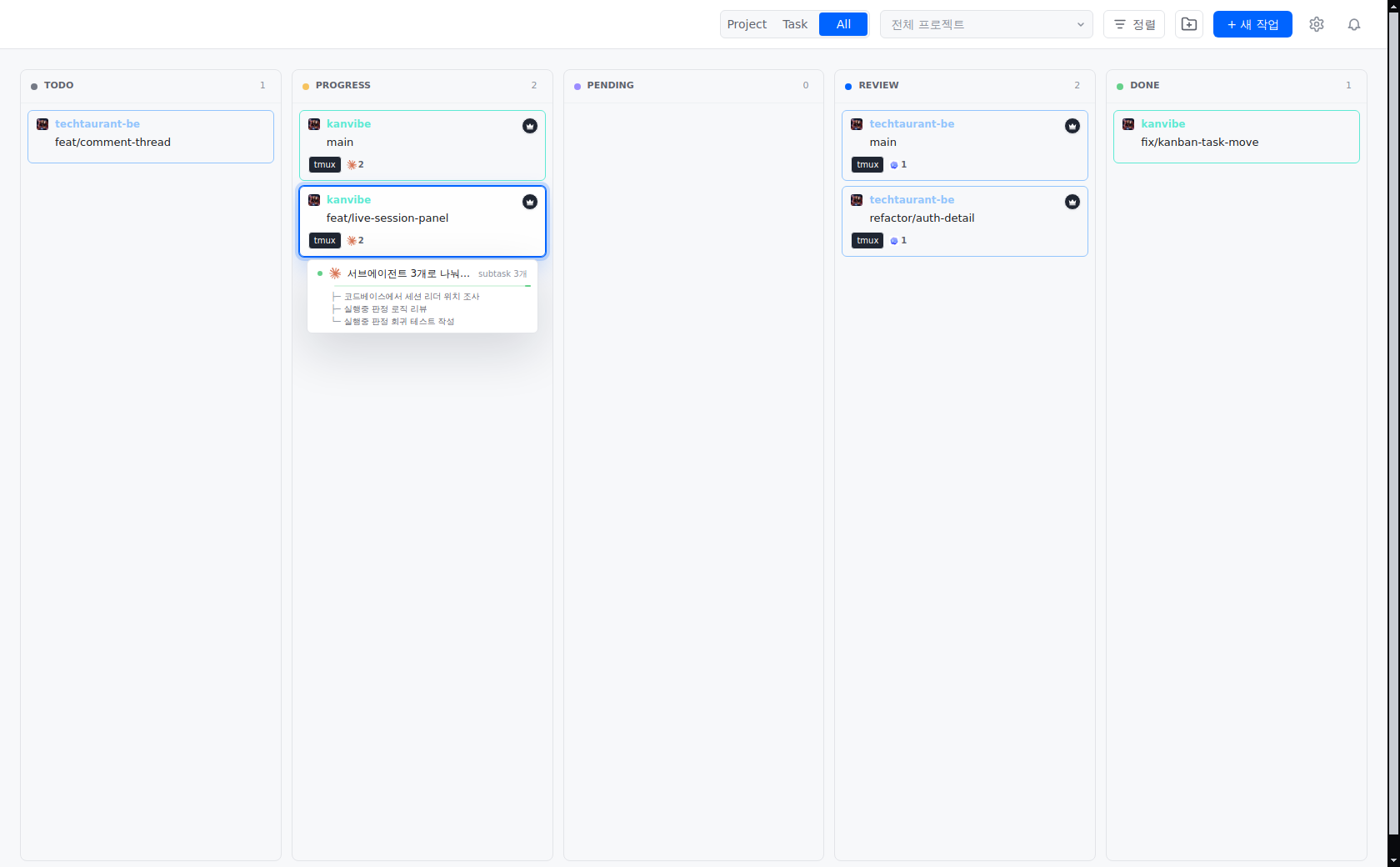
See which AI agents are running on which task, and how many, straight from the board, then jump into the terminal that owns one. Focus or hover a card and hold for a moment to open the session panel; it lists each running session with what it is doing and the subtasks branching off it right now. Clicking a session switches to the tmux window or Herdr tab that session is attached to and moves input focus to the terminal.
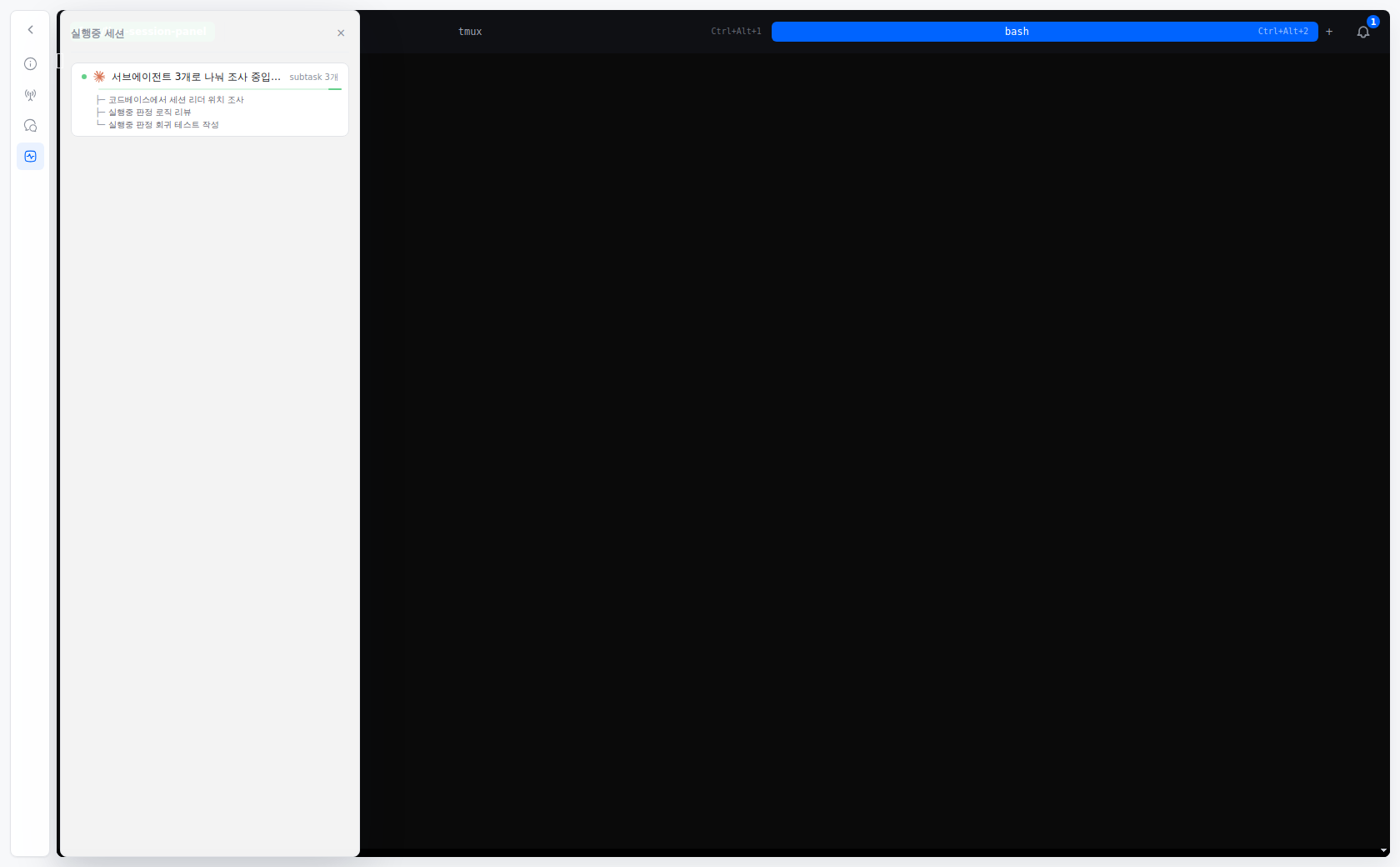
 The same panel opens from the task detail dock, so you can keep watching subtasks while you work in the terminal.
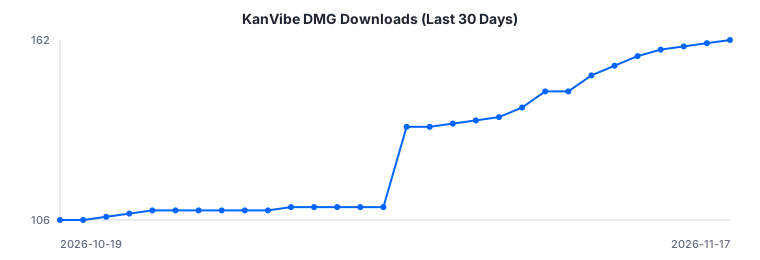
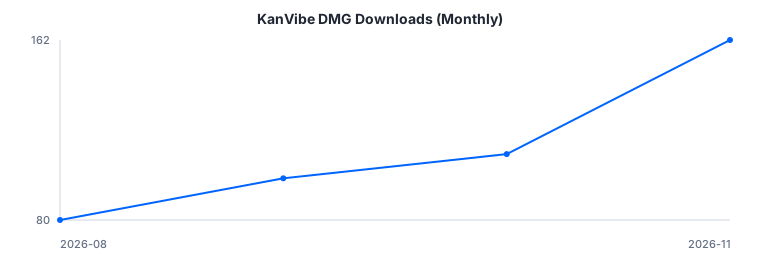 Downloads, all-time monthly trend — updated daily from GitHub Release asset download counts.
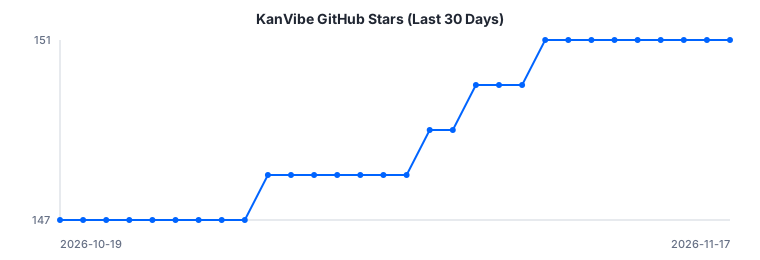
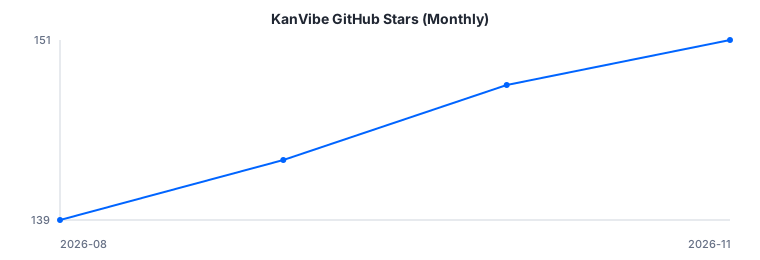 GitHub stars, all-time monthly trend.