# MiniMaxH3-Studio
https://github.com/user-attachments/assets/18875fe5-be58-47e6-b41c-9ab7e6ba8c04
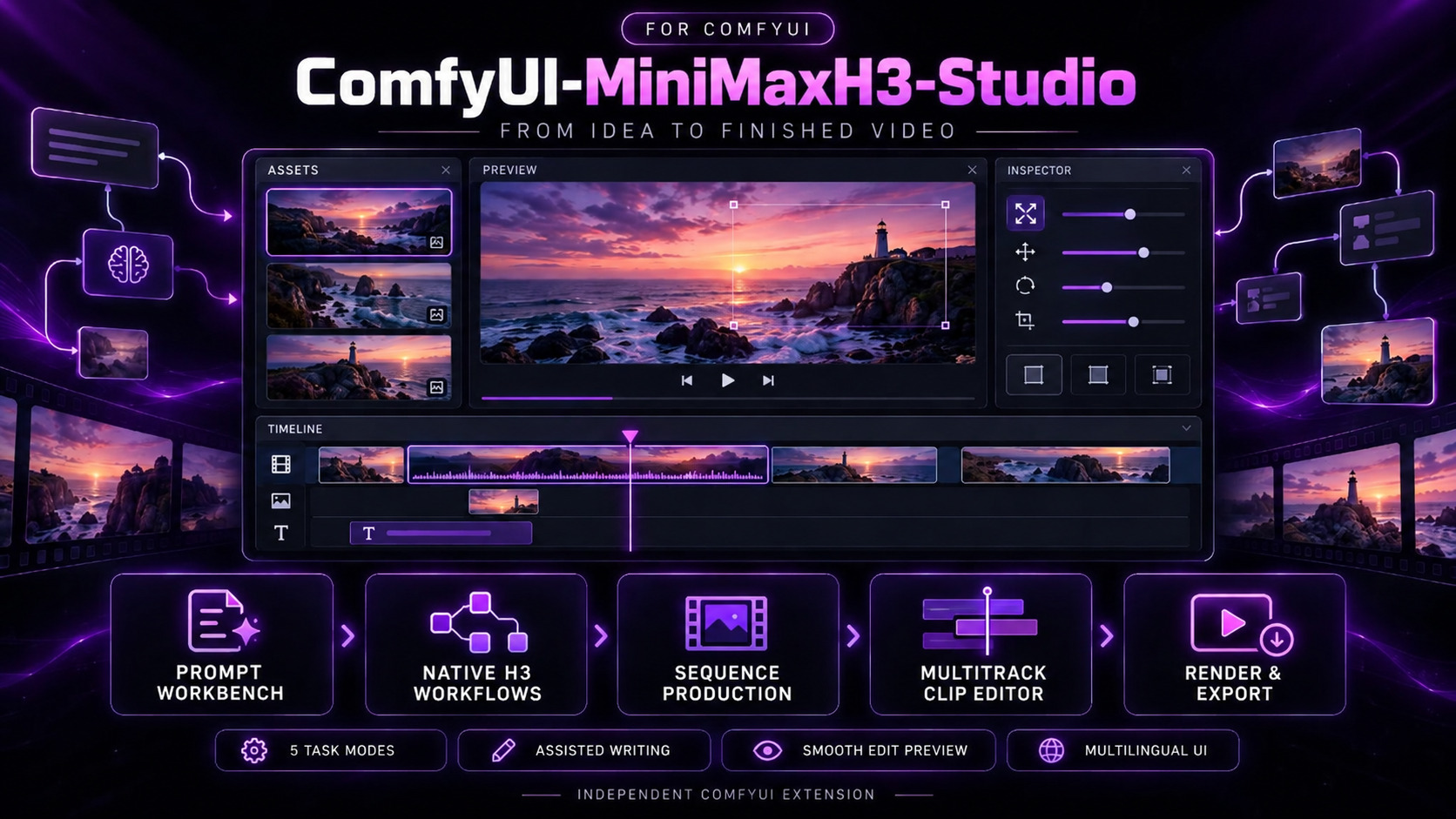
Turn a description into a MiniMax H3 video without leaving ComfyUI. Build a prompt you can
inspect, generate clips with the official H3 workflows, plan a longer video, then cut and render
the result in a built-in editor.
Everything lives in one ComfyUI sidebar, backed by 28 canvas nodes that share the same prompt
pipeline. This is an independent custom-node project, not MiniMax's official Context-IR
implementation.
Latest Updates - Click to expand
1.4.1 — Newer ComfyUI frontends and clip editor fixes
- App Mode works with ComfyUI frontend 1.56.1 and later. These frontends add node pack details to
the compiled workflow, which 1.4.0 refused with "The visible H3 graph could not be compiled."
- The clip editor and image crop open with ComfyUI frontend 1.57.1 and later, where 1.4.0 said the
full editor was unavailable and the image could not be opened. Keys used inside them, such as
Ctrl+Z, still stay there instead of changing the canvas.
- The sidebar, crop dialog and clip editor follow ComfyUI's light or dark palette on newer
frontends too. Before, they could turn light while ComfyUI used a dark palette.
- The sidebar stays within the window on older and newer frontends, including after you make the
window narrower. Before, it could reach past the window edge.
- Hover descriptions of the clip editor's icon buttons keep a readable width. A button alone in its
group no longer squeezes its description into a narrow column.
- The empty preview monitor and empty timeline tracks now say to click a thumbnail in **Media**,
instead of mentioning a **+** button the media bin does not show.
- **Settings → Language** names the Traditional Chinese option 正體中文.
1.4.0 — Directional wipes, image cropping and easier App Mode setup
- The clip editor adds four directional wipes, **Wipe from left**, **Wipe from right**,
**Wipe from top** and **Wipe from bottom**. They appear beside **Cross dissolve** in the
Inspector's **Transition** tab, and the final render closely matches the preview.
- A project or saved draft that uses a directional wipe needs 1.4.0 or later; earlier versions
refuse it rather than dropping the wipe.
- The final render now encodes H.264 at a fixed, higher quality setting, so flat colours match the
preview more closely. Rendered files can be larger than before.
- The clip editor now opens with ComfyUI frontend 1.55.11 and later, which current ComfyUI
versions use. Versions of this extension up to 1.3.2 could not open it there.
- The clip editor now refuses a title that uses characters the bundled fonts cannot draw, such as
Chinese, Japanese, Korean or emoji, and says why as soon as you add or edit it, instead of
failing at the final render. The text you typed stays in place.
- App Mode can crop a first frame, last frame or reference image: use **Crop image** beside the
image, drag the rectangle or pick an aspect ratio, then **Apply**. Starting or replacing the
canvas adds ComfyUI's native **Crop Image** node, which you can still edit on the canvas.
- **Start H3 App Mode** and **Replace canvas and start H3 App Mode** now work for I2VA, FL2VA, L2VA
and Ref2VA before you choose a source. They place the template's **Load Image** nodes, and the
sidebar lists which nodes still need your images before you queue.
- Empty source lists explain which node to add to the main canvas, in English, Traditional Chinese
and Simplified Chinese.
- App Mode recognizes the installed official H3 weight variants that ComfyUI's templates select,
such as their video VAE and model precision variants, and prefers the template's own choice when
you have it installed.
- **Refine prompt** now follows instructions that ask for camera moves or cuts between shots, while
dialogue, on-screen text, reference labels and timing stay exact. If a suggestion cannot keep
them, it says why instead of offering a changed prompt.
- **Optimize prompt** and **Refine prompt** keep the required content that is already in your
prompt and never add forbidden content, as set on the **H3 Hard Constraint Producer** node.
- The GitHub repository is now named **MiniMaxH3-Studio**. GitHub redirects the old address, so
existing clones and links keep working, and an existing installation folder can keep its name.
The Comfy Registry name **ComfyUI-MiniMaxH3-Studio** is unchanged.
1.3.2 — App Mode finishes on current ComfyUI
- App Mode runs finish again on current ComfyUI versions. ComfyUI now adds extra details to each
saved video, which 1.3.0 did not recognize, so a finished run could stay at "Verifying the exact
saved output" indefinitely.
- If ComfyUI's saved-video message is missing or not recognized when the run finishes, the sidebar
looks the video up in that run's ComfyUI history for up to about 16 seconds. If it still cannot
be matched, the run ends with a message and **Continue with native nodes** instead of waiting.
- The **H3 Reference Registry** node refuses more than three audio tracks in total, including video
soundtracks, before generation starts. This matches the sidebar and the native H3 limit.
1.3.0 — Ordered references, original-size assembly and clearer cut reports
- Ref2VA now executes linked references from the sidebar and bundled reference graphs.
- Select and reorder up to 9 images, 3 videos and 3 audio references, within a total of 12 files
and 3 audio tracks including video soundtracks. Move or remove individual references and see
their final labels before applying the graph. At least one image or video is required.
- Assemble at the segments' original size, 24 fps and 32 kHz stereo by default, with one final
video encode. The previous 512 × 512, 30 fps, 48 kHz format remains selectable.
- Review a report for each cut: **smooth**, **visible change** or **not measured**. These bounded
measurements describe the cut; they do not guarantee visual or audio continuity.
- A finished sequence can offer assembly when the media tools become ready later, without
restarting ComfyUI. English assembly inputs now show separate segment and cut counts.
1.2.1 — Manual media tools setup and sequence assembly fix
- The extension no longer downloads or installs FFmpeg. **Settings → Media tools** now opens the
exact download page, shows the archive name and SHA-256, and admits the extracted **bin**
folder after verifying both programs. Retry the action you started once the tools are selected.
- A **?** button beside **Media tools** explains setup, checksum verification and the supported
build in English, Traditional Chinese and Simplified Chinese.
- Tools that 1.2.0 or earlier already set up keep working without changes. Leftover files from an
earlier interrupted setup are removed only when you choose the cleanup control.
- Sequences built from your own ComfyUI video generations now assemble; earlier versions
refused those segments because of their color tag and their millisecond-rounded length.
1.2.0 — Title decorations, editor updates and local perception setup
- Style titles with strokes, sharp shadows and background padding. Preserve literal line breaks
in preview and final rendering, and enable or reset each decoration separately.
- Save accepted title styles in project files and acknowledged draft recovery. Older 1.1.0
readers refuse the new optional decoration settings rather than silently discarding them.
- Configure qualified local visual or audio analysis through an operator-owned startup file,
then inspect readiness in **Settings → Local perception**. Execution requires its supported
native Windows setup; refreshing status does not launch a model or change configuration.
- The timeline toggle is now called **Ripple edits** and keeps its existing edited-track scope.
- Reduce repeated redraws of unchanged timeline, monitor and media controls during
edits. Keep seeking and toolbar actions synchronized with the current editor state.
1.1.0 — Project files, recovery and editor improvements
- Save and open editable `.h3proj` projects, with explicit relinking when media is missing.
- Optionally retain verified generated videos and recover acknowledged drafts with data-only
undo/redo after a restart. Each storage option is off by default.
- Adjust clip volume, mute and fades in the Inspector, preview and final render; enjoy steadier
playback across edits and cuts, reliable timeline shortcuts and clearer title-insertion feedback.
- Generated-video closure now accepts Linux host paths. Editor media and durable recovery still
require their supported Windows setup.
- Source and Registry distributions include complete public developer inputs and exclude private
records, dependency installations and caches.
1.0.2 — Assisted prompt writing and model setup
- Set up Ollama or a remote provider, reload available models and choose an exact model; readiness
is checked automatically, and reloading keeps the selection when the model is still available.
- Browse provider-reported model dates, limits and lifecycle labels, with a local filter for large
model lists and requests adapted to each provider's API.
- Use **Refine prompt** to direct a revision while preserving exact dialogue, visible text,
reference roles and timing. Every suggestion remains yours to review before applying.
- Read and compare prompts without losing local edits, focus, text selection or scroll position.
- Review typed semantic suggestions with a bounded repair attempt for invalid responses. The
canvas **H3 Semantic Proposal Producer** can use an exact installed Ollama model while keeping
historical workflows compatible.
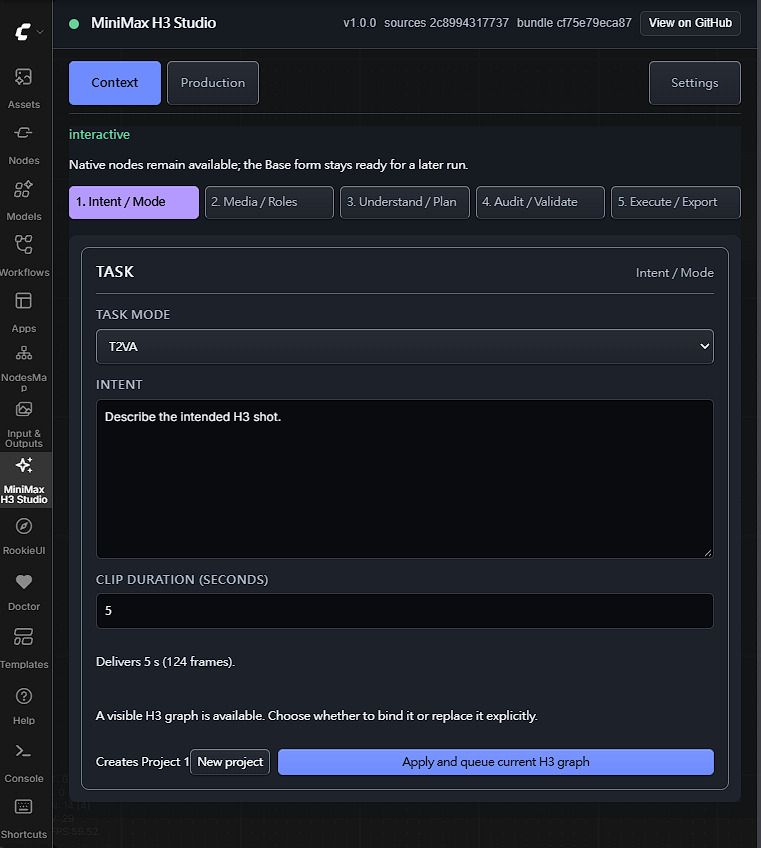
The **Context** page walks through five stages, shown as numbered tabs: **Intent / Mode**,
**Media / Roles**, **Understand / Plan**, **Audit / Validate** and **Execute / Export**. You can
also simply fill in the request and choose **Start H3 App Mode**. Describe the video in **Intent**,
which takes up to 4,096 characters.
### Task modes and references
| Task mode | You provide |
| --------- | --------------------------------------------------------------------- |
| T2VA | Text to video: a description only |
| I2VA | Image to video: a **First frame source** in a **Load Image** node |
| FL2VA | First and last frame: two different images in two **Load Image** nodes |
| L2VA | Last frame: a **Last frame source** in a **Load Image** node |
| Ref2VA | Reference set: an image, a video and/or audio, each with a clear role |
Sources are **Load Image**, **Load Video** and **Load Audio** nodes on the main canvas, outside
subgraphs. You can choose existing sources, or leave the sources unchosen and use **Start H3 App
Mode** or **Replace canvas and start H3 App Mode** to place the template's loaders. A frame you
leave unchosen uses the template's own **Load Image** node, which holds a sample image until you set
yours there. If you choose both frames for FL2VA, they must be two different **Load Image** nodes.
Set the images in those **Load Image** nodes before choosing **Apply and queue current H3 graph**.
For Ref2VA, also choose the references in the pickers before queueing. The sidebar does not upload
files.
For a reference set, choose up to nine images, three videos and three standalone audio files under
**Reference images**, **Reference videos** and **Reference audio**. Add sources in order; the arrow
and remove controls update their labels as you edit. The total limit is 12 files and three audio
files, including video soundtracks. Audio cannot be the only reference in the sidebar; add an image
or a video. Once a reference video is chosen, **Reference video soundtrack** appears with three
options: **Submit all selected videos’ own soundtracks** (the default), **Do not submit
soundtracks** and **Soundtracks unavailable**. The last two both leave the soundtracks out, and the
first is disabled when including them would exceed the file or audio limits. Each video or audio
clip should be 2–15 seconds, with at most 15 seconds per kind in total. The live counter includes
submitted soundtracks.
Roles and order are never guessed: a missing or conflicting role is reported so you can fix it.
### Crop frame and reference images
Choose an image source, then use **Crop image** beside a first frame, last frame or reference
image. Drag the rectangle or its eight handles. The arrow keys move a focused rectangle by one
source pixel, or ten with Shift. On a focused handle they resize by the same amount in Free mode,
and in whole ratio steps with Original or a fixed aspect ratio, always within the image. Choose
Free, Original or a fixed aspect ratio, then **Apply**. The source row shows the cropped width and
height. To remove a crop, choose **Reset**, which returns the rectangle to the full image, then
**Apply**.
In I2VA, the output follows the crop's aspect ratio; in FL2VA and L2VA, the output size comes
from the canvas resolution setting, so choose a crop ratio that matches it.
Starting or replacing a canvas inserts one native **Crop Image** node per cropped source, before
all its consumers. On a canvas that is already prepared, **Crop image** is unavailable; edit that
visible node directly. Videos and audio have
no crop action. Changing modes or removing an image clears its sidebar crop. A host without the
native Crop Image node cannot prepare a cropped canvas.
With a crop applied, prepare the canvas with **Start H3 App Mode** or
**Replace canvas and start H3 App Mode** in **Intent / Mode**, or reset the crop, before using
**Execute / Export**.
### Dialogue and exact text
The sidebar has no fields for dialogue or exact text. Enter them on the canvas, in the **H3 Hard
Constraint Producer** node, and connect its `hard_constraints` output to the optional
`hard_constraints` input of **H3 Context Request** (see [Canvas nodes](#canvas-nodes)). Its
`dialogue`, `visible_text`, `required_content` and `forbidden_content` inputs hold dialogue,
on-screen text and anything that must or must not appear. They are kept word for word.
For dialogue the node also has:
- `dialogue_language`: `auto` or one of Arabic, Chinese, English, French, German, Italian, Japanese,
Korean, Portuguese, Russian and Spanish. `auto` recognizes Korean, Japanese and Chinese from
their scripts; other scripts stay untagged with a warning. The spoken words never change;
- `dialogue_speaker`, as a short identity phrase such as `the guide`;
- `dialogue_delivery`: `on_screen` for spoken on screen, or `voiceover` for an off-screen voice (the
speaker's lips stay closed).
### Duration
Enter **Clip duration (seconds)** as a whole number from 4 to 15 (default 5). The extension converts
it to a length H3 can produce and shows the delivered seconds and frame count.
**Start H3 App Mode** stays disabled until that is resolved; if it fails, choose **Retry duration
resolution**. The workflow uses this one duration everywhere, so there are never two conflicting
length settings.
### Review the prompt
Once App Mode has prepared the graph and its Context, the numbered tabs fill in. **Understand /
Plan** shows the plan behind the prompt. **Audit / Validate** holds the prompt and the validation
diagnostics. **Execute / Export** shows the validation status and guide readiness. Fix errors
before queueing; warnings point out uncertainties you may accept. You can also:
- type `@` in the prompt to insert a reference;
- edit the prompt, give a **Revision reason** and choose **Stage revision**, then choose
**Validate revision** to check it;
- **Copy prompt**, **Export JSON** or **Import JSON**;
- choose **Optimize prompt** when [assisted authoring](#assisted-authoring-optional) is set up, then
edit, accept or reject the proposal;
- open **Revision instruction** to request wording, style, camera moves or cuts between shots and
choose **Refine prompt**;
- use **Reader** for the complete prompt, or **Compare with current report** for an active AI proposal.
**Guide readiness** is a separate check against the official H3 prompt guide: **Ready** means every
known requirement is covered, **Incomplete** means something the guide expects is missing, even if
the prompt is valid. Neither judges visual quality.
### Start H3 App Mode
**Start H3 App Mode** writes the official ComfyUI MiniMax H3 workflow for your task mode onto the
active workflow tab, without queueing it. Save any unsaved workflow before starting. To try the
official template separately, open a new empty workflow tab and make it active first. To connect
your own H3 workflow instead, keep its tab active and use the Connect option below.
App Mode uses these official templates:
| Task mode | Official template |
| ----------------- | --------------------------------- |
| T2VA | `video_minimax_h3_t2v` |
| I2VA, FL2VA, L2VA | the `video_minimax_h3_i2v` family |
| Ref2VA | `video_minimax_h3_r2v` |
Model loaders are filled from your installed official H3 weights. When the template's own choice,
such as a particular video VAE or model precision variant, is installed, it is kept; otherwise an
installed official variant for that role is used. If a model cannot be matched, it
is named as a warning and left for you to pick on the canvas; ComfyUI checks the models when the
workflow is queued. The workflow is a normal ComfyUI graph that you can inspect and change. Queue it
with **Apply and queue current H3 graph** or ComfyUI's own Queue button.
If the canvas already has nodes, App Mode asks first:
- **Replace canvas and start H3 App Mode** replaces the graph in the active tab with the official
workflow. Save the current workflow before choosing it;
- **Connect and queue current canvas** keeps your graph, connects the prompt to the H3 generation
node you choose and queues it once. Your models, LoRAs, sampler and other settings stay as they
are;
- **Keep canvas and exit H3 App Mode** leaves the current canvas untouched and exits App Mode,
without queueing a run.
Connect adds the prompt connection and queues a run; Keep makes no canvas changes. Neither choice
saves a backup of your workflow. Use ComfyUI's own workflow Save action to preserve unsaved canvas
work. Saving a ComfyUI workflow does not back up the separate Production or editor project.
Connect works with your own H3 workflows, not only the official ones. It looks for the native H3
generation nodes on the canvas and one subgraph level inside it; when there are several, choose
one under **H3 generation node to connect**. The task mode must match how that node is wired: a
connected first frame means I2VA, a last frame L2VA, both FL2VA, and neither T2VA; a native
reference-to-video node means Ref2VA. Connect is not offered when the canvas already contains
H3 Context nodes; use **Apply and queue current H3 graph** instead.
If an existing canvas is replaced without a choice being shown, report the loaded sidebar version
and the actions you took. Include **Copy diagnostics** when available so the unexpected change
can be investigated.
**Cancel App Mode** is offered only while App Mode is still preparing the graph and the Context.
Once generation is queued, use ComfyUI's own queue controls. **Continue with native nodes** leaves
App Mode so you can work on the canvas yourself.
### During and after a run
A run is queued once through the normal ComfyUI queue. It is reported as finished only after the
saved video has been checked against that run. If ComfyUI's saved-video message is missing or not
recognized when the run finishes, the sidebar looks the video up in that run's ComfyUI history for
up to about 16 seconds. A video that still cannot be matched is reported as not verified, the saved
file is left unchanged and the run is never queued again automatically. If the connection to
ComfyUI drops, the sidebar picks the run up again when it reconnects.
The finished video is added to the **Production** project shown above the App Mode buttons ("Adds
to Project …" or "Creates Project …"):
- every new run from the same workflow adds one segment to the same project;
- choose **New project** before starting when the next result should go elsewhere;
- **Edit App Mode setup** returns to the request for the next run; **Cancel edit** leaves the setup
and keeps the previous result unchanged.
If App Mode declines a run, it shows the reason and a remedy, with **Retry H3 App Mode** or **Retry
output verification** where they apply. **Copy diagnostics** copies a short report for support; it
never contains your prompt, workflow, file paths or credentials.
## Production
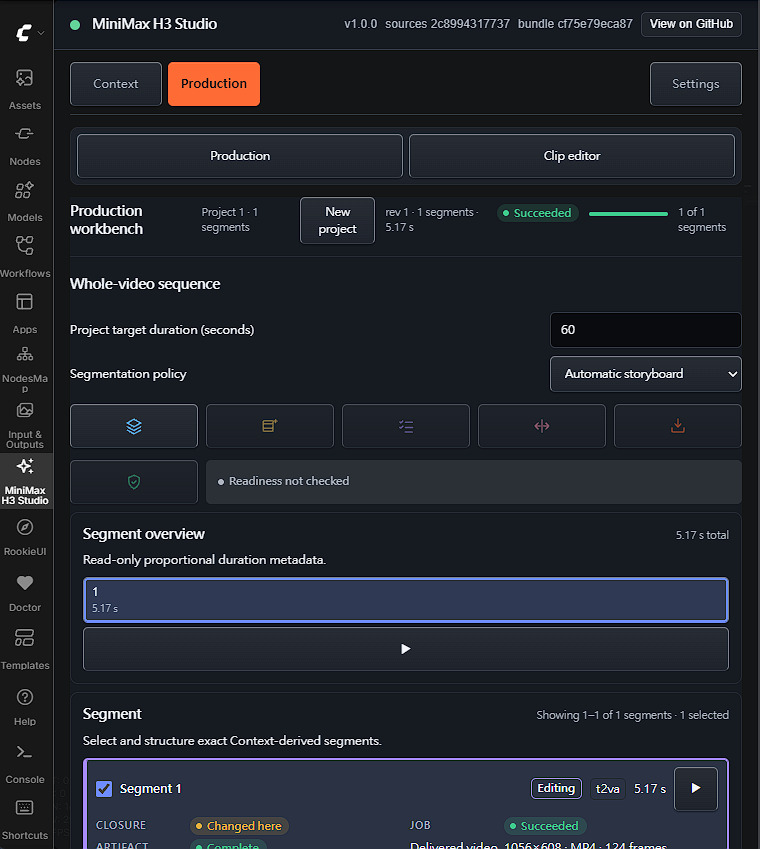
The **Production** page has two views, switched at the top: **Production** for your project and
**Clip editor** for [the editor](#clip-editor).
### Project and segments
- The status band names the project and its segment count, with **New project** and a progress
meter while segments generate.
- **Segment overview** shows each segment's share of the video. Its seconds are marked "snapped"
when H3 delivers a slightly different length from the one requested.
- The **segment list** shows 32 segments per page. Tick segments to select them; with exactly one
selected, its row expands to show its state, output, continuity and boundary.
- **Project target duration (seconds)**, from 4 to 60, is the intended length of the whole video.
It is used by [longer-video planning](#longer-videos), is separate from the next App Mode clip's
4–15 seconds, and never starts a generation when changed.
### Arrange and generate segments
- **Reorder** by dragging a tile in the segment overview, with the arrows on a selected segment, or
by typing its **Position** and choosing **Apply**.
- **Add current Context** adds a segment from the current Context request. With one segment
selected, **Replace segment N with current Context** or **Delete segment N** (the only remaining
segment cannot be deleted). A project holds up to 64 segments.
- **Relationship for segment N** sets how a segment joins the previous one: **Independent**,
**Predecessor**, **Adjacent pair**, **Cut** or **Reset**; the second and third need an earlier
segment. Choose **Apply relationship to segment N** to keep it. Changing a segment only reruns
what depends on it.
- **Generate segment N** queues one segment when it is ready; **Blockers** says why it is not.
- **Release workspace** closes this Production workspace after **Confirm release**. The Context and
earlier outputs stay unchanged.
### Previews and intent proposals
- **Preview segment N** (the play button on a tile) and **Preview aggregate output** play a copy
on the host. The aggregate preview marks where each segment begins, and its sample thumbnails
jump to that point. A missing button means that output cannot be previewed yet.
- **Understand segment N** and **Understand selected** open a proposal review when the segment kept
an intent proposal from its original Context run. A segment without one is still valid.
To edit outputs, open the clip editor and use its **Import** button (see [Media bin](#media-bin)).
## Clip editor
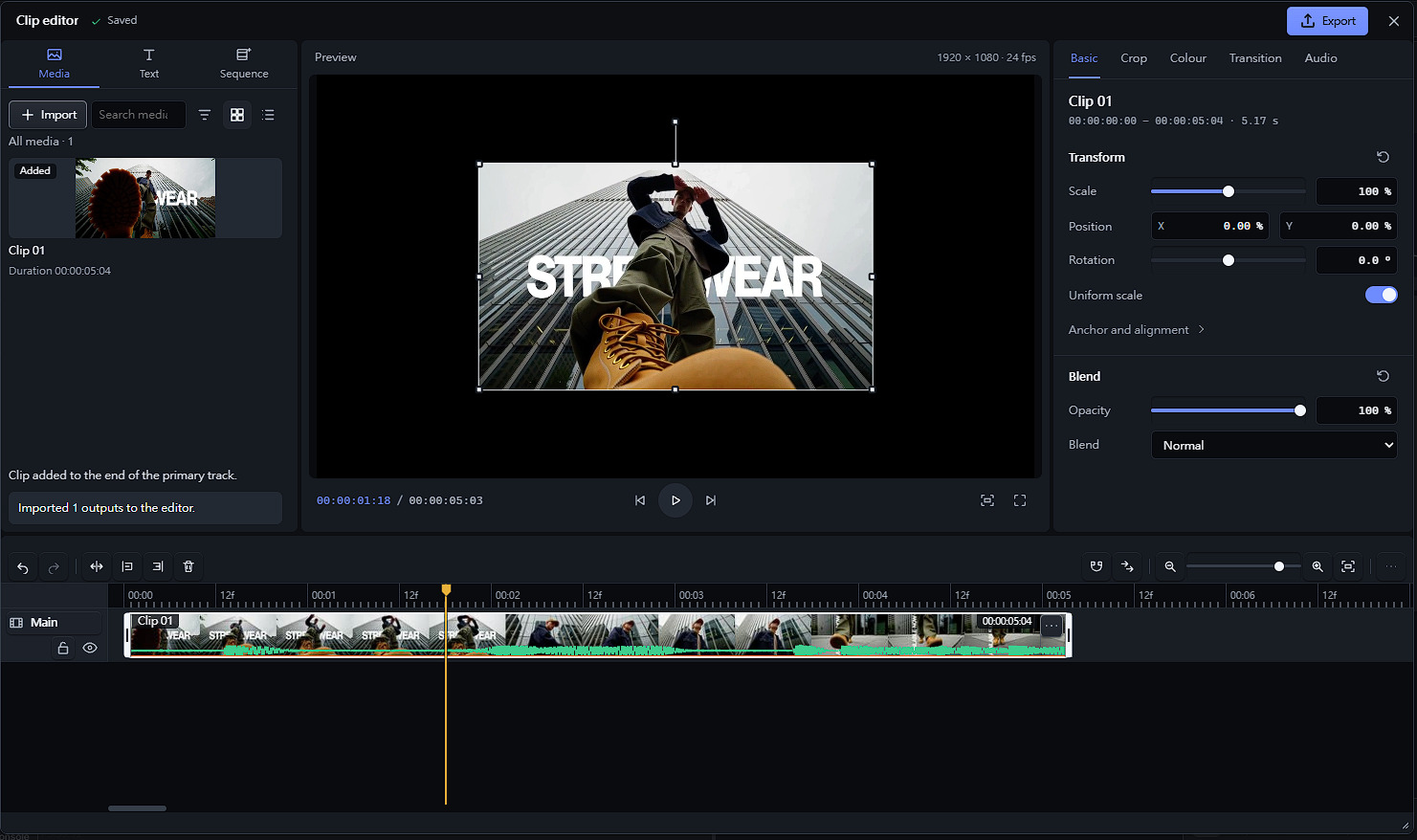
In short: in **Production**, tick up to three finished segments, switch to **Clip editor** and
choose **Open full editor**. Bring the segments in with **Import** in the media bin, place them on
the timeline, trim and arrange them, add titles and overlays, then choose **Export → Render final
video**. The result is a 1920 × 1080, 24 fps MP4 that you download with **Download original**.
### Open the editor
Switch the Production page to **Clip editor** and choose **Open full editor**. If there is no editor
project yet, choose **Start authoring from this context** first. The editor opens as one window over
ComfyUI; all editing, selection, undo and redo happen there. Close it with its close button or
**Escape**.
The Clip editor view in the sidebar summarizes the editor project and offers **Refresh workspace**
and **Release workspace** (not while the editor is open).
### Layout
The window has a top bar and four regions: the **Media bin** on the left, the **Preview monitor**
in the middle, the **Inspector** on the right and the **Timeline** across the bottom. The media bin
has three tabs: **Media**, **Text** and **Sequence** (for [longer videos](#longer-videos)).
- Drag the dividers between regions to resize them, or focus one and use the arrow keys (**Shift**
for bigger steps). **Enter** or a double-click resets a divider.
- Drag the window's corner grip to resize the window, down to 720 × 480 pixels. In a small window
the regions scroll.
- The top bar shows the edit status: **Saving…**, **Saved**, **Edit refused**, **Save status
unknown** and similar. **Saved** means ComfyUI accepted the edit; it is not a project file. If the
status is unknown, let the editor re-read the host and follow its message before editing again.
- Use **Project file** to save or open an editable `.h3proj` document. It appears in Production, in
the **Clip editor project** summary and in the editor's top bar, with **Open project**, **Save
project** and, where the browser supports a save-file picker, **Download project**. See
[Project files](docs/PROJECT_FILES.md) for media relinking and the difference between a written
file and a prepared download. A project that uses a directional wipe needs 1.4.0 or later to
open.
### Media bin
The **Media** tab holds the clips available to this editor project. It starts with the reference
images and videos of the Context the project was started from; pictures in the bin come from those
reference images.
- **Import** brings in the outputs selected in Production: up to three finished segments. If the
selection also contains unfinished segments, the button reads **Import ready (2 of 3)** and imports
only the finished ones. Importing adds sources to the bin; it does not place them on the
timeline or start a generation. The bin holds up to 128 items.
- **Search media**, **Sort and filter** (source or reverse order; all media, videos, pictures, or
those already added to the timeline) and **Grid view** / **List view** help in a full bin.
- Click a card to add it: a video goes to the end of the **Main** track, a picture goes to a
**Picture overlay** track at the playhead. A new project has only **Main**, so add a picture
overlay track from a track menu first (see [Timeline](#timeline)). You can also drag a card onto
a track. Clips on one track cannot overlap, so a picture added at the playhead, or a card dropped
on a track, needs free space there.
- Right-click a card or press **Shift+F10** on it (touch screens show a **More clip actions**
button) for **Add to timeline**, **Insert at
playhead** and **Overwrite at playhead**. **Insert at playhead** moves the later clips on that
track along and does not cut through a clip, so put the playhead on a cut or in a gap, or split
the clip first. **Overwrite at playhead** replaces whatever the new clip covers.
The **Text** tab adds titles: enter **Title text**, pick a **Font** and choose **Add title**. A
title holds 1 to 2,048 characters on at most 32 lines. The title is placed at the playhead on the
first unlocked text track that is free there; if there is no such track, the editor creates one
within the eight-track limit. A new title lasts one second; trim it like any clip to change its
length. One **Undo** removes both the new track and its title. You can add the first title to an
empty project. If insertion is unavailable, the disabled button's explanation says what to change,
such as freeing a track or choosing a font.
### Timeline
The timeline has the **Main** video track plus video, picture and text overlay tracks: up to eight
tracks, 128 clips and 2.5 minutes in total.
- **Track headers** show or hide a track (eye button) and lock or unlock it. The track name opens
its menu. Pick the **Kind** of a new track (**Video overlay**, **Picture overlay** or **Text
overlay**) and its **Order** (the position), then choose **Add track**; **Reorder track** moves
the current track to the **Order** you set. **Remove track** works only on an empty track, and
**Main** cannot be removed.
- **Selecting**: click a clip; **Shift**-click to extend the selection, **Ctrl**-click to add or
remove one, or drag across an empty lane to box-select.
- **Moving**: drag a clip to another time or a compatible track (hold **Alt** to suspend snapping).
With a clip focused, **Enter** starts a keyboard move: arrow keys move it, **Alt+Up/Down** changes
track, **Enter** applies and **Escape** cancels.
- **Trimming**: drag a selected clip's edge, or focus the edge and use the arrow keys, **Enter** and
**Escape**. Turn on **Ripple edits** to make trims and deletes shift the clips that follow on
the same track.
- **Roll edits** move a shared cut between two neighbouring clips with the handle on the cut.
- **Clip menu** (right-click a clip, or press **Shift+F10** on a focused clip): one-frame trims,
**Replace clip asset**, **Slip clip**, **Slide clip**, **Merge clips** with the next one, and
**Clip enabled**. Menus close when you press elsewhere.
- **Toolbar**: **Undo**, **Redo**, **Split at playhead**, **Trim start to playhead**, **Trim end to
playhead**, **Delete** (or **Ripple delete**), **Snapping**, **Ripple edits**, zoom and
**Fit timeline**. **More timeline tools** adds roll edits, numeric moves, selection, clip
navigation and panning.
- **Ruler**: click or drag to move the playhead. Over the tracks, **Ctrl** + mouse wheel zooms;
**Shift** or **Alt** + wheel pans.
Each completed edit is one undo step. One edit or group move covers at most 32 clips. An edit can
be refused, for example by a locked track or the source's length; read the reason before trying
again. Refused edits are never replayed automatically. If the timeline changed under you, a banner
offers **Rebase rejected edit**.
The workspace summary shows **Content extent** (up to the end of the last placed clip, counting
every clip, including disabled clips and clips on hidden tracks) and **Edit capacity** (the space
available). The final video covers the content extent, gaps included. An empty timeline cannot be
rendered.
### Keyboard shortcuts
| Action | Keys |
| ---------------------------- | -------------------------- |
| Undo / Redo | Ctrl+Z / Ctrl+Shift+Z |
| Split at playhead | Ctrl+B |
| Trim start / end to playhead | Q / W |
| Delete / Ripple delete | Delete / Shift+Delete |
| Select all clips | Ctrl+A |
| Zoom in / out | Ctrl+= / Ctrl+- (or = / -) |
| Fit timeline | Shift+Z |
| Play or pause | Space |
| Step one frame | , and . |
**Cmd** works in place of **Ctrl**. Edit and view shortcuts also work after clicking a clip, a
timeline tool, a trim grip or a roll handle. Space and Enter keep the focused button's own action.
A keyboard move, trim or roll draft keeps its keys until you commit or cancel it. Fields, value
controls, menus and buttons outside the timeline keep their own keys, so typing in the Inspector
never edits the timeline.
Keys used inside the editor stay within its window, including undo and redo. If the host cannot
keep the editor's keys separate from ComfyUI's own shortcuts, the full editor reports that it is
unavailable.
### Inspector
Select a clip to edit its properties. The tabs depend on the clip:
| Tab | What it changes |
| ---------- | ------------------------------------------------------------------------------- |
| Basic | Scale, position, rotation, anchor and alignment; opacity and blend mode |
| Crop | The four edges |
| Colour | Brightness, contrast and saturation (choose **Color adjustment** as the effect) |
| Text | Text, size (8–512 px), weight, italic, alignment, line height, colour, stroke, shadow and background |
| Transition | **None**, **Cross dissolve**, **Wipe from left**, **Wipe from right**, **Wipe from top** or **Wipe from bottom**, and its length in frames (1 up to the smallest of 300, the clip's length and the room on the clip below) |
| Audio | Volume (−60 to +12 dB), mute, fade in and fade out (up to 10 seconds each, and no longer than the clip together) |
The **Text** tab appears for titles and the **Audio** tab for videos with sound.
A transition belongs to the start of the selected clip and plays it in over an enabled clip on a
visible lower track that is already playing there and covers the whole transition. A wipe reveals
the clip across its own cropped and scaled frame. A transition changes the picture only: sound
follows the **Main** track and is not blended. Two clips on the **Main** track cannot transition
into each other; place the incoming clip on an overlay track above instead.
Titles preserve literal line breaks, including blank and trailing lines. Text alignment places
each line inside the title canvas; clip alignment in **Basic** places the whole canvas. Stroke
width is 1–32 px, shadow offsets are −64 to +64 px, and background padding is 0–64 px. Zero
padding removes the extra padding. Each decoration has its own enable switch and Reset; changing
one group preserves the other title settings. Decoration opacity is 1–255, while fill and
background opacity also allow zero. Shadows use a sharp edge and follow the clip's scale and
rotation.
- Sliders apply when you release them. Number fields apply on **Enter** or the group's apply
button; moving focus away does not apply them. **Escape** cancels a change, and **Reset** restores
the whole group as one undo step.
- Audio settings are heard only while the clip is on the **Main** track, because overlay videos are
silent. Raising the volume of already loud audio can distort it.
- With no clip selected, the Inspector shows the read-only project settings: resolution, frame
rate, duration, audio and export format.
### Preview monitor
The monitor previews the timeline in your browser with the main track's sound. Its transport has
**Previous frame**, **Play** / **Pause**, **Next frame**, **Fit picture** / **Actual size** and
**Full screen**. With the monitor focused, **Space** plays or pauses and **Left/Right** (or **,** and
**.**) steps one frame.
- **On-picture handles** move, scale and rotate the selected clip when one enabled clip on an
enabled, unlocked track is selected and the playhead is inside it. One drag is one undo step;
**Escape** cancels it.
- **Thumbnails, filmstrips and waveforms** load from the source media. Waveforms show the main
track's embedded sound; they do not reflect volume, mute or fades.
- If the monitor shows **Preview unavailable**, read the reason and choose **Retry**.
The monitor is a preview. Render the final video to check the exact result.
### Render the final video
Open **Export** in the top bar and choose **Render final video**. The host renders a 1920 × 1080,
24 fps MP4 (H.264 at a fixed high-quality setting, with 48 kHz mono AAC sound when the main track
has audio) using each clip's audio settings. You can follow progress, **Cancel render**, **Preview
output** and **Download original**. **Preview output** plays a smaller 640 × 360 copy, while
**Download original** gives the full-size file. A render made before later edits is labelled
**Output from an earlier revision**.
Titles use the bundled Noto Sans fonts, which cover Latin, Greek and Cyrillic characters only.
**Add title** and the Inspector refuse title text or a style change that needs other characters,
such as Chinese, Japanese, Korean or emoji, and say why; the text you typed stays in place. A
title like this from an older project still opens and can be moved, trimmed or deleted. It cannot
be rendered, and its style cannot be changed, until you edit its text to characters the fonts
cover.
Rendered files are kept for about an hour, at most 16 at a time. Download the ones you want to keep.
### Keeping your work
- Closing the editor or switching sidebar pages does not undo accepted edits. While the page stays
open, the editor also remembers its layout, selected tab, playhead and zoom.
- Unapplied Inspector changes stay with their clip; if the clip or timeline changes, the old draft
is cleared with a notice instead of being applied elsewhere.
- A page reload can reconnect while the current editor workspace is still available; restarting
ComfyUI ends that live workspace. Active, visible work renews its lease; hidden or disconnected
work can expire after about 15 minutes without activity. Opt-in recovery protects tracked unsaved
server drafts, but does not prove that browser-only edits reached the host.
- Use **Project file** to save or open accepted editable data. With **Save draft recovery** enabled,
**Recovery saved** confirms an exact server revision; restore it explicitly as a new project
after a restart. Neither recovery nor opening a file starts generation or rendering. See
[Project files](docs/PROJECT_FILES.md) for limits, save acknowledgements and media relinking.
- Imported clips depend on their Production project. Releasing that project or replacing a source
makes the clip unavailable; select a current output and import it again.
## Longer videos
A longer video, from 4 to 60 seconds, is planned in **Production** and then generated and joined
in the clip editor's **Sequence** tab.
### Plan in Production
1. Set **Project target duration** and a **Segmentation policy**: **Automatic storyboard**, or fixed
5, 10, 12 or 15 second segments. To keep the plan apart from your current project, **Create
planned project** starts a new one from the current Context.
2. Choose **Prepare planning context**.
3. Give the plan its shots: choose **Review storyboard rows**, write a
[storyboard script](#write-a-storyboard-script), choose **Split script into shots**, check the
rows (you can edit them or **Add shot**) and choose **Use reviewed rows**. **Use generated
storyboard** is enough when the target equals the Context's own clip length.
4. Choose **Propose segments**. With **Automatic storyboard**, cuts fall on shot boundaries where 4
to 15 second segments allow it; a fixed policy cuts at its length, and the last segment must be
4 to 15 seconds long. If the proposal cannot be used, the reason is shown, for example a cut
inside a line of dialogue.
5. Choose **Approve and import to Production**. This creates the segments in the project; nothing is
generated yet.
### Write a storyboard script
The Context describes one clip of 4 to 15 seconds: the style, subjects, sound and hard constraints
every segment keeps. The storyboard script describes what happens across the whole video:
- Start each shot with `[Shot 1]`, `[Shot 2]` and so on, or separate shots with a blank line.
- To set the cuts yourself, give every shot after the first a start time, such as
`[Shot 2] At 00:08.000, the courier crosses the bridge.` (`At 0:08,` also works). Times must
increase and stay within the target. Give times to all of those shots or to none.
- Without times, the shots share the target duration evenly.
Example for a 60 second target:
```text
[Shot 1] The courier leaves the depot at dawn.
[Shot 2] At 00:08.000, the courier crosses the bridge.
[Shot 3] At 00:20.000, rain starts over the market.
[Shot 4] At 00:33.000, the courier shelters under an awning.
[Shot 5] At 00:47.000, the parcel is delivered.
```
This gives five segments of 8, 12, 13, 14 and 13 seconds. Shots shorter than 4 seconds are grouped,
a shot longer than 15 seconds is split, and a shot marked as a **Hard boundary** is never split (so
it must fit in 15 seconds). A script holds up to 32 shots. **Load shots from Context** copies the
shots the Context already describes as a starting point.
Exact dialogue, on-screen text and timing instructions from the Context stay in the opening part of
the video, and no cut is placed inside a shot that holds exact text. Plans that use reference media
can be proposed and reviewed, but generation currently accepts text-to-video plans only.
### Generate and assemble in the editor
1. Open the clip editor's **Sequence** tab and choose **Check readiness**. It confirms that your
host, models and extension can generate the plan; the result is valid for about a minute.
2. Choose **Generate approved sequence**. Segments are generated one after another. A failed
segment can be retried with **Retry segment N**, and **Cancel sequence** stops the rest.
3. To leave while it runs, choose **Continue current segment while I leave**: the current segment
finishes and the rest pause. Later choose **Reconnect to running sequence** and **Resume
remaining segments** before the deadline shown.
4. Choose **Output format** before assembly: **Original size (24 fps)** is the default, with
32 kHz stereo sound and the segments' common original size. **512 × 512 (30 fps)** keeps the
previous format with 48 kHz stereo sound. Then choose **Assemble sequence**. While an assembly
is running, **Cancel assembly** stops it; after a failed assembly, choose **Retry assembly**.
The original-size format requires all segments to share one supported size; incompatible sizes
are refused rather than resized. It keeps the native rates and encodes the final video once.
After assembly, **Cuts between segments** labels each cut **smooth**, **visible change** or
**not measured**. A label is a bounded measurement, not a guarantee of continuity or generation
quality. A sequence that finishes before the media tools are ready can offer assembly on a later
Production refresh once the tools become available.
Assembly does not apply editor overlays or effects. To edit the result, import the segments into
the media bin, place them on the timeline and render the final video there.
## Canvas nodes
Every sidebar feature is built on canvas nodes you can also use directly. The smallest route is:
```text
Request -> Plan -> Compiler -> Validator -> Preview
```
**H3 Context Request** holds your intent, task mode, duration and hard constraints. **H3 Context
Plan** and **H3 Context Compiler** turn it into a plan and the final prompt. **H3 Context
Validator** reports problems without rewriting anything, and **H3 Context Preview** shows the
result. Add **H3 Reference Registry** for reference media, and **H3 Native MiniMax H3 Adapter** to
connect the prompt to ComfyUI's H3 nodes. Media always stays on its own connections.
All 28 nodes, grouped by purpose:
| Group | Nodes |
| ---------------------- | ----------------------------------------------------------------------------------------------------------------------------------------------------------------------------------------------------------------------------------------------------------------------------------- |
| Core prompt pipeline | Context Request, Reference Registry, Context Plan, Full-Reference Plan, Context Compiler, Context Validator, Context Preview, Context Audit Override |
| Detailed planning | Hard Constraint Producer, Intent Graph Producer, Evidence Fusion Producer, Cross Reference Producer, Directive Authority Producer, Full Reference Timeline Producer, Feasible AV Timeline, Hierarchical Evidence Reduction, Constrained Semantic Planning, Source-Profiled Renderer |
| Media and perception | Media Admission Producer, Visual Perception Producer, Audio Perception Producer |
| Generation and sidebar | Native MiniMax H3 Adapter, Product Shell Boundary, Local Reconstruction Acceptance |
| Providers and status | Provider Transparency, Reliability Status, Semantic Proposal Producer, Official Context-IR |
A few nodes worth knowing:
- **H3 Context Audit Override** records a deliberate decision to proceed with a prompt edit while
keeping the original diagnostics visible.
- **H3 Intent Graph Producer** has a `complete_silence` option. Turn it on only when silence is the
intended sound; an empty soundscape otherwise counts as unspecified.
- **H3 Provider Transparency** and **H3 Reliability Status** only display information; they never
call a provider or start, retry or cancel work.
- **H3 Visual Perception Producer** and **H3 Audio Perception Producer** describe short media
locally after a host operator sets them up (see [host integration](docs/HOST_INTEGRATION.md)).
Without that setup, perception reports `unavailable`; describe the fact yourself or enter it as a
hard constraint.
- **H3 Official Context-IR** needs a connection supplied by the host and otherwise refuses to run.
Bundled files:
- `subgraphs/`: the reusable **H3 Context Assistant** (base and reference) and **H3 Product Shell
Boundary** graphs.
- `workflows/`: example graphs that need no models, in ComfyUI's API format (each file's `prompt`
section), covering the base, reference and full-reference routes and the other node groups.
Use the current bundled reference examples when upgrading. In an older saved API prompt,
connect each reference to its own numbered Registry input instead of placing several links
inside one input value.
- `examples/minimal_core_pipeline.py`: a pure-Python example that needs neither ComfyUI nor a
provider.
None of these load model weights or promise a particular result.
## Assisted authoring (optional)
Assisted authoring is off by default, and the normal path needs no provider; **None selected** is
the default. It powers **Optimize prompt** and **Refine prompt** on the Context page. Set it up in **Settings → Assisted
authoring provider**:
| Profile | Runs on |
| ------------------------------------ | ----------------------------------- |
| `ollama.local` | Your own Ollama on the ComfyUI host |
| `anthropic.remote` | Anthropic |
| `openai.remote` | OpenAI |
| `gemini.remote` | Google Gemini |
Prompt generation is enabled for Ollama and Gemini in this release. OpenAI and Anthropic support
connection setup, model discovery and readiness checks; prompt generation is currently unavailable
for those connections.
For Ollama:
1. Choose Ollama, then **Reload available models**.
2. Pick the **Exact model**. Its readiness check runs automatically.
For Anthropic, OpenAI or Gemini:
1. Choose the provider and read **What leaves this computer**.
2. Enter your API key and choose **Allow text-only requests and reload models**.
3. Pick the **Exact model**. Its readiness check runs automatically; switching models within the
same connection keeps the permission you granted.
Use **Optimize prompt** or **Refine prompt** when the selected connection is ready and assisted
execution is available. A reachable provider may still show that execution is unavailable.
**Withdraw consent** removes the permission and **Discard** removes the API key.
The model list uses the provider's exact identifiers. Large lists offer a local filter; model
dates, limits and lifecycle labels appear only when the provider reports them. **Reload available
models** keeps the selected model and refreshes its readiness if it is still present. If the model
disappears, the selection and readiness are cleared; choose a model from the current list.
**Refine prompt** takes a revision instruction of up to 2,048 characters and 8,192 UTF-8 bytes.
It can revise wording and style, or add camera moves and cuts between shots. Protected dialogue,
visible text, reference labels, reference roles and timing stay exact. Optimize and Refine retain
required content already present and never introduce forbidden content that was absent. An
explicit static-camera, no-cuts or single-shot restriction still wins, and added cuts must fall
within the clip's duration. Change typed facts through their existing controls. Stage an unstaged
prompt edit first, and resolve any active proposal before asking for another suggestion. Your
instruction stays in browser memory for the current workspace.
**Reader** retains your text, selection and scrolling when you return to the editor.
**Compare with current report** shows the report and the active proposal separately and retains
newer local edits. These views do not send requests or accept a proposal. Copy and export continue
to use the current report; viewing a candidate does not make it the accepted prompt.
- Only prompt text, revision instructions and derived text are sent, never media. A suggestion is shown for you to accept, edit or reject; nothing
is applied automatically, and a failure never switches to another provider.
- Switching providers or replacing credentials requires permission for the new setup. Sessions
expire after 30 minutes without use or eight hours in total, and a ComfyUI restart clears them.
- Billing, quota and data retention are between you and your provider.
The canvas **H3 Semantic Proposal Producer** is configured separately. Choose `ollama.local` and
enter an exact installed Ollama model identifier in `ollama_model`. It checks the model's current
native identity and completion capability before generating, and finishes cleanup before a proposal
can be reviewed. The previous exact-model profile remains available for historical workflows.
Semantic suggestions have separate subject, scene, action, camera, style and audio fields, grounded
in the facts you supplied. Exact dialogue and text bindings remain protected. An invalid semantic
response can receive one bounded repair attempt; a repaired suggestion still needs your review and
is never applied automatically.
See [Security and providers](docs/SECURITY_AND_PROVIDERS.md#assisted-authoring-providers) for what
is sent and checked.
## Privacy and storage
Prompt building, previews and final rendering happen on the ComfyUI host and in your browser. If
ComfyUI runs on another computer, your prompts and media are processed there too, and the sidebar
adds no sign-in of its own. No feature sends media to an assisted-authoring provider, and
credentials are never saved into workflows, reports or diagnostics. The optional **H3 Official
Context-IR** node sends its prompt, and any connected media as public HTTPS URLs, to MiniMax only
when the host supplies a connection.
| What | Where and for how long |
| ------------------------------------ | ------------------------------------------------------------------------------------- |
| Copies of verified generated videos | ComfyUI's private user data; volatile process-scoped storage, not saved projects |
| Rendered final videos | The media tools' temporary folder; about one hour, at most 16 |
| App Mode diagnostics | Browser storage, 32 KiB across the four latest runs; codes only, no prompts or media |
| Sequence reconnect pointer | Browser storage until it expires |
| Production and editor workspace contents | Host memory; cleared on restart or after about 15 minutes without workspace activity |
| Project and provider session pointers | Tab session storage, cleared when the tab closes; these are not saved projects |
| Provider credentials and permission | Host memory only; 30 minutes idle or eight hours, cleared on restart |
| Optional workspace metadata | Private host storage; enabled separately with **Keep recovery metadata** in Settings; no prompts or media |
| Optional retained videos | Verified copies in private host storage; enabled with **Keep verified media** in Settings, then created with **Retain output** on the Production page for a finished segment; up to 16 videos and 256 MiB, and copies that nothing references expire after seven days |
| Optional draft recovery | Private host snapshots of acknowledged editable data and bounded undo/redo; enabled with **Save draft recovery** in the **Project file** controls; closed recoveries are kept for seven days |
| Exported `.h3proj` files | The file you save or download; includes editable text, not media bytes |
| Image crop | The crop dialog reads the chosen image from the ComfyUI host into your browser; App Mode writes no image file, and ComfyUI's Crop Image node may save a preview of the cropped picture in its temporary folder |
Verified generated-video copies use a random process folder under private user data, outside
ComfyUI's served input, output and temporary directories. The original output stays unchanged.
The live store allows at most 64 copies and 1 GiB, with a seven-day expiry. After a restart, the
next generated-copy operation performs bounded cleanup of recognizable folders whose owner has
exited; busy or unknown folders are retained. This storage is not durable recovery, and old
preview handles do not survive a restart. Download originals you need to keep, or explicitly
retain a verified copy with **Retain output** after turning on **Keep verified media** under
**Settings → Retained media** on a qualified recovery host.
Metadata, video retention and draft recovery are three separate, default-off choices. Durable
storage requires a trusted single-user Windows host on loopback, fixed local NTFS storage, no
permissive CORS and no configured public-origin override. It is not available through a shared
or proxied host; Linux support is coming in an upcoming update. Recovery can contain private
prompts and titles; restoring it is always explicit.
Only a saved acknowledgement covers the named revision. It is not a zero-loss, power-loss or
cloud-backup guarantee. See [Project files](docs/PROJECT_FILES.md).
Thumbnails, filmstrips and waveforms are made from your media and can reveal private content.
Review workflows and screenshots before sharing them. More detail is in
[Security and providers](docs/SECURITY_AND_PROVIDERS.md).
## Known limitations
- **Longer videos** generate text-to-video plans only. Readiness is valid for about a minute. After a
page reload, a running sequence can be viewed but not resumed: cancel it and start again.
- **Audio as the only reference** is not offered.
- **Image crop** works on images from 32 to 16,384 pixels per side, and a crop is at least 32
pixels wide and high.
- **Media features** (clip editor, import, assembly, rendering) need Windows x64 and the media tools.
Linux support is coming in an upcoming update.
- **Audio in the editor** comes from the main track's video only, with each clip's volume, mute and
fades. Overlay videos are silent and there are no separate audio tracks.
- **Frame rates**: assembly defaults to the original-size 24 fps / 32 kHz stereo format; the
selectable 512 × 512 format uses 30 fps / 48 kHz stereo. The editor's final render remains
1920 × 1080 at 24 fps, up to 2.5 minutes.
- **Project media and recovery**: `.h3proj` files do not embed media. Durable metadata, retained
videos and draft recovery are opt-in and require the qualified local Windows setup (Linux support
is coming in an upcoming update); unacknowledged edits can be lost. Rendered files remain
temporary and are kept for about an hour.
- **Previews** in the monitor are approximate; check the rendered file.
- **Title characters**: the bundled Noto Sans fonts cover Latin, Greek and Cyrillic characters
only. The editor refuses titles with other characters, such as Chinese, Japanese, Korean or
emoji, and such a title from an older project cannot be rendered into the final video.
- **Quality**: validation and guide readiness check the prompt, not the visual result, and do not
make this equivalent to MiniMax's own implementation.
- **Local perception** requires the qualified native Windows setup described in the host
integration guide; Linux support is coming in an upcoming update. An unavailable status does not
install a model or fall back to a provider.
- **Visual timeline**: the **H3 Full Reference Timeline Producer** needs a connected, qualified
result from the **Visual Perception Producer** and an operator-configured local visual profile.
Its timeline remains partial; without that setup, write prompts with the Plan and Compiler nodes.
- **Official Context-IR** needs a host-supplied connection.
## Troubleshooting
**Setup and App Mode**
| Problem | What to check |
| ---------------------------------------------------------------- | ------------------------------------------------------------------------------------------------------------------------------------------------------------------------------------- |
| H3 Context nodes are missing | The complete repository must be directly under `custom_nodes`. Restart ComfyUI once. |
| The sidebar is missing | The host must provide the native H3 nodes and a frontend that supports sidebar extensions. The canvas nodes still work. |
| An old interface remains after updating | Make sure only one complete version is installed, restart ComfyUI and hard-refresh the browser. |
| I want to try App Mode without replacing my workflow | Save the workflow, then make a new empty workflow tab active. To leave the existing canvas untouched, choose **Keep canvas and exit H3 App Mode**. |
| I want to use the prompt with my existing H3 workflow | Keep its tab active and choose **Connect and queue current canvas** when offered. This connects the prompt and queues once; your models, LoRAs and sampler settings remain. |
| **Start H3 App Mode** stays disabled | The duration has not resolved yet, or a reference selection exceeds its limits. Queueing Ref2VA still needs a chosen image or video reference. A notice above the button names any other blocker, such as an unsupported host or template. |
| **Crop image** is unavailable | Crop works when preparing a new canvas, on a host with ComfyUI's native Crop Image node. On a canvas that is already prepared, edit its Crop Image node. |
| **Execute / Export** asks you to prepare the canvas | A crop is applied. In **Intent / Mode**, choose **Start H3 App Mode** or **Replace canvas and start H3 App Mode**, or reset the crop. |
| A model role is reported missing | Install an official MiniMax H3 weight for that role (any subfolder works) and pick it on the canvas loader. |
| App Mode refuses a run | Follow the reason shown. **Copy diagnostics** gives a report for support with private details left out. |
| A request is rejected | Read the first diagnostic and supply the named input, or fix the mode or duration conflict. |
| Validation passes but Guide readiness is **Incomplete** | Add the missing information named in the reason. For intended silence, enable `complete_silence` on **H3 Intent Graph Producer**. |
| Perception reports `unavailable` | No perception was set up for that fact; enter it yourself or leave it unknown. |
| Actions fail when ComfyUI is opened through a proxy or host name | The ComfyUI log shows `H3 Context refused a browser request`. Add the page's exact origin to `H3_CONTEXT_PUBLIC_ORIGINS` and restart, or open the page at the address ComfyUI serves. |
**Media, editor and longer videos**
| Problem | What to check |
| --------------------------------------------------------- | ---------------------------------------------------------------------------------------------------------------------------------------------------------- |
| A media feature says it is unavailable | Open **Settings → Media tools** and follow the card: **Use folder**, **Check again**, or the reason shown. |
| **Import** is missing or does nothing | Select up to three finished segments in Production first. |
| An imported clip is in the bin but not on the timeline | Import only adds sources; click its card. |
| An imported clip became unavailable | Keep its Production project available, or open a saved project and explicitly relink compatible retained media. A released source is never silently replaced. |
| **Add title** is unavailable | Read the reason beside the button. Choose an available font, shorten the text, or free a text track at the playhead when all eight track slots are in use. |
| The final render says the title font cannot render some characters | Edit the title text to Latin, Greek or Cyrillic characters, or delete the title, then render again. |
| **Add title** says some characters are not supported | Use Latin, Greek or Cyrillic characters. The bundled title font does not include others, such as Chinese, Japanese, Korean or emoji. |
| A number changed but the picture did not | Number fields apply on **Enter** or the group's apply button. |
| On-picture handles are missing | Select one clip, put the playhead inside it, and make sure the clip and track are enabled and unlocked. |
| The Audio tab is missing or has no effect | It appears only for a video with sound, and is heard only on the **Main** track. |
| A keyboard shortcut does nothing | Finish or cancel a keyboard edit draft. Fields, menus and buttons outside the timeline keep their own keys. |
| Thumbnails or waveforms stay on Loading | Check the media tools and that the source is still available. Importing the same source again does not help. |
| The monitor shows **Preview unavailable** | Read the reason and choose **Retry**. |
| An edit is refused | Read the reason (source length, locked track or placement) before trying again. |
| The final video is longer than expected | Check **Content extent**, including disabled clips and clips on hidden tracks at the end. |
| The render is labelled as an earlier revision | You edited after rendering; render again. |
| A sequence cannot be resumed after a reload | Cancel it and start again. |
| Readiness expired before generating | Choose **Check readiness** again. |
| Readiness says the host does not provide every native MiniMax H3 workflow | The loaded native H3 implementation is incomplete or not supported; use a complete, compatible ComfyUI installation. |
| A remote assisted-authoring profile does not run | Check the message, profile, permission, API key and your provider quota. |
When reporting a problem, include the node name, the diagnostic code and the profile or contract
version. Remove credentials, URLs, private paths, media and provider responses from logs and
screenshots.
## More documentation
- [Project files](docs/PROJECT_FILES.md): Save/Open, media relinking and optional draft recovery.
- [Development and testing](docs/DEVELOPMENT.md): public source, tests and distribution verification.
- [Security and providers](docs/SECURITY_AND_PROVIDERS.md): what is sent, stored and checked.
- [Host integration](docs/HOST_INTEGRATION.md): optional services for host operators and developers.
## License
Apache-2.0; see [LICENSE](LICENSE) and [NOTICE](NOTICE). The bundled Noto Sans fonts use the SIL
Open Font License 1.1. The compiled sidebar includes React, ReactDOM and Scheduler, which are
licensed under the MIT License; their notice is in [NOTICE](NOTICE). FFmpeg is not included: you
provide the supported build yourself, and it is licensed separately under GPL-3.0-or-later. The
official workflow templates are served by the ComfyUI frontend (Comfy-Org `workflow_templates`,
MIT) and are not redistributed here. Models and provider services have their own terms. This
project is not affiliated with or endorsed by MiniMax.