# Choose your Orbit interface
**In 1.7.0:** Library and Downloads in Cinema use Store’s layout with Cinema’s colours. Files and saved filters are available in all four interfaces. The older screenshots below retain their original version labels.
Orbit Store 1.7.0 and Orbit Zero 1.7.0 offer four interfaces: **Store**, **Crossbar**, **Cinema** and **Panorama**. For the native PS5 app, use **1.11.0**, included in the same release. Each changes the layout and navigation while keeping your catalogue, favourites and download queue.
## Switch interfaces
| Where you use Orbit | Open Appearance |
| --- | --- |
| Native PS5 app using Store | **App settings → Appearance** |
| Native PS5 app using Crossbar, Cinema or Panorama | **Settings → Appearance** |
| Browser using Store | **App settings → Appearance** |
| Browser using Crossbar, Cinema or Panorama | **Settings → Appearance** |
| Orbit Zero using Store | The palette-shaped **Appearance** button in the top bar |
| Orbit Zero using Crossbar, Cinema or Panorama | **Settings → Appearance** |
Choose an interface, then select **Keep Store**, **Keep Crossbar**, **Keep Cinema** or **Keep Panorama** when **Keep this interface?** appears. You have **15 seconds** to confirm. **Switch back**, or letting the countdown finish, returns to your previous interface.
To return to the default later, open Appearance again, choose **Store** and confirm **Keep Store**. Switching does not pause downloads or change their source or destination.
## Compare the layouts
| Interface | Layout |
| --- | --- |
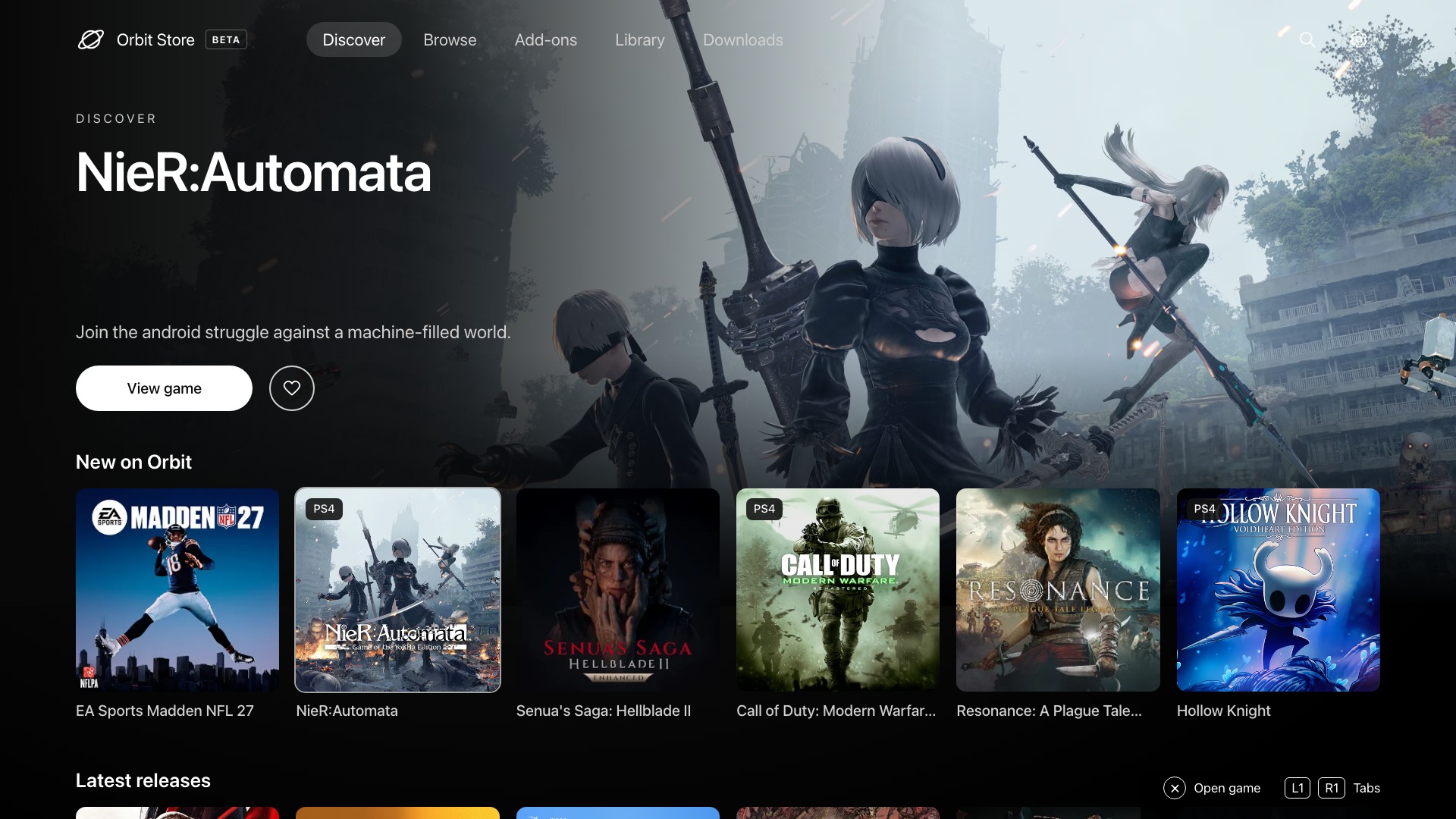
| **Store (default)** | A familiar top navigation bar, featured artwork, game rows and grids. |
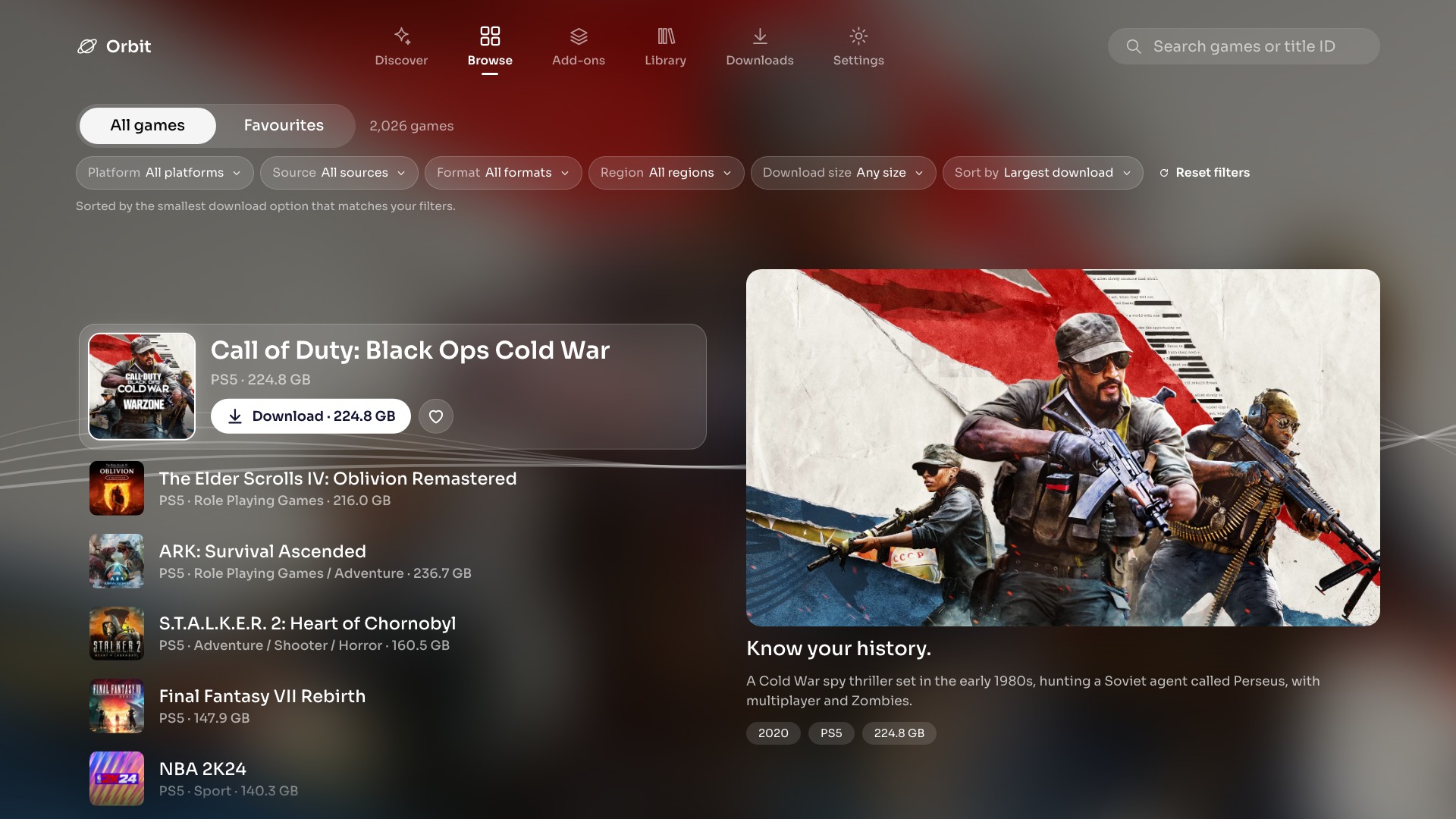
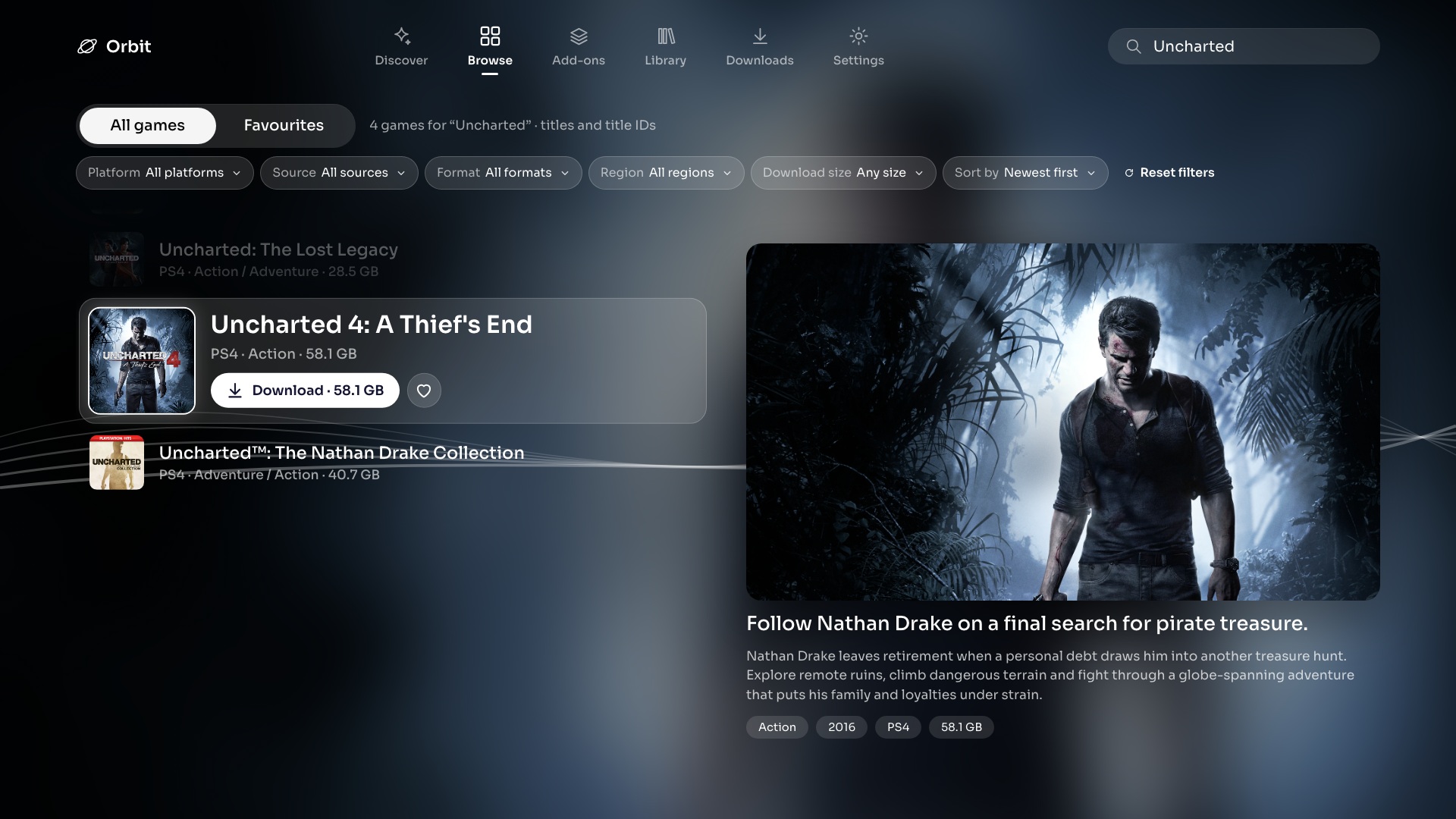
| **Crossbar** | Horizontal categories with vertical lists over a ribbon background. |
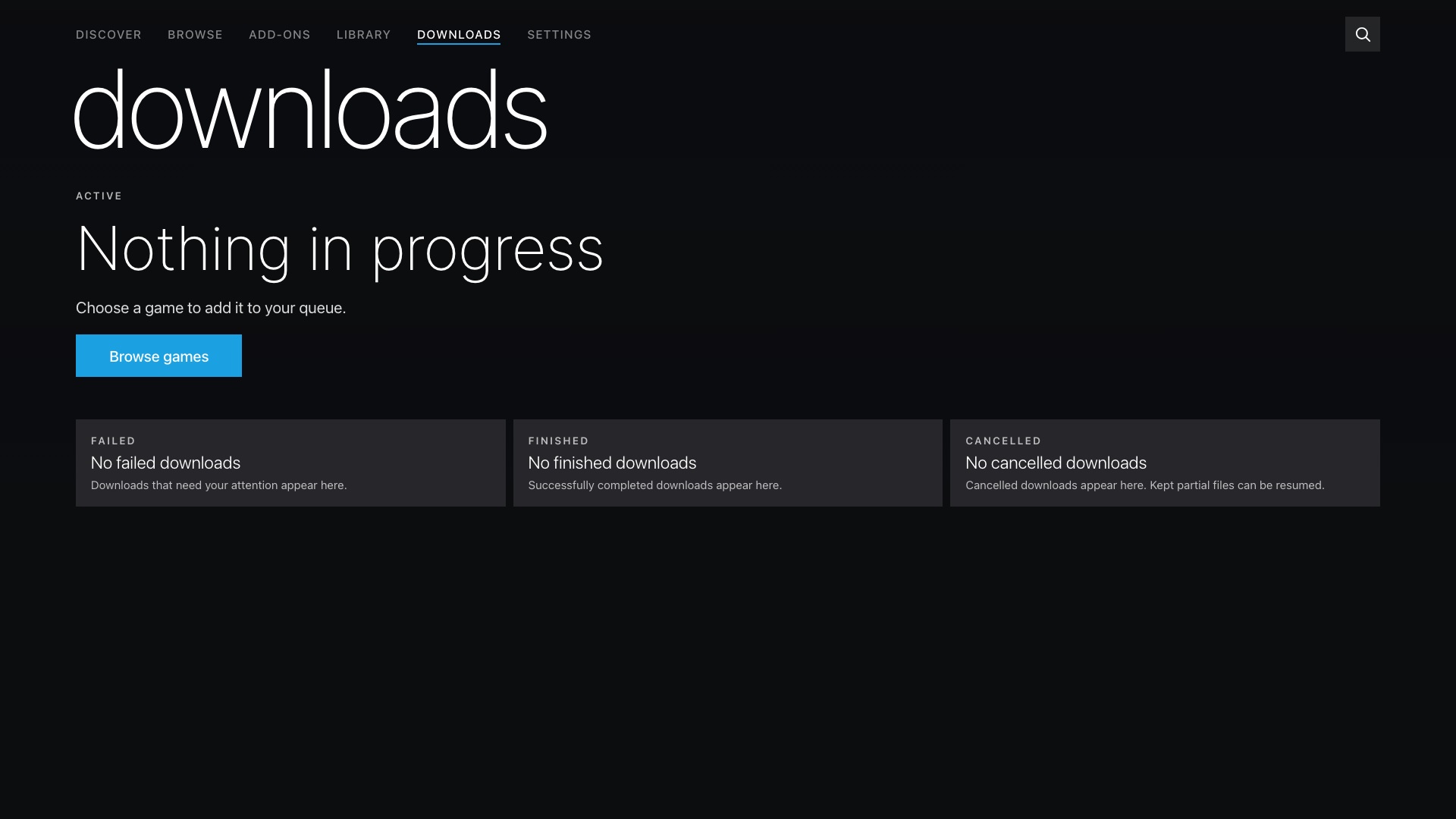
| **Cinema** | Large artwork, prominent titles and filmstrip-style game collections. |
| **Panorama** | Wide sections, bold headings and groups of tiles with a choice of accent colours. |
### Store
### Crossbar
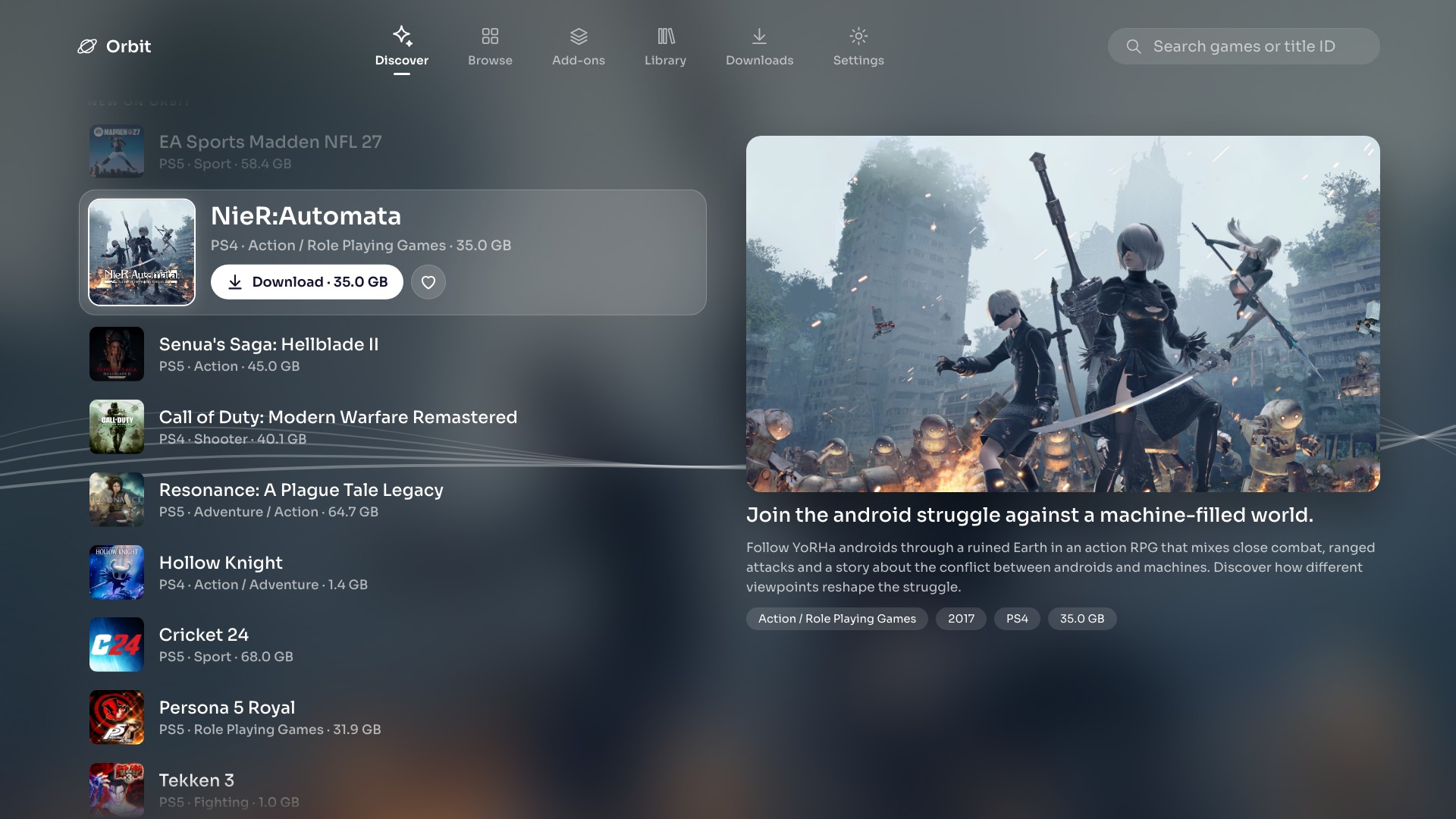
See more: Browse, game details and Downloads in Crossbar
**Browse**
**Game details**
**Downloads**
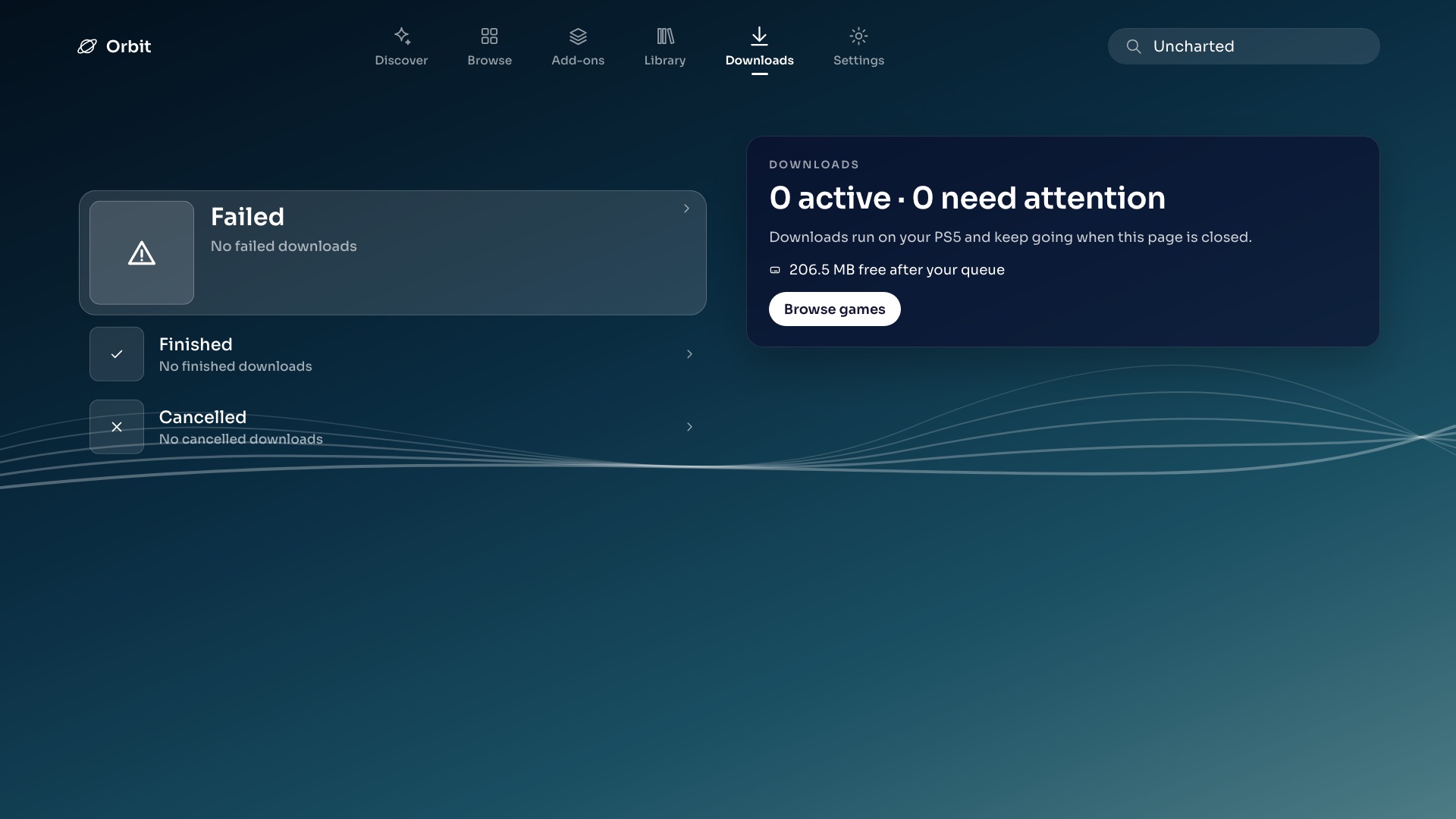
*Downloads with an empty queue.*
### Cinema
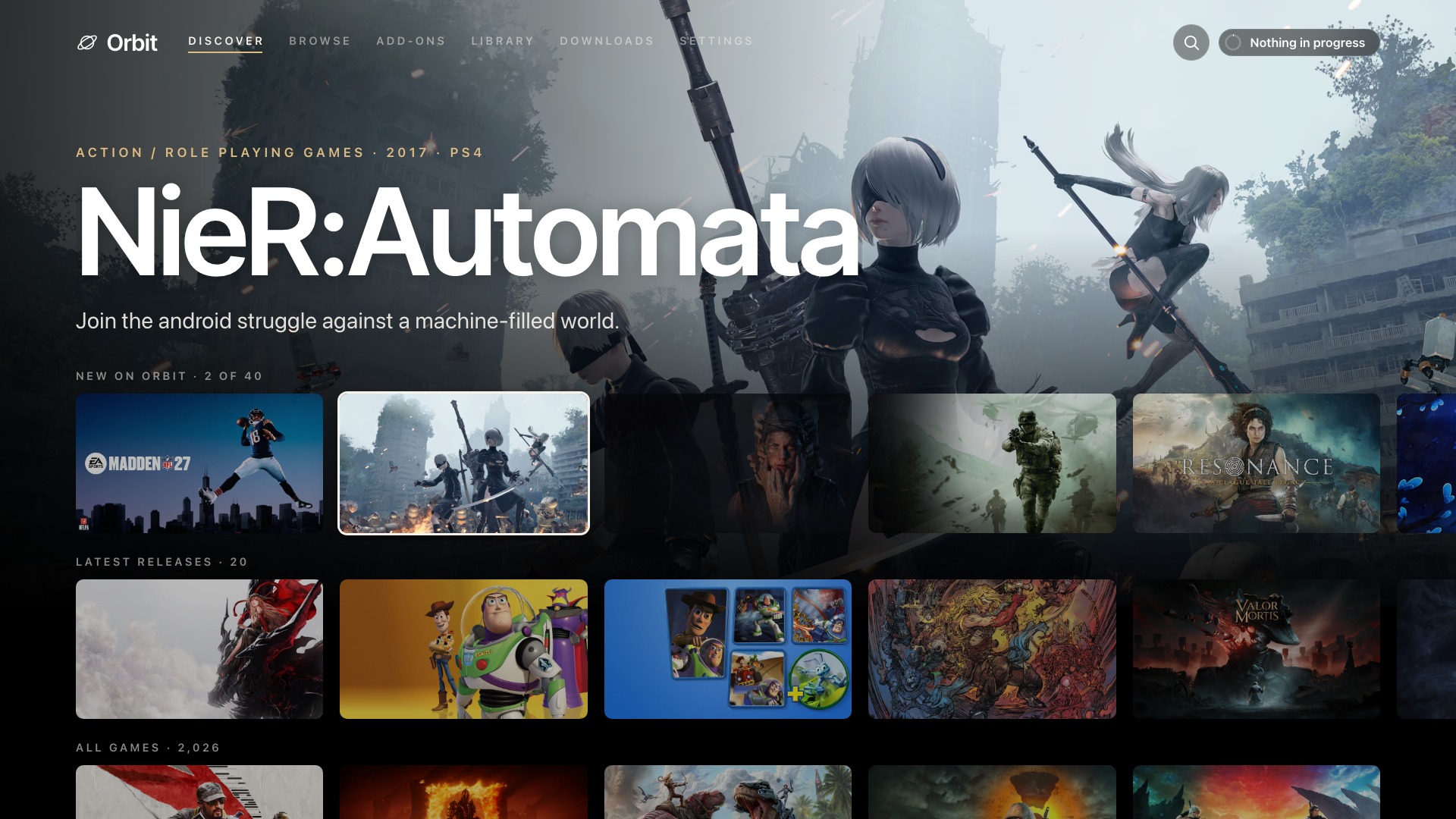
See more: Browse, game details and Downloads in Cinema
**Browse**
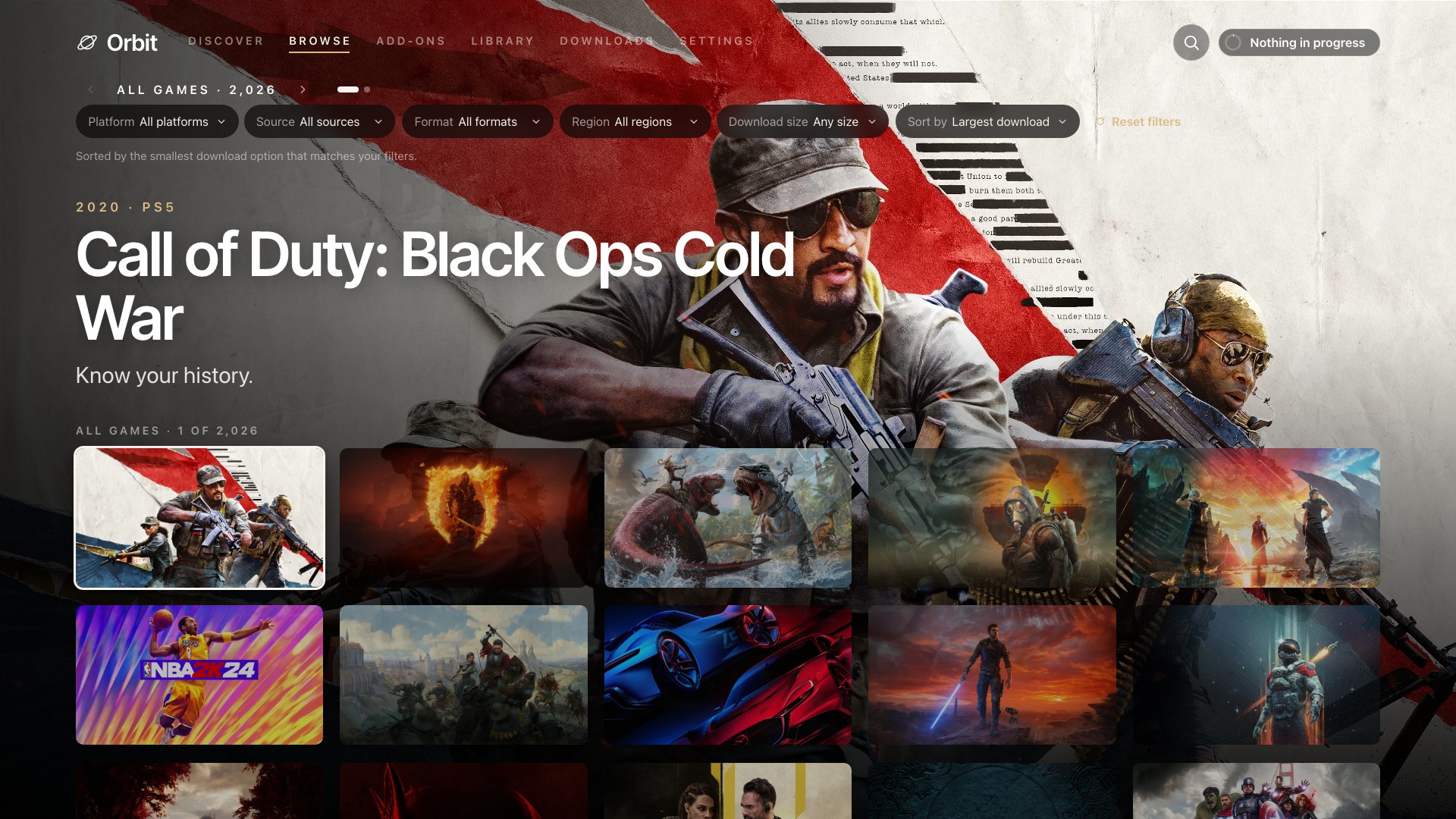
**Game details**
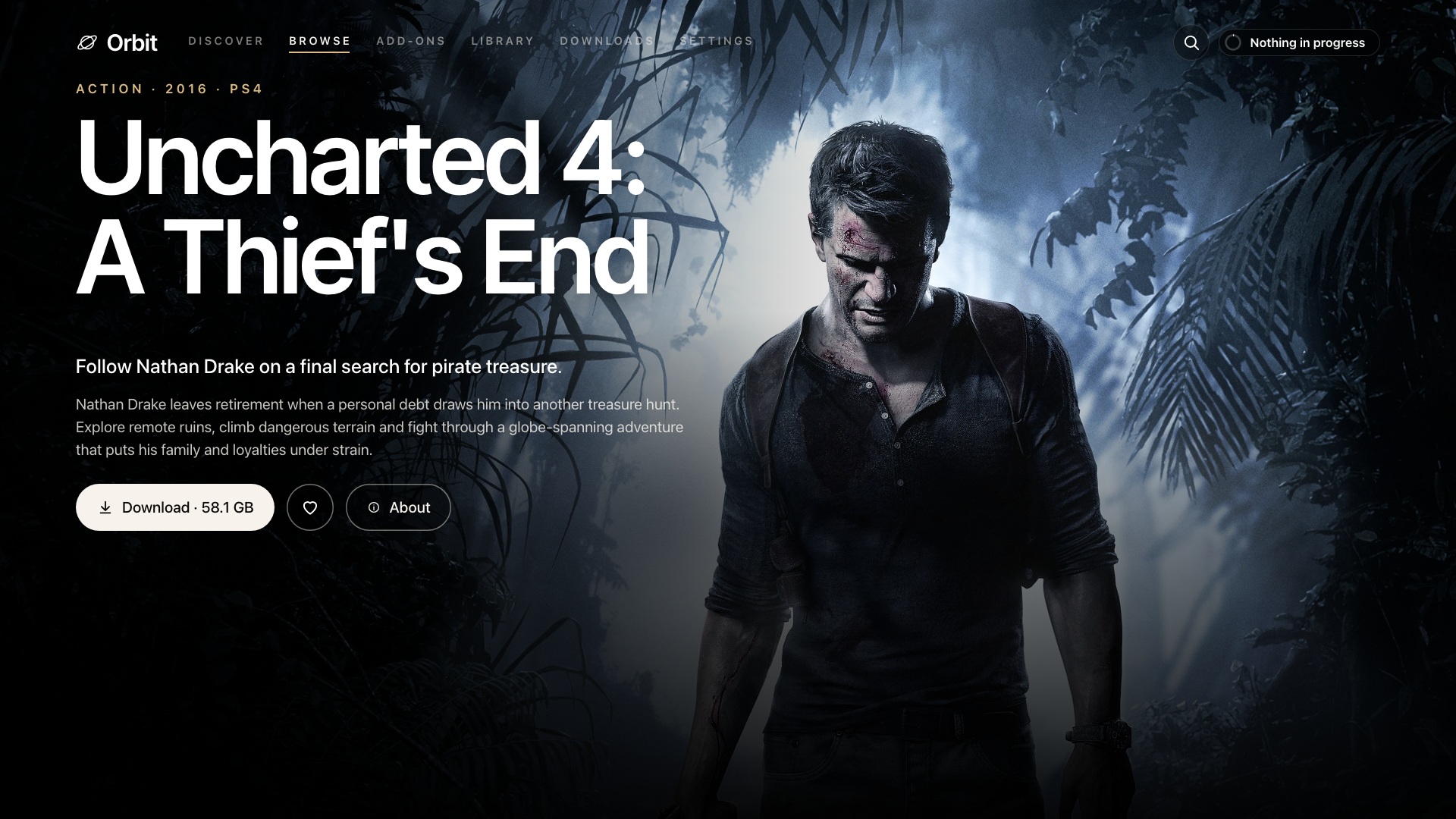
**Downloads**
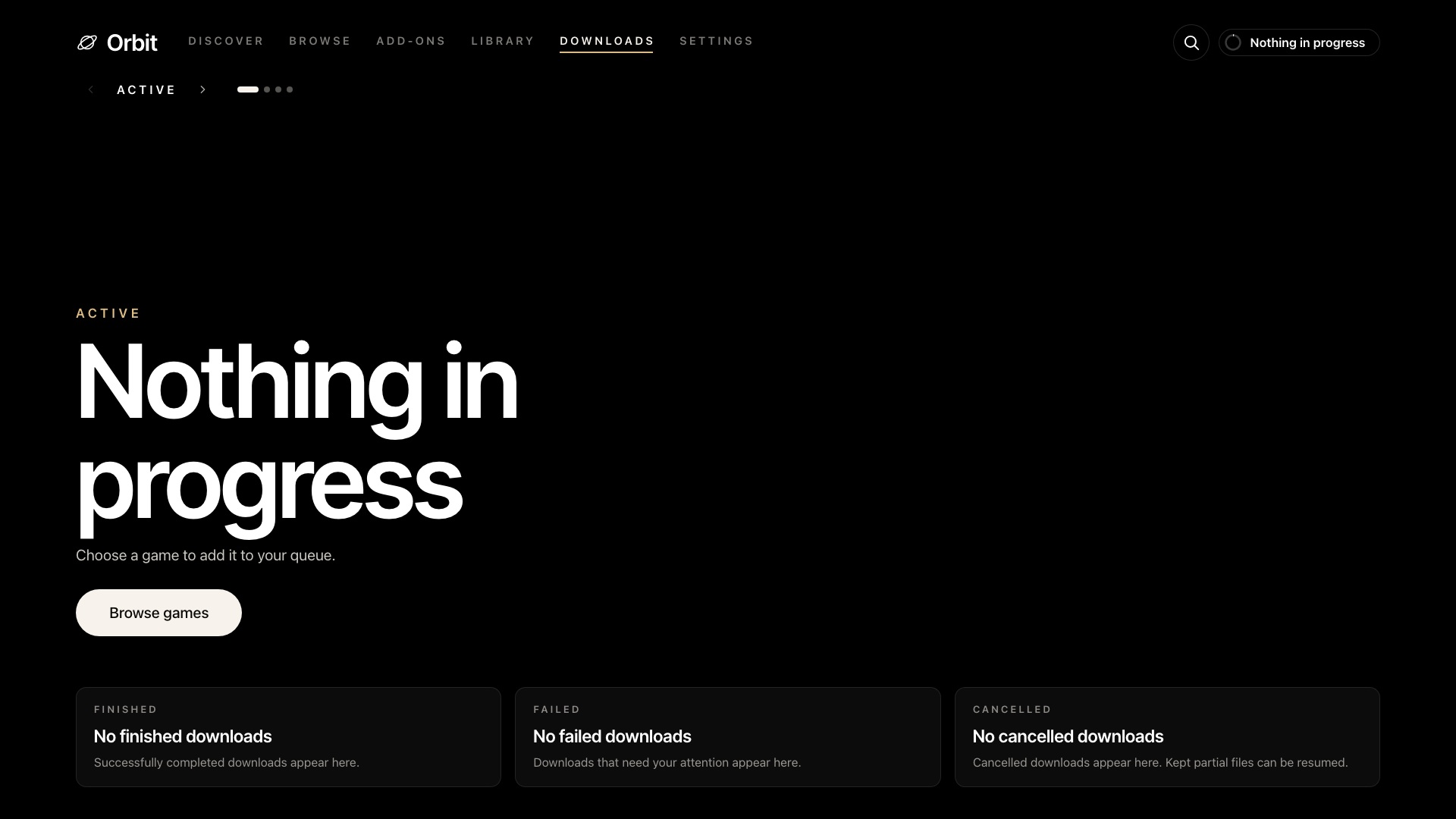
*Downloads with an empty queue.*
### Panorama
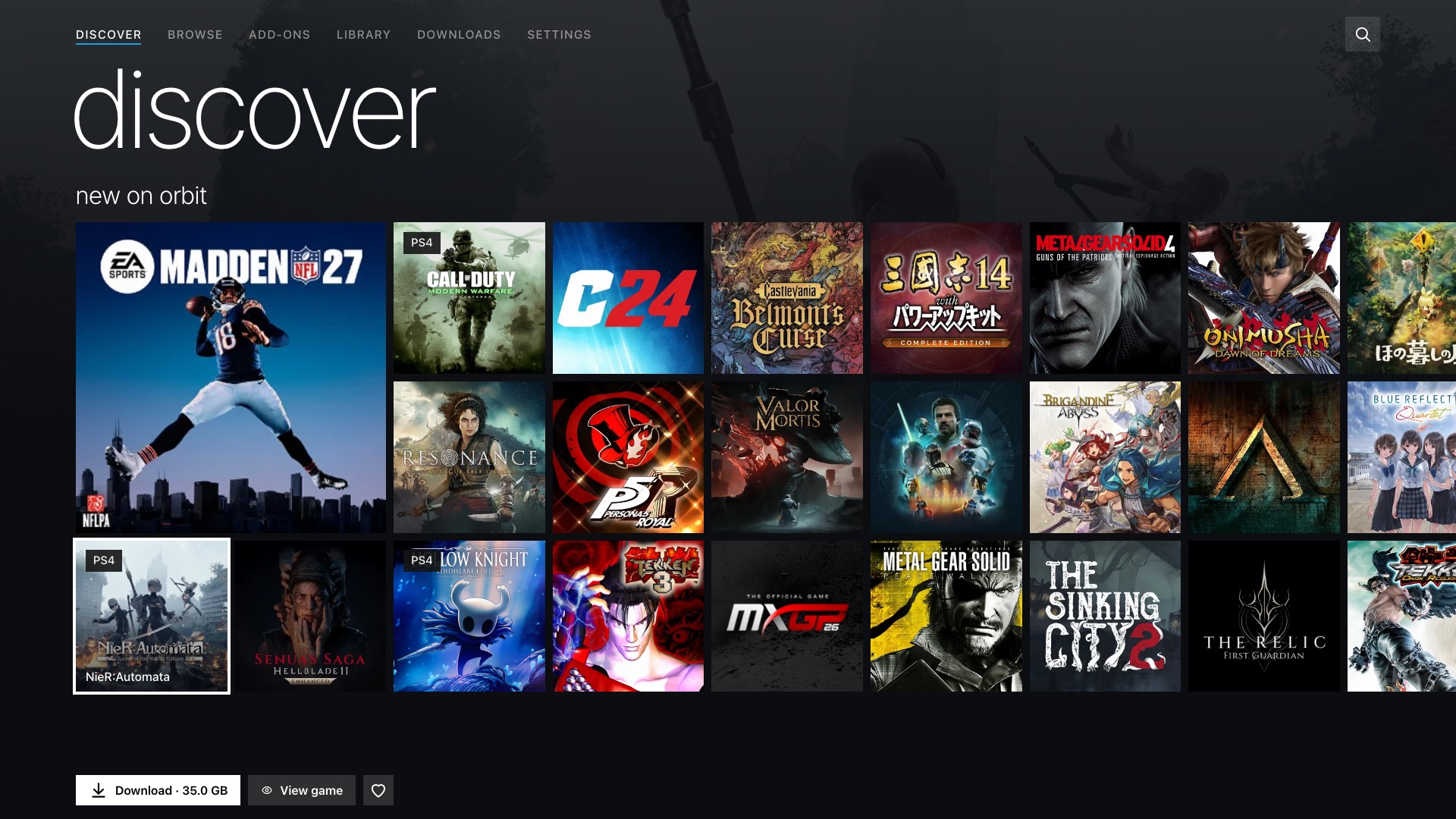
See more: Browse, game details and Downloads in Panorama
**Browse**
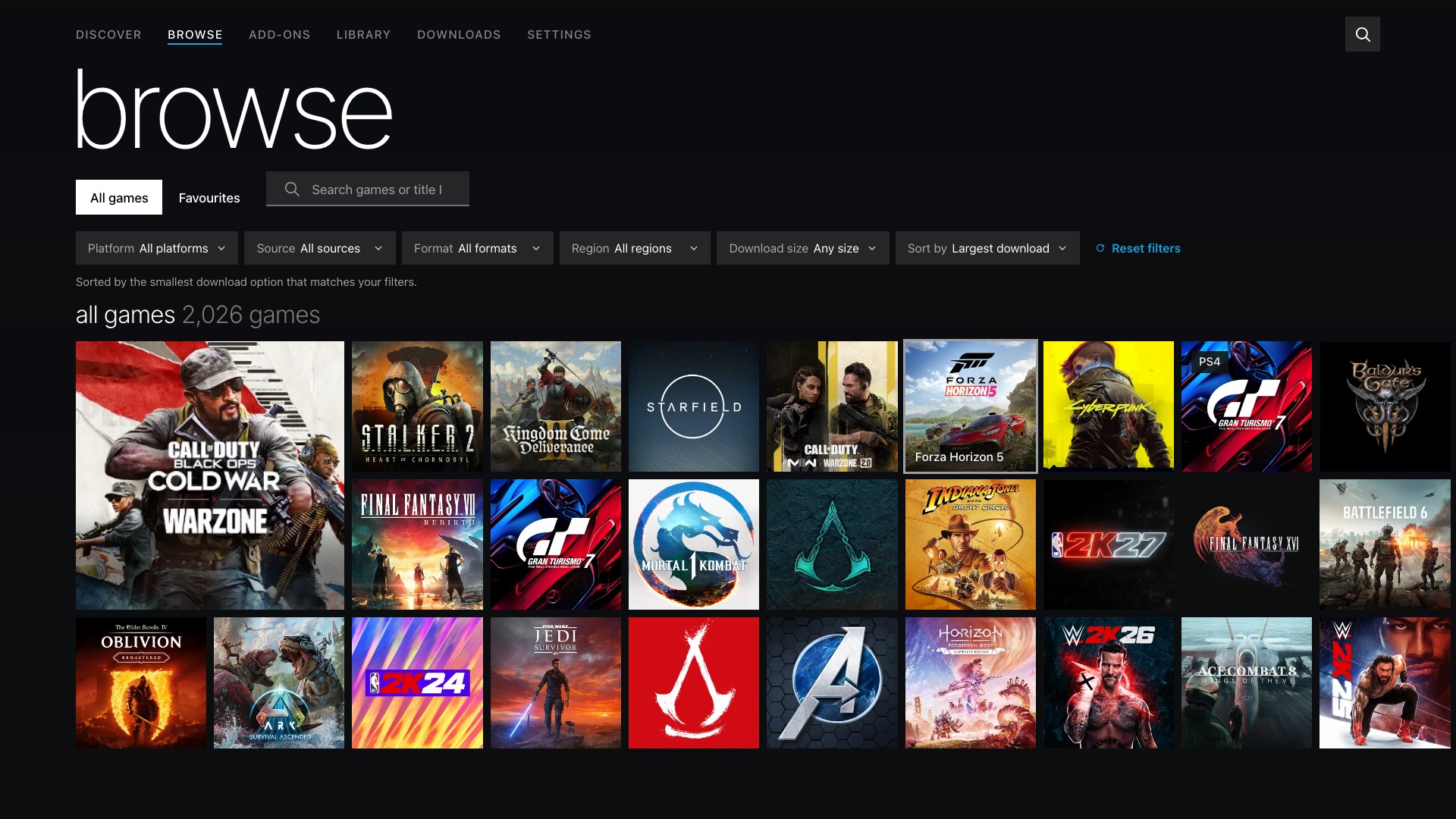
**Game details**
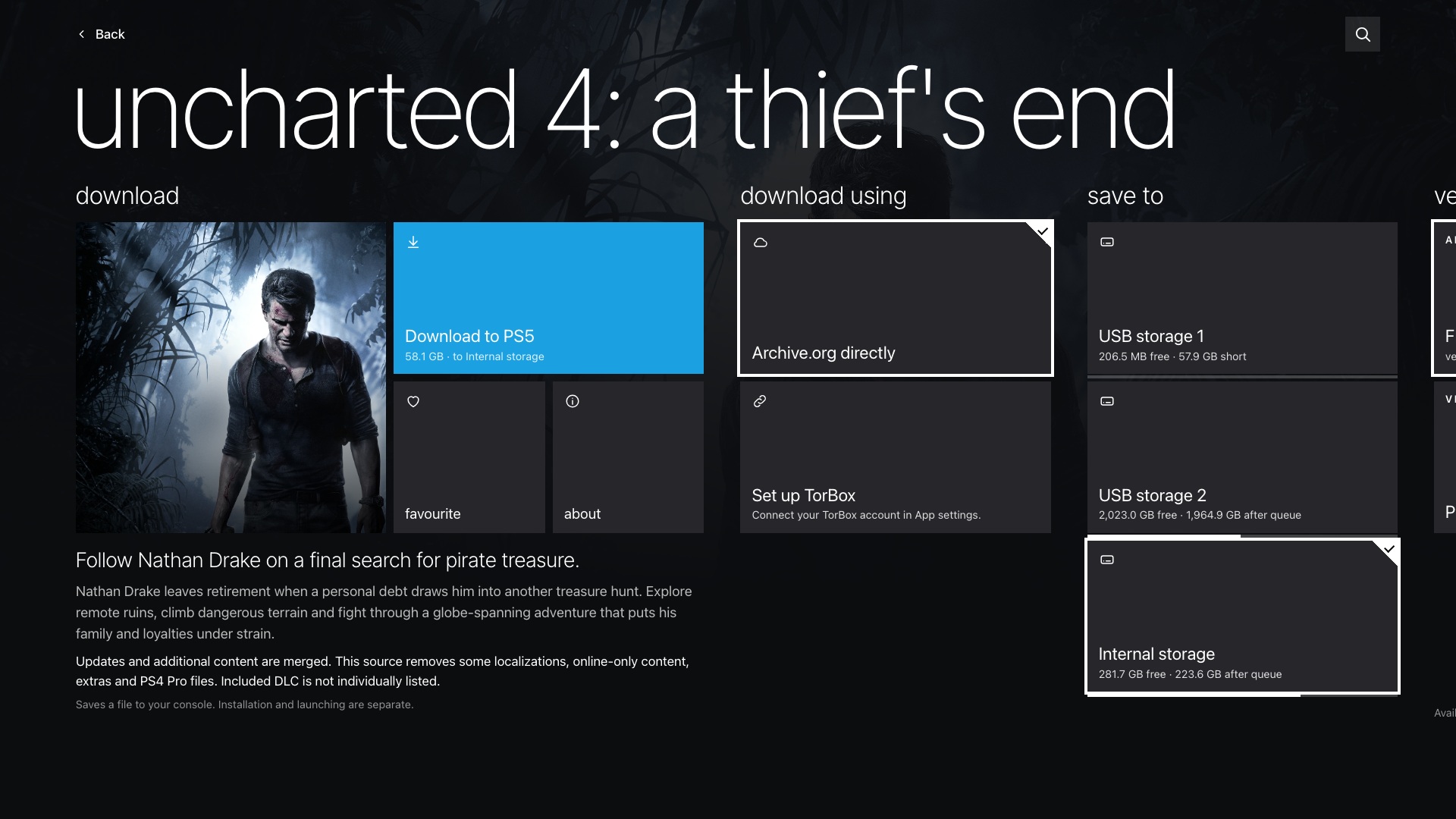
**Downloads**
*Downloads with an empty queue.*
*These previews show the Orbit 1.5.0 browser interface, rendered locally from the released app code. Orbit Zero offers the same four choices.*
## Motion and backgrounds
Open **Appearance** while using the interface you want to adjust. Available options depend on that interface.
| Interface | Options |
| --- | --- |
| All four | **Motion → Full** or **Reduced**. Reduced limits animated movement; it does not change downloads. |
| Crossbar | **Ribbons → Follow the time of day**, **Dawn**, **Day**, **Dusk** or **Night**. Reduced motion keeps the ribbons still. |
| Cinema | **Art behind menus → Blurred game art** or **Plain black**. Reduced motion keeps the art still. |
| Panorama | **Accent colour → Blue**, **Magenta**, **Green** or **Orange**; **Art behind pages → Faint game art** or **Plain black**. |
Choose **Reduced** if you prefer less movement. In Cinema or Panorama, **Plain black** also removes the background art behind menus or pages. Game covers and details still use the game's artwork.
## Controller navigation in the native app
Use the D-pad or left stick to move, **Cross** to select and **Circle** to go back. Follow the button hints on the current screen: shortcuts differ between interfaces.
| Interface | Navigation and favourites |
| --- | --- |
| Store | **L1/R1** switches tabs. In Browse and Discover, **Square** adds or removes the selected game from favourites. |
| Crossbar | At the main category bar, **Left/Right** changes category and **Up/Down** moves through its list. **L1/R1** also switches categories. **Triangle** toggles a selected game's favourite. |
| Cinema | Move **Up** to the navigation bar, then use **Left/Right** to reach another section. **L1/R1** moves through the current chapter or collection before changing sections. **Triangle** toggles a selected game's favourite. Use **Browse** for search. |
| Panorama | Move through tile groups with the D-pad; **L1/R1** moves through page groups or settings sections before changing the main section. **Triangle** toggles a selected game's favourite. |
Dialogs and menus have their own controls. While **Keep this interface?** is open, choose whether to keep or revert the layout before navigating the page behind it.
## Find settings after switching
Instructions elsewhere in these guides usually name the **Store** controls. The native app calls **App settings** simply **Settings** in the other interfaces, with the same settings sections inside. In the browser's other interfaces, use the **Settings** page:
| Browser Store control | Crossbar, Cinema or Panorama |
| --- | --- |
| Sources | **Settings → Download sources** |
| Storage | **Settings → Storage and downloads** |
| App settings → Notifications | **Settings → Notifications** |
| Pair devices | **Settings → Pair devices** |
| App settings → Appearance / Language / Game catalogue | **Settings → Appearance / Language / Game catalogue** |
| App settings → Update / reinstall | **Settings → Updates** |
| App settings → TV app | **Settings → TV app** |
| App settings → Debrid | **Settings → TorBox** |
| App settings → Payload managers / Start automatically / Diagnostics | The same section under **Settings** |
In **Orbit Zero**, Store's top-bar **Appearance**, **Language** and **Updates** controls move into **Settings** in the other interfaces. Computer download preferences and cache cleanup are also available under **Settings → Download settings** and **Settings → Computer cache**. **Console** still contains your PS5 connection and download-route preference.
The layouts use the same available games and enabled sources. Browse still provides search and filters; Downloads still manages the queue. Scroll through longer lists or grids to reveal more games.
## Add-ons
Orbit 1.5.0 adds **Add-ons** after Browse in every interface, across the browser, native PS5 app and Orbit Zero. It uses the layout’s existing search and filter controls. Crossbar gives Add-ons its own icon; Panorama shows the tile caption when selected. Open **Add-ons (count)** from a game’s details to see extras for that game.
Changing interfaces does not change add-on availability, download progress or installation status. See [the DLC guide](add-ons.md) for content types and requirements.
## Where your choice is saved
Confirming an interface saves it for that app or browser. Native Orbit, the PS5 browser, a paired phone and Orbit Zero can each use a different layout. They do not sync appearance choices with one another.
In a browser, the preference belongs to that browser profile and address. Opening Orbit by a different IP address or hostname can start with Store again. Clearing site data or using a private session can also reset it. An unavailable browser storage setting may prevent the choice from surviving a restart.
If your choice switches back immediately, select **Keep** before the confirmation countdown ends. If the Appearance controls are missing, update the app you are using from the [latest release](https://github.com/saawant12/orbit-store-ps5/releases/latest); updating only the catalogue does not install new interfaces.
Missing artwork can be a network or image-host problem. Changing interfaces does not fix an unavailable image. See [artwork troubleshooting](troubleshooting.md#a-game-or-image-is-missing).
[Getting started](getting-started.md) · [Download guide](downloads.md) · [Orbit Zero](orbit-zero.md) · [Troubleshooting](troubleshooting.md) · [Project home](../README.md)