# Find and download a game
Orbit’s current catalogue includes **2,090 games: 1,119 PS5 games and 971 PS4 games**, with single-file options from Archive.org, Vikingfile and AkiraBox. Each platform edition has its own game page; open it to choose from its available sources and formats. The selection depends on which sources you enable.
Settings paths in this guide use the Store layout. For the browser’s other layouts, see the [Settings page equivalents](appearance.md#find-settings-after-switching).
## Browse and choose
**Discover opens first.** In the default Store interface, explore the featured game and **New on Orbit** first, followed by **Latest releases**. New on Orbit shows up to 40 games, with selected highlights first. Remaining places show recent catalogue additions, ordered by game release date. Move down to All games for the full collection. The grid loads more games as you scroll, largest downloads first. Each game's size is its smallest available option from your enabled sources.
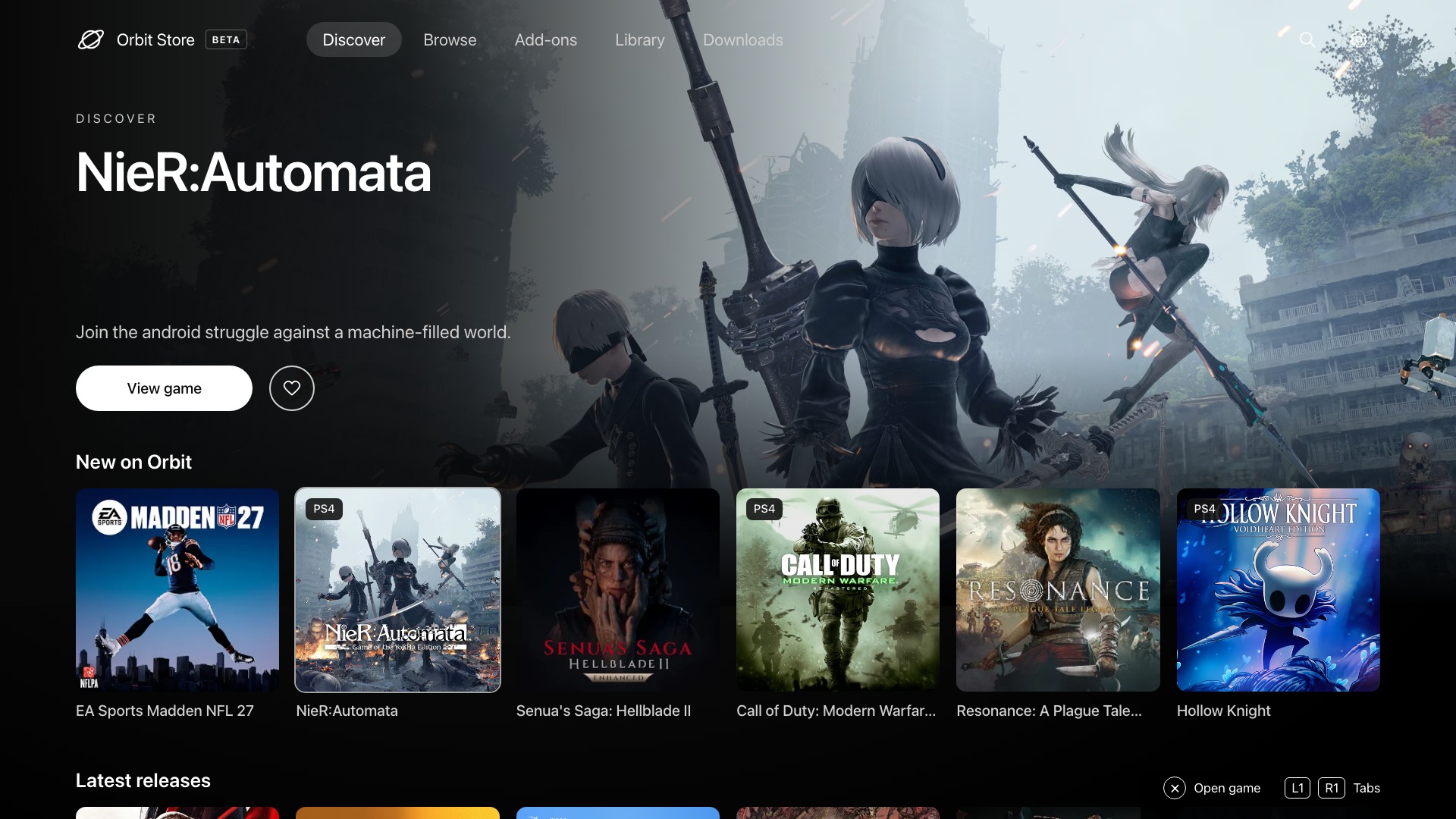
*Store Discover in Orbit 1.5.0, rendered locally from the browser app. Crossbar, Cinema and Panorama arrange the same collections differently; see the [appearance guide](appearance.md).*
Switch to **Browse** when you want search and filters. It defaults to **Release date (newest first)**. Games without a recorded date follow alphabetically. Search by game name or title ID, filter by platform, source, format, region or download size, and change the sort order. **Reset filters** restores the default. Missing dates and other metadata can be added later through catalogue updates.
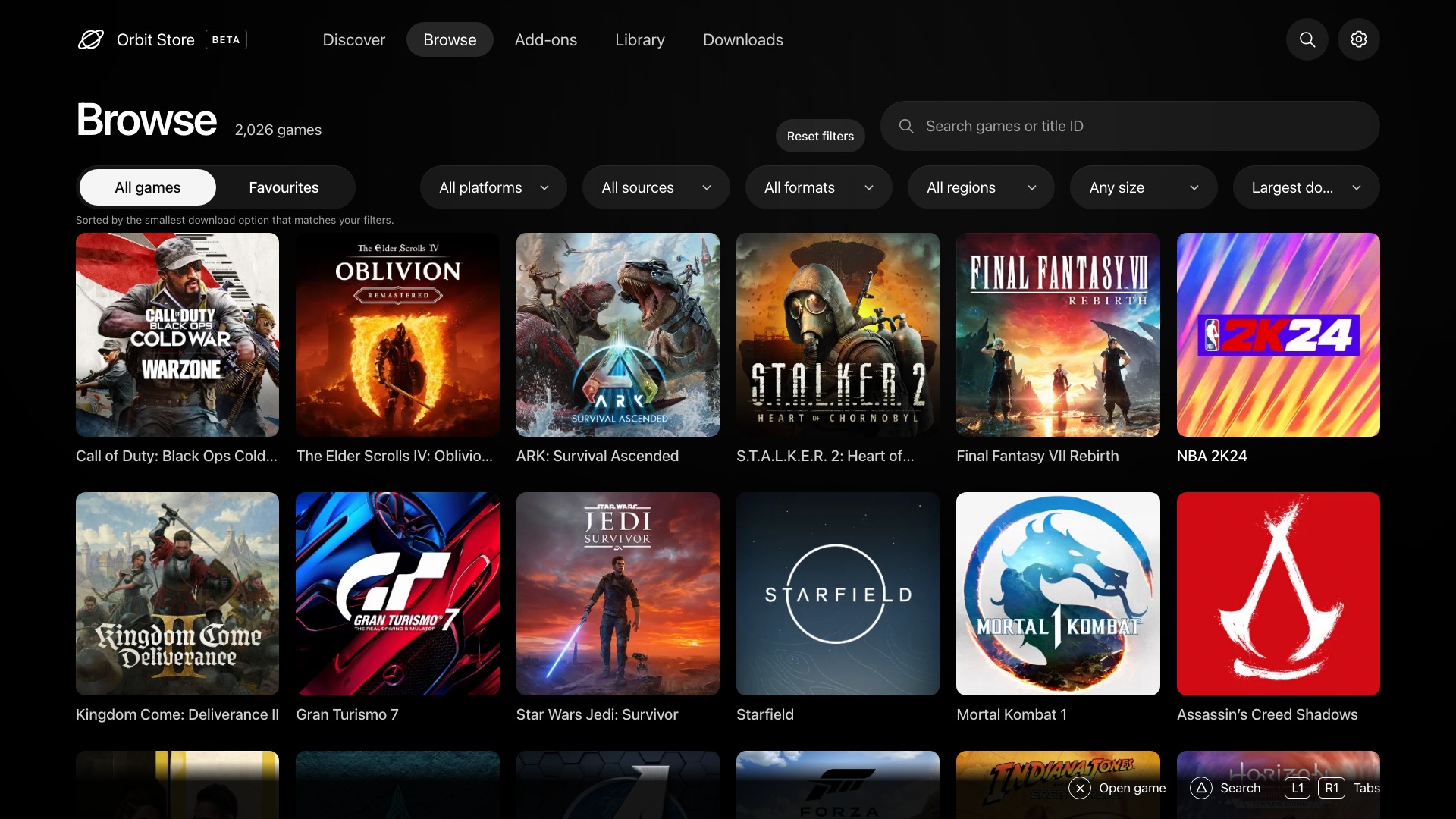
*Use filters to find options that fit your drive and preferred format. Sizes reflect the download option you choose.*
In 1.6.0, Source and Format allow multiple selections. Use **Installed games** to hide games already installed or saved on a PS5 drive. This uses the connected console’s library; it does not treat a computer-only copy as installed.
### Game tags
Use **Tags** for **PlayStation exclusive**, **Local co-op**, **Split-screen**, **Open world**, **Story-driven**, **Soulslike**, **PSVR supported** and **PSVR2 supported**. Selecting several tags includes games matching any selected tag. Combine them with Platform, Source, Format and the other filters to narrow results.
PlayStation exclusive means no official PC, Xbox or Nintendo version for that game. VR filters include both required and optional VR modes, attached to the relevant PS4 or PS5 edition; check the game details for headset requirements. Tags are reviewed catalogue metadata, and coverage is still expanding. An untagged game is not proof that it lacks a feature.
Save a game from its details page to find it under **Favourites** later; favourites are shared with your paired devices.
In the native TV app’s Store interface, use D-pad/left stick to move, Cross to select, Circle to go back and L1/R1 to switch tabs. Press **Square** on a game selected in Browse or Discover to add or remove it from Favourites. Select filters with Cross; choose an option with the D-pad and Cross. In the other native interfaces, **Triangle** toggles favourites and navigation follows the layout’s on-screen hints; see [native controls by interface](appearance.md#controller-navigation-in-the-native-app). The controls below apply to the browser’s Store interface.
| Input | Action |
|---|---|
| D-pad or arrow keys | Move focus |
| Cross or Enter | Select the focused control |
| Circle or Escape | Go back or close a panel |
| Search: Down or Enter | Move into results |
| Search: Up | Return to the Browse tab |
| Search: Left or Right | Edit the text normally |
| Touch or mouse | Select a control |
## DLC and add-ons
Orbit 1.5.0 adds **Add-ons** after Browse, plus **Add-ons (count)** on game details. Search by DLC or base-game name and filter by Platform, Type, Source and Region. Check the required game edition, title ID and known version requirements before downloading. DLC counts and installation status are separate from those of the base game. Use the same source, delivery and destination controls as for games; Zero can also save add-ons to **This computer** and send them later. See [the DLC guide](add-ons.md).
## PS4 games on PS5
PS4 support starts with **Orbit Store 1.1.0**, **native app 1.4.0** and **Orbit Zero 1.1.0**. Use the latest matching apps for the current catalogue and features. Update the apps before refreshing the catalogue; builds without PS4 support keep their PS5-compatible catalogue.
1. Open **Browse → Platform → PS4**. Choose **All platforms** to see PS4 and PS5 together.
2. Open a game and check its **PS4** label, title ID, region and source notes. PS4 title IDs begin with `CUSA`; PS5 IDs begin with `PPSA`. Editions for different platforms stay separate, even when their names match.
3. Choose a download option, its source and the destination drive. **PKG** and **FPKG** options use a `.pkg` file. Some games also offer a single **ZIP**, **RAR** or **7z** archive, which Orbit 1.2.0 or later extracts after downloading. A PS4 label does not imply a frame-rate patch, DLC, or compatibility with every PS5 setup. Check the specific option’s notes.
4. Follow the [provider steps](#provider-steps) below. Orbit Zero can download and transfer these files while the PS5 has no internet access.
Files go to the selected drive’s `homebrew` folder, including `/data/homebrew/` for internal storage. In **1.5.0** and later, open a completed download and choose **Install on PS5** to install its PKG/FPKG. Earlier versions need a compatible package installer. Check the game’s requirements; downloading and installing remain separate steps. See [installing downloaded games](install-games.md). The instructions for installing Orbit’s own `PPSA99177.ffpkg` TV app do not install a downloaded game package.
**Orbit still runs on PS5.** PS4 game support does not make the ELF or TV app compatible with PS4 consoles. See [Library](library.md) for the distinction between downloaded files and installed games.
## Pick a source, format and drive
On the game page, select the main download button to open **Download options**. This reviews your choices without starting a transfer. Open **Source** to choose a format and provider, **Download using** for direct or TorBox delivery, and **Save to** for storage attached to the PS5. The storage panel shows **Free now**, **Unfinished downloads**, and **After queue + this download**. Back returns to your previous selection.
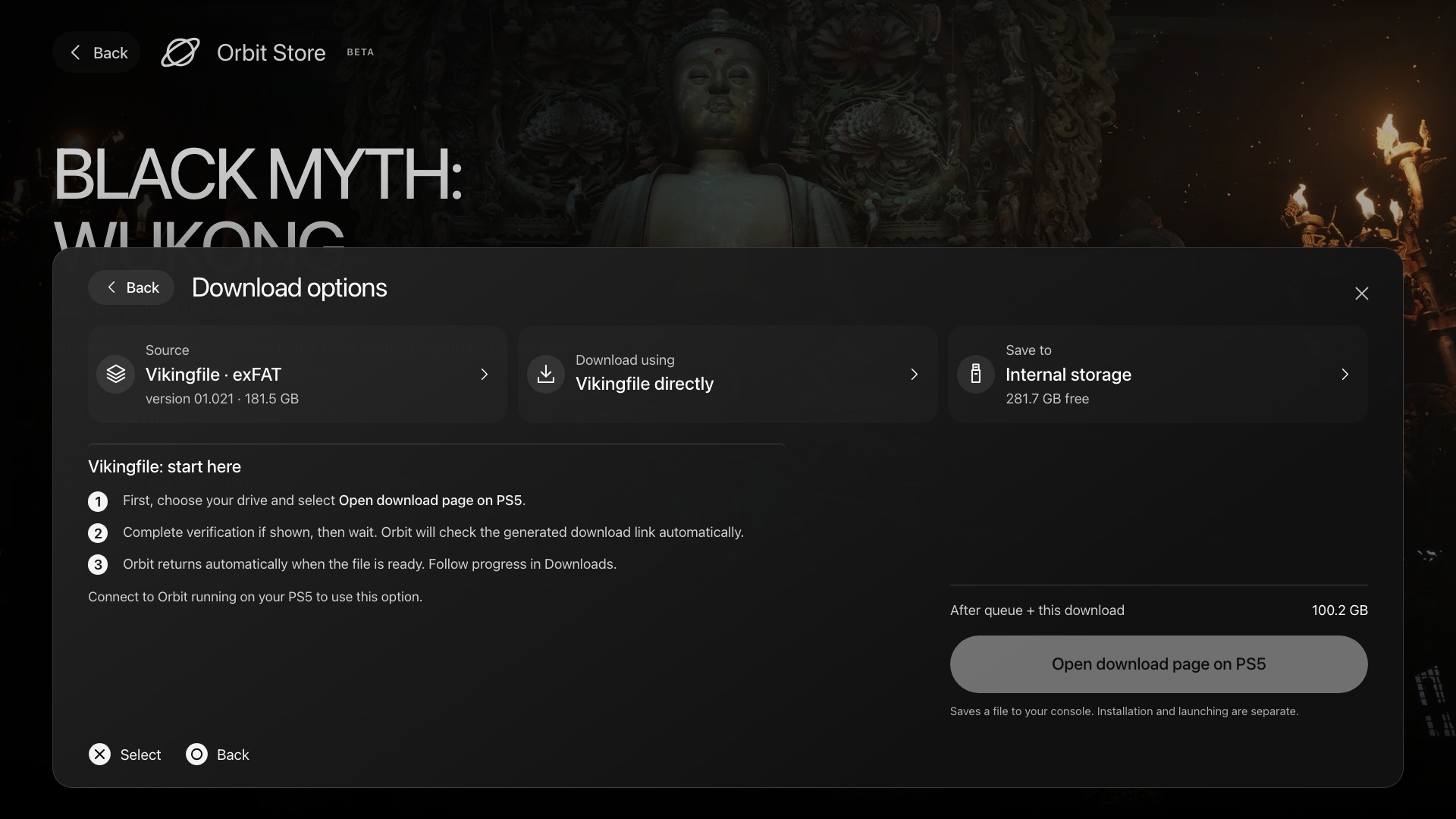
*Different sources can offer different formats or sizes for the same game. Select the exact option you intend to download.*
Orbit 1.5.0 shows known firmware requirements beside download options. Options unsuitable for your detected firmware appear last with a warning and remain selectable. In Zero, this uses the last paired PS5's firmware even while disconnected. Unknown requirements are not a compatibility guarantee.
### Which format to pick
| Format | What you get | What to do after it's saved |
|---|---|---|
| **exFAT** | `.exfat` image | ShadowMountPlus mounts it. Nothing to install. |
| **FFPFSC** | `.ffpfsc` image | ShadowMountPlus mounts it. Nothing to install. |
| **Game folder** | A folder of game files, from an archive | ShadowMountPlus mounts it. Nothing to install. |
| **PKG**, **FPKG** | `.pkg` package | Choose **Install on PS5** in 1.5.0 and later, or use your compatible package installer on earlier versions. ShadowMountPlus does not mount `.pkg` files. |
| **ZIP**, **RAR**, **7z** | Archive | Orbit extracts it after downloading. The label shows what's inside, for example `7z · exFAT`; follow that row. |
**PS5 FPKGs and firmware (October 2026):** PS5 FPKG games currently run only on firmware 11.60 or lower. On 12.xx and 13.xx they may install but won't start, until package support arrives for those firmwares. On those firmwares, choose exFAT or FFPFSC instead. Where a game offers exFAT or FFPFSC, those work without installing.
### Start the download
For a direct option, select **Download to PS5**. Orbit checks the file and destination, then adds it to Downloads. For Vikingfile and AkiraBox, follow the provider steps below.
## Provider steps
### Vikingfile: sign in or complete verification
In **1.7.0**, [sign in to Vikingfile](vikingfile.md) to let Orbit request the selected file with your account session. If Vikingfile returns a matching direct link, the download starts without a provider window. Otherwise, use the verification steps below.
**Starting in the native TV app?** Open **Download options**, choose your source and drive, then select **Open Vikingfile on PS5**. Vikingfile opens directly in the PS5 browser. With the current matching PS5 apps, complete any verification and wait without pressing Download. Orbit captures the ready link and closes its provider window automatically. Orbit checks the file and queues it on your selected drive. You do not need to open Orbit's browser interface first. If the source or drive is no longer available, choose an available one explicitly.
**Downloading through Orbit Zero?** Zero first checks for a direct link using its saved sign-in. If verification is needed, Vikingfile opens on your computer. Complete any verification and wait without pressing Download. Zero captures the ready link and closes the provider window. See the [Orbit Zero download steps](orbit-zero-installation.md#vikingfile-downloads).
**Automatic capture requires Orbit Store 1.3.5 or later with its matching native app, or Orbit Zero 1.4.0 or later.** Earlier Vikingfile flows require the Download click; update the app handling your download before following these steps.
1. Select the Vikingfile option and destination drive in Orbit.
2. Select **Open download page on PS5** in Orbit's browser interface, or **Open Vikingfile on PS5** in the native app. This opens the provider page on the console.
3. Complete any verification yourself, then wait without pressing the provider’s **Download** button.
4. Orbit checks the ready link against the selected file and returns automatically. Follow its progress in **Downloads**.

*Orbit 1.5.0 shows the automatic-capture instructions before you open the provider page.*
You can start the session from a paired phone, but the provider page and verification still appear on the PS5. There is no need to paste a generated link. If the session expires or reports no matching file, return to Orbit and start that option again. Only one browser verification session can run at a time; **Cancel verification** stops the pending session without adding a download.
When a Vikingfile option offers **Download directly**, you can use that button to start it. Otherwise, follow the browser steps above.
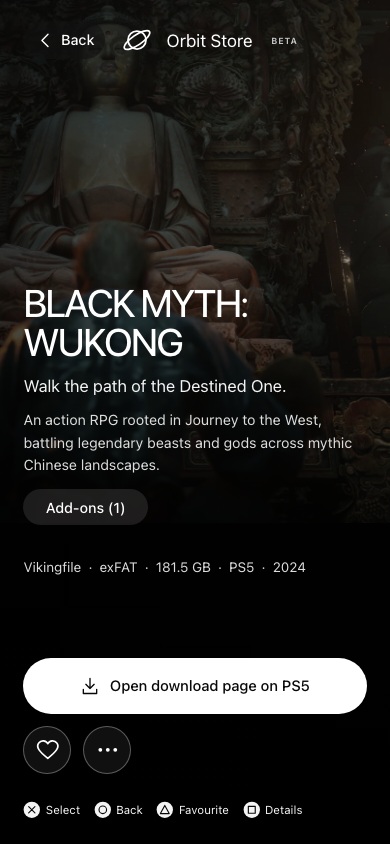
| Open the game on your phone | Choose a download and start the PS5 browser step |
|---|
 |
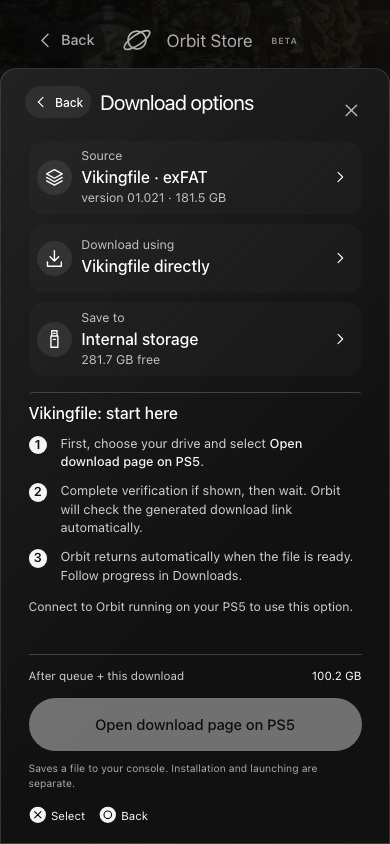 |
*Complete provider verification on your PS5, then wait for Orbit to capture the link.*
### AkiraBox: verify, then wait
**Requires Orbit Store or Orbit Zero 1.2.0 or later, with matching PS5 apps.** Choose the AkiraBox option and destination, then open its download page from Orbit. Complete any human verification yourself and wait a few seconds. **Do not press AkiraBox’s Download button or an advertisement.** Orbit captures the ready file link and checks it against your selected game.
With the current matching PS5 apps, Orbit captures the ready link and returns to the browser or native TV app automatically. In Orbit Zero, the provider window closes once the matching file is ready, and the download appears in your queue.
If the session expires, start the provider step again. For an existing paused or failed AkiraBox download, use **Refresh download link**. Orbit reuses the partial file only if the refreshed link identifies the same file.
## Accounts and TorBox
### Archive.org sign-in
**Available since 1.3.5.** Some Archive.org downloads require an account. You can still use public downloads without signing in.
- **Native PS5 app:** open **App settings → Archive.org** (or **Settings → Archive.org** in another interface).
- **PS5 browser or paired device:** open **App settings → Archive.org**. In another browser interface, use **Settings → Archive.org**.
- **Orbit Zero computer downloads:** open **Downloads → Download settings → Archive.org**. In another desktop interface, use **Settings → Download settings**.
Enter your Archive.org email and password, select **Sign in**, and check that the panel shows **Signed in**. Then retry the download. The native app and browser share the PS5’s sign-in; Orbit Zero keeps a separate sign-in on the computer. If you use **Prefer PS5**, sign in on the PS5 as well for downloads routed there. Your password is not saved.
Release 1.3.5 removed 225 unavailable Archive.org options. Signing in helps with account-required files; it does not restore removed files. If the source page says the item is unavailable, choose another source or game option. You can sign out from the same account panel.
### Optional: download through TorBox
**Available in 0.8.0 and later.** TorBox is an optional delivery choice for supported links. Update both Orbit’s service ELF and native FFPKG to use it in the TV app. You need your own TorBox account; its plan, host availability, quotas and file-size limits apply. You can keep using the original provider without connecting TorBox.
1. In Orbit’s browser version, open **App settings → Debrid**. You can do this on the PS5 or a paired phone or computer.
2. Get your API key from [TorBox settings](https://torbox.app/settings), enter it in Orbit and choose **Connect TorBox**. Keep the key private.
3. Open a game in either Orbit app and use its main button to open **Download options**. Select **Source**, then **Download using → TorBox**, and choose your destination drive.
4. Select **Download via TorBox**. Follow preparation and transfer progress in Downloads, where the job is labelled **via TorBox**.
*Connect the account in the browser once. The native TV app and paired devices share that connection. If you are not connected, choose **Set up TorBox** under a game’s **Download using** options. In the TV app this opens the browser with your game, source and destination selected; connect in App settings, then return to the game.*
Orbit submits supported requests to TorBox without rejecting them based on its advertised file-size limit. TorBox still decides whether the request is allowed; any returned limit or account error appears in Downloads.
An account connection does not guarantee support for every file. If an option is unavailable through TorBox, select the original provider explicitly. Orbit does not silently switch a TorBox job to another delivery method.
Pause and resume from Downloads as usual. Disconnecting TorBox pauses its unfinished jobs and keeps their partial files. Reconnect the same account to resume them. Disconnecting does not remove files from your remote TorBox account.
#### TorBox in Orbit Zero
**Available since 1.3.5.** Open **Downloads → Download settings → TorBox**, or **Settings → Download settings** in another desktop interface. Connect your API key on the computer, then choose **Download using → TorBox** on a supported game option. Zero downloads to the computer. Choose **This computer** to keep the game there, or a PS5 drive to transfer it. This account connection is separate from the PS5 service’s TorBox connection. Host availability, account limits and file-size limits still apply.
## ZIP, RAR and 7z downloads
**Requires 1.2.0 or later and matching apps.** Compressed options appear in the normal Format filter. Their displayed download size is the compressed archive size; keep space for both the archive and the extracted files. Multipart archives are not supported.
Orbit Store extracts on the selected PS5 drive after downloading. Orbit Zero extracts on the computer first, then transfers the extracted files to your selected PS5 drive. Follow the **Extracting** progress in Downloads. Orbit tries the known source passwords automatically; see the [password list](../README.md#automatic-archive-extraction). If another password is needed, choose **Enter archive password**, then **Retry extraction**. This reuses the downloaded archive.
If an archive puts a game folder inside extra empty folders, Orbit Store 1.4.0 and later removes those extra folders so the game folder is saved directly. Other files and folders in the archive are kept.
**Delete archives after extracting** is on by default in both apps. Find it under **App settings → Storage** in Orbit Store, or **Downloads → Download settings** in Orbit Zero. It removes the downloaded archive after successful extraction and keeps archives that need a password or fail to extract.
In Zero, the extracted computer files follow the separate **Computer cache** setting. **Automatically remove after transfer** is off by default; enabling it removes those copies only after the PS5 confirms the transfer. Deleting an archive after extraction does not delete the extracted files. See [saved locations](#where-downloads-are-saved) to find the result.
## Your download queue
### Follow your queue
Use **Active**, **Finished**, **Failed**, and **Cancelled** to find a transfer. Move waiting items up or down, pause and resume, or cancel. Cancelled items have their own view; Finished contains successfully completed downloads.
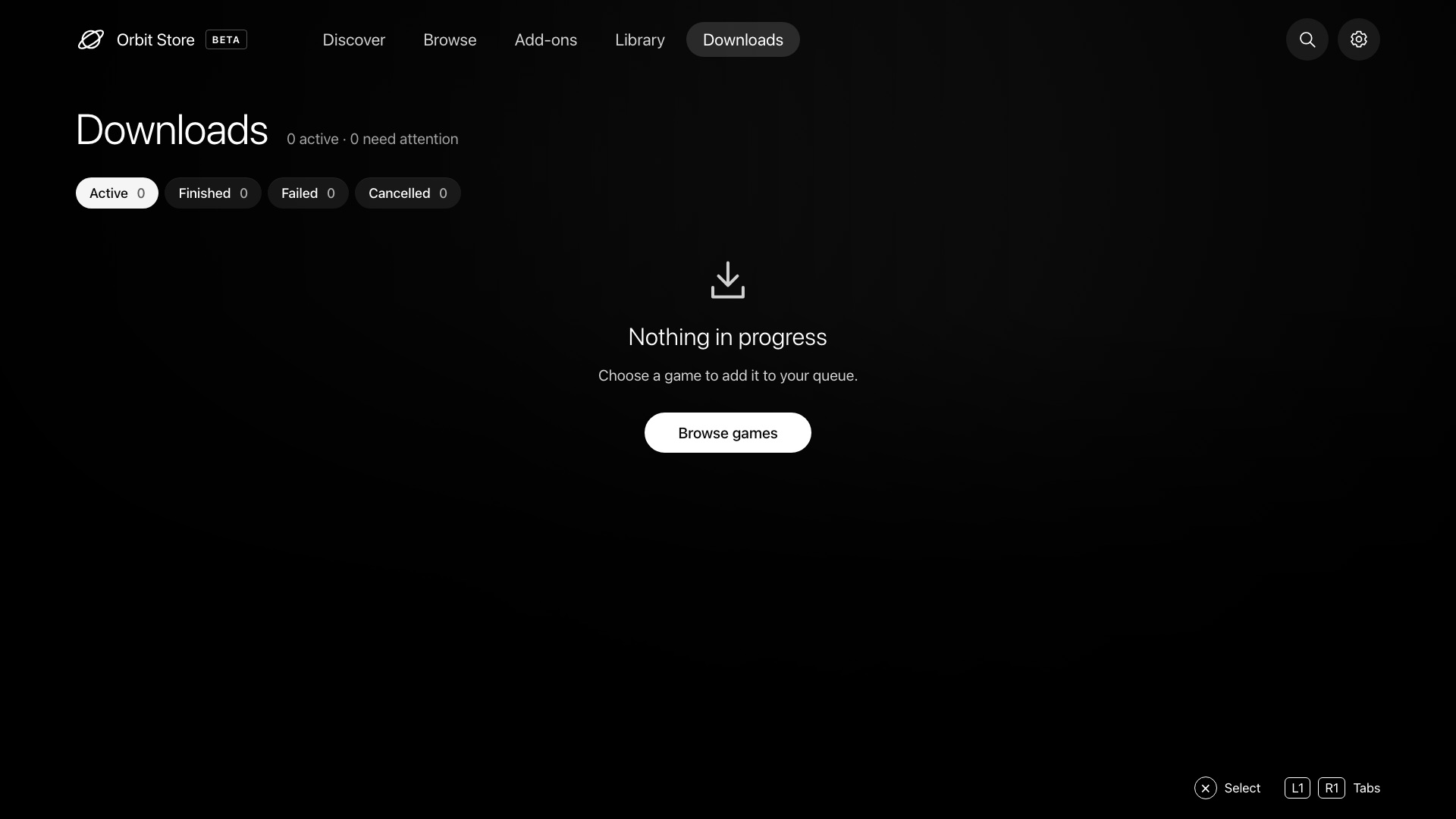
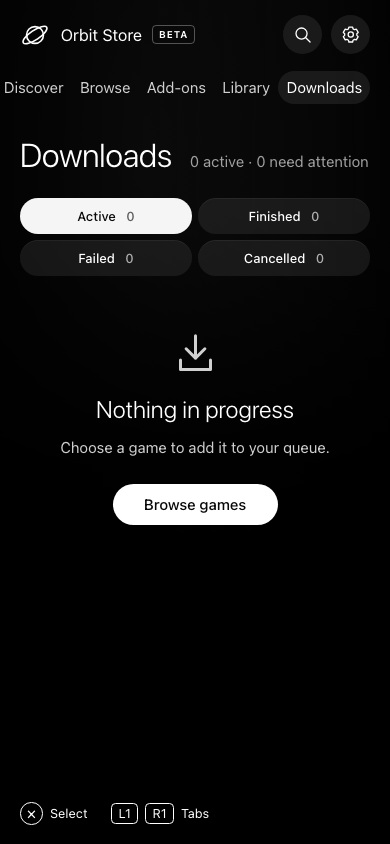
*Browser and phone views of an empty queue in Orbit 1.5.0. The native TV app reads the same queue.*
Choose **1–64 connections per download** in **App settings → Storage**, with eight as the default. Active PS5 downloads share up to 64 connections. If a provider refuses parallel connections, Orbit retries with fewer. Existing partials retain their original layout. Speed depends on the provider, network and drive. Pause, Resume and Cancel control the whole file.
After deleting a cancelled partial, you can start the download again from its game page. If you kept the partial, resume it from Downloads.
**Remove from history** and the history-clear buttons keep completed files. To remove a cancelled download and its partial file, use **Delete download** and confirm. If its drive is disconnected, reconnect it before deleting the file. If you already deleted the partial yourself, Orbit can clear the stale entry so you can start fresh.
Keep the PS5 awake. Closing the TV app or control browser leaves the download worker running; stopping Orbit interrupts it. Unexpectedly interrupted transfers return paused for review. The **Restart Orbit** action resumes downloads that were active before that controlled restart. Orbit extracts supported archives after downloading. The 1.5.0 apps provide explicit **Install on PS5** controls and automatic ShadowMount scans for newly completed compatible images and folders; see [installing downloaded games](install-games.md). Orbit does not launch games or continue downloading in rest mode.
**Notifications.** Open **App settings → Notifications** to choose PS5 alerts, phone/computer alerts through ntfy, or both. Select which download, installation and update events to report. PS5 messages use the console's language. See [notification setup](notifications.md).
### Simultaneous downloads
Orbit Store and Orbit Zero start one game at a time by default. Choose **1–8** in Orbit Store’s **App settings → Storage → Simultaneous downloads**, or **Downloads → Download settings → Simultaneous computer downloads** in Orbit Zero. Reducing the limit lets active downloads finish before another starts. Orbit Zero transfers one file to the PS5 at a time while computer downloads continue.
### Download recovery settings
For PS5 downloads, open **App settings → Storage → Download recovery**. For computer downloads, use **Orbit Zero → Downloads → Download settings → Download recovery**. The computer and console keep separate settings.
- **Automatic retries:** how many times Orbit tries again after a temporary failure. Choose **0–10**, or **0** to turn retries off; the default is **3**.
- **Wait between retries:** the pause before the next attempt, **10 seconds** by default.
- **Wait before reconnecting** and **Reconnect below this speed:** when a download stays too slow, reconnect and try again. By default, this means below **1 KiB/s** for **60 seconds**.
Changes apply on the next attempt. Some providers require a longer wait. Your partial download is kept, but a deliberately paused job still needs **Resume**; retries cannot fix a removed file, an account restriction or a full drive.
## Where downloads are saved
Direct PS5 downloads and Orbit Zero transfers use the selected PS5 drive’s `homebrew` folder:
| Destination | Folder on the PS5 |
| --- | --- |
| Internal storage | `/data/homebrew/` |
| M.2 SSD | `/mnt/ext1/homebrew/` |
| USB drive | `/mnt/usb0/homebrew/`, `/mnt/usb1/homebrew/`, or the corresponding folder for the selected USB drive |
USB numbering depends on how the console mounts your drives. Choose by the storage label shown in Orbit and keep that drive connected. Orbit creates `homebrew` when needed and checks write access before downloading or resuming. A drive attached only to your computer is not a PS5 destination.
For downloads handled by Orbit Store, **Downloads → Finished → Location** shows the saved file or extracted folder path in both the browser and native app. This is the recorded save location; it does not check whether someone has since moved or deleted the file, and it does not mean the game is installed or listed by ShadowMount.
Orbit Zero also keeps a computer copy in your chosen [computer download folder](orbit-zero.md#choose-the-computer-download-folder), unless you enable cleanup after transfer. In 1.5.0 and later, **Install on PS5** becomes available after the package reaches the console. The PS5 uses its configured installation storage. The downloaded file stays on its original drive unless **Delete packages after installing** is enabled; see [installation steps](install-games.md).
Orbit Zero download details show **PS5 location** and **Computer location** while the cached copy remains. Files go to the selected drive's `homebrew` folder. Extracted downloads may be a file or a folder containing several files. Zero's **Computer download folder** setting controls new computer downloads; existing partial files stay in their original folder.
## Get new games and corrected metadata
Orbit checks its catalogue on startup and every six hours. Use **App settings → Game catalogue → Refresh catalogue** for a manual check. You can browse the saved catalogue offline, and queued downloads keep the files you originally chose. New games and corrected release dates arrive without reinstalling Orbit, within the platforms supported by your app version. PS4 support itself requires the 1.1.0 app update.
## New in 1.7.0
Use [Vikingfile sign-in](vikingfile.md) to request links with your account session, [saved filters](saved-filters.md) to reuse searches, and [Files](files.md) to manage downloaded content. Zero can [stream a completed package to the PS5 installer](stream-install.md). The built-in archive password list also includes `pippo`; a custom password can still be entered when needed.
[Getting started](getting-started.md) · [Troubleshooting](troubleshooting.md) · [Project home](../README.md)