# Get started with Orbit Store
Orbit runs on your PS5. Use the TV with your controller, or pair a phone or computer to manage the same catalogue and download queue. Files go to the PS5’s selected storage.
**Three ways to use Orbit**
| Do this | Orbit appears in | What it is |
|---|---|---|
| Copy `PPSA99177.ffpkg` to `/data/homebrew/` | **Games** on your PS5 | The TV app, used with your controller. Needs kstuff and ShadowMountPlus. [Install it](#install-the-native-tv-app). |
| Run `orbit_store.elf` with your payload manager or ELF loader | **Media** on your PS5 | The browser version. It only opens while Orbit is running. [Set it up](#use-the-browser-version). |
| Install [Orbit Zero](orbit-zero.md) | Your Mac, Windows or Linux computer | Downloads on your computer and sends the files to your PS5. The PS5 doesn't need internet. |
The Games and Media versions share the same downloads, favourites and service settings, so seeing two Orbit icons on your PS5 is normal. Appearance is saved separately in each app or browser.
**Prefer downloading on your computer?** [Orbit Zero](orbit-zero.md) is our desktop app for Mac, Windows and Linux. It starts Orbit on your PS5, downloads on your computer and transfers the files over your local network. Your PS5 does not need internet access for this route. Follow the [desktop installation guide](orbit-zero-installation.md) or [set up a PS5 without internet](orbit-zero-offline-ps5.md). Orbit Zero includes PS4 and PS5 browsing and the same 11 interface languages as Orbit Store. Update the desktop app and its matching PS5 service together; update the native FFPKG too if you use it.
## What you need
- A PS5 environment that can run homebrew ELF payloads, and an ELF loader or payload manager.
- Internet access on the console for direct provider downloads.
- Enough writable storage.
- A phone or computer on the same local network, if you want to control Orbit from one.
- For Library management, a compatible ShadowMount v1 local API.
The current release pairs **Orbit Store 1.7.0**, **native app 1.11.0** and **Orbit Zero 1.7.0**.
The instructions below use the default Store layout. If you choose another interface, see [where to find its settings](appearance.md#find-settings-after-switching).
## Verify the PS5 files
Download the ELF or FFPKG and its matching `.sha256` file from the **same release**. Keep both files in one folder and open a terminal there. Run the command for the file you downloaded:
| System | ELF | Native FFPKG |
| --- | --- | --- |
| macOS | `shasum -a 256 -c orbit_store.elf.sha256` | `shasum -a 256 -c PPSA99177.ffpkg.sha256` |
| Linux | `sha256sum -c orbit_store.elf.sha256` | `sha256sum -c PPSA99177.ffpkg.sha256` |
| Windows PowerShell | `Get-FileHash .\orbit_store.elf -Algorithm SHA256` | `Get-FileHash .\PPSA99177.ffpkg -Algorithm SHA256` |
On macOS or Linux, the result should say **OK**. On Windows, open the `.sha256` file in a text editor and compare its 64-character checksum with PowerShell’s **Hash** value; uppercase and lowercase letters are equivalent. If it differs, download the file again before loading it.
Orbit Zero’s desktop packages use **`SHA256SUMS`** instead. Follow [desktop download verification](orbit-zero-installation.md#verify-your-download) for those files.
## Install the native TV app
The native app requires **kstuff and ShadowMountPlus**. For the app to start Orbit's download service itself, keep a compatible **ELF loader on port 9021** running. You can instead start `orbit_store.elf` through your payload manager before opening the app.
1. Get `PPSA99177.ffpkg` and `PPSA99177.ffpkg.sha256` from the [latest release](https://github.com/saawant12/orbit-store-ps5/releases/latest), then [verify the checksum](#verify-the-ps5-files).
2. If an older Orbit service is running, stop it from **App settings → Update / reinstall → Stop Orbit to restart** in the browser version. Installing an FFPKG does not replace a running service.
3. Copy the FFPKG to **`/data/homebrew/` on the PS5**. Allow ShadowMountPlus to register it, then open **Orbit Store** from the **Games row**.
4. Discover is the starting page. On first use, select **Choose sources**, enable the sources you want and acknowledge the notice. Saving opens Discover. Source choices are shared with the browser.
5. Choose a game, source, format and destination drive. Follow the [download guide](downloads.md) for direct downloads and each provider’s browser steps.
Already using Orbit 0.6.0 or later? In the browser version, open **App settings → TV app → Install on this PS5**. Orbit downloads the official FFPKG, verifies it and saves it to `/data/homebrew/`.
## Use the browser version
1. Get `orbit_store.elf` and `orbit_store.elf.sha256` from the [latest release](https://github.com/saawant12/orbit-store-ps5/releases/latest), then [verify the checksum](#verify-the-ps5-files).
2. Load the ELF through your payload manager. Orbit saves its runtime and creates its browser shortcut in the PS5 **Media tab**.
3. Open **Orbit Store**, then **App settings → Sources**. Choose the sources you want to use, including Archive.org, Vikingfile and AkiraBox, and acknowledge the notice. Only download material you have permission to obtain and use.
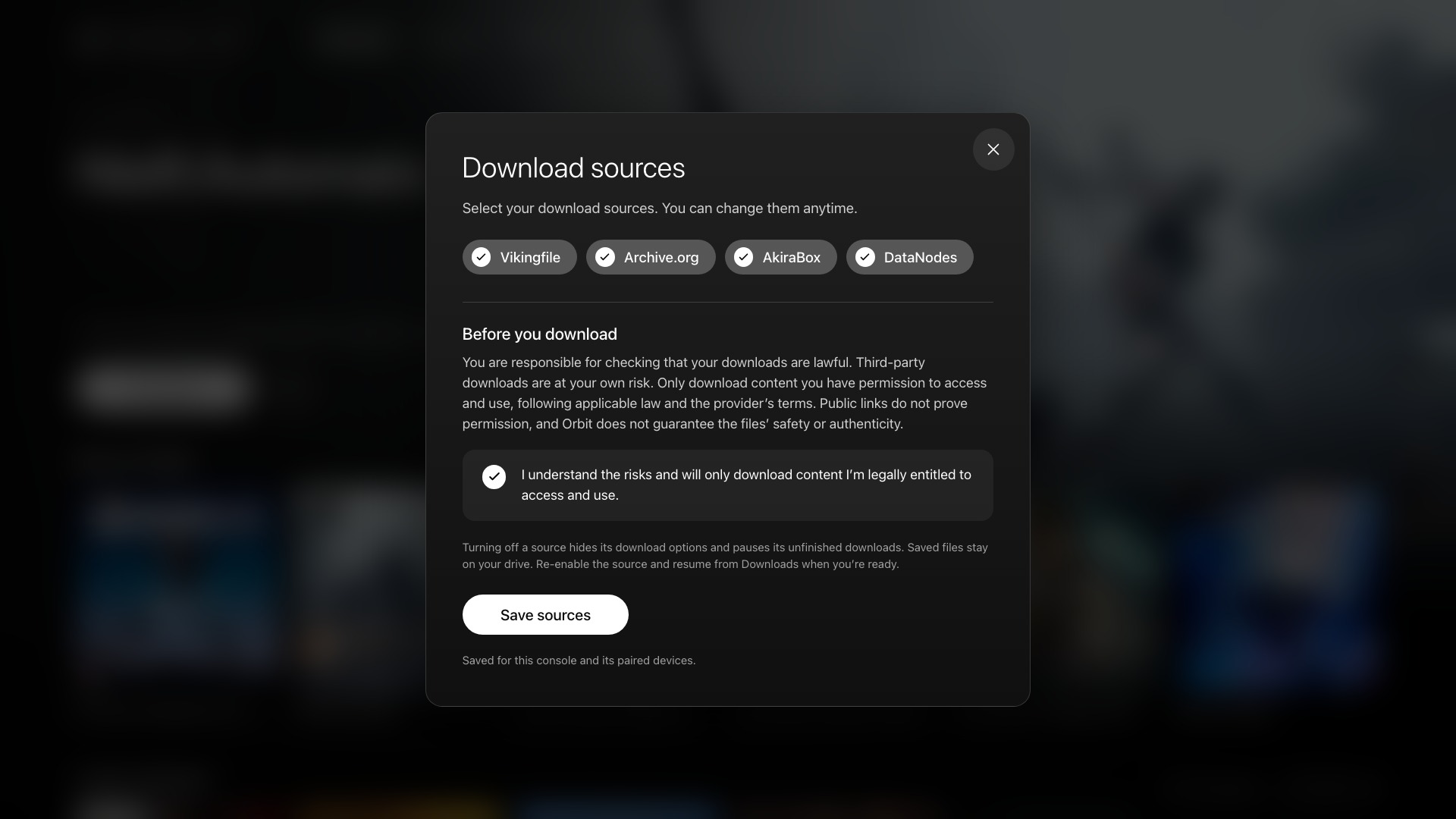
*Sources are your choice. Turning one off later hides its options and pauses unfinished downloads without deleting files. Interface previews use example storage data.*
Both interfaces use the same service, catalogue, favourites and download queue. The TV app does not need a pairing code on the console. The native **App settings** page includes Download sources, Storage, Notifications, Pair a device, Game catalogue, Updates and Appearance. **More settings** lets you view or save a diagnostic report; **Open browser version** provides auto-start and payload-manager setup.
You can also get Orbit through Payload Manager's source list; see the [optional Payload Manager feed](#optional-payload-manager-feed).
## Set up Orbit
### Choose a default drive
Open **App settings → Storage** in the native app or browser. Select an available drive, or **Choose automatically** to prefer external storage when available. Selecting another drive for a download makes that drive the default. An unavailable drive must be chosen again explicitly; Orbit does not silently redirect an active transfer.
A drive connected to your phone or computer is not a PS5 destination. Attach your external drive to the console; Orbit uses its `homebrew` folder when available.
### Choose your language
Orbit Store and Orbit Zero support **11 interface languages**: English, German, Spanish, French, Hungarian, Italian, Dutch, Polish, Brazilian Portuguese, Russian and Turkish.
- **Native TV app:** open **App settings → Appearance → Language** (or **Settings → Appearance** in another interface). Choose a language or **Automatic** to follow the PS5’s system language. Your choice is saved in Orbit; unsupported system languages use English.
- **Browser, phone or computer:** open **App settings → Language** in Store, or **Settings → Language** in the other interfaces. Choose a language, or **Automatic** to follow your browser’s preference. The interface reloads after you choose. This preference is saved for that browser; it does not change other paired devices or the PS5’s system language.
- **Orbit Zero desktop:** select the globe-shaped **Language** button in Store’s top bar, or **Settings → Language** in the other interfaces. Choose a language or **System language**. The choice is saved on that computer, and changing it keeps your downloads running.
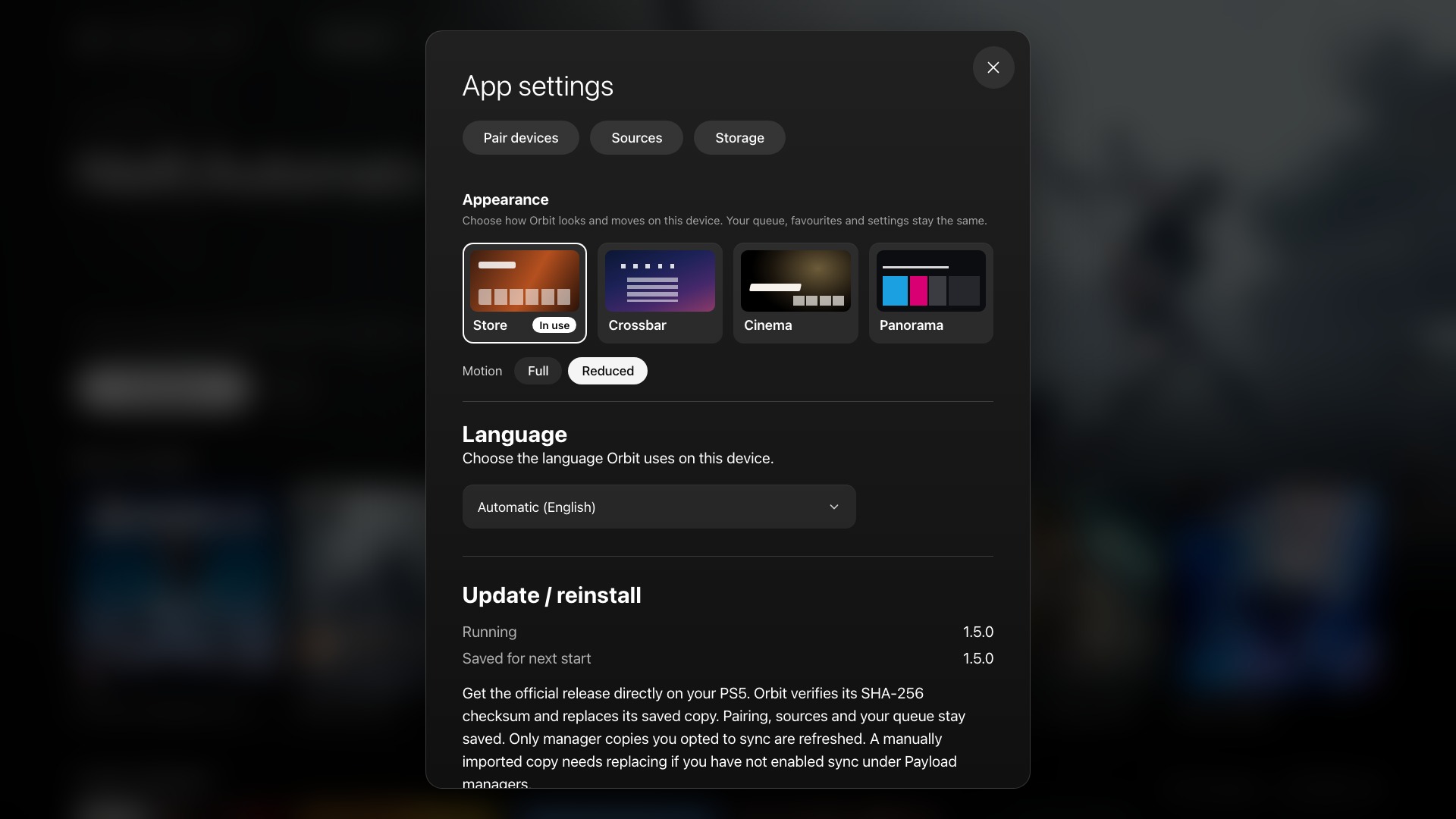
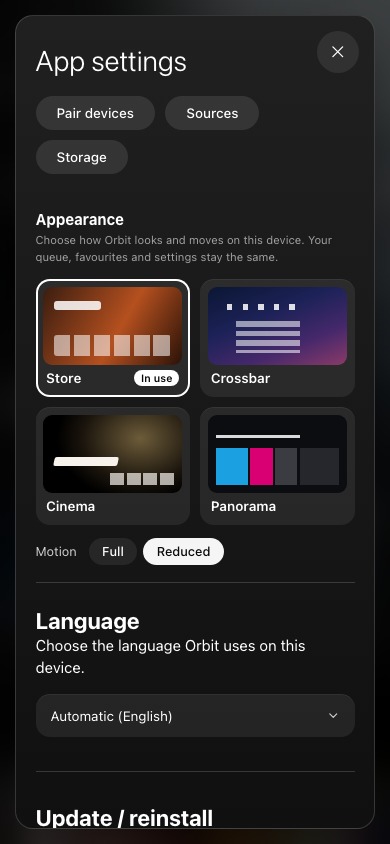 *Browser interface previews are from Orbit 1.5.0. Game names, descriptions and provider pages may keep their original language. Changing Orbit’s language does not change a downloaded game’s language.*
### Choose your interface
Choose **Store**, **Crossbar**, **Cinema** or **Panorama** in **App settings → Appearance** in native Store, or **Settings → Appearance** in the other native layouts. In the browser, use **App settings → Appearance** in Store or **Settings → Appearance** in another layout. Orbit Zero has an Appearance button in Store’s top bar and **Settings → Appearance** in the other layouts.
Select **Keep** within 15 seconds to save your choice, or let the countdown return you to the previous interface. Downloads and favourites stay with you; the appearance choice is separate for each app or browser. The [appearance guide](appearance.md) includes screenshots, navigation, motion and background settings.
### Connect optional accounts
**TorBox:** to use optional TorBox downloads, connect your account in the browser’s **App settings → Debrid**. Both apps can then use it for supported options. Orbit Zero also offers a separate computer-side TorBox connection in Download settings. See [TorBox setup](downloads.md#optional-download-through-torbox).
**Archive.org:** for account-required Archive.org files, open **App settings → Archive.org** in either PS5 app and sign in. Orbit Zero has its own Archive.org panel under **Downloads → Download settings**. See [Archive.org sign-in](downloads.md#archiveorg-sign-in).
## PS4 and PS5 games
The catalogue includes both platforms. PS4 support starts with service 1.1.0, native app 1.4.0 and Zero 1.1.0; archive extraction and AkiraBox need the current matching apps. In Browse, choose **Platform → PS4**, **PS5** or **All platforms**. A PS4 and a PS5 edition of the same game have separate download choices.
Orbit itself runs on PS5. Downloading a PS4 PKG/FPKG saves a package to your selected drive; the **1.5.0** apps let you choose **Install on PS5** from the completed download. Earlier versions need a compatible package installer. New compatible images and game folders automatically request a ShadowMount scan in 1.5.0 when it is running. See [installing downloaded games](install-games.md) and [PS4 games on PS5](downloads.md#ps4-games-on-ps5).
**DLC is available in 1.5.0.** Open **Add-ons** or **Add-ons (count)** on a game’s details to browse expansions, content packs, activation packages and bundles. Check the required base game before downloading or installing. See [the DLC guide](add-ons.md).
## Pair your phone or computer
In the TV app, open **App settings → Pair a device** to see the console address and six-digit code. While Orbit is running, visit `http://:34177/` on the same network. Choose **Pair devices** and enter the six-digit code shown on the PS5. On the console, **Pair devices** keeps the code visible; **Show code on PS5** repeats its notification. Do not share the code publicly.
Your paired device controls the console’s queue. For Vikingfile browser verification, use the PS5 screen to complete the provider steps even when you start from your phone.
### Use a local hostname
Orbit Store 1.1.0 also accepts browser addresses whose hostname ends in `.home.arpa`, `.local` or `.localhost`, with the usual port `34177`. For example, if your home network already resolves `ps5.home.arpa` to your console, open `http://ps5.home.arpa:34177/`. Pairing works the same way as with the IP address.
Orbit does not create or advertise these names. Your router or local name service must resolve the hostname to the correct device. `.localhost` normally resolves to the device you are browsing on, so it is generally for local testing rather than a remote PS5. If a name does not resolve, use `http://:34177/`. Orbit Zero’s Console connection field still takes the PS5’s local IP address.
## Payload Manager and auto-start
### Optional Payload Manager feed
In Payload Manager, open **Settings → Manage Sources → Add Source** and enter:
```text
https://raw.githubusercontent.com/saawant12/orbit-store-ps5/main/payloads.json
```
Open the Orbit Store source, download **Orbit Store (Beta)**, then run `orbit_store.elf`.
### Keep a manager copy up to date
Open **App settings → Payload managers** and choose **Add Orbit**, or **Allow updates to this copy** if it is already listed. That manager's copy then receives Orbit updates. **Stop syncing** leaves the existing copy and auto-start choices in place.
Auto-start is separate. Choose **Start automatically** if wanted and enable your manager’s global Autoload switch yourself. Orbit does not change that global switch. After a reboot, run your jailbreak and start Orbit manually or through your configured auto-start. The Media-tab shortcut needs the payload already running. The Games-row TV app can start it through a local ELF loader on port 9021.
Existing `autoload.txt` lists are supported. Configure etaHEN auto-start manually in its Toolbox. If you select **Stop syncing**, future Orbit updates leave that manager copy alone; replace it manually when updating or launch `/data/orbit-store/orbit_store.elf` instead.
## Update Orbit
*App updates install features and fixes. Refresh catalogue updates game data without reinstalling the app.*
### One-step updates
The **1.5.0** apps provide **Update Orbit** in Updates. It installs the TV app and download service together. With your local ELF loader running on port 9021, Orbit restarts its service and resumes the downloads it interrupted. **Restart Orbit** restarts just the service. Reopen the TV app after its update to use the new version. If the loader is unavailable, follow the manual launch instructions shown by Orbit.
In the native app, open **App settings → Updates**. In the browser’s Store layout, open **App settings → Update / reinstall**; other browser layouts use **Settings → Updates**.
### Update the download service
The separate controls below remain useful for older apps and manual updates.
In the native app, open **App settings → Updates → Download service**. Check for updates, install the chosen release, then confirm **Restart download service**. The app stops only Orbit and starts its saved service through your ELF loader. If no loader is available, follow the on-screen instructions to start Orbit manually.
The following steps apply to the browser version. The download service and native TV app have separate version numbers; compare the versions shown in their update panels.
1. Open **App settings → Update / reinstall → Check for updates**.
2. Choose **Install update**, or **Reinstall release** for the current version. Orbit verifies the release checksum and saves the replacement.
3. Select **Stop Orbit to restart** and confirm. The queue is saved; other payloads are left running.
4. Run `/data/orbit-store/orbit_store.elf` or a manager copy you opted to keep in sync. Reopen Orbit and resume any paused downloads. With the ELF loader running, the TV app can also start the newer saved service.
The update panel shows three separate versions: **Running**, **Saved for next start** and **Latest release**. Uploading a new ELF while Orbit is running saves it for the next start; it does not change the service that is running now. If you copied Orbit into a manager yourself and it isn't kept in sync, replace that copy yourself. Keep the Orbit icon and saved data.
### Update the TV app
On 1.5.0 or later, **Update Orbit** updates the TV app and service together; see [one-step updates](#one-step-updates). Reopen the TV app after updating it. The following separate controls are useful for older versions or when updating only the TV app.
In the native app, open **App settings → Updates → TV app**, check for updates and choose **Update TV app**. Confirm **Replace with this release** if the existing image was copied manually. After installation, close and reopen the app.
Alternatively, use the browser:
1. Close the TV app using **PS button → Close Application**.
2. In the browser version, open **App settings → TV app** and check for an update. Confirm replacement if you previously copied the FFPKG yourself. Orbit verifies the download before replacing it.
3. Reopen Orbit from the Games row. If ShadowMountPlus still opens the previous app, restart the console when convenient and run your jailbreak again.
You can also verify and replace `/data/homebrew/PPSA99177.ffpkg` manually. Keep only one installation: Orbit will not overwrite a folder installation at `/data/homebrew/PPSA99177/`. Update that folder yourself, or remove your old app copy before switching formats. Keep `/data/orbit-store/`; it holds your settings and queue.
The TV app includes a copy of the service, but replacing the app does not replace the service that is already running. Stop Orbit before starting the new copy. If the saved service is newer than the one inside the TV app, opening the app keeps the newer one.
### Upgrading an older version
**Going back from 1.6.0 to 1.5.0:** finish any download using a connection count other than 1, 2, 4 or 8, or cancel it and delete its entry first. Orbit 1.5.0 cannot read an unfinished download with another count, even if paused or cancelled. It leaves the queue untouched; running 1.6.0 again restores access.
**From beta.2 or earlier:** download the current ELF and replace the existing `orbit_store.elf` in Payload Manager, accepting its overwrite/reinstall prompt. Pause downloads, then stop only the identifiable Orbit process in **Active Processes** and launch the new ELF. If you cannot confidently identify Orbit, restart the console when convenient, run your jailbreak and start the new copy. Keep the Orbit icon and `/data/orbit-store/`, which holds your saved settings and queue. The in-app service update steps above are available from beta.3 onward.
**Keep a version that can read your queue.** After using 0.4.2 or newer, do not return to an older queue format. After using TorBox, keep Orbit 0.8.0 or later while those jobs remain in your queue or history. For PS4 browsing, use the service and native versions listed above; refreshing the catalogue alone does not add PS4 support to an older app.
[Download guide](downloads.md) · [Library guide](library.md) · [Troubleshooting](troubleshooting.md) · [Appearance guide](appearance.md) · [Project home](../README.md)
*Browser interface previews are from Orbit 1.5.0. Game names, descriptions and provider pages may keep their original language. Changing Orbit’s language does not change a downloaded game’s language.*
### Choose your interface
Choose **Store**, **Crossbar**, **Cinema** or **Panorama** in **App settings → Appearance** in native Store, or **Settings → Appearance** in the other native layouts. In the browser, use **App settings → Appearance** in Store or **Settings → Appearance** in another layout. Orbit Zero has an Appearance button in Store’s top bar and **Settings → Appearance** in the other layouts.
Select **Keep** within 15 seconds to save your choice, or let the countdown return you to the previous interface. Downloads and favourites stay with you; the appearance choice is separate for each app or browser. The [appearance guide](appearance.md) includes screenshots, navigation, motion and background settings.
### Connect optional accounts
**TorBox:** to use optional TorBox downloads, connect your account in the browser’s **App settings → Debrid**. Both apps can then use it for supported options. Orbit Zero also offers a separate computer-side TorBox connection in Download settings. See [TorBox setup](downloads.md#optional-download-through-torbox).
**Archive.org:** for account-required Archive.org files, open **App settings → Archive.org** in either PS5 app and sign in. Orbit Zero has its own Archive.org panel under **Downloads → Download settings**. See [Archive.org sign-in](downloads.md#archiveorg-sign-in).
## PS4 and PS5 games
The catalogue includes both platforms. PS4 support starts with service 1.1.0, native app 1.4.0 and Zero 1.1.0; archive extraction and AkiraBox need the current matching apps. In Browse, choose **Platform → PS4**, **PS5** or **All platforms**. A PS4 and a PS5 edition of the same game have separate download choices.
Orbit itself runs on PS5. Downloading a PS4 PKG/FPKG saves a package to your selected drive; the **1.5.0** apps let you choose **Install on PS5** from the completed download. Earlier versions need a compatible package installer. New compatible images and game folders automatically request a ShadowMount scan in 1.5.0 when it is running. See [installing downloaded games](install-games.md) and [PS4 games on PS5](downloads.md#ps4-games-on-ps5).
**DLC is available in 1.5.0.** Open **Add-ons** or **Add-ons (count)** on a game’s details to browse expansions, content packs, activation packages and bundles. Check the required base game before downloading or installing. See [the DLC guide](add-ons.md).
## Pair your phone or computer
In the TV app, open **App settings → Pair a device** to see the console address and six-digit code. While Orbit is running, visit `http://:34177/` on the same network. Choose **Pair devices** and enter the six-digit code shown on the PS5. On the console, **Pair devices** keeps the code visible; **Show code on PS5** repeats its notification. Do not share the code publicly.
Your paired device controls the console’s queue. For Vikingfile browser verification, use the PS5 screen to complete the provider steps even when you start from your phone.
### Use a local hostname
Orbit Store 1.1.0 also accepts browser addresses whose hostname ends in `.home.arpa`, `.local` or `.localhost`, with the usual port `34177`. For example, if your home network already resolves `ps5.home.arpa` to your console, open `http://ps5.home.arpa:34177/`. Pairing works the same way as with the IP address.
Orbit does not create or advertise these names. Your router or local name service must resolve the hostname to the correct device. `.localhost` normally resolves to the device you are browsing on, so it is generally for local testing rather than a remote PS5. If a name does not resolve, use `http://:34177/`. Orbit Zero’s Console connection field still takes the PS5’s local IP address.
## Payload Manager and auto-start
### Optional Payload Manager feed
In Payload Manager, open **Settings → Manage Sources → Add Source** and enter:
```text
https://raw.githubusercontent.com/saawant12/orbit-store-ps5/main/payloads.json
```
Open the Orbit Store source, download **Orbit Store (Beta)**, then run `orbit_store.elf`.
### Keep a manager copy up to date
Open **App settings → Payload managers** and choose **Add Orbit**, or **Allow updates to this copy** if it is already listed. That manager's copy then receives Orbit updates. **Stop syncing** leaves the existing copy and auto-start choices in place.
Auto-start is separate. Choose **Start automatically** if wanted and enable your manager’s global Autoload switch yourself. Orbit does not change that global switch. After a reboot, run your jailbreak and start Orbit manually or through your configured auto-start. The Media-tab shortcut needs the payload already running. The Games-row TV app can start it through a local ELF loader on port 9021.
Existing `autoload.txt` lists are supported. Configure etaHEN auto-start manually in its Toolbox. If you select **Stop syncing**, future Orbit updates leave that manager copy alone; replace it manually when updating or launch `/data/orbit-store/orbit_store.elf` instead.
## Update Orbit
*App updates install features and fixes. Refresh catalogue updates game data without reinstalling the app.*
### One-step updates
The **1.5.0** apps provide **Update Orbit** in Updates. It installs the TV app and download service together. With your local ELF loader running on port 9021, Orbit restarts its service and resumes the downloads it interrupted. **Restart Orbit** restarts just the service. Reopen the TV app after its update to use the new version. If the loader is unavailable, follow the manual launch instructions shown by Orbit.
In the native app, open **App settings → Updates**. In the browser’s Store layout, open **App settings → Update / reinstall**; other browser layouts use **Settings → Updates**.
### Update the download service
The separate controls below remain useful for older apps and manual updates.
In the native app, open **App settings → Updates → Download service**. Check for updates, install the chosen release, then confirm **Restart download service**. The app stops only Orbit and starts its saved service through your ELF loader. If no loader is available, follow the on-screen instructions to start Orbit manually.
The following steps apply to the browser version. The download service and native TV app have separate version numbers; compare the versions shown in their update panels.
1. Open **App settings → Update / reinstall → Check for updates**.
2. Choose **Install update**, or **Reinstall release** for the current version. Orbit verifies the release checksum and saves the replacement.
3. Select **Stop Orbit to restart** and confirm. The queue is saved; other payloads are left running.
4. Run `/data/orbit-store/orbit_store.elf` or a manager copy you opted to keep in sync. Reopen Orbit and resume any paused downloads. With the ELF loader running, the TV app can also start the newer saved service.
The update panel shows three separate versions: **Running**, **Saved for next start** and **Latest release**. Uploading a new ELF while Orbit is running saves it for the next start; it does not change the service that is running now. If you copied Orbit into a manager yourself and it isn't kept in sync, replace that copy yourself. Keep the Orbit icon and saved data.
### Update the TV app
On 1.5.0 or later, **Update Orbit** updates the TV app and service together; see [one-step updates](#one-step-updates). Reopen the TV app after updating it. The following separate controls are useful for older versions or when updating only the TV app.
In the native app, open **App settings → Updates → TV app**, check for updates and choose **Update TV app**. Confirm **Replace with this release** if the existing image was copied manually. After installation, close and reopen the app.
Alternatively, use the browser:
1. Close the TV app using **PS button → Close Application**.
2. In the browser version, open **App settings → TV app** and check for an update. Confirm replacement if you previously copied the FFPKG yourself. Orbit verifies the download before replacing it.
3. Reopen Orbit from the Games row. If ShadowMountPlus still opens the previous app, restart the console when convenient and run your jailbreak again.
You can also verify and replace `/data/homebrew/PPSA99177.ffpkg` manually. Keep only one installation: Orbit will not overwrite a folder installation at `/data/homebrew/PPSA99177/`. Update that folder yourself, or remove your old app copy before switching formats. Keep `/data/orbit-store/`; it holds your settings and queue.
The TV app includes a copy of the service, but replacing the app does not replace the service that is already running. Stop Orbit before starting the new copy. If the saved service is newer than the one inside the TV app, opening the app keeps the newer one.
### Upgrading an older version
**Going back from 1.6.0 to 1.5.0:** finish any download using a connection count other than 1, 2, 4 or 8, or cancel it and delete its entry first. Orbit 1.5.0 cannot read an unfinished download with another count, even if paused or cancelled. It leaves the queue untouched; running 1.6.0 again restores access.
**From beta.2 or earlier:** download the current ELF and replace the existing `orbit_store.elf` in Payload Manager, accepting its overwrite/reinstall prompt. Pause downloads, then stop only the identifiable Orbit process in **Active Processes** and launch the new ELF. If you cannot confidently identify Orbit, restart the console when convenient, run your jailbreak and start the new copy. Keep the Orbit icon and `/data/orbit-store/`, which holds your saved settings and queue. The in-app service update steps above are available from beta.3 onward.
**Keep a version that can read your queue.** After using 0.4.2 or newer, do not return to an older queue format. After using TorBox, keep Orbit 0.8.0 or later while those jobs remain in your queue or history. For PS4 browsing, use the service and native versions listed above; refreshing the catalogue alone does not add PS4 support to an older app.
[Download guide](downloads.md) · [Library guide](library.md) · [Troubleshooting](troubleshooting.md) · [Appearance guide](appearance.md) · [Project home](../README.md)