# NanoBot
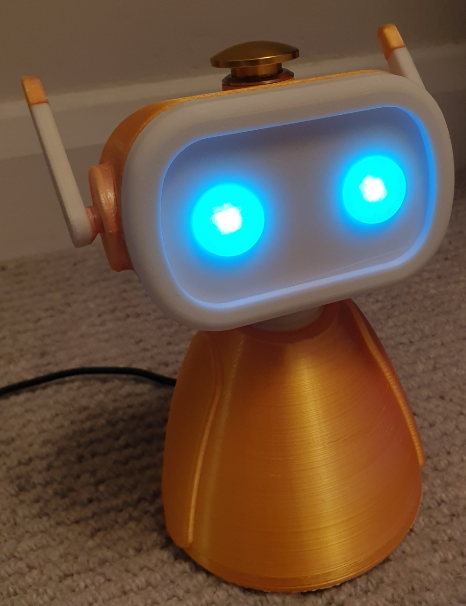
 **NanoBot** is a Raspberry Pi powered **real-time** AI chat robot ideal for education and **teaching assistance**. It can answer or help clarify challenging questions on a wide range of subjects and serve as a live encyclopedia.
It has strong "real-time" interactive capabilities. It maintains a highly responsive live conversational experience with the user. It can be interrupted (barge-in) while speaking and still maintain the correct live conversation state context.
It is optimised to run efficiently on the little CPU and RAM resources of the `Raspberry Pi Zero 2 W`, but can also run on desktop (Windows and Linux) for testing and development. Note that it requires a 64-bit ARM CPU so it will not run on the less capable Pi Zero 1, Pi 1 and Pi 2 devices.
Its core AI capability is provided by the [OpenAI Platform](https://platform.openai.com/) so it requires an OpenAI user account and an associated API key token. It uses the custom plug-ins to enhance its AI capabilities and also the [ONNX](https://onnxruntime.ai/) engine with local AI inference models for fully offline wake-word detection and fully offline voice detection (VAD).
**NanoBot** is a Raspberry Pi powered **real-time** AI chat robot ideal for education and **teaching assistance**. It can answer or help clarify challenging questions on a wide range of subjects and serve as a live encyclopedia.
It has strong "real-time" interactive capabilities. It maintains a highly responsive live conversational experience with the user. It can be interrupted (barge-in) while speaking and still maintain the correct live conversation state context.
It is optimised to run efficiently on the little CPU and RAM resources of the `Raspberry Pi Zero 2 W`, but can also run on desktop (Windows and Linux) for testing and development. Note that it requires a 64-bit ARM CPU so it will not run on the less capable Pi Zero 1, Pi 1 and Pi 2 devices.
Its core AI capability is provided by the [OpenAI Platform](https://platform.openai.com/) so it requires an OpenAI user account and an associated API key token. It uses the custom plug-ins to enhance its AI capabilities and also the [ONNX](https://onnxruntime.ai/) engine with local AI inference models for fully offline wake-word detection and fully offline voice detection (VAD).
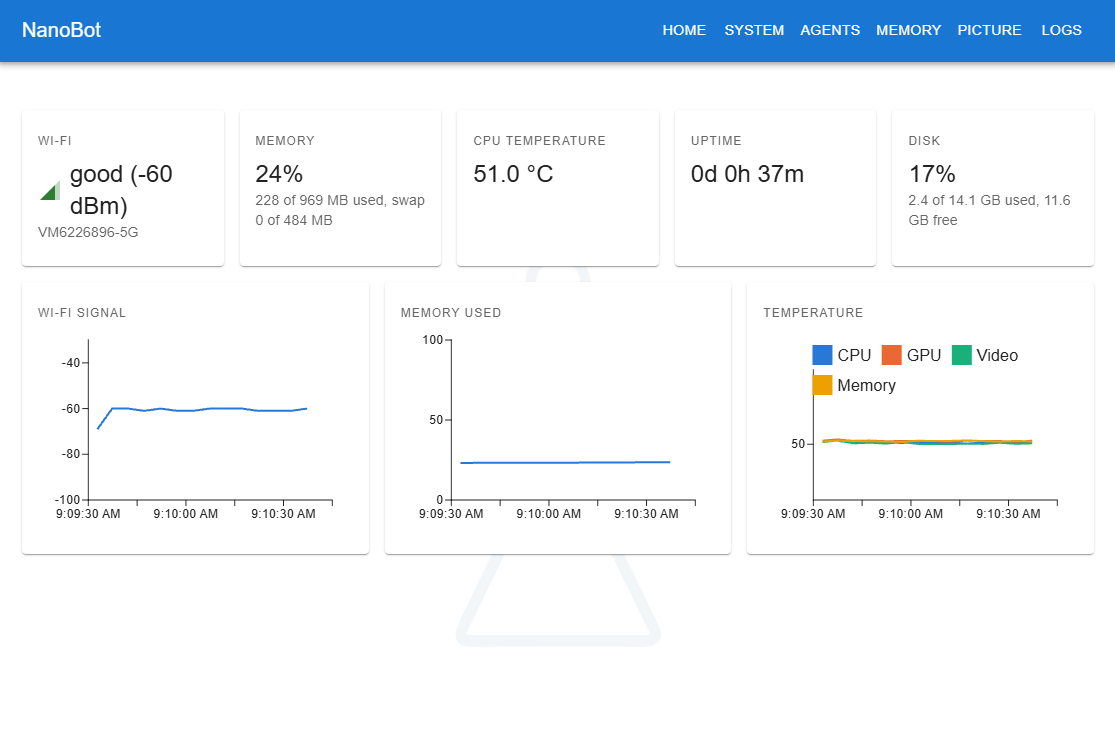
 **Configuration Web page:**
 **Real-time chat example:**
https://github.com/user-attachments/assets/f00467bd-f123-4fde-8da9-e328a8ddb24d
## Features
### Fully Local Wake-Word Engine
The wake-word AI engine runs locally on the CPU (for privacy). It includes a set of preconfigured, selectable wake-words (alexa, hey_jarvis, hey_marvin, hey_mycroft) as part of the [NanoWakeWord](https://github.com/samartzidis/NanoWakeWord) engine that was especially developed for NanoBot.
### Fully Local Enterprise-Grade VAD Engine
It uses the local enterprise-grade [Silero](https://github.com/snakers4/silero-vad) Voice Activity Detection (VAD) engine before sending any potential user voice data to OpenAI. This further enhances privacy and also token efficiency.
### Dual AI Model Feature
It uses a realtime-class model for allowing highly responsive user interaction, while it also employs a - selectively self-activated - powerful flagship model (e.g. GPT-5.4) for assisting in demanding tasks (via the optional PowerAI plugin).
### Self-Controlled RGB-LED Eyes
It self-controls its 2 RGB LEDs for changing eye colours via the Raspberry Pi *GPIO* interface, based on its status and current interaction with the user.
### Other Features
Optional plugin-based capabilities such as:
- Persistent memory (RAG memory plugin).
- A scientific calculator plugin (for math operations).
Controls its eyes colour and responds to various user commands such as: "turn off", "restart", "volume up/down", "volume 8" (ranging from 0-10), etc.
Offers a Web configuration page for configuring it remotely from a mobile phone etc.
## Operation
It is activated by user configurable wake words or by pressing the *talk/hangup* button on its head.
#### Eye Colours Legend
- **Off** - The robot is off.
- **White** - The robot is on standby.
- **Yellow** - The robot has detected sound activity (**local** noise detection engine activated).
- **Orange** - The robot has detected a configured wake-up word (both **local** VAD and **local** wake word inference engines activated) and is initializing for live conversation.
- **Green** - Live conversation is active. The robot is now listening and is ready to respond (a live Web socket connection is streaming further conversation over the internet to your OpenAI account).
- **Flashing Green** - The robot is talking, using a Peak Level Meter visualisation.
- **Blue** - The robot is invoking one of its internal plug-ins.
- **Red** - An error has occurred. If it is a transient error, e.g. an external API timeout, it will automatically recover. If not, you may want to inspect the logs (via the management Web-page or the SSH).
## Hardware Build Components and Specific Requirements
- A **Raspberry Pi Zero 2 W** with a soldered GPIO header (you might as well purchase the Raspberry Pi Zero 2 WH).
- An **Anker PowerConf S330** speakerphone or a similar speakerphone with *acoustic echo cancellation* (AEC), or alternatively a plain USB headset connected directly to the Raspberry Pi USB port.
- Optional but highly recommended - a **heatsink**. A recommended heatsink is [Geekworm Raspberry Pi Zero 2 W Heatsink](https://www.amazon.co.uk/dp/B09QMBCXLB). Ideally install it using the thermal heatsink paste option instead of the included heatsink pad.
- 5mm round common cathode **RGB LEDs** for the robot eyes.
- Multicoloured 28AWG (ideally silicone) **cables**.
- For making the custom length connector cables, a kit of several female **Dupont 2.54 mm pitch 1-Pin connectors** such as [these](https://www.amazon.co.uk/dp/B096DC1J3X) and an equivalent crimping tool such as [this one](https://www.amazon.co.uk/dp/B01N4L8QMW).
- A **19mm momentary push-button** to place on the robot's head. E.g. [this one](https://www.amazon.co.uk/dp/B0DB2BYQKW).
- A self tapping **M2 screws**. Specifically: 4x 13mm and 4x 11mm. You can also get one of [these sets](https://www.amazon.co.uk/dp/B09NDMWBC2).
- 6x 220K **resistors** for each one of the 2 RGB LEDs anode (+) pins.
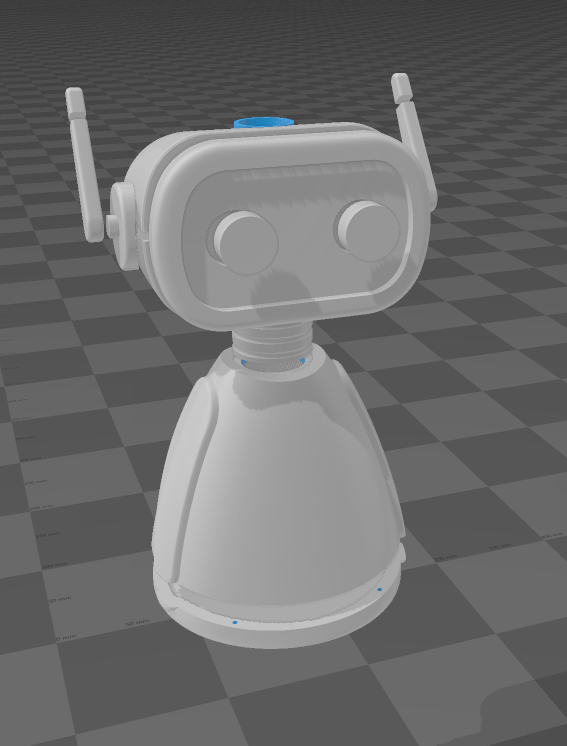
Printing will take several hours but it's relatively straightforward. Supports are not required but use **brim** (build plate andhesion setting) to prevent warping at the edges. You will also need a regular **epoxy glue** to glue the parts together.
A genuinely at least 2A and 5V micro-USB power supply to power the Pi board will be needed (or weird failures will happen during operation if weaker power supply used).
**Real-time chat example:**
https://github.com/user-attachments/assets/f00467bd-f123-4fde-8da9-e328a8ddb24d
## Features
### Fully Local Wake-Word Engine
The wake-word AI engine runs locally on the CPU (for privacy). It includes a set of preconfigured, selectable wake-words (alexa, hey_jarvis, hey_marvin, hey_mycroft) as part of the [NanoWakeWord](https://github.com/samartzidis/NanoWakeWord) engine that was especially developed for NanoBot.
### Fully Local Enterprise-Grade VAD Engine
It uses the local enterprise-grade [Silero](https://github.com/snakers4/silero-vad) Voice Activity Detection (VAD) engine before sending any potential user voice data to OpenAI. This further enhances privacy and also token efficiency.
### Dual AI Model Feature
It uses a realtime-class model for allowing highly responsive user interaction, while it also employs a - selectively self-activated - powerful flagship model (e.g. GPT-5.4) for assisting in demanding tasks (via the optional PowerAI plugin).
### Self-Controlled RGB-LED Eyes
It self-controls its 2 RGB LEDs for changing eye colours via the Raspberry Pi *GPIO* interface, based on its status and current interaction with the user.
### Other Features
Optional plugin-based capabilities such as:
- Persistent memory (RAG memory plugin).
- A scientific calculator plugin (for math operations).
Controls its eyes colour and responds to various user commands such as: "turn off", "restart", "volume up/down", "volume 8" (ranging from 0-10), etc.
Offers a Web configuration page for configuring it remotely from a mobile phone etc.
## Operation
It is activated by user configurable wake words or by pressing the *talk/hangup* button on its head.
#### Eye Colours Legend
- **Off** - The robot is off.
- **White** - The robot is on standby.
- **Yellow** - The robot has detected sound activity (**local** noise detection engine activated).
- **Orange** - The robot has detected a configured wake-up word (both **local** VAD and **local** wake word inference engines activated) and is initializing for live conversation.
- **Green** - Live conversation is active. The robot is now listening and is ready to respond (a live Web socket connection is streaming further conversation over the internet to your OpenAI account).
- **Flashing Green** - The robot is talking, using a Peak Level Meter visualisation.
- **Blue** - The robot is invoking one of its internal plug-ins.
- **Red** - An error has occurred. If it is a transient error, e.g. an external API timeout, it will automatically recover. If not, you may want to inspect the logs (via the management Web-page or the SSH).
## Hardware Build Components and Specific Requirements
- A **Raspberry Pi Zero 2 W** with a soldered GPIO header (you might as well purchase the Raspberry Pi Zero 2 WH).
- An **Anker PowerConf S330** speakerphone or a similar speakerphone with *acoustic echo cancellation* (AEC), or alternatively a plain USB headset connected directly to the Raspberry Pi USB port.
- Optional but highly recommended - a **heatsink**. A recommended heatsink is [Geekworm Raspberry Pi Zero 2 W Heatsink](https://www.amazon.co.uk/dp/B09QMBCXLB). Ideally install it using the thermal heatsink paste option instead of the included heatsink pad.
- 5mm round common cathode **RGB LEDs** for the robot eyes.
- Multicoloured 28AWG (ideally silicone) **cables**.
- For making the custom length connector cables, a kit of several female **Dupont 2.54 mm pitch 1-Pin connectors** such as [these](https://www.amazon.co.uk/dp/B096DC1J3X) and an equivalent crimping tool such as [this one](https://www.amazon.co.uk/dp/B01N4L8QMW).
- A **19mm momentary push-button** to place on the robot's head. E.g. [this one](https://www.amazon.co.uk/dp/B0DB2BYQKW).
- A self tapping **M2 screws**. Specifically: 4x 13mm and 4x 11mm. You can also get one of [these sets](https://www.amazon.co.uk/dp/B09NDMWBC2).
- 6x 220K **resistors** for each one of the 2 RGB LEDs anode (+) pins.
Printing will take several hours but it's relatively straightforward. Supports are not required but use **brim** (build plate andhesion setting) to prevent warping at the edges. You will also need a regular **epoxy glue** to glue the parts together.
A genuinely at least 2A and 5V micro-USB power supply to power the Pi board will be needed (or weird failures will happen during operation if weaker power supply used).
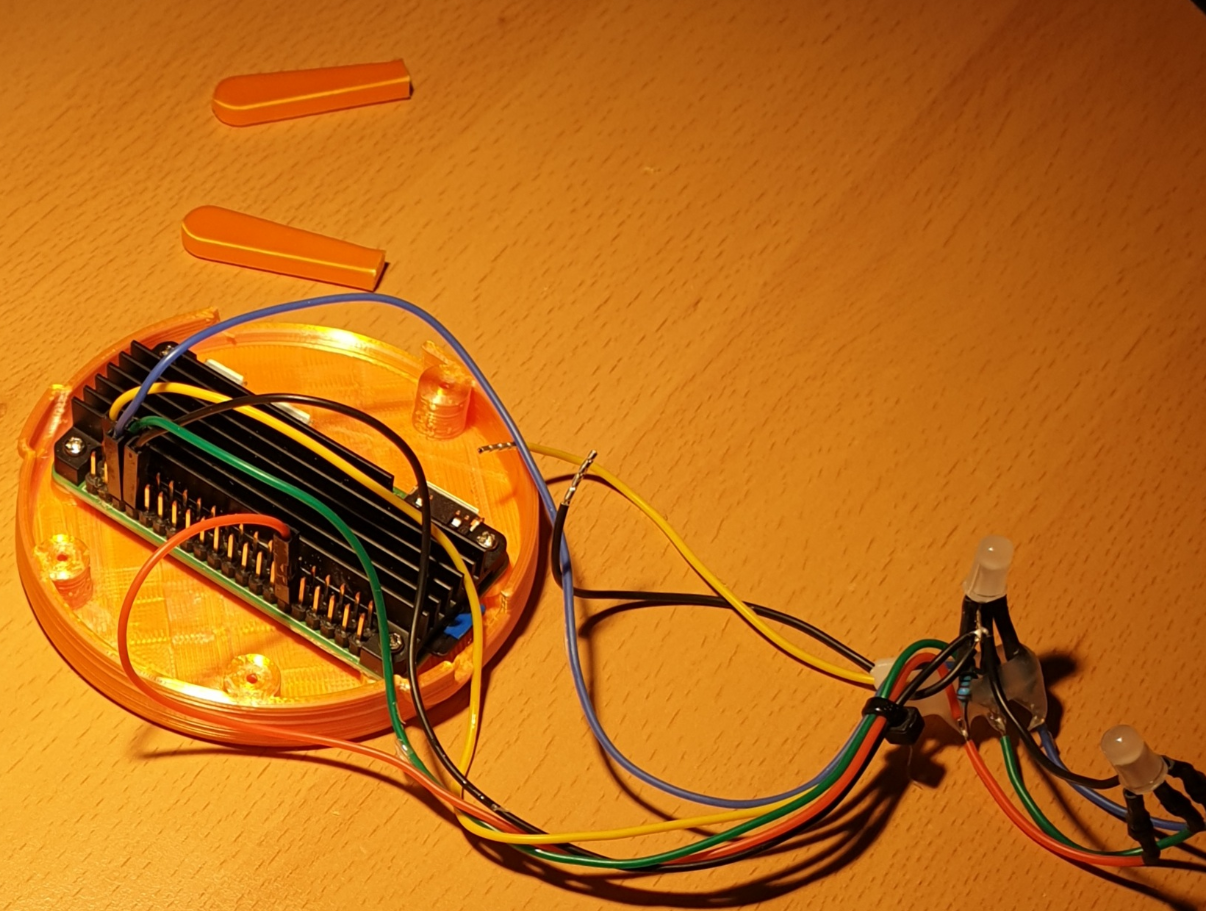
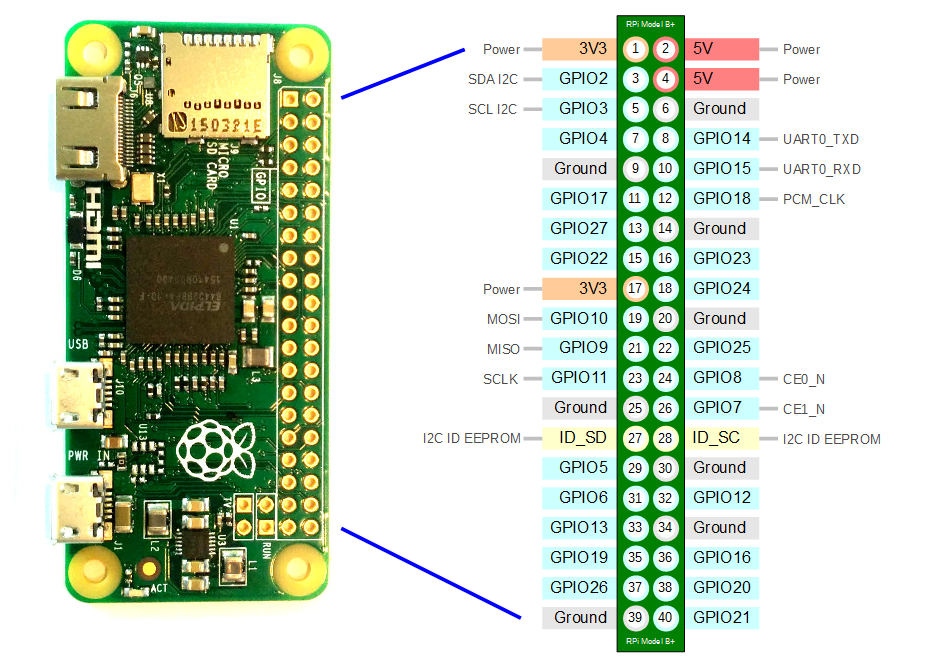
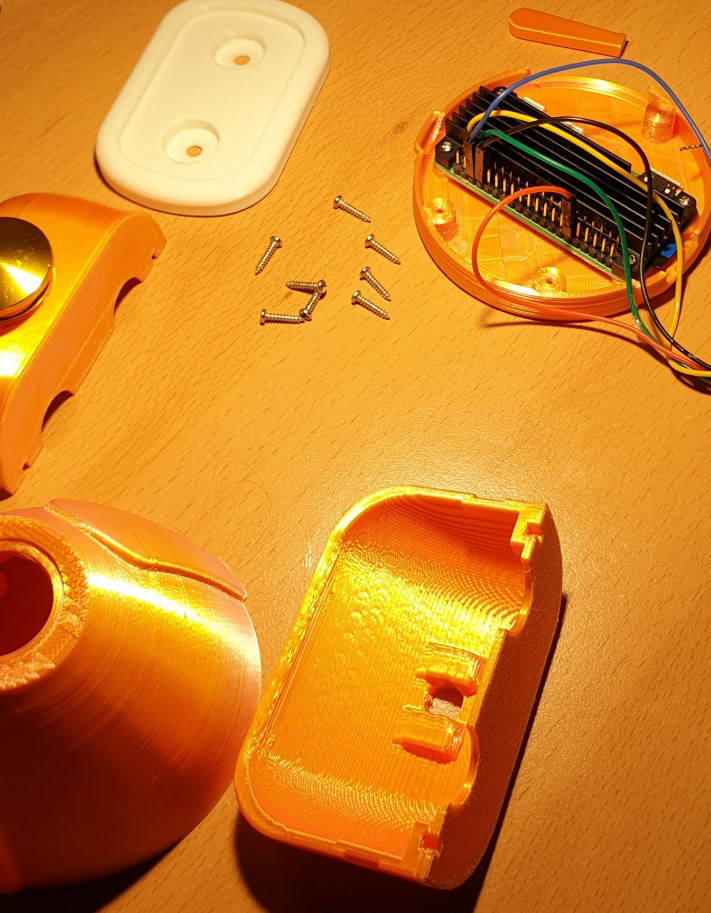 ## GPIO Interface Hardware Connections
- **Ground** (physical **Pin 34**) ⇒ Push **button** terminal 1 (of 2) and to the 2 RGB LED common cathode pins.
- **GPIO 18** (physical **Pin 12**) ⇒ **Red** RGB LED pins via 220K resistors. (Hardware PWM0)
- **GPIO 19** (physical **Pin 35**) ⇒ **Green** RGB LED pins via 220K resistors. (Hardware PWM1)
- **GPIO 16** (physical **Pin 36**) ⇒ **Blue** RGB LED pins via 220K resistors. (Simple GPIO output, no PWM)
- **GPIO 26** (physical **Pin 37**) ⇒ Push **button** terminal 2 (of 2).
## GPIO Interface Hardware Connections
- **Ground** (physical **Pin 34**) ⇒ Push **button** terminal 1 (of 2) and to the 2 RGB LED common cathode pins.
- **GPIO 18** (physical **Pin 12**) ⇒ **Red** RGB LED pins via 220K resistors. (Hardware PWM0)
- **GPIO 19** (physical **Pin 35**) ⇒ **Green** RGB LED pins via 220K resistors. (Hardware PWM1)
- **GPIO 16** (physical **Pin 36**) ⇒ **Blue** RGB LED pins via 220K resistors. (Simple GPIO output, no PWM)
- **GPIO 26** (physical **Pin 37**) ⇒ Push **button** terminal 2 (of 2).
 ### Orange Pi Zero 2W
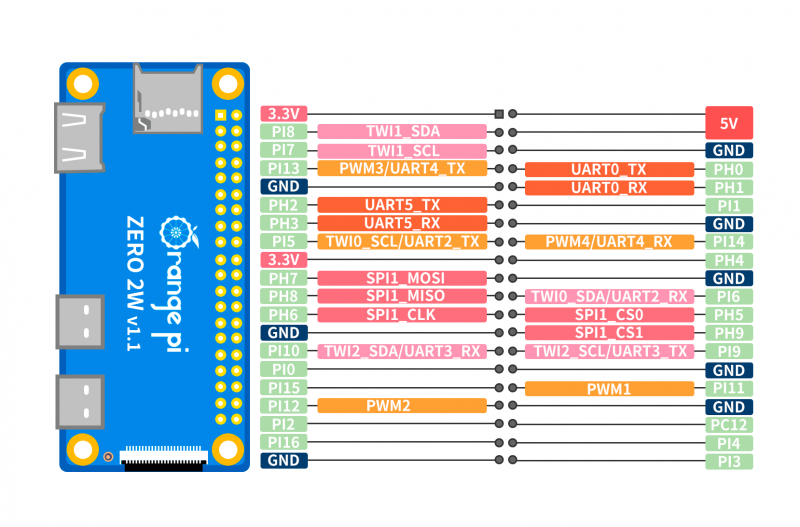
NanoBot also runs on the **Orange Pi Zero 2W** (it is detected automatically from `/proc/device-tree/model`). The wiring is the same as on the Raspberry Pi, except that the red and green LED pins are different (the blue LED and the button are on the same physical pins):
- **Ground** (physical **Pin 34**) ⇒ Push **button** terminal 1 (of 2) and to the 2 RGB LED common cathode pins.
- **PI11** (physical **Pin 32**) ⇒ **Red** RGB LED pins via resistors. (Hardware `PWM1`)
- **PI12** (physical **Pin 33**) ⇒ **Green** RGB LED pins via resistors. (Hardware `PWM2`)
- **PC12** (physical **Pin 36**) ⇒ **Blue** RGB LED pins via resistors. (Simple GPIO output, no PWM)
- **PI16** (physical **Pin 37**) ⇒ Push **button** terminal 2 (of 2).
### Orange Pi Zero 2W
NanoBot also runs on the **Orange Pi Zero 2W** (it is detected automatically from `/proc/device-tree/model`). The wiring is the same as on the Raspberry Pi, except that the red and green LED pins are different (the blue LED and the button are on the same physical pins):
- **Ground** (physical **Pin 34**) ⇒ Push **button** terminal 1 (of 2) and to the 2 RGB LED common cathode pins.
- **PI11** (physical **Pin 32**) ⇒ **Red** RGB LED pins via resistors. (Hardware `PWM1`)
- **PI12** (physical **Pin 33**) ⇒ **Green** RGB LED pins via resistors. (Hardware `PWM2`)
- **PC12** (physical **Pin 36**) ⇒ **Blue** RGB LED pins via resistors. (Simple GPIO output, no PWM)
- **PI16** (physical **Pin 37**) ⇒ Push **button** terminal 2 (of 2).
 ## Raspberry Pi OS Platform Preparation
1. Install the latest [Raspberry Pi OS Lite (64-bit)](https://www.raspberrypi.com/software/operating-systems/) Operating System, currently Debian version: 12 (bookworm), on the `Raspberry Pi Zero 2 W` device configuring WiFi network connectivity with internet access. Use the [Raspberry Pi Imager](https://www.raspberrypi.com/software/).
2. After finishing installation, SSH to the Pi and install the required OS packages via:
`sudo apt-get install -y libasound2-dev espeak-ng iw`
3. Disable the Raspberry Pi on-board audio functionality and enable the pwm overlay:
Edit: `/boot/firmware/config.txt`
Add these lines in the end:
```
dtoverlay=vc4-kms-v3d,noaudio
dtoverlay=pwm-2chan
gpu_mem=16
```
4. Also add this line to minimise the GPU memory usage: `gpu_mem=32`
5. Edit: `/etc/NetworkManager/NetworkManager.conf` and add the lines:
```
[connection]
# Values are 0 (use default), 1 (ignore/don't touch), 2 (disable) or 3 (enable).
wifi.powersave = 2
```
6. Reboot.
7. You can now connect the USB sound card to the USB port and use the `alsamixer` command to check if it is detected and if everything looks right. You should also adjust the mic sensitivity.
8. Install the .NET 8 platform in the `/opt/dotnet8` directory, by following the official installation guides for the Raspberry Pi (e.g. https://learn.microsoft.com/en-us/dotnet/iot/deployment). Also set the following at the bottom of `/etc/profile`:
```
export DOTNET_ROOT=/opt/dotnet8
export PATH="$DOTNET_ROOT:$PATH"
```
The DOTNET_ROOT environment variable is needed when running .NET executables published as a single file, so it is best to set it as well.
9. Ensure that the `dotnet` command is in the PATH of the `pi` user.
## Orange Pi Zero 2W Platform Preparation
Use this section instead of *Raspberry Pi OS Platform Preparation* when running on an Orange Pi Zero 2W. The steps below assume the user `pi` runs NanoBot (as in the service file in the next section).
1. Install the Orange Pi Ubuntu Minimal (Ubuntu 26.04 or better) image for the Zero 2W and configure WiFi network connectivity with internet access.
2. Install the required OS packages:
`sudo apt-get install -y libasound2-dev espeak-ng gpiod iw`
NanoBot talks to the GPIO chip through **libgpiod 2.x** (the library file `libgpiod.so.3`, Debian package `libgpiod3`). Check with: `ldconfig -p | grep gpiod`.
3. Make sure the hardware PWM outputs for the red and green LEDs (`PWM1` and `PWM2`) are enabled in the Orange Pi device-tree overlay configuration (`/boot/orangepiEnv.txt` or `orangepi-config`). When enabled, the directory `/sys/class/pwm/pwmchip0` exists.
4. Allow the `pi` user to open the GPIO chip. Create the file `/etc/udev/rules.d/99-gpio.rules` with the content:
```
SUBSYSTEM=="gpio", KERNEL=="gpiochip*", GROUP="gpio", MODE="0660"
```
The `pi` user must be a member of the `gpio` group (check with `groups`). NanoBot uses `/dev/gpiochip1`: on this board `gpiochip0` is the small 32-line PL bank and `gpiochip1` (`300b000.pinctrl`) is the main 288-line controller (check with `gpiodetect`).
5. Allow the `pi` user to control the PWM outputs. Create the file `/etc/udev/rules.d/99-pwm.rules` with the content:
```
SUBSYSTEM=="pwm", ACTION=="add|change", RUN+="/bin/sh -c 'chgrp -R gpio /sys%p && chmod -R g=u /sys%p'"
```
6. Reload the rules and re-trigger:
```
sudo udevadm control --reload-rules
sudo udevadm trigger --subsystem-match=gpio
sudo udevadm trigger --subsystem-match=pwm --action=add
```
Check that `/dev/gpiochip1` and `/sys/class/pwm/pwmchip0/export` are now accessible to the `gpio` group (`ls -l`).
7. Let NanoBot and the wake-word engine share the microphone. By default the sound card is opened exclusively, so the wake-word recorder fails with `PvRecorder runtime error` as soon as a conversation has opened the microphone. Edit `/etc/asound.conf` and set the content below (the example is for the *Anker PowerConf S330*, whose capture device only supports `S16_LE`, 2 channels, 48000 Hz):
```
pcm.s330_in {
type dsnoop
ipc_key 5978293
slave {
pcm "hw:S330,0"
format S16_LE
rate 48000
channels 2
}
}
pcm.!default {
type asym
playback.pcm {
type hw
card S330
}
capture.pcm {
type plug
slave.pcm "s330_in"
}
}
ctl.!default {
type hw
card S330
}
```
For a different USB sound card, find the card name with `aplay -l` and its capture format with `arecord -D hw:,0 --dump-hw-params -d 1 /dev/null`, and adjust the `card` names and the `slave` settings accordingly.
Verify that two recordings can run at once: `arecord -D default -f S16_LE -r 16000 -c 1 -d 5 /dev/null & arecord -D default -f S16_LE -r 16000 -c 1 -d 5 /dev/null`
8. The Orange Pi also has an on-board audio codec and an HDMI audio device that cannot capture from a microphone. ALSA may log `unable to open slave` lines for them. These messages are harmless.
9. Reboot, then install the .NET 8 platform as in steps 8 and 9 of the Raspberry Pi preparation.
## Software Installation and Configuration
1. Create the directory `/home/pi/NanoBot` and copy/extract the release build files there.
2. Check if NanoBot works when running from the console by running: `./NanoBot`.
3. Now install NanoBot as a service. Create and edit the file `/etc/systemd/system/NanoBot.service` with the following content:
```
[Unit]
Description=NanoBot service
After=network-online.target
Wants=network-online.target
StartLimitIntervalSec=0
[Service]
Environment=DOTNET_ROOT=/opt/dotnet8
Environment=PATH=/opt/dotnet8:/usr/bin:/bin
ExecStart=/home/pi/NanoBot/NanoBot
WorkingDirectory=/home/pi/NanoBot/
User=pi
AmbientCapabilities=CAP_NET_BIND_SERVICE
Restart=on-failure
RestartSec=5
[Install]
WantedBy=default.target
```
4. Enable and start the `NanoBot` service:
```
systemctl enable NanoBot.service
systemctl start NanoBot
```
Optionally, add permissions to user `pi` to open hidraw devices. Only needed if using an external USB speakerphone (such as the *Anker PowerConf S330*) for enabling control of the consumer controls (buttons) and lights. Create and edit the file: `/etc/udev/rules.d/99-hidraw-permissions.rules` and set the content:
```
KERNEL=="hidraw*", SUBSYSTEM=="hidraw", MODE="0660", GROUP="pi"
```
Save the file and exit.
Reload rules and re-trigger:
```
sudo udevadm control --reload-rules
sudo udevadm trigger
```
## License and Acknowledgements
NanoBot is licensed under the [MIT license](../LICENSE).
The NanoBot [NanoWakeWord](https://github.com/samartzidis/NanoWakeWord) wake-word detection engine is powered by the [ONNX Runtime](https://onnxruntime.ai/) and was based on the [openWakeWord](https://github.com/dscripka/openWakeWord) project.
The NanoBot 3d printable shell was remixed from the _Wee-bo_ robot model by _Sparrows89_.
## Disclaimer
This software and documentation are provided "as-is" without any warranties, express or implied, including but not limited to warranties of merchantability, fitness for a particular purpose, or non-infringement. The authors and contributors shall not be liable for any damages, including but not limited to direct, indirect, incidental, special, consequential, or punitive damages arising out of the use or inability to use this software or documentation, even if advised of the possibility of such damages.
Use of this software is at your own risk. The authors and contributors assume no responsibility for any damage, injury, or loss that may result from the use, misuse, or inability to use this software or the associated hardware components.
## Raspberry Pi OS Platform Preparation
1. Install the latest [Raspberry Pi OS Lite (64-bit)](https://www.raspberrypi.com/software/operating-systems/) Operating System, currently Debian version: 12 (bookworm), on the `Raspberry Pi Zero 2 W` device configuring WiFi network connectivity with internet access. Use the [Raspberry Pi Imager](https://www.raspberrypi.com/software/).
2. After finishing installation, SSH to the Pi and install the required OS packages via:
`sudo apt-get install -y libasound2-dev espeak-ng iw`
3. Disable the Raspberry Pi on-board audio functionality and enable the pwm overlay:
Edit: `/boot/firmware/config.txt`
Add these lines in the end:
```
dtoverlay=vc4-kms-v3d,noaudio
dtoverlay=pwm-2chan
gpu_mem=16
```
4. Also add this line to minimise the GPU memory usage: `gpu_mem=32`
5. Edit: `/etc/NetworkManager/NetworkManager.conf` and add the lines:
```
[connection]
# Values are 0 (use default), 1 (ignore/don't touch), 2 (disable) or 3 (enable).
wifi.powersave = 2
```
6. Reboot.
7. You can now connect the USB sound card to the USB port and use the `alsamixer` command to check if it is detected and if everything looks right. You should also adjust the mic sensitivity.
8. Install the .NET 8 platform in the `/opt/dotnet8` directory, by following the official installation guides for the Raspberry Pi (e.g. https://learn.microsoft.com/en-us/dotnet/iot/deployment). Also set the following at the bottom of `/etc/profile`:
```
export DOTNET_ROOT=/opt/dotnet8
export PATH="$DOTNET_ROOT:$PATH"
```
The DOTNET_ROOT environment variable is needed when running .NET executables published as a single file, so it is best to set it as well.
9. Ensure that the `dotnet` command is in the PATH of the `pi` user.
## Orange Pi Zero 2W Platform Preparation
Use this section instead of *Raspberry Pi OS Platform Preparation* when running on an Orange Pi Zero 2W. The steps below assume the user `pi` runs NanoBot (as in the service file in the next section).
1. Install the Orange Pi Ubuntu Minimal (Ubuntu 26.04 or better) image for the Zero 2W and configure WiFi network connectivity with internet access.
2. Install the required OS packages:
`sudo apt-get install -y libasound2-dev espeak-ng gpiod iw`
NanoBot talks to the GPIO chip through **libgpiod 2.x** (the library file `libgpiod.so.3`, Debian package `libgpiod3`). Check with: `ldconfig -p | grep gpiod`.
3. Make sure the hardware PWM outputs for the red and green LEDs (`PWM1` and `PWM2`) are enabled in the Orange Pi device-tree overlay configuration (`/boot/orangepiEnv.txt` or `orangepi-config`). When enabled, the directory `/sys/class/pwm/pwmchip0` exists.
4. Allow the `pi` user to open the GPIO chip. Create the file `/etc/udev/rules.d/99-gpio.rules` with the content:
```
SUBSYSTEM=="gpio", KERNEL=="gpiochip*", GROUP="gpio", MODE="0660"
```
The `pi` user must be a member of the `gpio` group (check with `groups`). NanoBot uses `/dev/gpiochip1`: on this board `gpiochip0` is the small 32-line PL bank and `gpiochip1` (`300b000.pinctrl`) is the main 288-line controller (check with `gpiodetect`).
5. Allow the `pi` user to control the PWM outputs. Create the file `/etc/udev/rules.d/99-pwm.rules` with the content:
```
SUBSYSTEM=="pwm", ACTION=="add|change", RUN+="/bin/sh -c 'chgrp -R gpio /sys%p && chmod -R g=u /sys%p'"
```
6. Reload the rules and re-trigger:
```
sudo udevadm control --reload-rules
sudo udevadm trigger --subsystem-match=gpio
sudo udevadm trigger --subsystem-match=pwm --action=add
```
Check that `/dev/gpiochip1` and `/sys/class/pwm/pwmchip0/export` are now accessible to the `gpio` group (`ls -l`).
7. Let NanoBot and the wake-word engine share the microphone. By default the sound card is opened exclusively, so the wake-word recorder fails with `PvRecorder runtime error` as soon as a conversation has opened the microphone. Edit `/etc/asound.conf` and set the content below (the example is for the *Anker PowerConf S330*, whose capture device only supports `S16_LE`, 2 channels, 48000 Hz):
```
pcm.s330_in {
type dsnoop
ipc_key 5978293
slave {
pcm "hw:S330,0"
format S16_LE
rate 48000
channels 2
}
}
pcm.!default {
type asym
playback.pcm {
type hw
card S330
}
capture.pcm {
type plug
slave.pcm "s330_in"
}
}
ctl.!default {
type hw
card S330
}
```
For a different USB sound card, find the card name with `aplay -l` and its capture format with `arecord -D hw:,0 --dump-hw-params -d 1 /dev/null`, and adjust the `card` names and the `slave` settings accordingly.
Verify that two recordings can run at once: `arecord -D default -f S16_LE -r 16000 -c 1 -d 5 /dev/null & arecord -D default -f S16_LE -r 16000 -c 1 -d 5 /dev/null`
8. The Orange Pi also has an on-board audio codec and an HDMI audio device that cannot capture from a microphone. ALSA may log `unable to open slave` lines for them. These messages are harmless.
9. Reboot, then install the .NET 8 platform as in steps 8 and 9 of the Raspberry Pi preparation.
## Software Installation and Configuration
1. Create the directory `/home/pi/NanoBot` and copy/extract the release build files there.
2. Check if NanoBot works when running from the console by running: `./NanoBot`.
3. Now install NanoBot as a service. Create and edit the file `/etc/systemd/system/NanoBot.service` with the following content:
```
[Unit]
Description=NanoBot service
After=network-online.target
Wants=network-online.target
StartLimitIntervalSec=0
[Service]
Environment=DOTNET_ROOT=/opt/dotnet8
Environment=PATH=/opt/dotnet8:/usr/bin:/bin
ExecStart=/home/pi/NanoBot/NanoBot
WorkingDirectory=/home/pi/NanoBot/
User=pi
AmbientCapabilities=CAP_NET_BIND_SERVICE
Restart=on-failure
RestartSec=5
[Install]
WantedBy=default.target
```
4. Enable and start the `NanoBot` service:
```
systemctl enable NanoBot.service
systemctl start NanoBot
```
Optionally, add permissions to user `pi` to open hidraw devices. Only needed if using an external USB speakerphone (such as the *Anker PowerConf S330*) for enabling control of the consumer controls (buttons) and lights. Create and edit the file: `/etc/udev/rules.d/99-hidraw-permissions.rules` and set the content:
```
KERNEL=="hidraw*", SUBSYSTEM=="hidraw", MODE="0660", GROUP="pi"
```
Save the file and exit.
Reload rules and re-trigger:
```
sudo udevadm control --reload-rules
sudo udevadm trigger
```
## License and Acknowledgements
NanoBot is licensed under the [MIT license](../LICENSE).
The NanoBot [NanoWakeWord](https://github.com/samartzidis/NanoWakeWord) wake-word detection engine is powered by the [ONNX Runtime](https://onnxruntime.ai/) and was based on the [openWakeWord](https://github.com/dscripka/openWakeWord) project.
The NanoBot 3d printable shell was remixed from the _Wee-bo_ robot model by _Sparrows89_.
## Disclaimer
This software and documentation are provided "as-is" without any warranties, express or implied, including but not limited to warranties of merchantability, fitness for a particular purpose, or non-infringement. The authors and contributors shall not be liable for any damages, including but not limited to direct, indirect, incidental, special, consequential, or punitive damages arising out of the use or inability to use this software or documentation, even if advised of the possibility of such damages.
Use of this software is at your own risk. The authors and contributors assume no responsibility for any damage, injury, or loss that may result from the use, misuse, or inability to use this software or the associated hardware components.