---
title: Organizing PDF receipts
date: '2026-02-12T17:21:14+08:00'
categories:
- how-i-do-things
- coding
- llms
classes: wrap-code
description: Coding agents can automate the tedious middle step of matching downloaded PDF receipts to expenses, making finance workflows much easier to manage.
keywords: [receipts, PDF processing, finance automation, expense management, Codex, workflows]
---
One of my [goals this year](/blog/my-year-in-2025/) is to "Automate finance + tax". Today, I took a baby step by organizing my expenses.
This is my current process:
- STEP 1: Download PDF receipts (from OpenAI, Anthropic, Google, and other cloud/AI services)
- STEP 2: Organize them, so I know which receipt to upload against which expense
- STEP 3: Submit on [SAP Concur](https://www.concursolutions.com/).
All steps are manual as of now. I automated **STEP 2: Organize them**.
After downloading my PDF receipts, I used this set of prompts on [Codex](https://openai.com/codex/) - GPT 5.3 Codex (High)
```markdown
This folder contains a set of PDF receipts.
Write a well-documented Python script `rename_receipts.py` that renames each .pdf into this format: `2026-02-11 Github $20.00 Card-1004.pdf`. Specifically, `YYYY-MM-DD [Service] [Amount] Card-[Last 4 Digits].pdf`.
- The date should be the PAID date, not the invoice date.
- The service should be a single word vendor name, i.e. Github, OpenAI, Anthropic, Weaviate, Cloudflare, Hetzner, nothing else. You only need to process these formats for now.
- The amount should be the total charged, two decimals, with the currency symbol (e.g. $20.00)
- Include the last 4 digits of the card used for payment.
If the target file exists
- If it is identical to the source file, delete the source file.
- If it is different, print a warning and skip renaming.
Run and test.
---
Fall back to the invoice date only if the date of payment is not available. Skip Card-xxxx if unavailable.
---
How is '2025-12-02 Weaviate $25.00 Card-1004.pdf' different from 'Receipt-2796-1548.pdf'?
---
Let's just check the file sizes, then.
---
Simplify the code further where there are clear opportunities. Retain the documentation and improve readability.
---
Skip processing files that already begin with YYYY-MM-DD.
---
I've added three Google receipts. Update the code to process them the same way and run it. The service name to use is "Google".
---
I've added a new Google PDF. Include that as well, with the service name as Google.
---
I added 2 Hostgator PDFs - h1.pdf and h2.pdf. Incorporate these as well.
---
Any clean-up to the script that might help?
---
Yes, apply these. Also, '2026-01-01 Google $0.80 Card-xxxx.pdf' should be '2026-01-31 Google $0.80 Card-xxxx.pdf' -- we want to go with the statement date.
```
The result is [rename_receipts.py](https://github.com/sanand0/scripts/blob/live/rename_receipts.py) and it works well enough for my receipts over the last 3-4 months.
---
I've partly automated STEP 1 as well. The trickiest bit was converting [Google Pay Activity](https://payments.google.com/gp/w/u/0/home/activity) into PDF receipts. This is what it looks like>
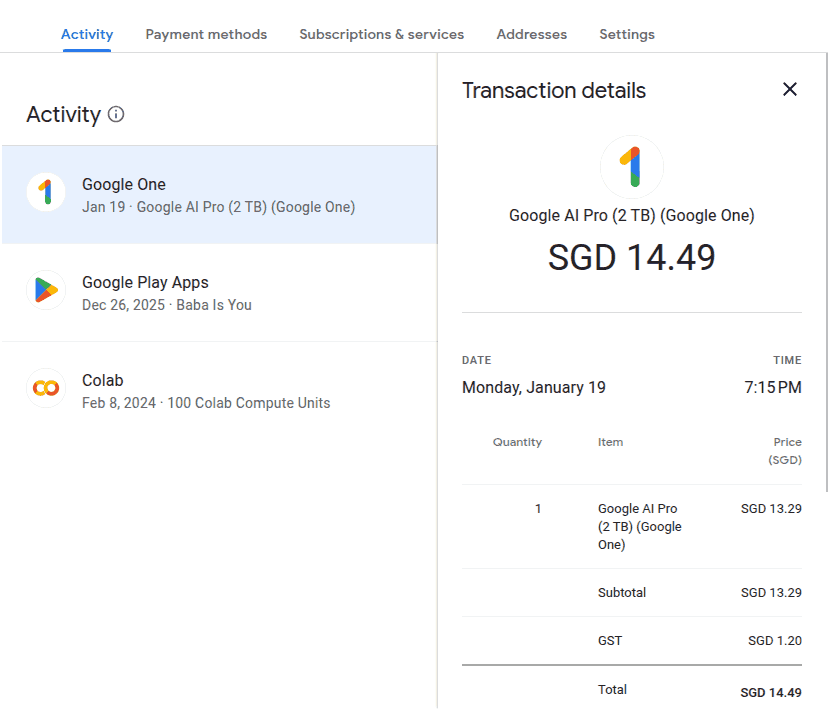
To convert the right side into PDF receipts, [I asked Claude](https://claude.ai/share/17f0bccb-eef4-41c8-8705-a626737c7825) which gave me this script:
```js
(async function() {
const element = $0.closest(".b3-section-outer-content");
const doc = element.ownerDocument;
const win = doc.defaultView || doc.parentWindow;
// Collect all CSS
let css = "";
for (const sheet of doc.styleSheets) {
try {
css += Array.from(sheet.cssRules).map(r => r.cssText).join("\n");
} catch (e) {
if (sheet.href) css += `@import url('${sheet.href}');\n`;
}
}
// If in iframe, try to get parent styles too
if (win !== window) {
try {
for (const sheet of window.document.styleSheets) {
try {
css += Array.from(sheet.cssRules).map(r => r.cssText).join("\n");
} catch (e) {
if (sheet.href) css += `@import url('${sheet.href}');\n`;
}
}
} catch (e) {}
}
const html = `
${element.outerHTML}
`;
const blob = new Blob([html], { type: "text/html;charset=utf-8" });
const url = URL.createObjectURL(blob);
const newWin = window.open(url, "_blank");
if (newWin) {
newWin.addEventListener("load", () => {
setTimeout(() => {
newWin.print();
}, 500);
});
} else {
console.error("❌ Popup blocked. Please allow popups for this site.");
}
})();
```
Now, I can right-click any receipt in Google Pay Activity, select "Inspect", then run this script in the console. It opens a new tab with just that receipt, which I print to PDF.
---
The next step is to automate STEP 3: the Concur submission itself. But that's for next quarter!