
Mac Space Cleaner
## 🚀 Overview
Mac Space Cleaner is a lightweight and efficient macOS application designed to help users free up disk space by identifying and removing unnecessary files, caches, and temporary data.
## 🛠 Features
- 🔍 **Scan & Analyze**: Detects junk files, cache, logs, and unnecessary system data.
- 🗑 **One-Click Cleanup**: Remove unwanted files with a single click.
- 🏎 **Performance Boost**: Optimizes storage for a smoother macOS experience.
- 🔒 **Safe Cleaning**: Ensures a safe and secure cleanup process.
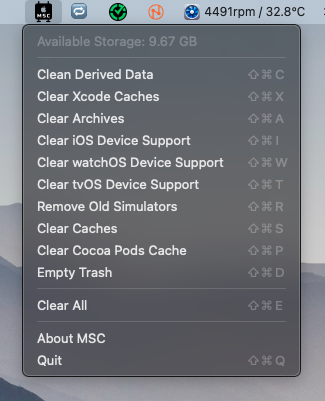
## 📸 Preview
## 📦 Installation Guide
Follow the steps below to install and use the application.
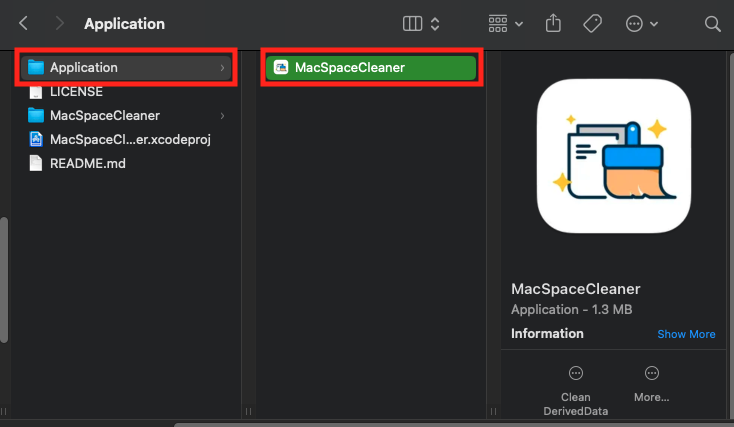
**1. Download and Locate the Application**
- After downloading the MacSpaceCleaner application, navigate to the Application folder in Finder and locate MacSpaceCleaner.
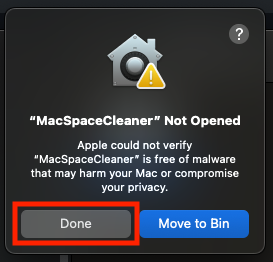
**2. Open the Application**
- Double-click on MacSpaceCleaner to open it. If you see a warning stating that "Apple cannot verify the application," proceed to the next step.
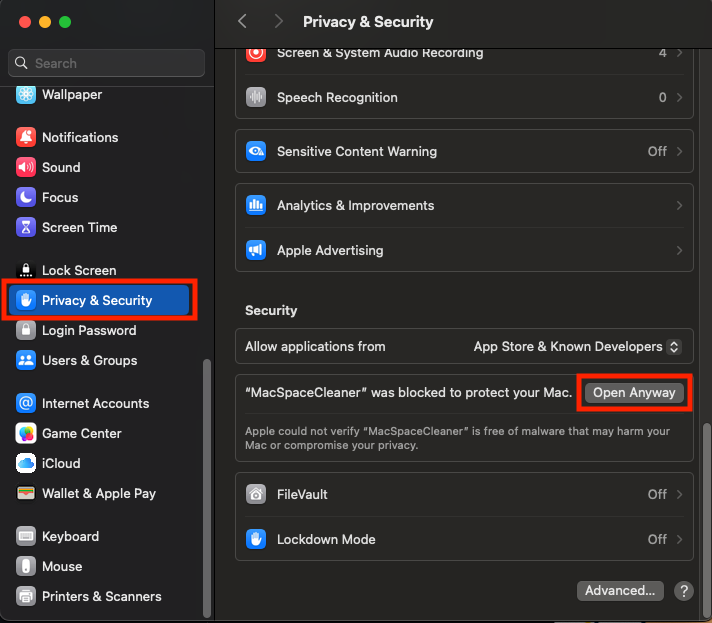
**3. Allow the Application in Privacy & Security**
- Go to System Settings > Privacy & Security.
- Scroll down to the Security section.
- Click Open Anyway to allow the application to run.
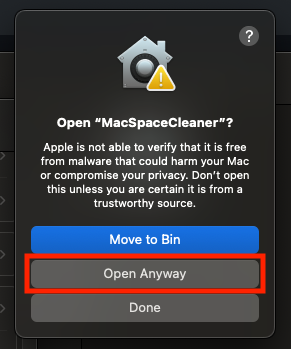
**4. Confirm the Security Prompt**
- A new dialog will appear asking you to confirm the action. Click Open Anyway.
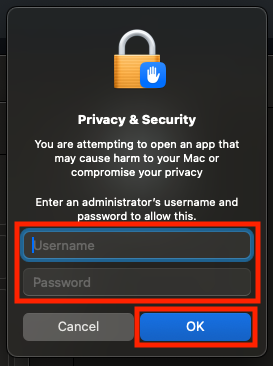
**5. Enter Administrator Credentials**
- To finalize the process, enter your administrator username and password, then click OK.
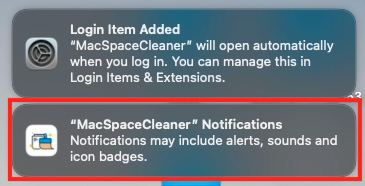
**6. Application Launch and Notifications**
- Once the application is successfully opened, you may receive a notification confirming that MacSpaceCleaner has been added to Login Items and will run automatically when you log in.
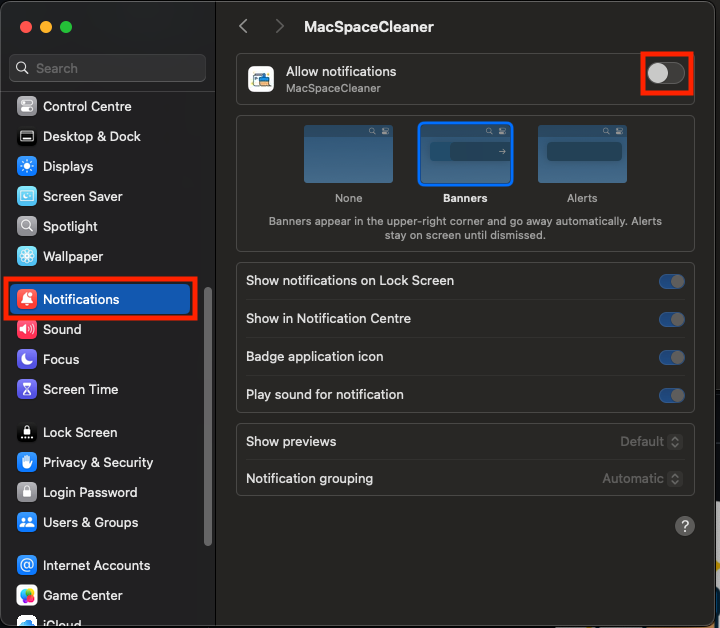
**7. Enable Notifications (Optional)**
- To receive alerts and notifications from MacSpaceCleaner, follow these steps:
- Go to System Settings > Notifications.
- Locate MacSpaceCleaner in the list.
- Toggle Allow Notifications to enable alerts.
## 💻 Usage
Click on the **MacSpaceCleaner** menu bar icon and select the desired cleanup option:
| Option | Shortcut | Description |
|----------------------------------|-------------|--------------------------------------------------------------------------------|
| **Available Storage** | - | Shows available disk space on your Mac, automatically updates every minute. |
| **Clean DerivedData** | ⇧⌥C | Deletes Xcode’s DerivedData folder to free up space and resolve build issues. |
| **Clear Xcode Caches** | ⇧⌘X | Removes cached data related to Xcode projects. |
| **Clear Archives** | ⇧⌘A | Deletes old archived builds from Xcode to save storage. |
| **Clear iOS Device Support** | ⇧⌘I | Removes unnecessary iOS device support files. |
| **Clear watchOS Device Support** | ⇧⌘W | Deletes outdated watchOS device support files. |
| **Clear tvOS Device Support** | ⇧⌘T | Removes old tvOS device support files. |
| **Remove Old Simulators** | ⇧⌘R | Deletes outdated and unused iOS simulators. |
| **Clear Caches** | ⇧⌘S | Clears general cache files to optimize system performance. |
| **Clear CocoaPods Cache** | ⇧⌘P | Deletes cached dependencies from CocoaPods to reclaim space. |
| **Empty Trash** | ⇧⌘D | Empties the system trash to free up storage. |
| **Clear All** | ⇧⌘E | Runs all cleaning operations at once for a full cleanup. |
| **Quit** | ⇧⌘Q | Exits the application and removes the menu bar icon. |
## 💡 Best Practices
- Run **MacSpaceCleaner** periodically to maintain a clean development environment.
- Use **Remove Old Simulators** after Xcode updates to clear outdated versions.
- Ensure that you no longer need archived builds before deleting them.
## ⚙️ Requirements
- macOS 12 Monterey or later
- At least 50MB of free disk space
## 🛠 Built With
- Swift (UIKit & AppKit)
- macOS FileManager API
- Sandbox-safe operations
## 🤝 Contributing
We welcome contributions! To contribute:
1. Fork the repository
2. Create a new branch (`feature-branch`)
3. Commit your changes
4. Push to your branch and submit a Pull Request
## 📝 License
This project is licensed under the MIT License - see the [LICENSE](LICENSE) file for details.
## 📬 Contact
For questions or feature requests, reach out at [sanketk.j.2020@gmail.com](mailto:sanketk.j.2020@gmail.com) or open an issue.
## 👤 Author
[Sanket Khatri](https://github.com/sanketk2020)
## ☕ Support Me
If you find this project valuable, please consider supporting me by scanning or tapping the QR code below. Your support is greatly appreciated!