DSH Mobile
Secure, live LAN access to DeepSeek Harness from a phone.





简体中文 · Changelog
> DSH Mobile 0.2.1 is a DeepSeek Harness community plugin for the DeepSeek Harness 0.1.1 series (verified with 0.1.1-rc.2); the native app supports Android only.
>
> **0.2.1 update**: adds an Android app download entry to the desktop Mobile Access panel.
>
> Upgrading the app from 0.1.3 or earlier requires one uninstall and re-pair; older app builds can still use the 0.2.1 LAN path.
Download Android app 0.2.1 · Release notes and checksums
DSH Mobile is a DeepSeek Harness plugin that lets a mobile browser or the Android app connect over a protected LAN or an optional Tailscale Funnel or cpolar remote path. Local and remote access keep the same sessions, Workspaces, messages, and tools while using separate switches and paired-device stores without modifying DeepSeek Harness source.
Mobile access runs on its own HTTPS origin with pinned certificates; only paired devices pass validation.
It also lets you customize the phone from a DSH conversation: `/mobile `.
## What it does
- **Continue DSH work from a phone**: the same sessions, Workspaces, messages, and tools, in real time.
- **Customize the phone UI by talking to DSH**: change the mobile layout, interactions, and features from a conversation; open pages refresh within seconds.
- **A dedicated touch layout**: session drawer, tool details, settings, question cards, and composer reorganized for phones.
- **Auto-discovery, no re-pairing**: Wi-Fi, hotspot, or IP changes normally recover automatically.
- **Three pairing options**: scan a QR code, paste a pairing link, or enter a key.
A paired device is fully trusted and can operate the DSH on the computer. Use this only on a trusted home or office LAN, or a trusted VPN.
## Quick start
With an installed `dsh` command:
```powershell
dsh plugin --profile web add dsh-mobile@latest
dsh plugin --profile web exec dsh-mobile setup
dsh --profile web
```
From a DeepSeek Harness source checkout:
```powershell
corepack enable; pnpm install
pnpm dsh plugin --profile web add dsh-mobile@latest
pnpm dsh plugin --profile web exec dsh-mobile setup
pnpm dsh --profile web
```
Or via the plugin market (optional):
```powershell
dsh plugin --profile web add dshmarket
```
Restart DSH, then search for **dsh-mobile** under **Settings → Plugin Market** and install it with one click.
`setup` automatically selects and remembers the current LAN; Wi-Fi, hotspot, and IP changes normally recover without re-pairing. Use `--address 192.168.x.x` only when automatic selection fails. Settings, certificates, devices, and customization files live under `$DSH_HOME/mobile-access/`.
After installation, start DSH and use the connection guide below to choose LAN or remote access.
## Connection guide
LAN and remote access are independent connections. Prefer LAN while the phone is near the computer for the lowest latency, and enable remote access only when leaving that network. Each path keeps its own switch, paired devices, and sign-in state.
### Local network
Use this when the phone and computer share Wi-Fi, Ethernet, or a phone hotspot. It is the default and simplest path.
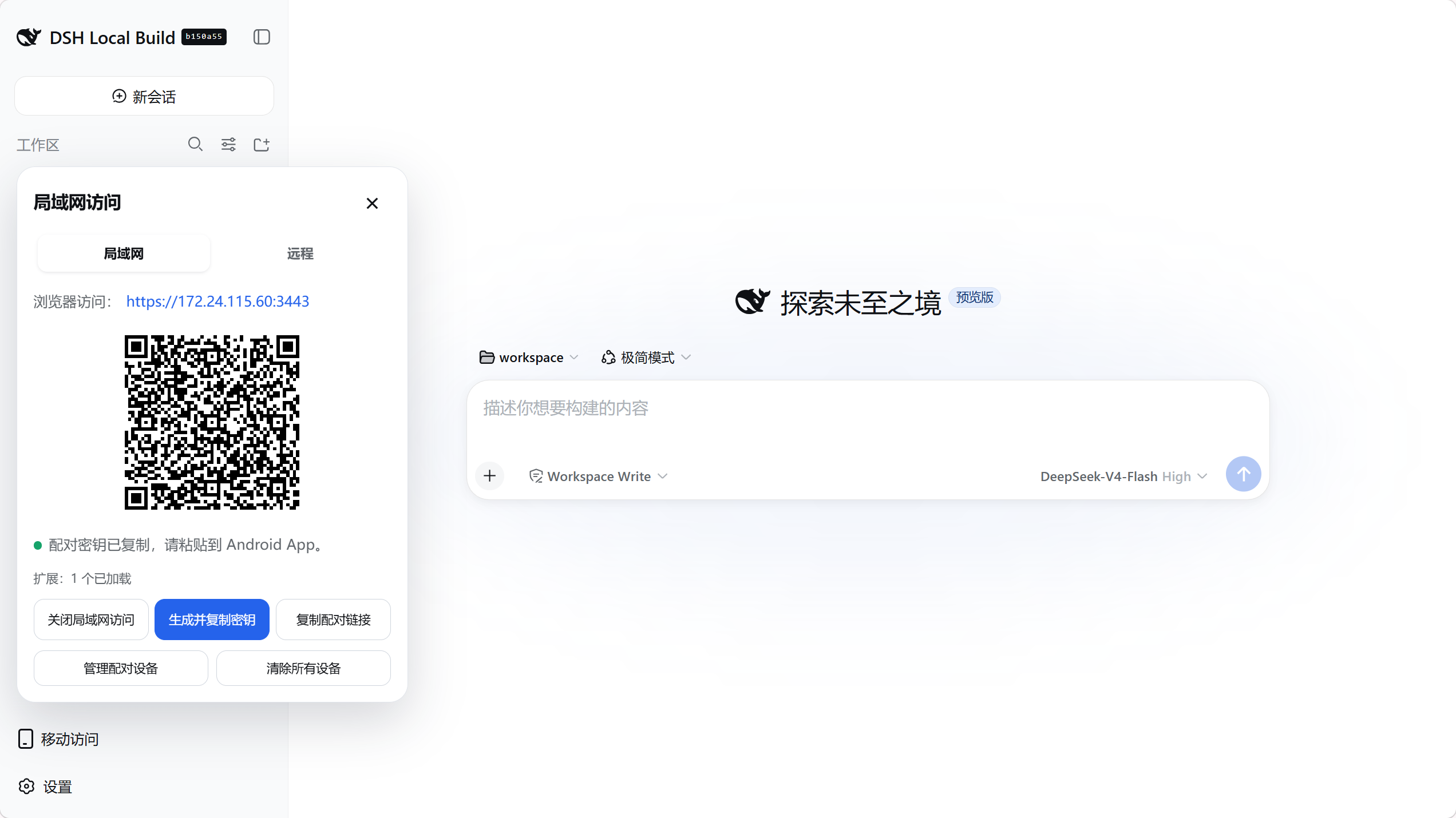
1. Connect the phone and computer to the same local network, then open **Mobile Access → Local network** in the lower-left corner of DeepSeek Harness.
2. If needed, select **Enable local access**, then select **Create and copy key**. The panel displays a pairing QR code.
3. In the Android app, open **Local network**, scan for computers, select the device, then scan the QR code or paste the pairing key.
4. Pairing creates persistent device trust. Later app launches discover and connect automatically; Wi-Fi, hotspot, and DHCP address changes normally do not require pairing again.
The app is optional: select **Copy pairing link** and open it in a mobile browser. The browser must manually trust the plugin certificate on the first visit.
### Remote access
Use this after the phone leaves the computer's network. Remote access is disabled by default, and the phone needs neither the Tailscale nor cpolar app.
Remote providers may impose bandwidth and connection limits: the [cpolar Free plan](https://svip.cpolar.com/pricing) currently lists 1 Mbps, while [Tailscale Funnel](https://tailscale.com/docs/features/tailscale-funnel#requirements-and-limitations) has non-configurable bandwidth limits. DSH Mobile reduces transfer and waiting with 10-message pages, load-on-scroll history, gzip, and a persistent WebSocket, but it cannot raise provider quotas.
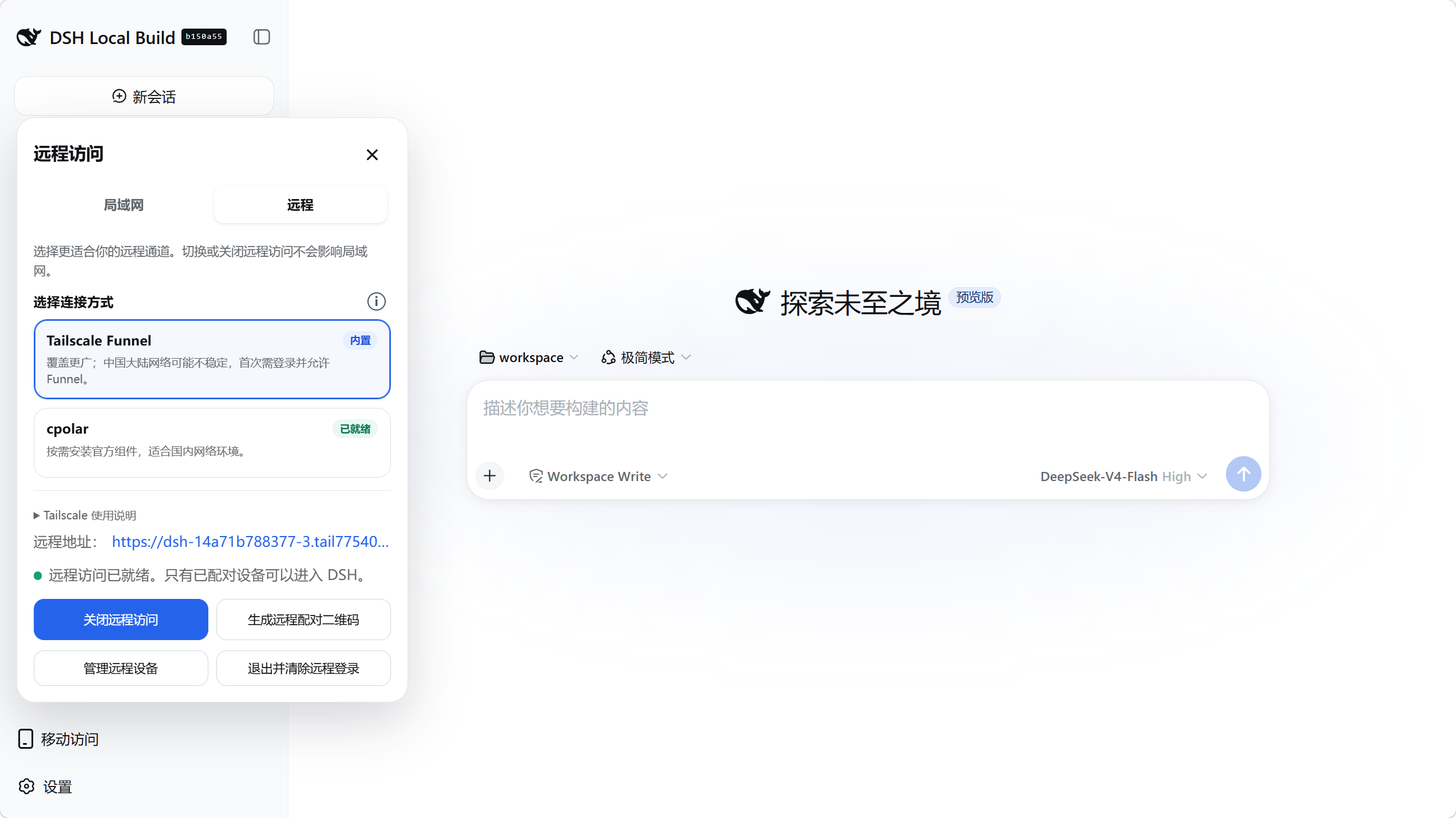
1. Open **Mobile Access → Remote** in the lower-left corner of DeepSeek Harness and choose a provider:
- **Tailscale Funnel**: select **Enable remote access**, complete the one-time Tailscale sign-in on the official page, follow the panel prompt to allow Funnel, then return to DSH and wait until the connection is ready.
- **cpolar**: select **Install official component**, sign in to the cpolar dashboard and obtain an Authtoken, paste it, then select **Save and connect**. The component is downloaded into the plugin's private directory only after confirmation.
2. When the panel reports that remote access is ready, select **Create remote pairing QR code**.
3. In the Android app, open **Remote access** and scan the QR code to create its separate pairing.
4. The app keeps device trust and reconnects automatically. Disable remote access when it is not needed; LAN access remains unchanged.
Tailscale Funnel has broad reach but may be unreliable from mainland China. cpolar is better suited to mainland networks. The plugin validates the pinned component download, stores its configuration and program entirely under `$DSH_HOME/mobile-access/`, and can remove them completely from the panel.
The public remote origin still requires DSH device pairing. Managed remote components currently support Windows x64.
## Extend and customize
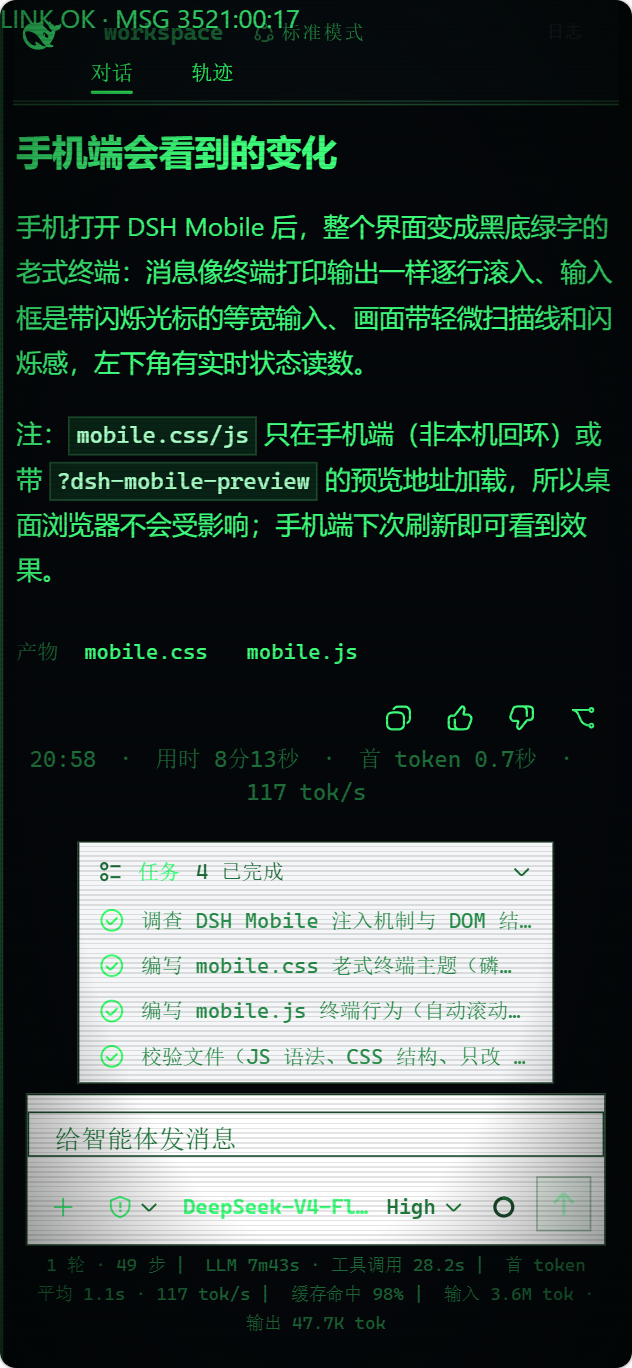
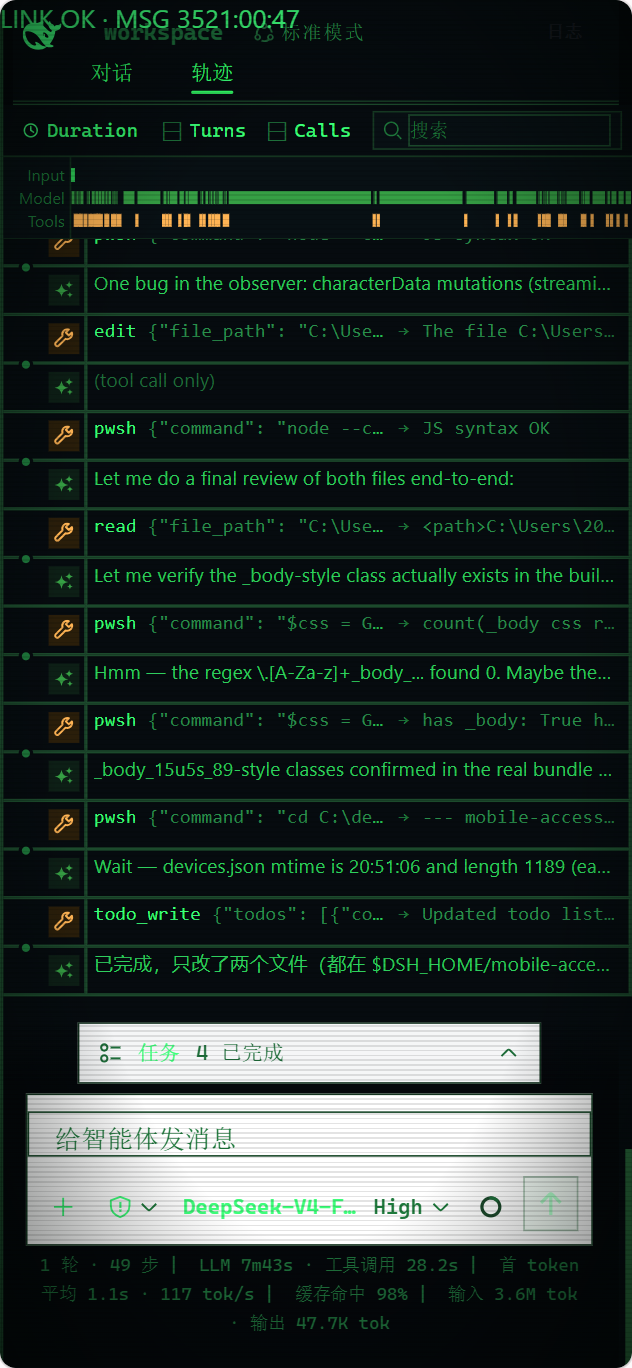
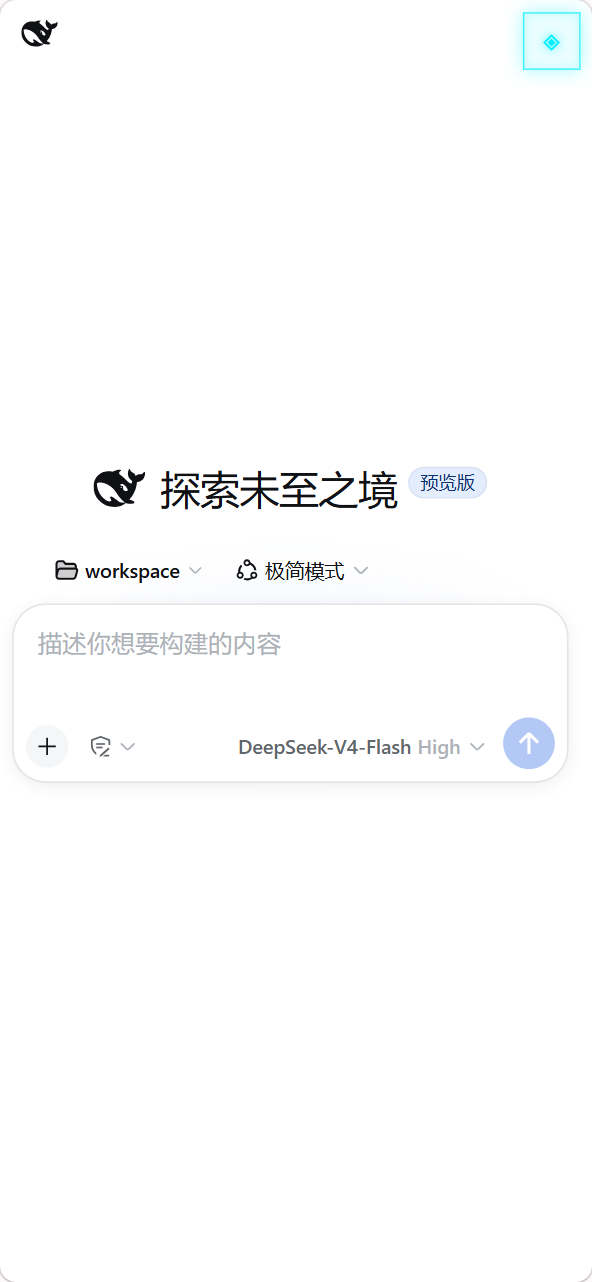
Type `/mobile ` in a DSH conversation, and DSH edits the phone client's files for you; changes apply within a few seconds. For example:
```text
/mobile turn the phone UI into an old CRT terminal, with messages scrolling like terminal output
```
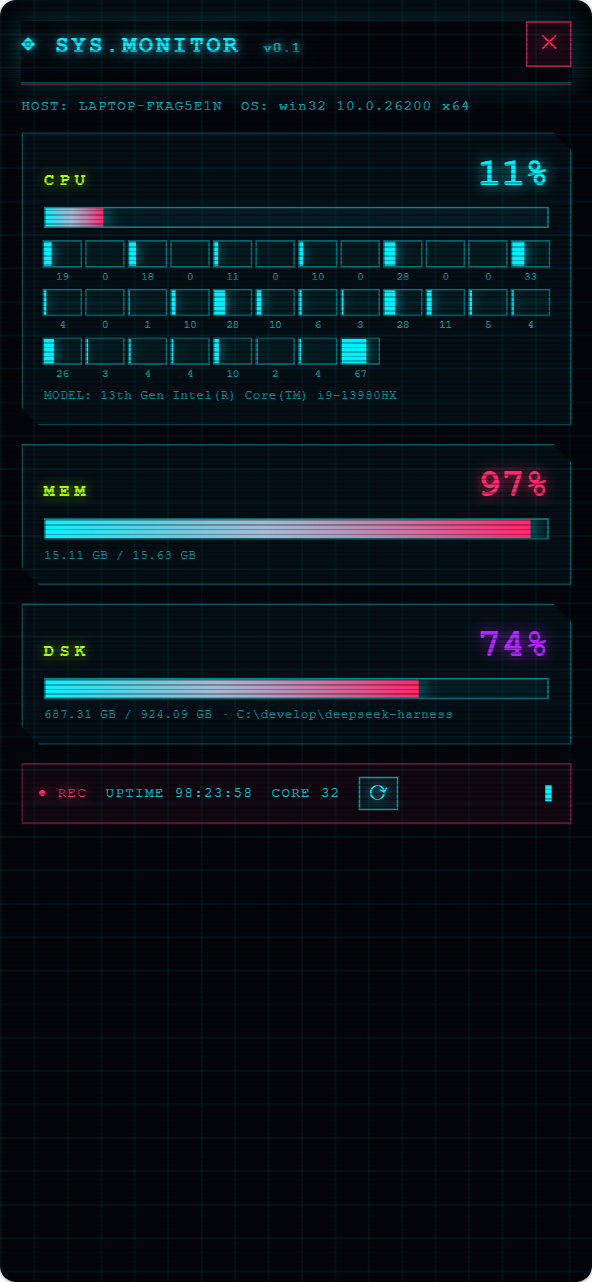
It can also drive computer capabilities the phone can use, like reading the machine's live state:
```text
/mobile give the phone a cyberpunk-style computer monitor panel that shows live CPU, memory, and disk usage
```
Two kinds of changes are supported: the phone UI itself (theme, layout, buttons), and computer capabilities the phone can use (browsing computer files, running programs on the computer). `/mobile` hands the request to the DSH agent, which edits files under the local DSH configuration directory (`$DSH_HOME/mobile-access/`); the phone client applies them automatically. UI changes live in `mobile.css`/`mobile.js`. Computer capabilities come from extensions under `extensions/`, whose `host.mjs` runs with the local user's privileges on the computer. DeepSeek Harness source is not modified.
You can even use an extension to connect to SillyTavern running on the same computer, give it a lightweight mobile frontend, and open it from the same app.
> `host.mjs` has the same privileges as a local program. Create and run only computer-side extensions that you understand and trust.
The examples above, applied:
## App or mobile browser
| Client | Best for | Notes |
| --- | --- | --- |
| Android app | Everyday use | Separate Local and Remote entries; LAN discovery and a system-trusted remote HTTPS path |
| Mobile browser | Temporary or cross-platform | Open the HTTPS origin shown by Mobile Access; trust the certificate manually on first visit |
The Android app is a thin Kotlin WebView shell and contains no frontend copy; mobile browsers load the same page. For compatibility diagnosis, append `?frontend=stock` to the browser URL to temporarily use the previous desktop-page adaptation.
## How it works
```mermaid
flowchart LR
Phone["Android / mobile browser"] -->|"LAN HTTPS"| Lan["LAN gateway"]
Phone -->|"remote HTTPS"| Remote["separate remote gateway"]
Lan --> Gateway["DSH Mobile Gateway Core"]
Remote --> Gateway
Gateway -->|"loopback proxy"| DSH["Stock DSH Web and Host"]
```
Three layers: the Host face for discovery, pairing, HTTPS, loopback proxying, and extension registration; the Client face for the dedicated mobile layout and extension SDK; and the Android app for a narrow native bridge. Neither the DeepSeek Harness source nor its desktop page on port 3080 is modified.
## Security
- Use the LAN listener only on a trusted home, office, or hotspot network; do not add your own port forwarding.
- A remote origin is publicly reachable, but unpaired requests cannot enter DSH; turn the remote switch off when it is not needed.
- cpolar downloads a pinned official build only after confirmation and verifies its size and SHA-256. It installs no system service, PATH entry, or startup task, and plugin cleanup removes its managed files.
- A paired device is a fully trusted DeepSeek Harness operator and can run tools on the computer; revoke lost devices from the computer.
- The LAN gateway listens only while Mobile Access is enabled; with it off, DSH keeps running normally on the computer.
See [SECURITY.md](SECURITY.md).
## Compatibility
| DSH Mobile | Verified DeepSeek Harness releases |
| --- | --- |
| `0.2.1` | `0.1.0-rc.5`, `0.1.0-rc.6`, `0.1.0-rc.7`, `0.1.1-rc.2` |
| `0.2.0` | `0.1.0-rc.5`, `0.1.0-rc.6`, `0.1.0-rc.7`, `0.1.1-rc.2` |
| `0.1.4` | `0.1.0-rc.5`, `0.1.0-rc.6`, `0.1.0-rc.7`, `0.1.1-rc.2` |
At startup, the plugin verifies the DSH Host version and the frontend dependencies required by the mobile layout; an unverified release fails with a clear error instead of serving a broken page. CI also tracks the DSH main branch layout contract. If a DSH upgrade reports an incompatibility, update DSH Mobile first.
## Uninstall
```powershell
dsh plugin --profile web remove dsh-mobile
```
To remove local plugin data first:
```powershell
dsh plugin --profile web exec dsh-mobile purge --yes
dsh plugin --profile web remove dsh-mobile
```
Source users replace `dsh` with `pnpm dsh`.
## Development
```powershell
npm ci
npm run verify
```
See the [Android guide](apps/mobile/README.md). Licensed under [Apache-2.0](LICENSE).