# Troubleshooting your Tulip
Here's a page to check out when you're having problems with your Tulip. We'll list common issues and their resolutions, and then general diagnostic help.
This is for hardware Tulip CCs you got from [Makerfabs](https://tulip.computer). If your hardware Tulip is DIY or you're having issues in Tulip Desktop or Tulip Web, you can ask the community for help.
## Reach us
For help, the community of people that can help out with Tulip are
* Our [Discord](https://discord.gg/TzBFkUb8pG)
* [Tulip GitHub issues](https://github.com/shorepine/tulipcc/issues)
* [Tulip GitHub discussions](https://github.com/shorepine/tulipcc/discussions)
* [Makerfabs contact](https://makerfabs.com/contact.html)
**Please remember**: Tulip is supported by volunteers. Makerfabs will send you a tested board free of hardware faults, and the community will do our best to support you using Tulip and fixing any issues with the firmware. If you're having issues, please follow this guide and [contact us](#reach-us) with any questions, but be patient!
**If you believe the board you received has a hardware fault, contact Makerfabs directly, the community does not handle shipping / testing / fulfillment.** But please try to resolve and diganose the issue here first.
## Always upgrade Tulip first
First, always [upgrade your Tulip to the latest firmware](tulip_flashing.md). If your Tulip is running, and the keyboard and Wi-Fi are working, try to first upgrade to a release by running `tulip.wifi(ssid, password)` and then `tulip.upgrade()`. Take a note of the date of the Tulip OS that shows on the screen after you reboot it. The date should match our [rolling `tulip` release](https://github.com/shorepine/tulipcc/releases/tag/tulip), which we update on every change. If it's older, try again, or try to flash manually.
 ## Tulip won't start properly, black screen
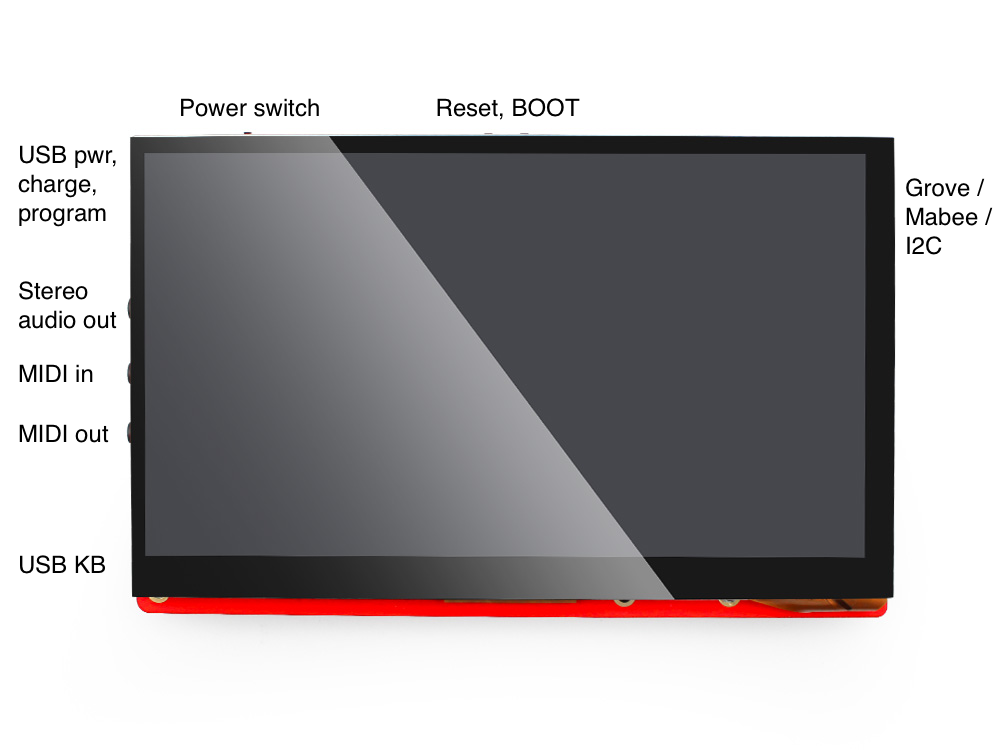
First be certain that your Tulip is switched on (the switch to the right, facing your Tulip) and being powered properly. Even if your Tulip is not showing the REPL screen, it should be showing an LCD backlight glow (there are no other LEDs on Tulip.) Make sure your USB connector or battery is seated properly. The USB adapter should support at least 1A of power.
If this only started after you connected an **AMYboard** or another Grove / I2C accessory, it's likely a power problem -- see [Tulip reboots in a loop after connecting an AMYboard or I2C accessory](#tulip-reboots-in-a-loop-after-connecting-an-amyboard-or-i2c-accessory).
If you think your Tulip is powered properly but not booting, try to first reset the Tulip. Flip the power switch on and off a few times. Hit the RESET button a few times. Try unplugging your USB keyboard if you have one. Wait a few seconds. There are rare instances (usually temperature related) where the chip may not boot properly, but a reboot or two will usually fix it.
If your Tulip makes a startup noise but doesn't show the screen, there may be an issue with your screen. The startup "bleep" should only happen if the system boots properly.
## Tulip reboots in a loop after connecting an AMYboard or I2C accessory
If your Tulip boots fine on its own but starts **rebooting in a loop** (or won't reach the REPL) once you connect an [AMYboard](amyboard/README.md) or another I2C / Grove accessory, it's almost always a **power** problem -- not a fault with either board.
Powered accessories draw current from the Tulip's 3.3V rail through the Grove port. An AMYboard, for example, pulls about **350 mA** on top of the Tulip's own ~575 mA. If your power source can't supply both, the Tulip's voltage sags and the ESP32-S3's brownout protection resets the chip, over and over.
To fix it:
* Use a **strong 5V supply (1–2 A)** and a known-good **data** USB-C cable, plugged in directly -- not through a hub.
* **Power the accessory separately** if it can be -- an AMYboard, for instance, has its own USB-C and will run off that (it uses the highest voltage present) instead of drawing from the Tulip.
* [Check the diagnostic output](#see-the-diagnostic-output-of-a-tulip) over the serial port -- a `Brownout detector was triggered` message confirms it's power.
* Try a freshly charged battery, or USB vs. battery, to rule out a weak source.
## Flash a Tulip manually
You may also want to flash manually if your Tulip is not booting at all, or we release a fix for your issue that hasn't hit a release yet. To do so, see the section called [flash Tulip from a compiled release](tulip_flashing.md). This requires a USB cable between a computer and the `USB program` port on your Tulip (the top one.)
## See the diagnostic output of a Tulip
The `USB program / charge` port shows up as a serial port on your computer when connected. You can see the output of the Tulip as it boots (and also control your Tulip from the port) if you connect it to your computer and run a serial terminal program. On Mac and Linux you can use the built in `screen`: just find your serial port (do `ls /dev/*usb*` and find one that looks like `/dev/cu.wchusbserialXXXX`) and run `screen /dev/cu.wchusbserialXXX 115200`. On other platforms find any serial terminal and connect it to the Tulip USB port and run it at 115200 baud.
Then push the `BOOT` button on your Tulip and you'll see screen like:
```
...
Starting MIDI on core 0
UART MIDI running on core 0
Starting USB host on core 1
Starting display on core 0
Starting touchscreen on core 0
Resetting touch i2c RST pin twice
this is the TULIP SPECIAL esp_lcd
Starting Alles on core 1
i2s started blck 8 dout 5 lrck 2
Starting Sequencer (timer)
```
This screen may show important diagnostic or troubleshooting information that you can [share with us](#reach-us)
## Tulip's touchscreen doesn't work at all
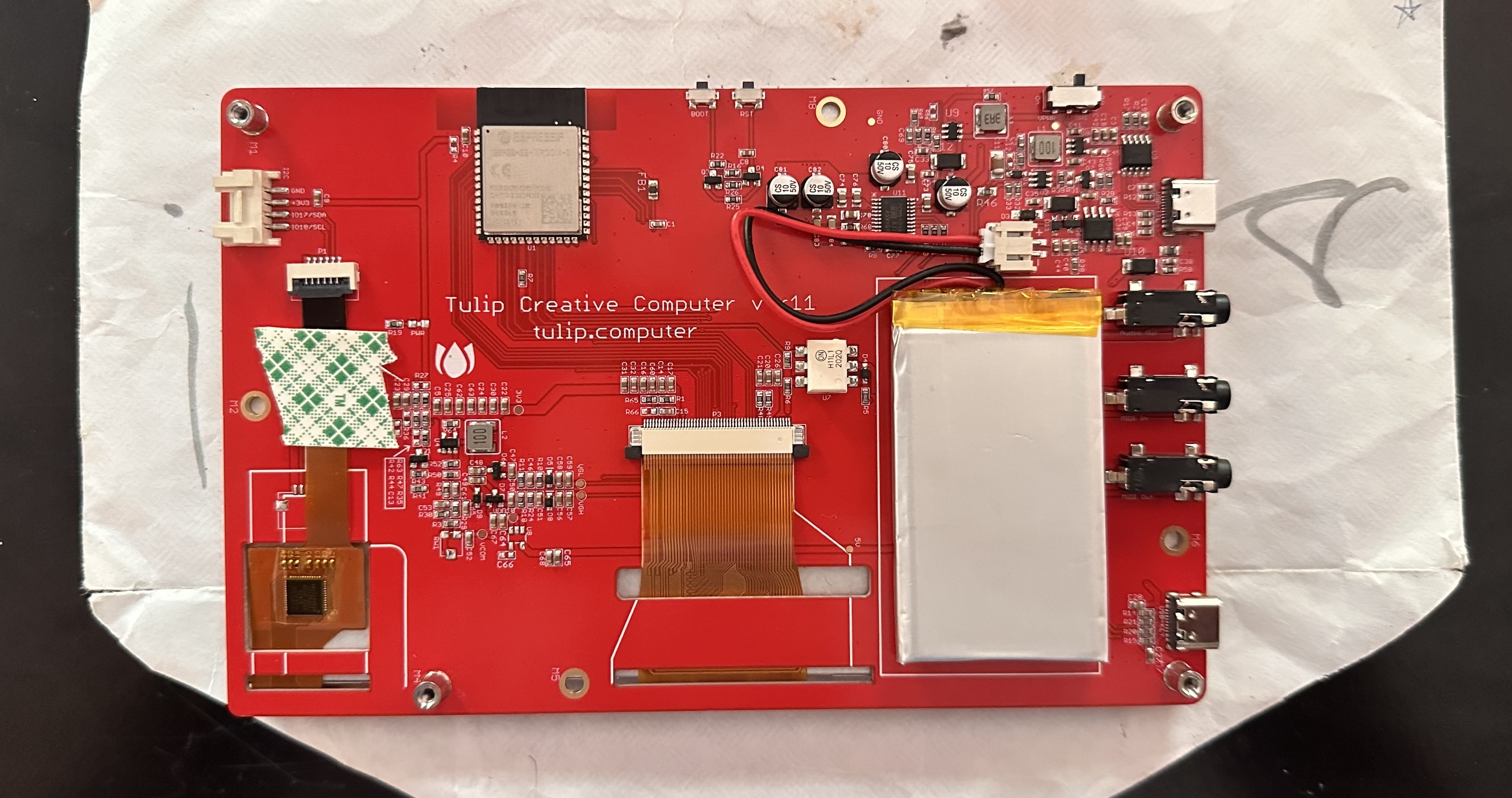
If your touchscreen appears to not respond, the most likely explanation is the touchscreen panel cable got loose during shipping or if you installed a battery. We're working with Makerfabs to tape down this connector for higher reliability. But it's a quick fix if it happens to you. Just take off the back case, unseat the touch connector (labeled above) by pulling up the black clamp, and push back in the cable tight, applying a little pressure. Clamp it back, and take a piece of tape to hold down the cable right at the connector, like this:
## Tulip won't start properly, black screen
First be certain that your Tulip is switched on (the switch to the right, facing your Tulip) and being powered properly. Even if your Tulip is not showing the REPL screen, it should be showing an LCD backlight glow (there are no other LEDs on Tulip.) Make sure your USB connector or battery is seated properly. The USB adapter should support at least 1A of power.
If this only started after you connected an **AMYboard** or another Grove / I2C accessory, it's likely a power problem -- see [Tulip reboots in a loop after connecting an AMYboard or I2C accessory](#tulip-reboots-in-a-loop-after-connecting-an-amyboard-or-i2c-accessory).
If you think your Tulip is powered properly but not booting, try to first reset the Tulip. Flip the power switch on and off a few times. Hit the RESET button a few times. Try unplugging your USB keyboard if you have one. Wait a few seconds. There are rare instances (usually temperature related) where the chip may not boot properly, but a reboot or two will usually fix it.
If your Tulip makes a startup noise but doesn't show the screen, there may be an issue with your screen. The startup "bleep" should only happen if the system boots properly.
## Tulip reboots in a loop after connecting an AMYboard or I2C accessory
If your Tulip boots fine on its own but starts **rebooting in a loop** (or won't reach the REPL) once you connect an [AMYboard](amyboard/README.md) or another I2C / Grove accessory, it's almost always a **power** problem -- not a fault with either board.
Powered accessories draw current from the Tulip's 3.3V rail through the Grove port. An AMYboard, for example, pulls about **350 mA** on top of the Tulip's own ~575 mA. If your power source can't supply both, the Tulip's voltage sags and the ESP32-S3's brownout protection resets the chip, over and over.
To fix it:
* Use a **strong 5V supply (1–2 A)** and a known-good **data** USB-C cable, plugged in directly -- not through a hub.
* **Power the accessory separately** if it can be -- an AMYboard, for instance, has its own USB-C and will run off that (it uses the highest voltage present) instead of drawing from the Tulip.
* [Check the diagnostic output](#see-the-diagnostic-output-of-a-tulip) over the serial port -- a `Brownout detector was triggered` message confirms it's power.
* Try a freshly charged battery, or USB vs. battery, to rule out a weak source.
## Flash a Tulip manually
You may also want to flash manually if your Tulip is not booting at all, or we release a fix for your issue that hasn't hit a release yet. To do so, see the section called [flash Tulip from a compiled release](tulip_flashing.md). This requires a USB cable between a computer and the `USB program` port on your Tulip (the top one.)
## See the diagnostic output of a Tulip
The `USB program / charge` port shows up as a serial port on your computer when connected. You can see the output of the Tulip as it boots (and also control your Tulip from the port) if you connect it to your computer and run a serial terminal program. On Mac and Linux you can use the built in `screen`: just find your serial port (do `ls /dev/*usb*` and find one that looks like `/dev/cu.wchusbserialXXXX`) and run `screen /dev/cu.wchusbserialXXX 115200`. On other platforms find any serial terminal and connect it to the Tulip USB port and run it at 115200 baud.
Then push the `BOOT` button on your Tulip and you'll see screen like:
```
...
Starting MIDI on core 0
UART MIDI running on core 0
Starting USB host on core 1
Starting display on core 0
Starting touchscreen on core 0
Resetting touch i2c RST pin twice
this is the TULIP SPECIAL esp_lcd
Starting Alles on core 1
i2s started blck 8 dout 5 lrck 2
Starting Sequencer (timer)
```
This screen may show important diagnostic or troubleshooting information that you can [share with us](#reach-us)
## Tulip's touchscreen doesn't work at all
If your touchscreen appears to not respond, the most likely explanation is the touchscreen panel cable got loose during shipping or if you installed a battery. We're working with Makerfabs to tape down this connector for higher reliability. But it's a quick fix if it happens to you. Just take off the back case, unseat the touch connector (labeled above) by pulling up the black clamp, and push back in the cable tight, applying a little pressure. Clamp it back, and take a piece of tape to hold down the cable right at the connector, like this:
 ## The touchscreen works but it's hard to tap on the menu, switch or quit buttons
Some newer Tulips are shipping with the touch panel in a slightly different orientation, which is causing our old calibration to not be accurate. First, try the Tulip World `paint.py` program to test your touchscreen: do `world.download('paint.py')` and then `run('paint')`. A few users have then said that their newer Tulip's touchscreen acts better with a `y_scale` of 0.75 instead of our default 0.8. To fix that, `run('calibrate')` and note its suggested `touch_delta`, and write it to your `boot.py` when it asks. Calibration does not currently guess the `y_scale`, so `edit('boot.py')` and change the `0.8` in `touch_delta()` (the last of 3 numbers) to `0.75`. Try `run('paint')` again! If you're still stuck, [we'd love your help debugging this more!](#reach-us)
## Your USB keyboard's keys are typing the wrong characters
Tulip uses low-level USB keyboard scan codes to translate from keypresses to ASCII to show on screen. We don't have the luxury of an OS to translate these for us across all the different locales of keyboards in the world! If your keyboard is not a US keyboard, you'll need to remap some keys. You can do it one at a time with `tulip.remap()`, which will interactively prompt you for key mappings.
- If you have a German keyboard, Tulip community friend `olav` has contributed a keymap on Tulip World: get it from `world.download('keys_de.txt')`.
- If you have a French keyboard, `remis` made `world.download('keys_fr.txt')`
You can see how to use them with Olav's `boot.py`: `world.download('boot.py', 'olav')`
## USB computer keyboard not working
If your USB computer keyboard is not working, please find us on [issues](https://github.com/shorepine/tulipcc/issues) or the [Discord](https://discord.gg/TzBFkUb8pG) and we'll help out! We have tested many keyboards but since we have to build this support ourselves there are likely edge cases we haven't run into yet.
## The Mabee DAC is not correctly sending CV / Gate values to your modular synthesizer
If you can't seem to control your modular synths with the DAC, please note that the current revision of the Mabee DACis set up for TRS (stereo 3.5mm) cables. To use with a mono modular patch cable, you will need a stereo to mono adapter or cable plugged in at the DAC end. You can also slightly pull out a mono cable's connector. We are working on fixing this for future batches and will update this when we do.
## You hear a hum from Tulip's audio output when MIDI in is connected
If a loud mains hum (60 Hz / 120 Hz, or 50 Hz / 100 Hz outside North America) appears on Tulip's audio output as soon as you connect another synth or controller to Tulip's **TRS MIDI in**, you're hearing a **ground loop**: current Tulip boards connect the MIDI in jack's sleeve to ground, and most MIDI gear grounds the cable shield at its MIDI out (as the MIDI spec says to). With audio cables also connecting the two devices, hum current flows through the loop and into the audio path.
The fix is to **break the ground connection in the MIDI cable** -- MIDI data travels on a current loop that doesn't use ground at all, so nothing else changes:
* Use a **ground-lifted ("ground loop isolator") TRS adapter or cable**, or a TRS-to-DIN adapter with the sleeve unconnected.
* Or take a DIN MIDI cable and **cut the shield connection at one end**.
* Powering both devices from the same outlet/strip, or patching the MIDI through a device that doesn't create the loop, can also quiet it.
Future board revisions will lift the MIDI in sleeve in hardware -- see [issue #1198](https://github.com/shorepine/tulipcc/issues/1198).
## Any other issues
Please [reach out](#reach-us) with any other issues, and we'll add them here.
## The touchscreen works but it's hard to tap on the menu, switch or quit buttons
Some newer Tulips are shipping with the touch panel in a slightly different orientation, which is causing our old calibration to not be accurate. First, try the Tulip World `paint.py` program to test your touchscreen: do `world.download('paint.py')` and then `run('paint')`. A few users have then said that their newer Tulip's touchscreen acts better with a `y_scale` of 0.75 instead of our default 0.8. To fix that, `run('calibrate')` and note its suggested `touch_delta`, and write it to your `boot.py` when it asks. Calibration does not currently guess the `y_scale`, so `edit('boot.py')` and change the `0.8` in `touch_delta()` (the last of 3 numbers) to `0.75`. Try `run('paint')` again! If you're still stuck, [we'd love your help debugging this more!](#reach-us)
## Your USB keyboard's keys are typing the wrong characters
Tulip uses low-level USB keyboard scan codes to translate from keypresses to ASCII to show on screen. We don't have the luxury of an OS to translate these for us across all the different locales of keyboards in the world! If your keyboard is not a US keyboard, you'll need to remap some keys. You can do it one at a time with `tulip.remap()`, which will interactively prompt you for key mappings.
- If you have a German keyboard, Tulip community friend `olav` has contributed a keymap on Tulip World: get it from `world.download('keys_de.txt')`.
- If you have a French keyboard, `remis` made `world.download('keys_fr.txt')`
You can see how to use them with Olav's `boot.py`: `world.download('boot.py', 'olav')`
## USB computer keyboard not working
If your USB computer keyboard is not working, please find us on [issues](https://github.com/shorepine/tulipcc/issues) or the [Discord](https://discord.gg/TzBFkUb8pG) and we'll help out! We have tested many keyboards but since we have to build this support ourselves there are likely edge cases we haven't run into yet.
## The Mabee DAC is not correctly sending CV / Gate values to your modular synthesizer
If you can't seem to control your modular synths with the DAC, please note that the current revision of the Mabee DACis set up for TRS (stereo 3.5mm) cables. To use with a mono modular patch cable, you will need a stereo to mono adapter or cable plugged in at the DAC end. You can also slightly pull out a mono cable's connector. We are working on fixing this for future batches and will update this when we do.
## You hear a hum from Tulip's audio output when MIDI in is connected
If a loud mains hum (60 Hz / 120 Hz, or 50 Hz / 100 Hz outside North America) appears on Tulip's audio output as soon as you connect another synth or controller to Tulip's **TRS MIDI in**, you're hearing a **ground loop**: current Tulip boards connect the MIDI in jack's sleeve to ground, and most MIDI gear grounds the cable shield at its MIDI out (as the MIDI spec says to). With audio cables also connecting the two devices, hum current flows through the loop and into the audio path.
The fix is to **break the ground connection in the MIDI cable** -- MIDI data travels on a current loop that doesn't use ground at all, so nothing else changes:
* Use a **ground-lifted ("ground loop isolator") TRS adapter or cable**, or a TRS-to-DIN adapter with the sleeve unconnected.
* Or take a DIN MIDI cable and **cut the shield connection at one end**.
* Powering both devices from the same outlet/strip, or patching the MIDI through a device that doesn't create the loop, can also quiet it.
Future board revisions will lift the MIDI in sleeve in hardware -- see [issue #1198](https://github.com/shorepine/tulipcc/issues/1198).
## Any other issues
Please [reach out](#reach-us) with any other issues, and we'll add them here.