#  Excalidraw Converter
**A command line tool for porting Excalidraw diagrams to Gliffy, draw.io and Mermaid.**
[Excalidraw](https://excalidraw.com/) is great for sketching diagrams as part of a design process, but chances are that you have to redo those sketches for documentation. This tool is made to bridge those tasks.

## Supported Commands
| Command | Description | Documentation |
|-----------|--------------------------------------------------|--------------------------|
| `gliffy` | Convert Excalidraw diagrams to Gliffy format | [Usage](#gliffy--drawio) |
| `mermaid` | Convert Excalidraw diagrams to Mermaid format | [Usage](#mermaid) |
## Getting Started
### Installation
#### MacOS with [Homebrew](https://brew.sh/) (stable)
```shell
brew install excalidraw-converter
```
Excalidraw Converter
**A command line tool for porting Excalidraw diagrams to Gliffy, draw.io and Mermaid.**
[Excalidraw](https://excalidraw.com/) is great for sketching diagrams as part of a design process, but chances are that you have to redo those sketches for documentation. This tool is made to bridge those tasks.

## Supported Commands
| Command | Description | Documentation |
|-----------|--------------------------------------------------|--------------------------|
| `gliffy` | Convert Excalidraw diagrams to Gliffy format | [Usage](#gliffy--drawio) |
| `mermaid` | Convert Excalidraw diagrams to Mermaid format | [Usage](#mermaid) |
## Getting Started
### Installation
#### MacOS with [Homebrew](https://brew.sh/) (stable)
```shell
brew install excalidraw-converter
```
Latest releases
Use this tap to stay on the latest releases that have not (yet) been added to the official Homebrew Formulae:
```shell
brew install sindrel/tap/excalidraw-converter
```
#### Installation for other OSes
Download a compatible binary from the [Releases](https://github.com/sindrel/excalidraw-converter/releases) page.
If you're a Linux or MacOS user, move it to your local bin folder to make it available in your environment (optional).
## Quick Start
Convert your Excalidraw diagram by running:
```sh
exconv -i
```
See below for details on each command, available options and examples.
## Command Usage & Examples
### Gliffy & Draw.io
Converts to a Gliffy compatible format, which can be imported directly into services like [Gliffy](https://www.gliffy.com/), [Gliffy for Confluence](https://marketplace.atlassian.com/apps/254/gliffy-diagrams-for-confluence), [draw.io](https://draw.io) or [draw.io for Confluence](https://www.drawio.com/doc/drawio-confluence-cloud).
**Usage:**
- Mac/Linux:
```sh
exconv gliffy -i my-diagram.excalidraw
```
- Windows:
```sh
exconv.exe gliffy -i C:\path\to\my-diagram.excalidraw
```
**Flags:**
```sh
-h, --help help for gliffy
-i, --input string input file path
-o, --output string output file path (default "your_file.gliffy")
```
#### Importing in Gliffy
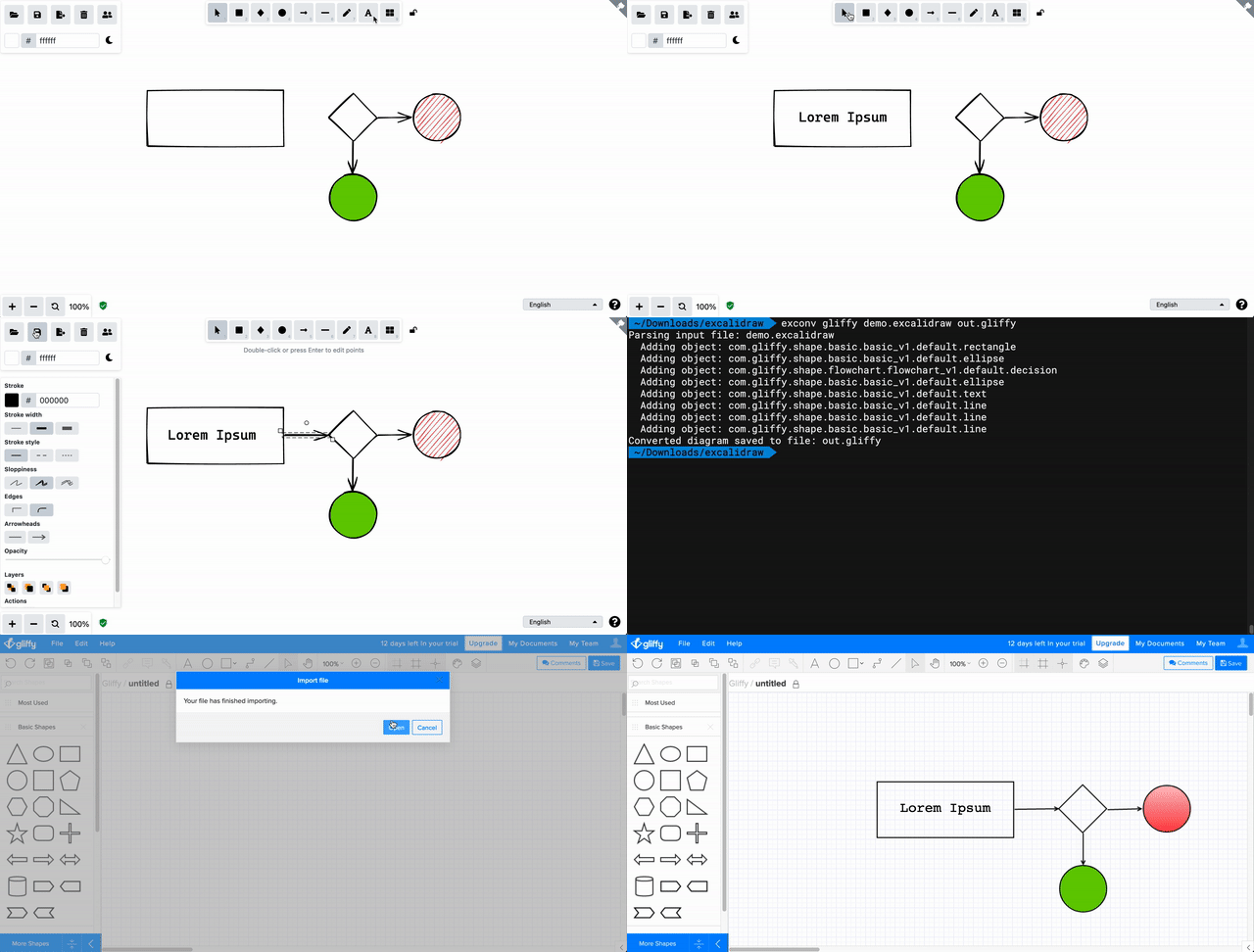
After converting your diagram(s), import them into Gliffy (or draw.io) using the standard Import dialog. Mermaid diagrams can be pasted or included in markdown files or compatible tools.
---
### Mermaid
Converts to a [Mermaid](https://mermaid.js.org) diagram that can be used for a variety of cases, such as being included in markdown files [on GitHub](https://docs.github.com/en/get-started/writing-on-github/working-with-advanced-formatting/creating-diagrams), [GitLab](https://handbook.gitlab.com/handbook/tools-and-tips/mermaid/), [MkDocs](https://mkdocs-mermaid2.readthedocs.io/en/master/) or [Docusaurus](https://docusaurus.io/docs/next/markdown-features/diagrams).
> [!NOTE]
> * *Currently only supports conversion to flowcharts.*
> * *Only elements that are connected by arrows, or contained inside a connected element, are included.*
**Usage:**
- Mac/Linux:
```sh
exconv mermaid -i my-diagram.excalidraw
```
- Windows:
```sh
exconv.exe mermaid -i C:\path\to\my-diagram.excalidraw
```
**Flags:**
```sh
-d, --direction string flow direction 'default', 'top-down', 'left-right', 'right-left' or 'bottom-top' (default "top-down")
-h, --help help for mermaid
-i, --input string input file path
-o, --output string output file path (default "your_file.mermaid")
-p, --print-to-stdout print output to stdout instead of a file
```
#### Validate a converted diagram
You can validate and customize a converted diagram using tools like [Mermaid Live Editor](https://mermaid.live).
#### Import a converted diagram back into Excalidraw
After converting your diagram(s), you can use the [Mermaid to Excalidraw playground](https://mermaid-to-excalidraw.vercel.app/) to convert it back to the Excalidraw format.
Note that some styling attributes could be lost as part of the conversion and import process.
#### Example diagram embedded in markdown
Click to expand
```mermaid
flowchart
subgraph N0 [" "]
N4(("Hello!"))
N2{"Lorem Ipsum"}
subgraph N1 ["Example"]
N5("Sit Amet")
N3["Dolor"]
end
end
N2 --> N3
N2 --> N5
style N4 stroke:#e03131,stroke-width:2,fill:#ffffff,color:#e03131;
style N5 stroke:#1e1e1e,fill:#ffc9c9,font-size:90%;
style N3 stroke-dasharray: 2 2,stroke:#1e1e1e,stroke-width:2,fill:#ffec99,font-size:90%;
style N2 stroke-dasharray: 5 5,stroke:#1e1e1e,fill:#b2f2bb,font-size:90%;
style N0 stroke:#1e1e1e,stroke-width:2,fill:#a5d8ff;
style N1 stroke:#1e1e1e,fill:#e7f5ff,font-size:90%;
```
---
## Features
All fixed shapes and most styling and text options are supported.
### Shapes
| Shape | Gliffy | Mermaid |
|----------------------|:------:|:-------:|
| Rectangle | ✅ | ✅ |
| Rounded rectangle | ✅ | ✅ |
| Diamond | ✅ | ✅ |
| Ellipse | ✅ | ✅ |
| Arrow | ✅ | ✅ |
| Line | ✅ | ✅ |
| Image | ✅ | ➖ |
| Free drawing (pencil)| ✅ | ➖ |
| Library graphics* | ✅ | ➖ |
### Text
| Text Option | Gliffy | Mermaid |
|------------------------------|:------:|:-------:|
| Font family (Normal/Code) | ✅ | ➖ |
| Font size | ✅ | ✅ |
| Font color | ✅ | ✅ |
| Horizontal alignment | ✅ | ➖ |
| Vertical alignment | ✅ | ➖ |
| Text contained in shapes | ✅ | ✅ |
### Styling
| Styling Option | Gliffy | Mermaid |
|------------------------------|:------:|:-------:|
| Canvas background color | ✅ | ➖ |
| Fill color | ✅ | ✅ |
| Fill style (hachure/cross) | ✅ | ➖ |
| Stroke color | ✅ | ✅ |
| Stroke width | ✅ | ✅ |
| Opacity | ✅ | ➖ |
| Links | ➖ | ✅ |
*\* Library graphics are not fully supported (experimental).*
## Compatibility with draw.io
Converted Gliffy diagrams should also work in the online version of [draw.io](https://draw.io).
In draw.io, you can import a diagram by simply opening the file from your device. If you're using draw.io for Confluence, you should be able use [the import dialog](https://drawio-app.com/blog/draw-io-for-confluence-now-with-gliffy-import/).
Note that this is [only supported in the online version](https://www.drawio.com/blog/import-gliffy-online) of draw.io, not the desktop app.
## Compatibility with Excalidraw for Obsidian
Diagrams created using the [Excalidraw for Obsidian plugin](https://github.com/zsviczian/obsidian-excalidraw-plugin) must be exported before conversion, as described [here](https://github.com/sindrel/excalidraw-converter/issues/27#issuecomment-1759964572).
## Contributing
See something you'd like to improve? Great! See the [contributing guidelines](CONTRIBUTING.md) for instructions.
## Attributions
* Workflow icons created by Freepik - Flaticon
## Development
Instructions
### Prerequisites:
* Go (see version in `go.mod`)
### Download dependencies
```shell
go mod download
```
### Run tests
```shell
go test -v ./...
```
### Compile and run
```shell
go run ./cmd/main.go
```