
Caprine
Elegant Facebook Messenger desktop app
Caprine is an unofficial and privacy-focused Facebook Messenger app with many useful features.
Caprine is feature complete. However, we welcome contributions for improvements and bug fixes.Website
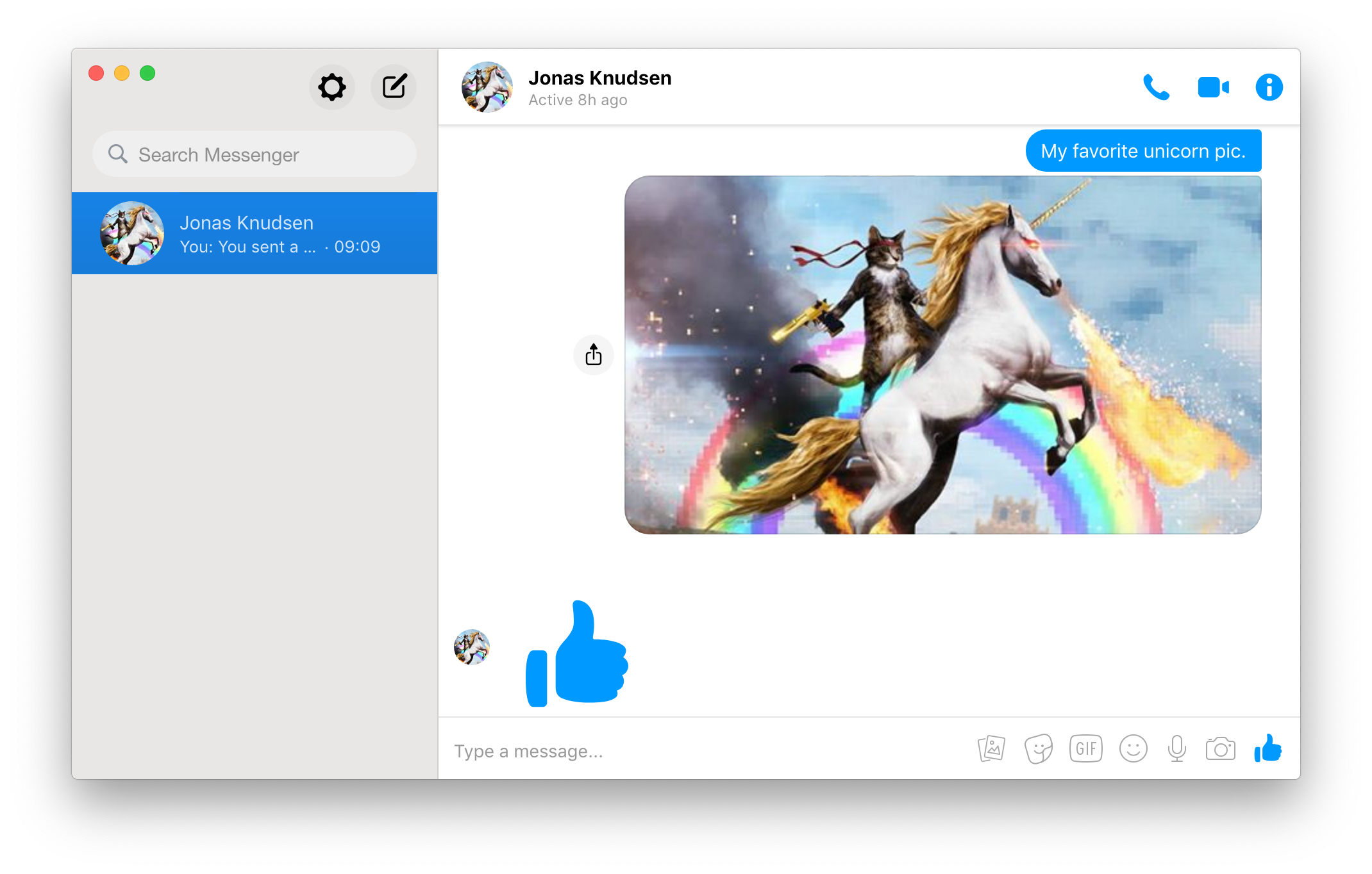
Elegant Facebook Messenger desktop app
Caprine is an unofficial and privacy-focused Facebook Messenger app with many useful features.
Caprine is feature complete. However, we welcome contributions for improvements and bug fixes.
| Distribution | Repository | Automatic Updates | Maintainer | How to install |
|---|---|---|---|---|
| Arch Linux | Community | ✔️ | Frederik Schwan | pacman -S caprine |
| Debian / Ubuntu (manually) | GitHub | ❌ | Official | Download the .deb file |
| Debian / Ubuntu (deb-get) | GitHub | ✔️ | Official | Follow the instructions below |
| Debian / Ubuntu (APT) | Gemfury | ✔️ | Lefteris Garyfalakis | Follow the instructions below |
| RHEL / Fedora / openSUSE | Copr | ✔️ | Dušan Simić | Follow the instructions below |
| AppImage | GitHub | ✔️ | Official | Follow the instructions below |
| Flatpak | Flathub | ✔️ | Dušan Simić | Visit Flathub and follow the instructions |
| Snap | Snapcraft | ✔️ | Official | Visit Snapcraft and follow the instructions |
| Method | Repository | Automatic Updates | Maintainer | How to install |
|---|---|---|---|---|
| Manually | GitHub | ❌ | Official | Download the .exe file |
| Chocolatey | Community | ✔️ | Michael Quevillon | choco install caprine |
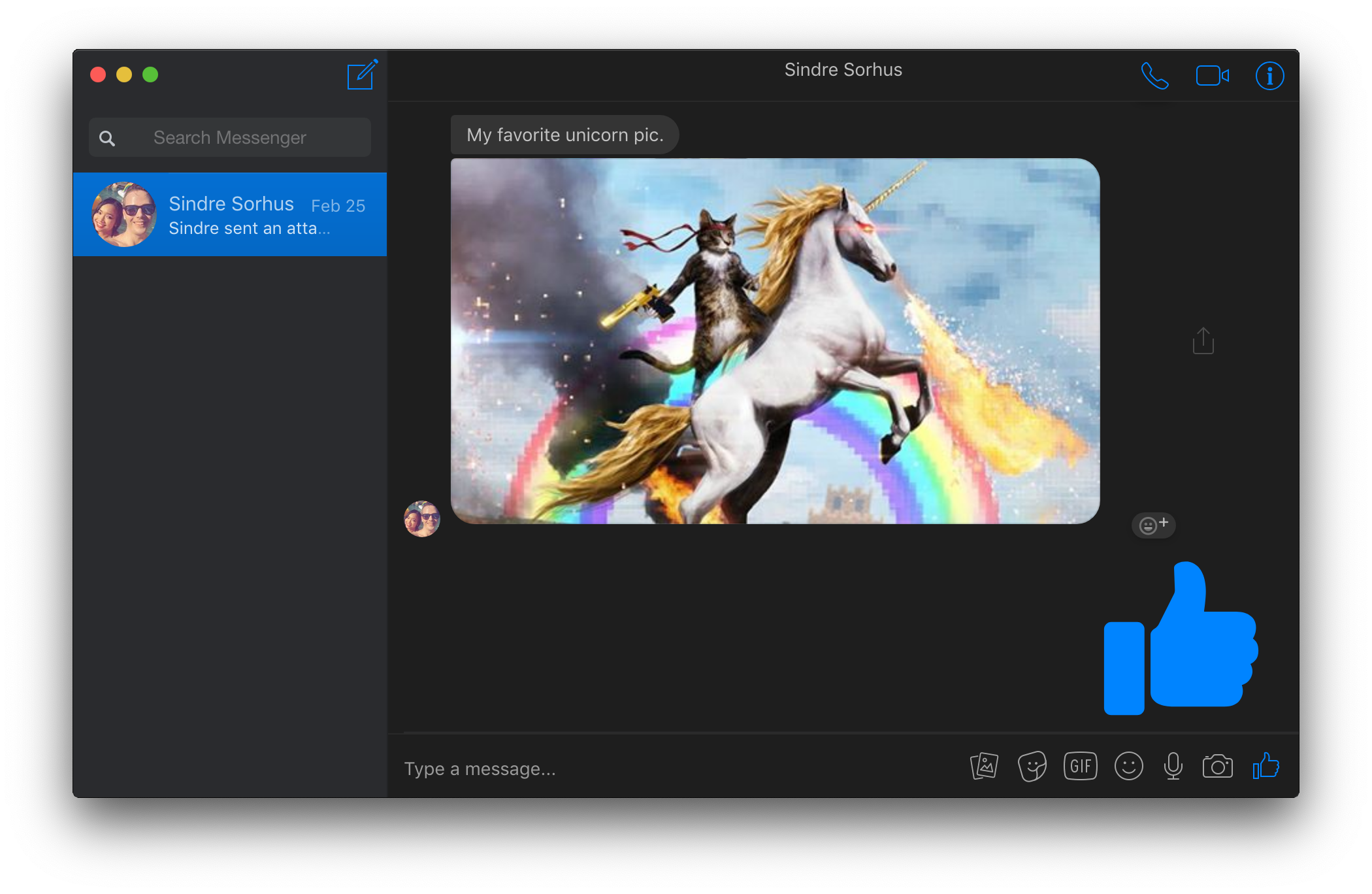 ### Hide Names and Avatars
You can prevent others from looking at who you're chatting with by enabling the “Hide Names and Avatars” feature in the “View” menu or with Command/Control Shift n.
### Vibrancy *(macOS only)*
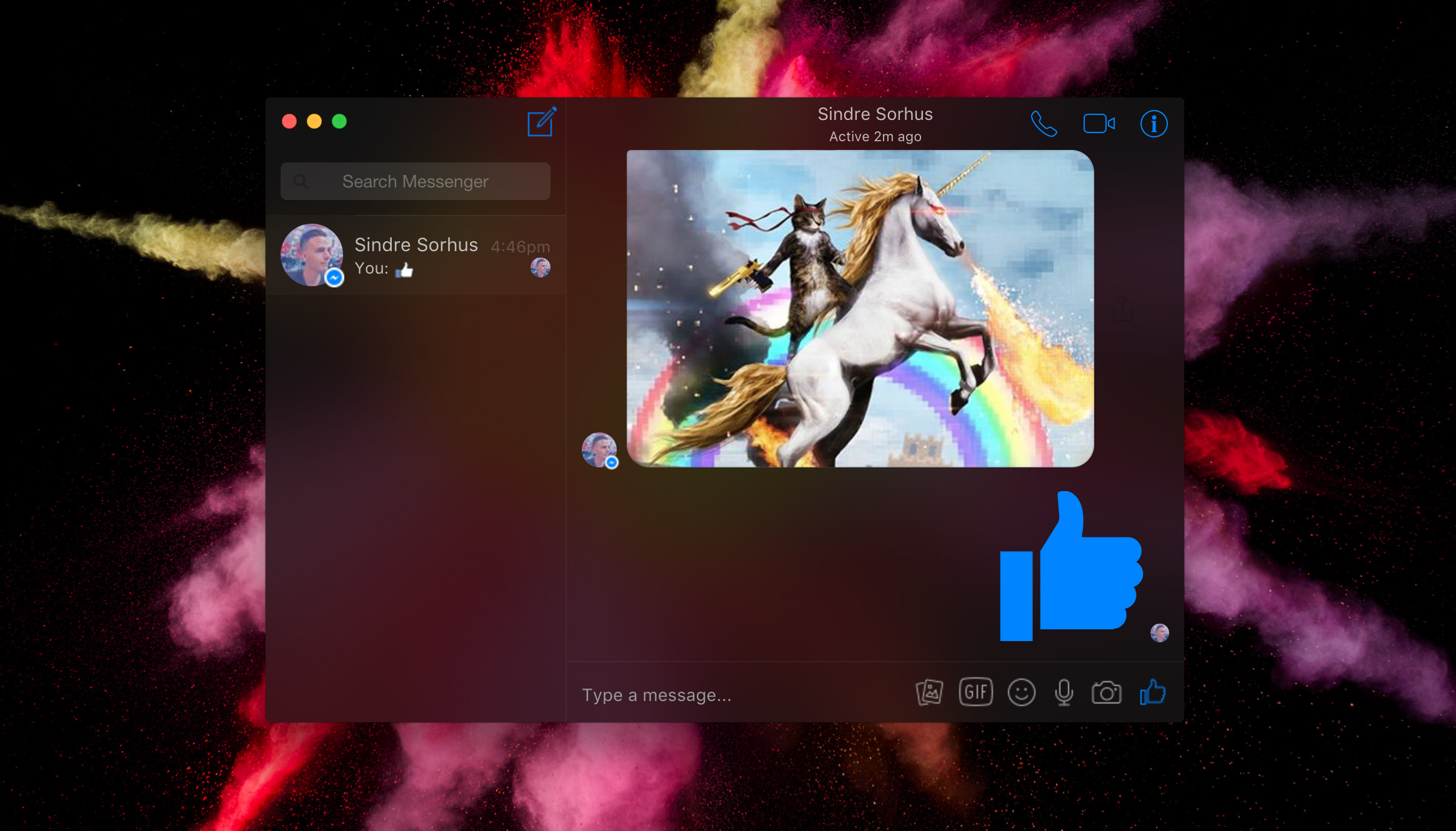
On *macOS*, you can toggle the window vibrancy effect in the `View` menu.
### Hide Names and Avatars
You can prevent others from looking at who you're chatting with by enabling the “Hide Names and Avatars” feature in the “View” menu or with Command/Control Shift n.
### Vibrancy *(macOS only)*
On *macOS*, you can toggle the window vibrancy effect in the `View` menu.
 ### Privacy
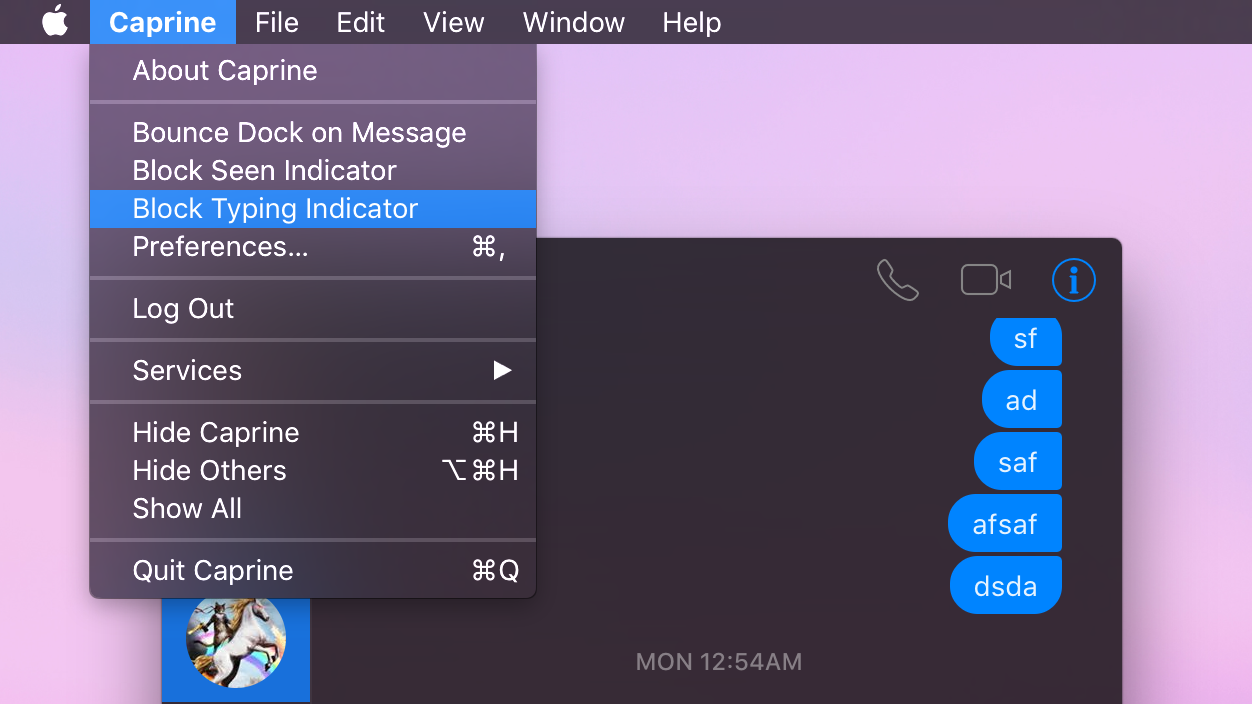 You can choose to prevent people from knowing when you have seen a message and when you are currently typing. These settings are available under the `Caprine`/`File` menu.
### Mute desktop notifications *(macOS only)*
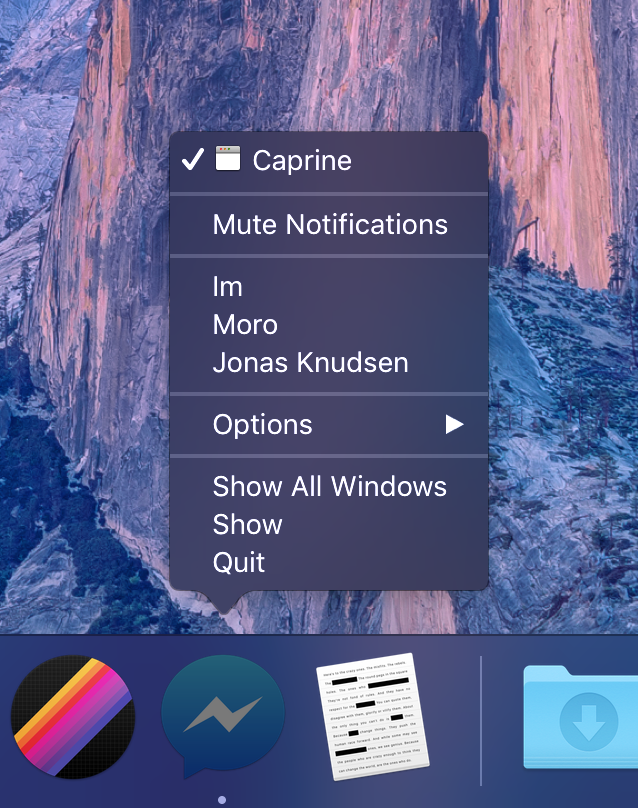
You can quickly disable receiving notifications from the `Caprine`/`File` menu or the Dock on macOS.
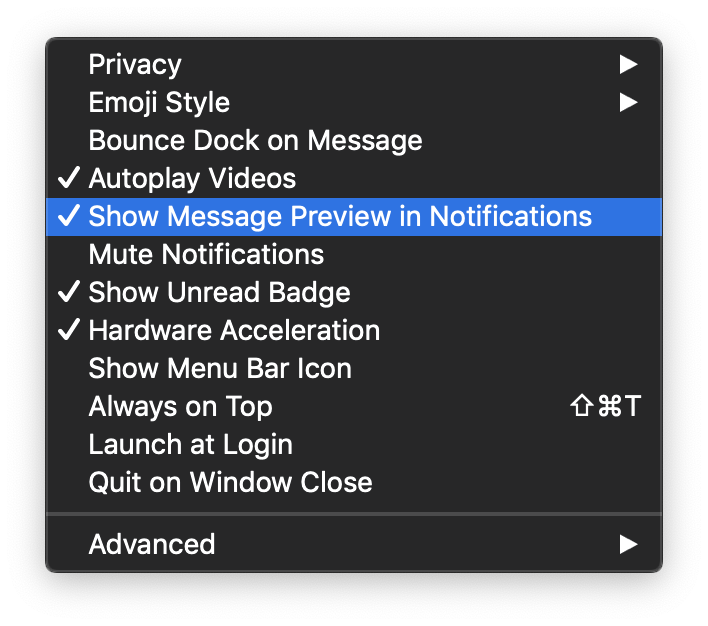
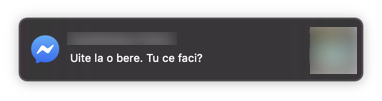
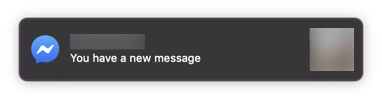
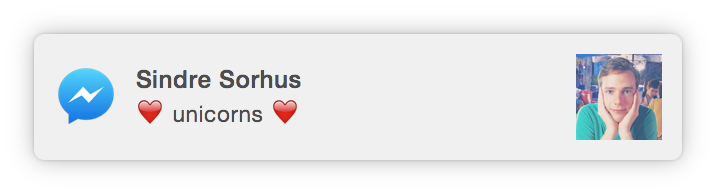
### Hide notification message preview
You can choose to prevent people from knowing when you have seen a message and when you are currently typing. These settings are available under the `Caprine`/`File` menu.
### Mute desktop notifications *(macOS only)*
You can quickly disable receiving notifications from the `Caprine`/`File` menu or the Dock on macOS.
### Hide notification message preview
 ### Touch Bar support *(macOS only)*
 ### Custom languages for spell-check *(Not for macOS)*
Users can select supported languages from `Conversation` → `Spell Checker Language`.
macOS detects the language automatically.
### Custom styles
Advanced users can modify the colors/styles of Caprine. Click the menu item `Caprine`/`File` → `Caprine Settings` → `Advanced` → `Custom Styles` and a CSS file will open up in your default editor.
### Menu Bar Mode *(macOS only)*
### Custom languages for spell-check *(Not for macOS)*
Users can select supported languages from `Conversation` → `Spell Checker Language`.
macOS detects the language automatically.
### Custom styles
Advanced users can modify the colors/styles of Caprine. Click the menu item `Caprine`/`File` → `Caprine Settings` → `Advanced` → `Custom Styles` and a CSS file will open up in your default editor.
### Menu Bar Mode *(macOS only)* 
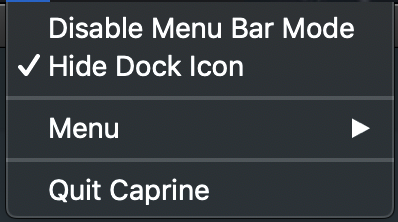 You can enable `Show Menu Bar Icon` in the `Caprine Preferences` menu to have a Caprine icon in the menu bar. The icon will indicate when you have unread notifications and you can click it to toggle the Caprine window. You can also toggle the Caprine window with the global shortcut Command Shift y.
You can also remove Caprine from the Dock and task switcher by clicking `Hide Dock Icon` menu item from the menu bar icon. There will then no longer be any menus for the window, but you can access those from the `Menu` item in the menu bar icon menu.
### Keyboard shortcuts
Description | Keys
-----------------------| -----------------------
New conversation | Command/Control n
Search conversations | Command/Control k
Toggle "Dark mode" | Command/Control d
Hide Names and Avatars | Command/Control Shift n
Next conversation | Command/Control ] or Control Tab
Previous conversation | Command/Control [ or Control Shift Tab
Jump to conversation | Command/Control 1…9
Insert GIF | Command/Control g
Insert sticker | Command/Control s
Insert emoji | Command/Control e
Attach files | Command/Control t
Focus text input | Command/Control i
Search in conversation | Command/Control f
Mute conversation | Command/Control Shift m
Hide conversation | Command/Control Shift h
Delete conversation | Command/Control Shift d
Toggle "Always on Top" | Command/Control Shift t
Toggle window menu | Alt *(Windows/Linux only)*
Toggle main window | Command Shift y *(macOS only)*
Toggle sidebar | Command/Control Shift s
Switch to Messenger | Command/Control Shift 1
Switch to Workchat | Command/Control Shift 2
Preferences | Command/Control ,
###### Tip
On macOS, you can [change these in the System Preferences](https://www.intego.com/mac-security-blog/how-to-make-custom-keyboard-shortcuts-for-any-macos-menu-items-and-to-launch-your-favorite-apps/) and you can even add your own keyboard shortcuts for menu items without a predefined keyboard shortcut.
## FAQ
#### Can I contribute localizations?
The main app interface is already localized by Facebook. The app menus are not localized, and we're not interested in localizing those.
---
## Dev
Built with [Electron](https://electronjs.org).
### Run
```sh
npm install && npm start
```
### Build
See the [`electron-builder` docs](https://www.electron.build/multi-platform-build).
### Publish
```sh
npm run release
```
Then edit the automatically created GitHub Releases draft and publish.
## Maintainers
- [Dušan Simić](https://github.com/dusansimic)
- [Lefteris Garyfalakis](https://github.com/lefterisgar)
- [Michael Quevillon](https://github.com/mquevill)
- [Nikolas Spiridakis](https://github.com/1nikolas)
**Former**
- [Jarek Radosz](https://github.com/CvX)
## Links
- [Product Hunt post](https://www.producthunt.com/posts/caprine-2)
## Press
- [The Essential Windows Apps for 2018 - Lifehacker](https://lifehacker.com/lifehacker-pack-for-windows-our-list-of-the-essential-1828117805)
- [Caprine review: Customize Facebook Messenger on Windows 10 - Windows Central](https://www.windowscentral.com/caprine-review-customizing-facebook-messenger-windows-10)
## Disclaimer
Caprine is a third-party app and is not affiliated with Facebook.
You can enable `Show Menu Bar Icon` in the `Caprine Preferences` menu to have a Caprine icon in the menu bar. The icon will indicate when you have unread notifications and you can click it to toggle the Caprine window. You can also toggle the Caprine window with the global shortcut Command Shift y.
You can also remove Caprine from the Dock and task switcher by clicking `Hide Dock Icon` menu item from the menu bar icon. There will then no longer be any menus for the window, but you can access those from the `Menu` item in the menu bar icon menu.
### Keyboard shortcuts
Description | Keys
-----------------------| -----------------------
New conversation | Command/Control n
Search conversations | Command/Control k
Toggle "Dark mode" | Command/Control d
Hide Names and Avatars | Command/Control Shift n
Next conversation | Command/Control ] or Control Tab
Previous conversation | Command/Control [ or Control Shift Tab
Jump to conversation | Command/Control 1…9
Insert GIF | Command/Control g
Insert sticker | Command/Control s
Insert emoji | Command/Control e
Attach files | Command/Control t
Focus text input | Command/Control i
Search in conversation | Command/Control f
Mute conversation | Command/Control Shift m
Hide conversation | Command/Control Shift h
Delete conversation | Command/Control Shift d
Toggle "Always on Top" | Command/Control Shift t
Toggle window menu | Alt *(Windows/Linux only)*
Toggle main window | Command Shift y *(macOS only)*
Toggle sidebar | Command/Control Shift s
Switch to Messenger | Command/Control Shift 1
Switch to Workchat | Command/Control Shift 2
Preferences | Command/Control ,
###### Tip
On macOS, you can [change these in the System Preferences](https://www.intego.com/mac-security-blog/how-to-make-custom-keyboard-shortcuts-for-any-macos-menu-items-and-to-launch-your-favorite-apps/) and you can even add your own keyboard shortcuts for menu items without a predefined keyboard shortcut.
## FAQ
#### Can I contribute localizations?
The main app interface is already localized by Facebook. The app menus are not localized, and we're not interested in localizing those.
---
## Dev
Built with [Electron](https://electronjs.org).
### Run
```sh
npm install && npm start
```
### Build
See the [`electron-builder` docs](https://www.electron.build/multi-platform-build).
### Publish
```sh
npm run release
```
Then edit the automatically created GitHub Releases draft and publish.
## Maintainers
- [Dušan Simić](https://github.com/dusansimic)
- [Lefteris Garyfalakis](https://github.com/lefterisgar)
- [Michael Quevillon](https://github.com/mquevill)
- [Nikolas Spiridakis](https://github.com/1nikolas)
**Former**
- [Jarek Radosz](https://github.com/CvX)
## Links
- [Product Hunt post](https://www.producthunt.com/posts/caprine-2)
## Press
- [The Essential Windows Apps for 2018 - Lifehacker](https://lifehacker.com/lifehacker-pack-for-windows-our-list-of-the-essential-1828117805)
- [Caprine review: Customize Facebook Messenger on Windows 10 - Windows Central](https://www.windowscentral.com/caprine-review-customizing-facebook-messenger-windows-10)
## Disclaimer
Caprine is a third-party app and is not affiliated with Facebook.