# Claude Squad [](https://github.com/smtg-ai/claude-squad/actions/workflows/build.yml) [](https://github.com/smtg-ai/claude-squad/releases/latest)
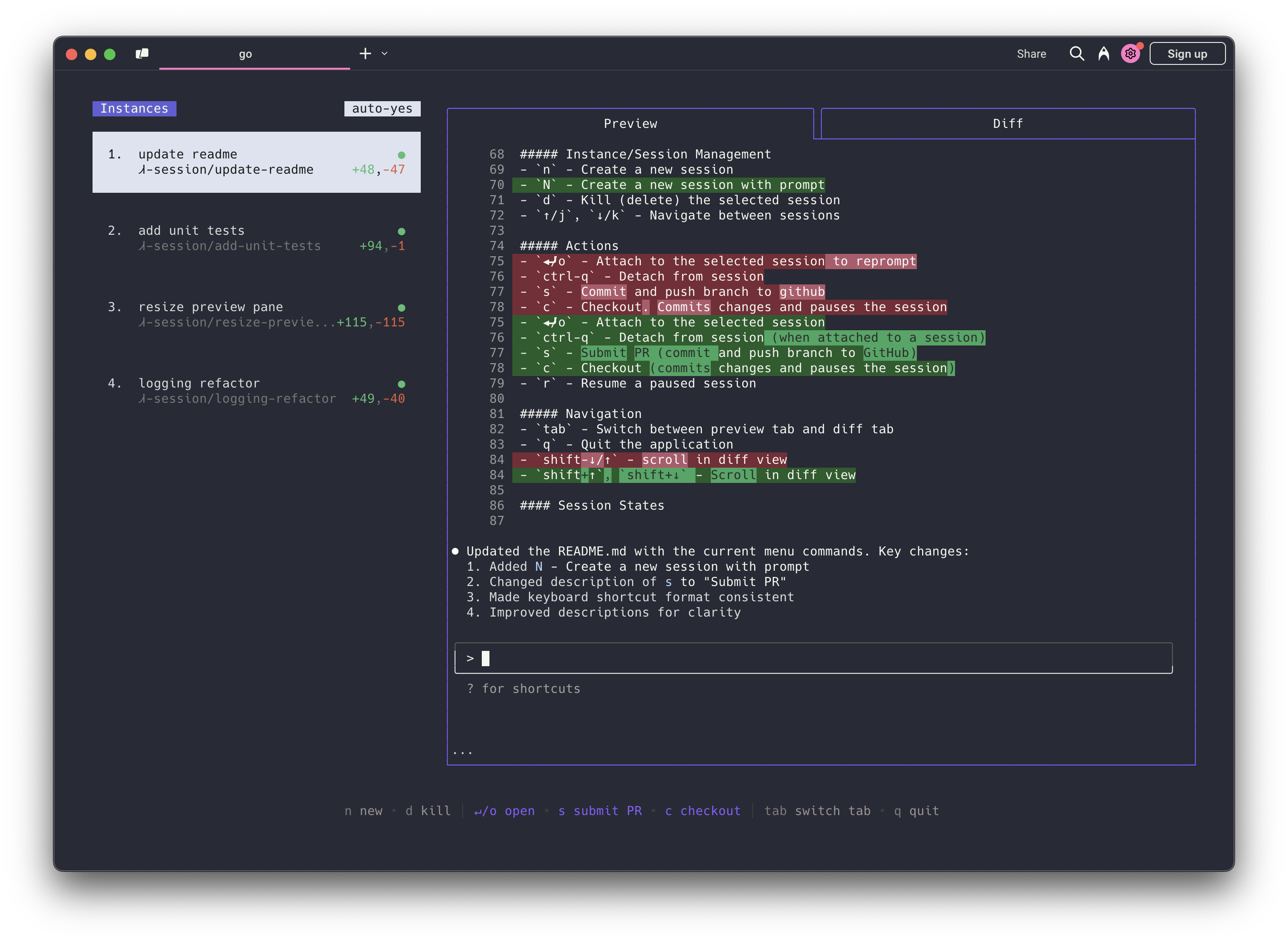
[Claude Squad](https://smtg-ai.github.io/claude-squad/) is a terminal app that manages multiple [Claude Code](https://github.com/anthropics/claude-code), [Codex](https://github.com/openai/codex), [Gemini](https://github.com/google-gemini/gemini-cli) (and other local agents including [Aider](https://github.com/Aider-AI/aider)) in separate workspaces, allowing you to work on multiple tasks simultaneously.
### Highlights
- Complete tasks in the background (including yolo / auto-accept mode!)
- Manage instances and tasks in one terminal window
- Review changes before applying them, checkout changes before pushing them
- Each task gets its own isolated git workspace, so no conflicts
https://github.com/user-attachments/assets/aef18253-e58f-4525-9032-f5a3d66c975a
### Installation
Both Homebrew and manual installation will install Claude Squad as `cs` on your system.
#### Homebrew
```bash
brew install claude-squad
ln -s "$(brew --prefix)/bin/claude-squad" "$(brew --prefix)/bin/cs"
```
#### Manual
Claude Squad can also be installed by running the following command:
```bash
curl -fsSL https://raw.githubusercontent.com/smtg-ai/claude-squad/main/install.sh | bash
```
This puts the `cs` binary in `~/.local/bin`.
To use a custom name for the binary:
```bash
curl -fsSL https://raw.githubusercontent.com/smtg-ai/claude-squad/main/install.sh | bash -s -- --name
```
### Prerequisites
- [tmux](https://github.com/tmux/tmux/wiki/Installing)
- [gh](https://cli.github.com/)
### Usage
```
Usage:
cs [flags]
cs [command]
Available Commands:
completion Generate the autocompletion script for the specified shell
debug Print debug information like config paths
help Help about any command
reset Reset all stored instances
version Print the version number of claude-squad
Flags:
-y, --autoyes [experimental] If enabled, all instances will automatically accept prompts for claude code & aider
-h, --help help for claude-squad
-p, --program string Program to run in new instances (e.g. 'aider --model ollama_chat/gemma3:1b')
```
Run the application with:
```bash
cs
```
NOTE: The default program is `claude` and we recommend using the latest version.
Using Claude Squad with other AI assistants:
- For [Codex](https://github.com/openai/codex): Set your API key with `export OPENAI_API_KEY=`
- Launch with specific assistants:
- Codex: `cs -p "codex"`
- Aider: `cs -p "aider ..."`
- Gemini: `cs -p "gemini"`
- Make this the default, by modifying the config file (locate with `cs debug`)
#### Menu
The menu at the bottom of the screen shows available commands:
##### Instance/Session Management
- `n` - Create a new session
- `N` - Create a new session with a prompt
- `D` - Kill (delete) the selected session
- `↑/j`, `↓/k` - Navigate between sessions
##### Actions
- `↵/o` - Attach to the selected session to reprompt
- `ctrl-q` - Detach from session
- `s` - Commit and push branch to github
- `c` - Checkout. Commits changes and pauses the session
- `r` - Resume a paused session
- `?` - Show help menu
##### Navigation
- `tab` - Switch between preview tab and diff tab
- `q` - Quit the application
- `shift-↓/↑` - scroll in diff view
### Configuration
Claude Squad stores its configuration in `~/.claude-squad/config.json`. You can find the exact path by running `cs debug`.
#### Profiles
Profiles let you define multiple named program configurations and switch between them when creating a new session. When more than one profile is defined, the session creation overlay shows a profile picker that you can navigate with `←`/`→`.
To configure profiles, add a `profiles` array to your config file and set `default_program` to the name of the profile to select by default:
```json
{
"default_program": "claude",
"profiles": [
{ "name": "claude", "program": "claude" },
{ "name": "codex", "program": "codex" },
{ "name": "aider", "program": "aider --model ollama_chat/gemma3:1b" }
]
}
```
Each profile has two fields:
| Field | Description |
|-----------|----------------------------------------------------------|
| `name` | Display name shown in the profile picker |
| `program` | Shell command used to launch the agent for that profile |
If no profiles are defined, Claude Squad uses `default_program` directly as the launch command (the default is `claude`).
### FAQs
#### Failed to start new session
If you get an error like `failed to start new session: timed out waiting for tmux session`, update the
underlying program (ex. `claude`) to the latest version.
### How It Works
1. **tmux** to create isolated terminal sessions for each agent
2. **git worktrees** to isolate codebases so each session works on its own branch
3. A simple TUI interface for easy navigation and management
### License
[AGPL-3.0](LICENSE.md)
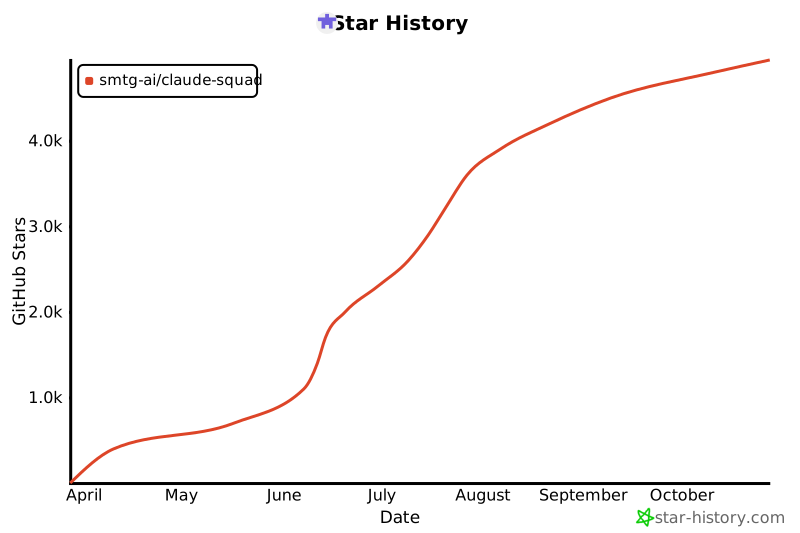
### Star History
[](https://www.star-history.com/#smtg-ai/claude-squad&Date)