# AI writing
[Documentation](README.md) / AI writing
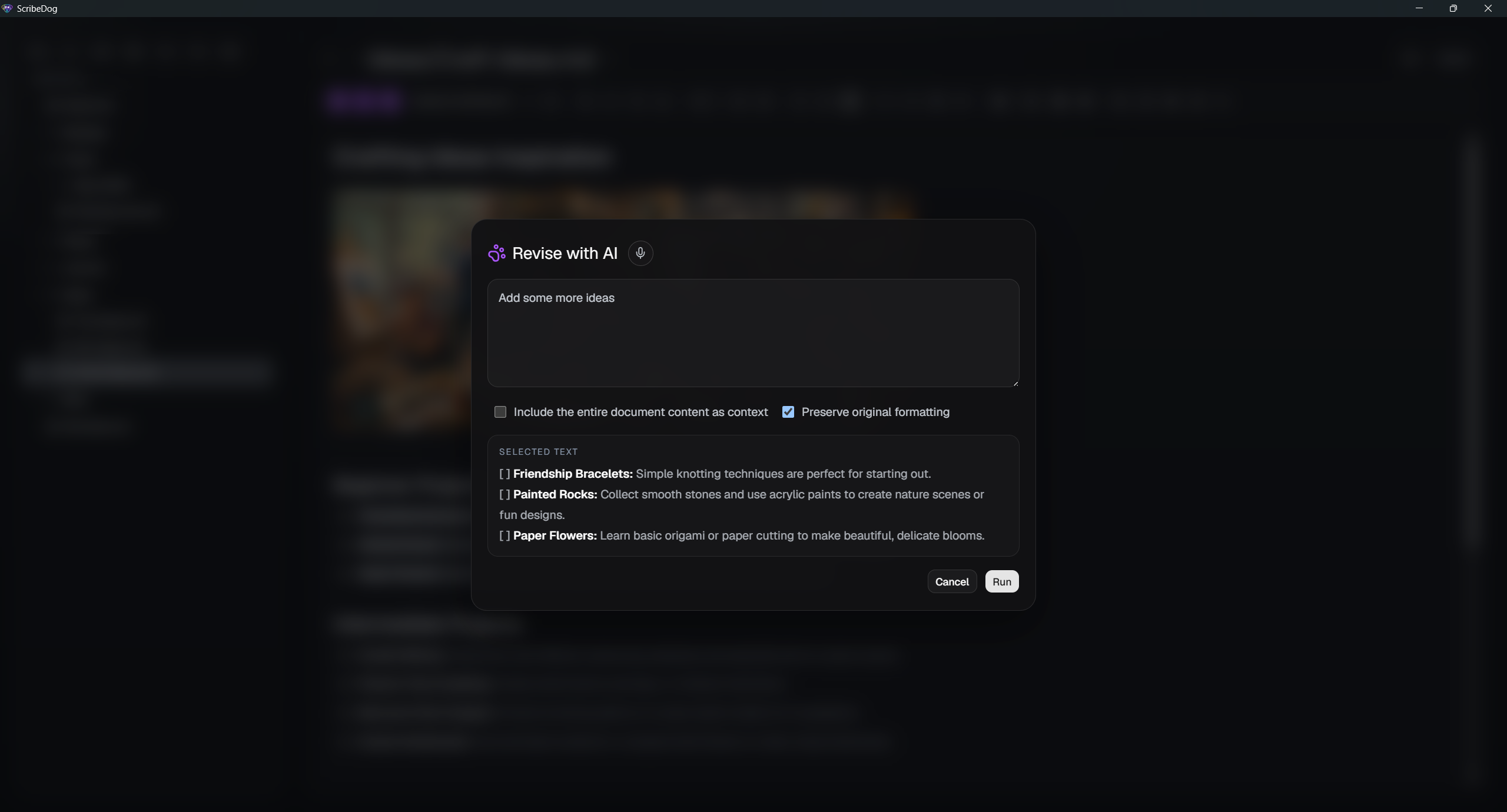
Select a passage, tell the model what you want, and watch the result appear in
your note. Nothing changes until you accept it.
 You need a model first. See [Setting up AI](ai-setup.md).
## Rewrite or insert text
1. Select a passage. To insert new text instead, just place the cursor.
2. Press `Ctrl+E`, or right-click and choose **Rewrite with AI**.
3. Type a prompt, for example "make this more formal" or "add a short
summary".
4. The answer streams in live.
### Options in the dialog
- **Include the whole document as context.** The model sees the rest of the
note, which helps with tone and names. With a cloud provider this sends the
whole note to that provider.
- **Preserve formatting.** Keeps headings, lists and emphasis of the original.
- **Dictate the prompt.** Press `Ctrl+Shift+E` to open the dialog and start
recording right away. See [Voice input](voice.md).
## Review before you accept
The original passage stays in place, highlighted in red. The AI answer
streams in right below it as a live Markdown preview.
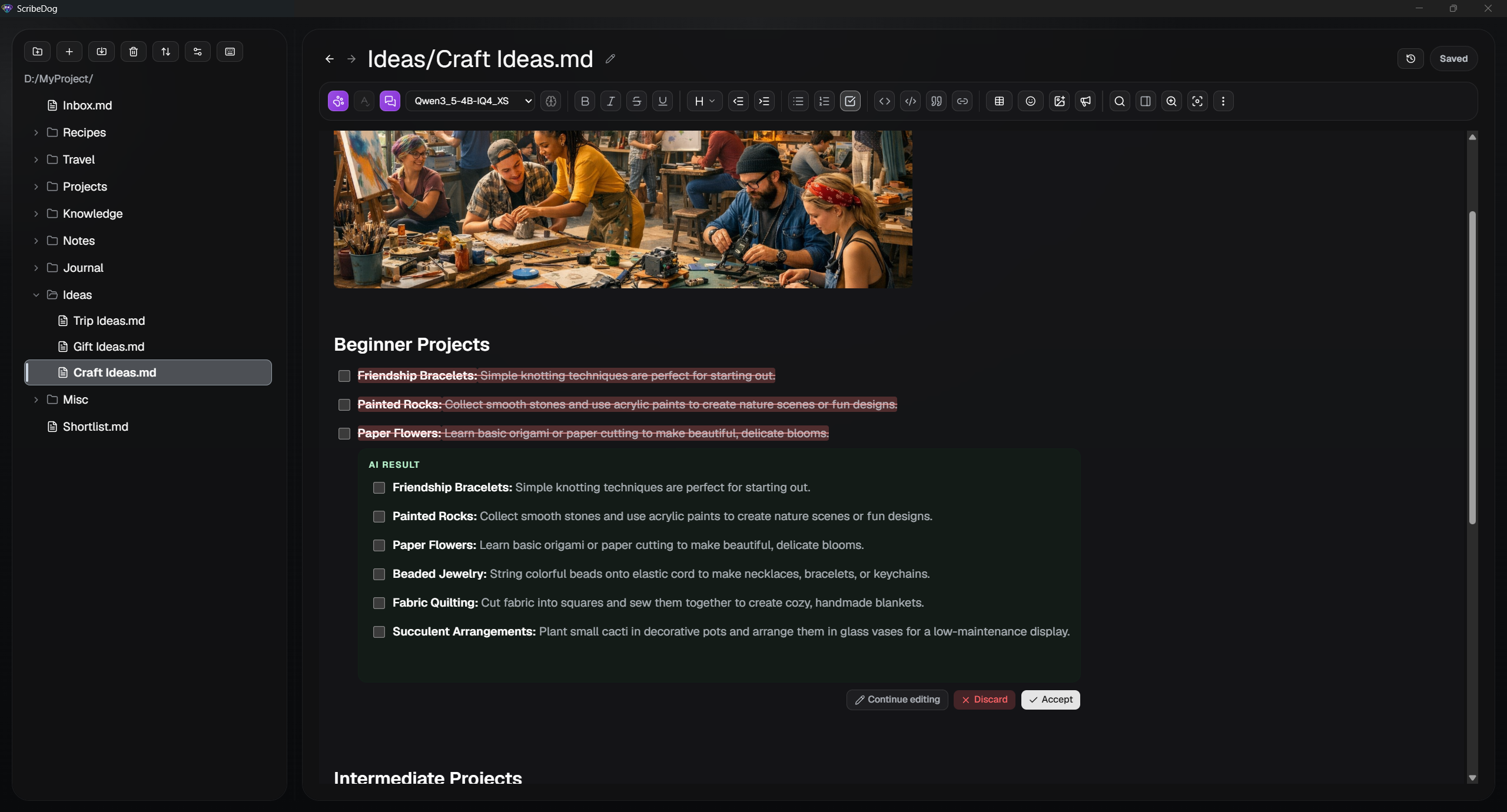 You then choose:
- **Accept** to replace the passage.
- **Discard** to keep your original.
- **Keep refining** with another prompt, for example "shorter" or "less
formal", until it fits.
Only accepting changes the document.
> **Undo:** Every accepted AI edit is a single step. One `Ctrl+Z` takes it
> back completely.
## Spelling and grammar check
1. Select a passage, or select nothing to check the whole note.
2. Press `Ctrl+Shift+X` or use the toolbar button.
3. You get a list of issues with a suggested correction and a short
explanation for each.
4. Apply the fixes one by one, or all at once.
## Good to know
- The model reasoning ("thinking") that some models print is filtered out.
Only the final answer touches your note.
- Small models can write good text but follow instructions about the text
less reliably. If results are off, try a slightly larger model. See
[Which model size?](ai-setup.md#which-model-size).
- For longer, multi-step work across several notes, use the
[AI chat](ai-chat.md).
[Back to the documentation index](README.md)