# Knowledge base
[Documentation](README.md) / Knowledge base
With the knowledge base on, the AI chat is no longer limited to the note you
have open. It searches your notes, hands the matching passages to the model,
and answers with a list of the notes it used.
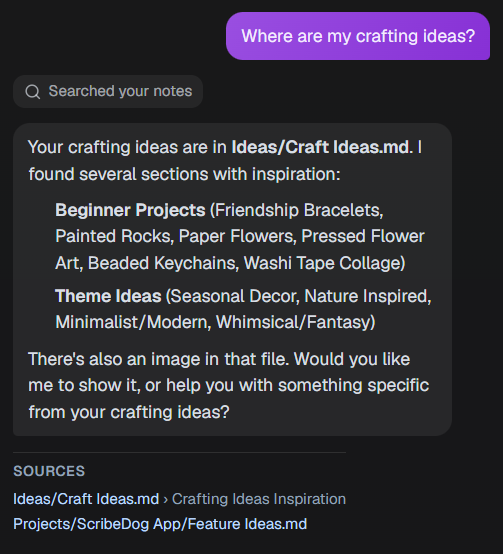 Each source is one click away and opens the note at the section the answer
came from.
## Switch it on
It is **off by default**. Turn it on in the **Knowledge base** tab of the
settings. As long as it is off, the AI only ever sees the document you have
open.
The tab states plainly what is read. With a cloud provider selected, for the
chat or for the embedding model, it also says that text leaves your device.
### Choose what it may read
You decide folder by folder. Tick the folders that should be searchable and
untick the private ones. A folder you create later inside an included folder
is included as well. The tab says so in plain words.
### Turn it off for one conversation
A toggle in the chat panel switches the knowledge base off for a single
conversation, for when you just want to talk about the open note.
## Where it helps
- **Work and projects.** "What did I agree with client A about the delivery
date?" The answer sits in a meeting note from three months ago whose name
you forgot. Names and terms are exactly what the search is good at.
- **Writing a novel.** Keep character sheets, places and timelines in your
vault and ask "What eye colour did I give Mara, and where does she first
meet Jonas?"
- **Recipes, travel notes, learning journals.** Ask about a dish, a place or
a term. The answer is pulled together from several notes, each one listed
underneath.
## Two ways to search
You can use both at once.
| | Search by words | Search by meaning |
|---|---|---|
| Default | Yes | Opt-in |
| Good for | Names, terms, project numbers | A passage that says the same thing in other words |
| Setup | None | Connect an embedding model once |
| Runs | Fully on this device | With the embedding service you choose |
With both on, the results are merged. A passage found by both searches ranks
above one that only a single search found.
### Setting up search by meaning
1. Open the **Knowledge base** tab.
2. Connect an **embedding model**. Locally through Ollama, Jan.ai or
LM Studio (with a key, if your runner asks for one), or in the cloud
through OpenAI or Mistral with your own key.
Anthropic offers no embeddings, and the tab tells you so.
3. Let the one-time preparation finish. It reads your included notes, and
afterwards only updates what changed.
The prepared data lives in the hidden `.scribedog` folder of your vault.
Deleting the stored data, or that folder, removes it again.
## What happens to your notes
- **Search by words** runs in the Rust backend on your machine and stores
nothing. Nothing is uploaded or indexed in the cloud. Your notes are only
read, never modified.
- **Search by meaning** reads your included notes once in full, and again
whenever a file changes, to prepare them with the embedding service you
configured.
- **Only the passages found for your question** are sent on to the model you
chat with. With a local model such as Ollama, nothing leaves the computer.
## Attach files to the chat
You can also hand the chat one specific file, without the knowledge base.
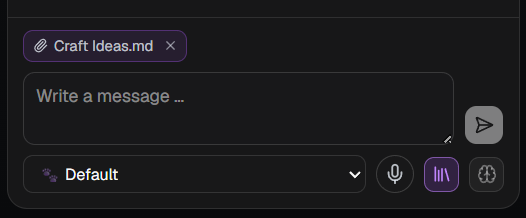 Drag one or more files onto the chat panel:
- notes from the sidebar
- files from outside the app: `.md`, `.txt`, `.csv`, `.json`, `.log`,
`.html` and more
- `.docx` and `.pdf`, converted on the spot
- images, read through AI OCR if a vision-capable model is set up
The files become the primary source of the conversation. The chat answers
from them first, before its own knowledge and before any knowledge base
result.
### Where it helps
- **Compare and merge.** Drag in last year concept and this year draft and
ask what changed, or have them merged.
- **A file that is not in your vault.** Drop a PDF, a CSV export or a log
from your Downloads folder and ask for a summary. No import, no copy and
paste.
### Good to know
- Attached files show as chips above the input field. Remove one with a
click.
- Of a very long file only the beginning is sent, and the chip says so.
- It works independently of the knowledge base. Dragging a file in is the
permission to read it, so no setting has to be on.
- A whole folder cannot be attached. Drop a folder onto the **sidebar** to
import it, then attach or ask about the notes from there.
[Back to the documentation index](README.md)