# PaperTodo · A Sheet of Paper
**A few quiet, useful, unobtrusive pieces of paper on your desktop.**
A minimal Windows desktop sticky-note app built with native WPF. No main window, no account, no manager.
   
**Website**: [https://snownico0722.github.io/PaperTodo/](https://snownico0722.github.io/PaperTodo/)
**QQ Group**:[QQ Group: 551612664 — Strange Magic Research Base](https://qm.qq.com/q/Mp7spYLrig)
**Language: [中文](README.md) | English**
---
## Preview
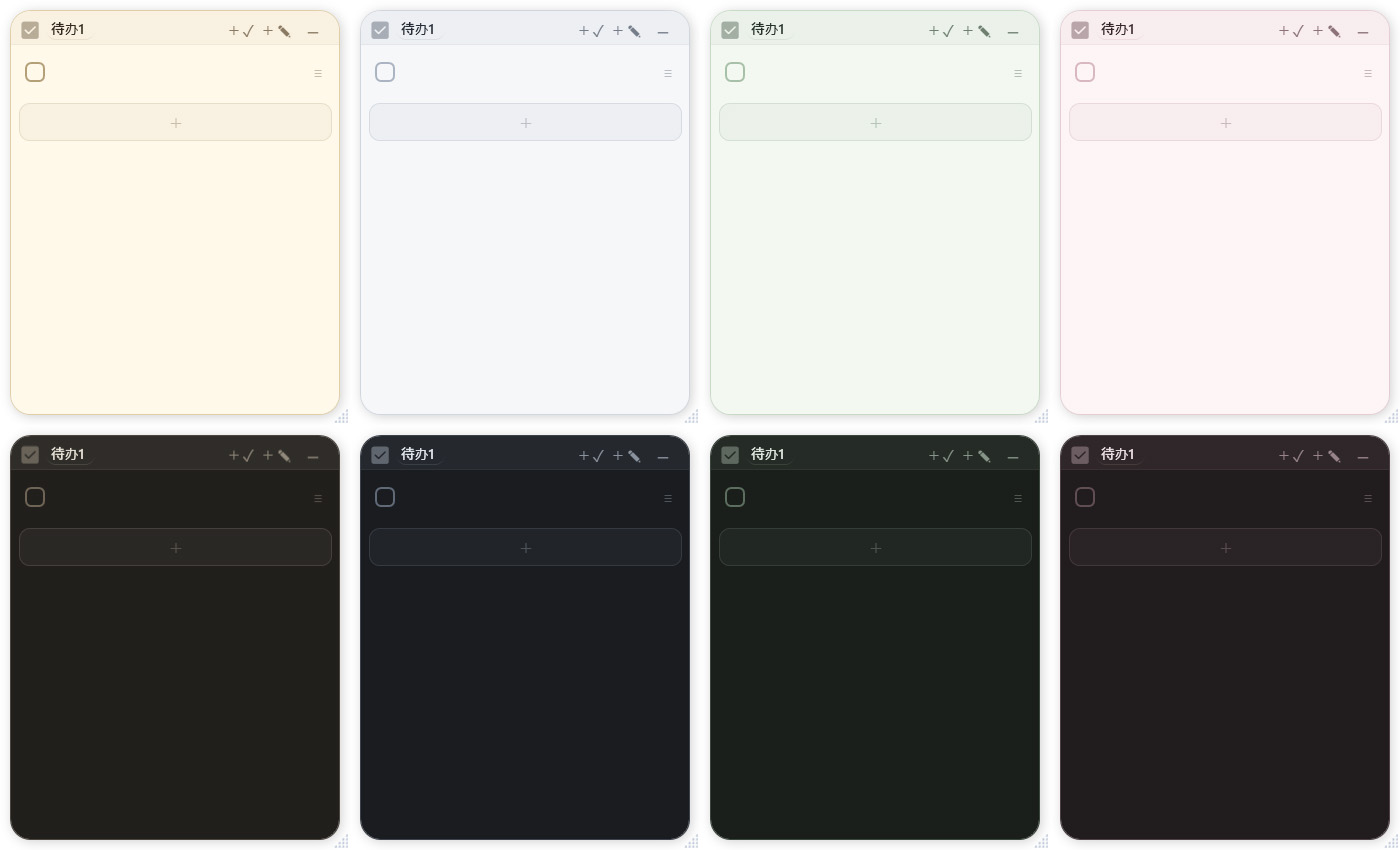
| Papers |
| :---: |
|  |
| Markdown Preview |
| :---: |
|
|
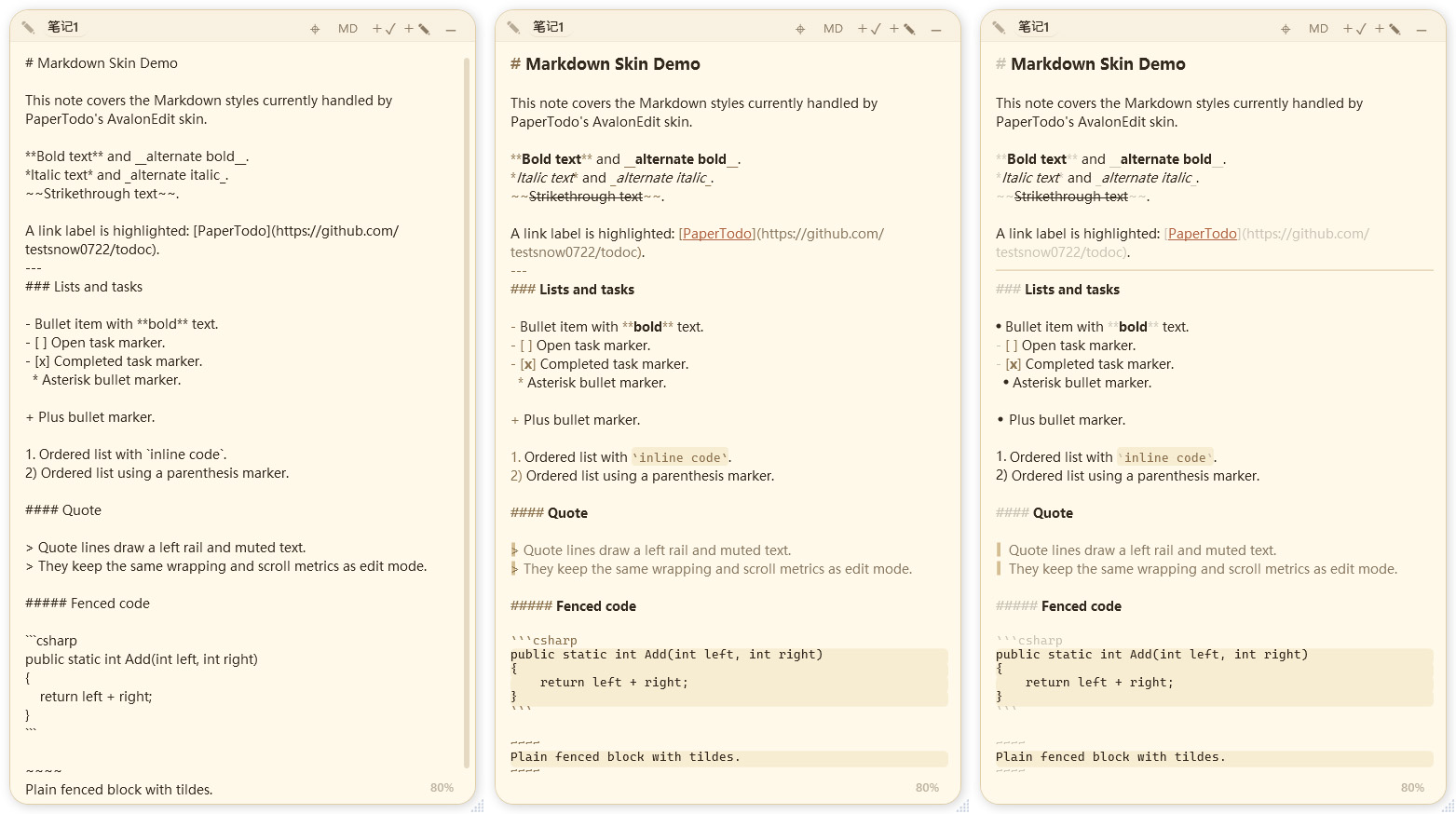
| Markdown Preview |
| :---: |
|  |
| Capsule Mode | Advanced Capsules |
| :---: | :---: |
| 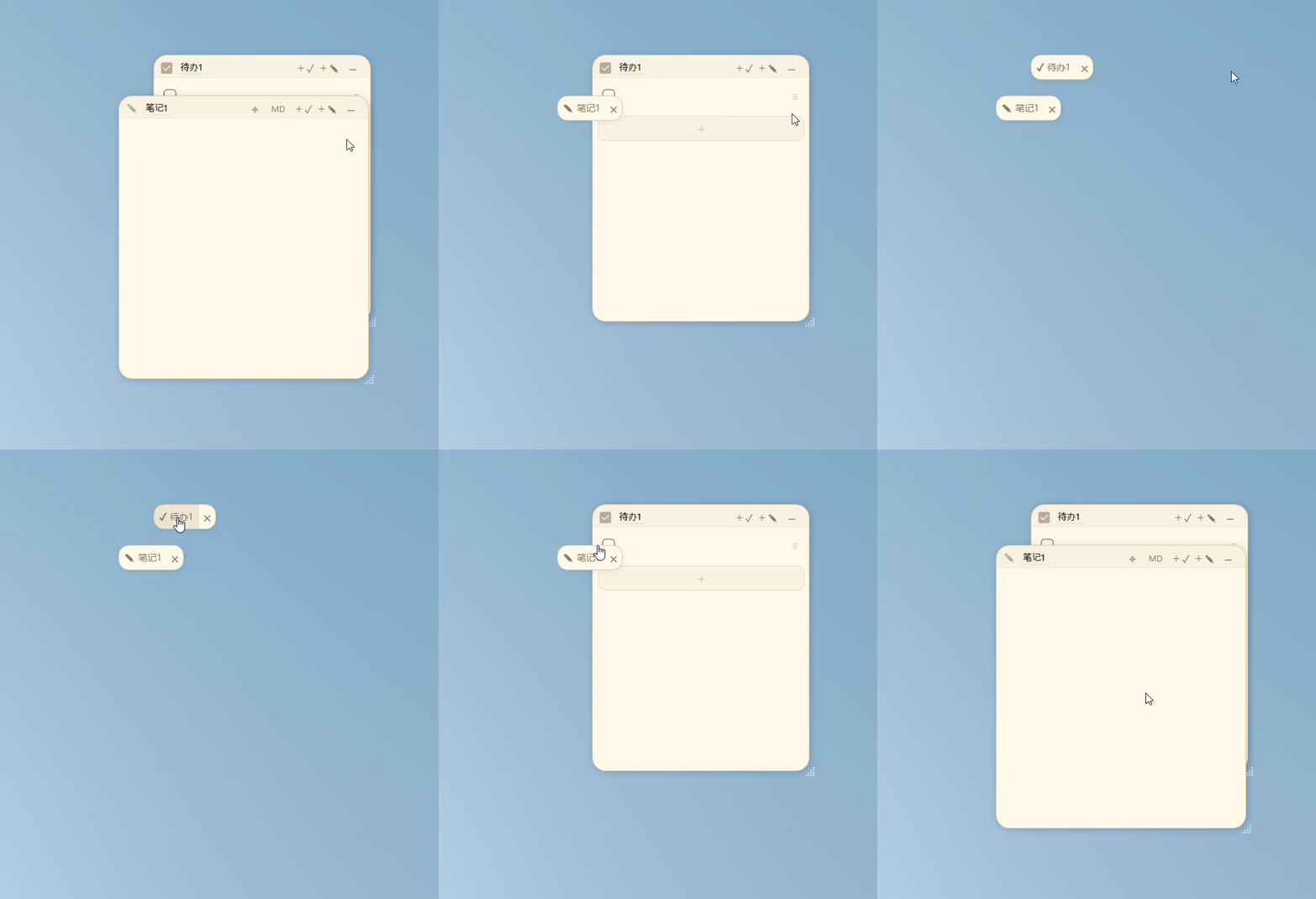 | 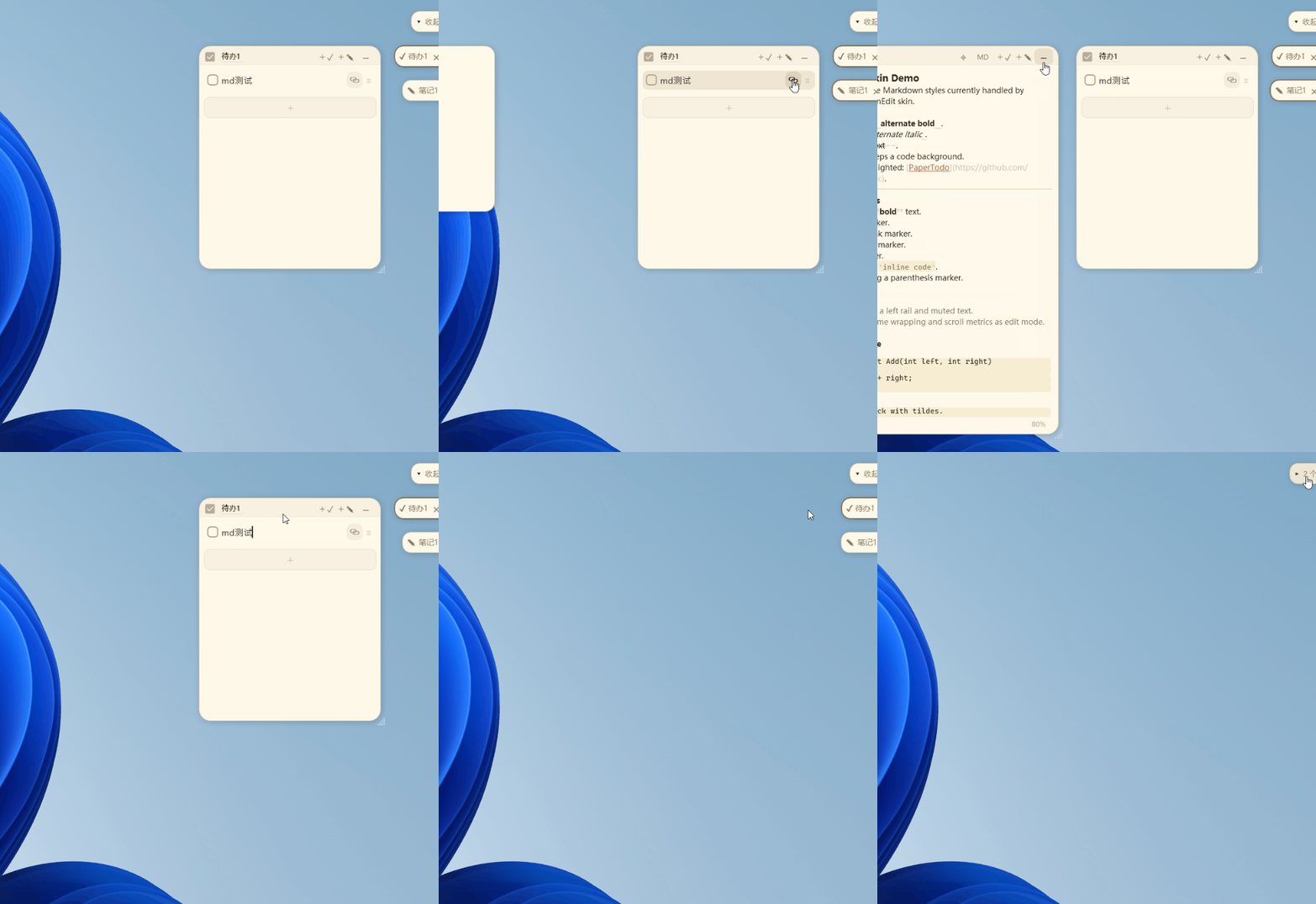 |
| Papers can collapse into small capsules to save desktop space. | Collapsed capsules dock to screen edges and slide out on hover. |
---
## Philosophy
- **Paper first** — Each paper is an independent window placed directly on the desktop, with no management screen to open first.
- **Ready immediately** — Write when you need to, check things off when done; everything saves automatically.
- **No management overhead** — No categories, tags, search, archive, sync, accounts, statistics, or reminders.
- **Native implementation** — Built with native WPF controls, not a web wrapper, with none of the complex permissions of MSIX packaging.
- **Interaction first** — Lightweight is more than performance: workflows stay short, cognitive load stays low, and visual noise stays out of the way.
> No unnecessary interaction layers. No unnecessary visual focus.
---
## Features
### Core Features
- **Multiple independent papers** — Each paper is its own window, and common actions take one or two steps instead of layers of navigation.
- **One app, two paper types**:
- **Todo paper**: one item per line. Check, edit, delete, and clear completed items.
- **Note paper**: plain text with Markdown syntax highlighting and three rendering levels.
- **Capsule mode** (on by default) — Use the top-right control to fold a paper into a small capsule and open it again when needed.
- **Automatic edge docking** (on by default) — Folded capsules dock along screen edges. Multi-monitor layouts are supported, and a capsule can be dragged to another side or display.
- **Script capsules** — Start a note with `!p` / `!power` to run its contents quickly as a PowerShell script.
- **Link notes to todos** — Drag a note onto a todo item to link it, then open the linked note directly from that item.
- **Note images** — Paste, drop, or choose local images from the menu.
- **Local data** — Papers auto-save to `data.json` with a backup; note images are written incrementally and safely to a single `note-assets.lmdb` file.
### Customization And Integration
- **Themes and palettes** — Follow system, light, or dark, with Warm Paper, Ink, Forest, and Rosy color schemes.
- **Fonts and sizes** — System default / Microsoft YaHei / DengXian, optional custom font files, plus overall and per-area sizes, bold styles, and text rendering profiles.
- **Global hotkeys** — Bind show, hide, create, and other commands in settings, including shortcuts for side capsule queues.
- **Startup arguments** — Show, hide, toggle, and create papers from command-line arguments for hotkey tools or scripts.
- **Multi-language UI** — Chinese, English, Japanese, and Korean, following the system UI language.
- **Startup at login** — Run PaperTodo when Windows starts.
- **Custom tray icon** — If `PaperTodo.ico` exists next to the executable, it is used instead of the embedded icon.
- **Desktop integration** — Windows Snap layouts; hide expanded papers from Alt+Tab / Task View or the taskbar.
---
## Paper Features And Manual
### Paper
#### Basic Actions
- **Move and resize** — Drag the title bar to move a paper; resize from the bottom-right grip, or from any edge or corner when the grip is hidden.
- **Pin on top** — The pin control in the top-left toggles always-on-top.
- **Create** — Create todo and note papers from the top-right buttons.
- **Open with external editor** — Click `MD` to open the current note externally; the file suffix is customizable.
- **Set title** — Paper titles can be customized.
- **Windows Snap** — Supports Snap layouts; shadows and margins collapse while snapped and return after leaving the snap region.
#### Capsules And Edge Docking
- **Collapsed capsules** — Papers can fold into small capsules to save desktop space and reopen at any time.
- **Auto docking** — Folded capsules dock to screen edges and slide out when the pointer hovers nearby.
- **Multi-screen queues** — Drag an edge capsule to the left, right, or another monitor; it joins that edge queue on release.
- **Collapse all** — The master capsule collapses or expands the entire edge queue; dragging it adjusts the queue's starting height.
- **Master capsule menu** — Right-click the master capsule for the same menu as the tray icon.
- **Expand and close area** — Options include keeping the edge capsule while expanded, remembering expand position, hiding the edge close button on hover, and limiting capsule title display length.
---
### Todo
Good for today's tasks, temporary items, and small desktop checklists.
**Basic actions**
- **Check as done** / **Add item**
- **Drag to reorder** — Hold the `≡` handle on the right and drag up or down.
- **Drag to delete** — Drag an item to the bottom delete area.
- **Paste multiple lines** — Lines become separate items; common list prefixes are cleaned up.
- **Double-click to select** — Double-click todo text to select the whole line for copy or replace.
- **Visual size** — Choose Small / Medium / Large in settings.
- **Undo / redo** — `Ctrl+Z` / `Ctrl+Y`
- **Auto-clear completed** — Optional in settings; completed items are removed automatically when checked.
**Linked notes**: Drag a note from its title bar onto a todo item to link it. The item then shows an entry for opening the linked note.
---
### Note Paper
Note paper is not a full Markdown editor. It only helps a sheet of paper stay a little clearer.
**Formatting shortcuts**
- `Ctrl+B` — Bold.
- `Ctrl+I` — Italic.
- `Ctrl+K` — Insert link.
- `Ctrl+Z` / `Ctrl+Y` — Undo / redo.
- `Ctrl + mouse wheel` — Zoom note text in 10% steps. Click the percentage in the bottom-right to reset to 100%.
**Supported Markdown**: headings `#` to `######`, bold `**text**`, italic `*text*`, strikethrough `~~text~~`, unordered lists `-`, ordered lists `1.`, block quotes `>`, horizontal rules `---` / `***` / `___`, inline code `` `code` ``, fenced code blocks, links `[label](URL)`, and a small set of single-line inline HTML tags (`b/strong/i/em/s/del/u/code/a href`).
**Local images**
- Paste from the clipboard, drop image files, paste copied image files, or insert from the menu, including WebP; an error is shown if the system cannot decode it
- Images use exclusive-line internal `i:` references and are stored in local `note-assets.lmdb`, not on a remote image host
- **Auto-compress large images** is on by default: files that are too large or have an overly long edge are compressed before import when possible
- Delete the matching Markdown reference to hide an image; undo can still restore it
**Not supported**: tables, attachments, network images, other embeds, block-level HTML, or a full block editor.
**External editing**: The title-bar `MD` button opens a temporary `.md` file with the system default editor.
**Custom suffixes**: The `MD` button can use associated suffixes such as `.txt`, `.html`, or `.bat`; Windows opens the temp file with the linked app.
**Script capsules**: Put `!p` or `!power` on the first line; the rest runs as PowerShell. Collapsed notes show a lightning capsule — left-click runs, right-click opens the paper. Use `!pf` or `!powerf` to send commands to the persistent PowerShell process.
---
## Settings
The settings window has three pages: **Behavior / Visual / Shortcuts**. **Advanced mode** can be enabled inside the window.
**Behavior**
- **Start with Windows**, normal tooltips, animations
- **Markdown rendering** — three intensity levels for note Markdown display
- **Title bar buttons** — hide new todo, new note, or external open separately
- **External open** — temporary file suffix for the system editor
- **Capsules** — capsule mode, auto-dock, keep the edge capsule while expanded, remember expand position, show the master capsule (collapse all), and click an edge capsule again to fold the paper; Advanced options also include hiding the close button on hover, title character limits, and maximum edge-title length
- **Todos and notes** — auto-clear completed items, linked notes, show linked names, long linked titles, whether linked notes appear as capsules, and run linked scripts on click; Advanced also includes automatic compression for oversized images
- **Script capsules** (Advanced) — prefer PowerShell 7, hide run window, persistent process
- **Fullscreen topmost policy** (Advanced) — choose whether papers and edge capsules step back or stay above external fullscreen windows
- **Hide papers from window switching** (Advanced) — expanded papers do not appear in Alt+Tab or Task View, and their taskbar icons are hidden
- **Hide taskbar icons** (Advanced) — expanded papers do not appear on the taskbar
**Visual**
- **Theme and palettes** — Follow system / Light / Dark, with Warm Paper, Ink, Forest, and Rosy color schemes
- **Resize grip** — Standard (opaque bottom-right dots) / Soft (about 50% opacity, default) / Hidden (no dots; drag any edge or corner to resize)
- **Font** — System default / Microsoft YaHei / DengXian; add `papertodo.ttf` / `papertodo.otf` for a custom face, with optional enhanced bold from a matching file such as `papertodo_bold.ttf`
- **Sizes and bold** — Overall scale about 80%–120%; note / todo / title / capsule each have Small / Medium / Large sizes and bold options, with additional density choices for todos
- **Text rendering** — Standard / Soft / Sharp
- **Image marker display** (Advanced) — always / edit only / always hidden
**Shortcuts**
- Bind global hotkeys for show all, hide all, toggle visibility, new todo, new note, and exit
- **Quick-launch side capsules** (off by default): left/right queue keys 1–9 open edge capsules; they can open **at the cursor**, and hotkey-created papers also appear nearby
- In capsule mode, **Esc** collapses the capsule quickly
---
## Tray Entry
PaperTodo has no main window. The tray icon is the only global entry point.
### Tray Actions
- **Double-click tray icon** — Show and bring back all papers.
- **Right-click tray icon** — Open the menu (version at the top).
- **Settings** — Open the settings window.
- **List toolbar** — Toggle show/hide all papers; create a todo or note paper.
- **Master capsule** — Right-click the master capsule at the top of an edge queue for the same menu as the tray.
- **Delete paper** — Click `×` on a row, then Confirm or Cancel.
### Startup Arguments
Use from hotkey tools, scripts, or Windows shortcuts:
```text
PaperTodo.exe --show Show and bring back all papers
PaperTodo.exe --hide Hide all papers while keeping the app running in the tray
PaperTodo.exe --toggle Hide all if any paper is visible; otherwise show all
PaperTodo.exe --new-todo Create a new todo paper
PaperTodo.exe --new-note Create a new note paper
PaperTodo.exe --exit Save state and exit
PaperTodo.exe --language en-US Start with the specified default UI language
```
The `--` prefix is optional; aliases include `open` = `show` and `quit` = `exit`.
`--language` accepts `zh-CN`, `en-US`, `ja-JP`, `ko-KR`, and regional variants, or `--language=en-US`; aliases `--lang` and `--default-language`. It only sets the UI language when the primary instance starts; it does not switch a running instance or write to `data.json`.
If PaperTodo is already running, a second start with arguments forwards the command and exits. A second start with no arguments shows and brings back all papers.
---
## Data And Files
Data lives next to the executable:
```text
PaperTodo/
├─ PaperTodo.exe
├─ data.json Main data file
├─ data.backup.json Backup written before each save; used if the main file is damaged
├─ note-assets.lmdb Note image assets
└─ PaperTodo.ico Optional custom tray icon (used before the embedded icon)
```
**Data notes**
Edits save automatically; before each normal write, the backup is rotated into `data.backup.json`.
After an abnormal exit, `PaperTodo.crash.log` may be written for diagnostics. User data still comes from `data.json` and its backup.
Custom fonts can also be placed in the program folder: `papertodo.ttf` / `papertodo.otf`, with optional bold files such as `papertodo_bold`.
> Warning: Do not put the app in a read-only folder, or it may fail to save.
> Exit from the tray before copying these files for backup or migration.
---
## Download And Verification
GitHub Actions builds two Windows x64 single-file executables and publishes them directly in each Release:
- **`...-self-contained.exe`** — Self-contained with the .NET Runtime.
- **`...-no-runtime.exe`** — No bundled runtime (requires .NET to be installed locally).
Each build includes Sigstore signatures (`.sig` / `.crt`).
Release notes are taken from the matching section in [`CHANGELOG.md`](CHANGELOG.md).
---
## Build And Dependencies
```powershell
dotnet build -c Release
```
Local packaging only builds the no-runtime single file; cloud Releases publish both self-contained and no-runtime builds.
- **Windows / .NET 10 / WPF** — Runtime and UI framework.
- **CMake / Visual Studio C++ toolchain** — Builds the native LMDB library shipped with PaperTodo.
- **[LMDB](https://github.com/LMDB/lmdb)** — Single-file transactional note image storage.
- **[AvalonEdit](https://github.com/icsharpcode/AvalonEdit)** — Note editing and light Markdown highlighting.
- **[Hardcodet.NotifyIcon.Wpf](https://github.com/hardcodet/wpf-notifyicon)** — Tray icon and menu.
## Other
Thanks to the [linux.do](https://linux.do/) community.
---
## Star History
[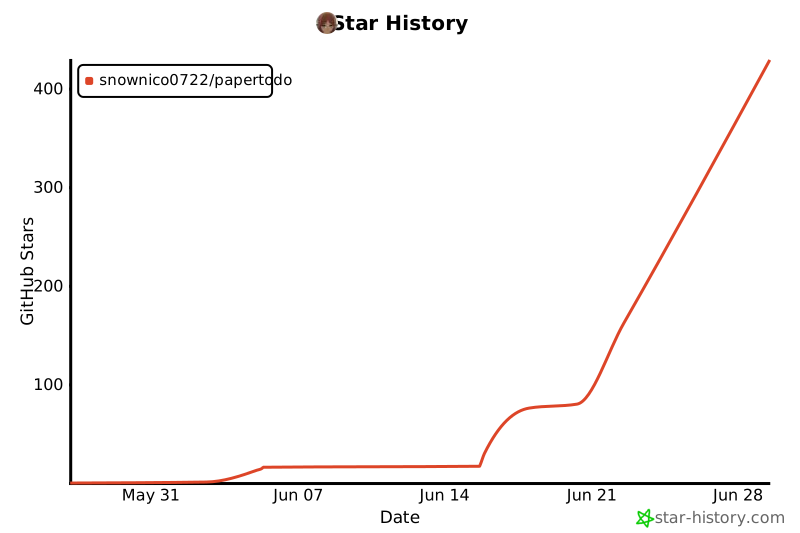](https://star-history.com/#snownico0722/PaperTodo&Date)
|
| Capsule Mode | Advanced Capsules |
| :---: | :---: |
|  |  |
| Papers can collapse into small capsules to save desktop space. | Collapsed capsules dock to screen edges and slide out on hover. |
---
## Philosophy
- **Paper first** — Each paper is an independent window placed directly on the desktop, with no management screen to open first.
- **Ready immediately** — Write when you need to, check things off when done; everything saves automatically.
- **No management overhead** — No categories, tags, search, archive, sync, accounts, statistics, or reminders.
- **Native implementation** — Built with native WPF controls, not a web wrapper, with none of the complex permissions of MSIX packaging.
- **Interaction first** — Lightweight is more than performance: workflows stay short, cognitive load stays low, and visual noise stays out of the way.
> No unnecessary interaction layers. No unnecessary visual focus.
---
## Features
### Core Features
- **Multiple independent papers** — Each paper is its own window, and common actions take one or two steps instead of layers of navigation.
- **One app, two paper types**:
- **Todo paper**: one item per line. Check, edit, delete, and clear completed items.
- **Note paper**: plain text with Markdown syntax highlighting and three rendering levels.
- **Capsule mode** (on by default) — Use the top-right control to fold a paper into a small capsule and open it again when needed.
- **Automatic edge docking** (on by default) — Folded capsules dock along screen edges. Multi-monitor layouts are supported, and a capsule can be dragged to another side or display.
- **Script capsules** — Start a note with `!p` / `!power` to run its contents quickly as a PowerShell script.
- **Link notes to todos** — Drag a note onto a todo item to link it, then open the linked note directly from that item.
- **Note images** — Paste, drop, or choose local images from the menu.
- **Local data** — Papers auto-save to `data.json` with a backup; note images are written incrementally and safely to a single `note-assets.lmdb` file.
### Customization And Integration
- **Themes and palettes** — Follow system, light, or dark, with Warm Paper, Ink, Forest, and Rosy color schemes.
- **Fonts and sizes** — System default / Microsoft YaHei / DengXian, optional custom font files, plus overall and per-area sizes, bold styles, and text rendering profiles.
- **Global hotkeys** — Bind show, hide, create, and other commands in settings, including shortcuts for side capsule queues.
- **Startup arguments** — Show, hide, toggle, and create papers from command-line arguments for hotkey tools or scripts.
- **Multi-language UI** — Chinese, English, Japanese, and Korean, following the system UI language.
- **Startup at login** — Run PaperTodo when Windows starts.
- **Custom tray icon** — If `PaperTodo.ico` exists next to the executable, it is used instead of the embedded icon.
- **Desktop integration** — Windows Snap layouts; hide expanded papers from Alt+Tab / Task View or the taskbar.
---
## Paper Features And Manual
### Paper
#### Basic Actions
- **Move and resize** — Drag the title bar to move a paper; resize from the bottom-right grip, or from any edge or corner when the grip is hidden.
- **Pin on top** — The pin control in the top-left toggles always-on-top.
- **Create** — Create todo and note papers from the top-right buttons.
- **Open with external editor** — Click `MD` to open the current note externally; the file suffix is customizable.
- **Set title** — Paper titles can be customized.
- **Windows Snap** — Supports Snap layouts; shadows and margins collapse while snapped and return after leaving the snap region.
#### Capsules And Edge Docking
- **Collapsed capsules** — Papers can fold into small capsules to save desktop space and reopen at any time.
- **Auto docking** — Folded capsules dock to screen edges and slide out when the pointer hovers nearby.
- **Multi-screen queues** — Drag an edge capsule to the left, right, or another monitor; it joins that edge queue on release.
- **Collapse all** — The master capsule collapses or expands the entire edge queue; dragging it adjusts the queue's starting height.
- **Master capsule menu** — Right-click the master capsule for the same menu as the tray icon.
- **Expand and close area** — Options include keeping the edge capsule while expanded, remembering expand position, hiding the edge close button on hover, and limiting capsule title display length.
---
### Todo
Good for today's tasks, temporary items, and small desktop checklists.
**Basic actions**
- **Check as done** / **Add item**
- **Drag to reorder** — Hold the `≡` handle on the right and drag up or down.
- **Drag to delete** — Drag an item to the bottom delete area.
- **Paste multiple lines** — Lines become separate items; common list prefixes are cleaned up.
- **Double-click to select** — Double-click todo text to select the whole line for copy or replace.
- **Visual size** — Choose Small / Medium / Large in settings.
- **Undo / redo** — `Ctrl+Z` / `Ctrl+Y`
- **Auto-clear completed** — Optional in settings; completed items are removed automatically when checked.
**Linked notes**: Drag a note from its title bar onto a todo item to link it. The item then shows an entry for opening the linked note.
---
### Note Paper
Note paper is not a full Markdown editor. It only helps a sheet of paper stay a little clearer.
**Formatting shortcuts**
- `Ctrl+B` — Bold.
- `Ctrl+I` — Italic.
- `Ctrl+K` — Insert link.
- `Ctrl+Z` / `Ctrl+Y` — Undo / redo.
- `Ctrl + mouse wheel` — Zoom note text in 10% steps. Click the percentage in the bottom-right to reset to 100%.
**Supported Markdown**: headings `#` to `######`, bold `**text**`, italic `*text*`, strikethrough `~~text~~`, unordered lists `-`, ordered lists `1.`, block quotes `>`, horizontal rules `---` / `***` / `___`, inline code `` `code` ``, fenced code blocks, links `[label](URL)`, and a small set of single-line inline HTML tags (`b/strong/i/em/s/del/u/code/a href`).
**Local images**
- Paste from the clipboard, drop image files, paste copied image files, or insert from the menu, including WebP; an error is shown if the system cannot decode it
- Images use exclusive-line internal `i:` references and are stored in local `note-assets.lmdb`, not on a remote image host
- **Auto-compress large images** is on by default: files that are too large or have an overly long edge are compressed before import when possible
- Delete the matching Markdown reference to hide an image; undo can still restore it
**Not supported**: tables, attachments, network images, other embeds, block-level HTML, or a full block editor.
**External editing**: The title-bar `MD` button opens a temporary `.md` file with the system default editor.
**Custom suffixes**: The `MD` button can use associated suffixes such as `.txt`, `.html`, or `.bat`; Windows opens the temp file with the linked app.
**Script capsules**: Put `!p` or `!power` on the first line; the rest runs as PowerShell. Collapsed notes show a lightning capsule — left-click runs, right-click opens the paper. Use `!pf` or `!powerf` to send commands to the persistent PowerShell process.
---
## Settings
The settings window has three pages: **Behavior / Visual / Shortcuts**. **Advanced mode** can be enabled inside the window.
**Behavior**
- **Start with Windows**, normal tooltips, animations
- **Markdown rendering** — three intensity levels for note Markdown display
- **Title bar buttons** — hide new todo, new note, or external open separately
- **External open** — temporary file suffix for the system editor
- **Capsules** — capsule mode, auto-dock, keep the edge capsule while expanded, remember expand position, show the master capsule (collapse all), and click an edge capsule again to fold the paper; Advanced options also include hiding the close button on hover, title character limits, and maximum edge-title length
- **Todos and notes** — auto-clear completed items, linked notes, show linked names, long linked titles, whether linked notes appear as capsules, and run linked scripts on click; Advanced also includes automatic compression for oversized images
- **Script capsules** (Advanced) — prefer PowerShell 7, hide run window, persistent process
- **Fullscreen topmost policy** (Advanced) — choose whether papers and edge capsules step back or stay above external fullscreen windows
- **Hide papers from window switching** (Advanced) — expanded papers do not appear in Alt+Tab or Task View, and their taskbar icons are hidden
- **Hide taskbar icons** (Advanced) — expanded papers do not appear on the taskbar
**Visual**
- **Theme and palettes** — Follow system / Light / Dark, with Warm Paper, Ink, Forest, and Rosy color schemes
- **Resize grip** — Standard (opaque bottom-right dots) / Soft (about 50% opacity, default) / Hidden (no dots; drag any edge or corner to resize)
- **Font** — System default / Microsoft YaHei / DengXian; add `papertodo.ttf` / `papertodo.otf` for a custom face, with optional enhanced bold from a matching file such as `papertodo_bold.ttf`
- **Sizes and bold** — Overall scale about 80%–120%; note / todo / title / capsule each have Small / Medium / Large sizes and bold options, with additional density choices for todos
- **Text rendering** — Standard / Soft / Sharp
- **Image marker display** (Advanced) — always / edit only / always hidden
**Shortcuts**
- Bind global hotkeys for show all, hide all, toggle visibility, new todo, new note, and exit
- **Quick-launch side capsules** (off by default): left/right queue keys 1–9 open edge capsules; they can open **at the cursor**, and hotkey-created papers also appear nearby
- In capsule mode, **Esc** collapses the capsule quickly
---
## Tray Entry
PaperTodo has no main window. The tray icon is the only global entry point.
### Tray Actions
- **Double-click tray icon** — Show and bring back all papers.
- **Right-click tray icon** — Open the menu (version at the top).
- **Settings** — Open the settings window.
- **List toolbar** — Toggle show/hide all papers; create a todo or note paper.
- **Master capsule** — Right-click the master capsule at the top of an edge queue for the same menu as the tray.
- **Delete paper** — Click `×` on a row, then Confirm or Cancel.
### Startup Arguments
Use from hotkey tools, scripts, or Windows shortcuts:
```text
PaperTodo.exe --show Show and bring back all papers
PaperTodo.exe --hide Hide all papers while keeping the app running in the tray
PaperTodo.exe --toggle Hide all if any paper is visible; otherwise show all
PaperTodo.exe --new-todo Create a new todo paper
PaperTodo.exe --new-note Create a new note paper
PaperTodo.exe --exit Save state and exit
PaperTodo.exe --language en-US Start with the specified default UI language
```
The `--` prefix is optional; aliases include `open` = `show` and `quit` = `exit`.
`--language` accepts `zh-CN`, `en-US`, `ja-JP`, `ko-KR`, and regional variants, or `--language=en-US`; aliases `--lang` and `--default-language`. It only sets the UI language when the primary instance starts; it does not switch a running instance or write to `data.json`.
If PaperTodo is already running, a second start with arguments forwards the command and exits. A second start with no arguments shows and brings back all papers.
---
## Data And Files
Data lives next to the executable:
```text
PaperTodo/
├─ PaperTodo.exe
├─ data.json Main data file
├─ data.backup.json Backup written before each save; used if the main file is damaged
├─ note-assets.lmdb Note image assets
└─ PaperTodo.ico Optional custom tray icon (used before the embedded icon)
```
**Data notes**
Edits save automatically; before each normal write, the backup is rotated into `data.backup.json`.
After an abnormal exit, `PaperTodo.crash.log` may be written for diagnostics. User data still comes from `data.json` and its backup.
Custom fonts can also be placed in the program folder: `papertodo.ttf` / `papertodo.otf`, with optional bold files such as `papertodo_bold`.
> Warning: Do not put the app in a read-only folder, or it may fail to save.
> Exit from the tray before copying these files for backup or migration.
---
## Download And Verification
GitHub Actions builds two Windows x64 single-file executables and publishes them directly in each Release:
- **`...-self-contained.exe`** — Self-contained with the .NET Runtime.
- **`...-no-runtime.exe`** — No bundled runtime (requires .NET to be installed locally).
Each build includes Sigstore signatures (`.sig` / `.crt`).
Release notes are taken from the matching section in [`CHANGELOG.md`](CHANGELOG.md).
---
## Build And Dependencies
```powershell
dotnet build -c Release
```
Local packaging only builds the no-runtime single file; cloud Releases publish both self-contained and no-runtime builds.
- **Windows / .NET 10 / WPF** — Runtime and UI framework.
- **CMake / Visual Studio C++ toolchain** — Builds the native LMDB library shipped with PaperTodo.
- **[LMDB](https://github.com/LMDB/lmdb)** — Single-file transactional note image storage.
- **[AvalonEdit](https://github.com/icsharpcode/AvalonEdit)** — Note editing and light Markdown highlighting.
- **[Hardcodet.NotifyIcon.Wpf](https://github.com/hardcodet/wpf-notifyicon)** — Tray icon and menu.
## Other
Thanks to the [linux.do](https://linux.do/) community.
---
## Star History
[](https://star-history.com/#snownico0722/PaperTodo&Date)