
Open in Code
Open the folder you are viewing in Finder—or the folder containing a selected item—in Visual Studio Code with one click.


Install ·
Set up ·
How it works ·
Contribute
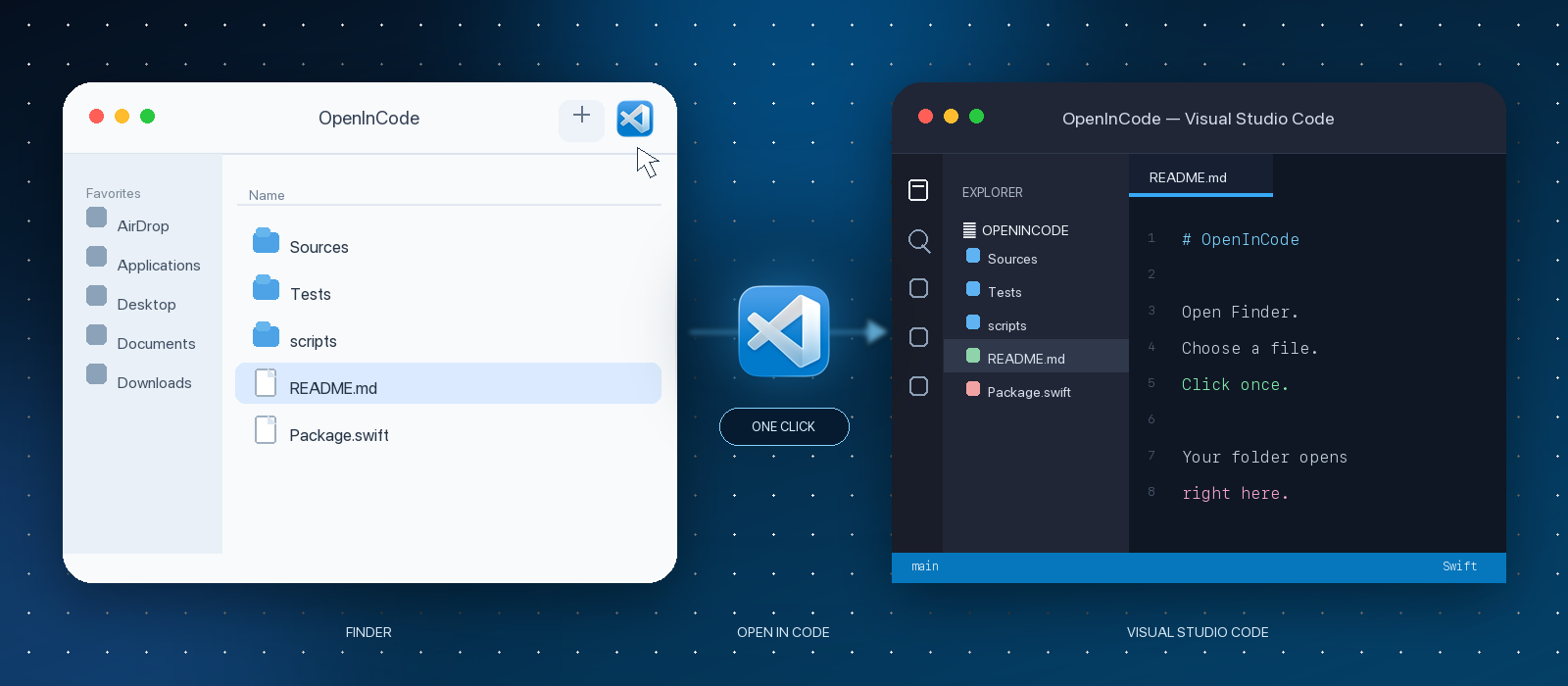
Open in Code is a small, native macOS utility built for the Finder toolbar. It gets you from the file you are looking at to the matching VS Code workspace without opening a terminal or navigating to the folder again.
| **One click** | **Finder-aware** | **Stable or Insiders** |
| --- | --- | --- |
| Lives in the Finder toolbar, ready whenever you need it. | Uses your selection when available and the current Finder window when it is not. | Prefers Visual Studio Code and falls back to Visual Studio Code Insiders. |
## Requirements
- macOS 12 or newer
- Visual Studio Code or Visual Studio Code Insiders
## Install
### Homebrew
```sh
brew install --cask sozercan/repo/open-in-code
```
### Direct download
Download the app from [GitHub Releases](https://github.com/sozercan/OpenInCode/releases), then move **Open in Code.app** to `/Applications`.
## Add it to Finder
1. Open `/Applications` in Finder.
2. Hold ⌘ Command and drag **Open in Code** to the Finder toolbar.
3. Drop it wherever you want the button to live.
Hold ⌘ Command while dragging the button again to reposition or remove it.
## How it works
Open a Finder window, optionally select an item, and click **Open in Code**.
| Finder state | What opens in VS Code |
| --- | --- |
| A folder is selected | The selected folder |
| A file or Finder package is selected | Its containing folder |
| Multiple items are selected | The first selected item's folder |
| Nothing is selected | The folder shown in the front Finder window |
## Finder permission
> [!NOTE]
> On first use, macOS asks whether **Open in Code** may control Finder. Allow access so the app can read the current Finder selection.
If Finder access was previously denied
Enable **Open in Code → Finder** in the appropriate settings pane:
- **macOS 13 or newer:** System Settings → Privacy & Security → Automation
- **macOS 12:** System Preferences → Security & Privacy → Privacy → Automation
## Contributing
Source builds, tests, packaging, and release instructions live in [CONTRIBUTING.md](CONTRIBUTING.md).
---
Made for macOS · Licensed under the MIT License