_Read in other languages: [English](README.md), [中文](README.zh-CN.md)_
#  EverythingToolbar



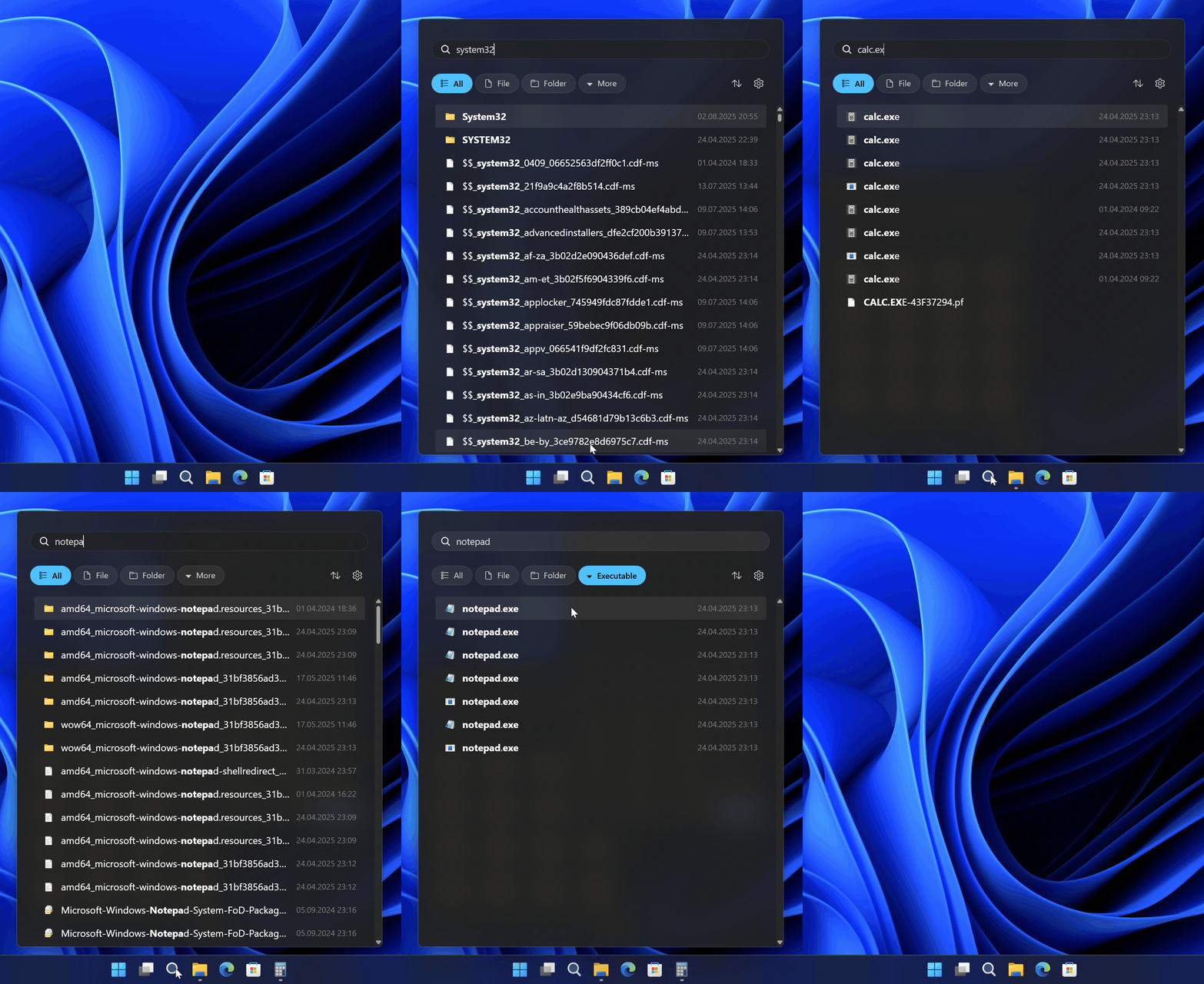
 Instant file search integration for the Windows taskbar powered by [Everything](https://www.voidtools.com/).
 ## 🌟 Features
### Taskbar Integration
EverythingToolbar sits right on your taskbar, either as a real search box you can type into directly on Windows 11, or as a compact icon that opens the search window when clicked.
## 🌟 Features
### Taskbar Integration
EverythingToolbar sits right on your taskbar, either as a real search box you can type into directly on Windows 11, or as a compact icon that opens the search window when clicked.
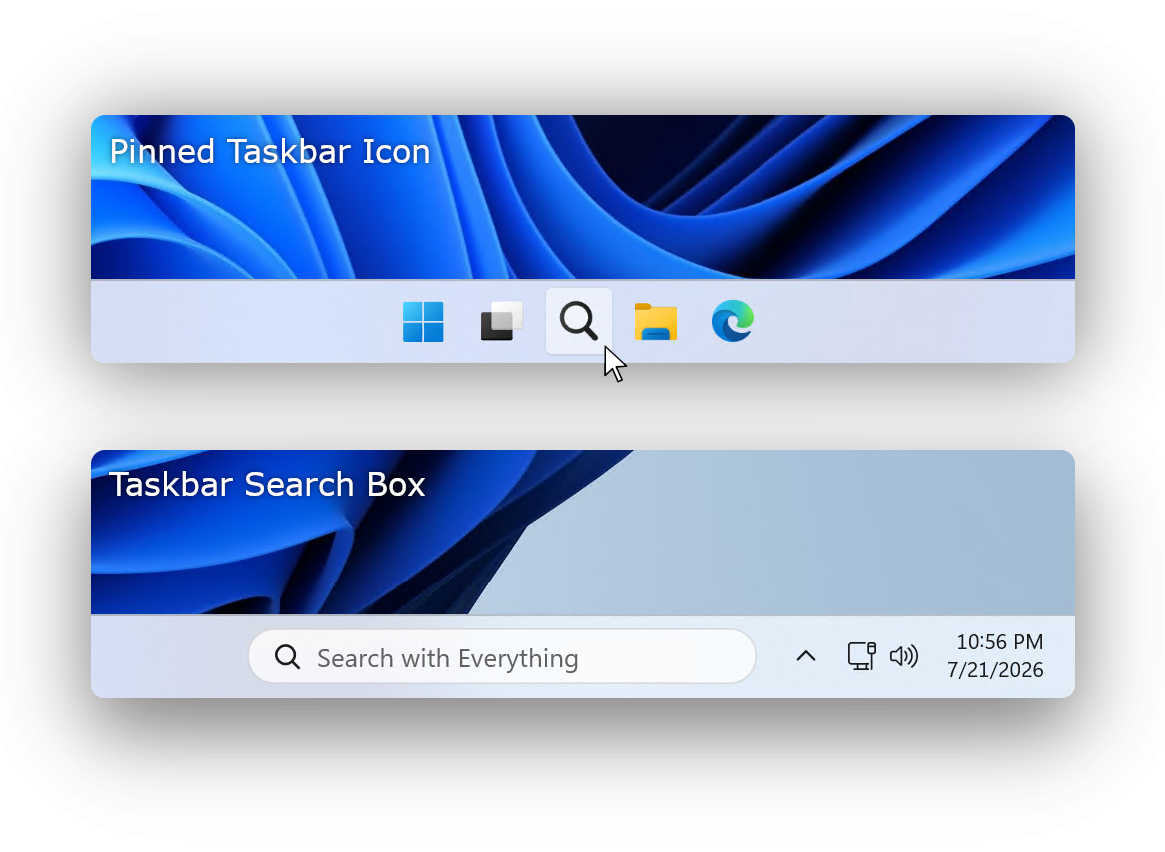 Choose either during setup or switch anytime under **Settings** → **Taskbar integration**. Additionally, on Windows 10 EverythingToolbar can be integrated as a native deskband.
### Light & Dark Themes
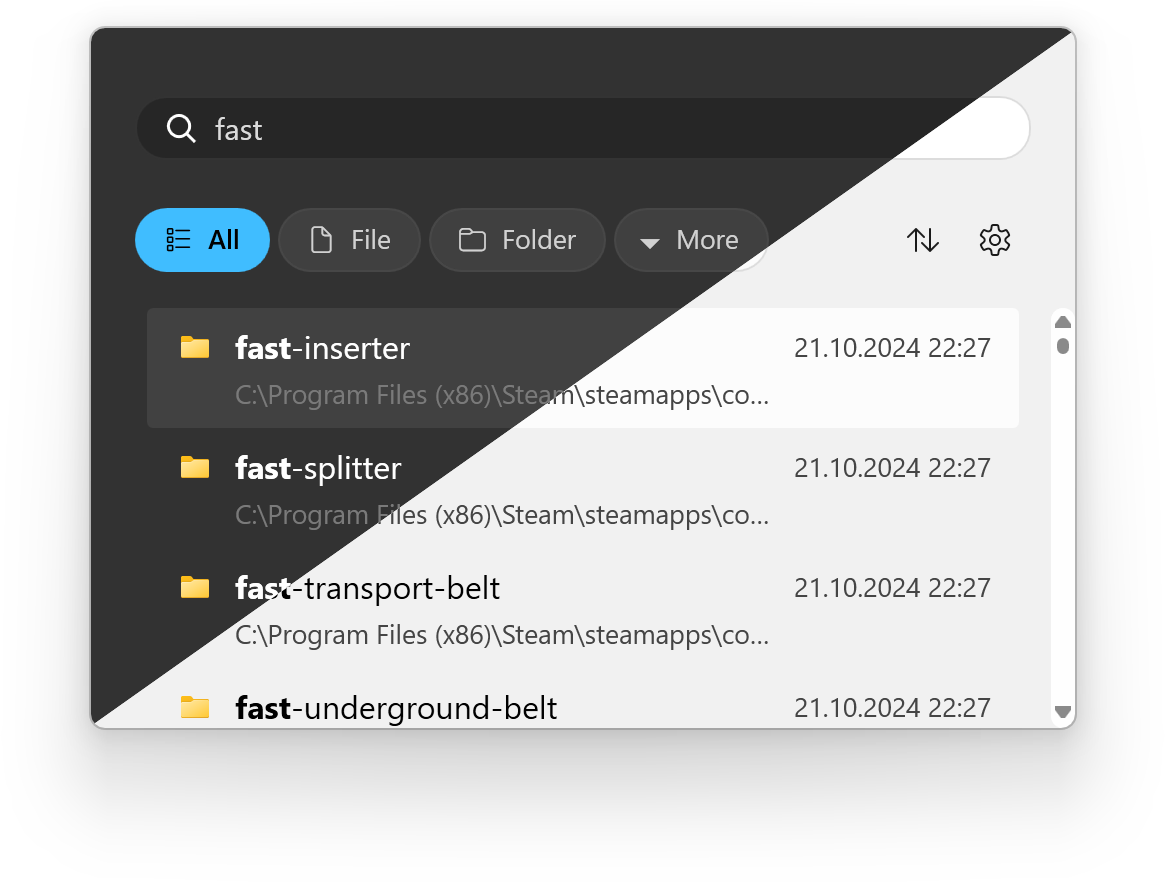
EverythingToolbar seamlessly blends into Windows 10 and 11, automatically adjusting to your system theme.
Choose either during setup or switch anytime under **Settings** → **Taskbar integration**. Additionally, on Windows 10 EverythingToolbar can be integrated as a native deskband.
### Light & Dark Themes
EverythingToolbar seamlessly blends into Windows 10 and 11, automatically adjusting to your system theme.
 ### Custom Search Filters
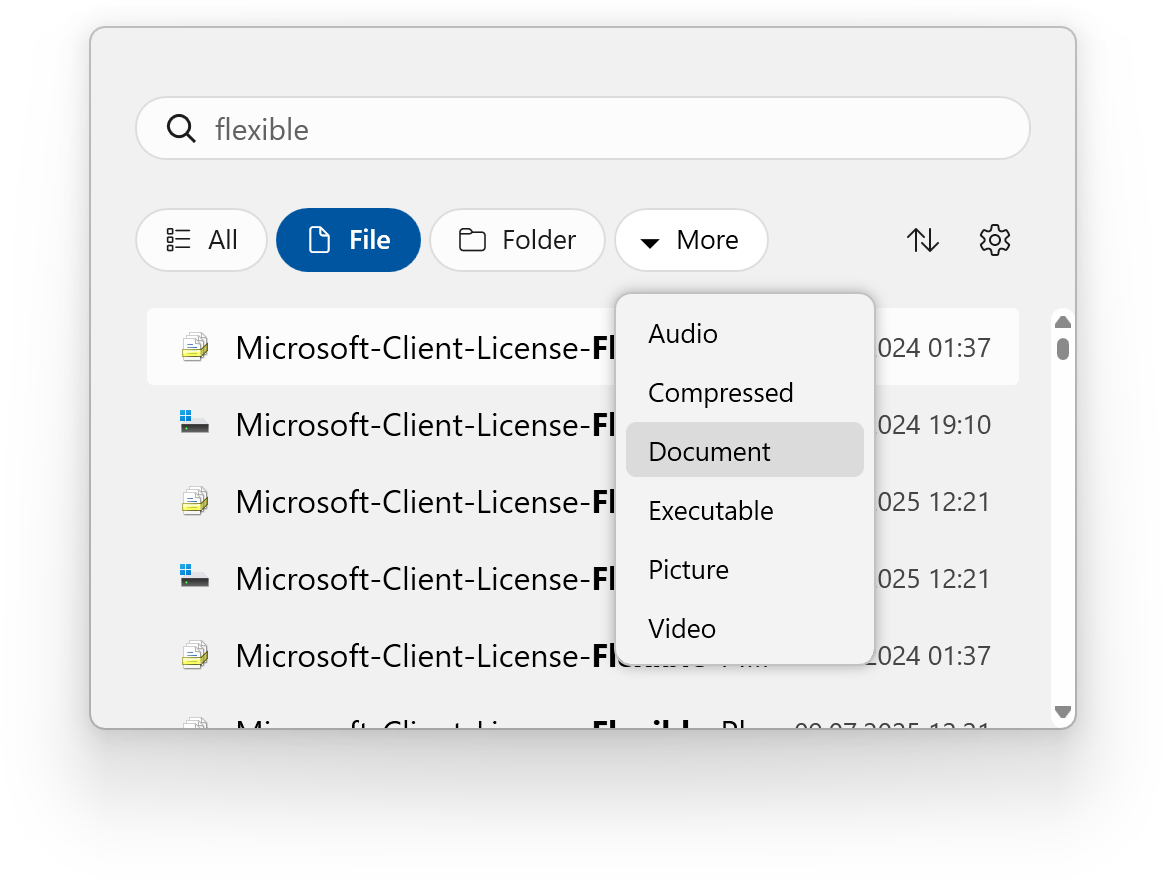
EverythingToolbar includes common search filters out of the box. For advanced users, it can synchronize with Everything's custom filters, giving you complete control over your search experience. Enable this feature by checking **Use Everything filters** in the EverythingToolbar's **Filters** settings.
### Custom Search Filters
EverythingToolbar includes common search filters out of the box. For advanced users, it can synchronize with Everything's custom filters, giving you complete control over your search experience. Enable this feature by checking **Use Everything filters** in the EverythingToolbar's **Filters** settings.
 ### Quick Search Options
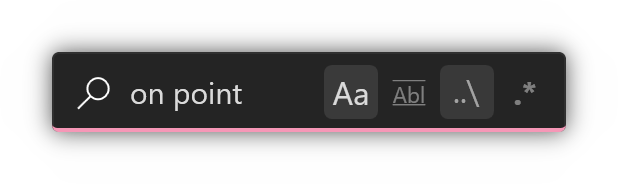
Easily toggle search flags (match case, whole word, match path, and regex) to find your files with precision.
### Quick Search Options
Easily toggle search flags (match case, whole word, match path, and regex) to find your files with precision.
 ### RegEx-Powered File Actions
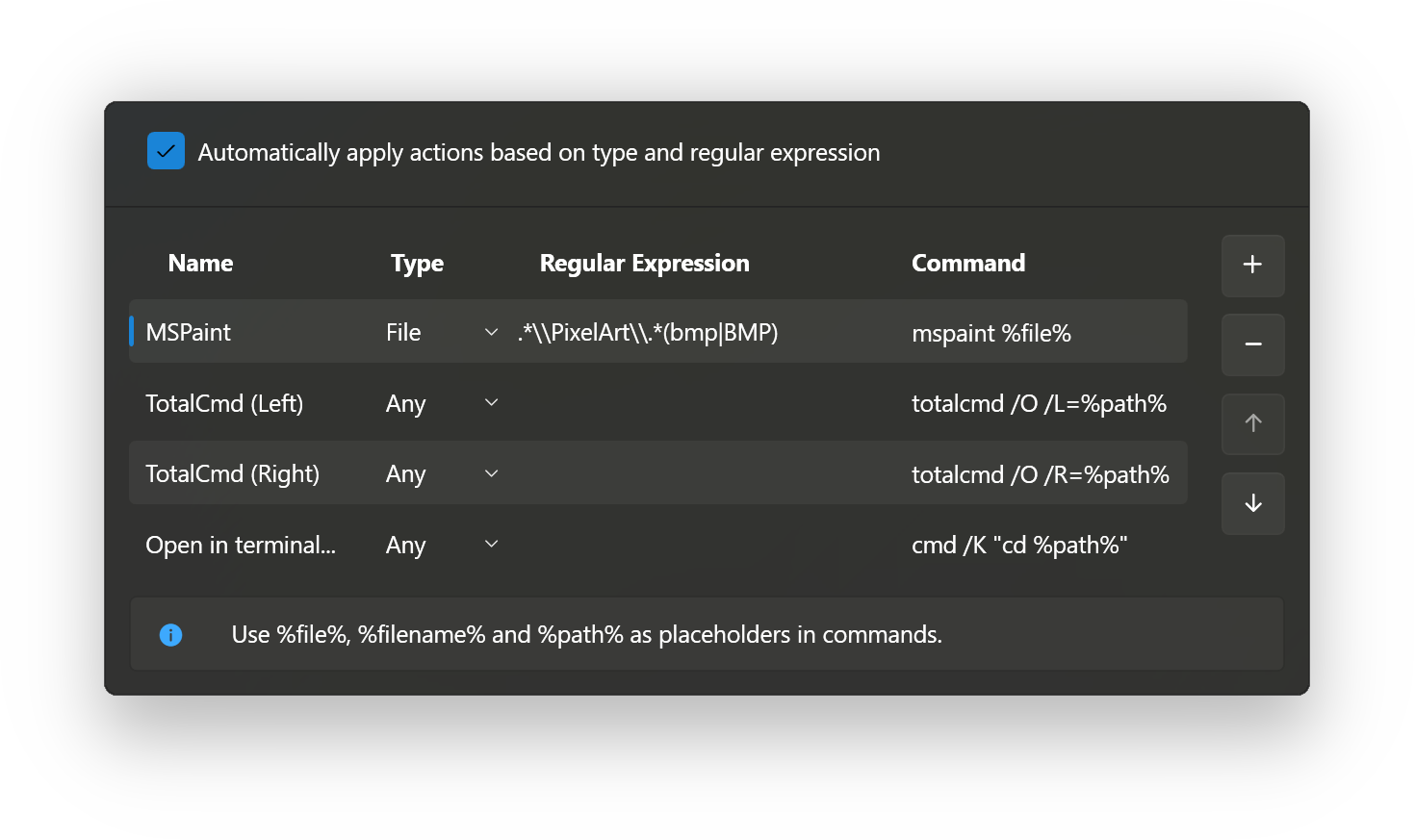
Create custom **Open with** actions by navigating to **Settings** → **Custom actions**. Enable **Automatically apply rules based on condition** to execute commands automatically based on file type and regular expressions. Leave the regex field empty to display the action only in the context menu.
### RegEx-Powered File Actions
Create custom **Open with** actions by navigating to **Settings** → **Custom actions**. Enable **Automatically apply rules based on condition** to execute commands automatically based on file type and regular expressions. Leave the regex field empty to display the action only in the context menu.
 ### Compatibility
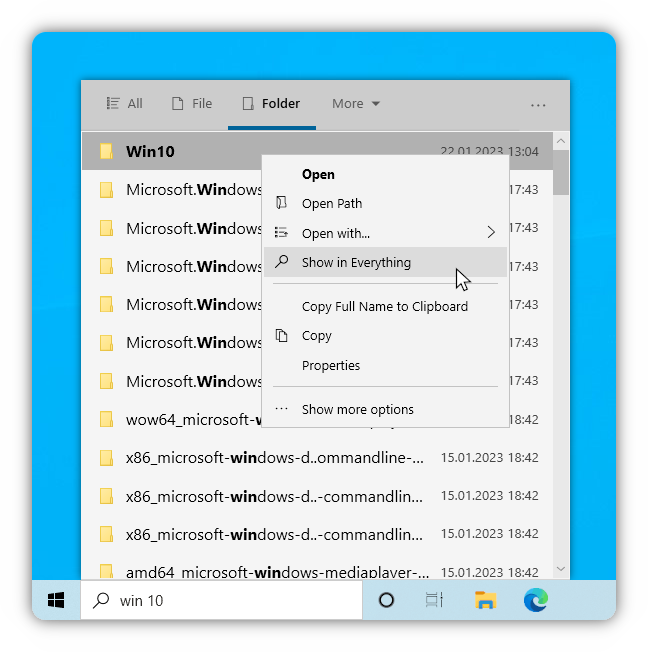
EverythingToolbar works seamlessly on Windows 10 and Windows 11. On Windows 11 the taskbar search box embeds into the taskbar out of the box, and for full deskband support it integrates with tools like [ExplorerPatcher](https://github.com/valinet/ExplorerPatcher) and [StartAllBack](https://www.startallback.com/).
### Compatibility
EverythingToolbar works seamlessly on Windows 10 and Windows 11. On Windows 11 the taskbar search box embeds into the taskbar out of the box, and for full deskband support it integrates with tools like [ExplorerPatcher](https://github.com/valinet/ExplorerPatcher) and [StartAllBack](https://www.startallback.com/).
 ### Additional Features
- Access EverythingToolbar instantly via customizable global shortcut
- Drag and drop files directly from search results
- Preview files with [QuickLook](https://github.com/QL-Win/QuickLook) or [Seer](http://1218.io/) integration
- Support for custom Everything [instance names](https://www.voidtools.com/support/everything/multiple_instances/#named_instances)
### Keyboard Shortcuts
| Shortcut | Function |
|--------------------------------------------------------------------------|------------------------------------------|
| ↑ / ↓ | Navigate search results |
| Ctrl + ↑ / ↓ | Navigate search history (if enabled) |
| Enter / Click | Open file or folder |
| Ctrl + Enter / Click | Open containing folder |
| Shift + Enter / Click | Open in Everything |
| Ctrl + Shift + C | Copy full path to clipboard |
| Alt + Enter / Click | Show file properties |
| Ctrl + Shift + Enter / Click | Run as administrator |
| Shift + Right Click | Open system context menu |
| (Shift +) Tab | Cycle through filters |
| Ctrl + 0-9 | Select filter by number |
| Space | Preview file in QuickLook |
| Win + Alt + S | Focus search box (customizable) |
## 📦 Installation
### Prerequisites
- Windows 10 or Windows 11
- [.NET Desktop Runtime 8.0](https://dotnet.microsoft.com/en-us/download/dotnet/8.0) or later
- [Everything](https://www.voidtools.com) ≥ 1.4.1 installed and running
> **Note:** The Lite version of Everything is not supported
### Install EverythingToolbar
Choose one of the following installation methods:
- **Installer**: Download from [GitHub Releases](https://github.com/srwi/EverythingToolbar/releases)
- **winget**: `winget install srwi.everythingtoolbar.launcher` or `winget install srwi.everythingtoolbar.deskband`
## ⚙️ Setup
### Launcher
*Recommended for unmodified Windows 11 installations*
After installation on Windows 11, the setup assistant will guide you through the configuration process. It offers two ways to reach EverythingToolbar from the taskbar — pick whichever you prefer:
- **Taskbar search box** *(Windows 11 only)*: embeds a search box into the taskbar itself.
- **Taskbar icon**: pins EverythingToolbar as a regular taskbar icon that opens the search window.
Both can be changed later under **Settings** → **Taskbar integration**.
> If the setup assistant doesn't start automatically, search for **EverythingToolbar** in the Windows Start menu.
> For Windows 10 users who prefer the search icon (not recommended), search for **EverythingToolbar.Launcher.exe**, start it manually and follow the setup process. The taskbar search box is not available on Windows 10 — use the deskband instead.
### Deskband
*Recommended for Windows 10 or when using [ExplorerPatcher](https://github.com/valinet/ExplorerPatcher) / [StartAllBack](https://www.startallback.com/)*
After installation on Windows 10:
1. Right-click the taskbar and select EverythingToolbar from the _Toolbars_ context menu
> You may need to open the context menu twice for EverythingToolbar to appear
2. Unlock the taskbar to adjust size and position ([demonstration video](https://raw.githubusercontent.com/srwi/EverythingToolbar/develop/.github/images/deskband_resizing_demo.gif))
> **Windows 11 users**: The setup assistant starts automatically after installation. To use the deskband instead (only recommended with ExplorerPatcher/StartAllBack), close the assistant and end EverythingToolbar's background process via the system tray.
For troubleshooting and additional setup help, see the [FAQ](FAQ.md).
## 🤝 Contributing
All types of contributions are welcome! Whether you're reporting bugs, requesting features, or submitting pull requests, your help is appreciated. For detailed guidelines, including how to build from source, see [CONTRIBUTING.md](CONTRIBUTING.md).
### How to Contribute
- Check existing [issues](https://github.com/srwi/EverythingToolbar/issues) before creating new ones
- Help with open issues and discussions
- [Translate EverythingToolbar](https://crowdin.com/project/everythingtoolbar) into your language
## 💖 Support
If you're enjoying EverythingToolbar, I'd be truly grateful for your support!
You can show your appreciation by giving a star on GitHub or making a donation:
- **[Buy me a coffee](https://ko-fi.com/stephanrwi)**
- **[Donate via PayPal](https://paypal.me/rumswinkel)**
## ❓ FAQ
For frequently asked questions, troubleshooting guides, and detailed configuration instructions, visit the [FAQ](https://github.com/srwi/EverythingToolbar/blob/develop/FAQ.md).
### Additional Features
- Access EverythingToolbar instantly via customizable global shortcut
- Drag and drop files directly from search results
- Preview files with [QuickLook](https://github.com/QL-Win/QuickLook) or [Seer](http://1218.io/) integration
- Support for custom Everything [instance names](https://www.voidtools.com/support/everything/multiple_instances/#named_instances)
### Keyboard Shortcuts
| Shortcut | Function |
|--------------------------------------------------------------------------|------------------------------------------|
| ↑ / ↓ | Navigate search results |
| Ctrl + ↑ / ↓ | Navigate search history (if enabled) |
| Enter / Click | Open file or folder |
| Ctrl + Enter / Click | Open containing folder |
| Shift + Enter / Click | Open in Everything |
| Ctrl + Shift + C | Copy full path to clipboard |
| Alt + Enter / Click | Show file properties |
| Ctrl + Shift + Enter / Click | Run as administrator |
| Shift + Right Click | Open system context menu |
| (Shift +) Tab | Cycle through filters |
| Ctrl + 0-9 | Select filter by number |
| Space | Preview file in QuickLook |
| Win + Alt + S | Focus search box (customizable) |
## 📦 Installation
### Prerequisites
- Windows 10 or Windows 11
- [.NET Desktop Runtime 8.0](https://dotnet.microsoft.com/en-us/download/dotnet/8.0) or later
- [Everything](https://www.voidtools.com) ≥ 1.4.1 installed and running
> **Note:** The Lite version of Everything is not supported
### Install EverythingToolbar
Choose one of the following installation methods:
- **Installer**: Download from [GitHub Releases](https://github.com/srwi/EverythingToolbar/releases)
- **winget**: `winget install srwi.everythingtoolbar.launcher` or `winget install srwi.everythingtoolbar.deskband`
## ⚙️ Setup
### Launcher
*Recommended for unmodified Windows 11 installations*
After installation on Windows 11, the setup assistant will guide you through the configuration process. It offers two ways to reach EverythingToolbar from the taskbar — pick whichever you prefer:
- **Taskbar search box** *(Windows 11 only)*: embeds a search box into the taskbar itself.
- **Taskbar icon**: pins EverythingToolbar as a regular taskbar icon that opens the search window.
Both can be changed later under **Settings** → **Taskbar integration**.
> If the setup assistant doesn't start automatically, search for **EverythingToolbar** in the Windows Start menu.
> For Windows 10 users who prefer the search icon (not recommended), search for **EverythingToolbar.Launcher.exe**, start it manually and follow the setup process. The taskbar search box is not available on Windows 10 — use the deskband instead.
### Deskband
*Recommended for Windows 10 or when using [ExplorerPatcher](https://github.com/valinet/ExplorerPatcher) / [StartAllBack](https://www.startallback.com/)*
After installation on Windows 10:
1. Right-click the taskbar and select EverythingToolbar from the _Toolbars_ context menu
> You may need to open the context menu twice for EverythingToolbar to appear
2. Unlock the taskbar to adjust size and position ([demonstration video](https://raw.githubusercontent.com/srwi/EverythingToolbar/develop/.github/images/deskband_resizing_demo.gif))
> **Windows 11 users**: The setup assistant starts automatically after installation. To use the deskband instead (only recommended with ExplorerPatcher/StartAllBack), close the assistant and end EverythingToolbar's background process via the system tray.
For troubleshooting and additional setup help, see the [FAQ](FAQ.md).
## 🤝 Contributing
All types of contributions are welcome! Whether you're reporting bugs, requesting features, or submitting pull requests, your help is appreciated. For detailed guidelines, including how to build from source, see [CONTRIBUTING.md](CONTRIBUTING.md).
### How to Contribute
- Check existing [issues](https://github.com/srwi/EverythingToolbar/issues) before creating new ones
- Help with open issues and discussions
- [Translate EverythingToolbar](https://crowdin.com/project/everythingtoolbar) into your language
## 💖 Support
If you're enjoying EverythingToolbar, I'd be truly grateful for your support!
You can show your appreciation by giving a star on GitHub or making a donation:
- **[Buy me a coffee](https://ko-fi.com/stephanrwi)**
- **[Donate via PayPal](https://paypal.me/rumswinkel)**
## ❓ FAQ
For frequently asked questions, troubleshooting guides, and detailed configuration instructions, visit the [FAQ](https://github.com/srwi/EverythingToolbar/blob/develop/FAQ.md).