# Frequently Asked Questions
### ❓ What is EverythingToolbar?
EverythingToolbar is a separate user interface for the standalone file search utility [Everything](https://www.voidtools.com) developed by voidtools. EverythingToolbar cannot search for files on its own. Instead, it accesses search results provided by Everything using its SDK and displays them in a modern UI that matches the look and feel of Windows' native start menu search.
### ❓ Can I use EverythingToolbar without Everything?
No, EverythingToolbar requires [Everything](https://www.voidtools.com) to be running in the background at all times.
### ❓ Everything is running but I get no search results.
If you're not seeing search results, try these troubleshooting steps:
- **Check Everything is running**: Verify that [Everything](https://www.voidtools.com) (not just EverythingToolbar) is running in the background. You should see an orange search icon in the system tray.
- **Check Everything version**: You may be running the lite version of [Everything](https://www.voidtools.com), which doesn't allow other applications to retrieve search results. Please uninstall it and install the regular version instead. Make sure it's running in the background.
- **Everything 1.5 alpha users**: If you're using Everything 1.5 alpha, you need to change the Everything instance name to `1.5a` in EverythingToolbar settings.
### ❓ What is the difference between the Deskband and Launcher variants of EverythingToolbar?
#### Deskband
EverythingToolbar originally started as a search bar that could be fully integrated into the Windows taskbar. However, these custom UIs (called deskbands) were removed from Windows 11.
- **Windows 10**: The deskband continues to work fine
- **Windows 11**: You can only use the deskband with third-party tools like StartAllBack or ExplorerPatcher, which restore deskband support
#### Launcher
With the removal of deskband support from Windows 11, EverythingToolbar can only be embedded into the taskbar by pinning a regular application icon. Windows no longer allows search bar UI integration into the taskbar without the third-party tools mentioned above.
### ❓ How can I rearrange the filters in the filter selector bar?
The method for rearranging filters depends on your settings:
**If `Settings → Filters → Use Everything filters` is disabled:**
- Rearrange filters by dragging and dropping them in `Settings → Filters → Filter order`
**If `Settings → Filters → Use Everything filters` is enabled:**
- Filters are synchronized with Everything's filter order
- Rearrange filters in Everything: `Everything → Search → Organize Filters...`
- Changes in Everything will update in EverythingToolbar in real time
### ❓ Can I create more complicated search macros?
Yes! You can use the full power of Everything's custom filters:
1. Create a custom filter in Everything: `Everything → Search → Organize Filters...`
2. Enable `Settings → Filters → Use Everything filters` in EverythingToolbar
3. Select your newly created filter from the dropdown in EverythingToolbar
### ❓ How can I search for only applications?
While EverythingToolbar's main goal is to provide fast search results rather than act as an application launcher, you can configure a dedicated applications filter:
1. Enable `Settings → Filters → Use Everything filters` in EverythingToolbar
2. Create a new filter in Everything: `Everything → Search → Organize Filters...`
3. Configure the filter with the following settings:
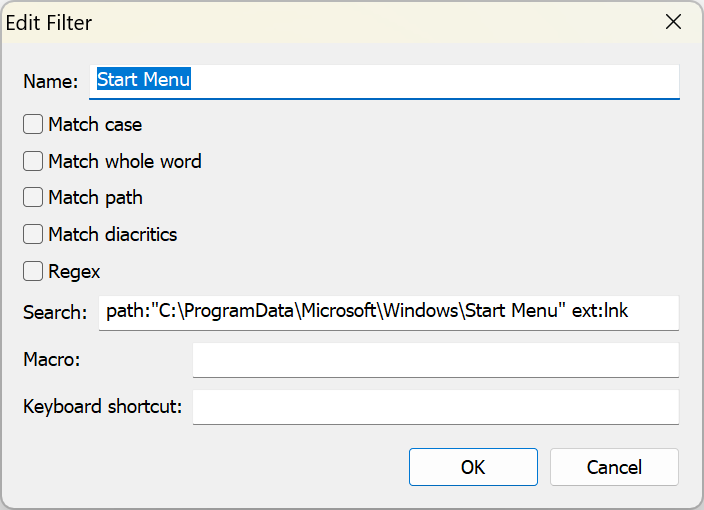 **Tip**: Use Everything's filter order or EverythingToolbar's `Settings → Filters → Remember filter` option to control which filter is selected when opening the search window.
### ❓ How can I use EverythingToolbar with Everything 1.5a?
To use EverythingToolbar with Everything 1.5a:
1. Go to `Settings → Advanced → Everything instance name`
2. Change the instance name to `1.5a`
**Note**: This will likely not be necessary once Everything 1.5a is released as stable.
### ❓ How do I move the search icon on the taskbar?
The method depends on which variant you're using:
**Deskband:**
1. Right-click on the taskbar and uncheck "Lock the taskbar"
2. A handle will appear on the left side of the search bar
3. Drag and drop the handle to move it to your desired position
**Launcher:**
- Drag and drop the search icon in the taskbar like any other pinned application. Unfortunately the positioning capabilities are limited by Windows.
### ❓ How do I change the color of the launcher search icon?
**Important**: Updating the taskbar icon color requires restarting the Explorer process, so it's not done automatically when the Windows theme changes.
1. Go to `Settings → User interface → Search icon`
2. Select your desired color
3. Restart Explorer when prompted to apply the changes
### ❓ Can EverythingToolbar be integrated natively into the Windows search window?
While this might be possible, it would be much more maintenance-intensive and would probably break frequently with Windows updates. Therefore, this is not a planned feature.
### ❓ How can I preview images using QuickLook or Seer?
You can preview the selected file by pressing the Space key. However, this only works when the search box is not focused, as pressing Space while the search box is focused will insert a space character into your search query instead. There are two ways to move focus away from the search box:
**Method 1: Using arrow keys to move focus**
1. Disable `Settings → Search → Select first result`
2. Use the up and down arrow keys to select a search result while moving focus away from the search box
3. Press Space to preview the selected file
**Method 2: Using single-click selection**
1. Enable `Settings → Search → Double-click to open`
2. Single-click a search result to select it (this moves focus away from the search box)
3. Press Space to preview the selected file
### ❓ How do I navigate the search box text using the Home and End keys?
The behavior of the Home and End keys depends on your settings:
**If `Settings → Search → Home/End keys navigate results` is enabled:**
- Home and End keys select the first or last search result
**If `Settings → Search → Home/End keys navigate results` is disabled:**
- Home and End keys move the cursor to the beginning or end of the search box text
### ❓ My taskbar is set to auto-hide and I cannot get the deskband search bar to show up. Why?
This behavior is by design. Unfortunately, there are some limitations that prevent the taskbar (and with that the search box) from staying visible while the user is interacting with the search window. For that reason the deskband will only ever show a toggle button when the taskbar is set to auto-hide.
### ❓ Can I change the operator precedence in search queries?
No, EverythingToolbar relies on the Everything SDK for search functionality, which does not support changing operator precedence. The default precedence is `OR > AND`.
### ❓ How can I support the development of EverythingToolbar? 💖
If you find EverythingToolbar useful and would like to support its development, you can make a donation through the following platforms:
- [Buy me a coffee](https://ko-fi.com/stephanrwi)
- [Donate via PayPal](https://paypal.me/rumswinkel)
Your support helps keep the project active and allows for continued improvements and new features. Thank you for using EverythingToolbar!
**Tip**: Use Everything's filter order or EverythingToolbar's `Settings → Filters → Remember filter` option to control which filter is selected when opening the search window.
### ❓ How can I use EverythingToolbar with Everything 1.5a?
To use EverythingToolbar with Everything 1.5a:
1. Go to `Settings → Advanced → Everything instance name`
2. Change the instance name to `1.5a`
**Note**: This will likely not be necessary once Everything 1.5a is released as stable.
### ❓ How do I move the search icon on the taskbar?
The method depends on which variant you're using:
**Deskband:**
1. Right-click on the taskbar and uncheck "Lock the taskbar"
2. A handle will appear on the left side of the search bar
3. Drag and drop the handle to move it to your desired position
**Launcher:**
- Drag and drop the search icon in the taskbar like any other pinned application. Unfortunately the positioning capabilities are limited by Windows.
### ❓ How do I change the color of the launcher search icon?
**Important**: Updating the taskbar icon color requires restarting the Explorer process, so it's not done automatically when the Windows theme changes.
1. Go to `Settings → User interface → Search icon`
2. Select your desired color
3. Restart Explorer when prompted to apply the changes
### ❓ Can EverythingToolbar be integrated natively into the Windows search window?
While this might be possible, it would be much more maintenance-intensive and would probably break frequently with Windows updates. Therefore, this is not a planned feature.
### ❓ How can I preview images using QuickLook or Seer?
You can preview the selected file by pressing the Space key. However, this only works when the search box is not focused, as pressing Space while the search box is focused will insert a space character into your search query instead. There are two ways to move focus away from the search box:
**Method 1: Using arrow keys to move focus**
1. Disable `Settings → Search → Select first result`
2. Use the up and down arrow keys to select a search result while moving focus away from the search box
3. Press Space to preview the selected file
**Method 2: Using single-click selection**
1. Enable `Settings → Search → Double-click to open`
2. Single-click a search result to select it (this moves focus away from the search box)
3. Press Space to preview the selected file
### ❓ How do I navigate the search box text using the Home and End keys?
The behavior of the Home and End keys depends on your settings:
**If `Settings → Search → Home/End keys navigate results` is enabled:**
- Home and End keys select the first or last search result
**If `Settings → Search → Home/End keys navigate results` is disabled:**
- Home and End keys move the cursor to the beginning or end of the search box text
### ❓ My taskbar is set to auto-hide and I cannot get the deskband search bar to show up. Why?
This behavior is by design. Unfortunately, there are some limitations that prevent the taskbar (and with that the search box) from staying visible while the user is interacting with the search window. For that reason the deskband will only ever show a toggle button when the taskbar is set to auto-hide.
### ❓ Can I change the operator precedence in search queries?
No, EverythingToolbar relies on the Everything SDK for search functionality, which does not support changing operator precedence. The default precedence is `OR > AND`.
### ❓ How can I support the development of EverythingToolbar? 💖
If you find EverythingToolbar useful and would like to support its development, you can make a donation through the following platforms:
- [Buy me a coffee](https://ko-fi.com/stephanrwi)
- [Donate via PayPal](https://paypal.me/rumswinkel)
Your support helps keep the project active and allows for continued improvements and new features. Thank you for using EverythingToolbar!