---
title: "R Programming Basics: Relation and logical operators, if/else, and control flow"
author: "_Mason Stahl_ (ENS-215)"
date: "2026-01-13"
date-format: "MMMM D, YYYY"
format:
html:
embed-resources: true
code-fold: show
code-tools:
source: false
df-print: paged
theme:
light: journal
dark: darkly
page-layout: full
toc: true
toc-float: true
---
In this lesson we will continue learning some important foundational concepts in programming. These concepts will help you understand how to develop your own programs and to solve a wide-range of problems that you are likely to encounter as scientists, engineers, or any other role where you are dealing with data.
It's worth noting that essentially all of the fundamental concepts you are learning in this class are not specific to R (we are just implementing them in R). This is great, since it means that you can apply these concepts/tools to any of your future work, whether it is in R or some other programming language (Python, Matlab, C,...).
As always take the time to carefully work through the examples here. Also try out anything related that may pop into your head. If you are wondering if something is possible, just give it a try. Also remember to chat with your classmates about the work -- you will learn more and much faster this way (plus it will be more fun).
Also now that you've learned some Markdown syntax, you are able to add some fancier formatting to your Notebooks. You should now start implementing these formatting tools in your work. This will make all of your work much easier to read and also look much prettier.
## Relational and Logical operators
When you are writing code you will frequently need to make use of **relational** and **logical** operators. We use relational operators to compare values and logical operators to combine/blend these operations together. These concepts play a very important role in programming and allow us to control the flow of our code. Let's take a look at **relational operators**
### Relational operators
First let's load in the tidyverse package.
```{r message = FALSE, warning=F}
library(tidyverse)
```
To test for equality you use TWO EQUALS signs `==`.
```{r}
a <- 5
b <- 3
a == b # test if a is equal to b
a == a # test if a is equal to a
```
Notice how R returns a TRUE or FALSE value depending on the truth of the evaluated statement.
To test if an objects value is **greater than** $>$ or **greater than or equal to** $\ge$ you do the following. Before you run the code, write down what you anticipate the results to be.
```{r}
a <- 5
b <- 3
c <- 10
a > b # test if a > b
a > c # test if a > c
a > a # test if a > a
a >= a # test if a >= a
```
Now let's test if an objects value is **less than** $<$ or **less than or equal to** $\le$.
```{r}
a <- 5
b <- 3
c <- 10
a < b # test if a < b
a < c # test if a < c
a < a # test if a < a
a <= a # test if a <= a
```
### Logical operators
Often we want to test for some comination of conditions. That's where **logical operators** AND, OR, NOT come into play.
Here's how we use the **AND** operator, which is implemented in R using `&`. Before running the code, make a prediction about whether the test is TRUE or FALSE.
```{r eval= FALSE}
a <- 5
b <- 3
c <- 10
a > b & a < c # test if a > b AND a < c.
c > a & c < b # test if c > a AND c < b.
```
Notice that when using AND, a value of TRUE will only be returned if ALL of the conditions tested are TRUE.
+ Create your own code block and try out some more tests with the AND operator
```{r}
# Your code here
```
We can use the **OR** operator `|` to see if any of the evaluated conditions are true. Before running the code, make a prediction about whether the test is TRUE or FALSE.
```{r eval = FALSE}
a <- 5
b <- 3
c <- 10
a > b | a < c # test if a > b or a < c.
c > a | c < b # test if c > a or c < b.
b > a | b == c # test if b > a or if b is equal to c
```
If one or more of the tested conditions is TRUE then OR will return a value of TRUE
You can string together as many tests as you want. For example something like `(a > b) & (a < 2*c) | (a > b-2 + c)` is completely acceptable.
I recommend using parentheses to make your code more readable, especially when the set of tests grows and the code becomes more complex.
+ Create your own code block and try out some more tests with the OR operator
```{r}
# Your code here
```
The **NOT** operator is implemented in R using `!`. This changes the truth of an evaluated statement. Try to predict the results of the code below before you run it.
```{r eval = FALSE}
a <- 5
b <- 3
c <- 10
a > c # test if a > c
!(a > c) # test if a is NOT greater than c (i.e. tests if a <= c)
a != b # test if a is NOT equal to b
```
### Apply relational and logical operators to vectors
We can also apply these operations on an element-by-element basis to a vector. A vector of logical values (i.e. TRUE or FALSE) is returned. Predict what the results will be before you run the code. If it helps, use a piece of scratch paper to write out some of the values in each vector.
```{r eval = FALSE}
a_vec <- seq(1,10, by = 1.0)
b_vec <- rep(5,10)
a_vec <= 7
a_vec > b_vec
a_vec == b_vec
```
Once you run the code spend some time making sure you really understand what is going on.
Vector operations are incredibly useful and we will apply these all the time in our work. Often the save us from writing a ton of code, since we can perform many operations in a single line of code.
**You can also use relational and logical operators to access parts of vectors (or data frames)**. For example we might have a vectors of data and we only want to access values that meet some criteria. I'll give an example below
```{r}
lake_pH <- c(7.2, 7.4, 6.1, 8.2, 8.5, 4.3, 7.2, 5.8, 7.8, 3.9) # a vector that has pH measurements from several lakes
```
Imagine we are just interested in the data from lakes that are acidic. We can use relational operation to identify the indices that meet this criteria and then pass those indices to the `lake_pH` vector and it will return those values that met our criteria.
```{r}
pH_threshold <- 7.0 # threshold below which we will consider a lake acidic
lake_pH[lake_pH < pH_threshold]
```
+ Make sure you understand what is happening in the code above
+ Now create your own example similar to the one I gave above
We can apply this sampe approach to accessing data in a data frame. Let's give it a try on the `mpg` dataset that is built-in `tidyverse`.
You've seen this dataset before, but you should refamiliarize yourself with it.
Once you understand what you are working with then run the code block below. In this code block we are going to create a new data frame that just contains the cars that get good highway gas mileage (hwy >= 30).
```{r}
cars_good_hwy <- mpg[mpg$hwy >= 30, ]
```
Remember we can access data in a data frame by specifying the rows and columns we want (see last week's lecture for notes/examples on this). In the above code, we used a logical vector to specify the rows we wanted to select and we selected all of the columns (as indicated by the blank after the comma in the brackets). When the value in a logical vector is TRUE then that index is selected and the value is FALSE that index is not selected.
+ Create a new dataframe that contains data for all of the cars that get good highway gas mileage (hwy >= 30) and are model year 2008.
+ Create a new object that just contains the model names for cars whose class is `compact`
+ Test out some other cases where you select only a subset of the `mpg` dataset based on a set of criteria.
```{r}
# Your code here
```
```{r echo = FALSE, eval=FALSE}
# Below are the solutions to the problems stated directly above
# New dataframe for 2008 model year vehicles that get good hwy mileage
cars_good_hwy_2008 <- cars_good_hwy <- mpg[(mpg$hwy >= 30) & (mpg$year == 2008), ]
# Just the model names for cars whose class is compact
models_compact <- mpg$model[mpg$class == "compact"]
```
## Conditional programming
We often want to perform an operation only when certain conditions are met. To do this we rely on **if/else** statements. For example,
**if** you have completed the above work AND you understand it
* Proceed on with the material below
**else if** you have completed the above work AND YOU DO NOT understand it
* Come tell me what you don't understand and I can help to explain it
**else**
* Come tell me why you haven't been able to complete the work and we'll figure out a solution.
### IF statements
An **If Statement** in R is constructed with the following syntax
```{r eval=FALSE}
if(Logical Test Goes Here){
# Here is the code that you want to run when the above test is TRUE
}
```
Pay very careful attention to the syntax above. In particular note:
+ The parentheses `()` around the logical test
+ The brackets `{}` wrapped around the code within the IF statement. The first `{` should be directly after the logical test and on the same line as the `if`
Ok, now let's implement these concepts in R. First go to [National Weather Service (NWS)](https://www.weather.gov/) and get the current temperature (in deg F) for a city of your choosing.
```{r eval = FALSE}
city_temp <- ... # type the temperature here
if(city_temp >= 85){
print("Wow it's pretty hot out!")
}
```
Pay very close attention to the syntax used.
+ Try another temperature to get a different response as your original run.
### IF/ELSE statements
We can add more conditions to our if statement using `else`
```{r eval = FALSE}
city_temp <- ... # type the temperature here
if(city_temp >= 85){
print("Wow it's pretty hot out!")
} else {
print("It's not hot today")
}
```
Again, pay close attention to the syntax used. Note how the `else` keyword is on the same line as the closing bracket of the previous part of the control construct.
+ Think of a scenario where you would want to use an if/else statement and create one below.
```{r}
# Your code here
```
You can even **nest** if statements within another if statement. For example,
```{r eval = FALSE}
city_temp <- ... # type the temperature here
if(city_temp >= 85){
if(city_temp > 100){
print("It is very hot")
}
} else{
print("It is hot")
}
```
### IF/ELSE IF/ELSE statements
We can add even more conditions using `else if`. Not how the `else` statement comes at the very end and catches anything that was not caught in the above tests.
```{r eval = FALSE}
city_temp <- ... # type the temperature here
if(city_temp >= 85){
print("Wow it's pretty hot out!")
} else if(city_temp >= 50){
print("The temperature is nice and comfortable")
} else if (city_temp >= 32){
print("It's pretty cold outside")
} else {
print("It's freezing out!")
}
```
Notice how in the example above, I "hard-coded" the temperature thresholds into the if/else-if statements. This is not a very good practice. Imagine I decide that `85` degress is not the best value to use as a cut-off for hot weather. If I want to change that threshold then I have to go into my if/else-if statement and find each place where I've got an `85` and change it. As your code gets longer and more complex this is a difficult/time consuming and error prone task.
To make your code much more robust and easy to modify, you could assign the temperature thresholds to an object in R and then when you want to modify the threshold you only need to modify one line of code where you've made the object assignment.
+ Recreate the code block above, but this time assign all of the threshold temperatures to their own R object
```{r}
# Your code here
```
Now you should try putting all of this work together. You'd like to modify the above example to take in both temperature and humidity data and then check both the temperature and humidity status and output a message warning people when it is hot and humid (heatstroke danger) or cold and damp (hypothermia risk).
+ Using some combination of if, else, else/if statements create a code block that evaluates health risks associated with weather conditions.
+ For cold and humid weather print "hypothermia risk"
+ For cold weather print "it is cold"
+ For hot and humid weather print "heatstroke risk"
+ For hot and dry weather print "it is hot"
+ For our purposes, cold is when temperature < 50 and hot >= 50 (degrees F)
+ For our purposes, humid is when humidity >= 60 and dry < 60 (relative humidity %)
In the above exercise you should get your temperature and humidity data for today's conditions in a city of your choosing. You can find this data at [National Weather Service (NWS)](https://www.weather.gov/).
Note that there are many ways you can implement a solution to the problem above
```{r}
# Your code here
```
You should test your solution to make sure it is working properly for each of possible cases.
Once you've implemented your solution, talk with your neighbors and see how they did it. Were there more efficient ways of implementing the solution?
```{r echo = FALSE, eval = FALSE}
# My solution to the above exercise is below
city_temp <- 80
city_humid <- 40
if(city_temp >= 50){
if(city_humid >= 60){
print("Be advised: heatstroke risk")
} else{
print("Be advised: it is hot")
}
} else if(city_humid >= 60){
print("Be advised: hypothermia risk")
} else{
print("Be advised: it is cold")
}
```
+ If you finish this exercise, then you should make your solution even better, by trying to catch any problems with user input of temperature data.
+ Nest your above solution in an if/else structure where you test to see if the user input reasonable temperature values. IF they input a temperature > 150 or < -100, you should print a statment "these temperature values seem incorrect", ELSE run the solution as normal.
## Loops
We learned about if/else/else if statements in an earlier lecture. Now we are going to learn about loops, which are another type of **control structure**.
Loops allow us work through items in an object and apply operations to these items, without having to repeat our code. For instance we may have a list of names and we would like to print them one-by-one to our computer screen. We could write out a `print()` statement for each item in the list. In a case like this we can use a **loop**.
Remember to consult your R cheatsheets (in today's lecture, the **Base R cheatsheet** is particularly helpful)
### For loops
Ok, now let's try out a basic example, so that you learn the structure of for loops.
```{r eval = FALSE}
for(i in 1:10){
print(i)
}
```
Make sure you understand what's going on above. Now modify the loop so that it prints out $i^2$ on each loop iteration.
Pay very close attention to the syntax of the loop. If the syntax is incorrect you will get an error.
Ok, now let's try looping over a list of some majors available at Union. Here's the list.
```{r}
majors_union <- c("Environmental Science","Geosciences","English",
"Chemistry","Math","History","Computer Science")
```
Now we would like to print this list out.
```{r eval = FALSE}
for(i_major in 1:7){
print(majors_union[i_major])
}
```
When you run this code you will see that we've looped over the list `majors_union` and we used an **index** variable that started at 1 and increased by one each iteration of the loop. It went up through 7 iterations (which we specified at the start of the loop) and then stops after the 7^th^ iteration.
+ Create a new code block and modify the above code to also print out the `i_major` variable. Do you see what is happening to `i_major` on each iteration of the loop? Note how we use `i_major` to access the i^th^ index of `majors_union` on each loop iteration.
You can also loop through a list using the elements of `majors_union` as the variables over which we loop.
```{r eval = FALSE}
for(i_major in majors_union){
print(i_major)
}
```
The above loop steps through each element in the `i_major` vector -- moving to the next element on each loop iteration.
+ Make sure you understand the difference between the two loops above. They produce the same results but the implementation is different.
+ Talk with your neighbor about how the two loops above are different. Can you think of potential reasons why in some cases you might want to use one implementation over the other?
In some situations we'll want to add a **counter variable** to our loop. This becomes particularly useful when we start to nest if statements inside of our loops (you'll learn about this later in this lesson). Let's add a counter variable to the loop we created above. This variable will keep track of how many times the loop is cycled through and thus will tell us how many majors are in our `majors_union` variable.
```{r eval = FALSE}
counter_majors <- 0 # Initialize the variable to zero
for(i_major in majors_union){
print(i_major)
counter_majors <- counter_majors + 1 # add one to the counter everytime the loop is run
}
```
+ Print out the `counters_majors` variable. Does the value make sense?
#### Exercise
Make two vectors. One vector should have the names of the months (_you can type out the vector of names, or you can use a vector that is built into R that already has the names! A quick Google search should reveal how to do this_). The other vector should have the number of days in each month. Create a loop that prints out a message like below:
_January has 31 days_
_February has 28 days_
_March has..._
**Hint**: use the `paste()` function to combine text. You will nest the `paste()` function in your `print()` statement.
```{r}
# Your code here
```
```{r include = FALSE}
# below is a solution to the above exercise
month_list <- c("January","February","March","April","May",
"June","July","August","September","October","November","December")
day_list <- c(31,28,31,30,31,30,31,31,30,31,30,31)
for(i_mon in 1:length(month_list)){
print( paste(month_list[i_mon],"has",day_list[i_mon],"days") )
}
```
**Challenge:** Once you've completed the exercise above, create a new code block that has the same loop, but this time, for the month of February you should print a statement that says "February has 28 days (29 on leap year)". You can accomplish this by nesting an **if/else** statement in your loop.
+ Talk this over with your neighbors if you get stuck.
```{r}
# Your code here
```
### Nested for loops
We can nest loops inside of other loops. This is often very handy when we want to loop over multiple related variables. Let's take a look at a simple example.
We have a 5 x 5 matrix with the numbers 1 to 25 in it. First take a look at the `x_mat` matrix to make sure you understand what you've got.
```{r}
x_mat <- matrix(1:25, 5, 5, byrow = TRUE)
```
Now let's print each element out row-by-row (i.e. start in row 1 and print each element out one-by-one, then go to row 2 and do the same,...)
```{r eval = FALSE}
for(i_row in 1:5){
for(j_col in 1:5){
print(x_mat[i_row, j_col])
}
}
```
Look at the structure of the code above and make sure you understand what is going on.
Do you see how I "hard-coded" the dimensions of the matrix into the loop (i.e. specified that there are 5 rows and 5 columns). This is generally a bad practice as it makes your code very inflexible. Imagine we are loading in a dataset that is stored in a matrix and we don't know the dimensions beforehand (or we want to load in different datasets that have different dimensions). If we "hard-code" the dimensions into the loop then our code will throw an error (if our dataset has less than 5 rows and 5 columns in the example above) or it will not loop over all of the matrix (if our dataset has > 5 rows and > 5 columns).
#### Exercise
We can fix this issue by getting the dimensions of the data and storing it as a variable that is used in the loop.
Recreate the loop from the example above, but specify the number of rows and columns in the loop using a variable (Hint: you can use the `dim()` function to determine the dimensions of an object or the `nrow()` and `ncol()` functions)
```{r}
# Your code here
```
```{r include = FALSE}
# Below is a solution to the above exercise
n_row <- nrow(x_mat)
n_col <- ncol(x_mat)
for(i_row in 1:n_row){
for(j_col in 1:n_col){
print(x_mat[i_row, j_col])
}
}
```
## While loops
While loops begin by testing a condition. If the condition is TRUE then the loop is executed. The loop continues to be executed until the test condition is no longer TRUE. While loops have many uses, however a note of caution is that these loops will run infinitely if the test condition never changes to FALSE.
Let's take a look at a simple example of a while loop. Before you run this code, predict the first and last value that will be printed to your console.
```{r eval = FALSE}
x_val <- 30 # initialize x_val
while(x_val > 10){
print(x_val)
x_val <- x_val - 1 # on each loop iteration, subtract 1 from x_val
}
```
Like you do with all of your code, pay careful attention to the syntax used when creating a **while** loop.
Create your own while loop and test it out
```{r}
# Your code here
```
## Combining flow control structures
Control structures can be nested within one another. This allows for even greater control in your programming. For example, you can nest an **if statement** within a **for loop**.
Let's take a look at an example. In this example let's load in air temperature data in Albany for November 2018.
```{r}
library(readr)
Alb_temps <- read_csv("https://stahlm.github.io/ENS_215/Data/Albany_Temperatures_Nov_2018.csv",
skip = 3)
```
Now that you've loaded in the data, take a look at it. The data frame has the maximum, average, and minimum temperature (in deg F) for each of the days in November 2018. Make sure you understand each of the variables (columns) before moving ahead.
Let's loop over each day and determine the freezing risk (imagine you are storing something outside and want to know if it was at risk of freezing).
+ If the daily average temperature is $<$ 32 deg F, then you have a "high risk of freezing".
+ If the daily average temperature is $\ge$ 32 deg F, then you have a "low risk of freezing".
```{r output = FALSE}
num_days <- nrow(Alb_temps) # store the number of rows (days) to the num_days variable
freeze_temp <- 32 # water freezing temperature in degress F
for(i_day in 1:num_days){
if(Alb_temps$Avg[i_day] > freeze_temp){
print(paste("On November", Alb_temps$Day[i_day], ": Low risk of freezing"))
} else {
print(paste("On November", Alb_temps$Day[i_day], ": High risk of freezing"))
}
}
```
+ Carefully go through the code block above and make sure you understand exactly what is happening. Discuss with your neighbor. I'll come around and check-in with you too.
## Exercise
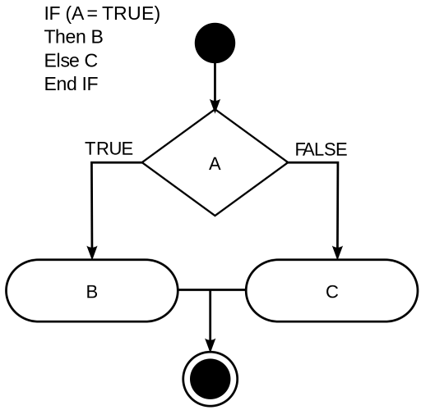
+ Write a new loop that expands on the loop above. In this new loop add an "Extreme risk of freezing" condition. This condition is met when the **maximum temperature** on a given day never gets above freezing (on those days the temperature never went above freezing at any point). You can use multiple if statements or you can use if -> else if -> else combination to accomplish this task. I highly recommend that you draw out flow diagram to help you think about this problem (see simple example below).
```{r}
# Your code here
```
```{r include = FALSE}
# Below is the solution to above exercise
for(i_day in 1:num_days){
if(Alb_temps$Avg[i_day] > freeze_temp){
print(paste("On November", Alb_temps$Day[i_day], ": Low risk of freezing"))
} else{
if(Alb_temps$Max[i_day] <= freeze_temp){
print(paste("On November", Alb_temps$Day[i_day], ": Extreme risk of freezing"))
} else{
print(paste("On November", Alb_temps$Day[i_day], ": High risk of freezing"))
}
}
}
```
+ Once you've got that working, add a **counting variable** that keeps a count of the number of days with an "Extreme risk of freezing". Add similar counting variables for each of the other risk categories. Then after your loop is complete have your code print a statement reporting the number of days in each category. For example, "_Low risk of freezing: X days_".
```{r include = FALSE}
# Below is the solution to above exercise
counter_extreme <- 0
counter_high <- 0
counter_low <- 0
for(i_day in 1:num_days){
if(Alb_temps$Avg[i_day] > freeze_temp){
print(paste("On November", Alb_temps$Day[i_day], ": Low risk of freezing"))
counter_low <- counter_low + 1 # count low risk days
} else{
if(Alb_temps$Max[i_day] <= freeze_temp){
print(paste("On November", Alb_temps$Day[i_day], ": Extreme risk of freezing"))
counter_extreme <- counter_extreme + 1 # count extreme risk days
} else{
print(paste("On November", Alb_temps$Day[i_day], ": High risk of freezing"))
counter_high <- counter_high + 1 # count high risk days
}
}
}
print(paste("Low risk days:", counter_low))
print(paste("High risk days:", counter_high))
print(paste("Extreme risk days:", counter_extreme))
```
## Challenge
Load in the daily temperature data for Albany International Airport and for each year from 1939 through 2021 determine the number of days where the minimum temperature was less than or equal to 32 degrees F. Your results should be saved to a data frame.
The data can be loaded in here
```{r message= F, warning= F}
df_met <- read_csv("https://github.com/stahlm/stahlm.github.io/raw/master/ENS_215/Data/Albany_GHCND_2840632.csv")
```
Ask me and/or discuss with your neighbors if you have any questions or want to go over the approach. FYI, there are many ways that you might implement this solution.
Note: The daily temperature data for Albany was obtained through the National Oceanic and Atmospheric Administration's (NOAA) [Global Historical Climatology Netword daily (GHCNd) database](https://www.ncei.noaa.gov/products/land-based-station/global-historical-climatology-network-daily). This is an excellent resource for daily meteorological records for > 100,000 sites around the world, with many sites having data going back many decades or more.
```{r echo=FALSE}
year_vec <- seq(1939, 2021)
```
```{r echo=FALSE}
table_stats <- tibble(year = year_vec,
n_days = NA,
n_events = NA
)
```
```{r echo=FALSE}
threshold_min <- 32
for (i_year in year_vec) {
df_temp <- df_met[df_met$YEAR == i_year,]
i_count <- (sum(df_temp$TMIN <= threshold_min))
i_days <- nrow(df_temp)
table_stats$n_events[table_stats$year == i_year] <- i_count
table_stats$n_days[table_stats$year == i_year] <- i_days
}
```
```{r echo = F, eval = F}
table_stats %>%
ggplot(aes(x = year, y = n_events)) +
geom_point() + geom_smooth()
```