gdocs-comments-mcp
Inline, range-anchored comments for Google Docs — the one comment operation the Google APIs can't do.


Quickstart
·
Scope
·
Tools
·
Configuration
·
How it works
·
Troubleshooting
·
Server deployment
·
FAQ
You're building an AI process around Google Docs — an agent that reviews drafts, audits contracts, gives editorial feedback. The natural way to deliver that feedback is how humans do it: **a comment pinned to the exact sentence it's about**, not a wall of text dumped at the end of the doc or into chat.
Then you hit the wall: **the Google APIs can't create anchored comments.** The Docs API has no comment endpoints at all, and the Drive API accepts an `anchor` field only to have the Docs editor ignore it — the comment shows up as a general, whole-document comment.
This MCP server closes that gap. Your agent calls `add_comment` with a text fragment and a comment; the server posts it through a real, logged-in Google Docs session, so it lands anchored to that exact text — just as if a human had selected it and pressed `Ctrl+Alt+M`:
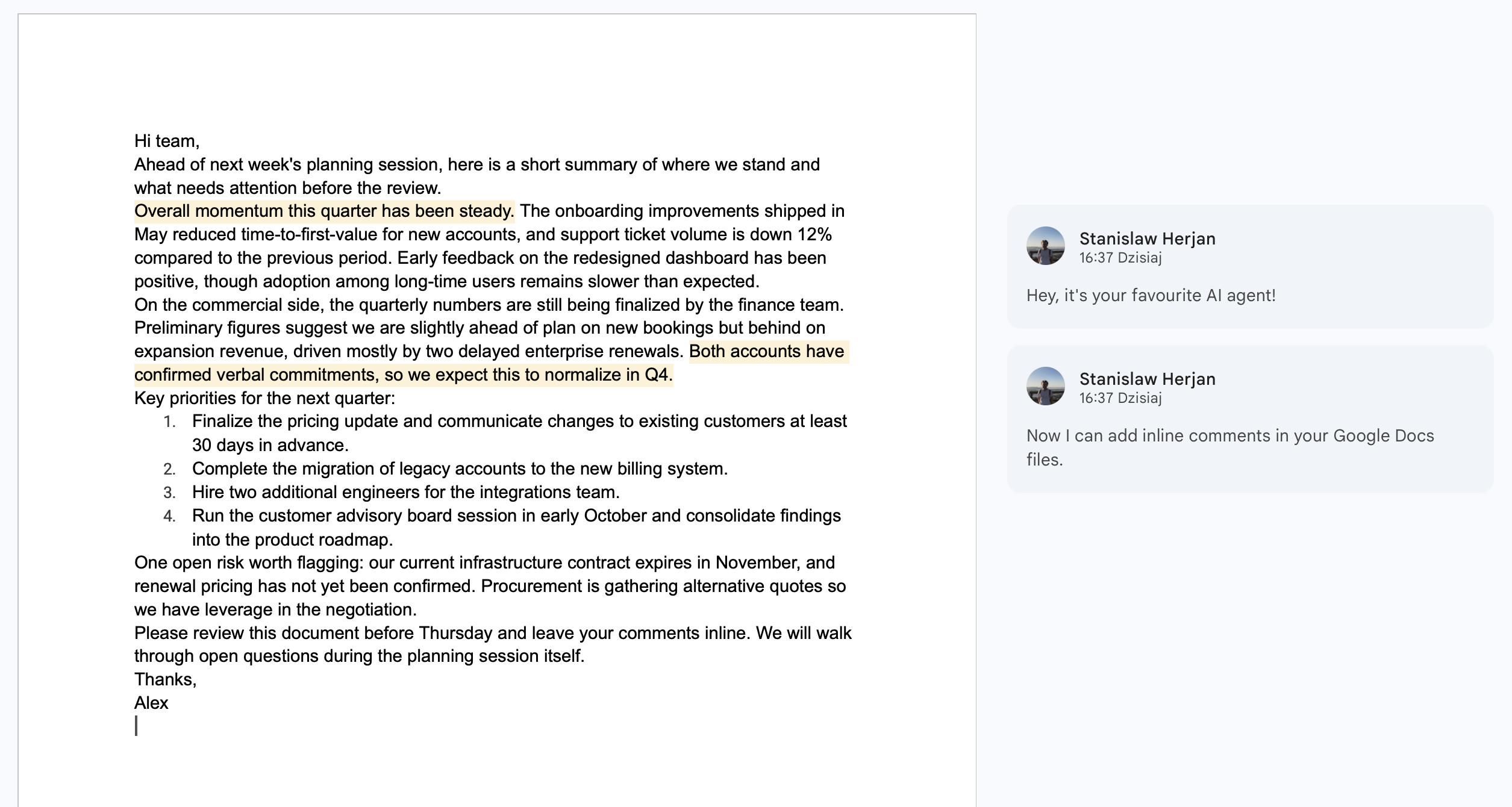
## Why not the official APIs?
This server does one thing: **add a comment to a Google Doc.** The interesting case is the anchored one — a comment pinned to a specific text range — which no Google API can do.
| Add a comment… | Google Docs API | Google Drive API | this server |
|---|:---:|:---:|:---:|
| unanchored (whole document) | ❌ | ✅ | ✅ |
| anchored to a text range | ❌ | ❌ | ✅ |
The Docs API has no comment endpoints at all. The Drive API's `comments.create` accepts an `anchor` field, but the Docs editor **ignores** it — the comment renders as an unanchored, whole-document comment. The editor's own anchor format (`kix.*`) is undocumented and can't be produced externally ([Drive API docs](https://developers.google.com/workspace/drive/api/guides/manage-comments), [issuetracker #292610078](https://issuetracker.google.com/issues/292610078), open since 2016). Driving the editor UI is the only way — so this server does exactly that, and nothing else. (Listing, replying, resolving, and deleting comments already work over the Drive API — use a Drive-based tool for those.)
## What this does — and what it doesn't
This server is deliberately **one narrow thing**. Read this before wiring it in.
**✅ It does:** add comments to a Google Doc — anchored to a specific text range (the part no API can do), or unanchored on the whole document.
**❌ It does NOT:**
| You want to… | Use instead |
|---|---|
| **Read the document's content** (so an agent can decide what to comment on, or get the exact text to anchor to) | **Google Docs API** (`documents.get`) or a Docs-reading MCP |
| Export the doc (text / markdown / PDF) | **Google Drive API** (`files.export`) |
| List / reply to / resolve / delete comments | **Google Drive API** (`comments.*`) — faster, no browser |
> **Important:** this tool **never returns document content** — its output is structured-only (`{ ok, anchored, occurrence_used, verified }`), by design, so a malicious doc can't inject instructions into your agent. That means the agent is writing *blind*: to review a doc intelligently, pair this with a **read** capability (Docs API `documents.get`) and feed the exact quoted text back in as `find_text`. The two use different auth — this server drives a logged-in browser session (no OAuth), while the Docs/Drive APIs need an OAuth token or service account — but they can run against the same Google account.
## Quickstart
**One command** — signs you in (opens a browser once), then registers the server with Claude Code:
```bash
npx -y gdocs-comments-mcp setup
```
That's it — skip to **Use it** below. Prefer to do it by hand, or use another client? The manual steps are below.
Manual setup
**1. Log in once** — opens a browser window; the Google session is saved to a local profile (`~/.gdocs-comments-mcp/profile`):
```bash
npx -y gdocs-comments-mcp login
```
**2. Add the server to your MCP client:**
```bash
# Claude Code
claude mcp add gdocs-comments -- npx -y gdocs-comments-mcp
```
**Other MCP clients** — after `login`, add the config for your client:
Claude Desktop / Cowork
Add to `claude_desktop_config.json` (Settings → Developer → Edit Config):
```json
{
"mcpServers": {
"gdocs-comments": {
"command": "npx",
"args": ["-y", "gdocs-comments-mcp"]
}
}
}
```
Project-level .mcp.json (shared with your team via git)
Create `.mcp.json` in the project root — Claude Code, Cowork, and most MCP clients pick it up:
```json
{
"mcpServers": {
"gdocs-comments": {
"command": "npx",
"args": ["-y", "gdocs-comments-mcp"]
}
}
}
```
Note: every user of the project still runs `npx gdocs-comments-mcp login` once on their own machine — sessions are personal and never shared through git.
Cursor
Add to `.cursor/mcp.json` (project) or `~/.cursor/mcp.json` (global):
```json
{
"mcpServers": {
"gdocs-comments": {
"command": "npx",
"args": ["-y", "gdocs-comments-mcp"]
}
}
}
```
VS Code (GitHub Copilot)
Add to `.vscode/mcp.json`:
```json
{
"servers": {
"gdocs-comments": {
"type": "stdio",
"command": "npx",
"args": ["-y", "gdocs-comments-mcp"]
}
}
}
```
**3. Use it** — ask your agent:
> Add a comment to https://docs.google.com/document/d/1AbC…/edit — anchor it to "quarterly numbers" and say "Update this before Friday".
The agent calls `add_comment` and gets back:
```json
{ "ok": true, "anchored": true, "occurrence_used": 1, "verified": true }
```
…and the comment is sitting on the highlighted phrase in the doc, from the account you logged in with.
No Playwright browser download is needed — by default the server drives your installed Google Chrome via `playwright-core`.
## Tools
### `add_comment`
| Param | Required | Description |
|---|:---:|---|
| `doc` | ✅ | Document id **or** full `docs.google.com/document/d//edit` URL |
| `comment_text` | ✅ | Comment body (plain text, newlines OK) |
| `find_text` | — | Exact, single-line text fragment to anchor to (must match the doc text). **Omit to add a general, unanchored comment on the whole document.** |
| `occurrence` | — | Anchor to the N-th match when `find_text` appears multiple times (default 1) |
Returns `{ ok, anchored, occurrence_used, verified }` — `verified: true` means the posted comment was observed in the page after submitting. If `find_text` is given but not found, the call fails with `TEXT_NOT_FOUND` and **nothing is posted**.
The tool **never returns document content**, so a malicious doc can't inject instructions into your agent through it.
### `check_connection`
Probes the Google session; returns `{ connected, mode }`. If `connected: false`, run `npx gdocs-comments-mcp login` again.
> **Scope note:** this server does *one* thing — creating anchored comments. Listing, replying, resolving, and deleting comments all work fine through the Drive API (`comments.*`), which is faster and needs no browser — use a Drive-based MCP for those.
## CLI
```bash
npx gdocs-comments-mcp login # one-time interactive Google sign-in
npx gdocs-comments-mcp status # is the saved session still valid?
npx gdocs-comments-mcp logout # delete the saved session/profile
```
## Configuration
All optional, via environment variables:
| Env var | Default | Purpose |
|---|---|---|
| `GDOCS_COMMENTS_PROFILE_DIR` | `~/.gdocs-comments-mcp/profile` | Where the logged-in browser profile lives (set a different dir per Google account) |
| `GDOCS_COMMENTS_BROWSER_CHANNEL` | `chrome` | `chrome` \| `msedge` \| `chromium` (bundled; needs `npx playwright install chromium`) |
| `GDOCS_COMMENTS_HEADLESS` | `true` | Set `false` to watch the automation work |
| `GDOCS_COMMENTS_IDLE_CLOSE_MIN` | `10` | Close the managed browser after N idle minutes (`0` = keep open) |
| `GDOCS_COMMENTS_CDP_URL` | — | Attach to an existing browser over CDP instead of managing a profile ([see below](#running-on-a-server--datacenter-ip)) |
| `GDOCS_COMMENTS_AUDIT_LOG` | off | JSONL audit log (hashes only, no content) |
## Troubleshooting
| Error | What it means | Fix |
|---|---|---|
| `NOT_CONNECTED` | No saved Google session yet | `npx gdocs-comments-mcp login` |
| `SESSION_EXPIRED` | The saved session lapsed (idle sessions die after ~1–2 weeks) | `npx gdocs-comments-mcp login` again |
| `TEXT_NOT_FOUND` | `find_text` doesn't occur in the doc (or `occurrence` > number of matches) | Pass a fragment that matches the doc text exactly — nothing was posted |
| `NO_BROWSER` | No Chrome/Edge/Chromium found | Install Google Chrome, or `npx playwright install chromium` + `GDOCS_COMMENTS_BROWSER_CHANNEL=chromium` |
| `PROFILE_LOCKED` | Another process holds the profile (usually a running server + a `login`/`status` attempt) | Stop one of them, or use a second `GDOCS_COMMENTS_PROFILE_DIR` |
| Comment lands but `verified: false` | The post-submit check couldn't see the comment (can be a false negative on long comments) | Check the doc; rerun with `GDOCS_COMMENTS_HEADLESS=false` to watch |
First run on a new machine? `npx gdocs-comments-mcp status` tells you exactly where you stand.
## Running on a server / datacenter IP
On a residential machine the default profile mode just works. On datacenter IPs, Google's anti-fraud **rejects a freshly launched browser process reusing a saved session** — it bounces to `accounts.google.com/confirmidentifier`. Relaunching from a profile does not work there.
What does work: keep the exact browser the operator logged into **alive**, and let this server attach to it:
1. Start a long-lived Chrome/Chromium (under Xvfb if headless) with `--remote-debugging-port=9333` and log in to Google inside it once.
2. Run the MCP server with `GDOCS_COMMENTS_CDP_URL=http://127.0.0.1:9333`.
The server then drives that live session over CDP and never launches its own browser. Keep the session warm by navigating it to `docs.google.com` every few hours, or an idle session expires after ~1–2 weeks.
## How it works
Because the APIs can't anchor a comment, the server does exactly what a person would: it drives the real Google Docs editor. Here's the full path of one `add_comment` call.
**1. Attach to a logged-in browser.** In the default *profile mode*, the server owns a persistent Chromium profile (your installed Google Chrome, via `playwright-core` — no extra browser download). You authenticate into it once with `gdocs-comments-mcp login`; the Google session cookies are saved to `~/.gdocs-comments-mcp/profile` and reused headlessly on every later run. In *CDP mode* (`GDOCS_COMMENTS_CDP_URL`) the server instead attaches over the Chrome DevTools Protocol to a browser you keep alive — see [server deployment](#running-on-a-server--datacenter-ip).
**2. Open the document.** It navigates to `https://docs.google.com/document/d//edit?hl=en`. The `doc` id is validated first, and navigation is hard-pinned to `docs.google.com` — the tool can't be steered elsewhere. If the page bounces to `accounts.google.com`, the session is dead and the call returns `SESSION_EXPIRED`. `?hl=en` pins the UI language so the find-bar counter is parseable in the next step.
**3. Find the anchor text.** The document body renders to an HTML `