
# Voltip
### Hold a hotkey, speak, let go: the text lands at your cursor.
[](https://github.com/sunerpy/voltip/actions/workflows/ci.yml)
[](https://github.com/sunerpy/voltip/releases)
[](https://codecov.io/gh/sunerpy/voltip)
[](./LICENSE)
[Website](https://voltip.firlab.app) · [Try it online](https://voltip.firlab.app/guide/try) · [Video](#video) · [Features](#features) · [Install](#install) · [Quick start](#quick-start) · [Privacy](#privacy) · [Build from source](#build-from-source) · [Documentation](#documentation) · [Community](#community)
[**English**](./README.md) · [简体中文](./docs/readme/README.zh-CN.md)
---
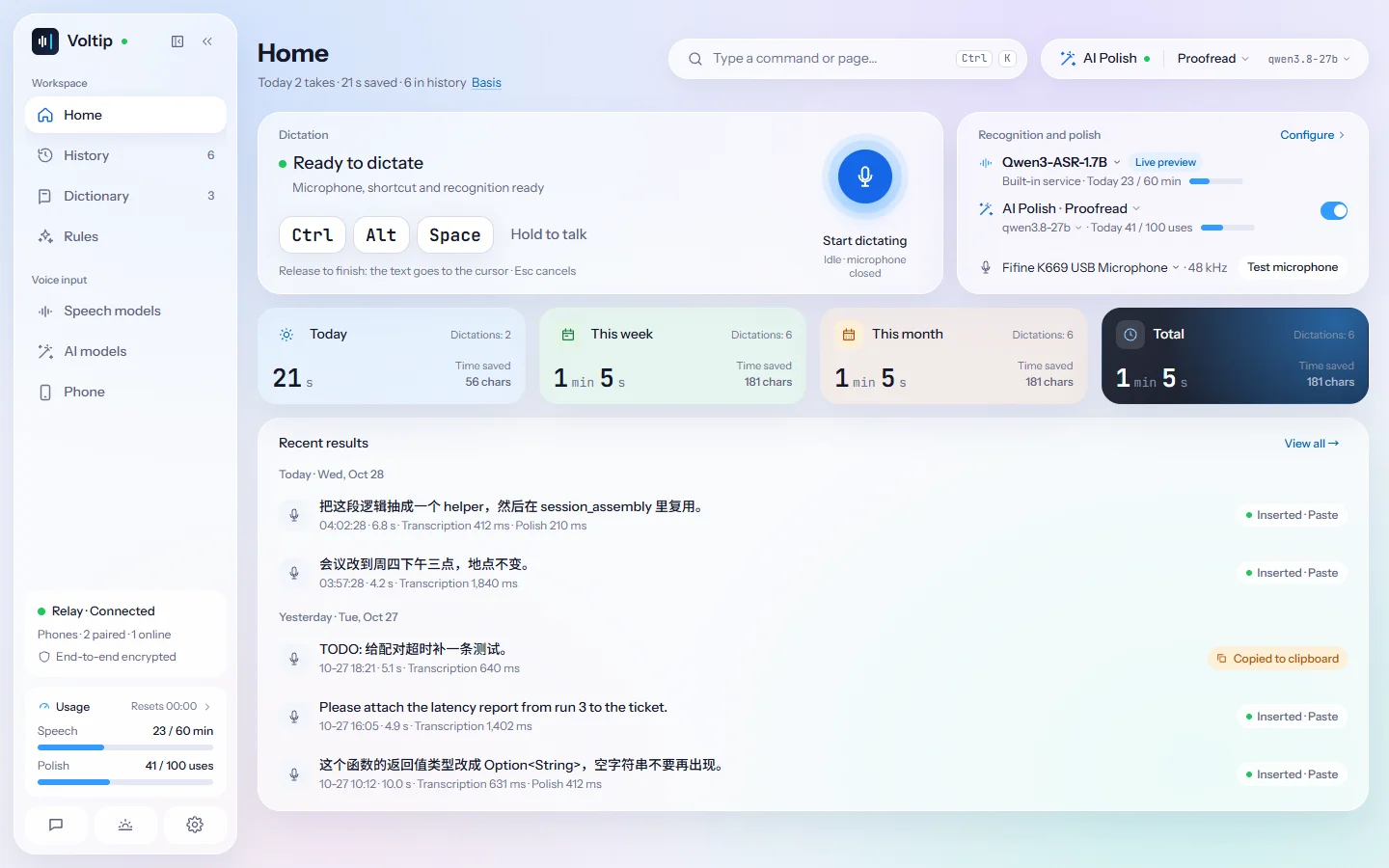
Voltip is a dictation app for Windows, Linux, macOS and Android. On the computer it records while
you hold the hotkey, recognises the speech in the cloud or on your own machine, optionally cleans
the text up with an LLM, and pastes it into whatever app has the focus. The Android app works on
its own, or as the computer's microphone and keyboard; an iOS app is planned for a later release.
## Video
Voltip in 2 minutes 50 seconds: installing it, the first dictation, AI polish, voice edit,
recognition on this computer, the dictionary and the history. Recorded with 0.1.3; the
[Chinese version](./docs/readme/README.zh-CN.md#视频) is in the Chinese README.
https://github.com/user-attachments/assets/858ba275-ef2b-4864-ad8c-f189f354d6a9
## Features
- Push-to-talk on a global hotkey (`Ctrl+Alt+Space` by default) or on a single key such as Right
Ctrl or a mouse side button: hold to talk, press to start and press again to stop, or tap to lock
a long take. A floating pill shows the input strength, the live transcript and the result.
- Recognition from a cloud provider (OpenAI, Groq, SiliconFlow, Alibaba Cloud Model Studio with its
realtime models, or any OpenAI-compatible endpoint) or on-device: Qwen3-ASR 0.6B / 1.7B through
transcribe.cpp, SenseVoice and Paraformer through sherpa-onnx. Qwen3-ASR runs on the GPU when
there is one (Vulkan on Windows and Linux, measured on NVIDIA cards; Metal on macOS) and on the
CPU otherwise.
- Live preview while you speak (a streaming Zipformer model), and output as one block, sentence by
sentence, or from the stream directly.
- Clean-up by an LLM (the same providers, plus Google AI Studio, DeepSeek, Kimi, Zhipu GLM,
Volcengine Ark, Tencent Hunyuan, Xiaomi MiMo, OpenRouter and a local Ollama), a personal dictionary
that fixes words the recogniser keeps getting wrong, literal and regex replacement rules, and
Simplified / Traditional Chinese normalisation.
- Voice edit: select text, hold `Ctrl+Alt+E`, say "make it more formal" or "translate to English",
and the rewrite replaces the selection.
- Scenes: the app in focus when you start picks the polish style, output mode, language and extra
instructions for that take.
- Long recordings: record the microphone, the sound your computer plays, or both mixed, for up to
two hours in one take. A take is transcribed in segments while you speak, so the text is ready
soon after you stop. In the history, an AI preset processes a long text in parts (Chinese ⇄
English gives a translation, Key points a summary), and a take exports as SRT subtitles or as
plain text.
- Phone as microphone and keyboard: pair an Android phone by QR code or a 6-digit code. Hold to
talk on the phone (the audio goes end-to-end encrypted, compressed with Opus), or type or send
the clipboard, and the text appears at the computer's cursor. The computer can keep pairing open
for the next phone.
- The phone on its own: with no computer online, the phone recognises and cleans up the speech
itself and copies the text. It has its own speech and AI providers, presets, dictionary, rules,
scenes and history: every feature but the local models. A paired computer's history and
settings sync to the phone to read, and what the phone recognised on its own goes to the
computer as a copy.
## Install
### One line
Windows 10/11, in PowerShell:
```powershell
irm https://raw.githubusercontent.com/sunerpy/voltip/main/scripts/install.ps1 | iex
```
Linux (x86_64) and macOS (Apple silicon or Intel), in a terminal:
```bash
curl -fsSL https://raw.githubusercontent.com/sunerpy/voltip/main/scripts/install.sh | sh
```
The scripts pick the package for the computer, download it with the release's `SHA256SUMS`, and
install nothing unless the checksum matches:
- Windows: the per-user installer, run silently (no administrator prompt); Voltip starts when it
is done.
- Linux: the `.deb` through `apt` where apt is (it asks for your password), otherwise the AppImage
in `~/.local/bin` with an entry in the applications menu.
- macOS: the dmg for the Mac's processor, detected automatically (also from a Rosetta terminal);
the app goes to `/Applications`, or `~/Applications` when that is not writable. Installed this
way it opens without the Gatekeeper prompt.
Options go to `sh`, after the pipe: `curl -fsSL … | VOLTIP_VERSION=0.0.4 sh` installs a given
release instead of the latest, `VOLTIP_PACKAGE=appimage` takes the AppImage on a Debian-based
system, and `VOLTIP_INSTALL_DIR` moves the AppImage or the Mac app. In PowerShell, run
`$env:VOLTIP_VERSION = "0.0.4"` first. The commands read the scripts from `main`; to run the copy
a release shipped with, put its tag (for example `v0.0.4`) in place of `main`.
### Packages
Every [release](https://github.com/sunerpy/voltip/releases) carries the packages, `SHA256SUMS` and
build attestations:
| Platform | Package | Notes |
|---|---|---|
| Windows 10/11 x64 | `*_x64-setup.exe` (per-user installer), `*_x64-portable.zip` (unpack and run `voltip-desktop.exe`; keep the DLLs beside it) | Not code-signed yet: SmartScreen warns on the first start. |
| Linux x64 | `.deb`, `.AppImage` | Built on Ubuntu 22.04, needs glibc 2.34 or newer; the `.deb` depends on `libwebkit2gtk-4.1-0`, `libvulkan1` and a BLAS (`libblas3`, from 0.0.5), the AppImage needs FUSE 2 (`libfuse2`). X11 and Wayland. |
| Linux x64 server | `voltip-server-*-linux-x64.tar.gz` | The local speech service for a server without a desktop (below); `install.sh --server` installs it without root. |
| macOS 11+ (Apple silicon) | .dmg | M1 or newer |
| macOS 11+ (Intel) | .dmg | Intel Macs |
| Android 8.0+ (64-bit Arm) | `Voltip_*_android_arm64.apk` | Open it on the phone to install. The `.aab` is the package for Google Play. From 0.0.50 the app's screens use Android's own controls; it installs over 0.0.49 and earlier and keeps the pairing, settings and history. |
The Mac packages are `*_aarch64.dmg` (Apple silicon) and `*_x64.dmg` (Intel), signed with the
project's own self-signed certificate and not notarized. On a Mac, open the dmg and drag Voltip onto
Applications. The first start is blocked because the app is not notarized: on macOS 15 and later
open System Settings → Privacy & Security and click Open Anyway; on macOS 11 to 14 Control-click
Voltip in Applications and choose Open. From a terminal,
`xattr -dr com.apple.quarantine /Applications/Voltip.app` does the same. Updates install from inside
the app and keep the microphone and Accessibility permissions. The post-install keychain hand-over
in 0.0.15 and 0.0.16 did not work; 0.0.16 therefore asks once per keychain item when it installs the
first release with the pre-install fix. In-app updates between two fixed releases do not ask. Turn
Voltip off and on again under Accessibility and Microphone if dictation does not work.
Release packages come with a default recognition and clean-up service, so dictation works before
you configure anything. You can switch to another provider or to an on-device model at any time.
To check a download yourself, compare it with its line in `SHA256SUMS` (`sha256sum`, or
`shasum -a 256` on a Mac) and verify where it was built:
```bash
gh attestation verify Voltip_0.0.4_amd64.deb --repo sunerpy/voltip \
--signer-workflow sunerpy/voltip/.github/workflows/release-candidate.yml
```
## Quick start
1. Start Voltip. It opens on the home page, ready to dictate with the default service. A missing
permission (the microphone, and Accessibility on macOS) shows there with a button to grant it;
Settings → General → Setup guide walks through the hotkey, the engine and a test take.
2. Put the cursor in any text field, hold `Ctrl+Alt+Space`, speak, let go.
3. On a pure Wayland session there is no global hotkey. Bind a compositor shortcut to
`voltip-desktop --toggle` (and `--edit-toggle` for voice edit).
 |
 |
 |
Report a problem or suggest a feature in [GitHub issues](https://github.com/sunerpy/voltip/issues),
or with Feedback at the bottom of the app's sidebar.
## Contributing
Issues and pull requests are welcome. [AGENTS.md](./AGENTS.md) has the layout and the rules the
code follows, [CONTRIBUTING.md](./CONTRIBUTING.md) the workflow; report security problems as
described in [SECURITY.md](./SECURITY.md).
## License
[GNU Affero General Public License v3.0 or later](./LICENSE) (AGPL-3.0-or-later). Versions 0.0.20
and earlier were released under the Apache License 2.0 and stay under it.