# Android reading
[User documentation](README.md) · [Documentation](../README.md)
Markview for Android supports Android 11 (API 30) and newer. Download the APK
from [Releases](https://github.com/szdytom/markview/releases). The app uses the
same native typography, settings, fonts, themes and image cache as the desktop reader.
## Read and customize
On the start page, tap **Open file…** or **Open folder…** to go directly to the
corresponding system picker. Opening a folder first asks for **All files
access**, then reads the chosen directory on internal storage or an SD card in
place. Recent workspaces reopen that real folder; with a workspace open, Quick
access searches its files by name or relative path. Relative images and
Markdown links keep working, and `README.md` is preferred as the first
document.
The left file tree shows every Markdown document and its subfolders. Tap a
file to switch documents, and use the folder icon to reopen the tree on a
phone. The same [folder and Obsidian link support](reading.md#folders-and-obsidian-vaults)
is available on Android.
Android's **Open with** and **Share** offer **Read in Markview** (localized to
**在 Markview 中阅读** in Simplified Chinese), opening the supplied file directly
without first saving it or finding it in the picker. Markdown MIME types, plain
text and generic `application/octet-stream` attachments are supported, including
providers whose content URIs do not contain a filename. Generic attachments can
also list Markview for non-Markdown files because Android cannot filter shares
by their display filename. Shared HTTP(S) URLs open in the native web reader;
a plain title followed immediately by a URL as the only two lines is also supported. Other shared text
opens as a Markdown document, and file attachments take precedence over text.
HTTP(S) **Open with** links use the same web reader. Android 12 and newer
usually send unverified web links to the default browser; use the browser's
**Share** menu and select **Read in Markview** to read them here.
Tabs, touch scrolling, outline, search,
settings and styles use the same controllers as the desktop reader. Phones open
the tab drawer with the top-left menu button or a right swipe across the reader.
Selecting a tab, tapping the outside scrim or pressing Back dismisses the tab
drawer. A left swipe opens right-side Contents on phones and tablets, including
while the tab drawer is open. Back closes
the open search or panel before returning the task to the background.
Settings, downloaded fonts, styles and image cache live under the private app
files directory in `markview/`. Android settings omit the desktop buttons for
opening `settings.toml`, the fonts folder and the styles folder, and the toolbar
omits the desktop Reveal button because no file manager browses that directory.
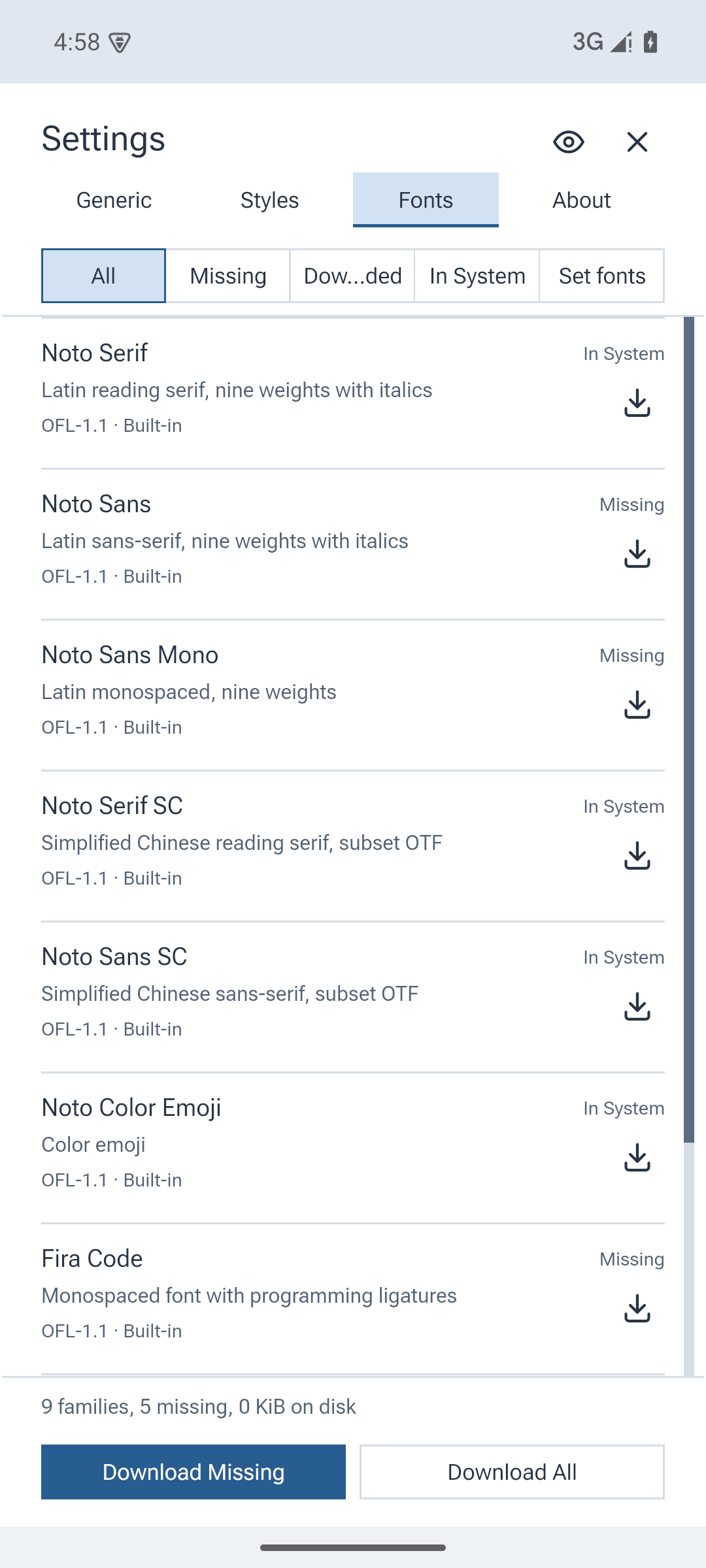
Downloaded fonts use the existing catalogue and font-family selectors.
Export uses Android's system save dialog and passes the written result to an
installed viewer. Repeated watched exports update the selected destination.
Folders are read directly from shared storage, so changes made by other apps,
including MGit and Syncthing, appear in the open tree as they happen. Files
opened one at a time are still imported copies because Android grants access to
a single document rather than its directory; reopen such a file to refresh it.
Tabs survive rotations and activity suspension; saved tabs and reading
positions are restored after activity destruction or a process restart. Android
limits access to sibling files when only one file is granted; open its folder
for local images and neighbouring Markdown files.
## Phone and tablet controls
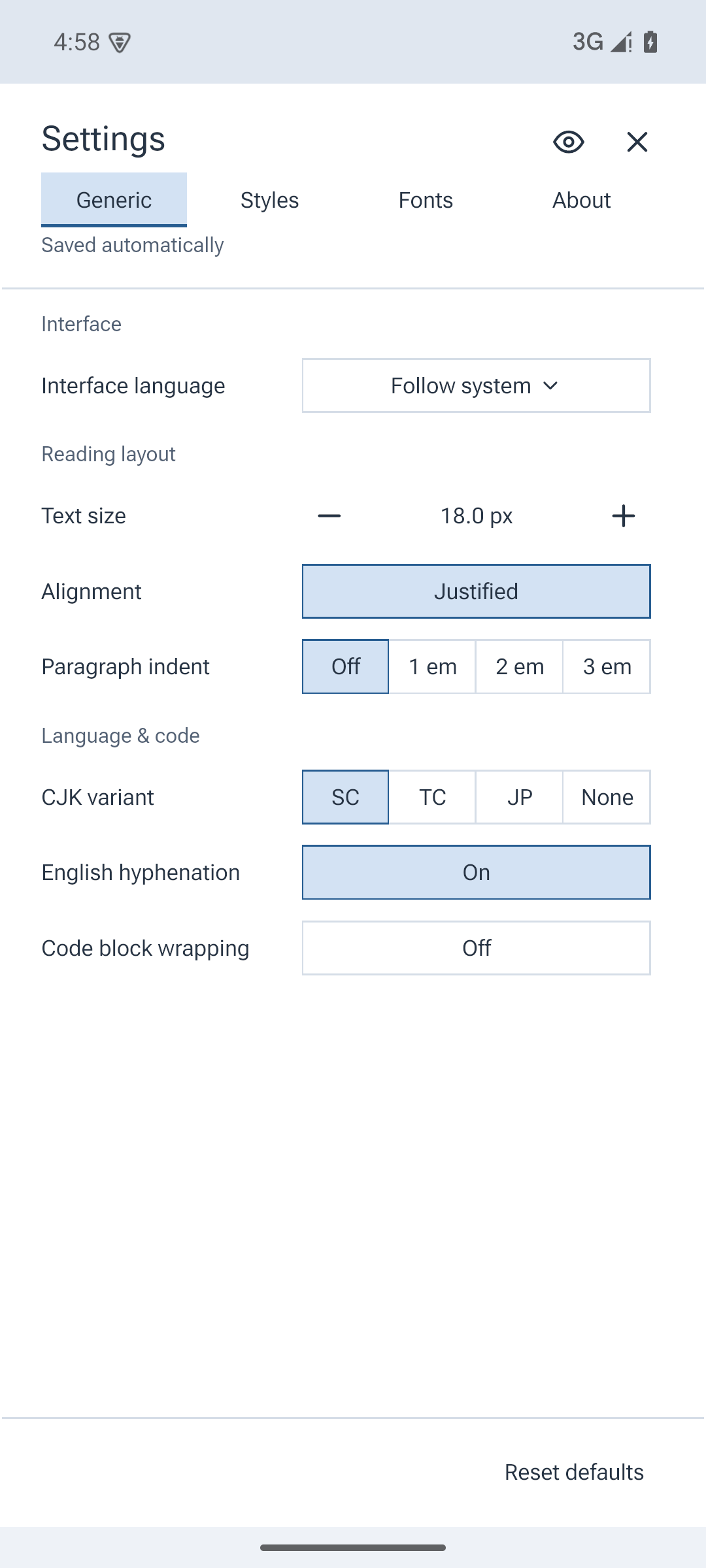
Below 640 logical pixels,
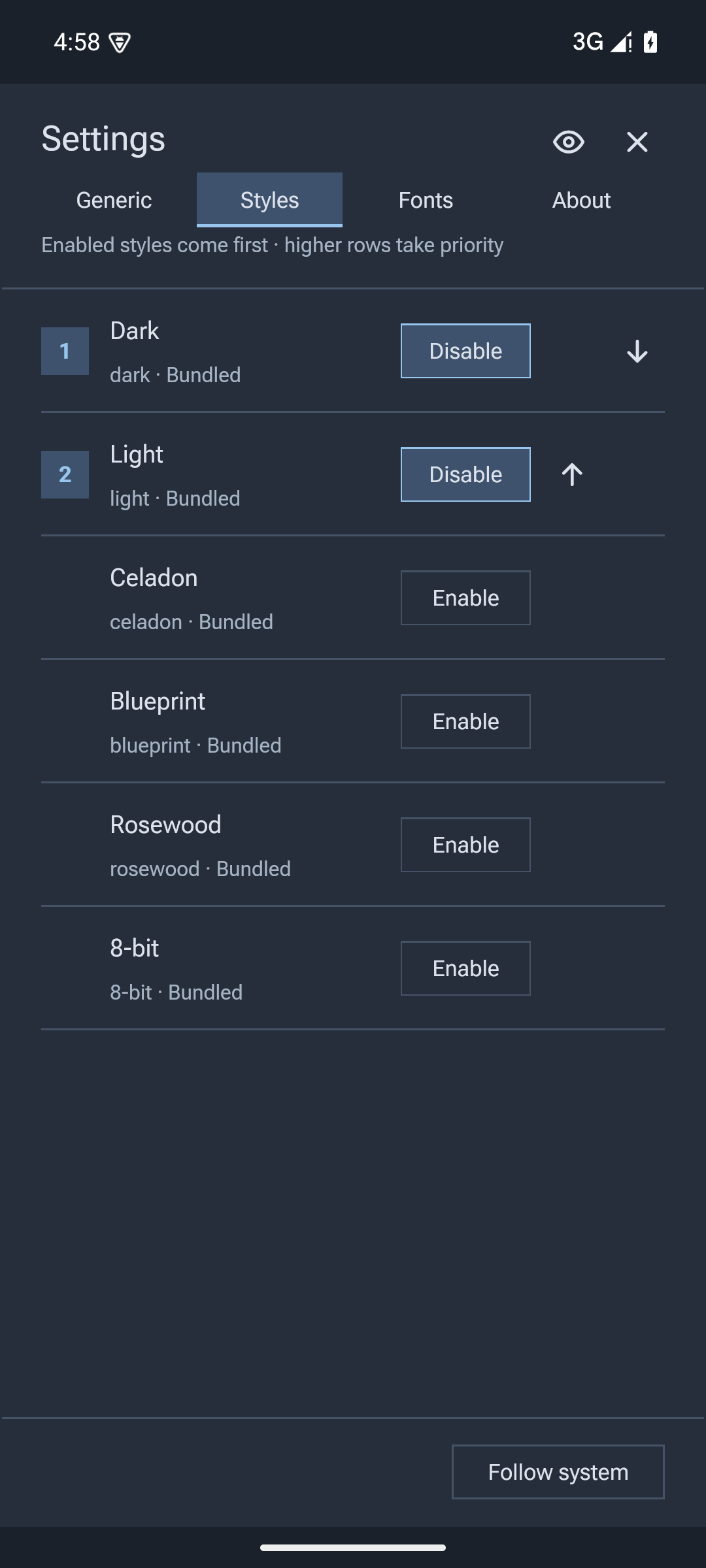
settings occupy the entire app content area; wider screens retain the centered dialog. Narrow forms stack labels above
controls. The device's smallest width selects phone or tablet mode:
| Device configuration | Tab management | Orientation |
|---|---|---|
| Smallest width below 600 dp | One sidebar with Tabs and Folders pages | Portrait |
| Smallest width at least 600 dp | Shared desktop tab strip | Portrait or landscape |
Phone mode fills the available reading width with 20 logical pixels of margin
on each side and hides the column-width setting; tablets retain adjustable
columns. Scroll speed is hidden on all Android devices because it does not
change touch scrolling.
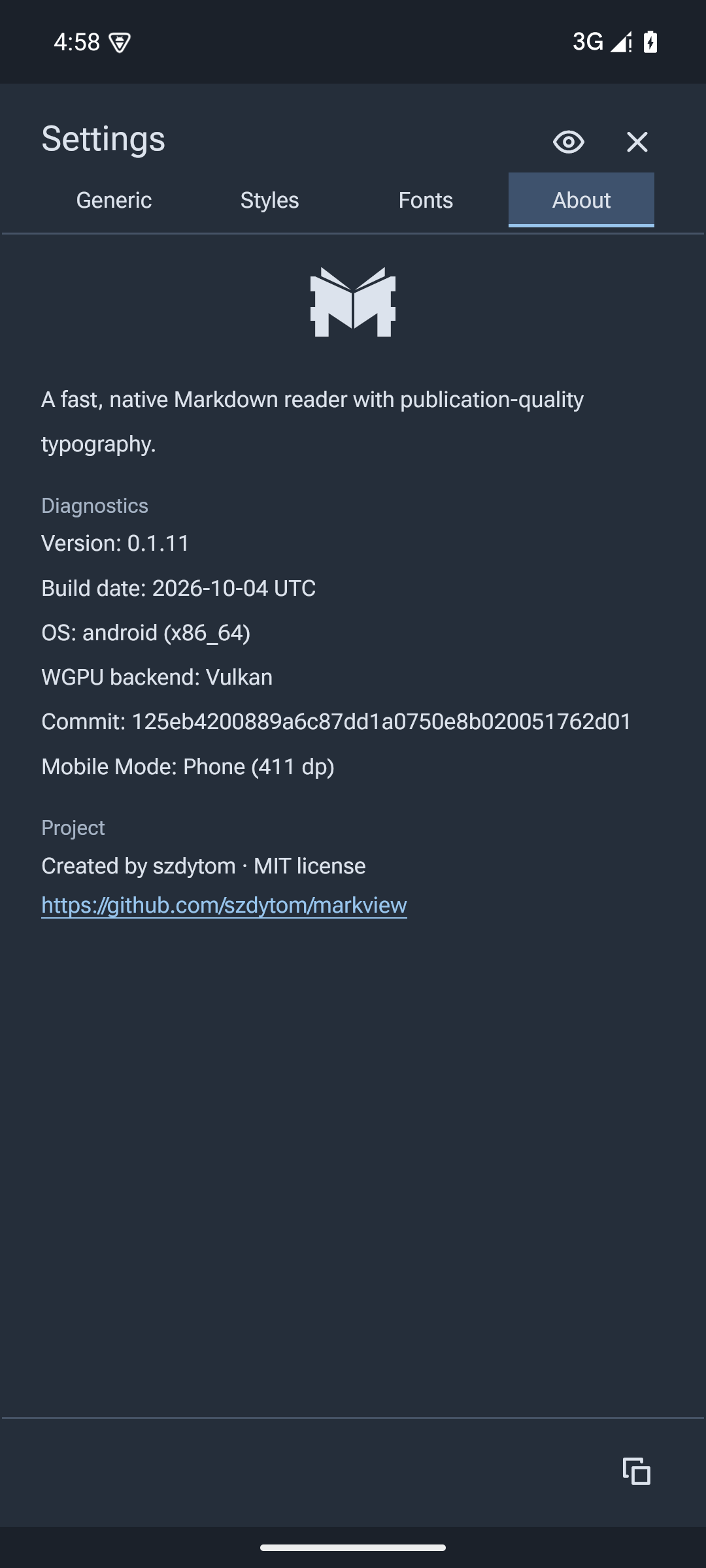
**About** and **Copy diagnostics** include one mobile-mode line, such as
`Mobile Mode: Phone (411 dp)` or `Mobile Mode: Tablet (800 dp)`.
The device mode follows the smallest width, independent of rotation and keyboard
visibility; configuration changes update it without discarding reader sessions. Desktop window-layout and single-instance settings are hidden and
ignored on Android. Browsing sessions are
retained by default, and the desktop session-restore setting is hidden. System bars and
the keyboard are excluded from the reader's content area.
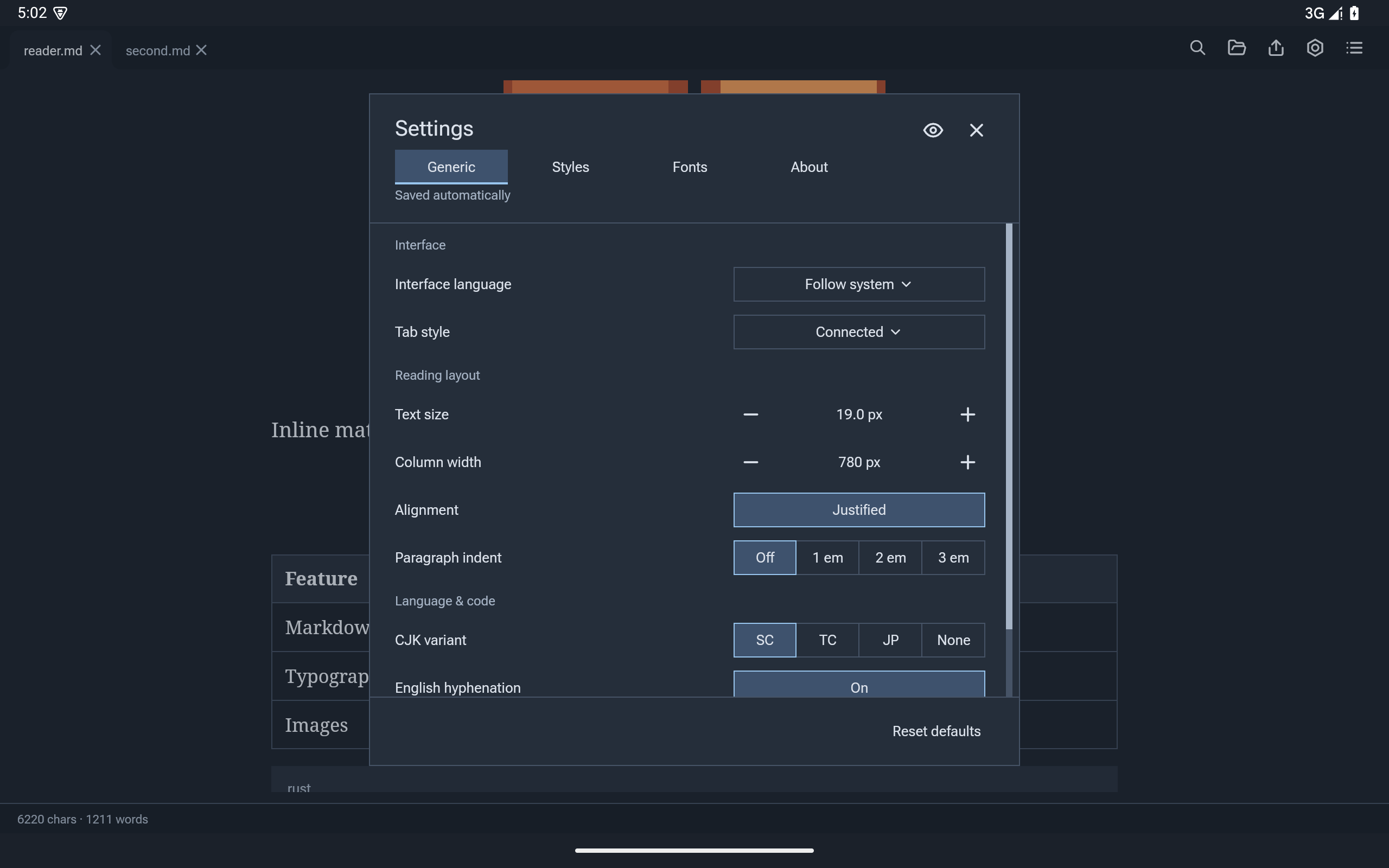
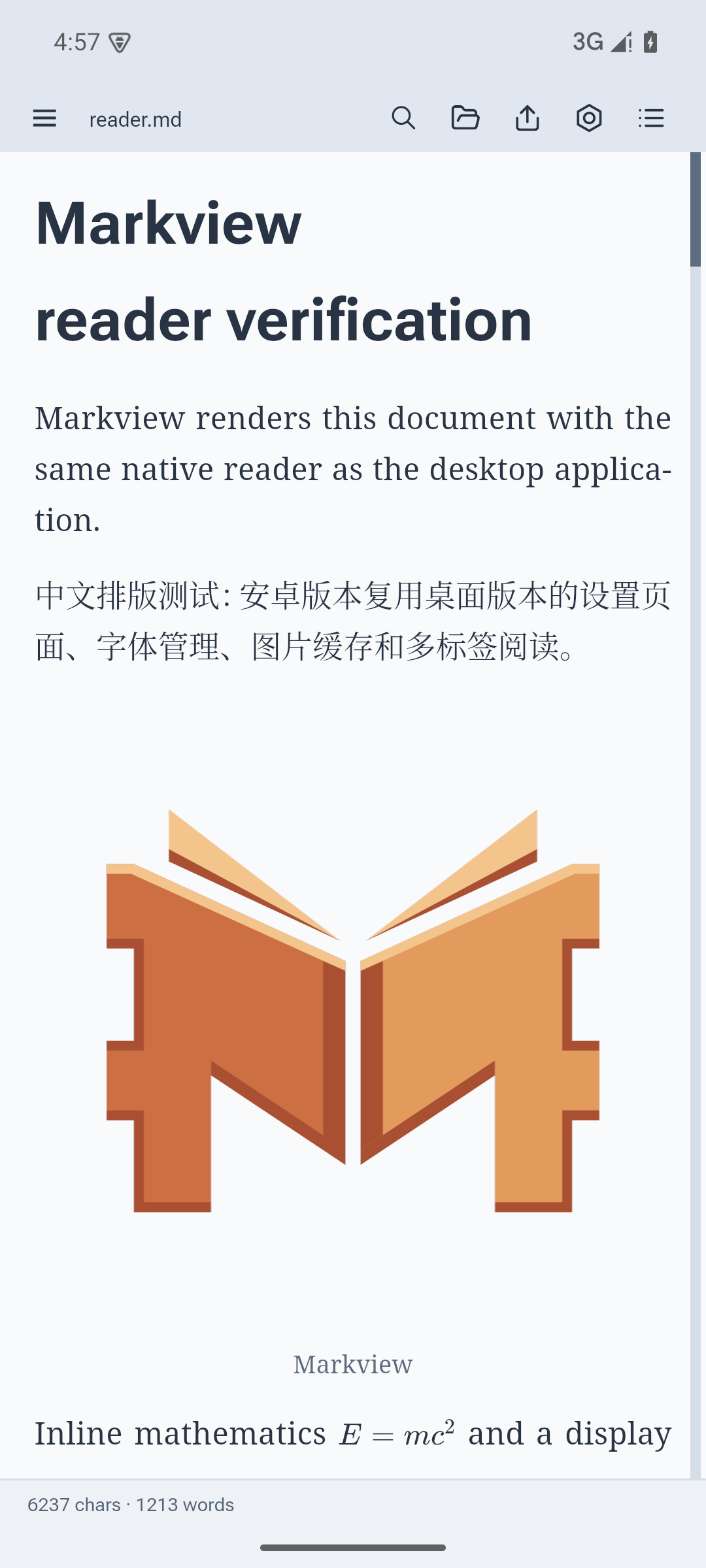
## Screenshots
Captured from API 35 Pixel 6 and Pixel Tablet x86_64 emulators during the
integration suite. The screens reuse the desktop UI with phone adaptation.
| Reader | Fullscreen settings |
|---|---|
|  |
 |
| Font manager | Dark styles |
|
 |
 |
Android layout diagnostics:
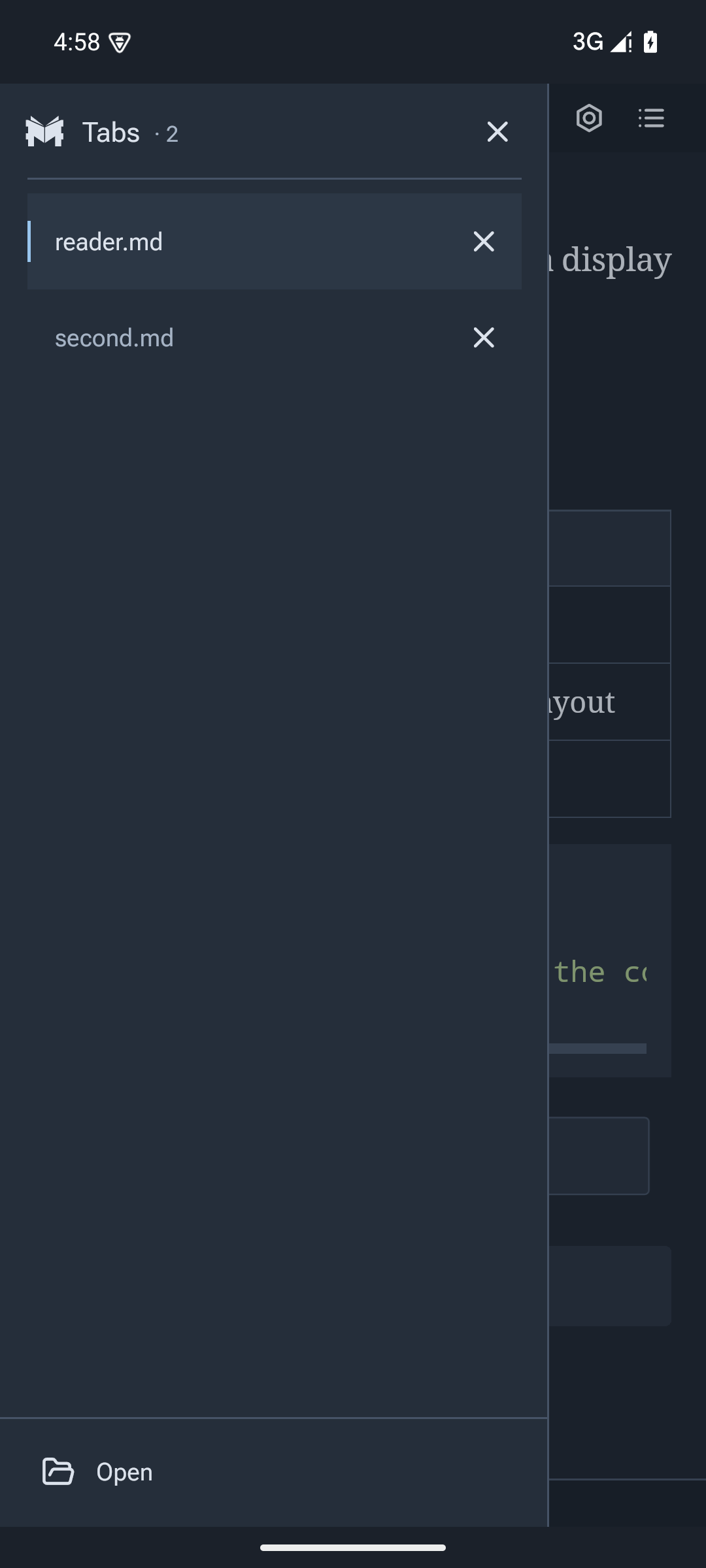
 Phones share one left sidebar for **Tabs** and **Folders**. Use the top-left
sidebar button or swipe right to open it, then switch pages at the top. Each
list keeps its own scroll position. Folder browsing includes an **Open folder**
button even before a folder has been selected. Back, the scrim or a left swipe
closes either page; choosing a document also returns to reading.
**Sidebar width** applies to both pages on phones; tablet folder and outline
widths remain independent.
The Tabs page:
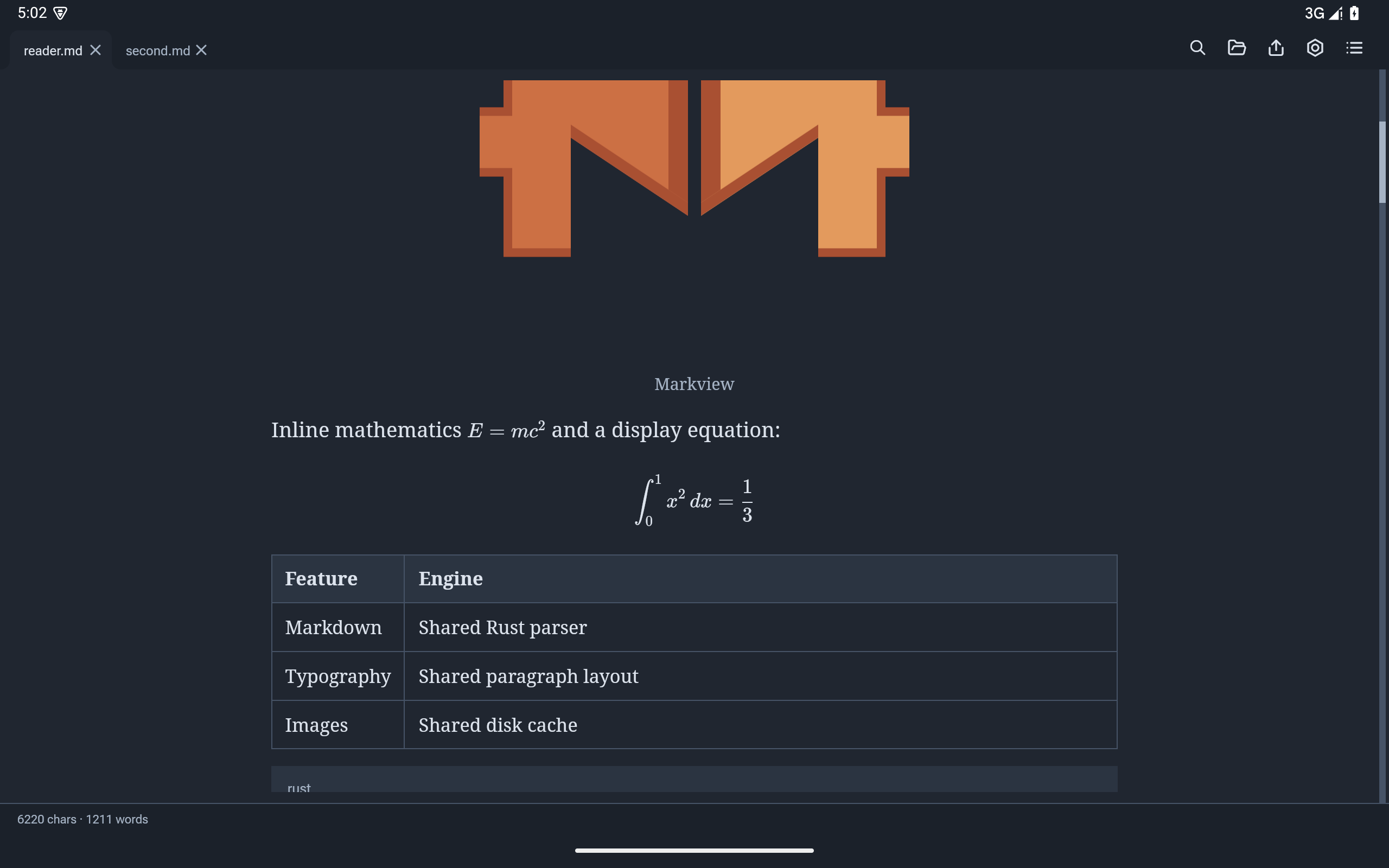
 Tablets retain desktop tabs and support landscape:
 Wide screens retain the centered settings dialog: