OCR It

Pin a region once. Hit a hotkey on every page. Get the whole book as text.

Chrome Web Store Firefox Add-ons Manifest V3 Chrome 116+ Firefox 140+ Runs offline No install-time site access MIT OCR benchmark

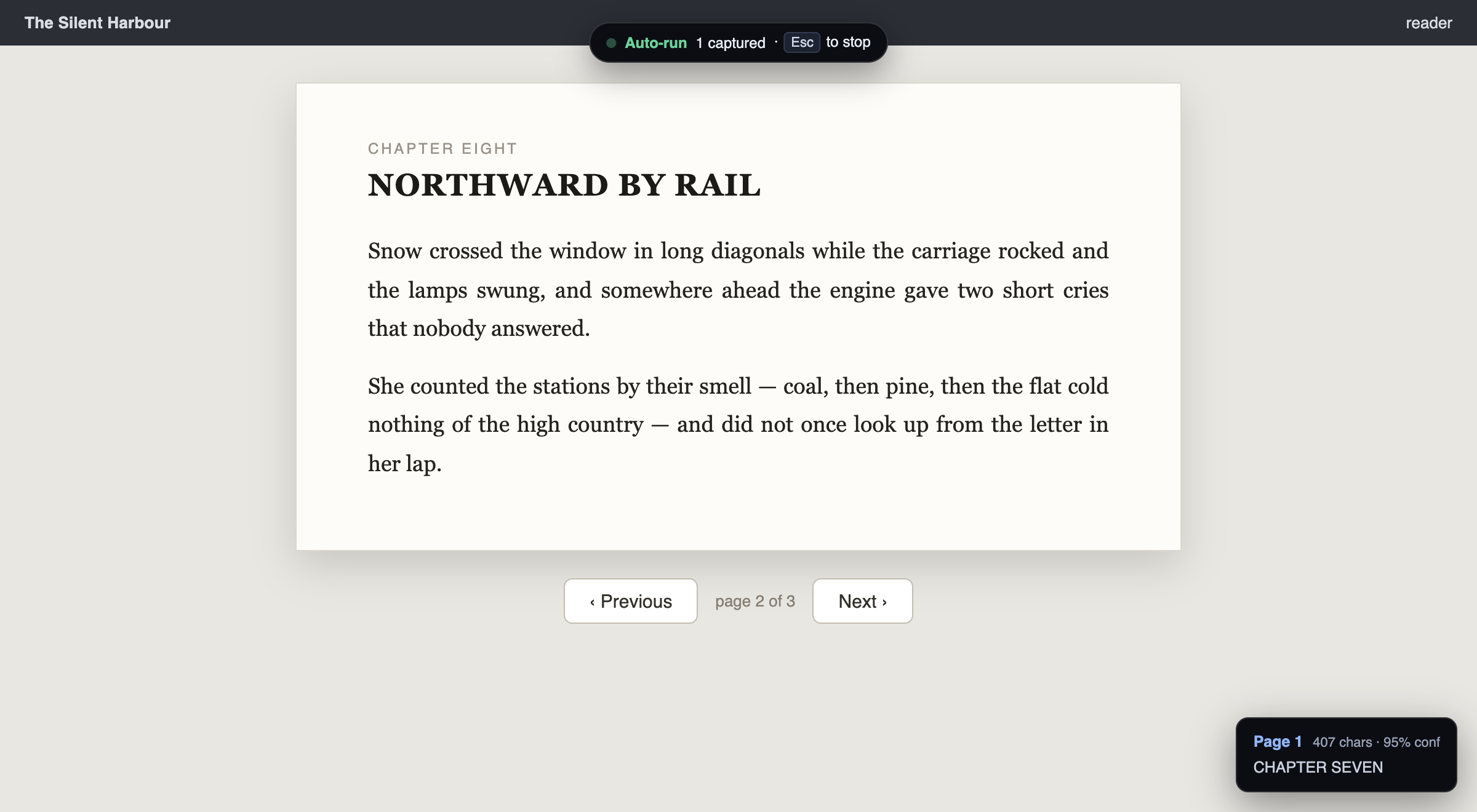
An auto-run in progress: the run indicator at the top of the page and a per-page confirmation toast in the corner

A **Chrome and Firefox** extension for reading a **paginated document trapped in a viewer** — a scanned book, a slide deck, a PDF, a reader that won't let you select text. You drag out the capture region **once**. After that every press of the hotkey screenshots that exact rectangle, OCRs it, and appends the text to a running transcript. Or hand the whole job over: ⌥⇧A starts a run that captures, turns the page, and repeats until the document ends. Then paste the result wherever it's useful — an LLM being the obvious one, since a few hundred pages you couldn't select are now a text file you can hand to Claude or ChatGPT to summarise, search or ask questions about. OCR runs locally with a bundled Tesseract build. **No API key, no network, no images leaving your machine** — the extension makes no outbound requests at all. --- ## Install Install from your browser's store — one click, and it updates itself: | | | | --- | --- | | **Chrome** 116+ | [Chrome Web Store](https://chromewebstore.google.com/detail/ocr-it/pekiamimgjbjgpggeilimnaplklceabh) | | **Firefox** 140+ | [Firefox Add-ons](https://addons.mozilla.org/en-US/firefox/addon/ocr-it/) | After installing on Chrome, check `chrome://extensions/shortcuts`: Chrome silently leaves a hotkey blank when something else already claims it. Firefox has no navigable shortcut editor, so the popup's hotkey buttons point you at **about:addons → gear icon → Manage Extension Shortcuts** instead. To build it yourself instead — one source tree, two targets. `npm run build` writes a loadable directory per browser into `build/`: ```sh git clone https://github.com/thiagotigaz/ocr-it.git cd ocr-it npm run build # -> build/chrome, build/firefox ```
Chrome (116+) 1. Open `chrome://extensions` and turn on **Developer mode** 2. **Load unpacked** → select `build/chrome` (or the repo root — it is a valid Chrome extension as checked in, so no build step is strictly needed) 3. Pin the extension — the toolbar icon doubles as the page counter
Firefox (140+) 1. Open `about:debugging#/runtime/this-firefox` 2. **Load Temporary Add-on…** → pick `build/firefox/manifest.json` 3. Pin the extension from the toolbar's overflow menu Or, with Mozilla's tooling, `npm run start:firefox` launches a scratch profile with the extension already installed and reloads it on every edit. A temporary add-on is unloaded when Firefox quits — only Mozilla-signed add-ons install permanently, which is what the store listing above is for. This route is for working on the code.
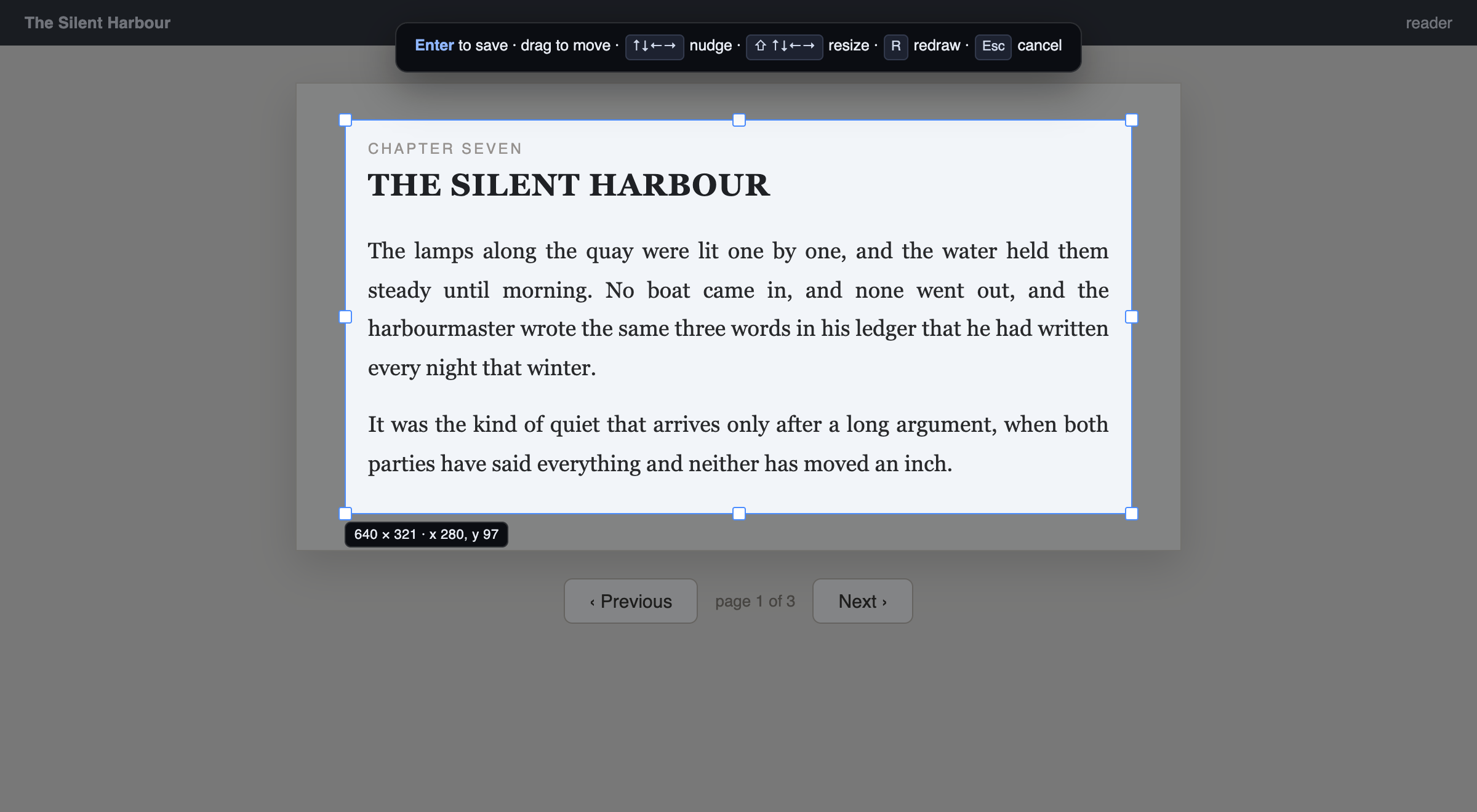
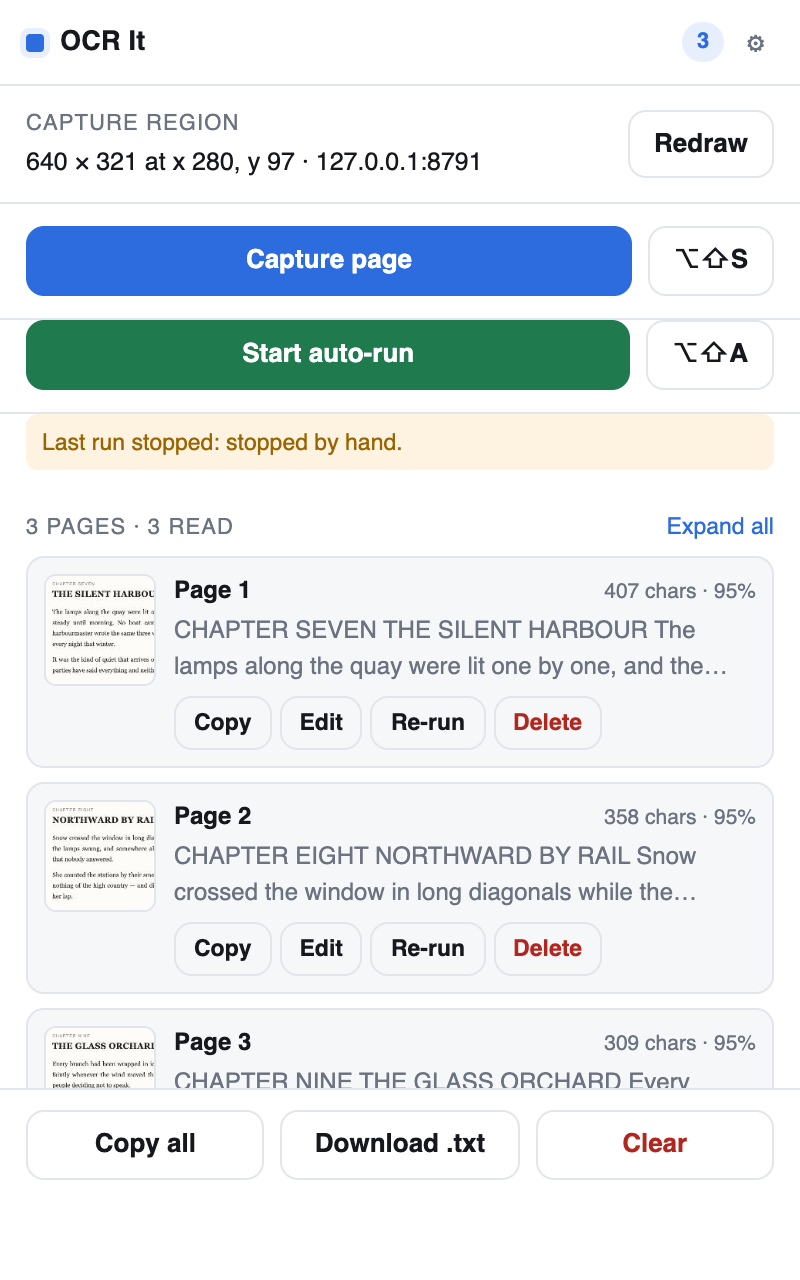
Everything needed is committed — `npm install` is only for the tests, the Firefox linter, or re-vendoring Tesseract. **It asks for no site access at install.** Single captures ride on `activeTab`, which the browser hands over when you press the hotkey or open the popup. Two things need a durable grant — an auto-run that outlives a page load, and turning pages inside a **cross-origin iframe** — and the popup offers an **Allow** button for the site you're on when it matters. Firefox exposes the same grant under **about:addons → OCR It → Permissions**. | | | | --- | --- | | ⌥⇧S | Capture the region once | | ⌥⇧A | Start / stop an automatic run | | ⌥⇧R | Draw or redraw the region | --- ## Using it ### 1. Pin the region The region picker: a dimmed page with a bright selection box, resize handles, a live size readout, and a hint bar ⌥⇧R, then drag a box over the text. Before saving you can drag it around, pull the handles, or nudge it a pixel at a time with the arrow keys (hold to resize). Enter keeps it. Draw a little *inside* the text margins — everything in the rectangle gets read, page numbers and running headers included. ### 2. Capture Press ⌥⇧S once per page. The screenshot is taken immediately and OCR runs in the background, so you never wait between pages — captures queue up and the badge counts what's still being read. ### 3. Or let it run Set up a next-page control (below) and ⌥⇧A takes over completely: capture, turn, capture, turn, until the document ends. Esc on the page stops it. ### 4. Export The popup listing captured pages with thumbnails, character counts and OCR confidence Every page is listed with a thumbnail of **exactly what was cropped**, so a drifted region is obvious at a glance instead of eighty pages later. Text is editable in place; a bad read can be re-run on its own. **Copy all** and **Download .txt** emit the pages in order with `--- page N ---` separators. A page marked `DUPLICATE` had text identical to the one before it — nearly always because the document didn't actually turn.
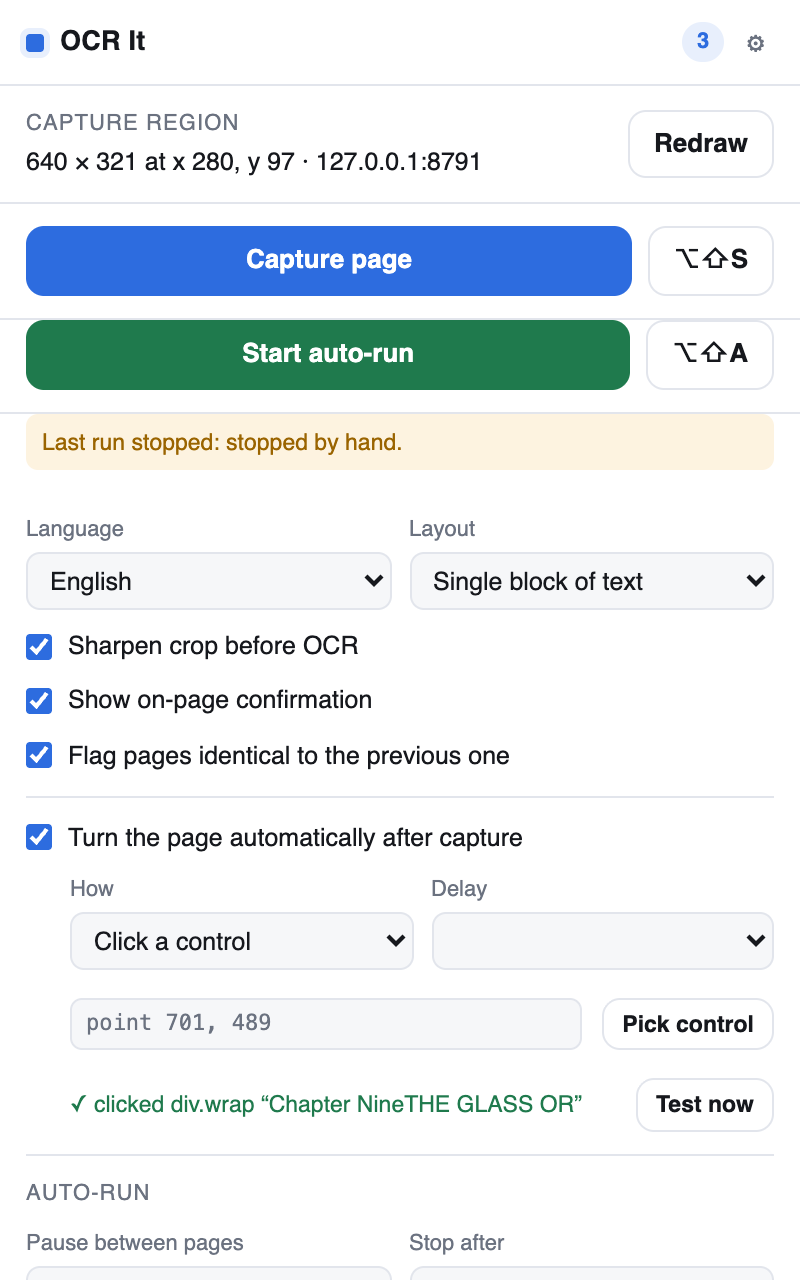
--- ## Turning pages for you The settings panel: language, layout, sharpening, auto-advance and auto-run options Enable **Turn the page automatically after capture**, then: - **Click a control** — hit **Pick control** and click the viewer's next-page button. What gets stored is a **point**, not a CSS selector. - **Press a key** — dispatches a keyboard event (default `ArrowRight`) into whichever frame owns the middle of your capture region, so the reader gets it rather than the host page. **Test now** fires an advance immediately, without capturing, and reports what happened — worth using before starting a long run.
### Why a point rather than a selector A stored point survives the DOM re-renders that routinely invalidate a CSS selector, and it reaches two places a selector cannot: - **Cross-origin iframes.** Most embedded readers are iframes, and nothing the top frame can express addresses an element inside one. - **Shadow DOM.** `document.querySelector` can't see into a shadow root. At advance time the point is offered to every frame and the one that actually owns it acts. A frame works out where it sits inside the top-level viewport by walking up its same-origin ancestors; across an origin boundary the parent hands the offset down by `postMessage`. (`window.screenX` is no help — inside an iframe it reports the browser window, not the frame.) The owning frame resolves the point through any shadow roots, walks up to the nearest real control, and emits the full `pointerdown → mousedown → pointerup → mouseup → click` sequence, so viewers that page on `pointerdown` behave like those listening for `click`. ### When it doesn't turn Every attempt records a verdict, shown in the popup and as an on-page toast: | Verdict | Meaning | | --- | --- | | `no next-page control picked yet` | Auto-advance is on but nothing was picked | | `an embedded viewer owns that point` | Chrome's PDF viewer or a plugin — unreachable by any extension | | `only the page background is at that point` | The control moved; pick it again | | `a nested frame owns that point` | A frame that couldn't be injected into | Because the target is a fixed point on screen, **resizing the window or changing zoom mid-run breaks it**, exactly as it breaks the capture region. --- ## Hands-off runs ⌥⇧A — or **Start auto-run** — captures, turns, and repeats on its own. Each cycle waits for that page's OCR to come back before turning. That costs nothing in practice (OCR is faster than a page turn) and buys the one thing an unattended loop needs: **reliable end-detection**. A run that only fired screenshots on a timer would sail past the last page and fill the transcript with copies of it. Stop it with Esc on the page, the hotkey, or the popup. It also stops itself when: | Condition | Default | | --- | --- | | The text stops changing | after 2 identical pages — you've hit the end | | The page can't be turned | immediately, quoting the reason | | OCR fails or stalls | immediately | | Page cap reached | 300 pages | | The tab closes, or Chrome restarts | immediately | Whatever ended it is reported in the popup, so a run you walked away from never just stops being mysterious. A run refuses to start without a working next-page control rather than spinning on one page. --- ## PDFs Chrome's built-in PDF viewer works — text comes straight out of it. Draw the region over the page area (not the thumbnail sidebar) and page with your own / PageDown. Auto-advance does **not** work inside the PDF viewer, in either mode: the viewer is a plugin no extension can inject into, so a click lands on the ``, and its paging is native scrolling that synthetic key events can't drive. Since you're already pressing a hotkey per page, pressing your own page-down key costs nothing. For a PDF on disk (`file:///…`), open `chrome://extensions` → **Details** on OCR It → enable **Allow access to file URLs**. Chrome withholds `file://` from every extension until you do. --- ## Settings | Setting | What it does | | --- | --- | | **Language** | English, Portuguese and Spanish ship with it — see below to add more | | **Layout** | Tesseract's page segmentation. **Leave it on *Auto*** unless you have a reason not to — see below | | **Sharpen crop before OCR** | Upscales the crop to ~2× and flattens it to a stretched greyscale ramp. Helps a lot on non-retina displays; leave it on | | **Flag pages identical to the previous one** | Marks repeats as `DUPLICATE` and, in a run, ends it | | **Auto-run** | Pause between pages, how many repeats end a run, and the hard page cap | ### Leave Layout on Auto *Auto* runs Tesseract's layout analysis, which finds columns on its own and returns them in reading order. The other modes skip that step, and on anything but a single block of text they fail in the worst possible way — **silently**. Point *Single block* at a two-column page and the two columns come back interleaved line by line, alternating between them, into text that means nothing. It still reports ~95% confidence while doing it. Measured on a two-column crop, that is **52.9% character error against 0.0% on Auto** — the [benchmark](https://thiagotigaz.github.io/ocr-it/bench/) has the table. The mode names invite the mistake: a book page *is* one column of body text, so *Single column* and *Single block* sound like the careful choice. They aren't. Reach for them only when the region genuinely holds one uninterrupted block and Auto is mis-segmenting it — a caption, a single line, a code snippet. For a layout Auto cannot handle — a figure straddling the gutter, a two-page spread — capture each column as its own region instead. Two captures per page reads perfectly; one wrong Layout setting does not. ### Adding a language Three ship with the extension — English, Portuguese and Spanish. Any of Tesseract's other ~100 languages can be added, but nothing is fetched at runtime, so the model has to be vendored into the extension first. ```sh npm install # once, for the tooling npm run vendor -- fra deu jpn # any tesseract language codes ``` That pulls each `.traineddata.gz` into `vendor/lang/`. Then add the codes to `LANGUAGES` in `src/shared.js` so they appear in the popup's dropdown: ```js export const LANGUAGES = [ { code: 'eng', label: 'English' }, { code: 'por', label: 'Portuguese' }, { code: 'spa', label: 'Spanish' }, { code: 'fra', label: 'French' }, // added ]; ``` Reload the extension at `chrome://extensions` and the new entry is there. **Codes** are the three-letter ones Tesseract uses: `fra` French, `deu` German, `ita` Italian, `nld` Dutch, `rus` Russian, `jpn` Japanese, `chi_sim` simplified Chinese, `ara` Arabic. The full list lives in the [tessdata repository](https://github.com/tesseract-ocr/tessdata). **Two languages at once** work as well — give a `code` of `eng+por` and Tesseract loads both models into one worker, reading a page that mixes them: ```js { code: 'eng+por', label: 'English + Portuguese' }, ``` It costs a little speed and a little accuracy, so prefer a single language when the document only has one. **Size.** Each language adds roughly 0.7–3 MB to the extension — English is the biggest at 2.9 MB, French one of the smallest at 0.7 MB. The models come from `@tesseract.js-data//4.0.0_best_int`: the "best" models quantised to integers, meaningfully more accurate than the `fast` variants. To drop a language, delete its `.gz` from `vendor/lang/` and its entry from `LANGUAGES`. --- ## How it works Cropping needs a canvas and Tesseract needs a real `Worker`. Where those can live is the one place the two browsers genuinely differ, so it is the one place the code forks — `src/ocr/host.js`, chosen at build time: - **Chrome.** An MV3 background is a service worker, which has neither a DOM nor `Worker`. The engine is parked in an **offscreen document** and reached by message. - **Firefox.** There is no offscreen API and no need for one: an MV3 background is an **event page**, a real document, so the engine is imported straight into it and called in-process. ``` run loop ─┐ (⌥⇧A: capture → turn → repeat) hotkey ───┴▶ background.js ─▶ hide our own HUD, wait for a paint ─▶ tabs.captureVisibleTab (whole viewport) ─▶ ocr host: crop to the region, upscale, greyscale ─▶ store the page + thumbnail, turn the page ─▶ queue ─▶ ocr host: Tesseract ─▶ text into storage ``` | Path | Role | | --- | --- | | `src/background.js` | Hotkeys, capture pipeline, serial OCR queue, auto-advance, the run loop | | `src/ocr/engine.js` | Canvas cropping and the Tesseract worker — browser-agnostic | | `src/ocr/host.js` | Where the engine runs. Chrome's offscreen shim as checked in; `host.firefox.js` replaces it in the Firefox build | | `src/offscreen/` | The Chrome-only offscreen document that hosts the engine. Firefox instead lists Tesseract and `background.js` as `background.scripts` | | `src/content/overlay.js` | Region picker, point picker, on-page HUD, cross-frame offset cascade | | `src/popup/` | Page list, editing, settings, export | | `src/viewer/` | Full-size view of a stored capture | | `src/shared.js` | Storage schema and helpers shared by the background and the popup | | `vendor/` | Tesseract runtime + `.traineddata`, committed so there's no build | | `tools/` | Per-browser build, icon generator, vendoring, screenshots, end-to-end test | Details that matter: - The region is stored in **CSS pixels relative to the viewport**. At capture time the screenshot's own width is divided by the live `innerWidth`, so zoom changes and retina/non-retina differences come out right without trusting a stored DPR. - The HUD is hidden and given two animation frames to disappear **before** the screenshot, so the extension's own toast can never end up inside the crop. - Captures are serialised and OCR runs one job at a time, so mashing the hotkey queues work instead of corrupting the page list. - Full-size crops are kept only until a page is read successfully, then discarded; the thumbnail stays for verification. - A run is cancelled by bumping a token the loop re-checks at every `await`, so stopping lands at a checkpoint rather than mid-write. Storage reads inside the loop double as keep-alive for the background, and a one-minute alarm restarts the loop if it is recycled anyway — both browsers idle it out. - Everything else is shared verbatim. `browser.*` is preferred over `chrome.*` where both exist, because Firefox's `chrome` alias is callback-style and every `await` in this codebase would resolve to `undefined` against it. --- ## Tests ```sh npm install npm test # add -- --headed to watch it npm run lint:firefox # Mozilla's add-on validator against build/firefox npm run shots # regenerate the screenshots in docs/ ``` The suite installs the unpacked extension into a real headless Chrome over the DevTools protocol, serves fixture documents, and drives the actual product: it drags out a region with synthetic mouse events, fires captures, checks the OCR text against what was rendered, verifies nothing outside the region leaked in, checks the shipped manifest requests no host access and that one toolbar click is enough for a plain capture, exercises duplicate detection, drives auto-advance against three DOM shapes — a plain page, a **cross-origin iframe** and an **open shadow root** — confirms a misconfigured auto-advance reports itself instead of failing silently, runs an unattended loop to the end of a finite document and asserts it stopped on its own with every page in order, and checks a run stops dead on request. > Chrome 137+ ignores `--load-extension`, so the harness installs over CDP with > `Extensions.loadUnpacked` and `--enable-unsafe-extension-debugging`. Headless > Chrome can't show the permission prompt either, so the behaviour tests install > a copy of the extension with the grant baked in — the state of a user who > clicked Allow — while the permissions section checks the real manifest and > proves the ungranted path still works via `Extensions.triggerAction`, which is > a genuine toolbar click. The behavioural suite drives Chrome only — there is no equivalent CDP harness for Firefox. The two builds share every file that carries logic; what differs between them is one 6-line module and the manifest. ### Testing the Firefox build The same fixture documents the Chrome suite asserts against can be served on their own, so a manual pass is checked against known-good text rather than a "looks about right": ```sh npm run lint:firefox # Mozilla's validator — the one AMO runs. Zero errors is the bar. npm run fixture # serves the test documents, prints the expected OCR output npm run start:firefox # scratch profile with the extension loaded, reloads on edit ``` `npm run start:firefox` is the fast loop. To use your own profile instead, go to `about:debugging#/runtime/this-firefox` → **Load Temporary Add-on…** and pick `build/firefox/manifest.json` (the packaged zip works there too). Open the background page's console from that same page — **Inspect** next to OCR It. A failure to load the engine shows up there and nowhere else. Worth walking, in this order — each step is something that differs from Chrome: | Check | What it proves | | --- | --- | | Background console is clean on load | The event page found Tesseract and the engine module | | ⌥⇧R, drag the white box, capture | Content-script injection and the whole capture path | | Text matches the chapter shown | The engine really runs in the event page | | "This line sits outside…" never appears | Crop geometry survived the DPR maths | | Click a thumbnail | The viewer page, which replaced a `data:` URL Firefox refuses to open | | Either hotkey button in the popup | Falls back to written directions instead of a dead `tabs.create` | | **Allow on this site**, then `/iframe` | `optional_host_permissions` and cross-origin frames | | Auto-run on `/finite`, then leave it idle a minute | The event page idles out where Chrome's offscreen document would not — the one real behavioural risk in the port | --- ## Limits - Browser-internal pages — `chrome://`, `about:`, the extension stores, other extensions' pages — are off limits to every extension, including this one. - Only the visible viewport can be captured — the region has to be on screen. - Screenshots are rate-limited to a couple per second; captures retry with backoff, so fast mashing just queues. - Accuracy tracks the source. Crisp rendered text reads at 90 %+ confidence; low-resolution scans and handwriting will need cleanup. - Local `file:///` documents need **Allow access to file URLs** switched on in Chrome, or the `file://` origin granted from the popup in Firefox. - `activeTab` does not reach cross-origin iframes. If your reader lives in one, grant the site from the popup before setting up auto-advance. --- ## Licence MIT — see [LICENSE](LICENSE). Bundled Tesseract components keep their own licences: [`vendor/LICENSE.tesseract-core`](vendor/LICENSE.tesseract-core) and [`vendor/tesseract.min.js.LICENSE.txt`](vendor/tesseract.min.js.LICENSE.txt). Built on [tesseract.js](https://github.com/naptha/tesseract.js).