# layout-card
[](https://github.com/custom-components/hacs)
Get more control over the placement of lovelace cards
For installation instructions [see this guide](https://github.com/thomasloven/hass-config/wiki/Lovelace-Plugins).
## Quick Start
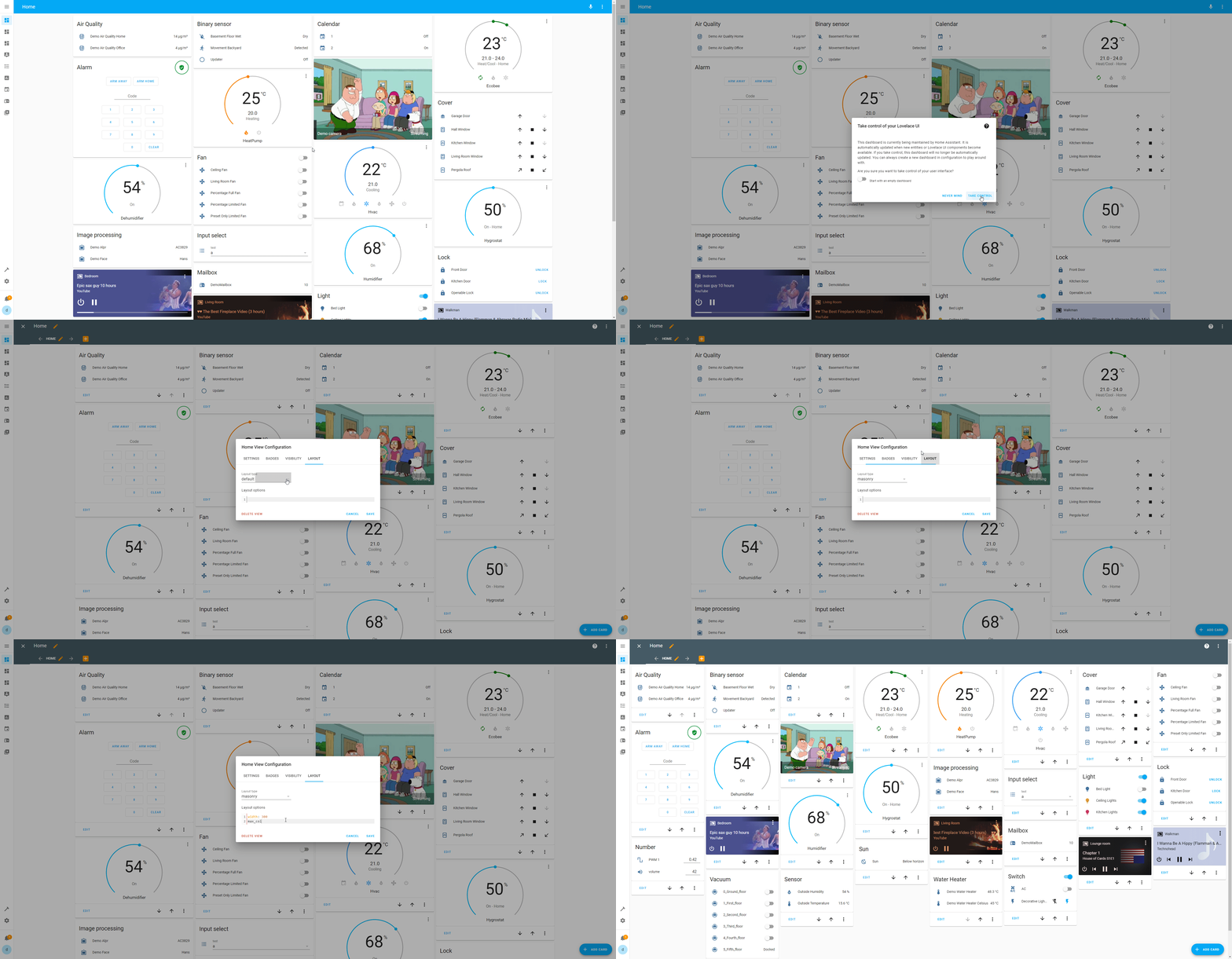
- Go to one of your lovelace views and select "Edit Dashboard"
- Click the pencil symbol next to the view name to open up the view properties
- Select "Masonry (layout-card)" from the "View type" dropdown list
- Click "Save"
Hopefully, you should see no difference at all now.
- Enter the following in the "Layout Options" box:
```yaml
width: 300
max_cols: 10
```
- Click Save
You should now have more, narrower, columns of cards in your view.
> Please note that the "LAYOUT" tab in the animation below is now incorporated in the "SETTINGS" tab instead.
## Usage
### View Layouts
Layout-card adds four new view layout to lovelace.
- Masonry (`custom:masonry-layout`)
- Horizontal (`custom:horizontal-layout`)
- Vertical (`custom:vertical-layout`)
- Grid (`custom:grid-layout`)
The difference between the types of layout is described below.
Those can be selected either via the GUI as in the Quick Start above, or in the lovelace configuration by setting `type` (and optionally `layout`):
```yaml
views:
- title: Home
type: custom:masonry-layout
layout:
width: 300
max_cols: 10
cards: ...
```
### Layout-card
If needed, any layout can also be used inside a lovelace-card by using `layout-card`:
```yaml
type: custom:layout-card
layout_type: custom:masonry-layout
layout:
width: 300
max_cols: 10
cards: ...
```
`Layout-card` will take its `cards` and place them within itself according to the specified layout.
`layout:` takes the same options as is the view configuration for a layout.
> NOTE: Please be aware that `layout-card` is itself a CARD, and cannot be wider than any other cards in the same view. \
> All cards you specify within it must fit inside this same width. \
> Thus `layout-card` is of limited use except in [panel mode](https://www.home-assistant.io/lovelace/panel/).
> NOTE 2: The "default" layout option for layout-card (which you'll see if you're using the GUI lovelace editor) uses the default layout engine of lovelace. It's basically the same as the Horizontal layout, but without any options, without being able to hide cards and with the number of columns based on the width of the window rather than the layout-card. \
> I don't recommend using it, but it's _there_.
### Card layout options
For some layout types, special options can be attached to each card. This is done in the `view_layout` parameter, e.g:
```yaml
type: entities
entities:
- light.bed_light
view_layout:
column: 2
```
### Layout-break card
Layout card adds a special card called `layout-break` which can be used to change how some layouts work.
```yaml
type: custom:layout-break
```
## Layouts
Layout-card introduces four layouts.
- Masonry
- Horizontal
- Vertical
- Grid
The first three are column based and work similarly:
- A number of evenly sized columns is prepared based on available space, the `width` option and the `max_cols` option.
- The cards are placed into the columns one at a time in a method depending on the current layout.
- Any empty columns are removed.
- The remaining columns are placed centered on screen.
All column based layouts accept the following `layout` options:
| Option | Values | Description | Default |
| --------------- | -------------- | --------------------------------------------------------------------------------------------------------------------------------------------- | ------------------------------------------------- |
| `width` | number | Size in pixels of each column | 300 |
| `max_width` | number | Maximum width of a card | 1.5 \* `width` if specified
otherwise 500 |
| `max_cols` | number | Maximum number of columns to show | 4 if sidebar is hidden
3 if sidebar is shown |
| `rtl` | `true`/`false` | Place columns in right-to-left order | `false` |
| `column_widths` | special | A [`grid-template-columns`](https://developer.mozilla.org/en-US/docs/Web/CSS/grid-template-columns) specification of column widths | `none` |
| `margin` | string | A CSS margin applied to the layout itself | `0px 4px 0px 4px` |
| `padding` | string | A CSS padding applied to the layout itself | `4px 0px 4px 0px` |
| `height` | string | A CSS height applied to the layout itself | `auto` |
| `card_margin` | string | CSS margin applied to each card in the layout | `var(--masonry-view-card-margin, 4px 4px 8px)` |
| `reflow` | `true`/`false` | If `true` the layout will get reorganized when cards are hidden (e.g. with conditional or entity-filter cards). May cause performance issues. | `false` |
> NOTE: Even if `column_widths` is specified, the number of columns displayed will only depend on the available space, `width` and `max_cols`. If you get weird results, consider the Grid Layout.
> NOTE 2: If you're migrating from layout-card "1.0" (v16 - sorry about the version number confusion), this is significantly fewer options than you are used to. \
> The reason for this is twofold. \
> First: Maintainability. As Home Assistant and Lovelace evolves, it grows increasingly more difficult to keep up the more options you want to keep alive. \
> Second: Usability. I want to focus on fewer options and doing the right thing out of the box instead. And the three remaining options actually have much more impact than you'd think.
>
> If you want more fine-grained controll (e.g. variable sized columns), please take a look at the Grid layout.
>
> In general, I recommend starting over with a grid view, rather than trying to convert an old layout-card based setup. You'll likely have better results.
### Masonry layout
The masonry layout imitates the default layout of lovelace.
- Each card is assigned a height based on their contents. One height unit corresponds to roughly 50 pixels, but this may vary.
- When a card is placed in the layout, it is put in the first column which has a total height of less than `min_height` units. \
Otherwise it is put it the shortest column.
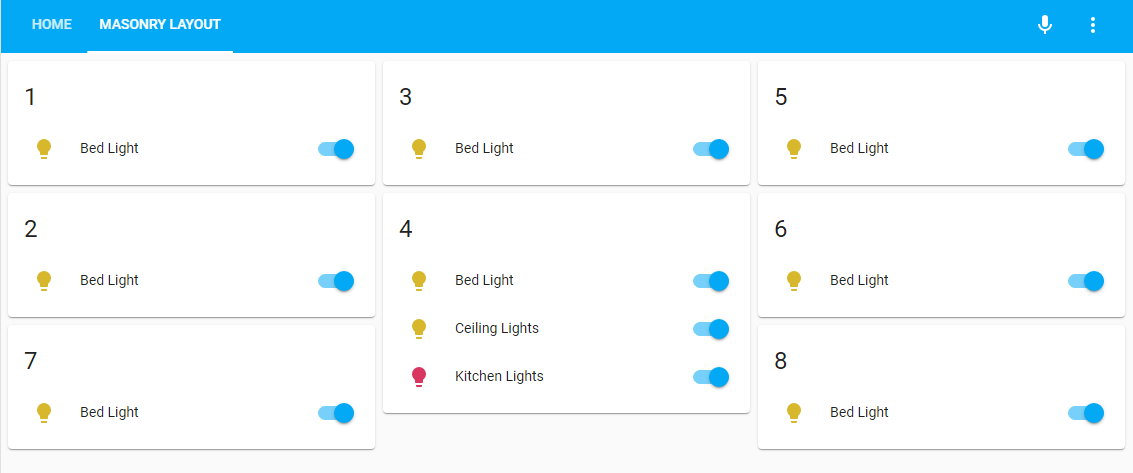
The masonry layout accepts the following `layout` options (besides the ones mentioned above):
| Option | Values | Description | Default |
| ------------ | ------ | --------------------------------------------------------------------------------- | ------- |
| `min_height` | number | Minimum number of card height units in a column before the next one is considered | 5 |
### Horizontal layout
The horizontal layout will add each card to the next column, looping back to the first one when necessary:
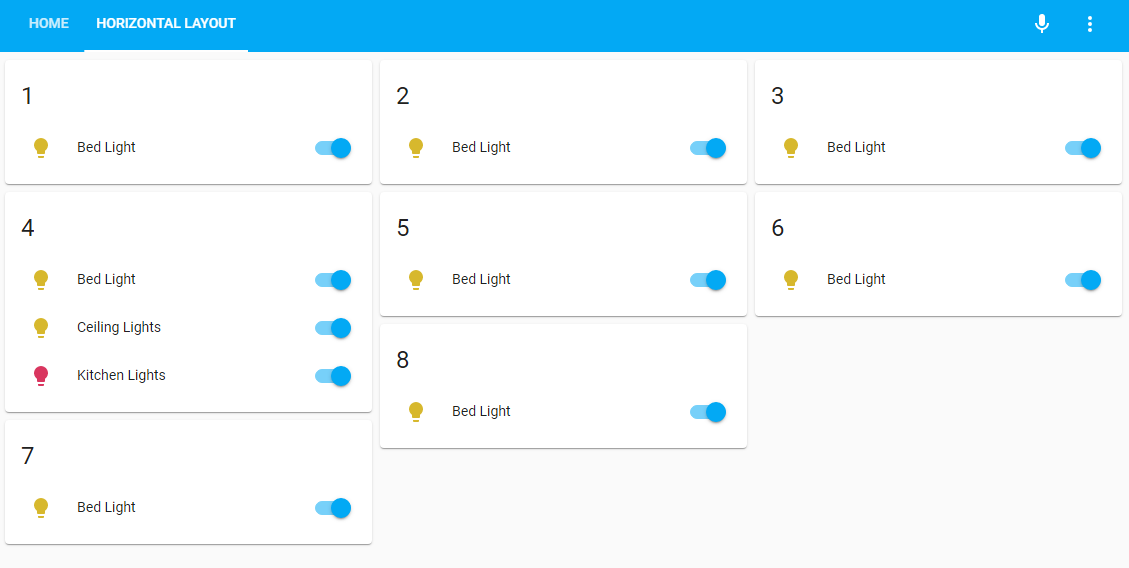
A `layout-break` card will cause the next card to be placed in the first column.
The horizontal layout accepts the following **card** `view_layout` options:
| Option | Values | Description | Default |
| -------- | ------ | ------------------------------------------------------------------------------------- | ------- |
| `column` | number | Which column to place the card in. Following cards will be placed in the next column. | |
### Vertical layout
The vertical layout will add each card to the same column as the previous one.
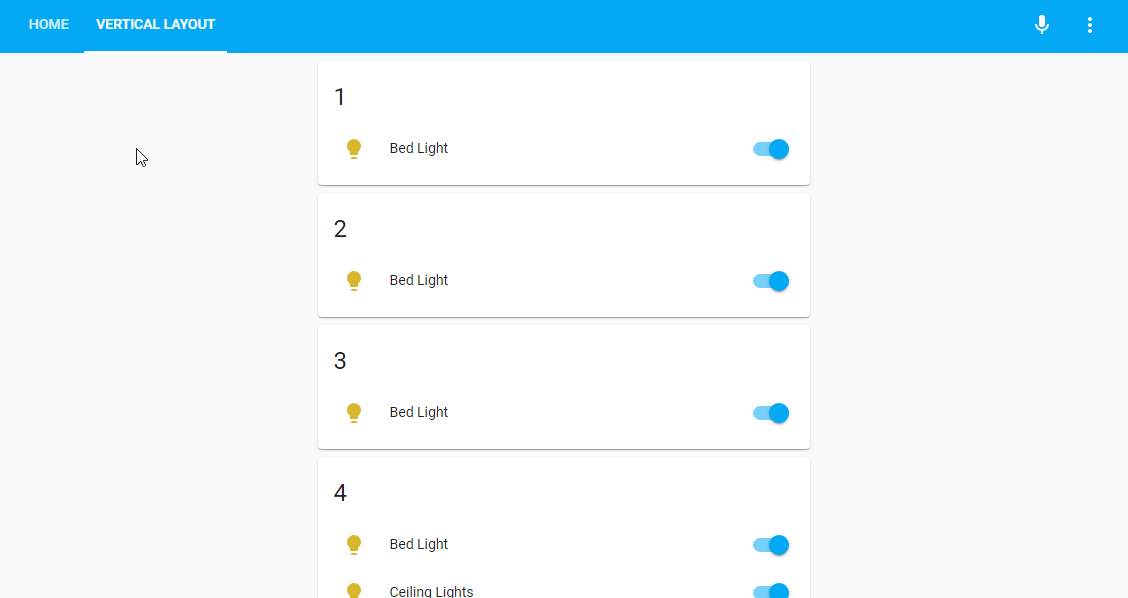
A `layout-break` card will cause the next card to be placed in the next column.
The vertical layout accepts the following **card** `view_layout` options:
| Option | Values | Description | Default |
| -------- | ------ | ------------------------------------------------------------------------------------- | ------- |
| `column` | number | Which column to place the card in. Following cards will be placed in the same column. | |
### Grid layout
The grid layout will give you full controll of your cards by leveraging [CSS Grid](https://css-tricks.com/snippets/css/complete-guide-grid/).
The grid layout accepts any option starting with `grid-` that works for a Grid Container as well as `grid`, `place-items` and `place-content`.
The layout options `margin`, `padding` and `height` also apply as for column based layouts.
Furthermore, the special option `mediaquery` can be used to set grid options depending on currently matched [@media rules](https://www.w3schools.com/cssref/css3_pr_mediaquery.asp). This helps immensely in creating fully responsive layouts. \
Please see the example code accompanying the screen recording below. \
Note that only the first matching rule will be applied.
For the card `view_layout` options. the grid layout accepts any css grid property starting with `grid-` that works for a Grid Item as well as `place-self`.
There's no point in me trying to list all `grid-` options here. Instead see the excellent guide linked above.
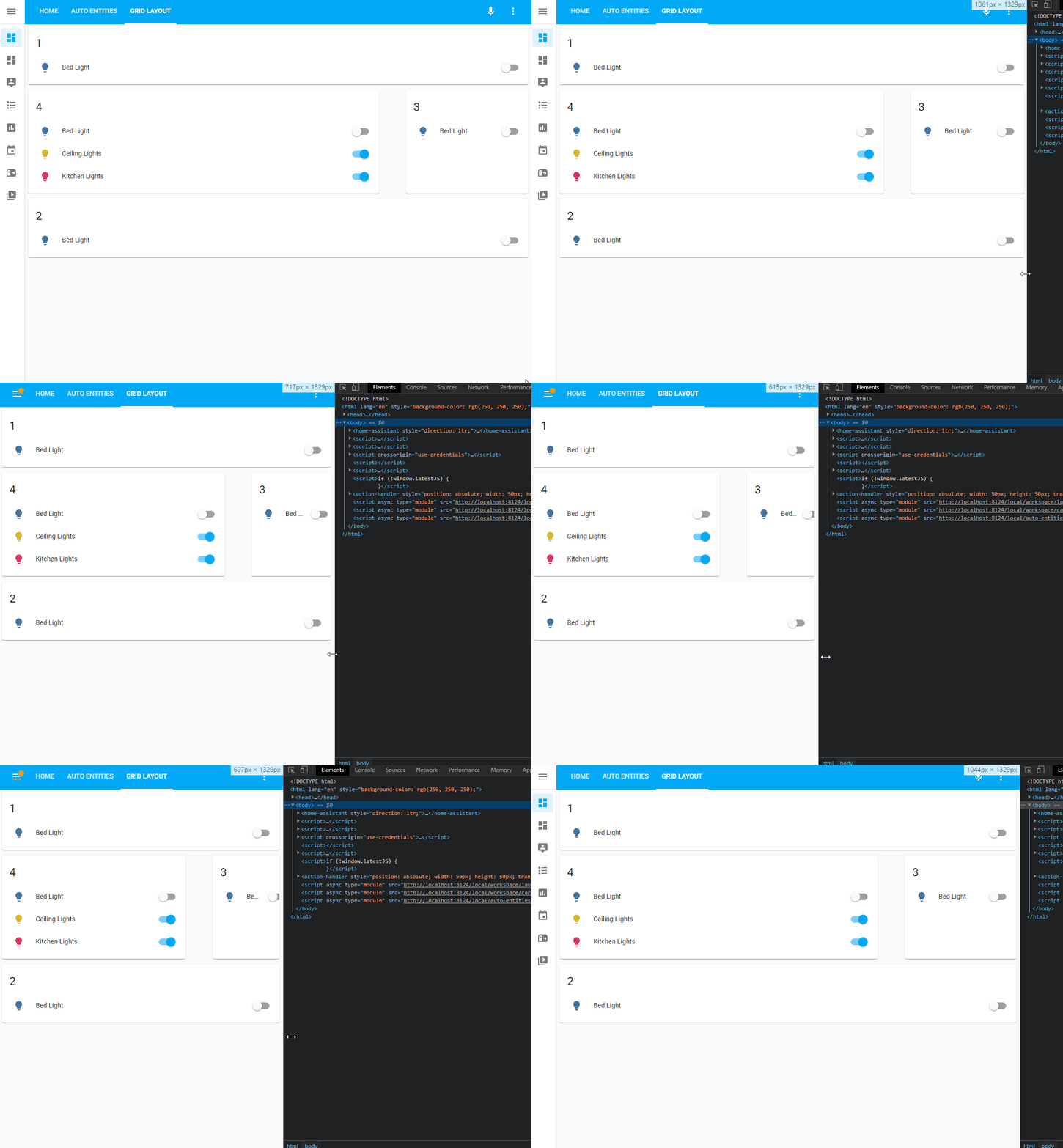
Yaml code
Configuration for view:
```yaml
title: Grid layout
type: custom:grid-layout
layout:
grid-template-columns: auto 30px 25%
grid-template-rows: auto
grid-template-areas: |
"header header header"
"main . sidebar"
"footer footer footer"
mediaquery:
"(max-width: 600px)":
grid-template-columns: 100%
grid-template-areas: |
"header"
"sidebar"
"main"
"footer"
"(max-width: 800px)":
grid-template-columns: 50% 50%
grid-template-areas: |
"header sidebar"
"main main"
"footer footer"
cards:
- type: entities
entities:
- entity: light.bed_light
title: "1"
show_header_toggle: false
view_layout:
grid-area: header
- type: entities
entities:
- entity: light.bed_light
title: "2"
show_header_toggle: false
view_layout:
grid-area: footer
- type: entities
entities:
- entity: light.bed_light
title: "3"
show_header_toggle: false
view_layout:
grid-area: sidebar
- type: entities
entities:
- light.bed_light
- light.ceiling_lights
- light.kitchen_lights
title: "4"
show_header_toggle: false
view_layout:
grid-area: main
```
## Card visibility
Individual cards can be displayed or hidden with the `view_layout` option `show`, e.g:
```yaml
- type: entities
title: Always show
...
view_layout:
show: always
- type: entities
title: Never show
...
view_layout:
show: never
```
The options `show: always` and `show: never` are honestly quite pointless... but there's a cooler option:
```yaml
type: entities
title: Never show
---
view_layout:
show:
mediaquery:
```
This card will only be displayed if the [@media rule](https://www.w3schools.com/cssref/css3_pr_mediaquery.asp) `` is a match.
Example:
```yaml
- type: markdown
content: |
This is only shown on screens more than 800 px wide
view_layout:
show:
mediaquery: "(min-width: 800px)"
- type: markdown
content: |
This is only shown on screens less than 400 px wide
view_layout:
show:
mediaquery: "(max-width: 400px)"
- type: markdown
content: |
This is only shown on touch screen devices
view_layout:
show:
mediaquery: "(pointer: coarse)"
```
Another option is this:
```yaml
- type: entities
title: Show only when sidebar is hidden
view_layout:
show:
sidebar: hidden
- type: entities
title: Show only when sidebar is visible
view_layout:
show:
sidebar: shown
```
## Gap-card
Layout card includes `gap-card` which can be used to insert empty space in any layout:
```yaml
type: custom:gap-card
height:
size:
```
`height` is the height of the gap in pixels (default: 50)
`size` is the height of the card the layout engine will see in height units (default: pixel height / 50)
## Use with entity filters
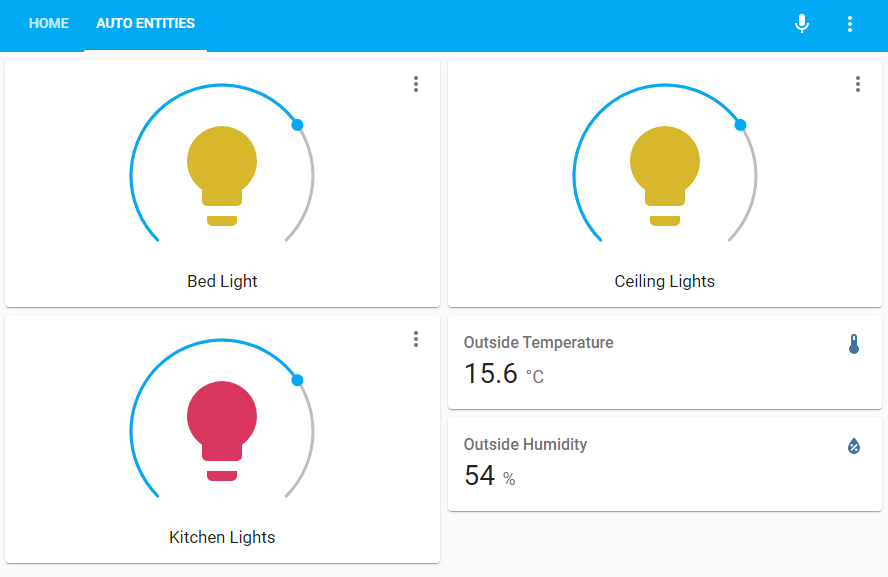
Layout card can be used with cards that populate an `entities:` list, like [Entity Filter](https://www.home-assistant.io/lovelace/entity-filter/) or [auto-entities](https://github.com/thomasloven/lovelace-auto-entities).
If no card type is explicitly specified for the entries, the [Entity](https://www.home-assistant.io/lovelace/entity/) card will be used.
Example:
```yaml
- type: 'custom:auto-entities'
filter:
include:
- domain: light
options:
type: light
- domain: sensor
exclude: []
card:
type: 'custom:layout-card'
cards: []
layout_type: masonry
```
---