# Privacy and Security
NectarLink is built so that your personal data stays on your own devices under your direct control. There is no user account, no cloud database, no analytics or telemetry, and no advertising SDK. Every connection between your phone and your PC is mutually authenticated and encrypted end to end.
For a line-by-line engineering audit of every network, IPC, shared-memory, and filesystem boundary, see [`docs/SECURITY-REVIEW.md`](../SECURITY-REVIEW.md).
## 1. Device Identity Keys
When NectarLink starts for the first time on your PC or Android phone, it generates a persistent 256-bit **Ed25519** cryptographic identity keypair:
- **How devices are identified**: Every device is addressed by its 32-byte Ed25519 public key (`DeviceId`), never by an IP address, hostname, or email address.
- **How your private key is protected at rest**:
- On **Windows**, `identity.key` is encrypted using the Windows Data Protection API (**DPAPI** via `CryptProtectData` with `CRYPTPROTECT_UI_FORBIDDEN` and entropy `b"nectarlink/identity/v1"`), tied to your Windows user account credentials (not hardware-backed).
- On **Android**, `identity.key` is encrypted by a non-exportable **AES-256-GCM** key (`nectarlink.identity.v1`) inside the **Android Keystore**, which may be hardware-backed depending on your phone.
## 2. Cryptographic Pairing (Out-of-Band Secret and 6-Digit SAS)
An unknown device on your Wi-Fi network can never read your notifications, clipboard, or files. Devices only communicate after completing a mutual pairing ceremony (`ALPN = "nectarlink-pair/0"`):
- **QR Code Pairing**: When you display a pairing QR code on your PC, NectarLink generates a one-time 128-bit random secret (`s`, encoded in URL-safe base64) that expires after 5 minutes and is invalidated after use or after 5 failed attempts. Scanning that QR code proves your phone observed the secret out of band by computing `HMAC-SHA256(s, "nectarlink-pair-v0" || idA || idB)` over both devices' Ed25519 public keys (`idA` for the initiator and `idB` for the responder).
- **Nearby and USB 6-Digit Code Pairing**: When you pair without a camera (via **Pair nearby** or **USB auto-pair**), both devices establish a TLS 1.3 session, exchange SHA-256 commitments to 128-bit random nonces (`nA` and `nB`), and derive a 6-digit Short Authentication String (**SAS**) using **HMAC-SHA256** (`uint32_be(HMAC-SHA256(nA || nB, "nectarlink-sas-v0" || idA || idB)[0..4]) mod 1,000,000`). If an attacker on an untrusted Wi-Fi network attempted a man-in-the-middle attack, the public keys in the SAS calculation would not match on both sides. Nothing is paired until you confirm **Codes match** on both devices.
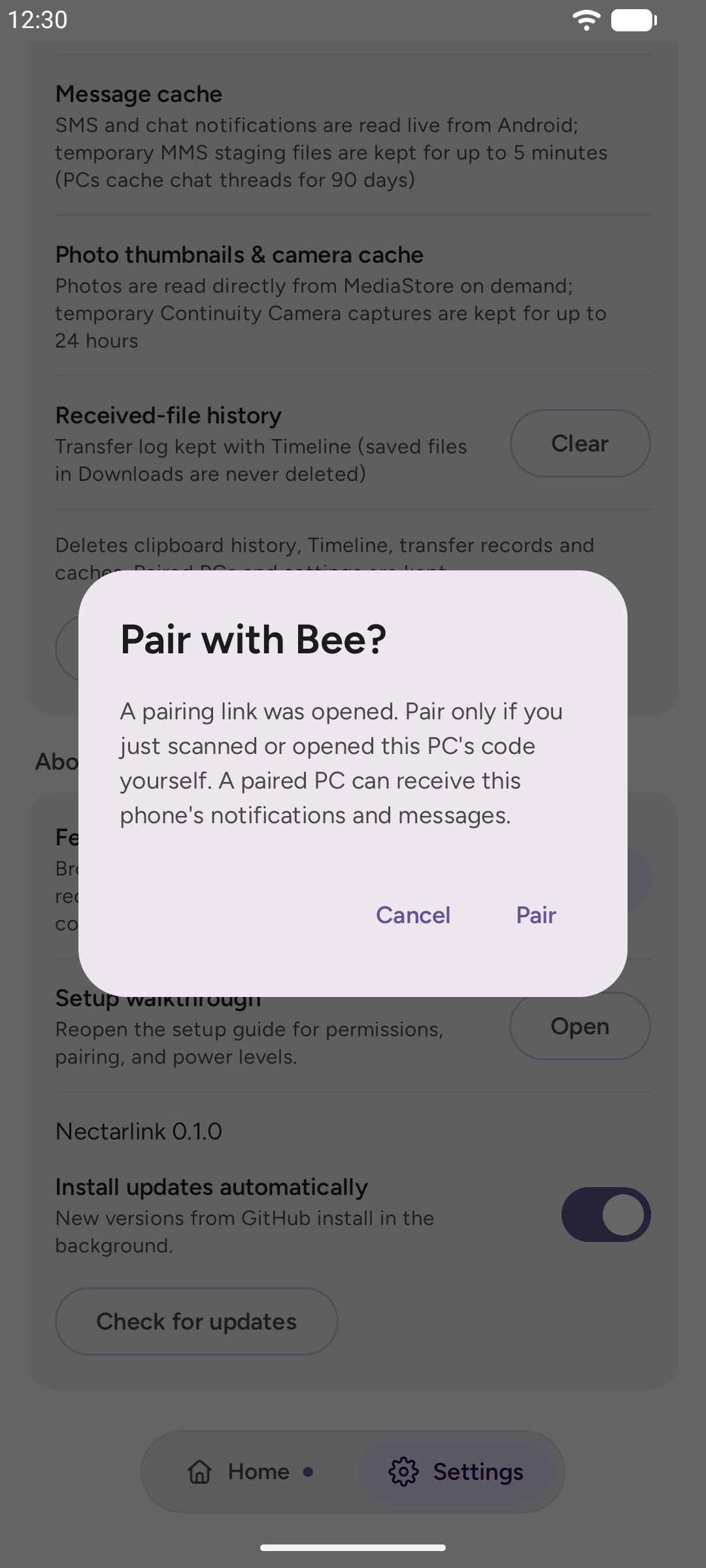
- **Pairing links opened from outside the app**: A `nectarlink://pair` link that reaches the phone from a web page, another app, or the system camera never pairs on its own. The phone asks first, naming the PC, and pairs only after you tap **Pair**.
Once paired, each device saves the peer's Ed25519 public key in its local SQLite trust store (`peers` table).
**Install ID**: Each device also shares a 32-character install ID with the devices it pairs with. It is a salted BLAKE3 hash of the Android ID on the phone or the Windows machine GUID on the PC, so the underlying identifier is never sent. It is used for one thing: when you reset and re-pair the same device, the old entry is replaced instead of left behind. Two different devices with the same name are never merged.
## 3. End-to-End Encrypted Connections (QUIC + TLS 1.3)
Every post-pairing session (`ALPN = "nectarlink/0"`) runs over **QUIC** (via `iroh`) with **TLS 1.3** mutual authentication:
- **Mutual verification**: Both the phone and the PC verify the peer's Ed25519 signature during the TLS 1.3 handshake and immediately drop any connection whose public key is not in the local `peers` table.
- **USB tunnel encryption**: Even when connected over a USB cable (`On USB`), NectarLink runs the exact same TLS 1.3 end-to-end encrypted QUIC protocol over the local loopback bridge.
- **Strict wire bounds**: Every protocol message is length-prefixed CBOR capped at 1 MiB before memory allocation (`MAX_FRAME_LEN`), preventing malformed frames from exhausting memory.
## 4. Network Connections and Automatic Update Checks
### Local-First Device Communication
- **Local network by default**: By default, NectarLink discovers your paired devices on the local network using mDNS and connects directly over LAN IPv4/IPv6 or a USB cable (`127.0.0.1:53319` over `adb forward`). No device-to-device data leaves your local network unless you turn on **Connect over mobile data**.
- **Opt-in **Connect over mobile data** (`away_mode`, off by default on both PC and Android)**: If you turn on **Connect over mobile data** in **Settings › Connection & About** on the PC and **Settings › Devices** on Android, NectarLink maintains your connection when your phone is on LTE/5G or a different Wi-Fi network.
- **End-to-end encryption over relays**: When a direct UDP hole-punch cannot be established while **Connect over mobile data** is enabled, encrypted QUIC packets are forwarded through an `iroh` relay. Because TLS 1.3 terminates exclusively inside your phone and your PC using your paired Ed25519 keys, a relay only sees opaque encrypted UDP datagrams and can never decrypt your messages, notifications, clipboard, or files.
- **Extra protection for remote storage**: Even if you have enabled **File Explorer integration** (`storage`) on your home Wi-Fi, NectarLink blocks storage browsing over a relay connection unless you also explicitly enable **Remote PC file access** (`remote_files`, off by default) in **Settings › Devices**.
### Automatic Update Checks (`api.github.com`)
To keep your installation current without an app store, installed copies check GitHub Releases over HTTPS:
- **On Windows (`desktop/app/src/updater.rs`, `win/http.rs`)**: On installed copies, **Check for updates** is **On** by default. NectarLink sends an HTTPS `GET` request via `WinHTTP` to `https://api.github.com/repos/thtbee/nectarlink/releases/latest` 30 seconds after startup and once every 24 hours (with `User-Agent: Nectarlink/ (Windows)`). It sends no personal or device information. When a newer release exists, its `SHA256SUMS.txt` and installer (`Nectarlink--x64-setup.exe`) are downloaded, the installer is checked against the sums, and it runs silently: by itself at a quiet moment when **Install updates automatically** is on (the default), or when you click **Update**. The installer registers a Windows task, **Nectarlink Update**, that runs the update as SYSTEM so no administrator prompt is needed. It takes no input from whoever starts it, only installs a newer published release, and writes what it did to `update.log` in the install folder. Turn either setting off in **Settings › Connection & About**.
- **On Android (`AppUpdater.kt`)**: Release builds check `https://api.github.com/repos/thtbee/nectarlink/releases/latest` over HTTPS at most once every 24 hours, in the background and when the app comes to the front (`User-Agent: Nectarlink/ (Android)`), and when you tap **Check for updates**. With **Install updates automatically** on (the default), a newer APK is downloaded, checked against `SHA256SUMS.txt`, and installed. Android only installs it over NectarLink if it carries the same signature, so only official release builds can update the app.
### Network Connections NectarLink Makes
| Connection / Activity | Protocol & Destination | Default State | How to Control or Disable |
| :--- | :--- | :--- | :--- |
| **Paired device discovery & session** | mDNS (`_nectarlink._udp.local`) and direct QUIC + TLS 1.3 UDP on your local LAN | **On** (LAN only) | Unpair devices in **Settings › Devices** or quit NectarLink |
| **USB wired transport (`On USB`)** | QUIC + TLS 1.3 over loopback TCP (`127.0.0.1:5037` ADB host to `127.0.0.1:53319` on device) | **On** when USB debugging is active | Unplug the USB cable or turn off USB debugging on the phone |
| **Automatic update check (Windows)** | HTTPS `GET` to `https://api.github.com/repos/thtbee/nectarlink/releases/latest` (30s after launch and every 24h; downloads `SHA256SUMS.txt` and the setup `.exe` when a newer release exists) | **On** on installed copies | Turn off **Settings › Connection & About › Automatic updates** |
| **Automatic / manual update check (Android)** | HTTPS `GET` to `https://api.github.com/repos/thtbee/nectarlink/releases/latest` (at most once per 24h in release builds; downloads `SHA256SUMS.txt` and the `.apk` when a newer release exists) | **On** in release builds | Controlled by foreground checks or manual **Settings › Features & Data › About › Check for updates** |
| **Connect over mobile data** (`away_mode`) | `iroh` DNS/Pkarr lookup and end-to-end TLS 1.3 encrypted QUIC relay servers | **Off** on both PC and Android | Toggle **Settings › Connection & About › Connect over mobile data** (PC) and **Settings › Devices › Connect over mobile data** (Android) |
| **LocalSend discovery & transfer** | UDP multicast `224.0.0.167:53317` and HTTPS/HTTP TCP `53317` (local network only) | **Off** on both PC and Android | Toggle **Settings › Files & Sync › LocalSend on local network** (PC) or **Settings › Features & Data › LocalSend** (Android) |
| **Local automation API (Windows)** | Loopback HTTP on `127.0.0.1:53320` (never bound to LAN interfaces) | **Off** | Toggle **Settings › Connection & About › Local automation API** |
## 5. Per-Device Feature Toggles and Explicit Consent Prompts
Pairing a device does not give it unrestricted access to everything. You control 18 individual per-device feature toggles in **Settings › Devices** (see [Settings Reference](settings.md#3-devices)), and sensitive capabilities require explicit user consent:
| Capability | Default State | Consent and Visibility Controls |
| :--- | :--- | :--- |
| **Reverse Mirroring** (`Share PC screen to phone`) | **Off** | Prompts on the PC screen (**Not now**, **Allow**, **Allow for this device**) when requested from a phone; shows a persistent **Sharing this PC's screen with ``** top banner with a one-click **Stop sharing** button while active. |
| **Remote Input to PC** (`Remote mouse, keyboard & Deck`) | **Off** | Prompts on the PC the first time a paired phone asks to move the cursor or send keys. |
| **Deck Shell Commands** (`Run Deck shell commands`) | **Off** | Separate per-phone toggle that must be manually enabled in PC Settings before any `Deck` command tile can run. |
| **File Explorer Storage** (`File Explorer integration`) | **Off** on both PC and phone | Must be turned on per device, with an explicit prompt on the phone and support for sharing only specific folders (**Selected folders only**). |
| **Phone Screen Mirroring** (`Screen mirroring`) | **On** | Android prompts before sharing at `Standard`/`Assist`, and shows a persistent notification with a **Stop** button (or **Close all** for `app window` sessions) on the phone while active. |
| **Phone as Webcam & Continuity Camera** | **On** | Starting the webcam or triggering Continuity Camera from the PC always posts a notification on the phone requiring a physical tap on the phone before the camera opens, plus a persistent **Stop** notification and Android's green camera dot. |
| **Type on Phone from PC** | Requires `Assist` or `Elevated` | Shows a persistent **Typing from ``** banner on the phone with a one-tap **Stop typing** button. |
| **LocalSend** (`LocalSend on local network`) | **Off** | Every incoming file offer from a nearby LocalSend device requires explicit user approval (**Accept** / **Decline**) before any bytes are written. |
| **Forward PC Notifications / Stream PC Audio / Share PC Folders** | **Off** | All three PC-to-phone sharing features are off by default and can only be enabled locally on the PC. |
## 6. How the `Elevated` Shell Helper Is Secured
If you choose to enable the `Elevated` power level on Android, NectarLink starts its companion helper (`app.nectarlink.android.elevated.InputServer` via `app_process`) running as Android's `shell` user (`UID 2000`) through Wireless Debugging or USB `adb`.
To ensure no other app on your phone can abuse this helper:
1. **Loopback Binding and 192-Bit Per-Session Token Authentication**: Because Android SELinux blocks regular apps from connecting to `shell`-owned Unix domain sockets, `InputServer` binds exclusively to a loopback TCP socket (`127.0.0.1:`) and requires a 24-byte (48-hex-character) `SecureRandom` secret token on the first line of every connection. The token is generated fresh by the NectarLink app when launching the helper and verified in constant time (`MessageDigest.isEqual`); any unauthenticated connection is closed immediately before reading a command.
2. **Fixed Verb Dispatch and Strict Command Allowlist**: Commands sent over the socket are parsed as fixed single-letter verbs (`D`, `M`, `U`, `C`, `S`, `W`, `K`, `T`, `P`, `A`, `V`, `E`, `H`, `G`, `B`) dispatched directly to Android Binder APIs (`IInputManager`, `IClipboard`, `IActivityTaskManager`, `/dev/uhid`), and the `C` verb is restricted to an explicit allowlist of system toggle commands (notification shade expand, Wi-Fi, Bluetooth, hotspot, and screen brightness `0..255`). Arbitrary shell commands are rejected.
## 7. Local Data Storage, Encryption, and Retention
All cached data stays inside your local profile directory (`%LOCALAPPDATA%\Nectarlink` on Windows and `/data/data/app.nectarlink.android` on Android):
| Data Store | How It Is Stored | Default Retention |
| :--- | :--- | :--- |
| **Clipboard History** | Encrypted at rest in `clipboard_history.enc` (`NLCB\x01` header) and `clipboard_images/.enc` (`NLCI\x01` header) directly using the platform `KeyProtector` (**Windows DPAPI** on the PC, **Android Keystore AES-256-GCM** on Android). Passwords marked sensitive by password managers and one-time verification codes (OTPs) are never sent or saved. | **7 days**, up to 50 items / 128 MB |
| **Notification History (PC)** | Stored locally in `notification-history.json` (and per-app rules in `notification-rules.json`) with cached images in `cache\images\`. One-time verification codes are excluded. Not duplicated on the phone. | **24 hours**, up to 300 items |
| **Cross-Device `Timeline`** | Stored locally in `nectarlink.db`. Clipboard items in `Timeline` reference `clipboard_history.enc` by ID so clip text is never stored in plain text in SQLite. | **90 days** (configurable to `30d`, `90d`, `1y`, or up to `5,000` items) |
| **Cached Messages (PC)** | Cached in `nectarlink.db` and `cache\images\` for fast inbox loading. Temporary MMS staging files on Android are deleted within 5 minutes. | **90 days** on PC |
| **Photo Thumbnails (PC)** | Cached in `cache\photos\`. Full-resolution photos are only fetched on demand. Temporary Continuity Camera captures on Android are deleted within 24 hours. | **30 days** on PC |
| **Offline `Waiting to send` Queue** | Stored in `nectarlink.db` (`send_queue` table). Files are referenced by path rather than duplicated. | Camera requests: **2m**; Links/Clips/Alerts: **24h**; Files: **7d** |
| **OBS Studio Password (PC)** | Saved in `settings.json` only after you enter it in **Settings › Shortcuts & Rules › OBS Studio**, encrypted with **Windows DPAPI** for your Windows account. Used only to sign in to OBS's WebSocket server on this PC (`127.0.0.1`). | Until you remove it |
| **Media Artwork Lookup** | Extracted from the local Windows GSMTC or Android `MediaSession` bitmap stream and cached locally on disk. | Local session cache |
You can clear any individual store or click **Clear everything...** at any time in **Settings › Storage & Privacy** on Windows or **Settings › Features & Data › Data & storage** on Android.