# s1panel
This is my attempt at a panel software for linux, specifically for the ACEMAGIC S1 Mini PC with LCD Screen running Ubuntu 23.10 Desktop.
> [!NOTE]
> I am not affiliated with acemagic or minipcunion, nor have I been paid for any of this work. It's all done as a hobby (or a solution to a problem I had). The software is provided as-is, without any warranties or guarantees of any kind, expressed or implied. Usage of the s1panel project is at your own risk. s1panel is an open-source project and is distributed under the GPL-3.0 license.
## Release Notes
#### 2025-04-11
- made some changes for the snap
- added fonts registering
#### 2025-04-09
- added sensor management from the GUI (the red bolt upper right hand)
- added additional callbacks in sensors for GUI support
- added code to stop any sensor threads
- removed spawning to get network/ip and cpu_temp/sensors to prevent pid count from going up
- fixed some weather bugs (clear sky was not working)
- added ubuntu snap package building (regisred in the store under 's1panel' name)
- added github workflow to build snap package and release it
- fixed minor issues here and there
#### 2025-04-05
- added weather sensor and weather_icon widget
- cleaned up code and error handling in bunch of places
#### 2024-04-09
- added the widget position change buttons (up, down, top, bottom)
- fixed clock sensor's 12-hr format showed 0 at midnight
#### 2024-04-10
- Fixed screen sensor polling when on rotation
- Fixed calendar sensor and added more tokens
- Added network sensor
- Added bar_chart widget
- Added 2 more screens on rotation to demo theme
#### 2024-04-14
- Moved the lcd handling to a separate thread, the main thread should be more responsive now.
- Changed the refresh and heartbeat values in config.json
- Enhanced the network sensor to be able to monitor multiple interfaces
- Added more tokens to network sensor, and changed the max scale value
- Fixed a bug where config save wouldn’t save the current value for heartbeat
- Moved the GUI "unsaved changes" variable from config to state
- Added some more error handling in sensors
- Cleaned up 2nd screen on demo theme
- Added memory sensor, and added it to 2nd screen
#### 2024-04-22
- made more changes to lcd_thread to refine timing
- added debug frame as unsaved changes
- general code cleanup
## Install (ubuntu snap)
s1panel is now registered in the snap store.
[](https://snapcraft.io/s1panel)
```
sudo snap install s1panel
# to talk to LCD:
sudo snap connect s1panel:raw-usb
# to get all the sensors:
sudo snap connect s1panel:hardware-observe
# to get disk usage info:
sudo snap connect s1panel:mount-observe
sudo snap connect s1panel:removable-media
sudo snap connect s1panel:block-devices
```
The config/theme files should be in /root/snap/s1panel/current/ and if you want to modify them manually, make sure you stop the snap first. Here are some commands to use with snap:
```
sudo snap stop s1panel
sudo snap start s1panel
sudo snap remove s1panel
```
> [!NOTE]
> For disk space monitoring, please check the s1panel log after restarting the service. You will find the lsblk output there, which you can use to determine the mappings between the Snap and the host system.
## Dependencies
Until I do an official release and figure out how to package all this, you will need to follow the below steps. You should at least have minimal version of node+npm installed.
```
sudo apt install nodejs
sudo apt install npm
```
```
$ node -v
v18.13.0
$ npm -v
9.2.0
```
> [!NOTE]
> If you need to build any of the dependencies from source, you will need to have a build environment set up. For example, on Debian-based systems, you can install it with: "apt-get install build-essential"
make sure your pc can access the following urls, test with curl for icons and weather:
curl https://api.iconify.design/wi/alien.svg
curl https://geocoding-api.open-meteo.com/v1/search?name=nyc&count=1&country=US
## Upgrade
stop the service, do a git pull, update any npm packages, build the gui, start service.
```
sudo service stop s1panel
git pull
npm i
cd gui
npm i
npm run build
sudo service start s1panel
```
> [!WARNING]
> make sure you backup your config.json and themes/simple_demo/ directory before upgrading or you will loose your changes!
## New Install
clone this repo
```
git clone https://github.com/tjaworski/AceMagic-S1-LED-TFT-Linux.git acemagic
```
install this as a service
```
cd acemagic/s1panel
sudo ./install
```
also make sure you have lm_sensors installed and configured for the cpu temp to work.
```
sensors
coretemp-isa-0000
Adapter: ISA adapter
Package id 0: +45.0°C (high = +105.0°C, crit = +105.0°C)
Core 0: +42.0°C (high = +105.0°C, crit = +105.0°C)
Core 1: +42.0°C (high = +105.0°C, crit = +105.0°C)
Core 2: +42.0°C (high = +105.0°C, crit = +105.0°C)
Core 3: +42.0°C (high = +105.0°C, crit = +105.0°C)
```
open your browser to the gui page http://localhost:8686
> [!IMPORTANT]
> if you want to access the gui remotely you will need to change the listen address in config.json to 0.0.0.0:8686 and restart the service.
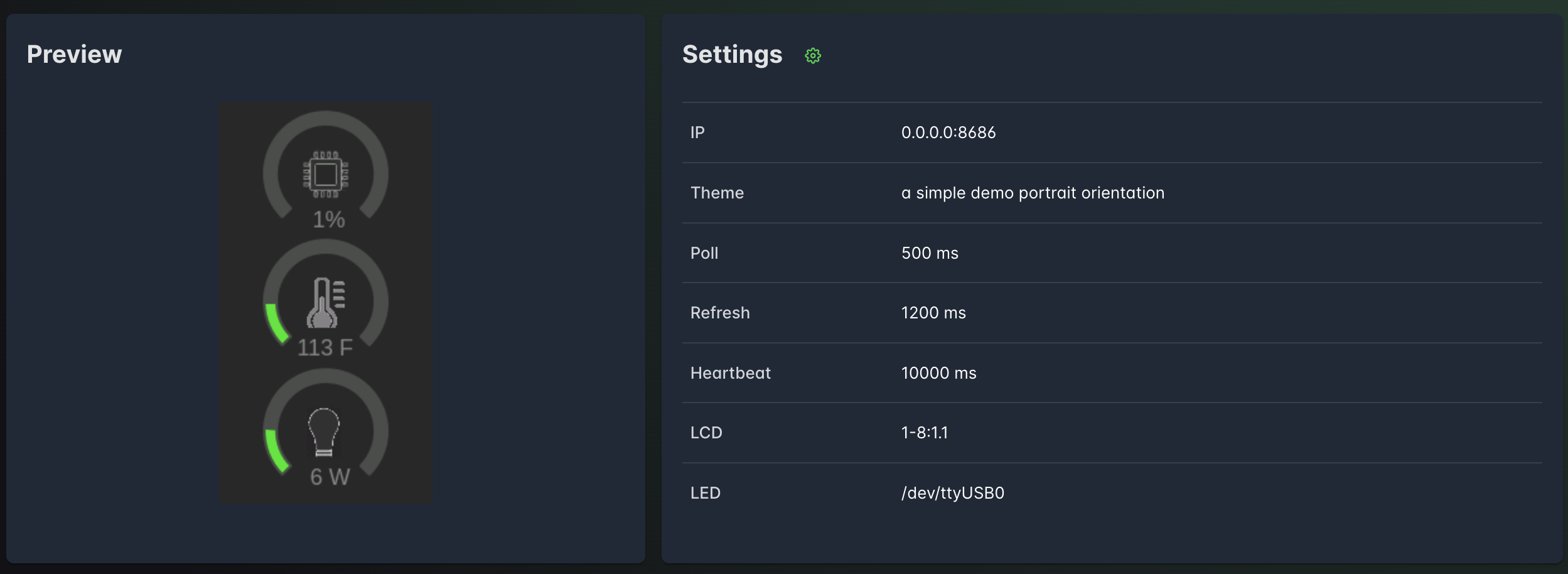
### top panel
this shows you the preview screen, and the settings which can be found in config.json file.
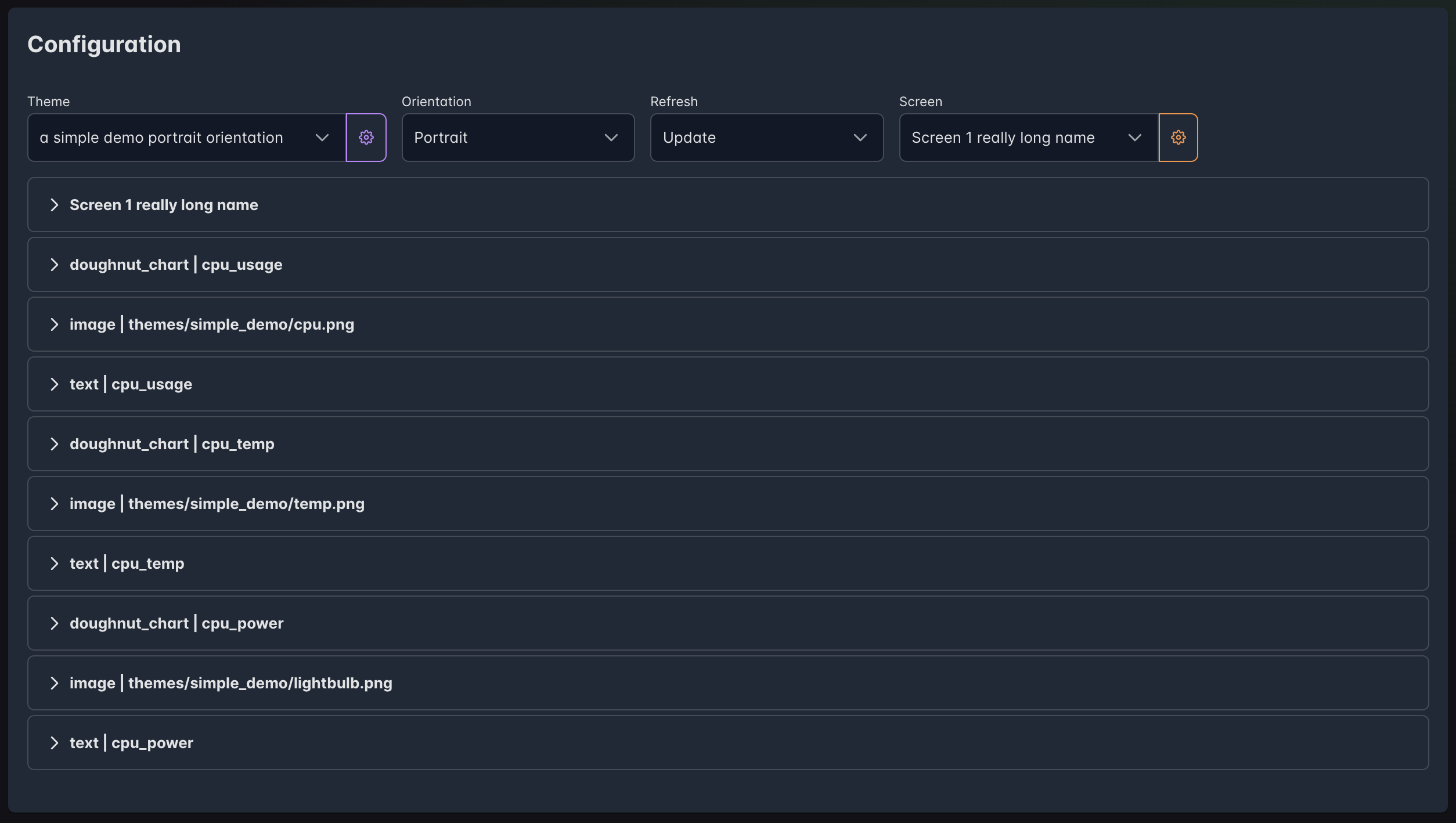
### bottom panel
this is the theme configuration screen where you can add, remove and change the panel components.
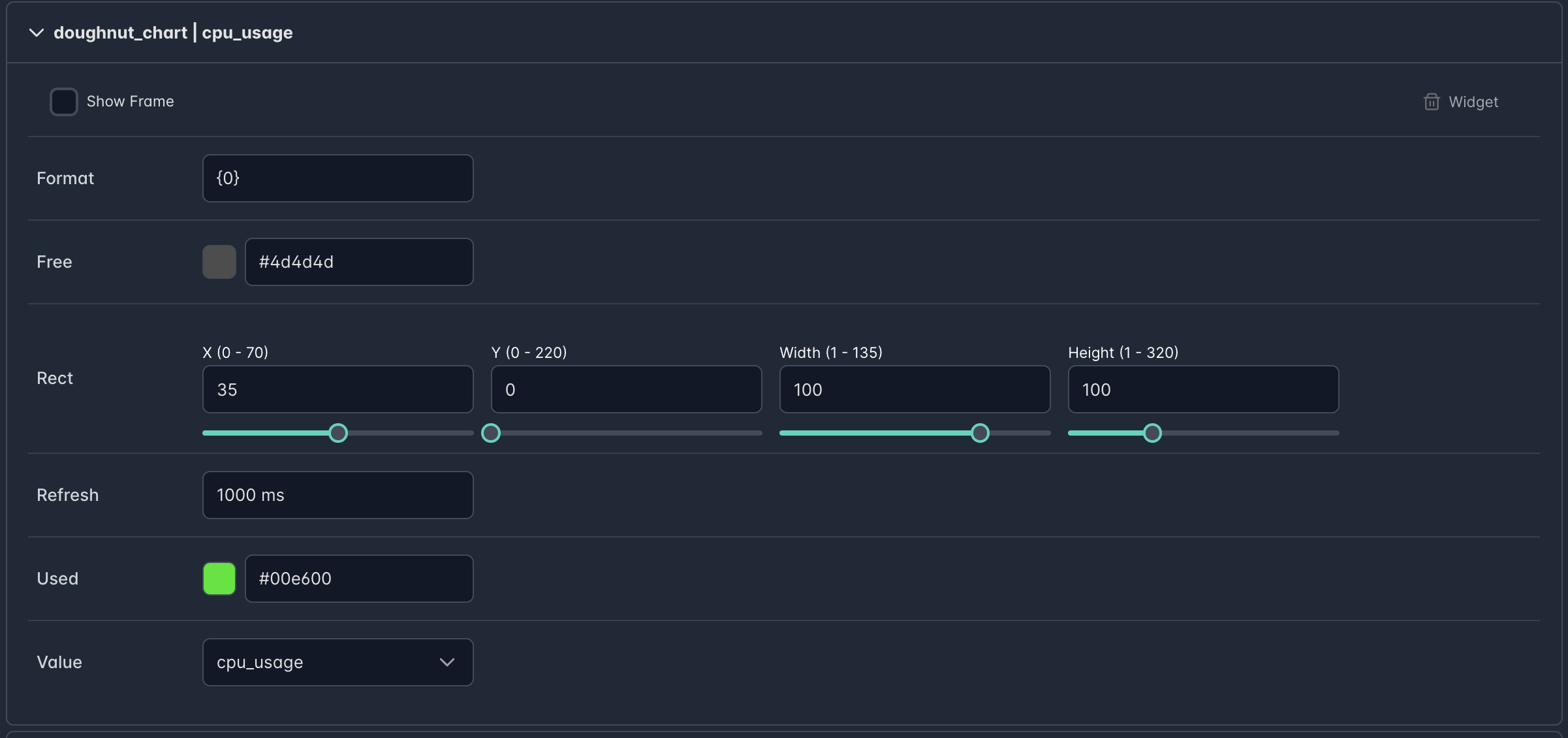
### widgets
expanding each widget shows you the configuration for that widget
## Work in Progress
Things I still need to work on are theme management, more widgets and sensors. With all this you can roll your own widgets and sensors. I will be creating a more detail wiki on how all this works.
If you make changes to config.json or the theme.json manually make sure you restart the service.
## Quick "How does it work"
Each theme consists of one or more screens, each of which contains one or multiple widgets. A widget is an element responsible for rendering content on the screen, while a sensor gathers data for the widgets to utilize. Themes may feature multiple screens set on a rotation schedule, with specified durations for display before transitioning to the next screen. When rendering widgets it's essential to ensure correct z-ordering in the cases of overlapping widgets. Everything is always sorted on the 'id' field (ascending order). You have the option to either always perform a full-screen redraw or update only the widget region. Using the screen wallpaper or image widget, please make sure you have the correct sizes, I do not perform any resizing of the images. Regardless of the orientation, the wallpaper is always 320x170. Unlike the wallpaper the image widget will rotate the image depending on the orientation. PNG transparency is supported. The LED strip configuration is associated with each screen individually, allowing for a unique LED theme to be displayed alongside the current screen. The screen rotation is mostly great to prevent screen burn in.
current [sensors](https://github.com/tjaworski/AceMagic-S1-LED-TFT-Linux/wiki/Sensors) are:
calendar, clock, cpu_power, cpu_temp, cpu_usage, memory, network, space, weather
current widgets are:
bar_chart, custom_bar, doughnut_chart, iconify, image, line_chart, text, weather_icon
Each sensor will return data based on a format token. For example, when setting the clock, the format field with {0} will return the 24-hour time, while {1} will return the 12-hour time. Additionally, you can add {3} for AM/PM. So, having the format "The current time is {1} {3}" will display "The current time is 12:00 pm". To determine the available tokens, please review the details within each sensor. I'm currently developing new sensors and widgets, a ping sensor, and several new widgets such as animated PNG (APNG), and a slideshow PNG. I'm also experimenting with a widget featuring a walking bug on the screen :) Another feature I'd like to add is a 'night mode', which clears the screen and sets the background color to black. I have the S1 on my desk, and it can be quite bright at night. I wish the acemagic guys had included a firmware functionality/command to control the LCD screen on and off. Big shout-out to [@SBRK](https://github.com/SBRK) for the iconify widget. Thank You!
### Iconify
The iconify widget will display svg icons coming from iconify icon sets. The available sets are [Material Design Icons (mdi)](https://icon-sets.iconify.design/mdi/), [Material Symbols (material-symbols)](https://icon-sets.iconify.design/material-symbols) and [Simple Icons (simple-icons)](https://icon-sets.iconify.design/simple-icons/). Search for the icon you want, then use its name as the widget `value`. These three sets are some of the most complete, but if you need an icon from a different set, you can easily add it to the `iconSet` list of the widget.
### Weather
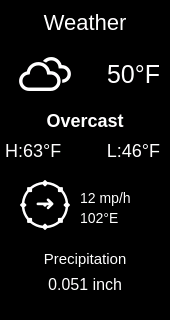
This project uses the [open-meteo.com](https://open-meteo.com) API to fetch weather data. The API is free and does not require an API key. To prevent overloading the service, the fetch interval is set to 5 minutes by default. If you only need the current weather conditions, you only need to set up a single sensor. However, if you want future forecasts, you’ll need to configure multiple sensors—one for each forecast day. The forecast configuration determines which day’s data is retrieved: 0 gives the current conditions, 1 provides today’s high and low temperatures, 2 is for tomorrow, 3 for the day after tomorrow, and so on, up to 7, which gives a full week’s forecast. Setting up your location is simple. If you’re in the United States, you can use your ZIP code. For other countries, just use your city name and make sure to set the correct two-letter country code (for example, US for the United States, UK for the United Kingdom, or AU for Australia). In addition to temperature and forecasts, you can also use the weather_icon widget, which provides a graphical representation of the weather (such as sunny or cloudy), as well as wind direction representation.
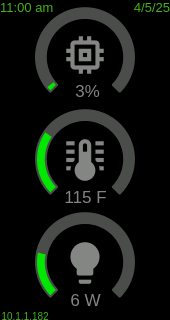
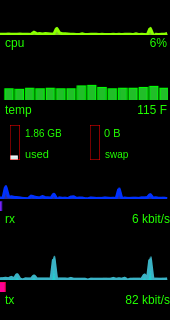
#### demo theme has 4 screens on 1 minute rotation
#### community themes:
 https://github.com/Piero24/acemagic-S1-panel-conf
>
> [!TIP]
> Please share photos of your creations with me, and I'll feature them here. I'm genuinely excited and can't wait to see what you all come up with! I created a subreddit here https://www.reddit.com/r/s1panel/
https://github.com/Piero24/acemagic-S1-panel-conf
>
> [!TIP]
> Please share photos of your creations with me, and I'll feature them here. I'm genuinely excited and can't wait to see what you all come up with! I created a subreddit here https://www.reddit.com/r/s1panel/