# Godot MCP
**Give your AI assistant full access to the Godot editor.**
Build games faster with Claude, Cursor, or any MCP-compatible AI — no copy-pasting, no context switching. AI reads, writes, and manipulates your scenes, scripts, nodes, and project settings directly.
> Godot 4.4+ · 69 tools · Undo/redo · Interactive project visualizer · MIT license
**Now on the [Godot Asset Store](https://store.godotengine.org/asset/tomer-yud/godlink/) as Godlink MCP.** If it helps you, please leave a review there. It's the main way other Godot developers find it.
---
## Quick Start
### 0. Install Node.js (one-time setup)
Download and run the installer from **[nodejs.org](https://nodejs.org/en/download)** (LTS version). It's a standard installer — no terminal needed.
### 1. Install the Godot plugin
**Godot 4.7 and newer:** inside the Godot editor, click the **Asset Store** tab at the top → search **"Godlink"** → find **"Godlink MCP"** → Install. ([Store page](https://store.godotengine.org/asset/tomer-yud/godlink/))
**Godot 4.6 and older:** click the **AssetLib** tab instead → search **"mcp"** → find **"Godot AI Assistant tools MCP"** → Install.
**Manual install:** copy the `addons/godot_mcp/` folder from this repo into your project's `addons/` folder.
Then go to **Project → Project Settings → Plugins** and enable the **Godot MCP** plugin.
### 2. Add the server config to your AI client
**Claude Desktop** — Settings → Developer → Edit Config → open the config file and paste:
Mac / Linux:
```json
{
"mcpServers": {
"godot": {
"command": "npx",
"args": ["-y", "godot-mcp-server"]
}
}
}
```
Windows:
```json
{
"mcpServers": {
"godot": {
"command": "cmd",
"args": ["/c", "npx", "-y", "godot-mcp-server"]
}
}
}
```
**Cursor** — Settings → MCP → Add Server:
Mac / Linux:
```json
{
"mcpServers": {
"godot": {
"command": "npx",
"args": ["-y", "godot-mcp-server"]
}
}
}
```
Windows:
```json
{
"mcpServers": {
"godot": {
"command": "cmd",
"args": ["/c", "npx", "-y", "godot-mcp-server"]
}
}
}
```
**Claude Code** — run in terminal:
```bash
claude mcp add godot -- npx -y godot-mcp-server
```
Works with any MCP-compatible client (Cline, Windsurf, etc.)
### 3. Restart your AI client
Close and reopen Claude Desktop / Cursor / your client so it picks up the new config.
### 4. Restart your Godot project
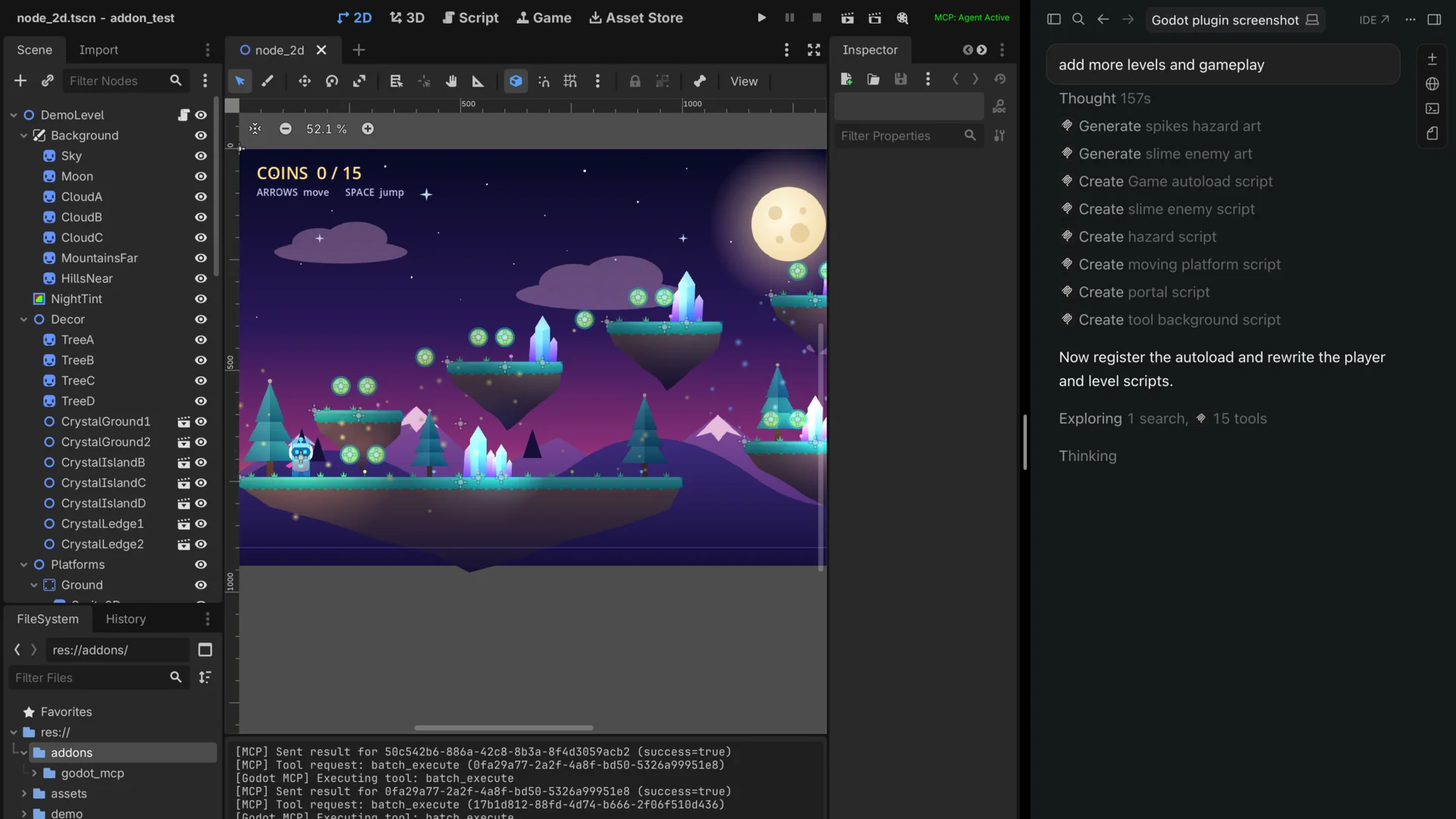
Hit **Restart Project** in the Godot editor. Check the **top-right corner** — once your AI client is running you should see **MCP: Agent Active** in green. You're ready to go.
If it shows **MCP: No Agent** in orange, Godot found the server but no AI client is using it yet. Restart your AI client. **MCP: Disconnected** in red means the server isn't running. Check that Node.js is installed and the config from step 2 is saved.
---
## What Can It Do?
### 69 Tools Across 7 Categories
| Category | Tools | Examples |
|----------|-------|---------|
| **Scene Operations** | 23 | Create whole node trees in one call, add/remove/move nodes, set any property including textures, shapes, meshes and materials (by file path or inline), attach scripts, signals, groups, call methods |
| **Project & Runtime** | 28 | Run/stop the game, send input, take screenshots, inspect live nodes, read errors and logs, project settings, input map, autoloads |
| **Script & File Operations** | 8 | Edit and validate scripts, write files, rename/move files with reference updates, create and delete folders |
| **File Browsing** | 4 | Browse directories, read files, search the project, create scripts |
| **Undo & Batching** | 4 | Undo/redo any AI change, run many changes as one all-or-nothing batch |
| **Asset Generation** | 1 | Generate 2D sprites from SVG |
| **Visualization** | 1 | Interactive browser-based project map and scene explorer |
### Interactive Visualizer
Run `map_project` and get a browser-based explorer at `localhost:6510`:
- Force-directed graph of all scripts and their relationships
- Click any script to see variables, functions, signals, and connections
- Edit code directly in the visualizer — changes sync to Godot in real time
- Scene view with node property editing
- Find usages before refactoring
### Limitations
AI cannot create 100% of a game by itself — it struggles with complex UI layouts, compositing scenes, and some node property manipulation. It's still in active development, so feedback is very welcome!
---
## Architecture
```
┌─────────────┐ MCP (stdio) ┌──────────────┐ WebSocket ┌──────────────┐
│ AI Client │◄────────────────►│ MCP Server │◄─────────────►│ Godot Editor │
│ (Claude, │ │ (Node.js) │ port 6505 │ (Plugin) │
│ Cursor) │ │ │ │ │
└─────────────┘ │ Visualizer │ │ 69 tool │
│ HTTP :6510 │ │ handlers │
└──────┬───────┘ └──────────────┘
│
┌──────▼───────┐
│ Browser │
│ Visualizer │
└──────────────┘
```
---
## Current Limitations
- **Local only** — runs on localhost, no remote connections
- **One Godot editor at a time** — multiple AI clients can connect concurrently, but they all share a single Godot instance
- **Ctrl+Z does not reach AI changes** — the plugin writes to disk rather than the editor's live tree, so Godot's native undo has nothing to revert. Use the `mcp_undo` tool instead (ask the agent to undo).
- **AI is still limited in Godot knowledge** — it can't create 100% of the game alone, but it can help debug, write scripts, and tag along for the journey
---
## Development
To build from source instead of using npm:
```bash
cd mcp-server
npm install
npm run build
```
Then point your AI client at `mcp-server/dist/index.js` instead of using `npx`.
---
## Release notes
Narrative write-ups of each release live in [`release-notes/`](./release-notes/) (latest: [v0.6.1](./release-notes/v0.6.1.md)). For the full change history, see [`CHANGELOG.md`](./CHANGELOG.md).
---
## License
MIT
---
## Star History
---
**[Godot Asset Store](https://store.godotengine.org/asset/tomer-yud/godlink/)** · **[npm package](https://www.npmjs.com/package/godot-mcp-server)** · **[Report Issues](https://github.com/tomyud1/godot-mcp/issues)**