# Install Tuya Integration
This topic describes how to install and use the official Tuya integration in Home Assistant.
## Prerequisites
* You have created a cloud project of Smart Home type on the [Tuya IoT Development Platform](https://iot.tuya.com/), added at least one real device or one virtual device, and authorized your project to use the required API services. For more information, see [Configuration Wizard of Smart Home PaaS](https://developer.tuya.com/en/docs/iot/Platform_Configuration_smarthome?id=Kamcgamwoevrx).
> **Note**: If your cloud project was created before May 25, 2021, you need to perform project migration. For more information, see [How to Migrate to the Tuya Home Assistant Integration](https://developer.tuya.com/en/docs/iot/migrate-from-an-older-version?id=Kamee9wtbd00b#title-3-Operation%20on%20the%20Tuya%20IoT%20Platform).
* You have installed Python 3.8 (including python3-dev) or a later version on your system.
## Set up
After you have installed Home Assistant Core, you can search for and set up the Tuya integration in Home Assistant.
> **Note**:
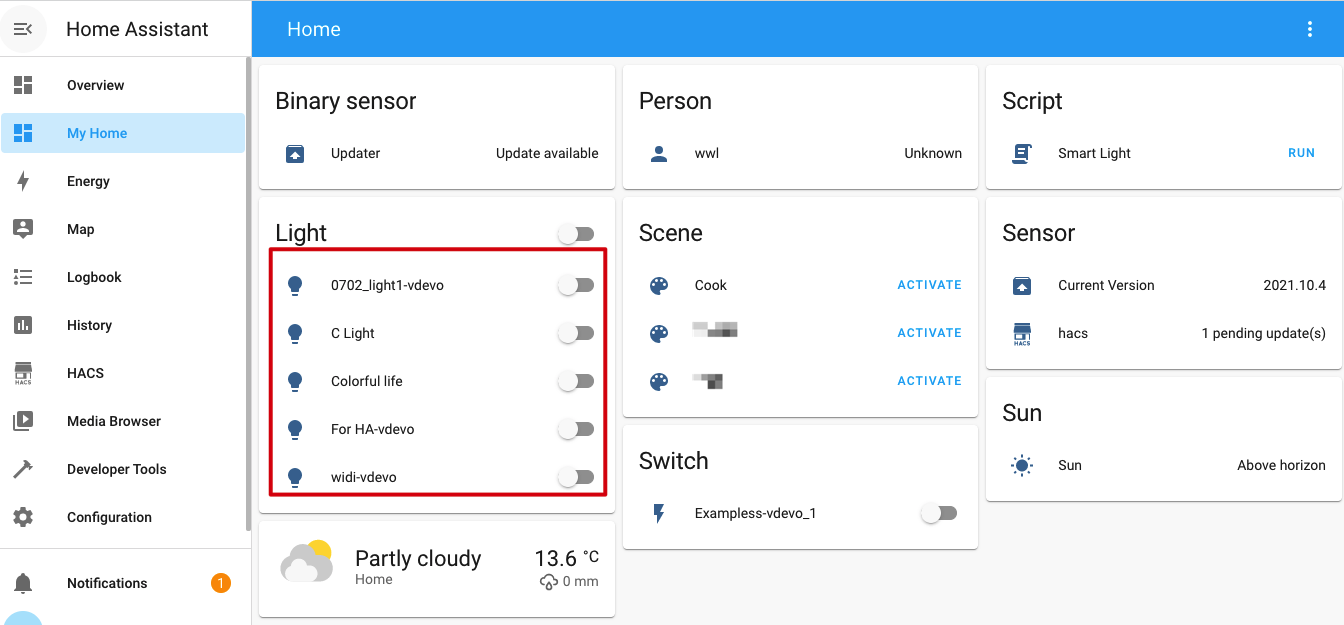
Only Home Assistant 2021.10.4 and later versions support the official Tuya integration.
 1. Enter `localhost:8123` into the address bar in your browser and hit Enter to connect to Home Assistant.
2. Register and log in.
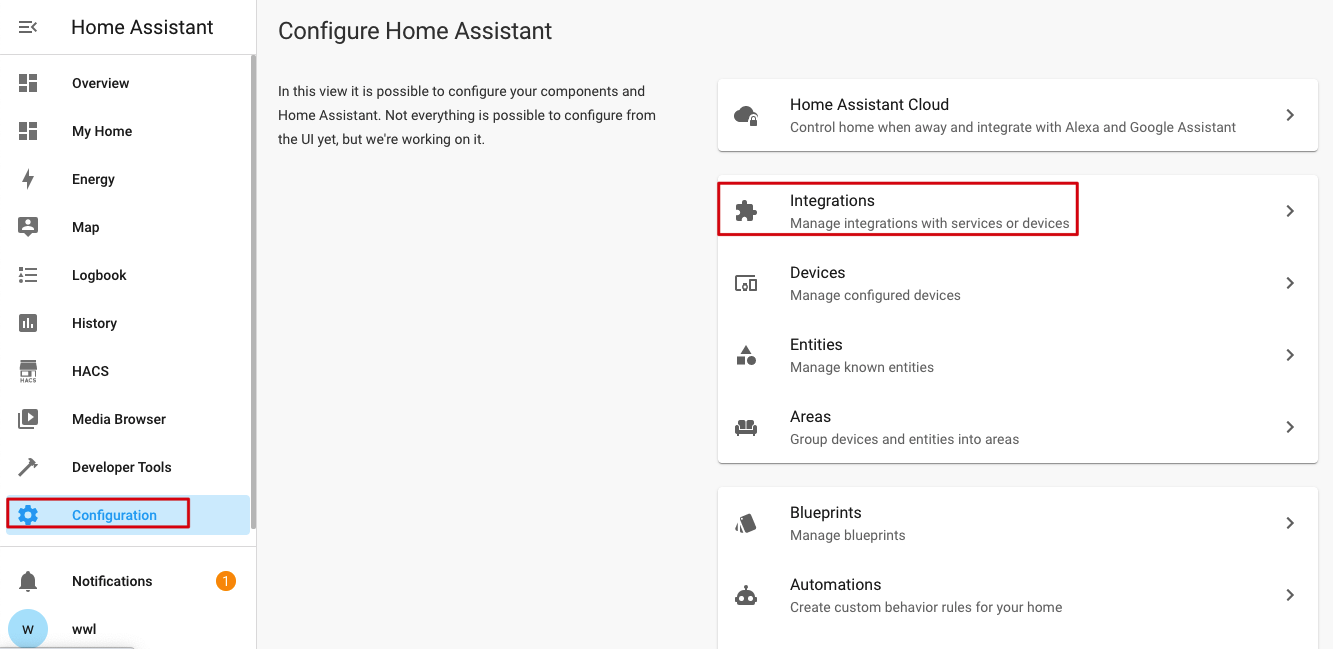
3. Click **Configuration** > **Integrations**.
1. Enter `localhost:8123` into the address bar in your browser and hit Enter to connect to Home Assistant.
2. Register and log in.
3. Click **Configuration** > **Integrations**.
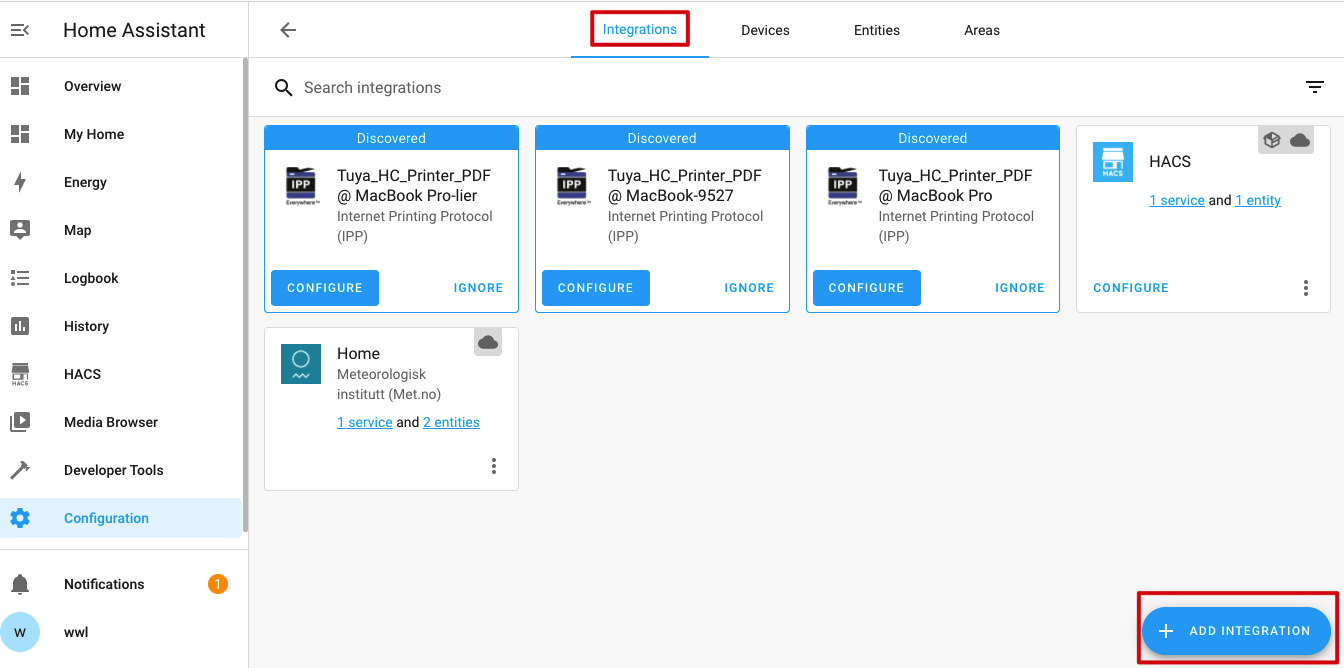
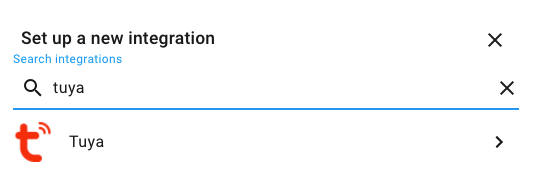
 4. On the **Integrations** page in the configurations panel, click the **+** button in the lower right and search for Tuya.
 5. Select **Tuya** and set up the integration.
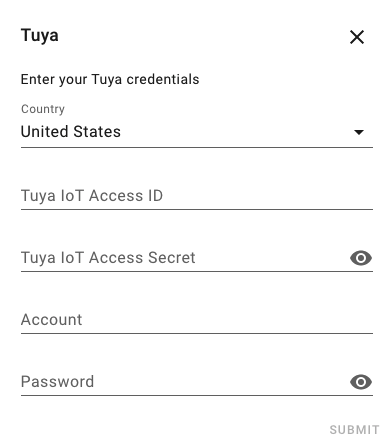
 6. Enter your Tuya credentials.
 | Fields | Description |
| ------- | -------- |
| Country | Select the region of your account of the Tuya Smart app or Smart Life app.
| Fields | Description |
| ------- | -------- |
| Country | Select the region of your account of the Tuya Smart app or Smart Life app.**Note**: Open the mobile app you use and tap **Me** > **Setting** > **Account and Security** > **Region**. |
| Tuya IoT Access ID and Tuya IoT Access Secret | Go to the [Tuya IoT Development Platform](https://iot.tuya.com/cloud/) and select your cloud project. Click the **Overview** tab and find the **Access ID** and **Access Secret** in the **Authorization Key** area. |
| Account | Your account of the Tuya Smart app or Smart Life app. Attention:Do not use the Tuya IoT Development platform account to log in. |
| Password | Your password of the Tuya Smart app or Smart Life app. |
> **Note**:
The mobile app mentioned in the above table must be the one you use to scan the QR code for linking devices to your cloud project on the [Tuya IoT Development Platform](https://iot.tuya.com/).
7. Click **Submit**.
Click **Overview** in the sidebar on the left. You will find all the smart devices linked to your cloud project created on the [Tuya IoT Development Platform](https://iot.tuya.com/).