# Pixel Tool
An interactive tool to draw ‘pixels’ using rectangles, ovals or components.
 ## Installation
Download and double-click the `.roboFontExt` file to install manually, or get it via [Mechanic 2](http://robofontmechanic.com/).
When installed, Pixel Tool becomes available from the Glyph Editor’s toolbar.
 ## Usage
- Open the Glyph Editor
- Click on the Pixel Tool icon in the toolbar to activate it.
### Drawing Pixels
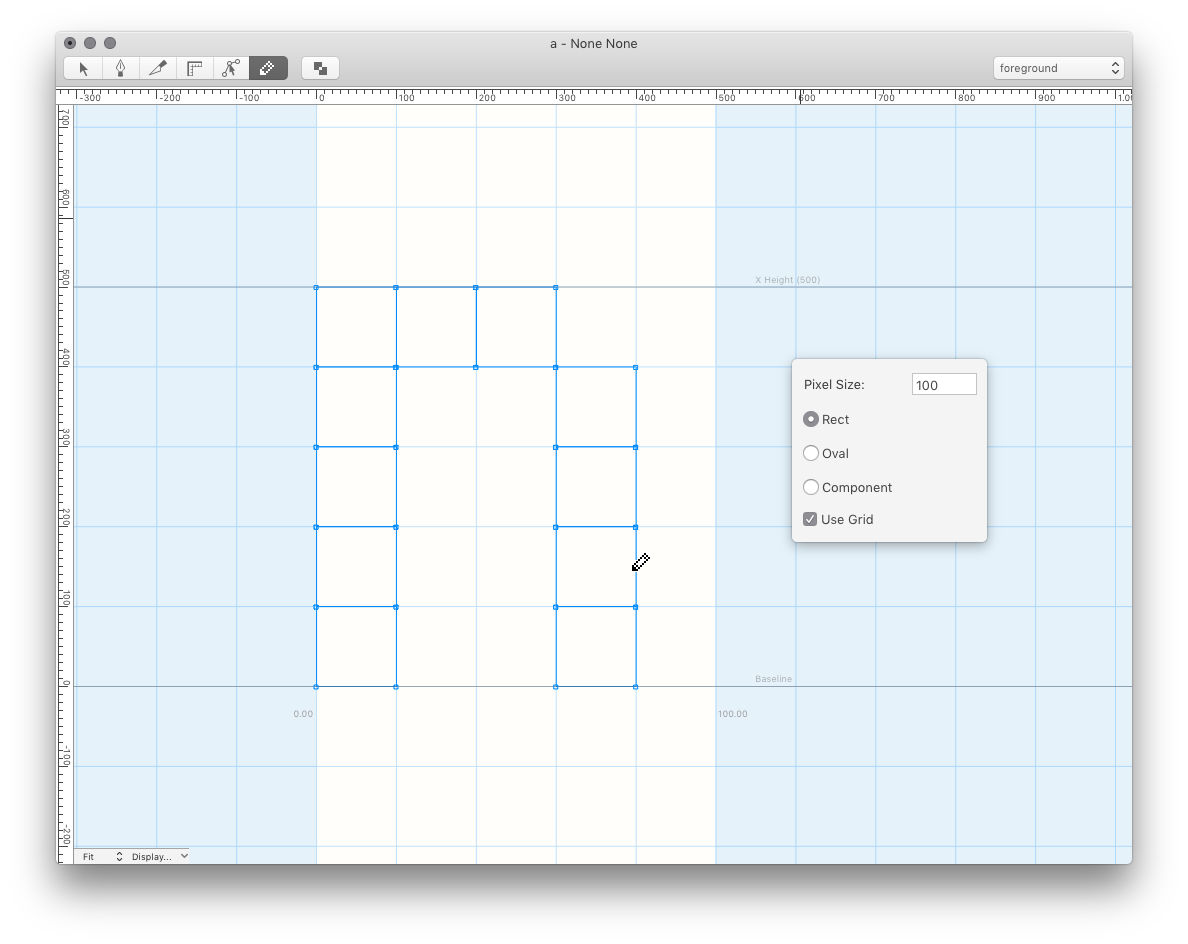
- Left-click on empty space in the Glyph Editor to add a pixel.
- Click and drag to continue drawing pixels.
- Left-click on existing pixels to remove them.
### Settings
Right-click while the Pixel Tool is active to edit the settings.
#### Use Grid:
Pixel Tool has the ability to react to your native RoboFont preference setting for "Grid Size".
- **Position:** Activating this setting forces all new pixels to align their origin (bottom-left) to grid intersections.
- **Size:** Activating this setting forces all new pixels to be sized like one cell in the grid.
#### Size:
You can set your own pixel width and height manually here.
#### Shape:
- **Rectangle**
- **Oval**
- **Component:** Pixel Tool will draw a component which references the **Base Glyph** name provided.