
Real-time system audio translation for macOS
Translate any audio playing on your Mac — YouTube, podcasts, meetings, movies — live on screen.




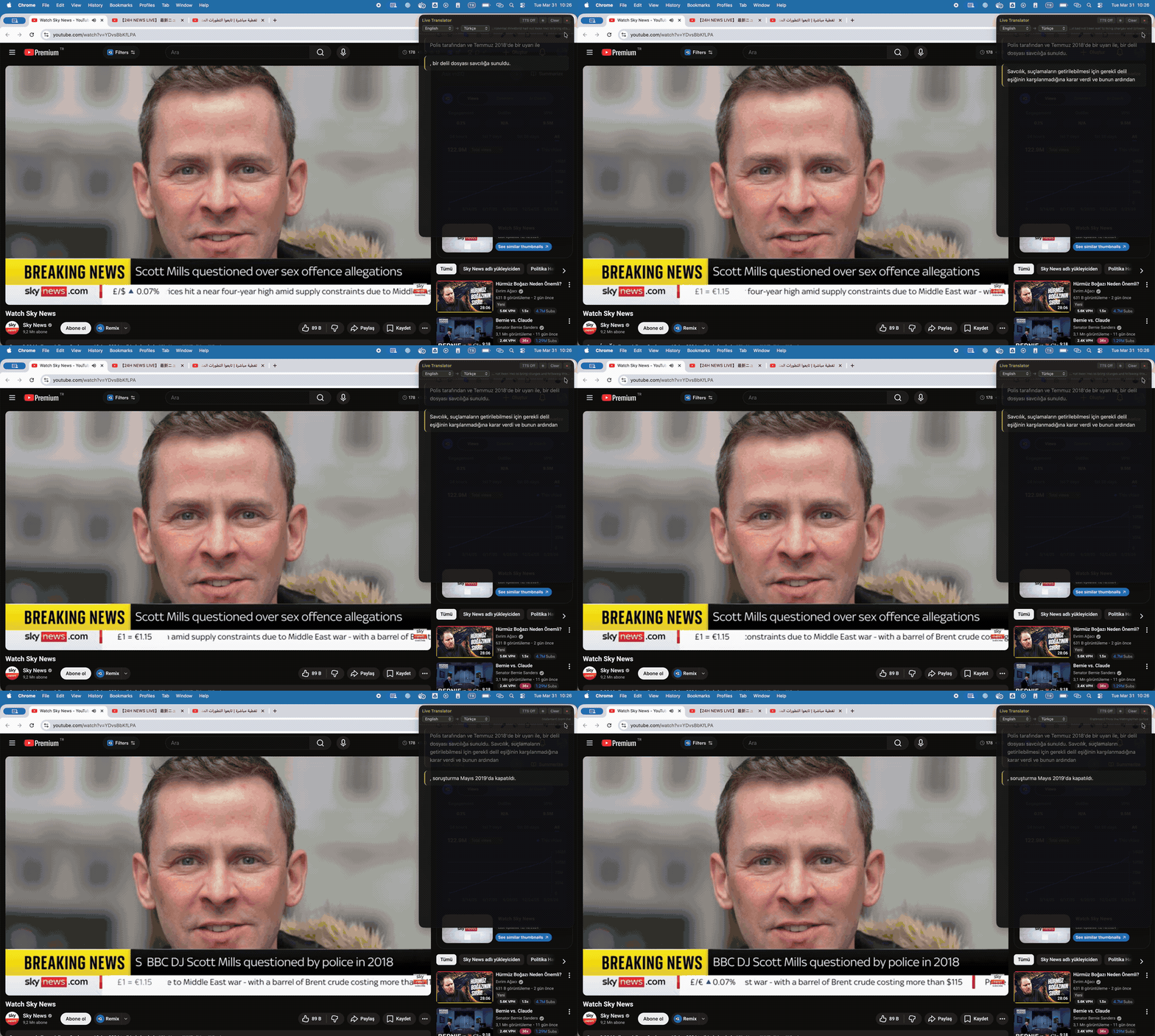 ### 🇯🇵 Japanese → 🇹🇷 Turkish
 ### 🇸🇦 Arabic → 🇹🇷 Turkish
 ### 🇸🇦 Arabic → Multi Language
 ## Features
- **Real-time translation** of any audio on your Mac
- **11 source languages** — English, German, French, Spanish, Italian, Japanese, Chinese, Korean, Russian, Arabic, Portuguese
- **12 target languages** — translate into any supported language
- **Context-aware AI** — maintains full conversation context, never loses track
- **Live document model** — translation grows like a live document, new parts highlighted
- **Text-to-Speech** — hear translations read aloud (Piper offline, OpenAI or Gemini voices)
- **Multi-provider** — choose OpenAI or Google Gemini; just add your API key
- **Latest AI models** — GPT-5.5, GPT-5.4 mini/nano, Gemini 2.5 Flash, Gemini 3.5 Flash, and more
- **Floating overlay** — dark-themed panel, draggable, always on top
- **In-app settings** — provider, API keys, model, TTS, languages — all configurable from the UI
- **No audio drivers needed** — uses ScreenCaptureKit (macOS 13+)
- **On-device STT** (default) — speech recognition works without internet; audio never leaves your Mac
- **Optional realtime mode** — lower latency via OpenAI's Realtime Translation model; audio is streamed to the provider
- **Auto-recovery** — watchdog detects and recovers from stuck states
- **Menu bar app** — runs quietly with 🌐 icon in menu bar
## What's New in v0.1.0
- **Multi-provider architecture** — pick OpenAI or Google Gemini for translation; switch any time from Settings.
- **Latest models** — refreshed model list (OpenAI GPT-5.5 / 5.4 mini / 5.4 nano, Gemini 2.5 Flash / Flash-Lite, Gemini 3.5 Flash). The model dropdown updates to match the selected provider.
- **Optional realtime mode** — stream audio to OpenAI's Realtime Translation model for lower latency, with a clear privacy warning. On-device STT stays the default.
- **Dynamic system-audio capture** — audio sources opened *after* the app starts are now captured automatically.
- **Redesigned Settings** — grouped sections, provider-aware fields, dual API keys, and clearer controls.
- **More robust** — graceful fallback and clear messaging when a provider, key, or connection fails; "no audio detected" hint when the source is silent.
## Install
### Option 1: DMG (Recommended)
1. Download → Open DMG → Drag to **Applications**
2. Launch → Setup wizard guides you through everything
3. Enter your **OpenAI API key** ([get one here](https://platform.openai.com))
4. Grant **Screen & System Audio Recording** permission when prompted
5. Play any audio → translations appear live
> **First launch:** If macOS blocks the app, right-click → Open, or run `xattr -cr /Applications/Live\ Translator.app`
### Option 2: Homebrew
```bash
brew tap umutcetinkaya/tap
brew install --cask live-translator
```
### Option 3: From Source
```bash
git clone https://github.com/umutcetinkaya/live-translator.git
cd live-translator
make install # Create venv + install deps
make models # Download TTS voice models (~580MB)
make run # Launch
```
## Quick Start
1. Launch → floating panel appears + 🌐 in menu bar
2. Click **⚙ Settings** → enter your OpenAI API key
3. Select **source language** (what's being spoken) and **target language** (what you want to read)
4. Play any audio → translations appear in real-time
5. New translations are **highlighted** so you always know what just changed
### Controls
| Control | Action |
|---------|--------|
| Source / Target dropdowns | Change languages |
| ⚙ Settings | API key, model, TTS provider, voice, speed |
| TTS Off / On | Toggle text-to-speech |
| Clear | Reset translation history |
| ✕ | Quit |
| Menu bar 🌐 | Pause, Show/Hide, Quit |
## Text-to-Speech
| Provider | Pros | Cons |
|----------|------|------|
| **Piper** (default) | Free, offline, fast | Robotic voice |
| **OpenAI TTS** | Natural voices (Nova, Shimmer, Alloy, Echo, Fable, Onyx) | Costs money |
| **Gemini TTS** | Natural voices via Gemini | Costs money |
TTS plays through the same process — the app's own voice is automatically filtered from capture. No feedback loops.
## Supported Models
Pick a provider in Settings, paste its API key, and the model list updates automatically.
**OpenAI**
| Model | Speed | Cost | Best For |
|-------|-------|------|----------|
| GPT-5.4 mini | ⚡ Fastest | ¢ | Daily use (default) |
| GPT-5.4 nano | ⚡ Fastest | ¢ | Budget |
| GPT-5.5 | 🚀 Fast | $$ | Latest + Quality |
**Google Gemini**
| Model | Speed | Cost | Best For |
|-------|-------|------|----------|
| Gemini 2.5 Flash | ⚡ Fastest | ¢ | Daily use |
| Gemini 2.5 Flash-Lite | ⚡ Fastest | ¢ | Budget |
| Gemini 3.5 Flash | 🚀 Fast | $$ | Latest + Quality |
> **Recommendation:** GPT-4o Mini or GPT-4.1 Nano for real-time translation (fast + cheap).
## How It Works
Live Translator runs two independent agents in parallel:
1. **Listener** — continuously captures system audio via ScreenCaptureKit and transcribes it on-device using SFSpeechRecognizer
2. **Translator** — every ~3 seconds, takes the full accumulated transcript and sends it to your chosen provider (OpenAI or Gemini)
The AI is instructed to **preserve its previous translation** and only **append or refine new content**. The overlay highlights what changed, so you can always follow along.
This means:
- Context is never lost
- Incomplete sentences get refined next cycle
- The translation reads as a coherent, flowing document
- No disconnected fragments
### Realtime mode (optional)
By default, speech recognition runs **on-device** — your audio never leaves the Mac, only text is sent to the translation provider. For lower latency you can enable **Realtime mode** in Settings (OpenAI provider), which streams audio directly to OpenAI's Realtime Translation model and returns the translation as it speaks. This trades privacy for speed: **audio is sent to the provider**. A warning is shown in Settings when you enable it. On-device mode remains the default.
## Architecture
```
live-translator/
├── main.py # Entry point + menu bar
├── src/
│ ├── audio_capture.py # ScreenCaptureKit system audio
│ ├── speech_recognizer.py # SFSpeechRecognizer + watchdog + ring buffer
│ ├── translator.py # OpenAI live document translation
│ ├── pipeline.py # Listener + Translator orchestrator
│ ├── overlay.py # WebKit floating panel (HTML/CSS/JS)
│ ├── tts.py # Piper (offline) / OpenAI TTS
│ └── config.py # JSON settings
├── models/ # Piper voice models (downloaded separately)
├── scripts/
│ ├── build_app.sh # Build .app bundle
│ ├── build_dmg.sh # Create DMG installer
│ ├── download_models.sh # Download TTS models
│ ├── notarize.sh # Apple notarization
│ ├── setup_wizard.swift # Native macOS setup wizard
│ └── launcher.c # Native .app launcher
├── assets/ # App icon + demo media
├── Makefile
├── requirements.txt
├── CONTRIBUTING.md
├── SECURITY.md
└── LICENSE
```
## Configuration
Settings are stored in `~/.live-translator.json` and can be changed from the in-app Settings panel:
```json
{
"openai_api_key": "sk-...",
"source_locale": "en-US",
"target_lang": "tr",
"model": "gpt-5.4-mini",
"tts_provider": "piper",
"tts_voice": "nova",
"tts_speed": 1.0
}
```
## Troubleshooting
| Problem | Solution |
|---------|----------|
| "Damaged and can't be opened" | Run `xattr -cr /Applications/Live\ Translator.app` |
| No audio detected | Grant Screen & System Audio Recording permission, restart app |
| STT stops working | Built-in watchdog auto-recovers within 10 seconds |
| Translation not appearing | Check your provider's API key in Settings (OpenAI or Gemini) |
| TTS not working | Check TTS provider in Settings |
| App not in dock | By design — it's a menu bar app (🌐) |
## Requirements
- **macOS 13 (Ventura)** or later
- **Python 3.11+** (auto-installed via setup wizard if missing)
- **OpenAI API key** ([get one here](https://platform.openai.com))
---
## Features
- **Real-time translation** of any audio on your Mac
- **11 source languages** — English, German, French, Spanish, Italian, Japanese, Chinese, Korean, Russian, Arabic, Portuguese
- **12 target languages** — translate into any supported language
- **Context-aware AI** — maintains full conversation context, never loses track
- **Live document model** — translation grows like a live document, new parts highlighted
- **Text-to-Speech** — hear translations read aloud (Piper offline, OpenAI or Gemini voices)
- **Multi-provider** — choose OpenAI or Google Gemini; just add your API key
- **Latest AI models** — GPT-5.5, GPT-5.4 mini/nano, Gemini 2.5 Flash, Gemini 3.5 Flash, and more
- **Floating overlay** — dark-themed panel, draggable, always on top
- **In-app settings** — provider, API keys, model, TTS, languages — all configurable from the UI
- **No audio drivers needed** — uses ScreenCaptureKit (macOS 13+)
- **On-device STT** (default) — speech recognition works without internet; audio never leaves your Mac
- **Optional realtime mode** — lower latency via OpenAI's Realtime Translation model; audio is streamed to the provider
- **Auto-recovery** — watchdog detects and recovers from stuck states
- **Menu bar app** — runs quietly with 🌐 icon in menu bar
## What's New in v0.1.0
- **Multi-provider architecture** — pick OpenAI or Google Gemini for translation; switch any time from Settings.
- **Latest models** — refreshed model list (OpenAI GPT-5.5 / 5.4 mini / 5.4 nano, Gemini 2.5 Flash / Flash-Lite, Gemini 3.5 Flash). The model dropdown updates to match the selected provider.
- **Optional realtime mode** — stream audio to OpenAI's Realtime Translation model for lower latency, with a clear privacy warning. On-device STT stays the default.
- **Dynamic system-audio capture** — audio sources opened *after* the app starts are now captured automatically.
- **Redesigned Settings** — grouped sections, provider-aware fields, dual API keys, and clearer controls.
- **More robust** — graceful fallback and clear messaging when a provider, key, or connection fails; "no audio detected" hint when the source is silent.
## Install
### Option 1: DMG (Recommended)
1. Download → Open DMG → Drag to **Applications**
2. Launch → Setup wizard guides you through everything
3. Enter your **OpenAI API key** ([get one here](https://platform.openai.com))
4. Grant **Screen & System Audio Recording** permission when prompted
5. Play any audio → translations appear live
> **First launch:** If macOS blocks the app, right-click → Open, or run `xattr -cr /Applications/Live\ Translator.app`
### Option 2: Homebrew
```bash
brew tap umutcetinkaya/tap
brew install --cask live-translator
```
### Option 3: From Source
```bash
git clone https://github.com/umutcetinkaya/live-translator.git
cd live-translator
make install # Create venv + install deps
make models # Download TTS voice models (~580MB)
make run # Launch
```
## Quick Start
1. Launch → floating panel appears + 🌐 in menu bar
2. Click **⚙ Settings** → enter your OpenAI API key
3. Select **source language** (what's being spoken) and **target language** (what you want to read)
4. Play any audio → translations appear in real-time
5. New translations are **highlighted** so you always know what just changed
### Controls
| Control | Action |
|---------|--------|
| Source / Target dropdowns | Change languages |
| ⚙ Settings | API key, model, TTS provider, voice, speed |
| TTS Off / On | Toggle text-to-speech |
| Clear | Reset translation history |
| ✕ | Quit |
| Menu bar 🌐 | Pause, Show/Hide, Quit |
## Text-to-Speech
| Provider | Pros | Cons |
|----------|------|------|
| **Piper** (default) | Free, offline, fast | Robotic voice |
| **OpenAI TTS** | Natural voices (Nova, Shimmer, Alloy, Echo, Fable, Onyx) | Costs money |
| **Gemini TTS** | Natural voices via Gemini | Costs money |
TTS plays through the same process — the app's own voice is automatically filtered from capture. No feedback loops.
## Supported Models
Pick a provider in Settings, paste its API key, and the model list updates automatically.
**OpenAI**
| Model | Speed | Cost | Best For |
|-------|-------|------|----------|
| GPT-5.4 mini | ⚡ Fastest | ¢ | Daily use (default) |
| GPT-5.4 nano | ⚡ Fastest | ¢ | Budget |
| GPT-5.5 | 🚀 Fast | $$ | Latest + Quality |
**Google Gemini**
| Model | Speed | Cost | Best For |
|-------|-------|------|----------|
| Gemini 2.5 Flash | ⚡ Fastest | ¢ | Daily use |
| Gemini 2.5 Flash-Lite | ⚡ Fastest | ¢ | Budget |
| Gemini 3.5 Flash | 🚀 Fast | $$ | Latest + Quality |
> **Recommendation:** GPT-4o Mini or GPT-4.1 Nano for real-time translation (fast + cheap).
## How It Works
Live Translator runs two independent agents in parallel:
1. **Listener** — continuously captures system audio via ScreenCaptureKit and transcribes it on-device using SFSpeechRecognizer
2. **Translator** — every ~3 seconds, takes the full accumulated transcript and sends it to your chosen provider (OpenAI or Gemini)
The AI is instructed to **preserve its previous translation** and only **append or refine new content**. The overlay highlights what changed, so you can always follow along.
This means:
- Context is never lost
- Incomplete sentences get refined next cycle
- The translation reads as a coherent, flowing document
- No disconnected fragments
### Realtime mode (optional)
By default, speech recognition runs **on-device** — your audio never leaves the Mac, only text is sent to the translation provider. For lower latency you can enable **Realtime mode** in Settings (OpenAI provider), which streams audio directly to OpenAI's Realtime Translation model and returns the translation as it speaks. This trades privacy for speed: **audio is sent to the provider**. A warning is shown in Settings when you enable it. On-device mode remains the default.
## Architecture
```
live-translator/
├── main.py # Entry point + menu bar
├── src/
│ ├── audio_capture.py # ScreenCaptureKit system audio
│ ├── speech_recognizer.py # SFSpeechRecognizer + watchdog + ring buffer
│ ├── translator.py # OpenAI live document translation
│ ├── pipeline.py # Listener + Translator orchestrator
│ ├── overlay.py # WebKit floating panel (HTML/CSS/JS)
│ ├── tts.py # Piper (offline) / OpenAI TTS
│ └── config.py # JSON settings
├── models/ # Piper voice models (downloaded separately)
├── scripts/
│ ├── build_app.sh # Build .app bundle
│ ├── build_dmg.sh # Create DMG installer
│ ├── download_models.sh # Download TTS models
│ ├── notarize.sh # Apple notarization
│ ├── setup_wizard.swift # Native macOS setup wizard
│ └── launcher.c # Native .app launcher
├── assets/ # App icon + demo media
├── Makefile
├── requirements.txt
├── CONTRIBUTING.md
├── SECURITY.md
└── LICENSE
```
## Configuration
Settings are stored in `~/.live-translator.json` and can be changed from the in-app Settings panel:
```json
{
"openai_api_key": "sk-...",
"source_locale": "en-US",
"target_lang": "tr",
"model": "gpt-5.4-mini",
"tts_provider": "piper",
"tts_voice": "nova",
"tts_speed": 1.0
}
```
## Troubleshooting
| Problem | Solution |
|---------|----------|
| "Damaged and can't be opened" | Run `xattr -cr /Applications/Live\ Translator.app` |
| No audio detected | Grant Screen & System Audio Recording permission, restart app |
| STT stops working | Built-in watchdog auto-recovers within 10 seconds |
| Translation not appearing | Check your provider's API key in Settings (OpenAI or Gemini) |
| TTS not working | Check TTS provider in Settings |
| App not in dock | By design — it's a menu bar app (🌐) |
## Requirements
- **macOS 13 (Ventura)** or later
- **Python 3.11+** (auto-installed via setup wizard if missing)
- **OpenAI API key** ([get one here](https://platform.openai.com))
---
If Live Translator helps you, give it a ⭐ on GitHub — it helps others find it!

 ## License
MIT — see [LICENSE](LICENSE).
Copyright © 2025 [Umut Çetinkaya](https://umutcetinkaya.com)
## Credits
- [ScreenCaptureKit](https://developer.apple.com/documentation/screencapturekit) — macOS audio capture
- [SFSpeechRecognizer](https://developer.apple.com/documentation/speech) — on-device speech recognition
- [OpenAI API](https://platform.openai.com) — AI translation
- [Piper TTS](https://github.com/rhasspy/piper) — offline text-to-speech
- [PyObjC](https://pyobjc.readthedocs.io) — Python ↔ macOS bridge
## License
MIT — see [LICENSE](LICENSE).
Copyright © 2025 [Umut Çetinkaya](https://umutcetinkaya.com)
## Credits
- [ScreenCaptureKit](https://developer.apple.com/documentation/screencapturekit) — macOS audio capture
- [SFSpeechRecognizer](https://developer.apple.com/documentation/speech) — on-device speech recognition
- [OpenAI API](https://platform.openai.com) — AI translation
- [Piper TTS](https://github.com/rhasspy/piper) — offline text-to-speech
- [PyObjC](https://pyobjc.readthedocs.io) — Python ↔ macOS bridge