---
uid: Uno.Interop.WasmJavaScript2
---
# Embedding Existing JavaScript Components in Uno Platform - Part 2
Let's create an app to integrate a Syntax Highlighter named [`PrismJS`](https://prismjs.com/). This library is simple and is self-contained - there's no external dependencies.
## Integration of PrismJS in a project
### 0. Before starting
📝 To reproduce the code in this article, you must [prepare a development environment using Uno's _Getting Started_ article](xref:Uno.GetStarted).
### 1. Create the projects
🎯 This section is very similar to the [Create a Counter App with Uno Platform](xref:Uno.Workshop.Counter) tutorial in the official documentation.
Create a [new Uno Platform App project](xref:Uno.GetStarted) using one of the getting started **blank** or **recommended** presets.
### 2. Create a control in managed code
🎯 In this section, a control named `PrismJsView` is created in code and used in the XAML page (`MainPage.xaml`) to present it.
1. From the `[MyApp]` project, create a new class file named `PrismJsView.cs`. and copy the following code:
```csharp
using System;
using System.Collections.Generic;
using System.Text;
using Uno.Foundation;
using Uno.UI.Runtime.WebAssembly;
namespace PrismJsDemo;
using Uno.UI.NativeElementHosting;
namespace PrismJsDemo;
class PrismJsView : ContentControl
{
private BrowserHtmlElement? _element;
// *************************
// * Dependency Properties *
// *************************
public static readonly DependencyProperty CodeProperty = DependencyProperty.Register(
nameof(Code),
typeof(string),
typeof(PrismJsView),
new PropertyMetadata(default(string), CodeChanged));
public string Code
{
get => (string)GetValue(CodeProperty);
set => SetValue(CodeProperty, value);
}
public static readonly DependencyProperty LangProperty = DependencyProperty.Register(
"Lang",
typeof(string),
typeof(PrismJsView),
new PropertyMetadata(default(string), LangChanged));
public string Lang
{
get => (string)GetValue(LangProperty);
set => SetValue(LangProperty, value);
}
// ***************
// * Constructor *
// ***************
public PrismJsView()
{
_element = BrowserHtmlElement.CreateHtmlElement("code");
Content = _element;
}
// ******************************
// * Property Changed Callbacks *
// ******************************
private static void CodeChanged(DependencyObject dependencyobject, DependencyPropertyChangedEventArgs args)
{
// TODO: generate HTML using PrismJS here
}
private static void LangChanged(DependencyObject dependencyobject, DependencyPropertyChangedEventArgs args)
{
// TODO: generate HTML using PrismJS here
}
}
```
This will define a control having 2 properties, one code `Code` and another one for `Lang`.
2. Change the `MainPage.xaml` file to the following content:
```xml
```
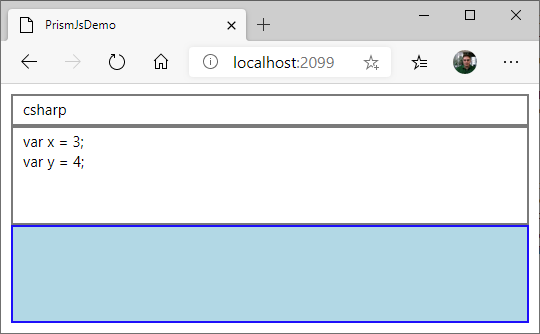
3. Press CTRL-F5. You should see this:
4. Press F12 (on Chrome, may vary on other browsers).
5. Click on the first button and select the light-blue part in the app.
6. It will bring the DOM explorer to a `code` node. The `PrismJsView` should be right below after opening it.
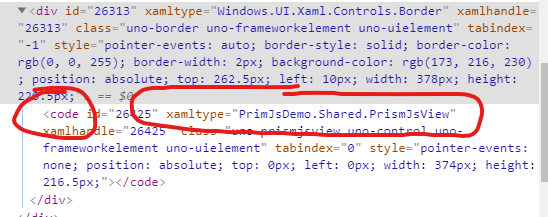
The `code` control is there!
👌 The project is now ready to integrate PrismJS.
### 3. Add JavaScript & CSS files
🎯 In this section, PrismJS files are downloaded from their website and placed as assets in the app.
1. Go to [Prism download page](https://prismjs.com/download.html).
2. Choose desired Themes & Languages (`Default` theme + all languages is used for the demo).
3. Press the `DOWNLOAD JS` button and put the `prism.js` file in the `WasmScripts` folder of the `.Wasm` project.
> Putting the `.js` file in this folder will instruct the Uno Wasm Bootstrapper to automatically load the JavaScript file during startup.
4. Press the `DOWNLOAD CSS` button and put the `prism.css` file in the `WasmCSS` folder of the `.Wasm` project.
> Putting the `.css` file in this folder will instruct the Uno Wasm Bootstrapper to automatically inject a `` HTML instruction in the resulting `index.html` file to load it with the browser.
5. Right-click on the `.Wasm` project node in the Solution Explorer, and pick `Edit Project File` (it can also work by just selecting the project, if the `Preview Selected Item` option is activated).
6. Insert this in the appropriate ``:
```xml
```
> For the Uno Wasm Bootstrapper to take those files automatically and load them with the application, they have to be put as embedded resources. A future version of Uno may remove this requirement.
7. Compile & run
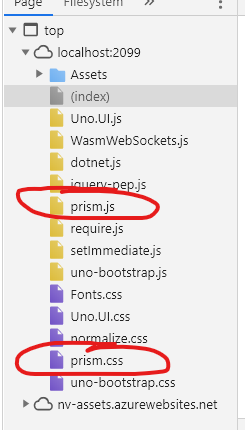
8. Once loaded, press F12 and go into the `Sources` tab. Both `prism.js` & `prism.css` files should be loaded this time.
### 4. Invoke JavaScript from Managed Code
🎯 In this section, PrismJS is used from the app.
1. First, there is a requirement for _PrismJS_ to set the `white-space` style at a specific value, as [documented here](https://github.com/PrismJS/prism/issues/1237#issuecomment-369846817). An easy way to do this is to set in directly in the constructor like this:
```csharp
public PrismJsView()
{
_element = BrowserHtmlElement.CreateHtmlElement("code");
Content = _element;
// This is required to set to style for PrismJS to works well
// https://github.com/PrismJS/prism/issues/1237#issuecomment-369846817
_element.SetCssStyle("white-space", "pre-wrap");
}
```
2. Now, we need to create an `UpdateDisplay()` method, used to generate HTML each time there's a new version to update. Here's the code for the method to add in the `PrismJsView` class:
```csharp
private void UpdateDisplay(string oldLanguage = null, string newLanguage = null)
{
string javascript =
$$"""
(function(){
// Prepare Prism parameters
const code = "{{BrowserHtmlElement.EscapeJs(Code)}}";
const oldLanguageCss = "language-{{BrowserHtmlElement.EscapeJs(oldLanguage)}}";
const newLanguageCss = "language-{{BrowserHtmlElement.EscapeJs(newLanguage)}}";
const language = "{{BrowserHtmlElement.EscapeJs(newLanguage ?? Lang)}}";
// Process code to get highlighted HTML
const prism = window.Prism;
let html = code;
if(prism.languages[language]) {
// When the specified language is supported by PrismJS...
html = prism.highlight(code, prism.languages[language], language);
}
// Display result
element.innerHTML = html;
// Set CSS classes, when required
if(oldLanguageCss) {
element.classList.remove(oldLanguageCss);
}
if(newLanguageCss) {
element.classList.add(newLanguageCss);
}
})();
""";
_element.ExecuteJavascript(javascript);
}
```
3. Change `CodeChanged()` and `LangChanged()` to call the new `UpdateDisplay()` method:
```csharp
private static void CodeChanged(DependencyObject dependencyobject, DependencyPropertyChangedEventArgs args)
{
(dependencyobject as PrismJsView)?.UpdateDisplay();
}
private static void LangChanged(DependencyObject dependencyobject, DependencyPropertyChangedEventArgs args)
{
(dependencyobject as PrismJsView)?.UpdateDisplay(args.OldValue as string, args.NewValue as string);
}
```
4. We also need to update the result when the control is loaded in the DOM. So we need to change the constructor again like this:
```csharp
public PrismJsView()
{
// This is required to set to style for PrismJS to works well
// https://github.com/PrismJS/prism/issues/1237#issuecomment-369846817
_element.SetCssStyle("white-space", "pre-wrap");
// Update the display when the element is loaded in the DOM
Loaded += (snd, evt) => UpdateDisplay(newLanguage: Lang);
}
```
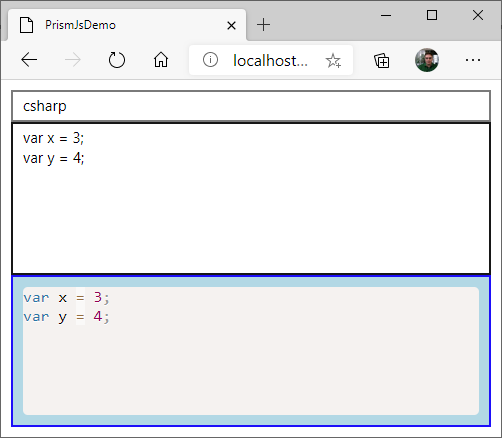
5. Compile & run. It should work like this:
## 🔬 Going further
This sample is a very simple integration as there is no _callback_ from HTML to managed code and _PrismJS_ is a self-contained framework (it does not download any other JavaScript dependencies).
Some additional improvements can be done to make the code more production ready:
* **Make the control multi-platform**. Another would be to use a [WebView](xref:Uno.Controls.WebView2) on other platforms, giving the exact same text-rendering framework everywhere. The code of this sample won't run on non-WebAssembly targets.
* **Use script files instead of using `ExecuteJavascript`**. That would have the advantage of improving performance and making it easier to debug the code.
* **Support more PrismJS features**. There are many [_plugins_ for PrismJS](https://prismjs.com/#plugins) that can be used. Most of them are very easy to implement.
* [Continue with Part 3](xref:Uno.Interop.WasmJavaScript3) - an integration of a more complex library with callbacks to application.