---
uid: Uno.Development.CommunityToolkit.v7
---
# How to use Windows Community Toolkit - Version 7.x
This tutorial will walk you through adding and implementing the `DataGrid` control but the same steps can be followed for **other\*** Uno ported Windows Community Toolkit controls versions 7.x.
**\* See the [non-Windows platform compatibility](xref:Uno.Development.CommunityToolkit#non-windows-platform-compatibility) section for more details.**
> [!NOTE]
> The complete source code that goes along with this guide is available in the [unoplatform/Uno.Samples](https://github.com/unoplatform/Uno.Samples) GitHub repository - [`DataGrid` Sample](https://github.com/unoplatform/Uno.Samples/tree/master/UI/WindowsCommunityToolkit/Version-7.x/UnoWCTDataGridSample).
## Prerequisites
For a step-by-step guide to installing the prerequisites for your preferred IDE and environment, consult the [Get Started guide](xref:Uno.GetStarted).
> [!TIP]
> If you are unsure of the version of the Windows Community Toolkit to use between v7 and v8, make sure to read the details about the [migration guide](xref:Uno.Development.CommunityToolkit).
## NuGet Packages for Uno Platform
Uno Platform has ported the Windows Community Toolkit 7.x for use in Uno Platform applications to allow for use on Windows,
Android, iOS, Linux, and WebAssembly.
The following packages are available:
- [Uno.CommunityToolkit.WinUI](https://www.nuget.org/packages/Uno.CommunityToolkit.WinUI)
- [Uno.CommunityToolkit.WinUI.Connectivity](https://www.nuget.org/packages/Uno.CommunityToolkit.WinUI.Connectivity)
- [Uno.CommunityToolkit.WinUI.DeveloperTools](https://www.nuget.org/packages/Uno.CommunityToolkit.WinUI.DeveloperTools)
- [Uno.CommunityToolkit.WinUI.UI](https://www.nuget.org/packages/Uno.CommunityToolkit.WinUI.UI)
- [Uno.CommunityToolkit.WinUI.UI.Animations](https://www.nuget.org/packages/Uno.CommunityToolkit.WinUI.UI.Animations)
- [Uno.CommunityToolkit.WinUI.UI.Behaviors](https://www.nuget.org/packages/Uno.CommunityToolkit.WinUI.UI.Behaviors)
- [Uno.CommunityToolkit.WinUI.UI.Controls](https://www.nuget.org/packages/Uno.CommunityToolkit.WinUI.UI.Controls)
- [Uno.CommunityToolkit.WinUI.UI.Controls.Core](https://www.nuget.org/packages/Uno.CommunityToolkit.WinUI.UI.Controls.Core)
- [Uno.CommunityToolkit.WinUI.UI.Controls.DataGrid](https://www.nuget.org/packages/Uno.CommunityToolkit.WinUI.UI.Controls.DataGrid)
- [Uno.CommunityToolkit.WinUI.UI.Controls.Input](https://www.nuget.org/packages/Uno.CommunityToolkit.WinUI.UI.Controls.Input)
- [Uno.CommunityToolkit.WinUI.UI.Controls.Layout](https://www.nuget.org/packages/Uno.CommunityToolkit.WinUI.UI.Controls.Layout)
- [Uno.CommunityToolkit.WinUI.UI.Controls.Markdown](https://www.nuget.org/packages/Uno.CommunityToolkit.WinUI.UI.Controls.Markdown)
- [Uno.CommunityToolkit.WinUI.UI.Controls.Media](https://www.nuget.org/packages/Uno.CommunityToolkit.WinUI.UI.Controls.Media)
- [Uno.CommunityToolkit.WinUI.UI.Controls.Primitives](https://www.nuget.org/packages/Uno.CommunityToolkit.WinUI.UI.Controls.Primitives)
- [Uno.CommunityToolkit.WinUI.UI.Media](https://www.nuget.org/packages/Uno.CommunityToolkit.WinUI.UI.Media)
These package IDs are for Uno Platform (non-Windows) projects. For WinUI 3 projects, you should use the equivalent packages published by Microsoft (`CommunityToolkit.WinUI`, `CommunityToolkit.WinUI.UI.Controls`, etc).
## Referencing the Windows Community Toolkit
When using the Uno Platform solution templates, add the following to your application:
1. Install the NuGet package(s) reference(s) that you need
### [Single Project Template [WinUI / WinAppSDK]](#tab/singleproj)
1. Edit your project file `PROJECT_NAME.csproj` and add the following conditional references:
```xml
```
If you already had a reference to the Community Toolkit, you should remove this line:
```xml
```
1. Edit `Directory.Packages.props` and add the following conditional references:
```xml
```
### [Multi-Head Project Template (Legacy) [WinUI / WinAppSDK]](#tab/multihead-winui)
Edit your project file `PROJECT_NAME.csproj` and add the following conditional references:
```xml
```
If you already had a reference to the Community Toolkit, you should remove this line:
```xml
```
### [Shared Project (.shproj) Template (Legacy) [WinUI / WinAppSDK]](#tab/shproj-winui)
1. Select the following project `PROJECT_NAME.Windows.csproj` for installation and add the following reference:
```xml
```
1. Select the following projects for installation and add the following reference to each of them:
- `PROJECT_NAME.Wasm.csproj`
- `PROJECT_NAME.Mobile.csproj` (or `PROJECT_NAME.iOS.csproj`, `PROJECT_NAME.Droid.csproj`, and `PROJECT_NAME.macOS.csproj` if you have an existing project)
- `PROJECT_NAME.Skia.Gtk.csproj`
- `PROJECT_NAME.Skia.WPF.csproj`
```xml
```
If you already had a reference to the Community Toolkit, you should remove this line:
```xml
```
---
If you're getting an error like this one :
```console
Controls\TextBox\Themes\Generic.xaml : Xaml Internal Error error WMC9999:
Type universe cannot resolve assembly: Uno.UI, Version=255.255.255.255,
Culture=neutral, PublicKeyToken=null.
```
This means that there's an unconditional reference to Uno Platform's packages, and you'll need to make sure to add the conditional references as suggested above.
1. Add the the related needed namespaces
In XAML:
```xmlns:controls="using:CommunityToolkit.WinUI.UI.Controls"```
In C#:
```using CommunityToolkit.WinUI.UI.Controls;```
## Example with the DataGrid Control
This control will create an easily organized grid that will allow you to create flexible columns and rows.
1. Begin by adding the control using the syntax below. Change the `x:Name` to the name of your DataGrid.
``````
2. Similar to how you would configure columns for a XAML `Grid` layout, you can add column definitions within your `DataGrid` control:
```xml
```
This will create two columns that can be adjusted by the user.

Alternatively, you can use the `AutoGenerateColumns` attribute on your `DataGrid` control if you do not know how many columns your data will require.
```xml
```
3. Format your rows in the same way as your columns or use a `DataTemplate` added as an attribute on the `DataGrid` control:
```xml
```
4. Data can be added with data binding. First, add your `ItemsSource` as a property of your `DataGrid` control.
```xml
```
Then, set the binding on each column:
```xml
```
### See a working example with data
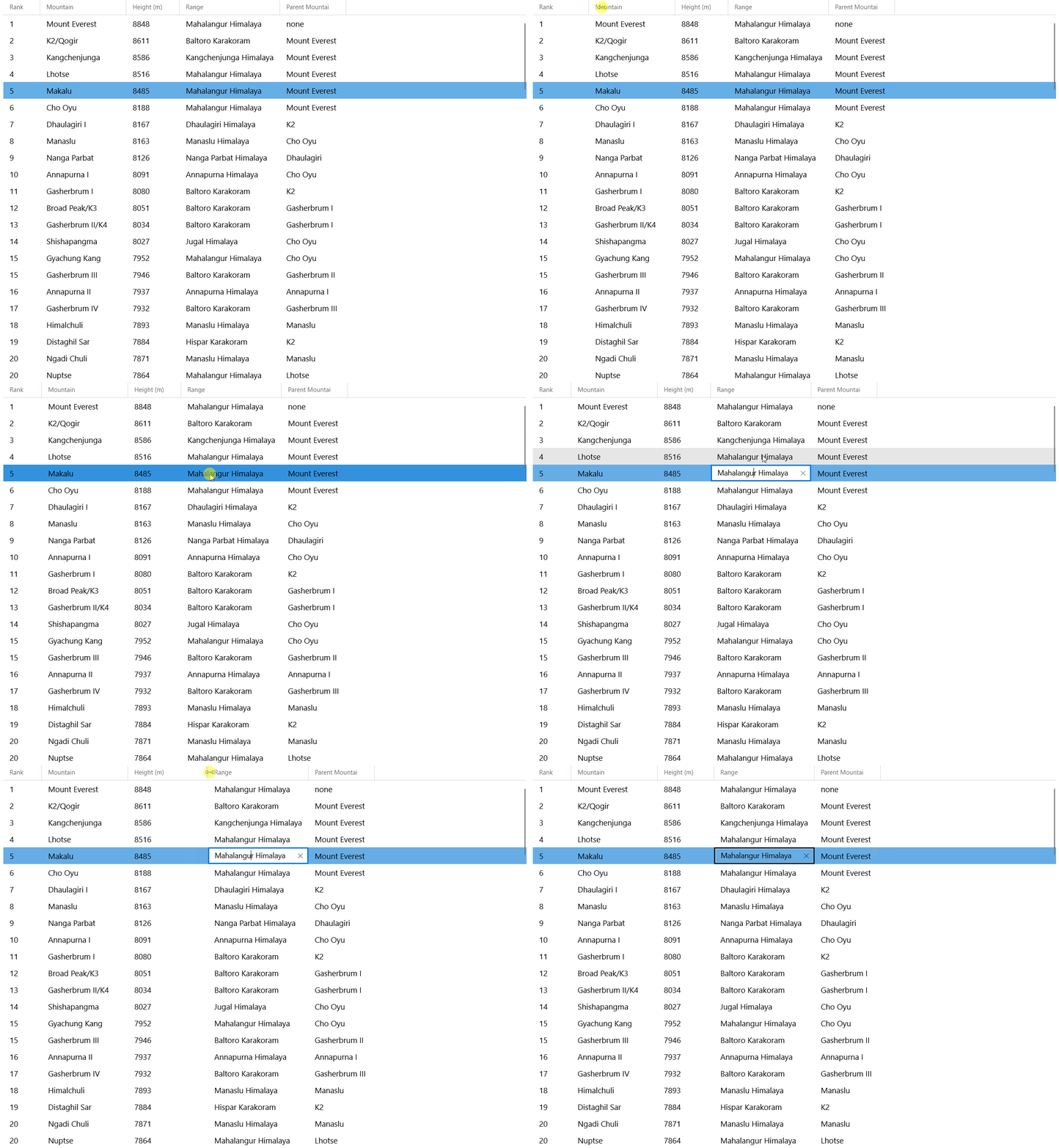
A complete working sample with data is available on GitHub: [Uno Windows Community Toolkit DataGrid Sample](https://github.com/unoplatform/Uno.Samples/tree/master/UI/WindowsCommunityToolkit/Version-7.x/UnoWCTDataGridSample)
---
[!include[getting-help](includes/getting-help.md)]