# Turn Your Amazon Kindle into a TRMNL
This guide explains how to jailbreak your Kindle using WinterBreak, then convert it into a personal dashboard with TRMNL.
 As of June 10, 2025 **this is a beta release**. Issues and PRs are welcome. Tested on 10th gen, 12th gen Kindle e-ink displays.
## Prerequisites
- A PC/Mac
- TRMNL [BYOD license](https://shop.trmnl.com/products/byod) **or** [BYOD/S client](https://docs.trmnl.com/go/diy/byod-s). No* purchase necessary.
- Registered Kindle (6th gen or later)
- Kindle connected to WiFi
`*` - for a 100% free DIY approach, modify our `TRMNL_KINDLE` Zip (Step 19 below) to point to your own server.
## Introduction
**[WinterBreak](https://kindlemodding.org/jailbreaking/WinterBreak/)** is a jailbreak released by **HackerDude** on **New Year’s Day 2025**. It's based on **Mesquito** and allows Kindle users to run custom applications like TRMNL. Special thanks to their many contributors and beta testers.
**Note**: Mesquito does **NOT** work on Kindle firmware 5.18.1 and later. Open your Kindle's settings tray > All Settings > Device options > Device info to determine which version you're using. If newer than 5.18, roll back.
As of June 10, 2025 **this is a beta release**. Issues and PRs are welcome. Tested on 10th gen, 12th gen Kindle e-ink displays.
## Prerequisites
- A PC/Mac
- TRMNL [BYOD license](https://shop.trmnl.com/products/byod) **or** [BYOD/S client](https://docs.trmnl.com/go/diy/byod-s). No* purchase necessary.
- Registered Kindle (6th gen or later)
- Kindle connected to WiFi
`*` - for a 100% free DIY approach, modify our `TRMNL_KINDLE` Zip (Step 19 below) to point to your own server.
## Introduction
**[WinterBreak](https://kindlemodding.org/jailbreaking/WinterBreak/)** is a jailbreak released by **HackerDude** on **New Year’s Day 2025**. It's based on **Mesquito** and allows Kindle users to run custom applications like TRMNL. Special thanks to their many contributors and beta testers.
**Note**: Mesquito does **NOT** work on Kindle firmware 5.18.1 and later. Open your Kindle's settings tray > All Settings > Device options > Device info to determine which version you're using. If newer than 5.18, roll back.
 ## Jailbreaking Steps
### 1. Download WinterBreak
Download the latest WinterBreak:
- [WinterBreak.tar.gz](https://github.com/KindleModding/WinterBreak/releases/latest/download/WinterBreak.tar.gz)
### 2. Airplane Mode
Turn on **Airplane Mode** on your Kindle. Swipe down or tap the battery icon in the top right corner to access the tray.
## Jailbreaking Steps
### 1. Download WinterBreak
Download the latest WinterBreak:
- [WinterBreak.tar.gz](https://github.com/KindleModding/WinterBreak/releases/latest/download/WinterBreak.tar.gz)
### 2. Airplane Mode
Turn on **Airplane Mode** on your Kindle. Swipe down or tap the battery icon in the top right corner to access the tray.
 ### 3. Restart Kindle
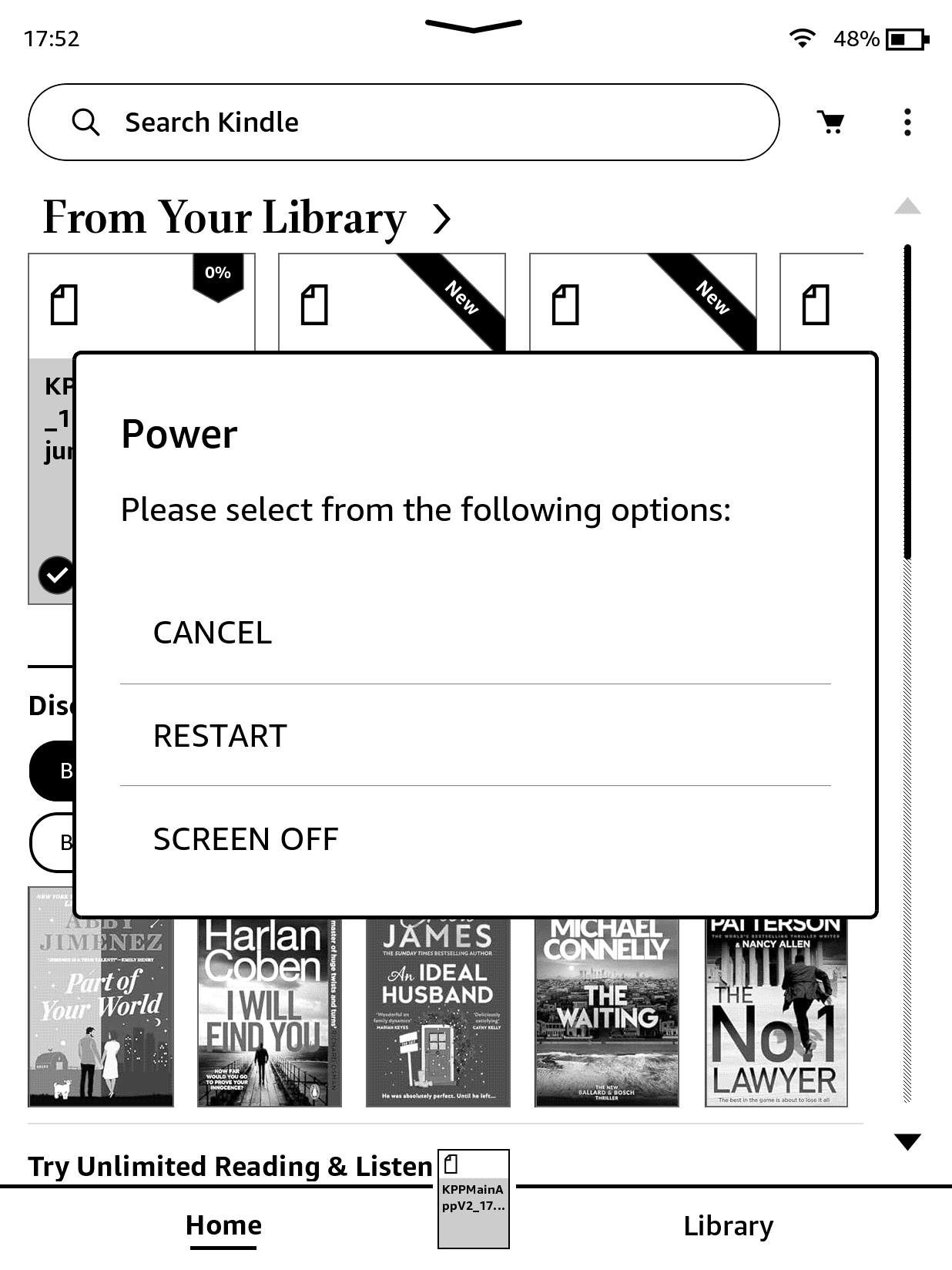
From the same settings tray as Airplane Mode, click All Settings > Device options > Restart. Pending your Kindle device and firmware, you may see either modal option below.
### 3. Restart Kindle
From the same settings tray as Airplane Mode, click All Settings > Device options > Restart. Pending your Kindle device and firmware, you may see either modal option below.

### 4. Extract WinterBreak
- After reboot, connect Kindle to PC.
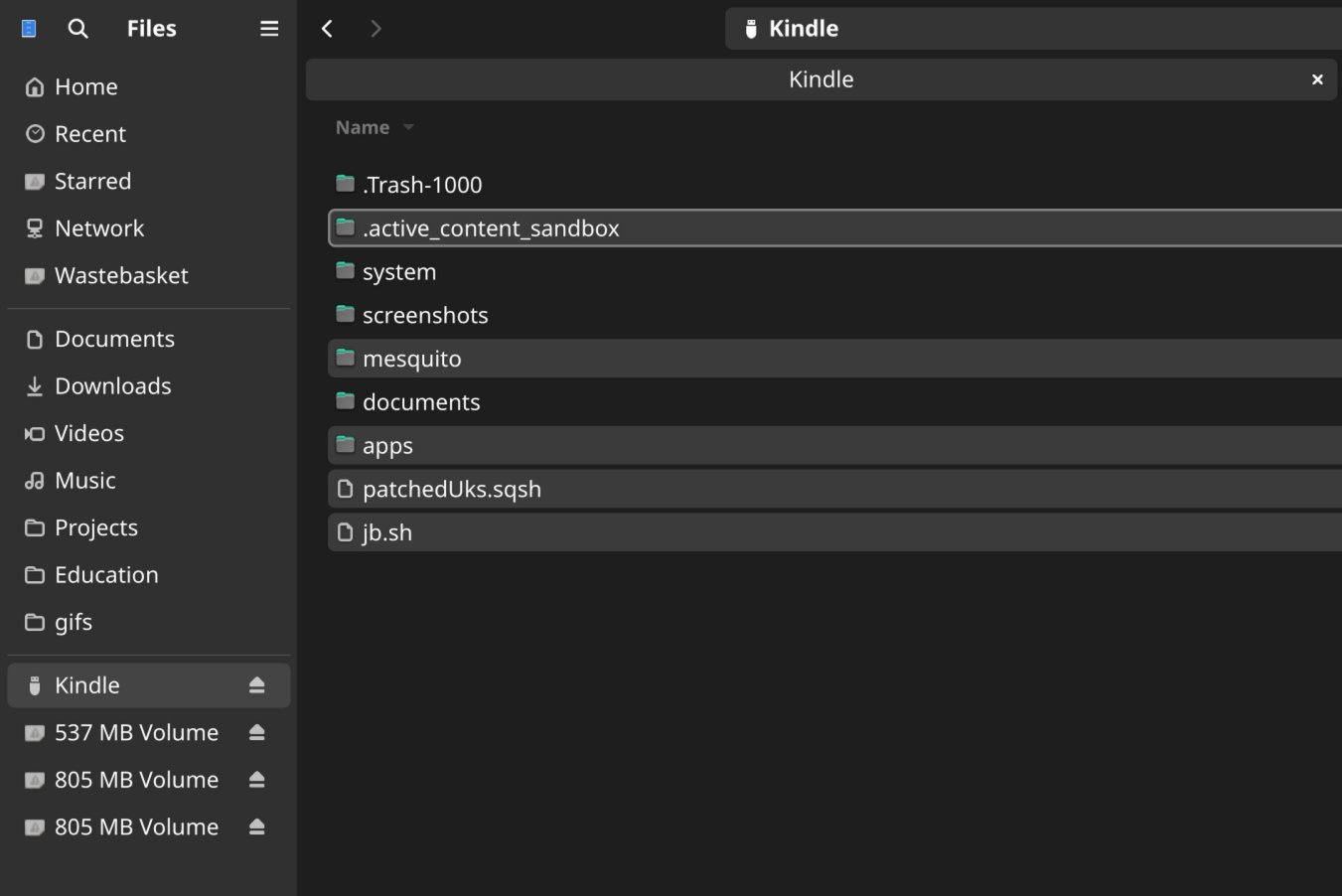
- Extract `WinterBreak.tar.gz` on your computer, then copy all enclosed files to Kindle.
- For Linux/Mac users, ensure `.active_content_sandbox` folder is also copied. See troubleshooting below for help accomplishing this.
Replace files if prompted.
 **Troubleshooting (Mac) - Kindle doesn't appear connected**
If you connected the Kindle via USB but don't see it, install the [ConnectMyKindle](https://www.amazon.com/ConnectMyKindle) app.
**Troubleshooting (Mac) - Kindle doesn't appear connected**
If you connected the Kindle via USB but don't see it, install the [ConnectMyKindle](https://www.amazon.com/ConnectMyKindle) app.
 Open the app, then click "Open USB File Manager" in the top right. The default app will not work.
 Drag all files from the extracted WinterBreak folder:
 To ensure the hidden `.active_content_sandbox` content is also copied, open the hidden folder from your terminal and then drag/drop the `store` directory into the Kindle's existing `.active_content_sandbox` directory.
 ### 5. Enter Mesquito
- Eject your Kindle by clicking "Disconnect" on the device screen.
- Open the Kindle Store by clicking the cart icon and turn Airplane Mode back "off" when prompted.
### 5. Enter Mesquito
- Eject your Kindle by clicking "Disconnect" on the device screen.
- Open the Kindle Store by clicking the cart icon and turn Airplane Mode back "off" when prompted.
 ### 6. Run WinterBreak
Click the **WinterBreak icon** after the Kindle store reloads.
### 6. Run WinterBreak
Click the **WinterBreak icon** after the Kindle store reloads.
 If you don't see this, follow [these steps](https://kindlemodding.org/jailbreaking/WinterBreak/#kindle-store-encountered-an-unexpected-error) to factory reset, drag/drop Winterbreak files before* signing into Amazon, delete the LocalStorage folder if exists, etc. While building this TRMNL jailbreak guide we experienced both scenarios with different Kindle devices. Also delete `ku` and `mfa` folders if exist.
**deleting KU, MFA folders**
If you don't see this, follow [these steps](https://kindlemodding.org/jailbreaking/WinterBreak/#kindle-store-encountered-an-unexpected-error) to factory reset, drag/drop Winterbreak files before* signing into Amazon, delete the LocalStorage folder if exists, etc. While building this TRMNL jailbreak guide we experienced both scenarios with different Kindle devices. Also delete `ku` and `mfa` folders if exist.
**deleting KU, MFA folders**
 **deleting LocalStorage folder**
 ### 7. Complete Jailbreak
Wait ~30 seconds for the confirmation message ("Finished installing jailbreak"), then turn Airplane mode back on.
### 7. Complete Jailbreak
Wait ~30 seconds for the confirmation message ("Finished installing jailbreak"), then turn Airplane mode back on.
 ## Post-Jailbreak Hotfix
### 8. Setup Hotfix
Download universal hotfix:
- [Update_hotfix_universal.bin](https://github.com/KindleModding/Hotfix/releases/latest/download/Update_hotfix_universal.bin)
**Important:** Uninstall OTARenamer if previously installed.
### 9. Copy Hotfix
Connect Kindle to your computer and copy `Update_hotfix_universal.bin`. Delete any other `.bin` files present.
## Post-Jailbreak Hotfix
### 8. Setup Hotfix
Download universal hotfix:
- [Update_hotfix_universal.bin](https://github.com/KindleModding/Hotfix/releases/latest/download/Update_hotfix_universal.bin)
**Important:** Uninstall OTARenamer if previously installed.
### 9. Copy Hotfix
Connect Kindle to your computer and copy `Update_hotfix_universal.bin`. Delete any other `.bin` files present.
 ### 10. Install Hotfix
- Eject/Disconnect Kindle from your computer.
- Open the settings tray > All Settings → Three dots → Update Your Kindle.
### 10. Install Hotfix
- Eject/Disconnect Kindle from your computer.
- Open the settings tray > All Settings → Three dots → Update Your Kindle.
 ### 11. Confirm Hotfix Install
Confirm when asked to update.
### 11. Confirm Hotfix Install
Confirm when asked to update.
 ### 12. Run Hotfix
After installation, run the Hotfix by opening **Run Hotfix** or **Run Bridge** from your Kindle library. It will say "opening" for several seconds, then should switch to restarting your device, with a progress bar.
Run the Hotfix after every OTA update.
### 12. Run Hotfix
After installation, run the Hotfix by opening **Run Hotfix** or **Run Bridge** from your Kindle library. It will say "opening" for several seconds, then should switch to restarting your device, with a progress bar.
Run the Hotfix after every OTA update.
 ## Install KUAL and MRPI
### 13. Download KUAL and MRPI
- Download MRPI and KUAL: [KUAL-MRPI](https://fw.notmarek.com/khf/kual-mrinstaller-khf.tar.xz), provided by Marek: [More info](https://fw.notmarek.com/khf/)
### 14. Choose Correct KUAL Version
- **Newer Kindles (6th gen +):** [KUAL Coplate](https://kindlemodding.org/jailbreaking/post-jailbreak/installing-kual-mrpi/Update_KUALBooklet_HDRepack.bin)
- **Legacy Kindles:** [KUAL Legacy](https://storage.gra.cloud.ovh.net/v1/AUTH_2ac4bfee353948ec8ea7fd1710574097/mr-public/KUAL/KUAL-v2.7.35-g2d06358-20250103.tar.xz)
### 15. Extract and Copy MRPI and KUAL
- Extract MRPI, copying the `extensions` and `mrpackages` folders to Kindle.
- Extract KUAL and copy the `.bin` file into Kindle's `mrpackages` folder.
**extracting MRPI**
## Install KUAL and MRPI
### 13. Download KUAL and MRPI
- Download MRPI and KUAL: [KUAL-MRPI](https://fw.notmarek.com/khf/kual-mrinstaller-khf.tar.xz), provided by Marek: [More info](https://fw.notmarek.com/khf/)
### 14. Choose Correct KUAL Version
- **Newer Kindles (6th gen +):** [KUAL Coplate](https://kindlemodding.org/jailbreaking/post-jailbreak/installing-kual-mrpi/Update_KUALBooklet_HDRepack.bin)
- **Legacy Kindles:** [KUAL Legacy](https://storage.gra.cloud.ovh.net/v1/AUTH_2ac4bfee353948ec8ea7fd1710574097/mr-public/KUAL/KUAL-v2.7.35-g2d06358-20250103.tar.xz)
### 15. Extract and Copy MRPI and KUAL
- Extract MRPI, copying the `extensions` and `mrpackages` folders to Kindle.
- Extract KUAL and copy the `.bin` file into Kindle's `mrpackages` folder.
**extracting MRPI**
 **extracting KUAL**
 ### 16. Eject and Disconnect Kindle
Safely eject (disconnect) and unplug your Kindle.
### 16. Eject and Disconnect Kindle
Safely eject (disconnect) and unplug your Kindle.
 ### 17. Run MRPI
Run MRPI by typing `;log mrpi` into the search bar and pressing enter. Nothing will happen for a few seconds, then your device screen may go blank.
### 17. Run MRPI
Run MRPI by typing `;log mrpi` into the search bar and pressing enter. Nothing will happen for a few seconds, then your device screen may go blank.
 ### 18. Complete KUAL Installation
Wait until installation completes and **KUAL book** appears in your library.
**Note**: an "Application Error" dialog may appear; this is normal.
### 18. Complete KUAL Installation
Wait until installation completes and **KUAL book** appears in your library.
**Note**: an "Application Error" dialog may appear; this is normal.
 ## Install TRMNL
### 19. Set your device model to Kindle
(Skip this step if using a BYOS server and do not have a TRMNL account)
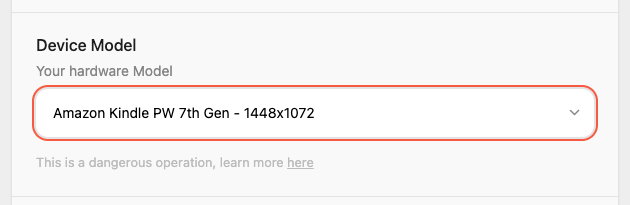
Inside TRMNL visit your BYOD device settings via the top-right > gear cog icon. Select your Kindle edition in the Device Model dropdown. Do not save the changes just yet.
### 20. Add your Kindle MAC address to your TRMNL account
Still on the BYOD device setting page, scroll down to the Device Credentials section and enter your Kindle's MAC address. Save all changes on this screen.
You can find the MAC address of your Kindle by navigating to _Settings_ → _Device Options_ → _Device Info_ on your device (this might differ slightly by kindle models and firmware versions).

### 21. Download TRMNL KUAL Package
Download your TRMNL KUAL package. Log into usetrmnl.com and find your Device ID by navigating to the top-right dropdown > clicking a device. Your Device ID will be in the URL, e.g. `1234`.
Next, construct this URL and visit in a new tab:
```
https://usetrmnl.com/devices//kindle/TRMNL_KINDLE.zip
```
This will download a file, `TRMNL_KINDLE_.zip`.
If you do not have a TRMNL account with BYOD license, you can instead try the [zip_example](https://github.com/usetrmnl/trmnl-kindle/tree/main/zip_example) contents and point the URL to your BYOS setup.
### 22. Unzip TRMNL Package
Do this on your computer.
### 23. Connect Kindle to computer
Connect USB and enter drag/drop mode.
### 24. Copy TRMNL to Kindle
Copy the `TRMNL_KINDLE` folder to Kindle’s `extensions` folder. It may be named TRMNL_KINDLE_20250415 with a datestamp at the end.
#### Note on the API KEY:
- The API key is already included in the TRMNL_KINDLE folder, however if you are using the example from this repo, then you need to
login to your TRMNL account and grab the API Key associted with your BYOD license.
Create a new file called `apikey.txt` in the `TRMNL_KINDLE` directory that only has your API Key in it
## Install TRMNL
### 19. Set your device model to Kindle
(Skip this step if using a BYOS server and do not have a TRMNL account)
Inside TRMNL visit your BYOD device settings via the top-right > gear cog icon. Select your Kindle edition in the Device Model dropdown. Do not save the changes just yet.

### 20. Add your Kindle MAC address to your TRMNL account
Still on the BYOD device setting page, scroll down to the Device Credentials section and enter your Kindle's MAC address. Save all changes on this screen.
You can find the MAC address of your Kindle by navigating to _Settings_ → _Device Options_ → _Device Info_ on your device (this might differ slightly by kindle models and firmware versions).

### 21. Download TRMNL KUAL Package
Download your TRMNL KUAL package. Log into usetrmnl.com and find your Device ID by navigating to the top-right dropdown > clicking a device. Your Device ID will be in the URL, e.g. `1234`.
Next, construct this URL and visit in a new tab:
```
https://usetrmnl.com/devices//kindle/TRMNL_KINDLE.zip
```
This will download a file, `TRMNL_KINDLE_.zip`.
If you do not have a TRMNL account with BYOD license, you can instead try the [zip_example](https://github.com/usetrmnl/trmnl-kindle/tree/main/zip_example) contents and point the URL to your BYOS setup.
### 22. Unzip TRMNL Package
Do this on your computer.
### 23. Connect Kindle to computer
Connect USB and enter drag/drop mode.
### 24. Copy TRMNL to Kindle
Copy the `TRMNL_KINDLE` folder to Kindle’s `extensions` folder. It may be named TRMNL_KINDLE_20250415 with a datestamp at the end.
#### Note on the API KEY:
- The API key is already included in the TRMNL_KINDLE folder, however if you are using the example from this repo, then you need to
login to your TRMNL account and grab the API Key associted with your BYOD license.
Create a new file called `apikey.txt` in the `TRMNL_KINDLE` directory that only has your API Key in it
 ### 25. Disconnect Kindle
Safely eject (disconnect) your Kindle.
### 26. Open KUAL
Launch KUAL from your Kindle library.
### 25. Disconnect Kindle
Safely eject (disconnect) your Kindle.
### 26. Open KUAL
Launch KUAL from your Kindle library.
 ### 27. Start TRMNL
- Press the **TRMNL** button, then select **Start TRMNL**.
### 27. Start TRMNL
- Press the **TRMNL** button, then select **Start TRMNL**.
 Your Kindle is now successfully running TRMNL!
**Troubleshooting JSON error**
You may see an error, such as `Fetching JSON... error.. Retry in 60s.` This likely means you are still in Airplane Mode. Disble Airplane Mode, then re-open KUAL > TRMNL > Start TRMNL.
Your Kindle is now successfully running TRMNL!
**Troubleshooting JSON error**
You may see an error, such as `Fetching JSON... error.. Retry in 60s.` This likely means you are still in Airplane Mode. Disble Airplane Mode, then re-open KUAL > TRMNL > Start TRMNL.
 ## Next steps
Our team is working to accommodate multiple Kindle device frame dimensions, open source more the TRMNL_KINDLE jailbreak logic for easy extension, and handle Kindle device "sleep" screens + redraws.
Issues and PRs welcome!
## Next steps
Our team is working to accommodate multiple Kindle device frame dimensions, open source more the TRMNL_KINDLE jailbreak logic for easy extension, and handle Kindle device "sleep" screens + redraws.
Issues and PRs welcome!