
PrintBridge
[Website](https://printbridge.pages.dev/) | [Live Demo](https://printbridge.pages.dev/demo.html) | [Download](#installation) | [Quick Start](#quick-start) | [Technical Documentation](docs/printbridge-technical_en.md) | [JS SDK](https://github.com/vergil-lai/print-bridge-jssdk) | [中文](./README.md)



PrintBridge is a local print agent that runs on the user's computer. It lets trusted web pages or remote business servers send PDF files, images, Office files, and raw printer commands to the local system print queue. It is designed for labels, shipping documents, receipts, reports, and other business scenarios that need reliable silent printing.
PrintBridge does not replace printer drivers and does not bypass the operating system print queue. It receives print tasks, validates the source, downloads or converts files when needed, and submits jobs to the local operating system. The actual output is still handled by the system print queue, printer driver, and printer hardware.
## Features
- Desktop runs in the system tray and hides the main window by default
- Supports Windows, macOS, and Linux, including Linux headless
- Local WebSocket service and process-local management IPC
- Website allowlist (Origin allowlist) to control which web pages may connect, for example `https://example.com`
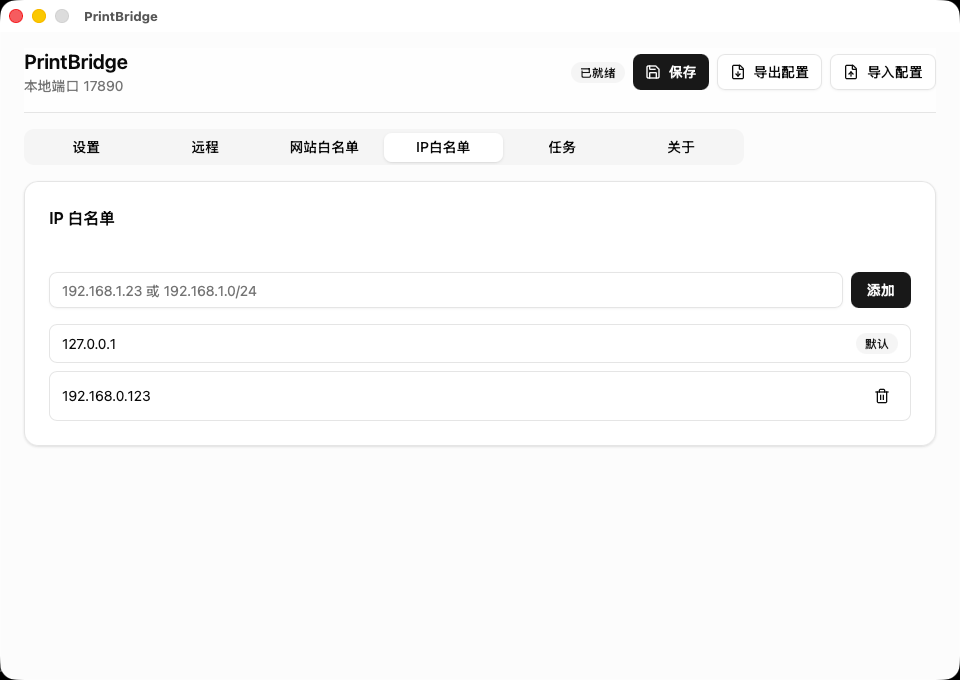
- IP allowlist to control which client addresses may access the local service, with single IP and CIDR support
- Supports PDF, PNG/JPEG images, and Office(.docx/.xlsx/.pptx) files
- Supports HTML pages: `html` uses a URL and `raw-html` uses inline HTML text
- Supports raw printer commands and submits ESC/POS, TSPL, ZPL, EPL, PCL, and similar device commands as-is
- Allows each task to specify a printer; falls back to the configured default printer when omitted
- Uses a serial print queue to avoid concurrent jobs competing for the same printer
- Remote task polling for workstations, stores, and warehouse terminals
- CLI operations mode for viewing and updating local configuration without opening the GUI
- Printer discovery, paper discovery, persistent configuration, and recent task history
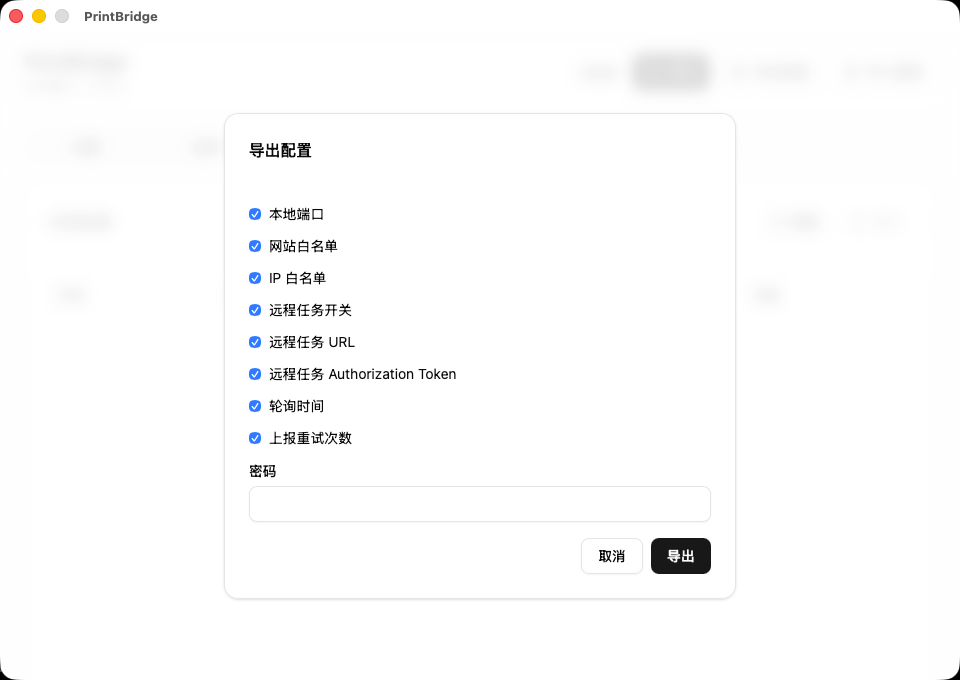
- Encrypted configuration export/import for workstation rollout
- Tauri online updates for Desktop; Headless updates are available through APT/RPM repositories
## Use Cases
- Keep a local print agent running on warehouse, store, or workstation computers
- Print directly from Web ERP, WMS, OMS, or POS systems
- Reduce manual printer selection for labels, shipping documents, picking lists, and receipts
- Let a business server create print tasks while local agents poll tasks and report status
## 🚀 Quick Start
1. Download and install PrintBridge from [Releases](https://github.com/vergil-lai/print-bridge/releases/latest), or choose one of the [platform-specific installation methods](#installation) below.
2. Start PrintBridge, select the default printer and paper size, and add your business system's Origin to the website allowlist.
3. Install [`print-bridge-sdk`](https://github.com/vergil-lai/print-bridge-jssdk) in your business application:
```bash
npm install print-bridge-sdk
```
Connect to the local Agent and submit your first PDF print job:
```ts
import { PrintBridgeClient } from "print-bridge-sdk";
const client = new PrintBridgeClient();
client.on("status", (event) => {
console.log(event.jobId, event.status, event.message);
});
await client.connect();
const accepted = await client.print({
type: "pdf",
fileUrl: "https://example.com/label.pdf",
});
console.log(accepted.jobId, accepted.status);
```
A `queued` response from `print()` only means that the job has entered the PrintBridge queue. Later download, conversion, and system-queue results are delivered through `status` events. See the [JSSDK documentation](https://github.com/vergil-lai/print-bridge-jssdk#readme) for the complete API.
## Desktop Screenshots
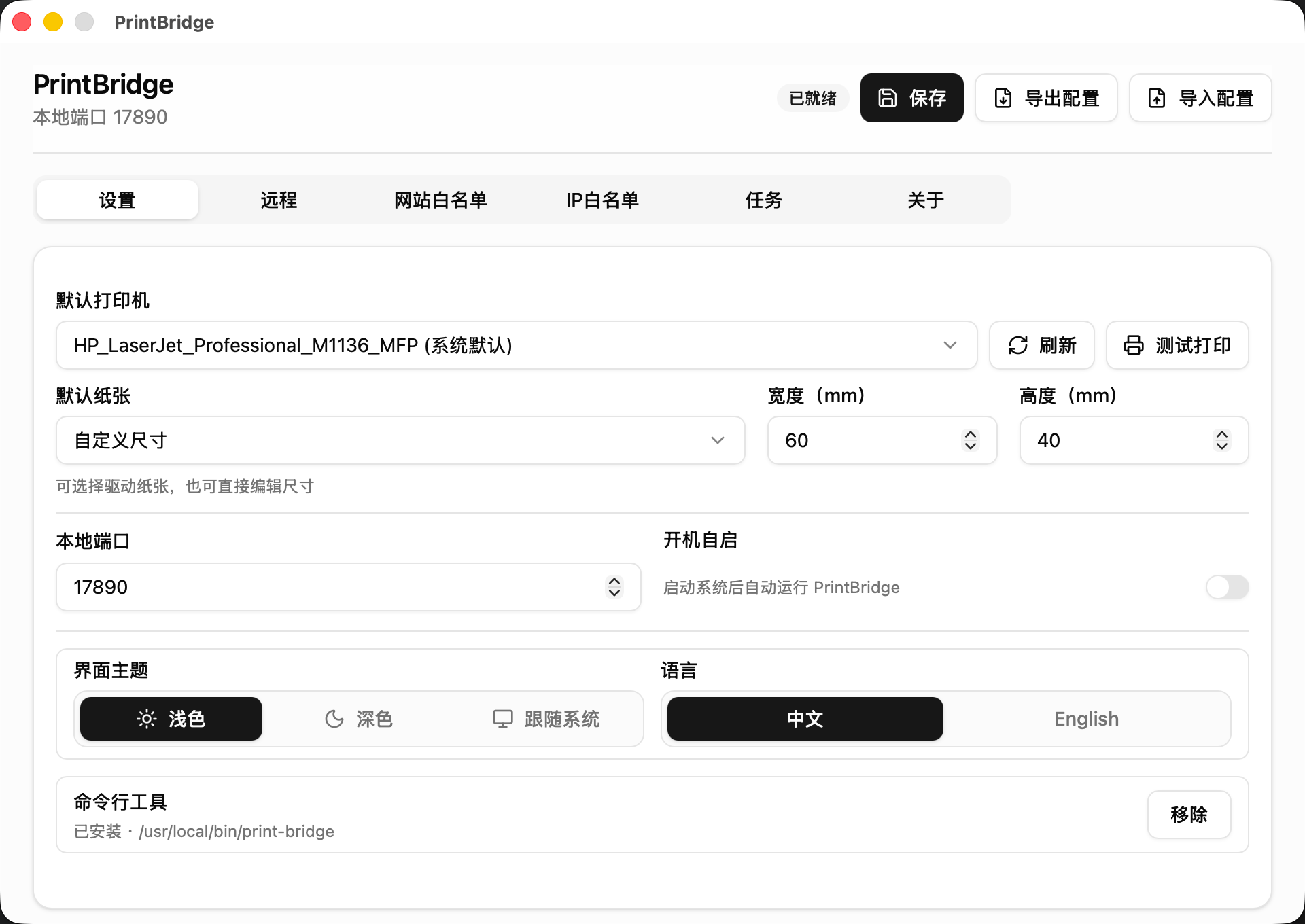
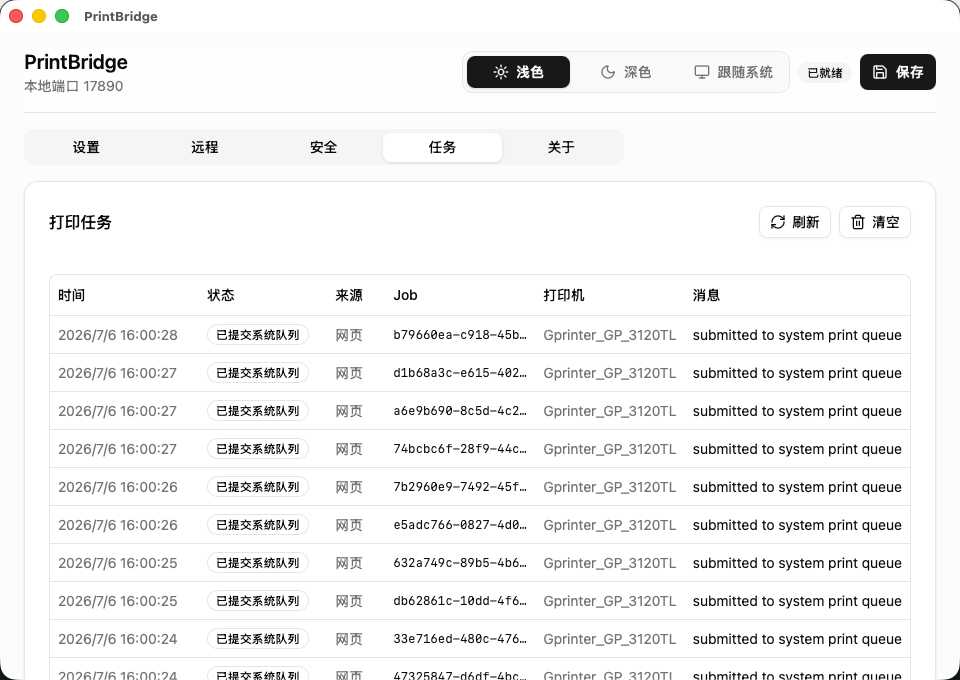
View more screenshots
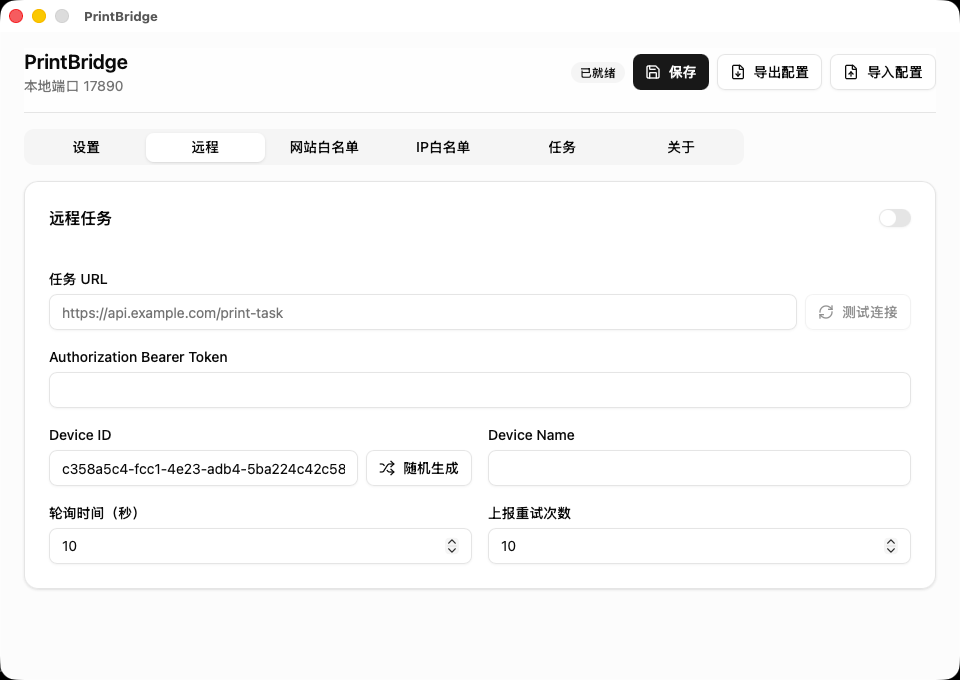
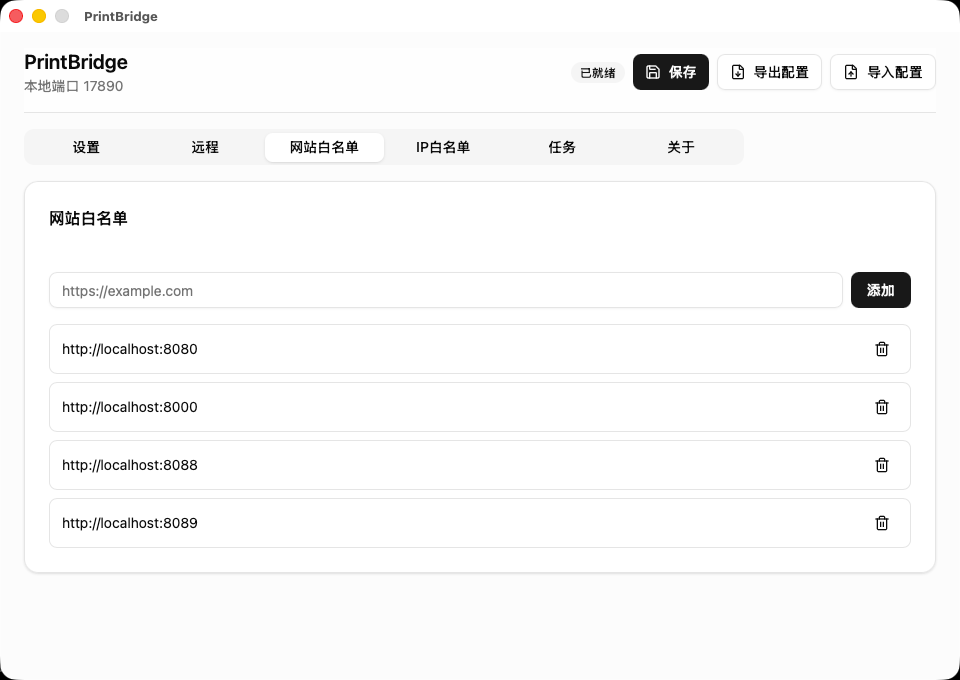
## Difference From Traditional Web Printing Controls
PrintBridge is not a traditional Web printing control. Products such as [C-Lodop / Lodop](https://www.lodop.net/) are better suited for print design, form printing, tables, barcodes, and printing page content. PrintBridge focuses on being an open-source local print agent for remote task polling, raw printer commands, CLI operations, and private integration.
If your business system already generates PDF files, images, Office files, or device commands such as ESC/POS, TSPL, ZPL, EPL, and PCL, PrintBridge acts as a stable, auditable, and customizable bridge to the local print queue.
## Layered Security Boundaries
- **Origin and IP allowlists**: Restrict unauthorized websites and clients from accessing the local service.
- **Encrypted configuration export**: Encrypt and package allowlists, the default printer, and other settings for rollout across multiple terminals.
- **Resource access restrictions**: Block print resources from accessing local and private-network addresses to reduce SSRF risk.
## Remote Task Polling
PrintBridge can run as a local agent on a workstation, store terminal, or warehouse computer. It periodically polls a business server for print tasks and reports execution status back to the server.
This is useful when the business system creates tasks and expects a specific local terminal to print them automatically, such as production labels, shipping labels, picking lists, and receipts.
## Raw Printer Commands
PrintBridge supports raw printer commands. Your business system can generate ESC/POS, TSPL, ZPL, EPL, PCL, PostScript, or other device commands, and PrintBridge will submit the bytes to the system print queue as-is.
This is useful for label printers, receipt printers, and industrial printing devices. PrintBridge does not parse these device languages and does not generate labels, receipts, or RFID commands for you.
## Office File Printing
PrintBridge supports DOCX, XLSX, and PPTX files. Office jobs must provide an HTTP(S) `file_url`; the local Agent downloads the file, converts it to PDF, and then sends it through the printing flow.
Office file printing requires locally installed conversion software:
- Windows: DOCX, XLSX, and PPTX try the matching Microsoft Office, WPS Office, and LibreOffice application in that order. Fallback occurs only when a converter is not installed, COM cannot create a new independently owned instance, or required automation security controls are unavailable. Document-open, conversion, timeout, and PDF-validation failures do not fall back.
- macOS/Linux: install LibreOffice and make `soffice` or `libreoffice` available to the system.
- WPS conversion must prove that PrintBridge owns a newly created process; otherwise the next converter is tried. If a single-component WPS installation always reuses an existing user process, a multi-component installation can be tried. PrintBridge never closes an Office/WPS process that was already running for the user.
PrintBridge does not bundle an Office converter. The Office print job fails when the required software is unavailable, conversion fails, or conversion exceeds 120 seconds. When a Windows conversion times out, PrintBridge only cleans up the Office instance started for that task; it does not close Word, Excel, or PowerPoint sessions already opened by the user.
## HTML Printing
`html` prints an HTML page at a public URL and requires an HTTP(S) `file_url`; `raw-html` prints inline HTML and requires a non-empty `html` field with no `file_url`. Both HTML task types support `wait_ms` (0 to 30000 milliseconds), `copies`, and `paper`:
```json
{
"type": "print",
"job_id": "JOB-HTML-001",
"format": "html",
"file_url": "https://example.com/invoice/1",
"wait_ms": 1000,
"copies": 1,
"paper": { "width_mm": 210, "height_mm": 297 }
}
```
```json
{
"type": "print",
"job_id": "JOB-RAW-HTML-001",
"format": "raw-html",
"html": "Invoice
",
"wait_ms": 1000,
"copies": 1,
"paper": { "width_mm": 210, "height_mm": 297 }
}
```
The browser JSSDK uses camelCase `fileUrl` and `waitMs` and only serializes the task. The local Agent renders HTML to PDF before printing. HTML pages and their loaded resources may access only public HTTP/HTTPS addresses; local, private-network, and `file:` resources are rejected.
HTML rendering does not bundle a browser. Every platform and runtime mode requires an installed Chromium-family browser; native WebView fallbacks are not provided:
| Platform | Browser renderer |
| -------- | ------------------------ |
| Windows | Edge → Chrome → Chromium |
| macOS | Chrome → Chromium |
| Linux | Chrome → Chromium |
Both the GUI and the systemd-managed Linux headless product follow this requirement. Without a usable browser, an HTML task fails with renderer-unavailable (`RendererUnavailable`).
## Installation
Download the latest version from [Releases](https://github.com/vergil-lai/print-bridge/releases).
| Product | Platform | Architecture | Package |
| -------- | -------- | -------------------- | ------------------------------------- |
| Desktop | Windows | x86_64 | NSIS `.exe`, WiX `.msi` |
| Desktop | macOS | Intel, Apple Silicon | Architecture-specific macOS installer |
| Desktop | Linux | x86_64, ARM64 | `.deb`, `.rpm`, `.AppImage` |
| Headless | Linux | x86_64, ARM64 | `.deb`, `.rpm` |
### WinGet (Windows)
Run the following command in PowerShell to install the latest Desktop version:
```powershell
winget install --id Vergil.PrintBridge --exact
```
### PowerShell (Windows)
Run the following command in PowerShell to download, verify, and install the latest x64 version:
```powershell
irm https://printbridge.pages.dev/install.ps1 | iex
```
### Homebrew (macOS)
```bash
brew tap vergil-lai/tap
brew install --cask printbridge
```
APT (Debian/Ubuntu)
Add the PrintBridge repository and signing key before the first installation:
```bash
sudo install -d -m 0755 /etc/apt/keyrings
curl -fsSL \
https://printbridge.pages.dev/apt/printbridge-archive-keyring.gpg \
| sudo tee /etc/apt/keyrings/printbridge.gpg >/dev/null
sudo tee /etc/apt/sources.list.d/printbridge.sources >/dev/null <<'EOF'
Types: deb
URIs: https://printbridge.pages.dev/apt
Suites: stable
Components: main
Signed-By: /etc/apt/keyrings/printbridge.gpg
EOF
sudo apt update
```
Install the Desktop version:
```bash
sudo apt install print-bridge
```
For systems without a desktop environment, install the Headless server version:
```bash
sudo apt install print-bridge-server
```
The repository signing key fingerprint is `7D9F6986BAD473CE95B1FDA55B1B363C885CD16D`.
RPM/DNF (Fedora/RHEL/Rocky Linux/AlmaLinux)
Add the PrintBridge repository before the first installation:
```bash
curl -fsSL https://printbridge.pages.dev/rpm/printbridge.repo \
| sudo tee /etc/yum.repos.d/printbridge.repo >/dev/null
sudo dnf makecache
```
Install the Desktop version:
```bash
sudo dnf install print-bridge
```
For systems without a desktop environment, install the Headless server version:
```bash
sudo dnf install print-bridge-server
```
When the repository is refreshed for the first time, DNF prompts you to import the PrintBridge GPG key. Its fingerprint is also `7D9F6986BAD473CE95B1FDA55B1B363C885CD16D`.
Updating
For Homebrew installations:
```bash
brew upgrade --cask printbridge
```
For APT repository installations, refresh the package index, then run the command for the installed product:
```bash
sudo apt update
# Desktop
sudo apt install --only-upgrade print-bridge
# Headless
sudo apt install --only-upgrade print-bridge-server
```
For RPM repository installations:
```bash
sudo dnf upgrade --refresh
```
Desktop versions installed from Releases can use the built-in updater in Settings. PrintBridge does not provide a separate `print-bridge update` command.
Desktop and Headless both install the `print-bridge` command, but they are mutually exclusive products and cannot be installed on the same machine. Linux Headless is intended for servers without a desktop, Raspberry Pi devices, industrial computers, and dedicated print hosts. Installing its deb/rpm creates the `printbridge` system user and enables the systemd system service automatically.
The Desktop Settings tab shows command-line tool status: macOS can create `/usr/local/bin/print-bridge` after administrator authorization; Windows can add the directory containing the separate console CLI to the current user's `PATH`, after which the terminal must be reopened; Linux deb/rpm already provides `/usr/bin/print-bridge`, so no management buttons are shown; AppImage can create the user-level `~/.local/bin/print-bridge` link, and users must add that directory to `PATH` themselves when necessary.
### Initial Desktop Configuration
After first launch, configure PrintBridge in the settings UI:
1. Select the default printer
2. Select or enter the default paper size
3. Add your business system Origin to the website allowlist, for example `https://example.com`
4. Keep the default IP allowlist entry `127.0.0.1`; if LAN devices need to connect, add explicit IPs or CIDR ranges such as `192.168.1.10` or `192.168.1.0/24`
5. If remote task polling is required, enter the task URL in the Remote tab and enable it
### Initial Headless Configuration
Headless has no settings UI. Use the same `print-bridge` CLI for configuration and diagnostics. After installing the deb/rpm, configure the default printer, paper, Origin allowlist, and remote task URL, then check the systemd service:
```bash
print-bridge printer
print-bridge printer set-default "Printer Name"
print-bridge paper set 60 40
print-bridge origin add "https://example.com"
print-bridge remote set-url "https://example.com/print-task"
print-bridge remote enable
systemctl status print-bridge
```
The Headless `print-bridge serve` process is started automatically by systemd. A normal installation does not require running it manually, and there are no `serve install/uninstall` commands.
## CLI Mode
PrintBridge provides a `print-bridge` CLI for basic operations and diagnostics without opening the GUI:
```bash
print-bridge printer
print-bridge printer set-default "Printer Name"
print-bridge paper
print-bridge paper set 60 40
print-bridge origin add "https://example.com"
print-bridge ip add "192.168.1.0/24"
print-bridge remote enable
print-bridge remote set-url "https://example.com/print-task"
print-bridge remote generate-device-id
print-bridge task
print-bridge doctor
```
`config export/import` supports encrypted configuration transfer, and repeated `--only` options select export fields. Desktop additionally supports `autostart` and `app language`; Headless uses English and systemd-managed startup.
The GUI and headless packages both expose the same `print-bridge` CLI but cannot be installed together. Only the Linux headless package provides `print-bridge serve`; installing its deb/rpm creates the dedicated `printbridge` system user and enables the systemd service automatically. There are no `serve install/uninstall` commands.
The Cargo workspace separates pure models in `crates/core`, runtime workers and platform adapters in `crates/runtime`, and shared functional commands in `crates/cli`. `apps/desktop` contains the Vue + Tauri GUI and `apps/server` contains the Linux headless product. Desktop operations use local IPC and the network router exposes only `/ws`.
The CLI reads and writes the same local configuration as the GUI and can inspect local task history. See the [technical documentation](docs/printbridge-technical_en.md#cli-operations) for the full command list.
## Integration
For browser-side integration, use [`print-bridge-sdk`](https://github.com/vergil-lai/print-bridge-jssdk). The SDK connects to the local agent through WebSocket and wraps printing, batch printing, heartbeat, and task status events.
PrintBridge also supports remote task polling. A business server can maintain pending print tasks while the local agent periodically pulls tasks, submits them to the system print queue, and reports `accepted`, `success`, or `failed` back to the server.
## How It Works
```text
Web page / remote business server
|
| WebSocket task submission, or HTTP remote task polling
v
PrintBridge
|
| Validate source, download files, convert formats, enter serial queue
v
System print queue
|
v
Printer driver and printer
```
The WebSocket `submitted` status and remote `success` report mean that the job has been submitted to the system print queue. They do not mean that the printer has physically finished printing.
## Security Boundary
PrintBridge runs on the user's local computer and can access local printers. At minimum, deployments should follow these rules:
- Add only trusted business systems to the website allowlist; this validates the browser page Origin
- Add only trusted client IPs or CIDR ranges to the IP allowlist; the default `127.0.0.1` entry cannot be removed
- Even when the local service listens on LAN addresses, do not expose the service port to untrusted networks
- Control who can create print tasks and which files can be printed on the business-system side
- Do not expose sensitive file URLs to untrusted pages
## Technical Documentation
For protocol details, APIs, configuration format, development commands, and platform notes, see:
- [Technical documentation](docs/printbridge-technical_en.md)
- [Remote task server examples](examples/remote-task/README.md)
- [JS SDK](https://github.com/vergil-lai/print-bridge-jssdk)
## Support and Feedback
If PrintBridge has helped you, consider giving the project a Star ⭐️.
If you encounter a problem or have an improvement to suggest, feel free to open an [Issue](https://github.com/vergil-lai/print-bridge/issues).
## License
[Apache License 2.0](./LICENSE).
The Windows build bundles SumatraPDF, which is covered by its own license. See [THIRD_PARTY_NOTICES.md](./THIRD_PARTY_NOTICES.md).