The all-in-one AI-Coding Governance Platform.
The open-source client of viewtower.ai, the AI coding governance platform.





Install ·
Docs ·
viewtower.ai
---
Your AI-Coding Agent codes hundreds of lines a day on your machine. Do you know HOW?
**viewtower is an AI-Coding Governance Platform between your coding agent and your machine.** It tracks every action your AI-Coding tools do and stops unsecure ones. You also learn exactly which lines of code AI wrote. It's free, open source, and runs locally on your computer.
- 🛡️ **Stop risky actions instantly.** Every tool call is checked against your rules _before_ it runs. `rm -rf`, reading `.env`, force-pushing: denied, with a reason your agent understands.
- 🔍 **See everything your agent does.** A live dashboard shows each call, grouped by the prompt that started it.
- 🧾 **Know which code AI wrote.** Every pull request shows the share of AI code, line by line, and which model wrote it.
- 💸 **Spend fewer tokens.** Noisy tool output is trimmed before it reaches the model. Your agent won't notice. Your AI bill will.
## Install in 30 seconds
```bash
npx viewtower init --agent claude # Claude Code
npx viewtower init --agent codex # Codex
```
That's it. Open the local Development Dashboard with:
```bash
npx viewtower dashboard
```
## What you get
### Audit every tool call. And stop the bad ones.
Every command, file read and file write your agent tries goes through viewtower first. It is allowed, blocked with a reason the agent can read, or just recorded. If something you need was blocked, allow it from the dashboard with one click.
### See every AI-written line in your pull requests
viewtower records what your agent writes. A CI job then adds a report to every pull request (GitHub) and merge request (GitLab): how much of the new code AI wrote, in which files, and with which model.
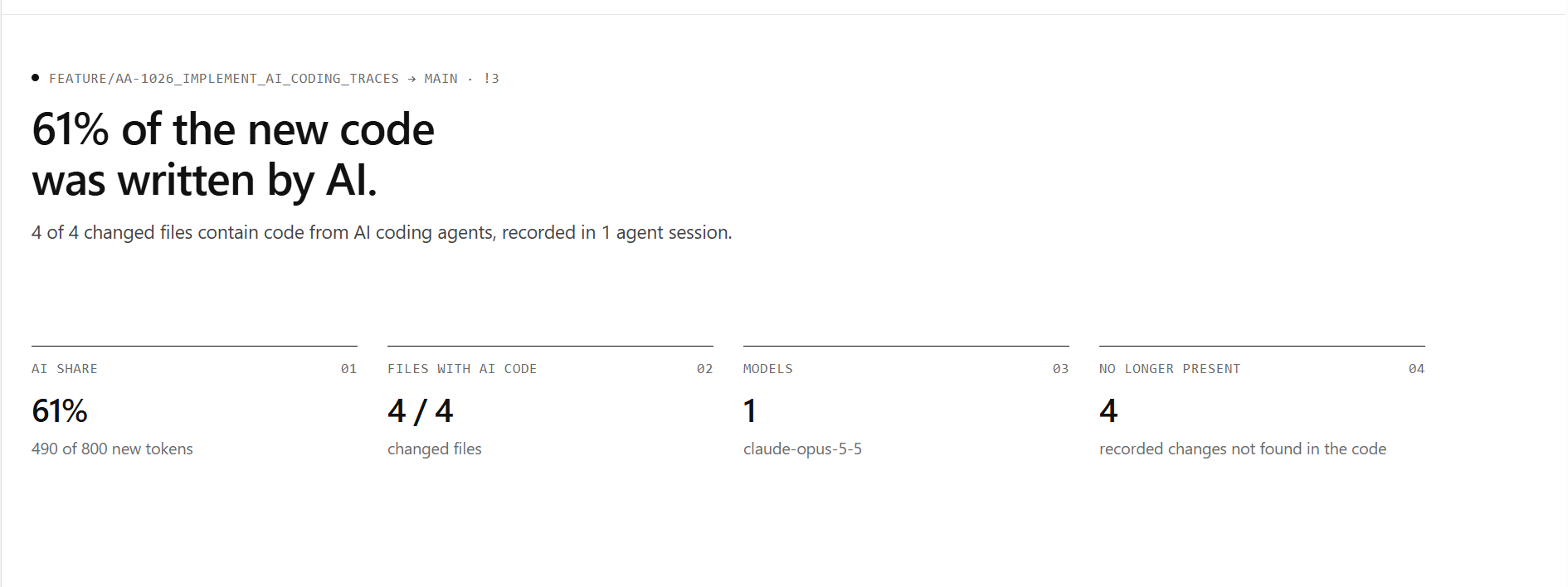
The job sets itself up the first time your agent writes code in a project. Trace files contain no code, only short hashes.
## Open source or managed: your choice
This repository is the **viewtower client**. You can use it in two ways:
| | **Open source** (this repo) | **Managed** by [viewtower.ai](https://viewtower.ai) |
| ----------------------------------- | --------------------------- | -------------------------------------------------------------- |
| Rules, dashboard, CI report | ✅ | ✅ |
| Token savings | ✅ | ✅ |
| Who sets the rules | You, on your machine | Your company, synced to every developer |
| Team-wide audit trail | – | ✅ |
| Company-wide mode (enforce/monitor) | – | ✅ |
| Price | Free, forever | Free for up to 3 users, then [see plans](https://viewtower.ai) |
Both use the same client. Login with your viewtower.ai user with:
```bash
npx viewtower login
```
**Running AI coding across a team?** Set guardrails once, roll them out to everyone, and get clear audits. Your company sets the guardrails. Your developers keep choosing their tools.
👉 **[Get started at viewtower.ai](https://viewtower.ai)**. Takes 5 minutes, no credit card.
---
## Documentation
1. [How it works](#how-it-works)
2. [Supported agents](#supported-agents)
3. [Dashboard](#dashboard)
4. [Rules](#rules)
5. [Modes](#modes)
6. [AI change report in CI](#ai-change-report-in-ci)
7. [AI coding traces](#ai-coding-traces)
8. [Token savings](#token-savings)
9. [Managed mode (company login)](#managed-mode-company-login)
10. [Command line](#command-line)
11. [Data and privacy](#data-and-privacy)
12. [Limitations](#limitations)
13. [Contributing](#contributing)
14. [License](#license)
### How it works
viewtower installs hooks in Claude Code and Codex. With them it sees every tool call **before** it runs and every result **after** it finishes.
1. **Before a call:** viewtower checks it against your rules. Allowed calls continue. Denied calls are blocked, and the agent gets the reason.
2. **After a call:** viewtower records the result and, if the agent wrote code, a trace in your project. In Claude Code, long results can be shortened before the agent reads them.
Your agent's own permission prompts still apply. viewtower only adds restrictions; it never removes any.
```mermaid
sequenceDiagram
participant Agent as Claude Code / Codex
participant VT as viewtower
participant Tool as Command or file
Agent->>VT: I want to run this
alt Denied by a rule
VT-->>Agent: Blocked, with the reason
else Allowed
VT-->>Agent: Go ahead
Agent->>Tool: Run
Tool-->>VT: Result
VT->>VT: Record the call, trace written code
VT-->>Agent: Result (shortened if long)
end
```
### Supported agents
All agents share the same rules, mode, dashboard and history.
| Agent | Install | Hooks are written to | Rules | Traces | Token savings |
| --------------- | ----------------------------------- | ----------------------------------------------------------------- | :---: | :----: | :-----------: |
| **Claude Code** | `npx viewtower init --agent claude` | `~/.claude/settings.json` (or `$CLAUDE_CONFIG_DIR/settings.json`) | ✅ | ✅ | ✅ |
| **Codex** | `npx viewtower init --agent codex` | `~/.codex/hooks.json` (or `$CODEX_HOME/hooks.json`) | ✅ | ✅ | coming soon |
Good to know:
- `init` backs up your settings file first and keeps your other settings and hooks. Running it again is safe.
- **Codex:** review and trust the new hooks in Codex before they run.
- New agent sessions pick up the hooks. In a running Claude Code session, confirm them with `/hooks`.
To remove viewtower from an agent:
```bash
npx viewtower uninstall --agent claude
```
### Dashboard
```bash
npx viewtower dashboard
```
The dashboard runs on your computer at `http://127.0.0.1:4717/`. It has four pages:
- **Activity:** every tool call, grouped by the prompt that started it. Open a call to see its details, its result and the rule that decided it.
- **Rules:** your policies and rules. Import and export them.
- **Token savings:** the options that shorten tool output, and how many tokens they saved.
- **Settings** (environment menu, bottom of the sidebar): the mode, and switches for token savings, trace files and the CI report.
It keeps running in the background. `init` opens it in your browser and signs it in with an access token; your browser remembers the token after that. To connect another browser, run `npx viewtower dashboard` once.
Options: `--port ` to use another port, `--no-open` to skip opening the browser, `--stop` to stop the running dashboard.
### Rules
Rules decide which tool calls are allowed. They are grouped under plain-language policies, such as **The agent is not allowed to delete files**. You can turn a group off, edit its rules, move rules between groups, or create your own groups.
**How a call is decided:**
1. A matching **deny** rule blocks the call. Deny always wins.
2. Otherwise, a matching **allow** rule lets it continue.
3. If no rule matches, the call is blocked as **unlisted**.
**Rule examples:**
| Rule | Matches |
| -------------------- | ----------------------------------------------------- |
| `Shell(git *)` | any Git command, in Bash and PowerShell |
| `Bash(git status)` | exactly this Bash command |
| `FileRead({cwd}/**)` | reading and searching anywhere in the current project |
In paths, `*` matches within one folder and `**` matches across folders. `{cwd}`, `{home}` and `{tmp}` stand for the project, home and temp folders.
**A call was blocked and you need it?** Open it on the Activity page and choose **Allow this call…**. viewtower suggests an exact rule and a broader one; pick the narrowest that works. If a _deny_ rule blocked it, an allow rule can't override it. Edit or turn off that deny rule instead.
**Share rules:** use **Export** and **Import…** on the Rules page. Import shows a preview first. **Add** keeps your rules; **Replace** removes them first.
### Modes
Pick the mode in the dashboard sidebar or under **Settings**:
| Mode | What happens |
| ------------------- | --------------------------------------------------------------------------------------------------- |
| `enforce` (default) | Blocks denied and unlisted calls. If viewtower itself fails, the call is blocked too (fail closed). |
| `monitor` | Records everything, including calls it _would_ block, but lets them all run. Great for a trial run. |
| `off` | No rule checks. Calls are still recorded. |
The mode is saved. To override it, for example in a script, set `VIEWTOWER_GATEWAY_MODE=enforce|monitor|off`.
> **Tip:** Not sure yet? Start with `monitor` for a day. Then check the Activity page for what _would_ have been blocked.
### AI change report in CI
The `report` command compares a pull or merge request with its base branch. It reads the trace files in that range and finds the AI-written code in the changed files. Everything runs inside your own CI job. The only network call is the GitHub check, which goes to GitHub itself.
**Three things to know first:**
- **Commit the `.viewtower/` folder.** The report only sees committed trace files. Without them it shows 0%.
- **The job needs the full Git history.** The templates already set this (`fetch-depth: 0` on GitHub, `GIT_DEPTH: 0` on GitLab).
- **The share counts words and symbols, not lines.** Formatting doesn't change it. When a human rewrites AI code, it stops counting as AI.
The report also lists changes that are **no longer present**: AI code that was later rewritten, reverted or deleted.
#### Automatic setup
The first time your agent writes code in a project, viewtower adds the CI job for each CI your repository already uses:
| CI | Detected by | Files added |
| -------------- | ----------------------------- | --------------------------------------------------------------------------- |
| GitHub Actions | a `.github/workflows/` folder | `.github/workflows/viewtower-report.yml` |
| GitLab CI | a `.gitlab-ci.yml` file | `.gitlab/viewtower-report.yml`, plus an `include:` line in `.gitlab-ci.yml` |
Existing files are never overwritten. Review the new files and commit them.
- To add the job to a project now: **Settings → Set up pipeline report now** in the dashboard.
- To turn automatic setup off: **Settings → Git pipeline report**.
#### GitHub Actions
On every pull request you get:
- a **summary** on the run page: AI share, files with AI code, models, sessions;
- a **viewtower check** that marks the first AI line of each file in **Files changed**;
- the full HTML report as the **viewtower-report** artifact.
To set it up by hand, save this as `.github/workflows/viewtower-report.yml` (also available as [a template](pipeline/github-pipeline-template.yml)):
```yaml
name: viewtower report
on:
pull_request:
permissions:
contents: read
checks: write # for the viewtower check; without it you still get the summary and the artifact
jobs:
report:
runs-on: ubuntu-latest
steps:
- uses: actions/checkout@v7
with:
fetch-depth: 0
- uses: actions/setup-node@v7
with:
node-version: 22
- name: AI change report
run: npx -y viewtower@latest report --out viewtower-report
env:
GITHUB_TOKEN: ${{ github.token }}
- uses: actions/upload-artifact@v4
with:
name: viewtower-report
path: viewtower-report/
```
Good to know:
- The check needs `checks: write` and `GITHUB_TOKEN`. Without them the check is skipped, and the log says why.
- Pull requests from forks get a read-only token. They get the summary and the artifact, but no check.
- Pin a version (`viewtower@1.2.3` instead of `@latest`) for the same results on every run. Automatic setup pins the version you have installed.
#### GitLab CI
- **Merge request pipelines** produce the HTML report (artifact) and a **Code Quality** report with one finding per AI change.
- **Branch pipelines** produce only the Code Quality report. GitLab needs it on the target branch to compare against.
To set it up by hand, save [the template](pipeline/gitlab-pipeline-template.yml) as `.gitlab/viewtower-report.yml` and include it in `.gitlab-ci.yml`:
```yaml
include:
- local: .gitlab/viewtower-report.yml
```
Or add the job directly:
```yaml
viewtower-report:
stage: test # any stage your project has
needs: []
image: node:22
rules:
- if: $CI_PIPELINE_SOURCE == "merge_request_event"
- if: $CI_COMMIT_BRANCH
variables:
GIT_DEPTH: 0
script:
- npx -y viewtower@latest report --out viewtower-report
artifacts:
paths: [viewtower-report/]
reports:
codequality: viewtower-report/gl-code-quality.json
```
Good to know:
- **The widget is empty on your first merge request?** GitLab only shows findings that are new compared with the target branch. Let one pipeline run on the target branch (for example `main`) first. The HTML report works from the start.
- Every branch that is a merge request target (such as `develop`) needs its own branch pipeline. That's why the template also runs on branches.
- **"chosen stage test does not exist":** set `stage:` to a stage from your `stages:` list.
- Without `workflow:` rules, a branch with an open merge request may run two pipelines. That's expected.
- The Code Quality widget works on every GitLab tier. Inline markers in the **Changes** tab depend on your tier.
#### Run the report locally
```bash
npx viewtower report # current branch vs. the default branch
npx viewtower report --base develop # vs. another branch or commit
```
It prints the AI share and writes `viewtower-report/index.html`. Options: `--base `, `--head ` (default `HEAD`), `--out `.
### AI coding traces
While your agent works, viewtower records each write to a file in the project:
- whole files the agent writes,
- the new parts of edits and patches,
- shell commands that contain the written text (`cat > file <] [--head [] [--out ] # AI change report
viewtower login [--email you@company.com] # connect to your company
viewtower logout # disconnect
```
Run `viewtower` without a command to see all commands. Rules, mode and token savings are managed in the dashboard.
| Environment variable | What it does |
| ------------------------ | -------------------------------------------------- |
| `VIEWTOWER_GATEWAY_MODE` | Overrides the mode: `enforce`, `monitor` or `off`. |
| `VIEWTOWER_GATEWAY_DIR` | Stores all local data in another folder. |
### Data and privacy
**In the open-source version, everything stays on your computer.** No account, no telemetry.
- History, settings and rules: `~/.viewtower/gateway.sqlite`, plus an error log in the same folder.
- Full results of shortened calls are kept for three days, then deleted.
- Trace files live in each project's `.viewtower/traces/` and contain no code.
- The CI report runs inside your own CI job.
Only when you [log in to a company](#managed-mode-company-login) does the client talk to viewtower.ai: it syncs rules and sends the activity metadata described there.
### Limitations
viewtower is a **guardrail, not a sandbox.** It checks each tool call against your rules. An agent can still do something risky through a command you allowed, for example by running a script from the project. For a hard boundary, use OS or container isolation as well.
Traces only cover what the agent writes through its own tools. Code that a script, formatter or generator produces is not counted as AI code.
### Contributing
Issues and pull requests are welcome! Found a bug? [Open an issue](../../issues/new/choose).
```bash
npm install
npm test
npm run typecheck
npx tsx src/main.ts init --agent claude --local # build and run the hooks from your checkout
```
With `--local`, `init` builds your checkout and the hooks run its build (`dist/main.js`) with node. Later changes need a rebuild (`npm run build`), or keep `npx tsc -p tsconfig.json --watch` running. Run `npx viewtower init --agent claude` to go back to the published package.
### License
[GNU General Public License v3.0](LICENSE)
---
]
Let AI code. With your boundaries.
viewtower.ai