## Step 1: Install the connector
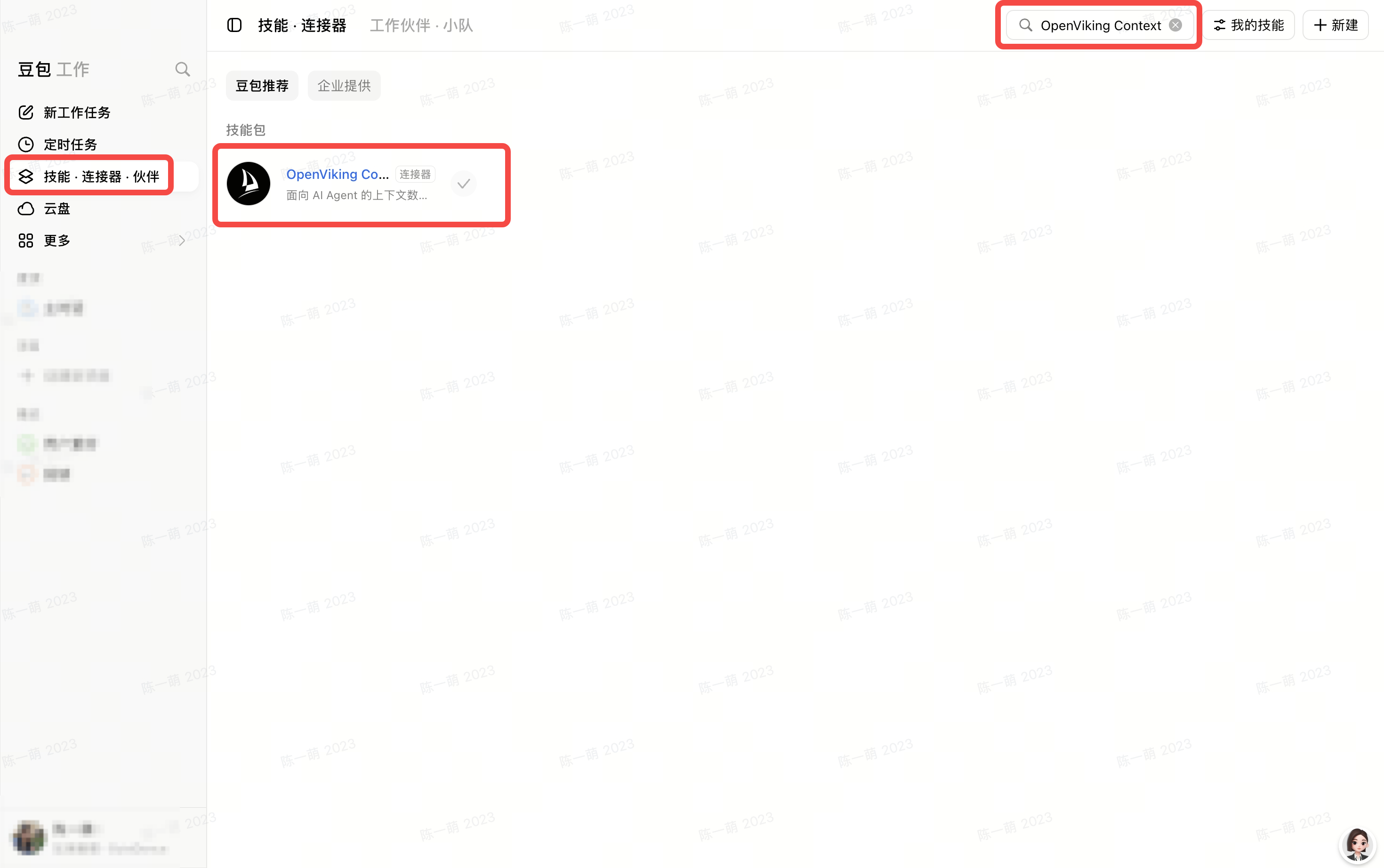
1. Open Doubao Work, select **Skills · Connectors · Partners** in the sidebar, search for “OpenViking Context,” and select +.
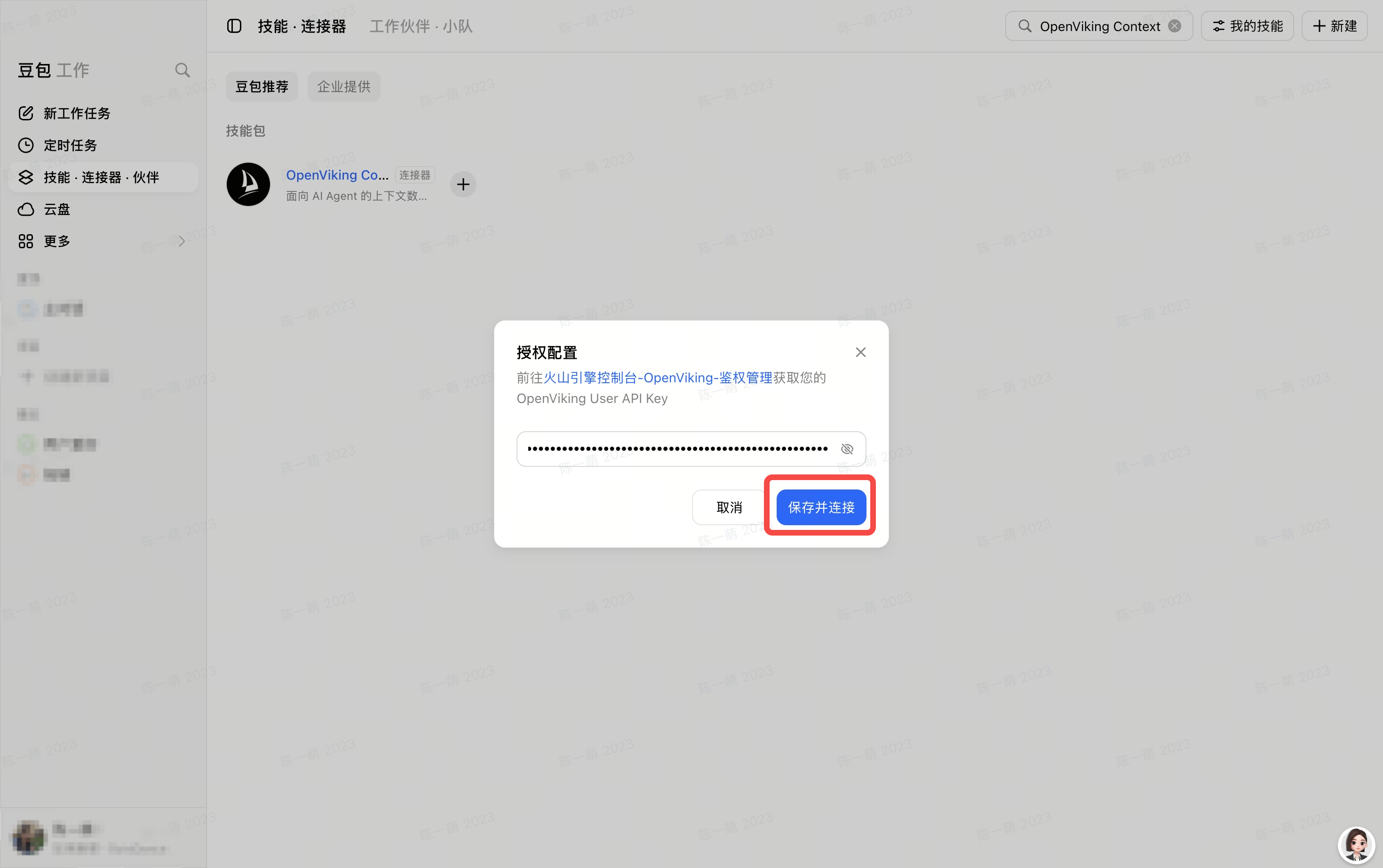
2. Enter the OpenViking USER API key in the authorization dialog:
```text
{{OPENVIKING_API_KEY}}
```
3. Select **Save and Connect**. Integration is complete when the “Connector installed” message appears and the + next to “OpenViking Context” changes to the added state.
## Step 2: Verify
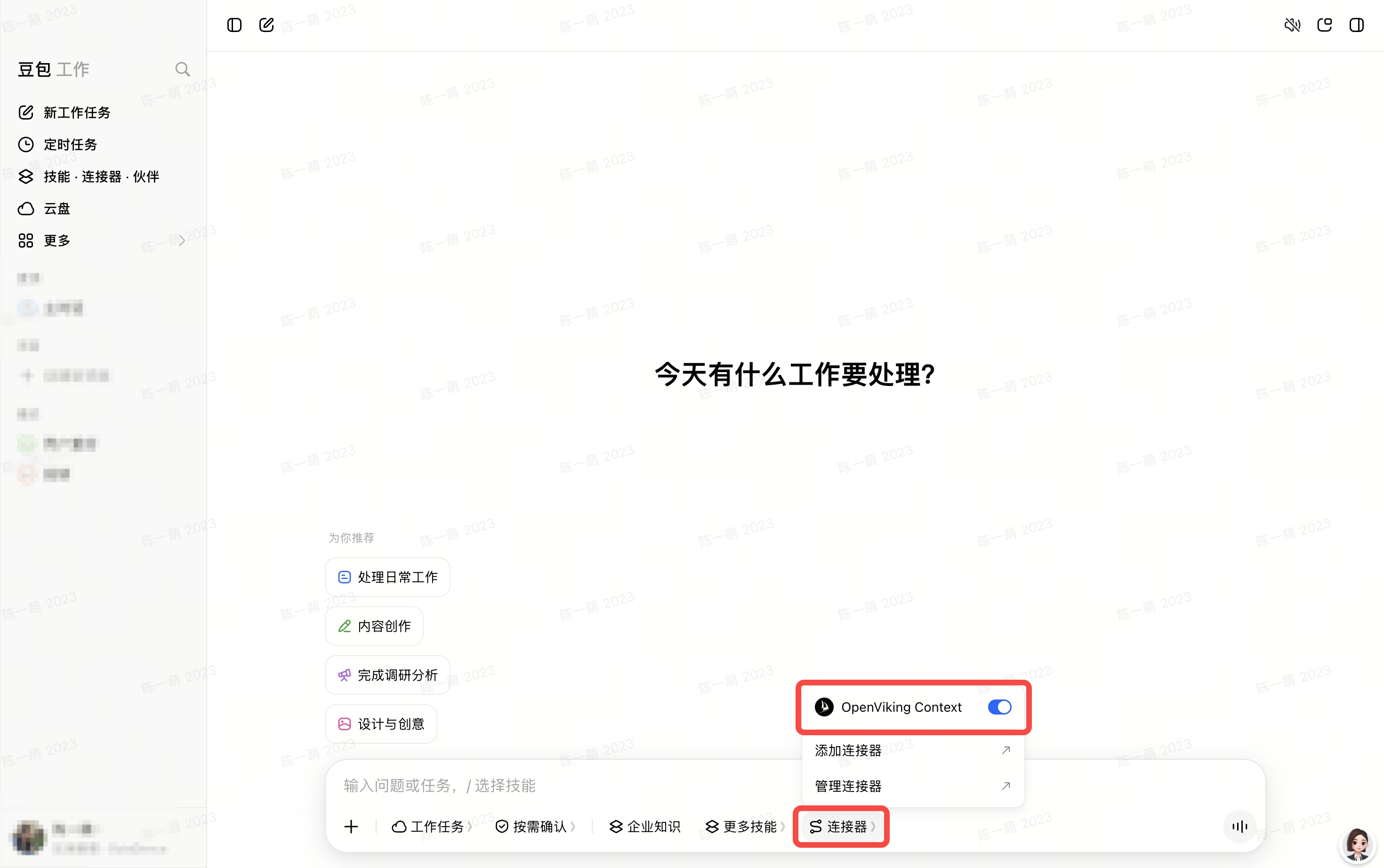
1. Return to a Doubao conversation, select **Connectors** below the input box, and confirm that “OpenViking Context” is available.
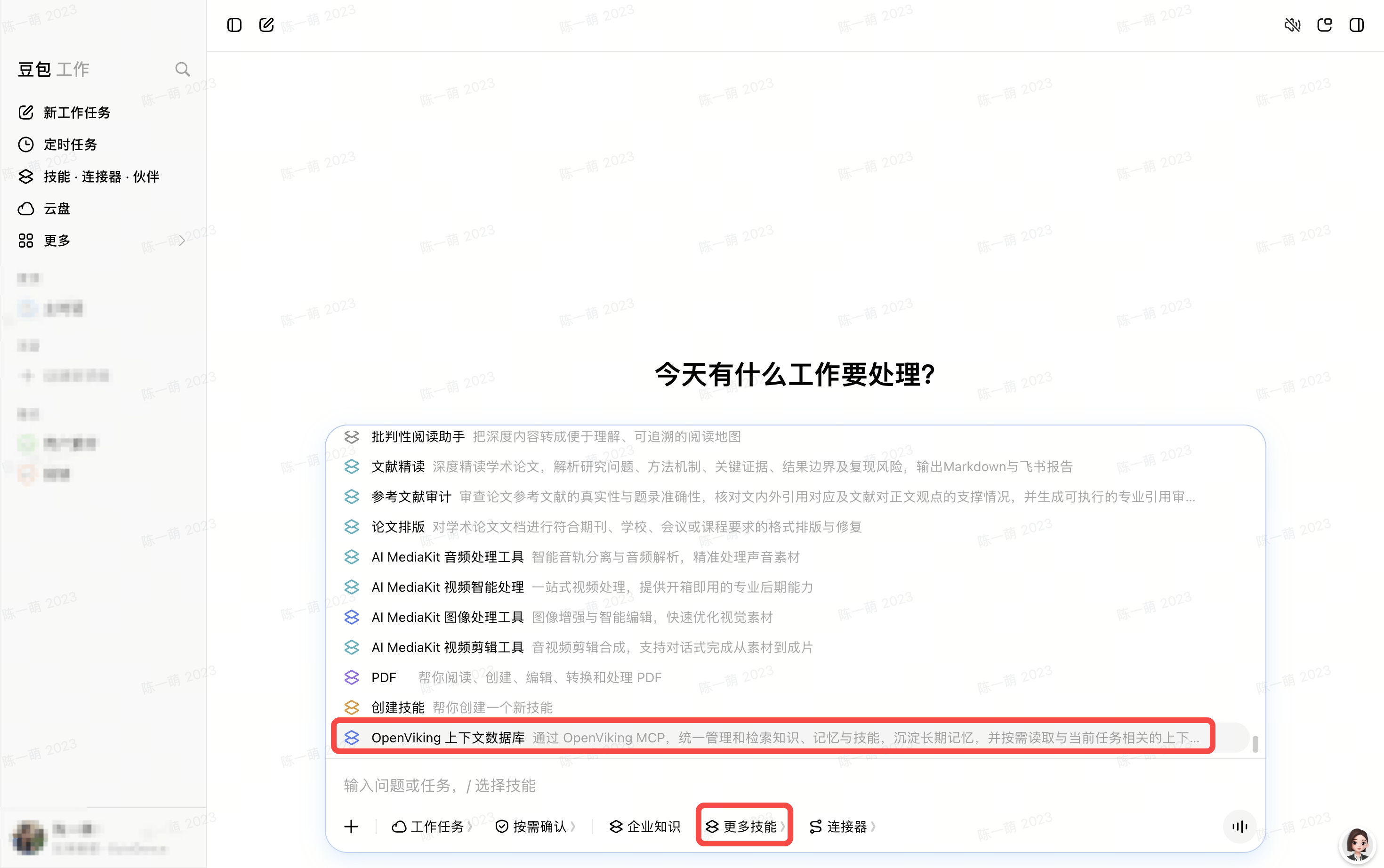
2. Select **More Skills**, confirm that “OpenViking Context Database” is available, and ask Doubao to call OpenViking and return relevant content.
## Troubleshooting
| Issue | Resolution |
|---|---|
| “OpenViking Context” does not appear in search | Confirm that you are using Doubao Work, clear the search and try again; if it is still unavailable, ask your organization administrator whether the connector has been enabled |
| Connection fails | Check that the OpenViking USER API key is correct |