
If you want only to try OpenDJ server software, and you do not plan to store any real or important data that you want to keep, then read only this chapter, or just try out installation without reading any further.
Download OpenDJ software from one of the following locations.
-
The ForgeRock Enterprise Downloads page has the latest stable, supported release of OpenDJ and the other products in the ForgeRock identity stack.
-
The Nightly Builds page posts links to the latest nightly builds of OpenDJ software. Note that these builds are the working version from the trunk and are not for use in a production environment.
-
The Community Archives page includes stable community builds for previous releases of OpenDJ software.
QuickSetup uses Java WebStart to let you perform an installation of OpenDJ directory server starting with a click in your web browser, which can be a great way to try OpenDJ directory server for the first time, or to do a quick test installation.
![[Note]](common/images/admon/note.png) |
Note |
|---|---|
|
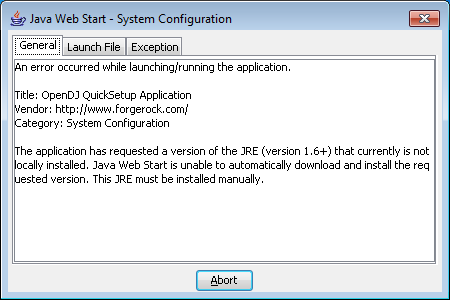
OpenDJ directory server relies on Java 6 or later, so if your browser picks up an old installation of Java 5 for example, installation can fail. You might see an application error message such as this: |
If the WebStart installation does not work in your browser, copy
the WebStart URL, ending in QuickSetup.jnlp, from the
OpenDJ download page. Next, pass the link as an argument to the
javaws command in a terminal window to start the
installer.
$ export PATH=/path/to/java/bin:$PATH
$ javaws URL-to-QuickSetup-Installer
The WebStart installer corresponds to what you start if you download OpenDJ-4.8.1-SNAPSHOT.zip, unzip the file, and then run opendj/setup (UNIX), opendj\setup.bat (Windows), or opendj/QuickSetup.app (Mac OS X).
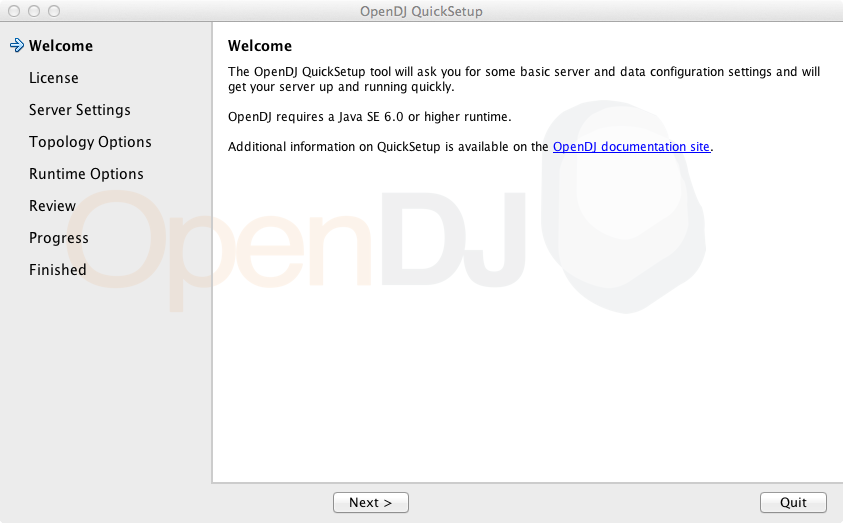
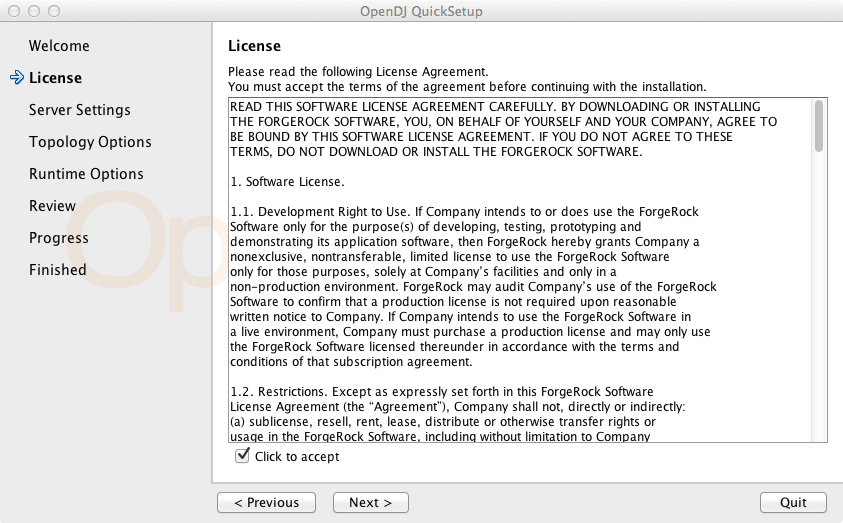
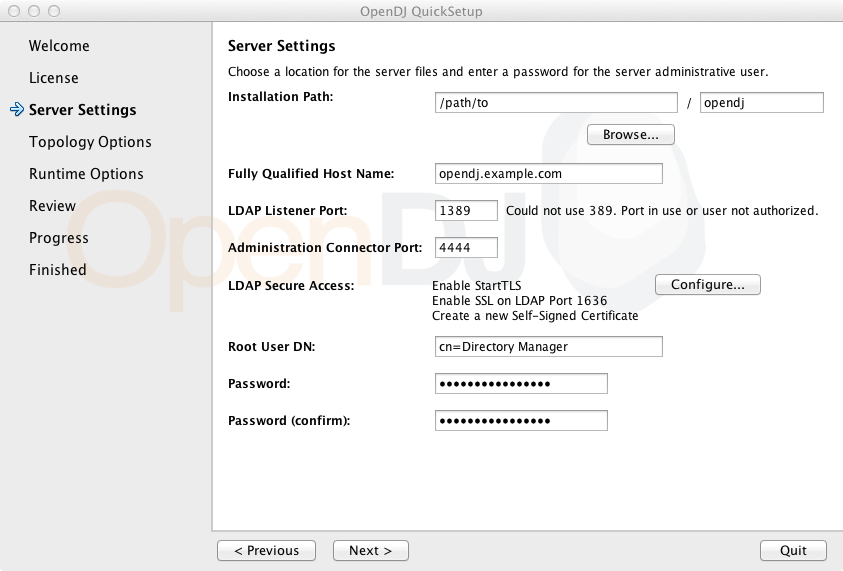
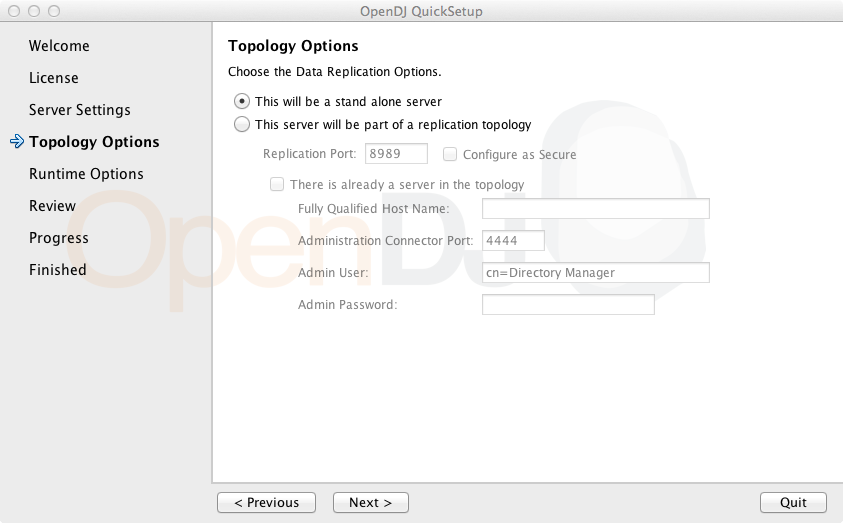
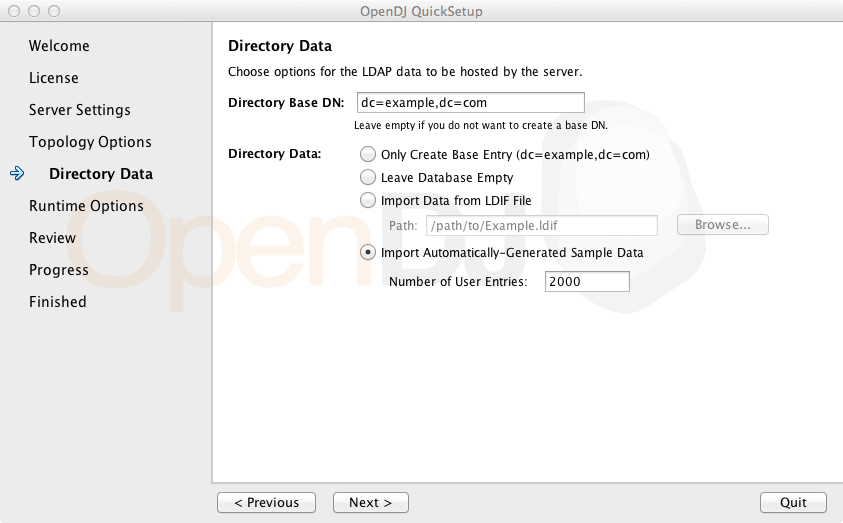
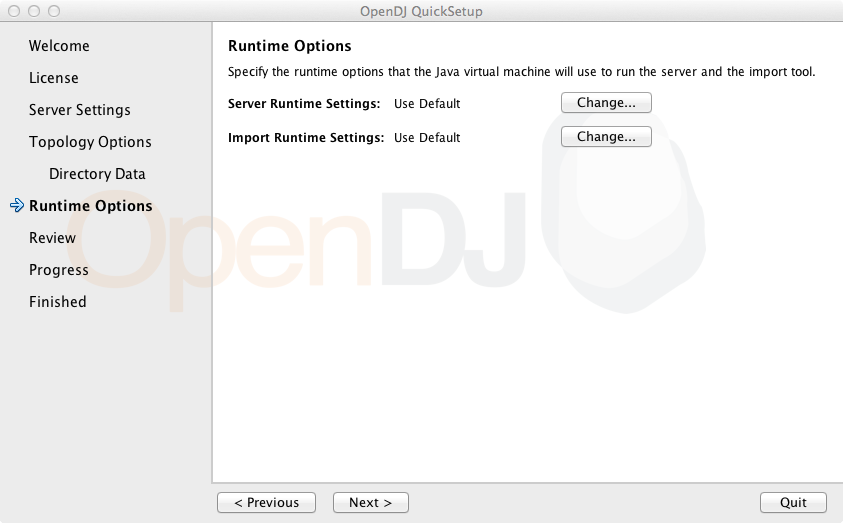
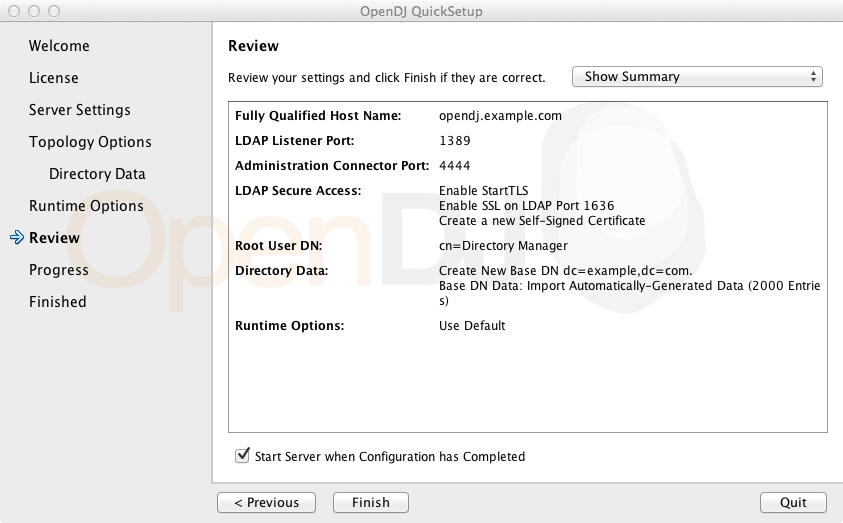
Java WebStart launches the the QuickSetup wizard, and soon the Welcome screen appears.
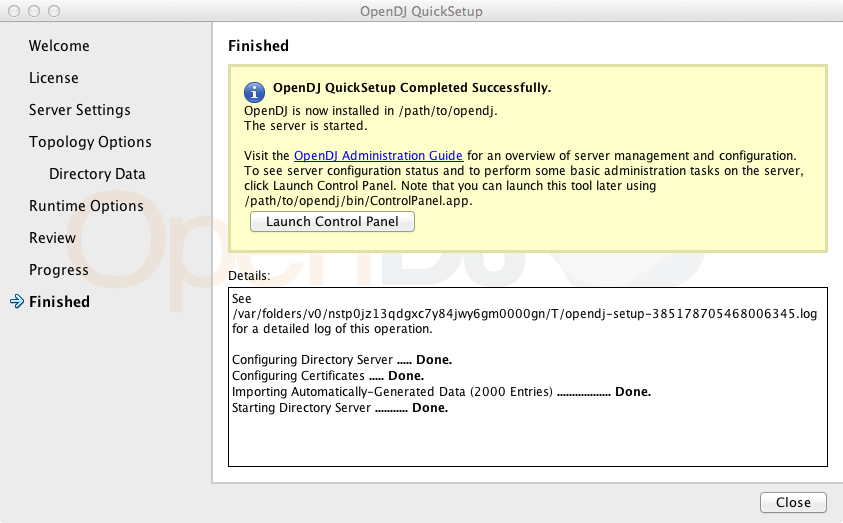
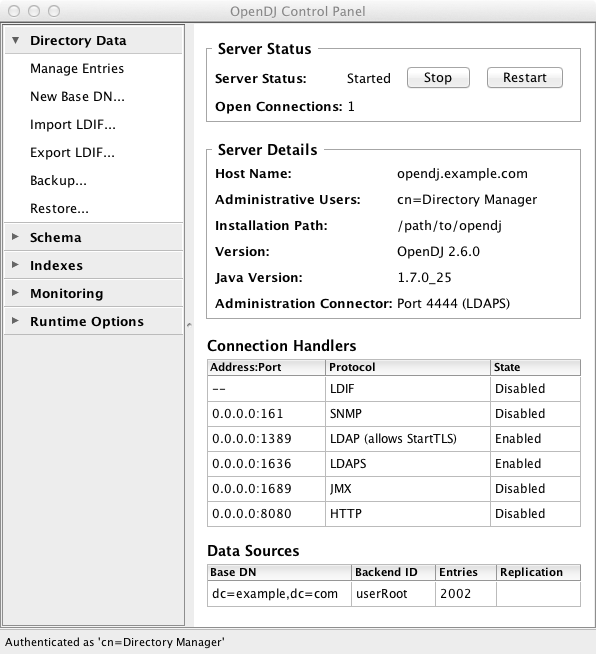
To launch OpenDJ Control Panel again later, you can run one of the following, depending on your host system.
-
(Mac OS X) opendj/bin/ControlPanel.app
-
(UNIX) opendj/bin/control-panel
-
(Windows) opendj\bat\control-panel.bat
