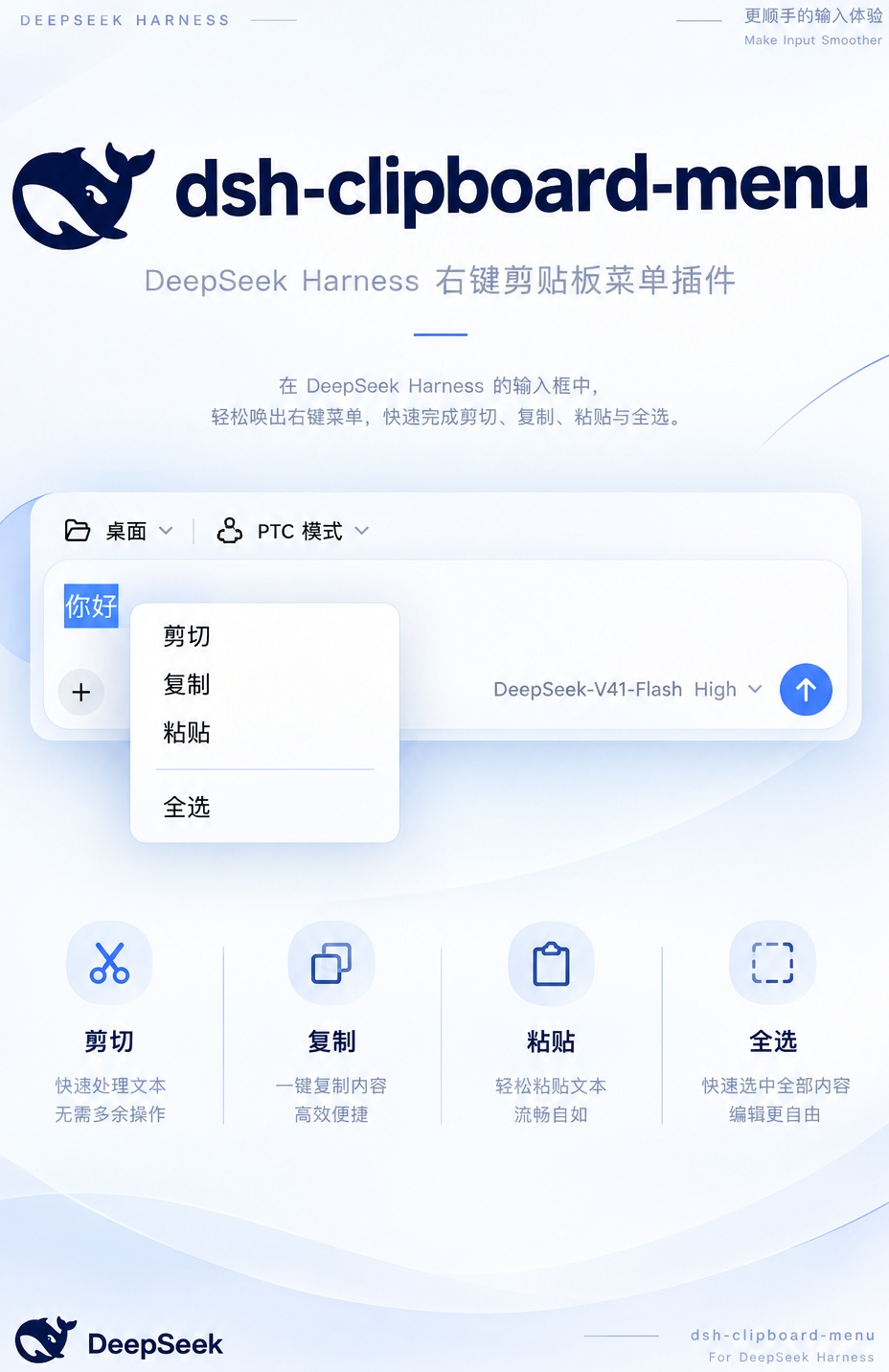
**The right-click menu the DeepSeek Harness composer was missing**
[简体中文](README.md) | [English](README.en.md)
[](LICENSE)
[](https://github.com/wuwaka/dsh-clipboard-menu/releases)
[](https://github.com/wuwaka/dsh-clipboard-menu/actions/workflows/ci.yml)
[](https://github.com/wuwaka/dsh-clipboard-menu/stargazers)
[](https://github.com/topics/dsh-plugin)
[](#)
## What it is
Right-click the DeepSeek Harness composer and get a menu:
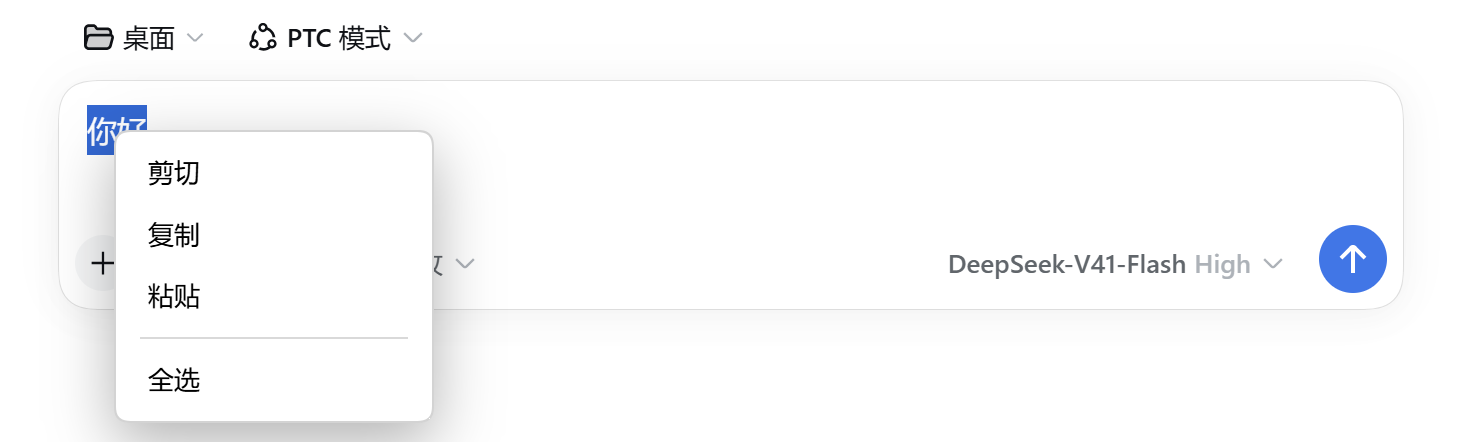 | Item | Action |
| --- | --- |
| ✂️ Cut | Cut the selected text |
| 📋 Copy | Copy the selected text |
| 📥 Paste | Insert the system clipboard at the caret |
| 🗂️ Select All | Select the whole field |
| 🌐 Search | Search the selected text in your default browser, with the current engine shown on the right (greyed out without a selection) |
| 🌐 Search engine… | **Hovering** it expands the engine list directly below: Baidu / Bing / Google / DuckDuckGo / Custom |
Select text in a **read-only** surface — an AI reply, a document preview, a code block — and right-click for three entries:
| Item | Action |
| --- | --- |
| 📋 Copy | Copy with formatting (paste into Word and the styling comes along) |
| 📝 Copy as plain text | Copy the characters only, which pastes cleanly into a terminal or editor |
| 🌐 Search | Search the selected text in your default browser |
| 🌐 Search engine… | Switch engine |
### How the engine is chosen
**A page cannot read the browser's own default search engine** — no web API exposes it, deliberately, so that sites cannot profile visitors. The order is therefore:
1. **Whichever you picked** — hover "Search engine…" and click one in the list; it is stored in `localStorage` and sticks
2. Otherwise a guess from the UI language: Chinese → **Baidu**, anything else → Google
3. `window.__DSH_CLIPBOARD_MENU_SEARCH__` overrides outright (developer escape hatch)
The list's "**Custom**" entry opens a small form, and you can keep **as many providers as you like**:
| Field | Meaning |
| --- | --- |
| **Name** | Shown in the list and next to Search; defaults to the URL's host |
| **URL** | The search address, using §{query}§ for the keywords; without it the query is appended |
§§§
https://search.example.org/find?q={query}
§§§
**Enter** or **Save** adds a provider. Right-clicking either field offers the same cut/copy/paste/select-all menu on its own layer, so pasting a URL never tears the form down — which is why there is no separate Paste button. **Escape** backs out one level rather than closing the whole menu.
Saved providers are listed under the name you gave them; click one to switch. **Hover a row and a trash icon slides in at the far right; one click removes that provider** (if it was the current engine, the engine falls back to the language guess). Any number of custom providers can coexist and be removed independently.
**The browser itself needs no configuration.** `window.open` goes through the desktop shell's `shell.openExternal`, which hands the URL to your operating system's default browser — whatever you already set.
Cut and Copy grey out when nothing is selected, and a right-click on read-only content with no selection is passed straight through to the app's own menu. Labels follow the interface language (Chinese / English); colours follow the system light or dark theme.
## Why it exists
**Electron ships no default context menu**, and the DSH Desktop shell does not add one, so right-clicking the composer in the desktop window does nothing — you are stuck with `Ctrl+C` / `Ctrl+V`.
The desktop main process is a packaged bundle (`lib/main.js` + `electron-runtime`), so a plugin cannot hook `webContents`. The menu is therefore built in the renderer.
## 🚀 Install
```sh
dsh plugin --profile
| Item | Action |
| --- | --- |
| ✂️ Cut | Cut the selected text |
| 📋 Copy | Copy the selected text |
| 📥 Paste | Insert the system clipboard at the caret |
| 🗂️ Select All | Select the whole field |
| 🌐 Search | Search the selected text in your default browser, with the current engine shown on the right (greyed out without a selection) |
| 🌐 Search engine… | **Hovering** it expands the engine list directly below: Baidu / Bing / Google / DuckDuckGo / Custom |
Select text in a **read-only** surface — an AI reply, a document preview, a code block — and right-click for three entries:
| Item | Action |
| --- | --- |
| 📋 Copy | Copy with formatting (paste into Word and the styling comes along) |
| 📝 Copy as plain text | Copy the characters only, which pastes cleanly into a terminal or editor |
| 🌐 Search | Search the selected text in your default browser |
| 🌐 Search engine… | Switch engine |
### How the engine is chosen
**A page cannot read the browser's own default search engine** — no web API exposes it, deliberately, so that sites cannot profile visitors. The order is therefore:
1. **Whichever you picked** — hover "Search engine…" and click one in the list; it is stored in `localStorage` and sticks
2. Otherwise a guess from the UI language: Chinese → **Baidu**, anything else → Google
3. `window.__DSH_CLIPBOARD_MENU_SEARCH__` overrides outright (developer escape hatch)
The list's "**Custom**" entry opens a small form, and you can keep **as many providers as you like**:
| Field | Meaning |
| --- | --- |
| **Name** | Shown in the list and next to Search; defaults to the URL's host |
| **URL** | The search address, using §{query}§ for the keywords; without it the query is appended |
§§§
https://search.example.org/find?q={query}
§§§
**Enter** or **Save** adds a provider. Right-clicking either field offers the same cut/copy/paste/select-all menu on its own layer, so pasting a URL never tears the form down — which is why there is no separate Paste button. **Escape** backs out one level rather than closing the whole menu.
Saved providers are listed under the name you gave them; click one to switch. **Hover a row and a trash icon slides in at the far right; one click removes that provider** (if it was the current engine, the engine falls back to the language guess). Any number of custom providers can coexist and be removed independently.
**The browser itself needs no configuration.** `window.open` goes through the desktop shell's `shell.openExternal`, which hands the URL to your operating system's default browser — whatever you already set.
Cut and Copy grey out when nothing is selected, and a right-click on read-only content with no selection is passed straight through to the app's own menu. Labels follow the interface language (Chinese / English); colours follow the system light or dark theme.
## Why it exists
**Electron ships no default context menu**, and the DSH Desktop shell does not add one, so right-clicking the composer in the desktop window does nothing — you are stuck with `Ctrl+C` / `Ctrl+V`.
The desktop main process is a packaged bundle (`lib/main.js` + `electron-runtime`), so a plugin cannot hook `webContents`. The menu is therefore built in the renderer.
## 🚀 Install
```sh
dsh plugin --profile