# Android TV Kit: make your TV fast and beautiful
[🇫🇷 Version française](README.md) · **🇬🇧 English**
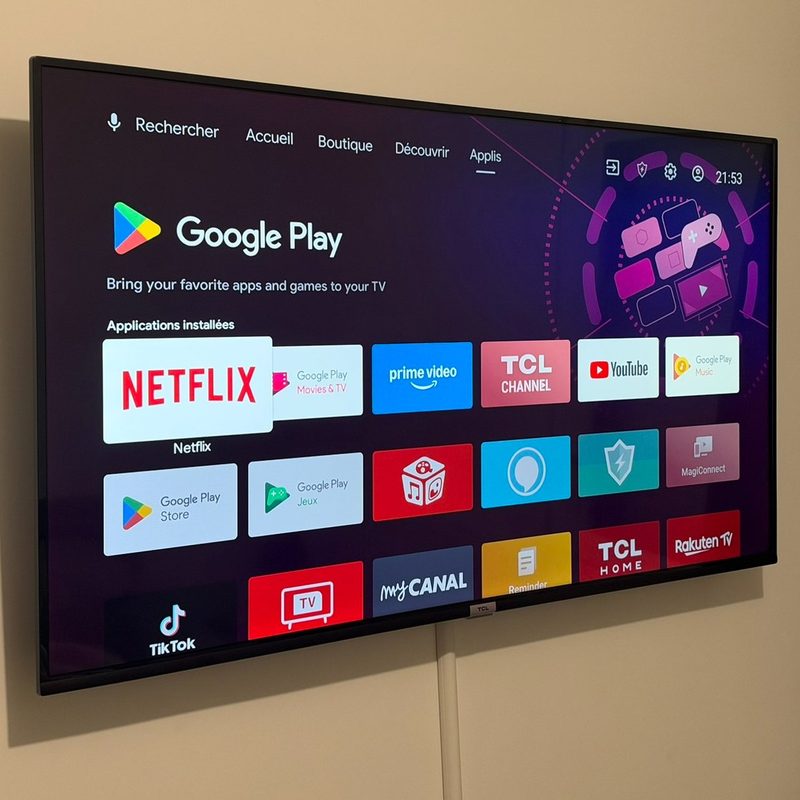
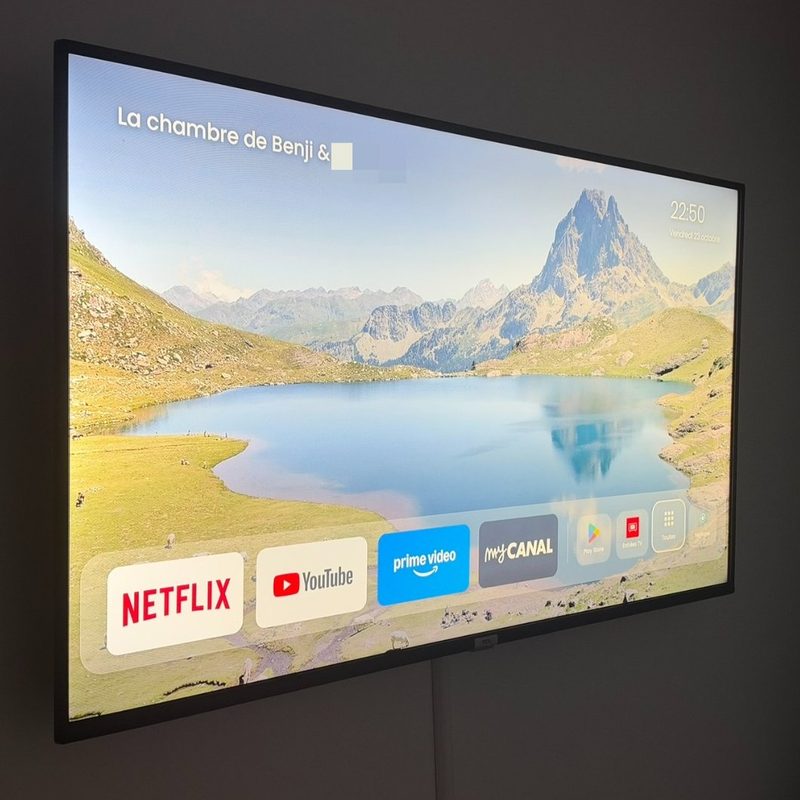
Is your Android TV laggy, full of ads, with audio drifting out of sync during movies? This kit slims it down in a few minutes from a Windows PC, a Mac or a Linux PC. It also installs **Zen Home**, a minimalist Apple TV-style home screen.
Before
After
Original home: ads, promo apps, lag
Zen Home: landscape photo, the time and your apps
Real photos of a 2019 TCL. The title shown top-left is customisable. Labels follow the TV's language.
> [!WARNING]
> **A personal project shared as is, without any warranty.** I am not responsible for any problem its use may cause to your TV, your devices or your data. Every TV is different: read the [Before using the kit on your TV](#before-using-the-kit-on-your-tv) section.
---
## Contents
1. [Quick start](#quick-start)
2. [What the kit does](#what-the-kit-does)
3. [Compatibility](#compatibility)
4. [Before using the kit on your TV](#before-using-the-kit-on-your-tv)
5. [Prepare the TV (5 minutes)](#prepare-the-tv-5-minutes)
6. [How to use it](#how-to-use-it)
7. [Customising Zen Home](#customising-zen-home)
8. [Safety and undo](#safety-and-undo)
9. [Troubleshooting](#troubleshooting)
10. [Folder contents](#folder-contents)
11. [Disclaimer](#disclaimer)
12. [Credits and license](#credits-and-license)
---
## Quick start
1. Enable developer mode and debugging on the TV ([see how](#prepare-the-tv-5-minutes)).
2. Double-click **`LANCER.bat`** (Windows) or **`LANCER.command`** (macOS), or run **`./LANCER.sh`** (Linux), then type the TV's IP address.
3. Accept "Allow debugging" on the TV.
4. Run options **1** (backup), **2** (slimming) and **3** (home screen), in that order.
5. If you don't like something, option **6** puts everything back as before.
## What the kit does
| Menu option | What it does | Changes the TV? |
|---|---|---|
| **1. Diagnosis + backup** | Reads the Android version, memory, CPU and Wi-Fi. Backs up the list of apps and settings, with a screenshot. | No |
| **2. Slim down** | Disables known ads, telemetry and useless services (Google, TCL, Sony, Xiaomi…). For features you may use (Chromecast, Assistant…), the kit asks you first. | Yes, reversible |
| **3. Zen Home** | Installs the minimalist home screen: your title, a 4, 6 or 8 app layout, and your favourite apps. If you want, it also disables the original home screen, which is often very resource-hungry. | Yes, reversible |
| **4. My photos** | Replaces the bundled photos with your own. | Yes, reversible |
| **5. Screenshot** | Captures what the TV is showing. | No |
| **6. Restore everything** | Re-enables everything the kit disabled, puts back the original home screen and animations, and uninstalls Zen Home. | Back to original |
| **7. Other TV** | Changes the target TV. | No |
**Nothing is ever uninstalled**, except Zen Home if you ask. Apps are only *disabled* and can be turned back on in one click.
**Real example** on a 2019 TCL (Android 9, 2 GB RAM):
| | Before | After |
|---|---|---|
| CPU at idle | 61 % | 12 % |
| Available RAM | 451 MB | 720 MB |
| Home screen | 187 MB (Google TV) | 25 MB (Zen Home) |
| Disabled services (ads, telemetry, bloat) | 0 | 32 |
These figures come from a single TV. Your results will differ.
## Compatibility
| Device | Slimming | Zen Home |
|---|---|---|
| **Android TV / Google TV** sets: TCL, Sony, Philips, Xiaomi, Hisense (Android models), Sharp, Toshiba… | ✅ | ✅ |
| Boxes: Nvidia Shield, Chromecast with Google TV, Xiaomi Mi Box, Google TV Streamer | ✅ | ✅ |
| Android TV / Google TV projectors: XGIMI… | ✅ | ✅ |
| **Amazon Fire TV / Fire Stick** (Fire OS) | ✅ | ❌ Use a dedicated tool ([see below](#fire-tv--fire-stick-changing-the-home-screen)) |
| Fire TV running **Vega OS** (Fire TV Stick 4K Select and models released since late 2025) | ❌ Not Android | ❌ |
| Samsung (Tizen), LG (webOS), Hisense VIDAA, Roku, Apple TV | ❌ Not Android | ❌ |
**Tested for real on:** a TCL BeyondTV (Android 9). Also tested by users: a TCL BeyondTV2 (Android 9) and an XGIMI MoGo 3 Pro projector (Google TV, Android 11). The other devices in this table should work, since they use the same Android commands, but they have not all been tested.
### Fire TV / Fire Stick: changing the home screen
Amazon protects its home screen: without root, it can't be disabled or replaced the way the kit does on other TVs. Use the kit for **slimming** (options 1, 2 and 6), then one of these dedicated tools for the home screen. They redirect the Home button to the launcher of your choice through an accessibility service, without root, on Fire OS 7 and 8:
- **[Projectivy Launcher](https://play.google.com/store/apps/details?id=com.spocky.projengmenu)**: a full launcher, with an "Override current launcher" option in its settings.
- **[FireStick Fixer](https://github.com/Hornet34/firestick-fixer)** (open source) or **[Home on Fire](https://xdaforums.com/t/app-firetv-noroot-home-on-fire-use-any-launcher-as-your-fire-tv-home-home-button-boot-fire-os-8-7.4791567/)**: send the Home button to the launcher of your choice.
- **[Launcher Manager](https://xdaforums.com/t/app-firetv-noroot-launcher-manager-change-launcher-without-root.4176349/)**: same idea, and can also remap the remote's app buttons.
The Amazon home screen stays installed and may show up for a split second. After a Fire OS update, you sometimes need to re-enable the tool. Avoid the "system user" methods found on forums: they can leave the Fire TV stuck at boot.
### Brands covered by the slimming lists
On top of the Google part shared by every Android TV, the kit includes specific lists for each major brand:
| Brand | Disabled by default | Asked first |
|---|---|---|
| **All (Google)** | Reports to Google, Android ad services, legacy home recommendations | Chromecast, Assistant, Ambient mode, recommendations, Play Movies/Music/Games |
| **TCL** (and TCL-built Thomson) | Telemetry, boot ads, promo messages, demo mode | TCL Channel, screen mirroring, Media Center, Alexa, TCL app store |
| **Sony Bravia** | Samba TV (viewing analysis), Sony Select, recommendation bars, demo mode, telemetry | Screen mirroring, AirPlay, Alexa, Sony voice search, BRAVIA CORE |
| **Philips** | TP Vision analytics, "Top Picks" row, app gallery, Inscape | Alexa, DLNA, Play-Fi, Mimi |
| **Xiaomi** | MIUI telemetry, ad rows, ad engine, Alphonso | Xiaomi TV+, Mi Cast, screen mirroring, Mi Music, Alexa |
| **Hisense** (Android) | Demo mode, viewing analysis, telemetry | VIDAA channels, Alexa, RemoteNOW, Miracast |
| **Sharp, Toshiba, Thomson, Philco** (Android) | Demo mode, Anoki, Vestel telemetry, Skyworth recommendations | Free channels, screen mirroring |
| **Nvidia Shield** | Nvidia telemetry and diagnostics | GeForce NOW, GameStream, game overlay |
| **Amazon Fire TV** | Viewing analysis, ad ID, promos, metrics | Alexa, Amazon Photos/Music, games, Amazon Kids, Silk |
| **XGIMI** (projectors) | Bug reports sent to XGIMI | Douban FM (Chinese radio) |
These lists were built in October 2026 from several community sources (Universal Android Debloater, CleanYourTV per-model lists, shield_optimizer, dumbtv, forums). Packages known to break something (HDMI inputs, remote, updates, settings) were deliberately left out.
**The kit only offers what exists on your TV.** A Sony will only see the Google and Sony lines, for example. If a package is missing or the TV refuses to disable it (some are locked, especially on Fire TV), it is simply skipped and the kit carries on.
**You need:** a **Windows 10 or 11**, **macOS** or **Linux** computer on the **same network** as the TV. On Linux, `curl` (or `wget`) and `unzip` must be installed. ADB, Google's official tool to talk to Android, is downloaded automatically on first launch (about 7 MB).
## Before using the kit on your TV
Every manufacturer ships its own apps, with names that differ between brands, models and Android versions. The kit was designed to be careful, but it cannot know every TV on the market.
**You may need to adapt the kit to your TV.** For example:
- add or remove lines in `scripts/listes/pubs_telemetrie.txt` and `scripts/listes/optionnel.txt`;
- add your brand's "TV inputs" app to the Zen Home code if it isn't recognised;
- tweak a command if your Android version behaves differently.
**Have the kit reviewed before using it.** If you're not comfortable with code, open the kit folder in a coding assistant such as **[Claude Code](https://claude.com/claude-code)** and ask, for example:
> "Review this kit before I use it on my TV [brand and model, Android version]. Check that the package lists and commands suit my TV, flag anything that could cause problems and suggest the changes needed."
You can give it the `sauvegardes//sauvegarde_…/paquets_tous.txt` file created by option 1 (which changes nothing). That way it knows the exact list of apps on your TV.
**In any case, run option 1 first.** Read what option 2 offers to disable before confirming, and answer "no" to anything you don't understand.
## Prepare the TV (5 minutes)
### 1. Enable developer mode
1. Open **Settings → System → About** (or **Device Preferences → About**).
2. Scroll to **Build** (or **Android TV OS build**) and **press it 7 times** with the remote's OK button.
3. The message "You are now a developer" appears.
### 2. Enable debugging
1. Open **Settings → System → Developer options**.
2. Turn on **USB debugging**. If they exist, also turn on **Network ADB debugging** or **Wireless debugging**.
### 3. Note the TV's IP address
In **Settings → Network & Internet → (your Wi-Fi)**, or **About → Status**, note the address like `192.168.1.50`.
> [!TIP]
> Reserve this IP address for the TV in your router ("static DHCP lease") so it never changes.
## How to use it
1. Double-click **`LANCER.bat`** (Windows) or **`LANCER.command`** (macOS). On Linux, open a terminal in the kit folder and type `./LANCER.sh`.
2. Pick a menu option. The first time, the kit asks for the TV's IP address.
3. **Look at the TV**: an "Allow USB debugging?" prompt appears. Tick **"Always allow from this computer"**, then **OK**.
4. The kit shows the brand and model it found. Check it's your TV before confirming.
**Recommended order: 1, then 2, then 3.** The kit makes an automatic backup before the first change anyway.
The kit speaks French if the system (Windows, macOS or Linux) is in French, otherwise English.
The Windows (`scripts/kit.ps1`) and macOS/Linux (`scripts/kit.sh`) versions do exactly the same thing and share the same lists and the same `sauvegardes/` folder: you can start on one computer and restore from another.
## Customising Zen Home
| What | How |
|---|---|
| **Title** ("Living room", "Emma's room"…) | Menu option 3. Type your title, leave it empty to show the TV's name (the one in the Android settings), or type `-` to show nothing. |
| **Layout** | Option 3: **4 apps** (large tiles), **6 apps** in one row, or **8 apps** in two rows. |
| **Dock apps** | Option 3: the kit lists the streaming apps it found; pick the numbers in the order you want. Without a choice, Zen Home automatically picks the first ones among Netflix, YouTube, Prime Video, Disney+, myCANAL, Max, Apple TV… |
| **Your photos** | Copy your `.jpg` files (landscape, ideally 1920×1080) into the **`mes_photos`** folder, then run option 4. To go back to the bundled photos, empty the folder and run option 4 again. |
| **Rotation speed** | Option 4: number of seconds between photos (60 by default). |
| **What gets disabled** | Edit `scripts/listes/pubs_telemetrie.txt` (disabled after a single confirmation) and `scripts/listes/optionnel.txt` (the kit asks for each line). One line = `package.name | French description | English description`. To group several packages of one feature under a single question: `package1,package2 | ... | ...`. |
With the remote, in Zen Home:
- **Arrows and OK** to open an app.
- **All apps** to see every installed app.
- **TV inputs** for channels and HDMI ports, if the brand is recognised.
### Edit the home screen right on the TV
No PC needed to change the dock. On a dock app, **long-press OK** (or press the remote's **Menu** key):
| Action | What it does |
|---|---|
| **Move** | The app gets a blue outline: move it with the arrows, then press **OK** to confirm. |
| **Replace with another app** | Opens your app list: the one you pick takes its place. |
| **Remove from dock** | Takes the app off the dock (it stays installed). |
| **Add an app** | When there's room left. The dock's **+** tile does the same. |
| **Layout** | Switches to the 4, 6 or 8 app layout. |
| **Change the title** | Your own text, empty for the TV's name, or "No title". |
In **All apps**, long-pressing an app also lets you **add it to the dock**.
These settings are saved on the TV. If you run the kit's option 3 again later, the choices made in the kit take over.
## Safety and undo
- **Identity lock.** The kit records your TV's serial number. Before every action, it checks that the device at that address is the same one. Another TV, a box or a Fire Stick that gets that IP will never be modified.
- **Protected apps.** Play Store, Google services, settings, keyboard, WebView… are never disabled, even if added to a list.
- **Option 2 never turns off the current home screen.** Only option 3 can disable it, once Zen Home is installed.
- **Backups and screenshots.** Everything is stored in `sauvegardes//`, with a log of each session.
- **Undo:** option 6. If the PC isn't available anymore, on the TV: **Settings → Apps → See all apps → Show system apps →** pick the app → **Enable**.
- **TV system updates** stay enabled. After a big update, some apps may be re-enabled: just run option 2 again. This happens often on Fire TV.
- **Philips:** wait about ten seconds after slimming before turning the TV off, so it can save the changes. The kit already waits a bit, but don't unplug the TV right away.
As a last resort, a factory reset always brings the TV back to new. It also erases your accounts and apps.
## Troubleshooting
| Problem | Fix |
|---|---|
| "Could not connect" | Make sure the TV is on (not in standby), on the same network as the PC, and that **USB debugging** is enabled. Double-check the IP address. |
| No "Allow debugging" prompt | Turn USB debugging off and on again, then restart the kit. Some TVs also need **Network ADB debugging**. |
| Android 11 or newer TV with a "Wireless debugging" screen | Choose "Pair with code" on the TV. When the kit offers it, answer **yes** and type the IP:port and code shown. |
| Long-pressing OK does nothing | Hold OK for at least half a second: Zen Home also recognises remotes that send a long press as a burst of short presses (Sony, for example). Otherwise, use the **Menu** (or ☰) key on the app. |
| The Home button doesn't show Zen Home | Press Home: if a chooser appears, pick **Zen Home** then **Always**. Otherwise run option 3 again and accept disabling the original home screen. |
| The remote's Source button no longer works | On some TVs (especially Google TV), the original home screen handles this button. Run option 6 to re-enable it, then run option 3 again and answer **no** when the kit offers to disable it. |
| Google TV logo looping after option 3 | A Google fallback screen took the home screen's place. Press Home and pick **Zen Home** then **Always**. Otherwise, run option 6 from the PC, restart the TV, then run option 3 again with the latest version of the kit. |
| The old home screen comes back (Google TV) | On Google TV, the original home screen can re-enable itself a few minutes after option 3, or after an update. Zen Home usually stays the home screen (option 1 reports what was re-enabled). If the old one takes over, run option 3 again. |
| No "TV inputs" tile | The brand isn't recognised: use the remote's Source or Input button, or add your brand to the code (see [Before using the kit](#before-using-the-kit-on-your-tv)). |
| "skipped (cannot be changed on this TV)" is shown | That's normal: the TV protects this package or doesn't have it. Nothing was changed for it. |
| A TV feature stopped working | Run option 6 to restore everything, then run option 2 again and answer "yes" for that feature. |
| Movies still stutter | Switch the TV to **5 GHz** Wi-Fi or an Ethernet cable. Turn off motion smoothing (MEMC, Motion) in the picture settings. If that's not enough, the TV lacks power: an external streaming box will be smoother. |
| Windows blocks `LANCER.bat` | Right-click the file → **Properties** → tick **Unblock**. Or "More info" → **Run anyway**. |
| macOS won't open `LANCER.command` | Right-click (or Ctrl+click) the file → **Open** → **Open**. If "permission denied" shows up, open Terminal in the kit folder and type `bash LANCER.sh`. |
| Linux: "Permission denied" on `LANCER.sh` | Run `chmod +x LANCER.sh` once, or start it with `bash LANCER.sh`. |
## Folder contents
```
Kit-TV-Android/
├── LANCER.bat ← Windows: double-click here
├── LANCER.command ← macOS: double-click here
├── LANCER.sh ← Linux: ./LANCER.sh
├── README.md / README-en.md
├── CREDITS.md ← photo authors and licenses
├── LICENSE ← MIT license
├── docs/ ← README images
├── scripts/
│ ├── kit.ps1 ← the program (PowerShell, Windows)
│ ├── kit.sh ← the same program (bash, macOS/Linux)
│ └── listes/ ← what gets disabled (editable)
├── ecran-accueil/
│ ├── ZenHome.apk ← the ready-to-install home screen
│ └── source/ ← Java source code + build script
├── mes_photos/ ← your photos for Zen Home (option 4)
├── outils/ ← ADB, downloaded automatically
└── sauvegardes/ ← created automatically: one backup per TV
```
> [!NOTE]
> If you share the kit, don't share `sauvegardes/`, `outils/` or `config_tv.json`: they contain information about your TV.
## Disclaimer
This kit is a personal project, shared for free **as is, without any warranty**. By using it, you accept that:
- **I am not responsible** for any problem, failure, data loss, malfunction or voided warranty that its use may cause, directly or indirectly;
- you use it **at your own risk**, on a device that you own;
- it is up to you to check that the kit suits your TV before using it, and to adapt it if needed (see [Before using the kit on your TV](#before-using-the-kit-on-your-tv)).
The kit is not affiliated with or endorsed by Google, TCL, Sony, Philips, Xiaomi, Amazon or any other manufacturer. Brand names mentioned belong to their owners.
## Credits and license
- **Photos:** 19 Wikimedia Commons "Featured pictures", CC BY-SA licensed. Authors and links are in [CREDITS.md](CREDITS.md).
- **Slimming lists:** built from [Universal Android Debloater NG](https://github.com/Universal-Debloater-Alliance/universal-android-debloater-next-generation), [CleanYourTV](https://github.com/Gathin23/cleanyourtv), [shield_optimizer](https://github.com/bryanroscoe/shield_optimizer), [dumbtv](https://github.com/humblemuzzu/dumbtv) and community guides. Thanks to their authors.
- **Font:** Poppins, SIL Open Font License.
- **ADB:** Google's Android SDK Platform-Tools, downloaded from the official site on first launch.
- **Kit and Zen Home code:** MIT license, see [LICENSE](LICENSE). You can use, modify and share it freely.
---
[🇫🇷 Version française](README.md) · **🇬🇧 English**