# Codex Sublime Text plug-in
Chat with the [Codex CLI](https://github.com/openai/codex) directly from Sublime Text.
> [!NOTE]
> Version of this package exactly matches codex-cli version it's compatible with (i.e. 1.36.0 plugin -> 0.36.0 codex).
> To get one, you can download binary to your system from [codex releases](https://github.com/openai/codex/releases) page and set up this plugin's settings to point to that exact binary.
## Upgrade Notes
- API token setting: This package expects your OpenAI API token in the `token` setting and exports it to the environment variable named by `env_key` (default: `OPENAI_API_KEY`). If you previously used another package with a different setting name, please add `"token": "sk-..."` to your Codex settings or set the corresponding environment variable.
- Markdown and folding: The transcript and input panels now use a bundled Markdown syntax for improved headings and section folding. You can auto‑fold sections by header via `fold_sections` in project or global Codex settings.
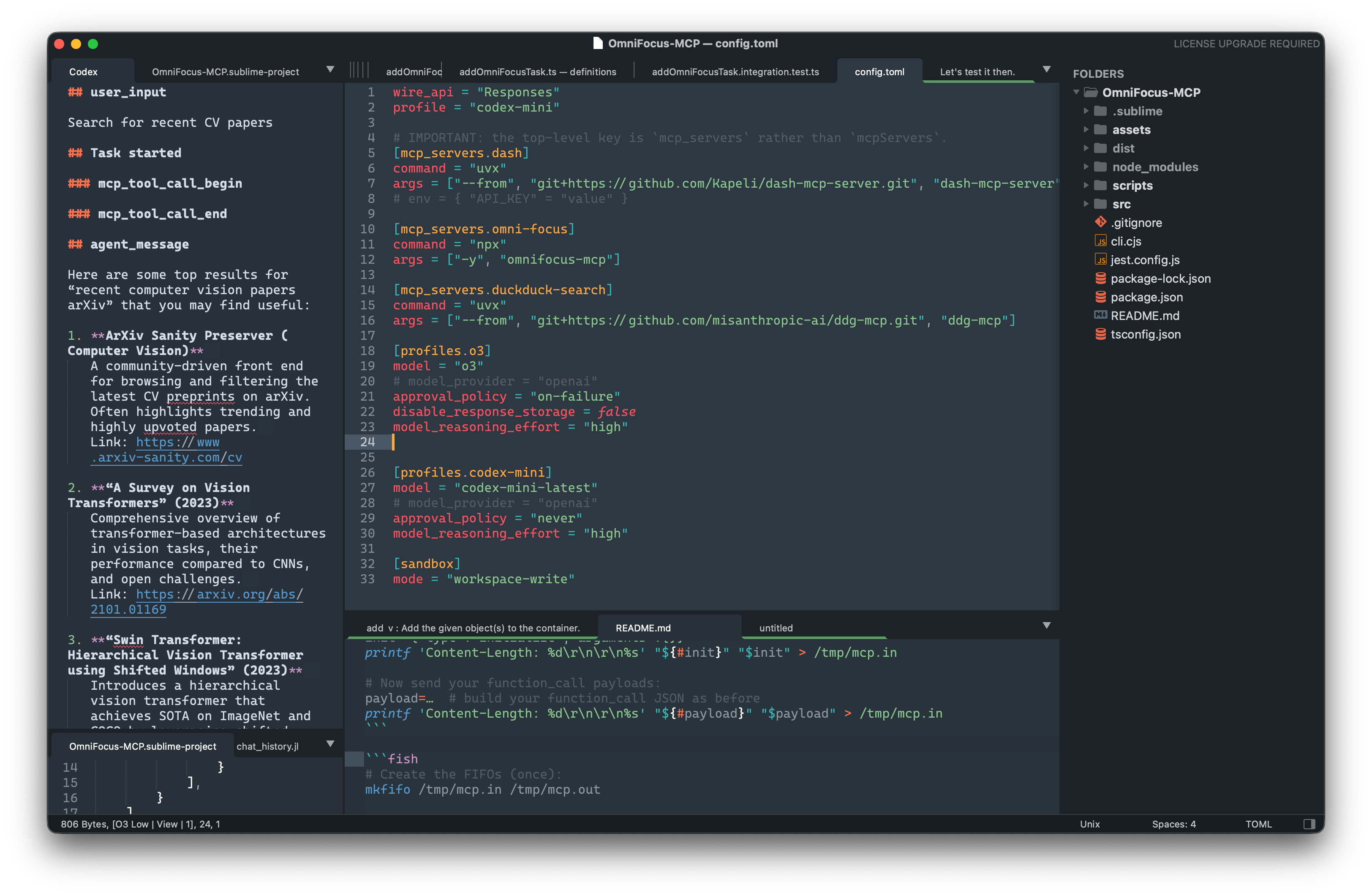
The plug-in spins up a `codex proto` subprocess, shows the conversation in a
Markdown panel and lets you execute three simple commands from the Command
Palette.
---
## Features
- Full Codex capabilities
- Assistant-to-Bash interaction
- Sandboxing (on macOS and Linux)
- Model and provider selection
- MCP support (via `~/.codex/config.toml`)[^1]
- Deep Sublime Text integration
- Multiline input field uses Markdown
- Selected text is auto-copied into the message with syntax applied
- Outputs to either the output panel or a separate tab
- Symbol list included in answers
- Works out of the box[^2].
### Installation
1. **Download Separate Codex instance** (the plug-in talks to the CLI, it is **not** bundled) from [codex releases](https://github.com/openai/codex/releases) version of the codes that equal to this plugin second number (i.e. **0.36.0** as for now).
Point out the downloaded codex binary from within plugin settings:
```jsonc
{
"codex_path": ["~/some_path/codex"],
}
```
2. Plugin installation
1. With Package Control
`Package Control: Install Package` → **Codex**
2. Manual
Clone / download into your `Packages` folder (e.g. `~/Library/Application Support/Sublime Text/Packages/Codex`).
3. Optionally create an OpenAI token and tell the plug-in about it.
*Open the menu* → **Preferences › Package Settings › Codex** and put your
key into the generated `Codex.sublime-settings` file:
```jsonc
{
"token": "sk-…"
// exported to this env var for the Codex CLI
"env_key": "OPENAI_API_KEY"
}
```
That’s it – hit ⌘⇧P / Ctrl ⇧ P, type *Codex*, select one of
the commands and start chatting.
---
## Commands (⌘⇧P)
- **Codex: Prompt** – open a small Markdown panel, type a prompt, hit *Super+Enter*.
- **Codex: Open Transcript** – open the conversation buffer in a normal tab.
- **Codex: Reset Chat** – stop the Codex subprocess, clear the transcript and invalidate the stored `session_id` so the next prompt starts a brand-new session.
---
## Per-project configuration
Every Sublime project can override Codex settings under the usual `settings`
section. Example:
```jsonc
{
"folders": [{ "path": "." }],
"settings": {
"codex": {
// will be filled automatically – delete or set null to reset
"session_id": null,
// model & provider options
"model": "o3",
"provider_name": "openai",
"base_url": "https://api.openai.com/v1",
"wire_api": "responses",
"approval_policy": "on-failure",
// sandbox
"sandbox_mode": "read-only",
"permissions": [
// additional writable paths (project folders are added automatically)
"/Users/me/tmp-extra"
]
,
// Auto-fold specific sections in the transcript by their header
// name (case-insensitive). You can pass a string or a list.
// Example: fold the model's internal reasoning block
// (rendered as "## agent_reasoning").
"fold_sections": ["agent_reasoning"]
}
}
}
```
---
## Writable paths passed to Codex
The plug-in constructs the `sandbox_policy.permissions` list for each session:
1. `/private/tmp`
2. **`cwd`** – the first project folder (or the current working directory if
there is none)
3. **All folders** listed in the Sublime project (visible in the sidebar)
4. Any extra paths you add via `settings.codex.permissions`
Those paths are sent to the CLI unchanged; Codex is free to read/write inside
them depending on the selected `sandbox_mode`.
---
## Default configuration sent to the CLI
The first thing the bridge does is send a `configure_session` message:
```jsonc
{
"id": "",
"op": {
"type": "configure_session",
// model / provider
"model": "codex-mini-latest",
"approval_policy": "on-failure",
"provider": {
"name": "openai",
"base_url": "https://api.openai.com/v1",
"wire_api": "responses",
"env_key": "OPENAI_API_KEY"
},
// sandbox
"sandbox_policy": {
"permissions": [
"disk-full-read-access",
"disk-write-cwd",
"disk-write-platform-global-temp-folder",
"disk-write-platform-user-temp-folder",
{
"disk-write-folder": {"folder": "$HOME/.cache"} // for clangd cache
}
],
"mode": "workspace-write"
},
"cwd": ""
}
}
```
All values can be overridden per-project as shown above.
Enjoy hacking with Codex inside Sublime Text! 🚀
## Code sent to the language model
The plugin only sends the code snippets that you explicitly type or select in the input panel to the language model. It never uploads your entire file, buffer, or project automatically. Local configuration (such as sandbox permissions or project folders) is used only by the CLI to enforce file I/O rules and is not included in the prompt context.
However keep in mind that since this plugin and tool it relays on is agentish, any data from within your sandbox area could be sent to a server.
## Suppressing noisy events
If the Codex backend floods the transcript with incremental updates such as
`agent_reasoning_delta`, add them to the `suppress_events` array in your
project-specific `codex` settings:
```jsonc
{
"suppress_events": ["agent_reasoning_delta"]
}
```
## Auto-folding sections
You can tell the transcript to auto‑fold certain sections by header name. The
match is case-insensitive and can be configured globally or per-project.
- Global (Preferences ▸ Package Settings ▸ Codex ▸ Settings):
```jsonc
{
// ... other settings ...
"fold_sections": ["agent_reasoning"]
}
```
- Per project (`.sublime-project` under `settings.codex`):
```jsonc
{
"settings": {
"codex": {
"fold_sections": ["agent_reasoning"]
}
}
}
```
Notes
- Folding is scope-based and targets the Markdown `meta.section` for that
header. Only the section body is folded, so the header line shows with an
inline ellipsis (row style), e.g.: `## agent_reasoning ...`.
- The fold is applied right after the section is appended. If your syntax
definition delays section scopes, the plugin waits briefly to target the
correct section.
[^1]: https://github.com/openai/codex/blob/main/codex-rs/config.md#mcp_servers
[^2]: If both requirements are met (1) `codex` is installed and (2) token in settings is provided.